> ## Documentation Index
> Fetch the complete documentation index at: https://docs.bellabooking.com/llms.txt
> Use this file to discover all available pages before exploring further.
# Importing Clients from a CSV
> Import your client list into Bella Booking from a spreadsheet — match columns, link family members, and resolve duplicates and invalid records with the guided wizard.
Bring your whole client list into Bella from a spreadsheet. The guided wizard matches your columns automatically, checks every row, and helps you resolve duplicates and fix invalid records before anything is saved — so you start with clean data.
## What Bella recognises
The columns in your file map across automatically — Bella matches common header names, so there's usually nothing to adjust. The only required field is **First name**.
| Column | What it's for |
| --------------------------------------------- | ------------------------------------------------------------------------------------------------ |
| **First name** *(required)* | The client's first name. Rows without one can't be imported. |
| **Last name** | The client's surname. |
| **Email** | Used for confirmations, reminders and marketing (with consent). |
| **Mobile number** | Validated against your business's country. Both local and full international (`+`) formats work. |
| **Date of birth** | Powers birthday greetings. Day/month order follows your business country. |
| **Client notes** | Free-text notes about the client. |
| **Main Client Email** / **Relationship Type** | Links a person to another client as a **family member** (see below). |
**Anything Bella doesn't recognise is kept, not lost.** Unmatched columns from your old system (tags, gender, address parts, internal IDs) are stored as extra details on each client — never mixed into their notes.
## 1. Open the importer
On the **Clients** page, click **Import** (top right, next to **Add client**). You'll need the **Create clients** permission.
 ## 2. Upload your file
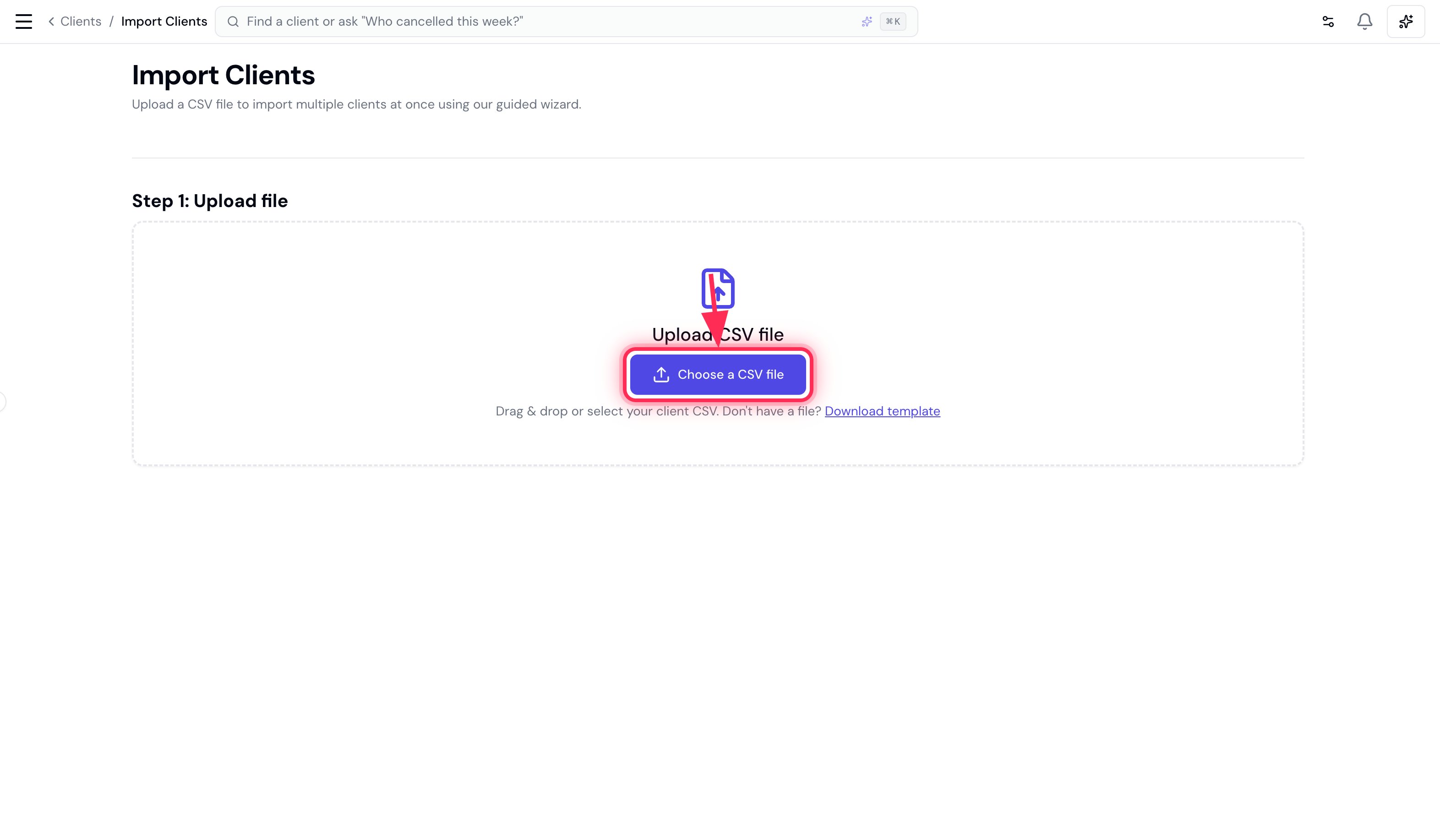
Drag your CSV onto the upload area, or click **Choose a CSV file**.
## 2. Upload your file
Drag your CSV onto the upload area, or click **Choose a CSV file**.
 ## 3. Review column matching
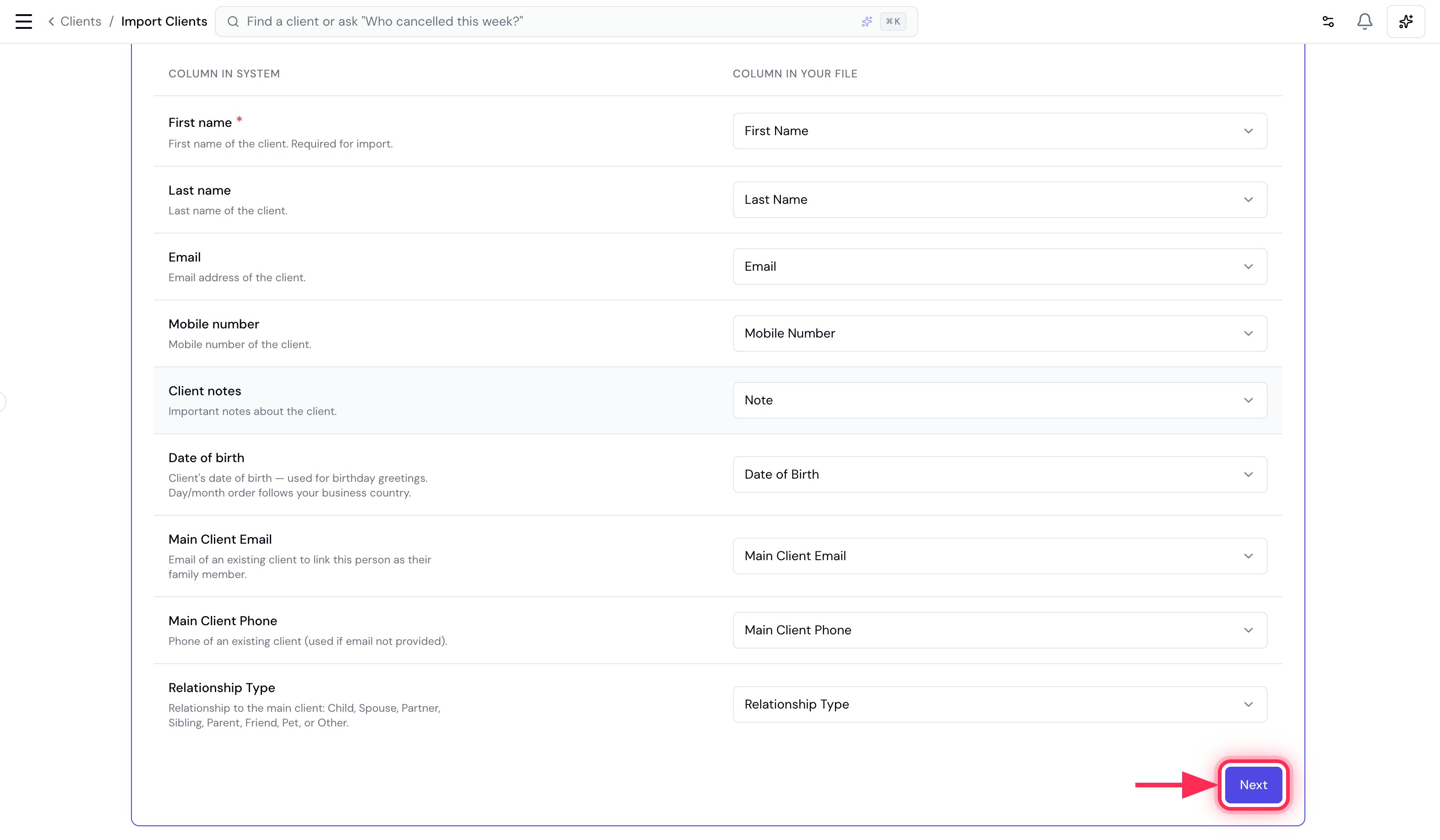
Bella auto-matches each of its fields to a column in your file. Check the matches, adjust any with the dropdowns if needed (the only one that must be set is **First name**), then click **Next**.
## 3. Review column matching
Bella auto-matches each of its fields to a column in your file. Check the matches, adjust any with the dropdowns if needed (the only one that must be set is **First name**), then click **Next**.
 ## 4. Preview and resolve
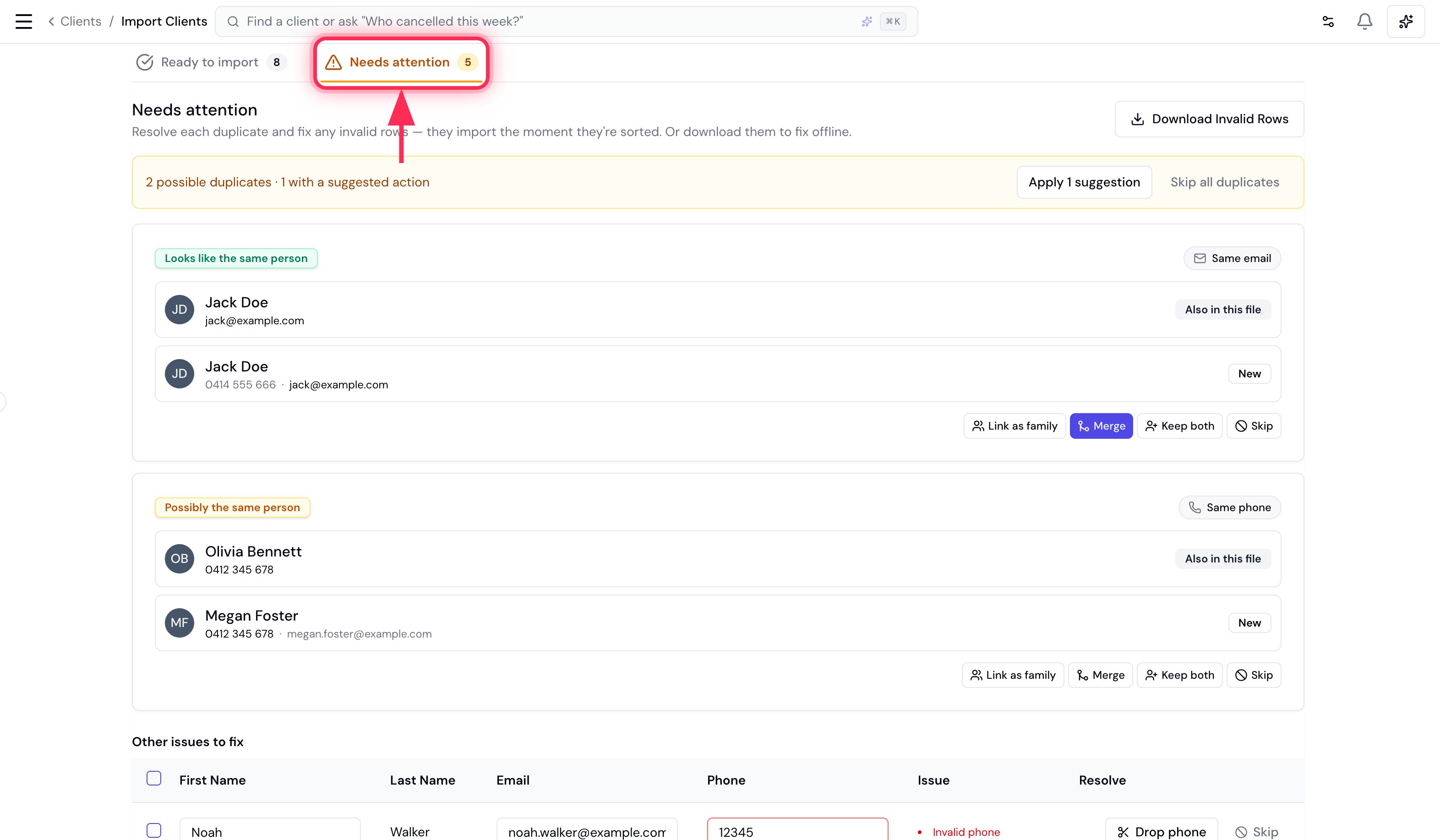
Bella checks every row against your existing clients and against itself, then splits the results into two tabs:
* **Ready to import** — clean rows that will be added.
* **Needs attention** — duplicates and invalid rows. **Nothing here is imported until you sort it out**, and each row joins *Ready to import* the moment it's resolved.
## 4. Preview and resolve
Bella checks every row against your existing clients and against itself, then splits the results into two tabs:
* **Ready to import** — clean rows that will be added.
* **Needs attention** — duplicates and invalid rows. **Nothing here is imported until you sort it out**, and each row joins *Ready to import* the moment it's resolved.
 ### Resolving duplicates
Each possible duplicate is shown as a pair — the row from your file next to the record it clashes with (labelled **Also in this file** or **Already in your account**). Bella tells you *why* they matched (same email or same phone) and suggests an action. You have four choices:
| Action | Use when | What happens |
| ----------------------- | -------------------------------------------------------------------- | ------------------------------------------------------------------------ |
| **Merge — same person** | It's the same person twice | Fills any blank details on the existing record; no duplicate is created. |
| **Link as family** | Different people who share contact details (e.g. a parent and child) | Imports as a separate client, linked as a family member. |
| **Keep both** | Two genuinely separate clients | Imports as a new client *without* the shared email/phone. |
| **Skip** | You don't want this row | The row is dropped. |
Use **Apply suggestions** to accept Bella's recommended action for every suggested duplicate at once, or **Skip all duplicates** to drop them. Resolved cards stay in place (dimmed) with an **Undo**, so you never lose your place.
### Resolving duplicates
Each possible duplicate is shown as a pair — the row from your file next to the record it clashes with (labelled **Also in this file** or **Already in your account**). Bella tells you *why* they matched (same email or same phone) and suggests an action. You have four choices:
| Action | Use when | What happens |
| ----------------------- | -------------------------------------------------------------------- | ------------------------------------------------------------------------ |
| **Merge — same person** | It's the same person twice | Fills any blank details on the existing record; no duplicate is created. |
| **Link as family** | Different people who share contact details (e.g. a parent and child) | Imports as a separate client, linked as a family member. |
| **Keep both** | Two genuinely separate clients | Imports as a new client *without* the shared email/phone. |
| **Skip** | You don't want this row | The row is dropped. |
Use **Apply suggestions** to accept Bella's recommended action for every suggested duplicate at once, or **Skip all duplicates** to drop them. Resolved cards stay in place (dimmed) with an **Undo**, so you never lose your place.
 ### Fixing invalid records
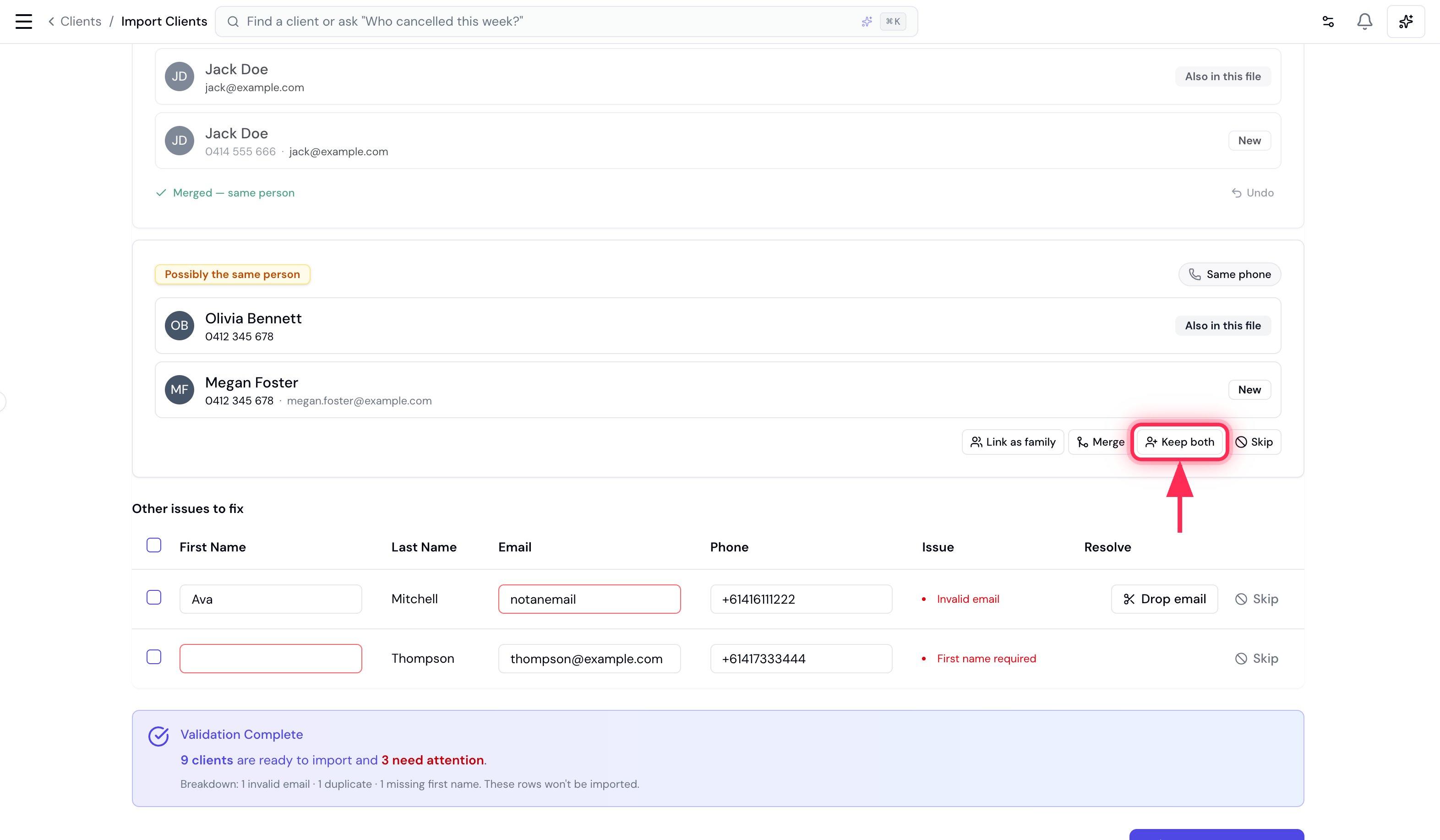
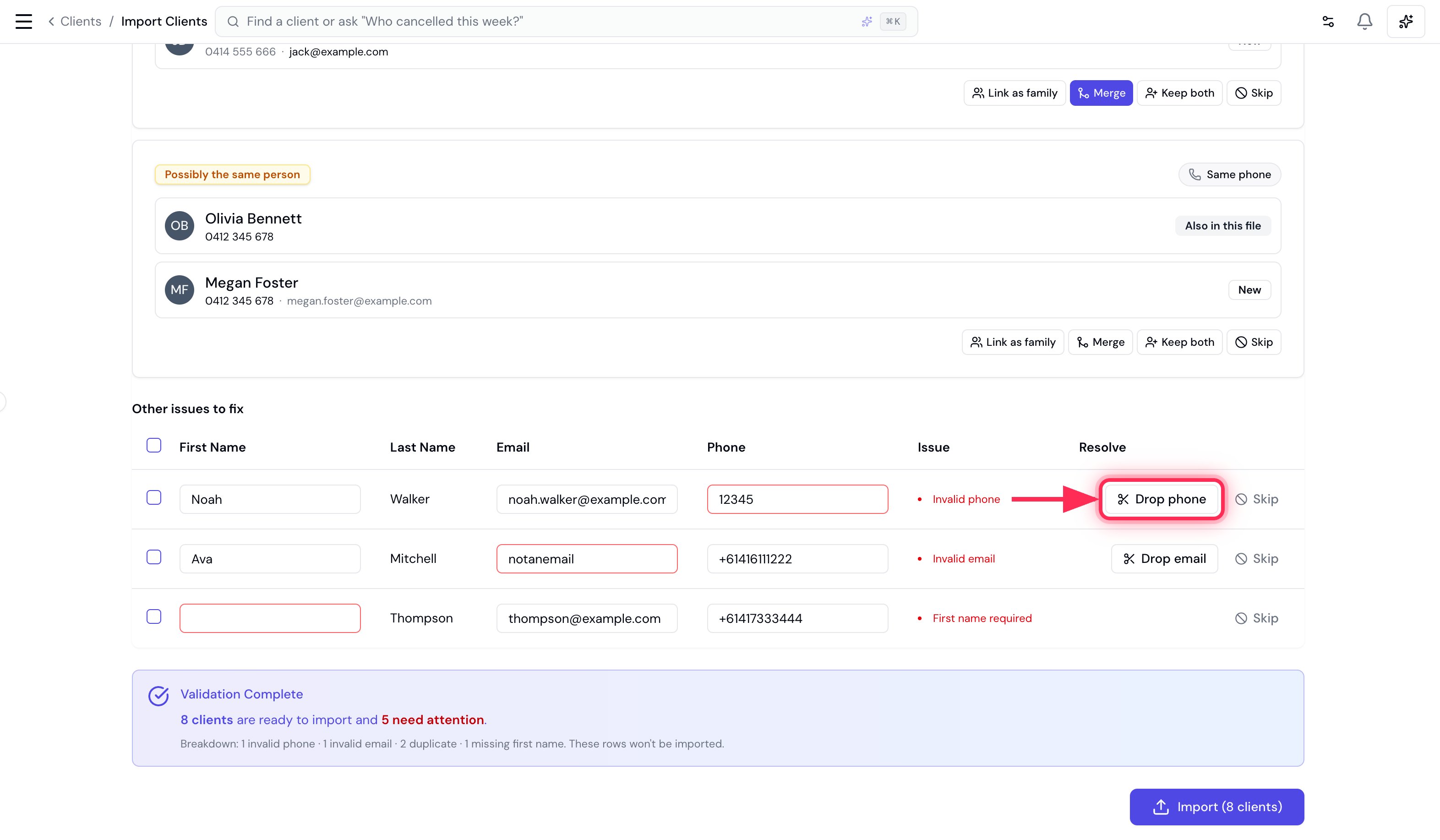
Rows with a bad field appear under **Other issues to fix**. You can:
* **Fix it inline** — type straight into the First name, Email or Phone cell (the problem field is outlined in red). The row turns green and moves to *Ready to import* as soon as it's valid.
* **Drop the bad field** — e.g. **Drop phone** keeps the client but removes the unusable number.
* **Skip** the row entirely.
A **missing first name** can only be fixed (typed in) or skipped — it can't be dropped, because it's required.
### Fixing invalid records
Rows with a bad field appear under **Other issues to fix**. You can:
* **Fix it inline** — type straight into the First name, Email or Phone cell (the problem field is outlined in red). The row turns green and moves to *Ready to import* as soon as it's valid.
* **Drop the bad field** — e.g. **Drop phone** keeps the client but removes the unusable number.
* **Skip** the row entirely.
A **missing first name** can only be fixed (typed in) or skipped — it can't be dropped, because it's required.
 ### Family members
A row with a **Main Client Email** (or **Main Client Phone**) is treated as a family member of that person — so it's never flagged as a duplicate, even when it shares the primary's contact details. Family rows sit under **Ready to import** with their relationship shown, and the link is created when you import. The primary can be elsewhere in the same file or already in your account.
## 5. Import
When **Needs attention** reaches zero (or you're happy to skip what's left), click **Import**.
### Family members
A row with a **Main Client Email** (or **Main Client Phone**) is treated as a family member of that person — so it's never flagged as a duplicate, even when it shares the primary's contact details. Family rows sit under **Ready to import** with their relationship shown, and the link is created when you import. The primary can be elsewhere in the same file or already in your account.
## 5. Import
When **Needs attention** reaches zero (or you're happy to skip what's left), click **Import**.
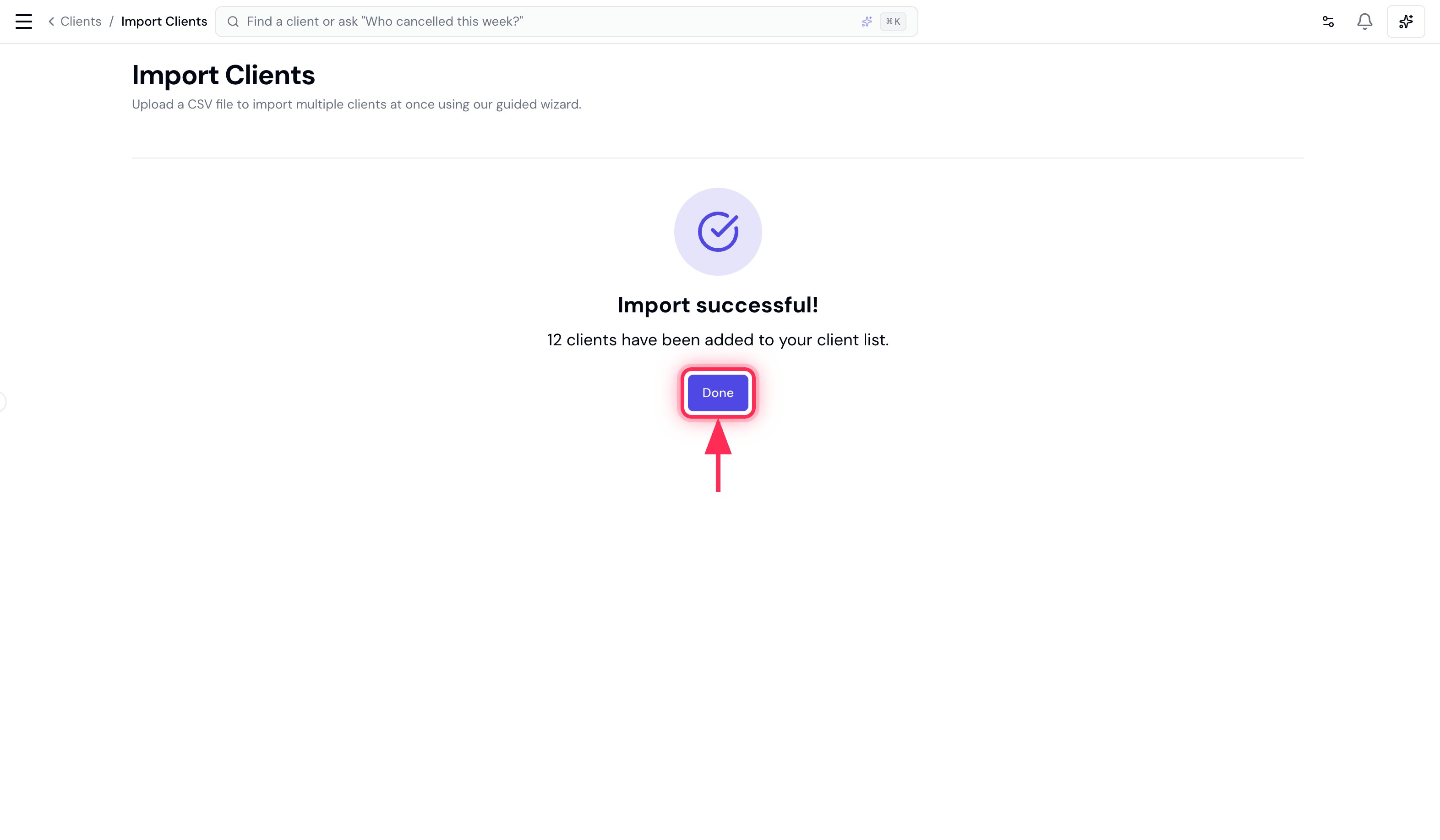
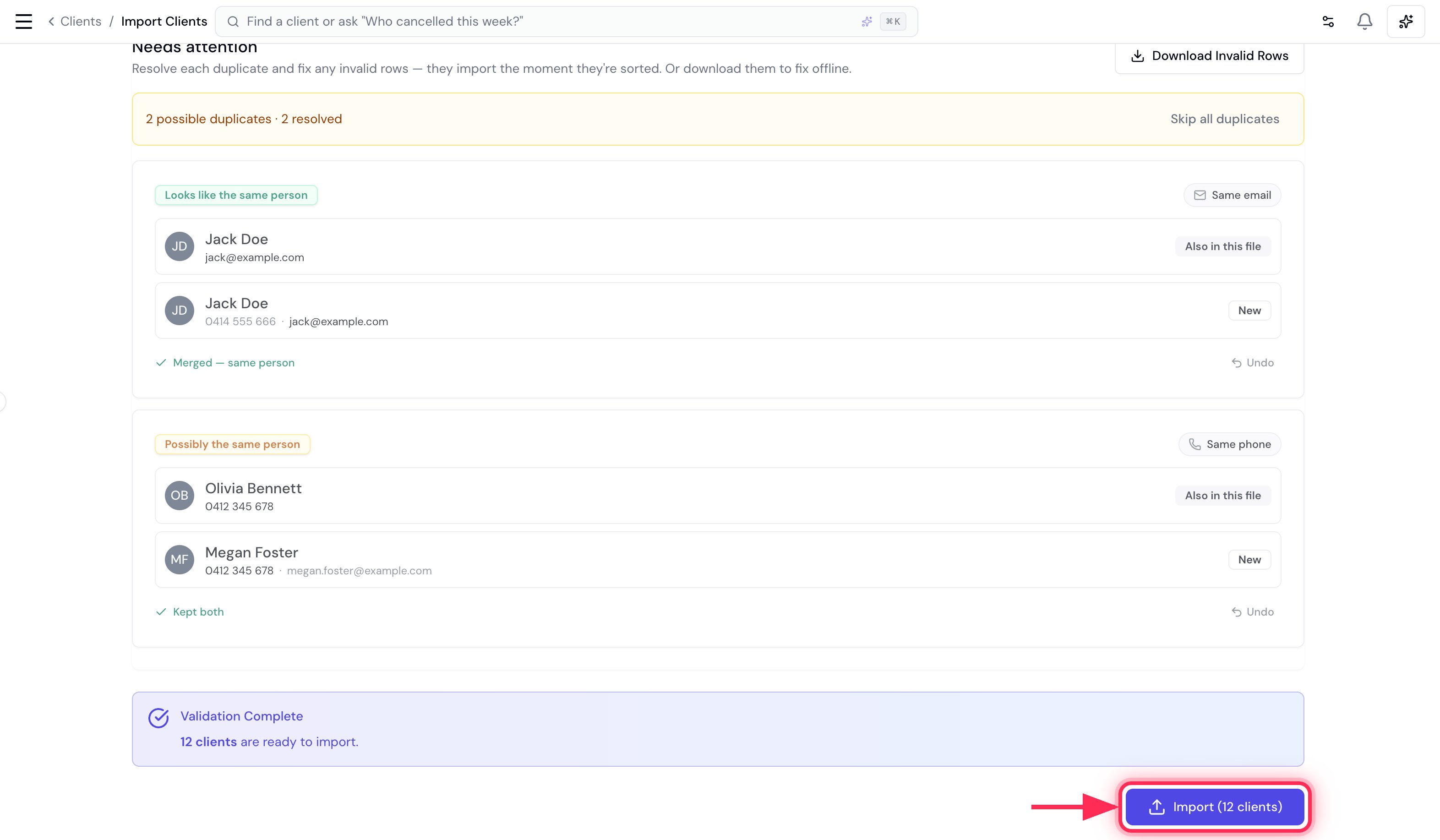 That's it — your clients are added, and any family members are linked to their primary client.
 ## Tips
* **Re-importing is safe.** Run the same file again and the rows you already added show up as duplicates (**Already in your account**) for you to merge or skip — Bella won't silently create copies.
* **Fix offline if you prefer.** Use **Download Invalid Rows** to get just the problem rows as a CSV, correct them in your spreadsheet, and re-upload.
## Tips
* **Re-importing is safe.** Run the same file again and the rows you already added show up as duplicates (**Already in your account**) for you to merge or skip — Bella won't silently create copies.
* **Fix offline if you prefer.** Use **Download Invalid Rows** to get just the problem rows as a CSV, correct them in your spreadsheet, and re-upload.