> ## Documentation Index
> Fetch the complete documentation index at: https://docs.bellabooking.com/llms.txt
> Use this file to discover all available pages before exploring further.
# Gift Cards
> Sell digital gift cards to clients, manage balances, and redeem them at checkout
## Introduction
**Gift cards** let you sell digital gift cards to clients and their friends and family. The recipient's unique gift card code is emailed by default - at the till you can switch the email off to hand the code over yourself - and your team applies it at checkout to pay for appointments, fully or partially.
Gift cards can be sold two ways:
* **From the business dashboard** - your team sells a gift card from the Gift cards screen. Recipient name is required when emailing; when handing the code over in person you can leave the name blank. Email is optional unless you're sending the card. Settle through any in-shop payment method (cash, manual card, other). No Stripe required.
* **From the online booking portal** - clients buy gift cards themselves and pay through Stripe.
Both paths use the same gift card and the same redemption flow.
 **Note:** Online gift card purchases require Stripe payments to be configured for your location. Selling a gift card from the dashboard does not. See [Payments](/settings/payments) for Stripe setup instructions.
***
## Gift card types
Bella Booking supports three types of gift cards:
| Type | Description |
| ----------- | -------------------------------------------------------------------------------------------------------------------------------------------------------------------------------------------------------------------------------------------------------------------------- |
| **Amount** | A dollar-value gift card. The purchaser selects a preset denomination or enters a custom amount. The recipient can use it toward any appointment. |
| **Service** | A gift card for a specific service (e.g., a haircut or facial). The card's value is set to that service's price at the time of purchase, and the service name is shown in the delivery email. |
| **Bundle** | A gift card for a whole bundle (e.g., a "Spa Day" package). The card's value is set to the bundle's fixed total - or, for a bundle priced from its component services, its **"from"** price - at the time of purchase, and the bundle name is shown in the delivery email. |
Whichever the type, the card is issued as a balance the recipient redeems at checkout like any other gift card - a Service or Bundle card simply has its value pre-set to that service or bundle's **catalogue price**. A location-level [appointment fee](/settings/booking-policies#appointment-fee) is not loaded onto the gift card value because the voucher represents the service or bundle itself. If the fee applies when the recipient books, it remains on the appointment as a separate line, and the gift card balance can pay it.
Which types are available depends on your [Gift Card Settings](/settings/gift-cards). Service and bundle gift cards each have their own setting to switch them on.
***
## Key features
* **Sell from the business dashboard**: Your team sells a gift card from the Gift cards screen and settles through cash, manual card, or other - no Stripe Checkout needed
* **Online purchase**: Clients buy gift cards through your online booking portal (Stripe required)
* **Three gift card types**: Dollar-value amounts, a specific service, or a whole bundle (service and bundle cards can be sold from the dashboard or purchased online)
* **Gift card designs**: Six built-in designs (Classic, Birthday, Thank You, Congratulations, Holiday, Floral) plus custom uploads - you can hide the built-ins in gift card settings so clients only see your customs
* **Email delivery**: Recipients are emailed their gift card code by default - at the till you can switch the email off to hand the code over yourself; online purchases are always emailed
* **Partial redemption**: Gift cards can be used across multiple appointments until the balance runs out
* **Balance tracking**: Full redemption history shows how and when a gift card was used
* **Voiding**: Cancel an active gift card if needed
* **Preset denominations**: Set common amounts (e.g., $25, $50, \$100) for easy selection
* **Custom amounts**: Optionally allow clients to enter any amount within a range you define
* **Online redemption at booking**: Clients can apply gift cards when booking online to cover the deposit or full payment
* **My Gift cards portal**: Clients can view their gift cards and balances from the online booking portal
***
## How gift cards work
1. A gift card is sold - either by your team from the business dashboard or by a client purchasing online via Stripe
2. The recipient gets a unique gift card code - Bella generates one (for example `BELLA-A2K9-M7L3`) unless your team entered the code from a physical card at the till. The code is emailed by default; at the till you can switch the email off and hand it over yourself. Online purchases are always emailed a generated code
3. When the recipient comes in, your team enters the gift card code at checkout
4. The gift card balance is applied to the appointment total
5. If the balance doesn't cover the full amount, the remainder is charged via another payment method
6. The gift card can be used across multiple appointments until the balance is exhausted
***
## My gift cards (client portal)
Clients can view all their gift cards - purchased for them or by them - from the **My Gift cards** page in the online booking portal. This page is accessible from the user menu after logging in.
For each gift card, clients can see:
* Gift card code and design
* Original amount and remaining balance
* Status (Active, Redeemed, Expired)
* Expiry date (if applicable)
* Sender and personal message
This gives clients self-service visibility into their gift card balances without needing to contact your business.
***
## Selling a gift card from the business dashboard
You can sell a gift card three ways, and all three record it as a normal sale - it appears in your
**Sales** list, on the client's record, and in every report alongside everything else you sell:
* **On an appointment checkout** - the client buys a voucher while paying for their appointment. One
transaction, one receipt, one payment. See [Adding a gift card to a sale](#adding-a-gift-card-to-a-sale).
* **On a walk-in sale** - from **Add sale**, alongside products, custom items and packages.
* **From the Gift cards screen** - the quickest route when a gift card is all you're selling.
Your team can sell a gift card directly from the **Gift cards** screen. The card is activated immediately and the recipient is emailed the code by default - switch the email off to hand the code over yourself, and it's displayed after the sale for you to share. When you sell a physical card, enter or scan its printed code so the same code works in Bella, on the card, and at checkout (including online booking).
### Sell steps
1. Go to **Sales** → **Gift cards** in the sidebar
2. Click **Sell gift card** (top-right)
3. In the dialog:
* **Amount**, **Service**, or **Bundle** - choose a preset denomination, enter a custom amount, pick an eligible service, or pick an eligible bundle. The **Service** and **Bundle** tabs appear only when those gift-card types are switched on in settings; a Service or Bundle card is priced automatically at that service's or bundle's price
* **Card code** *(optional)*: Scan or type the code printed on a physical card. Leave this blank and Bella generates a code (for example `BELLA-A2K9-M7L3`). A USB or Bluetooth barcode scanner that types like a keyboard works in this field - click the field first. Online purchases always get a generated code
* **Email gift card to recipient**: On by default. Turn this off for surprise or physical gifts - the code is shown after sale so you can share it yourself
* **Recipient name**: Who the gift card is for (free text - they don't need to be a Bella client). Required when emailing; optional when handing the code over in person - leave blank if you don't know who the card is for
* **Recipient email**: Required when emailing; optional when handing the code over in person
* **Personal message** *(optional)*
* **Payment method**: Cash, Card (Manual), or Other - how the sale was settled
4. Click **Sell gift card**
5. The new gift card opens - the code is displayed prominently for reference
Track gift card sales, payment methods collected (cash / card / other / online), redemptions, and outstanding balances in the **Gift card summary** report (**Reports → Gift card summary**).
***
## Adding a gift card to a sale
A client having a service who also wants to buy a voucher for someone else doesn't need two separate
transactions. Add the gift card to the sale they're already paying, and they pay once for the lot.
1. Open the appointment and click **Check out** - or start a walk-in sale with **Add sale**.
2. Under **Items**, click **Add item** and choose **Gift card**.
3. Fill in the same details as a standalone sale: amount, service or bundle; whether to email the code or
hand it over; recipient name and email; an optional personal message; an optional physical card code.
4. Click **Add to sale**. The gift card appears as its own line and is added to the total.
5. Take payment as usual. The card is created and activated when the sale completes - not before, so a
declined payment never leaves a live gift card behind.
**Good to know:**
* **The gift card is never discounted.** An appointment discount, a reward, a membership benefit or a
package all apply to the services and products on the bill - never to a voucher. A $100 gift card always
costs $100, so you never hand over more value than you charged for.
* **Gift cards and account credit can't buy a gift card.** Both are stored value the client already holds;
Bella won't convert one into a new voucher. They still pay for the rest of the sale as normal.
* **No tax is charged when the card is bought.** Tax applies when the card is spent, on the service it
pays for - so the same money is never taxed twice. This is how vouchers are treated in Australia, New
Zealand, Canada, the US, the UK and the EU alike.
* **The code prints on the receipt**, so a card handed over in person is usable straight away.
* **Refund the sale and the card is voided**, so a balance whose money you've given back can't be spent.
Anything already redeemed from it stays redeemed.
***
## Purchasing a gift card online
Gift cards can also be purchased through your public online booking portal by clients or anyone wanting to give a gift.
### Purchase steps
1. Go to the gift cards section of your online booking portal
2. Choose a design - pick from built-in designs and/or any custom designs your business has uploaded (built-ins are omitted when the business has hidden them in gift card settings)
3. Select the gift card type:
* **Amount**: Select a preset denomination or enter a custom amount (if enabled)
* **Service**: Select a service to gift
* **Bundle**: Pick an eligible bundle to gift - the card's value is set to the bundle's fixed total, or its "from" price for a component-priced bundle
The **Service** and **Bundle** options appear only when those gift-card types are switched on in [Gift Card Settings](/settings/gift-cards) and at least one service or bundle is eligible.
4. Fill in the details:
* **Recipient name**: Who the gift card is for
* **Recipient email**: Where the gift card code will be sent
* **Your name**: Displayed to the recipient as the sender
* **Personal message** *(optional)*: A message included in the delivery email
5. Complete payment via Stripe
6. Once payment is confirmed, the recipient receives their gift card by email
**Note:** Gift card purchases are non-refundable.
***
## Redeeming a gift card at checkout
Your team applies a gift card code when checking out an appointment.
### How to redeem
1. Open an appointment and click **Check Out**
2. In the payment section, enter the client's gift card code
3. The system verifies the code and shows the available balance
4. Enter the amount to redeem (up to the remaining balance or the appointment total, whichever is lower)
5. The gift card amount is deducted from the total
6. If a remaining balance is owed, select another payment method (cash, card, etc.) to cover it
7. Complete the checkout
### Partial redemption
Gift cards support partial redemption. If a client has a $100 gift card and their appointment costs $60, the gift card balance reduces to \$40 and can be used again at their next appointment.
### Fully redeemed
When the balance reaches \$0, the gift card status automatically changes to **Redeemed** and can no longer be used.
### When a gift card was applied at online booking
If a client applied a gift card while booking online, that amount is **drawn from the card at booking** and put toward the appointment. When you check the appointment out, Bella shows that amount as **already applied** and asks you to collect only the remainder - the client is **never charged the drawn amount again** at the till.
**Worked example 4 - a gift card applied online.** A client books a **$120** appointment and applies a **$50** gift card during online booking.
1. At booking, \$50 is drawn from the gift card and put toward the appointment.
2. At the till, checkout shows **"$50 already applied (gift card, online)"** and a remaining balance of **$70** to collect.
3. You settle the \*\*$70** by the client's chosen method (cash, card, or another gift card). The client is **not** charged the original $50 a second time.
If the appointment is later **cancelled or refunded**, the \$50 drawn at booking is **restored** to the gift card, so the balance is never lost.
Because a gift card is a **dollar instrument**, it can also pay for **add-on charges** - unlike memberships, packages, and per-line discounts, which cover the base service price only. A gift card simply reduces whatever remains on the appointment total, including an active appointment fee.
***
## Managing gift cards
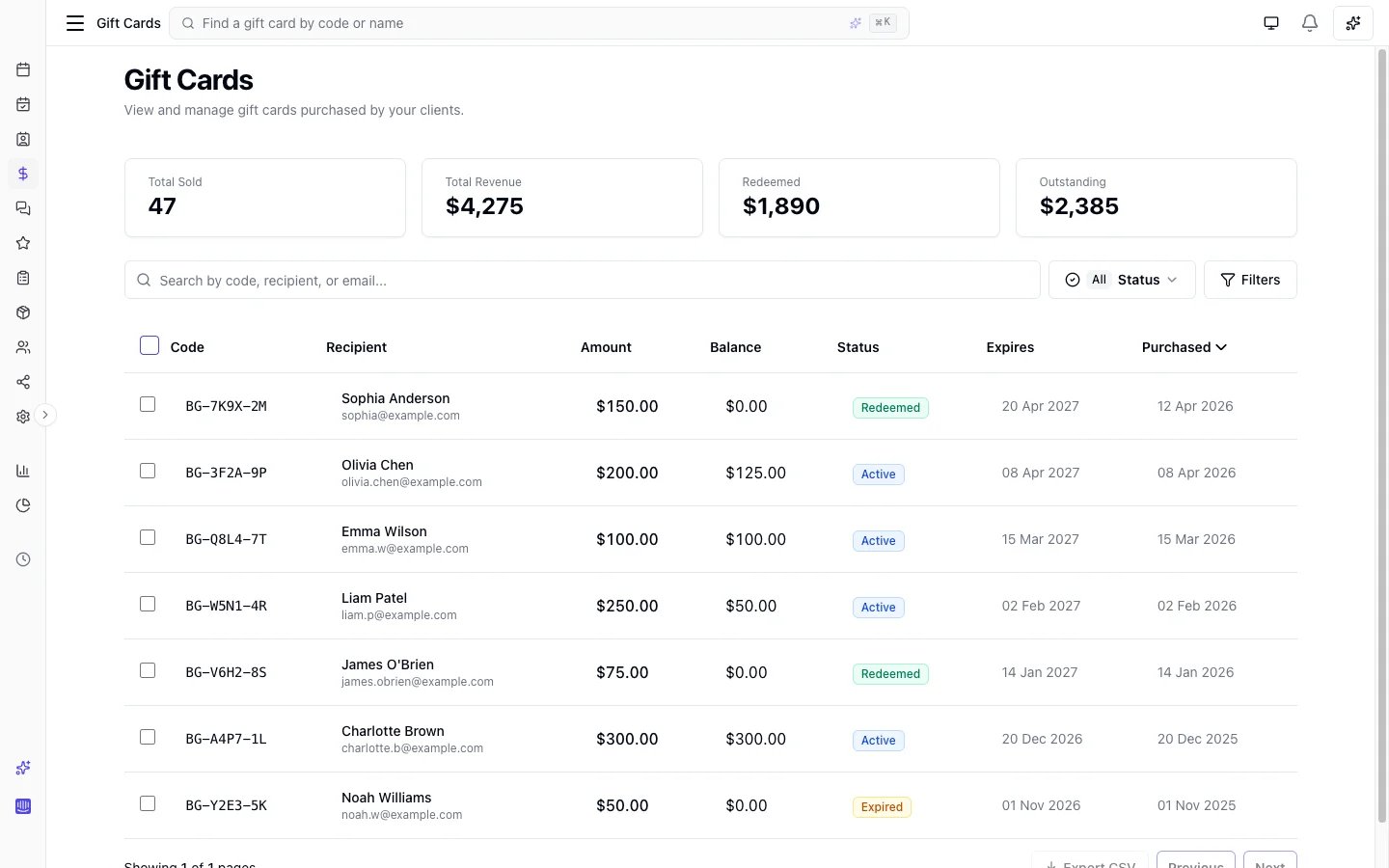
The **Gift cards** section in the dashboard lets you search, view, and manage all gift cards for your location.
### Searching and filtering
1. Go to **Sales** → **Gift cards** in the sidebar
2. Use the search bar to find by code, recipient name, or recipient email
3. Filter by one or more statuses: **Active**, **Redeemed**, **Expired**, or **Voided**
4. Filter by type: **All**, **Amount**, **Service**, or **Bundle**
Summary statistics are displayed at the top of the page:
| Statistic | Description |
| ------------- | --------------------------------------------------------- |
| Total sold | Number of gift cards successfully issued |
| Total revenue | Combined purchase value of all issued gift cards |
| Redeemed | Total amount that has been redeemed across all gift cards |
| Outstanding | Total remaining balance across all active gift cards |
### Viewing a gift card
Click any gift card in the list to open its detail view, which shows:
* Gift card code and type
* Original amount and remaining balance
* Recipient and sender details
* Personal message (if provided)
* Purchase date and expiry date
* Status
* Full redemption history - date, amount redeemed, and appointment reference for each use
### Voiding a gift card
If you need to cancel a gift card - for example, if it was purchased in error - you can void it.
1. Open the gift card detail page
2. Click **Void**
3. Confirm the action
**Note:** Only **Active** gift cards can be voided. Voiding is permanent - the remaining balance is forfeited and the gift card can no longer be redeemed.
***
## Gift card statuses
| Status | Meaning |
| ------------ | ---------------------------------------------------- |
| **Active** | Valid and ready to redeem - has a remaining balance |
| **Redeemed** | Fully used - balance has reached \$0 |
| **Expired** | Expiry date has passed - can no longer be redeemed |
| **Voided** | Cancelled by your team - remaining balance forfeited |
***
## Gift card summary report
The **Gift card summary** report gives you a day-by-day breakdown of gift card activity over any date range, including cards sold, amounts collected by payment method (cash, card, other, online), amounts redeemed, and outstanding balances. Use the payment-method columns to reconcile the till. It also supports comparison mode to measure performance against a previous period or the same period last year.
To access it, go to **Reports** > **Gift card summary**.
***
## FAQs
**Q: What is the difference between an Amount, a Service, and a Bundle gift card?**
A: An Amount gift card is a dollar-value card the recipient can use toward any appointment. A Service gift card gifts a specific service - its value is set to that service's price at the time of purchase and the service name appears in the delivery email. A Bundle gift card gifts a whole bundle - its value is set to the bundle's fixed total, or its "from" price for a bundle priced from its component services, and the bundle name appears in the delivery email. Whatever the type, a gift card is a **dollar instrument**: the type records what was gifted, not a restriction on how the balance is spent - the recipient can use it toward any appointment, including add-on charges. All three are issued as a balance and redeemed at checkout the same way. Service and Bundle gift cards are each switched on separately in [Gift Card Settings](/settings/gift-cards) and can be sold from the business dashboard or purchased online.
**Q: Can I use my own codes for gift cards we sell?**
A: Yes - at the till only. When you click **Sell gift card**, the optional **Card code** field lets you scan or type the code printed on a physical card (letters, numbers, and hyphens, 6-50 characters). Leave it blank and Bella generates a code. Online purchases always get a generated code. Each code must be unique; if you void a card sold by mistake, you can sell that physical code again.
**Q: Can a gift card be used across multiple appointments?**
A: Yes. Gift cards support partial redemption and can be used until the balance is exhausted.
**Q: What if the gift card balance is more than the appointment total?**
A: Only the amount needed is deducted. The remaining balance stays on the gift card for future use.
**Q: What if the gift card balance is less than the appointment total?**
A: The gift card amount is applied and the remaining total is charged via another payment method (cash, card, etc.).
**Q: What happens when a gift card expires?**
A: Expired gift cards cannot be redeemed. The expiry date is shown to the recipient in their delivery email.
**Q: Who can void a gift card?**
A: Team members with the appropriate permission can void gift cards. By default, Owners and Admins have this permission.
**Q: Can clients see their gift card balances online?**
A: Yes. Clients can view all their gift cards and remaining balances from the **My Gift cards** page in the online booking portal (accessible from the user menu after logging in).
**Q: Can clients use gift cards when booking online?**
A: Yes. When booking online, clients can apply a gift card at the payment step to cover the deposit or the full booking amount. If the gift card balance doesn't cover the total, the remainder is charged via card.
**Q: A client applied a gift card online - am I charging them for it again at the till?**
A: No. The amount the client applied online is drawn from the card at booking and put toward the appointment. At checkout, that amount shows as **"already applied (gift card, online)"** and Bella asks you to collect only the remainder - for example, a $50 gift card applied to a $120 appointment leaves $70 to collect, not $120. If the appointment is cancelled or refunded, the drawn amount is restored to the card. See [When a gift card was applied at online booking](#when-a-gift-card-was-applied-at-online-booking).
**Q: Can a gift card pay for add-on charges?**
A: Yes. A gift card is a dollar instrument, so it can go toward any part of the appointment total - including add-ons. This is different from memberships, packages, and per-line discounts, which only cover the base service price.
**Q: How do I enable gift cards?**
A: Go to **Settings** > **Gift cards** to enable the feature and configure your options. See [Gift Card Settings](/settings/gift-cards).
***
To enable and configure gift cards, see [Gift Card Settings](/settings/gift-cards).
To configure the automated delivery email sent to recipients, see [Automated messages](/settings/automated-messages).
For a client-bound alternative to bearer gift-card codes - one top-up balance per client, applied automatically without a code - see [Client credit](/client-credit).
**Note:** Online gift card purchases require Stripe payments to be configured for your location. Selling a gift card from the dashboard does not. See [Payments](/settings/payments) for Stripe setup instructions.
***
## Gift card types
Bella Booking supports three types of gift cards:
| Type | Description |
| ----------- | -------------------------------------------------------------------------------------------------------------------------------------------------------------------------------------------------------------------------------------------------------------------------- |
| **Amount** | A dollar-value gift card. The purchaser selects a preset denomination or enters a custom amount. The recipient can use it toward any appointment. |
| **Service** | A gift card for a specific service (e.g., a haircut or facial). The card's value is set to that service's price at the time of purchase, and the service name is shown in the delivery email. |
| **Bundle** | A gift card for a whole bundle (e.g., a "Spa Day" package). The card's value is set to the bundle's fixed total - or, for a bundle priced from its component services, its **"from"** price - at the time of purchase, and the bundle name is shown in the delivery email. |
Whichever the type, the card is issued as a balance the recipient redeems at checkout like any other gift card - a Service or Bundle card simply has its value pre-set to that service or bundle's **catalogue price**. A location-level [appointment fee](/settings/booking-policies#appointment-fee) is not loaded onto the gift card value because the voucher represents the service or bundle itself. If the fee applies when the recipient books, it remains on the appointment as a separate line, and the gift card balance can pay it.
Which types are available depends on your [Gift Card Settings](/settings/gift-cards). Service and bundle gift cards each have their own setting to switch them on.
***
## Key features
* **Sell from the business dashboard**: Your team sells a gift card from the Gift cards screen and settles through cash, manual card, or other - no Stripe Checkout needed
* **Online purchase**: Clients buy gift cards through your online booking portal (Stripe required)
* **Three gift card types**: Dollar-value amounts, a specific service, or a whole bundle (service and bundle cards can be sold from the dashboard or purchased online)
* **Gift card designs**: Six built-in designs (Classic, Birthday, Thank You, Congratulations, Holiday, Floral) plus custom uploads - you can hide the built-ins in gift card settings so clients only see your customs
* **Email delivery**: Recipients are emailed their gift card code by default - at the till you can switch the email off to hand the code over yourself; online purchases are always emailed
* **Partial redemption**: Gift cards can be used across multiple appointments until the balance runs out
* **Balance tracking**: Full redemption history shows how and when a gift card was used
* **Voiding**: Cancel an active gift card if needed
* **Preset denominations**: Set common amounts (e.g., $25, $50, \$100) for easy selection
* **Custom amounts**: Optionally allow clients to enter any amount within a range you define
* **Online redemption at booking**: Clients can apply gift cards when booking online to cover the deposit or full payment
* **My Gift cards portal**: Clients can view their gift cards and balances from the online booking portal
***
## How gift cards work
1. A gift card is sold - either by your team from the business dashboard or by a client purchasing online via Stripe
2. The recipient gets a unique gift card code - Bella generates one (for example `BELLA-A2K9-M7L3`) unless your team entered the code from a physical card at the till. The code is emailed by default; at the till you can switch the email off and hand it over yourself. Online purchases are always emailed a generated code
3. When the recipient comes in, your team enters the gift card code at checkout
4. The gift card balance is applied to the appointment total
5. If the balance doesn't cover the full amount, the remainder is charged via another payment method
6. The gift card can be used across multiple appointments until the balance is exhausted
***
## My gift cards (client portal)
Clients can view all their gift cards - purchased for them or by them - from the **My Gift cards** page in the online booking portal. This page is accessible from the user menu after logging in.
For each gift card, clients can see:
* Gift card code and design
* Original amount and remaining balance
* Status (Active, Redeemed, Expired)
* Expiry date (if applicable)
* Sender and personal message
This gives clients self-service visibility into their gift card balances without needing to contact your business.
***
## Selling a gift card from the business dashboard
You can sell a gift card three ways, and all three record it as a normal sale - it appears in your
**Sales** list, on the client's record, and in every report alongside everything else you sell:
* **On an appointment checkout** - the client buys a voucher while paying for their appointment. One
transaction, one receipt, one payment. See [Adding a gift card to a sale](#adding-a-gift-card-to-a-sale).
* **On a walk-in sale** - from **Add sale**, alongside products, custom items and packages.
* **From the Gift cards screen** - the quickest route when a gift card is all you're selling.
Your team can sell a gift card directly from the **Gift cards** screen. The card is activated immediately and the recipient is emailed the code by default - switch the email off to hand the code over yourself, and it's displayed after the sale for you to share. When you sell a physical card, enter or scan its printed code so the same code works in Bella, on the card, and at checkout (including online booking).
### Sell steps
1. Go to **Sales** → **Gift cards** in the sidebar
2. Click **Sell gift card** (top-right)
3. In the dialog:
* **Amount**, **Service**, or **Bundle** - choose a preset denomination, enter a custom amount, pick an eligible service, or pick an eligible bundle. The **Service** and **Bundle** tabs appear only when those gift-card types are switched on in settings; a Service or Bundle card is priced automatically at that service's or bundle's price
* **Card code** *(optional)*: Scan or type the code printed on a physical card. Leave this blank and Bella generates a code (for example `BELLA-A2K9-M7L3`). A USB or Bluetooth barcode scanner that types like a keyboard works in this field - click the field first. Online purchases always get a generated code
* **Email gift card to recipient**: On by default. Turn this off for surprise or physical gifts - the code is shown after sale so you can share it yourself
* **Recipient name**: Who the gift card is for (free text - they don't need to be a Bella client). Required when emailing; optional when handing the code over in person - leave blank if you don't know who the card is for
* **Recipient email**: Required when emailing; optional when handing the code over in person
* **Personal message** *(optional)*
* **Payment method**: Cash, Card (Manual), or Other - how the sale was settled
4. Click **Sell gift card**
5. The new gift card opens - the code is displayed prominently for reference
Track gift card sales, payment methods collected (cash / card / other / online), redemptions, and outstanding balances in the **Gift card summary** report (**Reports → Gift card summary**).
***
## Adding a gift card to a sale
A client having a service who also wants to buy a voucher for someone else doesn't need two separate
transactions. Add the gift card to the sale they're already paying, and they pay once for the lot.
1. Open the appointment and click **Check out** - or start a walk-in sale with **Add sale**.
2. Under **Items**, click **Add item** and choose **Gift card**.
3. Fill in the same details as a standalone sale: amount, service or bundle; whether to email the code or
hand it over; recipient name and email; an optional personal message; an optional physical card code.
4. Click **Add to sale**. The gift card appears as its own line and is added to the total.
5. Take payment as usual. The card is created and activated when the sale completes - not before, so a
declined payment never leaves a live gift card behind.
**Good to know:**
* **The gift card is never discounted.** An appointment discount, a reward, a membership benefit or a
package all apply to the services and products on the bill - never to a voucher. A $100 gift card always
costs $100, so you never hand over more value than you charged for.
* **Gift cards and account credit can't buy a gift card.** Both are stored value the client already holds;
Bella won't convert one into a new voucher. They still pay for the rest of the sale as normal.
* **No tax is charged when the card is bought.** Tax applies when the card is spent, on the service it
pays for - so the same money is never taxed twice. This is how vouchers are treated in Australia, New
Zealand, Canada, the US, the UK and the EU alike.
* **The code prints on the receipt**, so a card handed over in person is usable straight away.
* **Refund the sale and the card is voided**, so a balance whose money you've given back can't be spent.
Anything already redeemed from it stays redeemed.
***
## Purchasing a gift card online
Gift cards can also be purchased through your public online booking portal by clients or anyone wanting to give a gift.
### Purchase steps
1. Go to the gift cards section of your online booking portal
2. Choose a design - pick from built-in designs and/or any custom designs your business has uploaded (built-ins are omitted when the business has hidden them in gift card settings)
3. Select the gift card type:
* **Amount**: Select a preset denomination or enter a custom amount (if enabled)
* **Service**: Select a service to gift
* **Bundle**: Pick an eligible bundle to gift - the card's value is set to the bundle's fixed total, or its "from" price for a component-priced bundle
The **Service** and **Bundle** options appear only when those gift-card types are switched on in [Gift Card Settings](/settings/gift-cards) and at least one service or bundle is eligible.
4. Fill in the details:
* **Recipient name**: Who the gift card is for
* **Recipient email**: Where the gift card code will be sent
* **Your name**: Displayed to the recipient as the sender
* **Personal message** *(optional)*: A message included in the delivery email
5. Complete payment via Stripe
6. Once payment is confirmed, the recipient receives their gift card by email
**Note:** Gift card purchases are non-refundable.
***
## Redeeming a gift card at checkout
Your team applies a gift card code when checking out an appointment.
### How to redeem
1. Open an appointment and click **Check Out**
2. In the payment section, enter the client's gift card code
3. The system verifies the code and shows the available balance
4. Enter the amount to redeem (up to the remaining balance or the appointment total, whichever is lower)
5. The gift card amount is deducted from the total
6. If a remaining balance is owed, select another payment method (cash, card, etc.) to cover it
7. Complete the checkout
### Partial redemption
Gift cards support partial redemption. If a client has a $100 gift card and their appointment costs $60, the gift card balance reduces to \$40 and can be used again at their next appointment.
### Fully redeemed
When the balance reaches \$0, the gift card status automatically changes to **Redeemed** and can no longer be used.
### When a gift card was applied at online booking
If a client applied a gift card while booking online, that amount is **drawn from the card at booking** and put toward the appointment. When you check the appointment out, Bella shows that amount as **already applied** and asks you to collect only the remainder - the client is **never charged the drawn amount again** at the till.
**Worked example 4 - a gift card applied online.** A client books a **$120** appointment and applies a **$50** gift card during online booking.
1. At booking, \$50 is drawn from the gift card and put toward the appointment.
2. At the till, checkout shows **"$50 already applied (gift card, online)"** and a remaining balance of **$70** to collect.
3. You settle the \*\*$70** by the client's chosen method (cash, card, or another gift card). The client is **not** charged the original $50 a second time.
If the appointment is later **cancelled or refunded**, the \$50 drawn at booking is **restored** to the gift card, so the balance is never lost.
Because a gift card is a **dollar instrument**, it can also pay for **add-on charges** - unlike memberships, packages, and per-line discounts, which cover the base service price only. A gift card simply reduces whatever remains on the appointment total, including an active appointment fee.
***
## Managing gift cards
The **Gift cards** section in the dashboard lets you search, view, and manage all gift cards for your location.
### Searching and filtering
1. Go to **Sales** → **Gift cards** in the sidebar
2. Use the search bar to find by code, recipient name, or recipient email
3. Filter by one or more statuses: **Active**, **Redeemed**, **Expired**, or **Voided**
4. Filter by type: **All**, **Amount**, **Service**, or **Bundle**
Summary statistics are displayed at the top of the page:
| Statistic | Description |
| ------------- | --------------------------------------------------------- |
| Total sold | Number of gift cards successfully issued |
| Total revenue | Combined purchase value of all issued gift cards |
| Redeemed | Total amount that has been redeemed across all gift cards |
| Outstanding | Total remaining balance across all active gift cards |
### Viewing a gift card
Click any gift card in the list to open its detail view, which shows:
* Gift card code and type
* Original amount and remaining balance
* Recipient and sender details
* Personal message (if provided)
* Purchase date and expiry date
* Status
* Full redemption history - date, amount redeemed, and appointment reference for each use
### Voiding a gift card
If you need to cancel a gift card - for example, if it was purchased in error - you can void it.
1. Open the gift card detail page
2. Click **Void**
3. Confirm the action
**Note:** Only **Active** gift cards can be voided. Voiding is permanent - the remaining balance is forfeited and the gift card can no longer be redeemed.
***
## Gift card statuses
| Status | Meaning |
| ------------ | ---------------------------------------------------- |
| **Active** | Valid and ready to redeem - has a remaining balance |
| **Redeemed** | Fully used - balance has reached \$0 |
| **Expired** | Expiry date has passed - can no longer be redeemed |
| **Voided** | Cancelled by your team - remaining balance forfeited |
***
## Gift card summary report
The **Gift card summary** report gives you a day-by-day breakdown of gift card activity over any date range, including cards sold, amounts collected by payment method (cash, card, other, online), amounts redeemed, and outstanding balances. Use the payment-method columns to reconcile the till. It also supports comparison mode to measure performance against a previous period or the same period last year.
To access it, go to **Reports** > **Gift card summary**.
***
## FAQs
**Q: What is the difference between an Amount, a Service, and a Bundle gift card?**
A: An Amount gift card is a dollar-value card the recipient can use toward any appointment. A Service gift card gifts a specific service - its value is set to that service's price at the time of purchase and the service name appears in the delivery email. A Bundle gift card gifts a whole bundle - its value is set to the bundle's fixed total, or its "from" price for a bundle priced from its component services, and the bundle name appears in the delivery email. Whatever the type, a gift card is a **dollar instrument**: the type records what was gifted, not a restriction on how the balance is spent - the recipient can use it toward any appointment, including add-on charges. All three are issued as a balance and redeemed at checkout the same way. Service and Bundle gift cards are each switched on separately in [Gift Card Settings](/settings/gift-cards) and can be sold from the business dashboard or purchased online.
**Q: Can I use my own codes for gift cards we sell?**
A: Yes - at the till only. When you click **Sell gift card**, the optional **Card code** field lets you scan or type the code printed on a physical card (letters, numbers, and hyphens, 6-50 characters). Leave it blank and Bella generates a code. Online purchases always get a generated code. Each code must be unique; if you void a card sold by mistake, you can sell that physical code again.
**Q: Can a gift card be used across multiple appointments?**
A: Yes. Gift cards support partial redemption and can be used until the balance is exhausted.
**Q: What if the gift card balance is more than the appointment total?**
A: Only the amount needed is deducted. The remaining balance stays on the gift card for future use.
**Q: What if the gift card balance is less than the appointment total?**
A: The gift card amount is applied and the remaining total is charged via another payment method (cash, card, etc.).
**Q: What happens when a gift card expires?**
A: Expired gift cards cannot be redeemed. The expiry date is shown to the recipient in their delivery email.
**Q: Who can void a gift card?**
A: Team members with the appropriate permission can void gift cards. By default, Owners and Admins have this permission.
**Q: Can clients see their gift card balances online?**
A: Yes. Clients can view all their gift cards and remaining balances from the **My Gift cards** page in the online booking portal (accessible from the user menu after logging in).
**Q: Can clients use gift cards when booking online?**
A: Yes. When booking online, clients can apply a gift card at the payment step to cover the deposit or the full booking amount. If the gift card balance doesn't cover the total, the remainder is charged via card.
**Q: A client applied a gift card online - am I charging them for it again at the till?**
A: No. The amount the client applied online is drawn from the card at booking and put toward the appointment. At checkout, that amount shows as **"already applied (gift card, online)"** and Bella asks you to collect only the remainder - for example, a $50 gift card applied to a $120 appointment leaves $70 to collect, not $120. If the appointment is cancelled or refunded, the drawn amount is restored to the card. See [When a gift card was applied at online booking](#when-a-gift-card-was-applied-at-online-booking).
**Q: Can a gift card pay for add-on charges?**
A: Yes. A gift card is a dollar instrument, so it can go toward any part of the appointment total - including add-ons. This is different from memberships, packages, and per-line discounts, which only cover the base service price.
**Q: How do I enable gift cards?**
A: Go to **Settings** > **Gift cards** to enable the feature and configure your options. See [Gift Card Settings](/settings/gift-cards).
***
To enable and configure gift cards, see [Gift Card Settings](/settings/gift-cards).
To configure the automated delivery email sent to recipients, see [Automated messages](/settings/automated-messages).
For a client-bound alternative to bearer gift-card codes - one top-up balance per client, applied automatically without a code - see [Client credit](/client-credit).