> ## Documentation Index
> Fetch the complete documentation index at: https://docs.bellabooking.com/llms.txt
> Use this file to discover all available pages before exploring further.
# Loyalty Programme
> Reward your clients with a points-based loyalty programme that automatically earns and redeems points at checkout
## Introduction
The **Loyalty programme** lets you reward clients for every sale they complete — appointments and retail purchases alike. Clients automatically earn points based on the net amount they spend, and can redeem those points for dollar-off discounts at checkout. You control the earning rate, expiration rules, and the rewards catalogue.
**Note:** The loyalty programme is a **location-level** setting. If you have multiple locations, you configure it separately for each one.
***
## Key features
* **Automatic points earning:** Clients earn points on every completed sale — appointments and retail — on the net amount paid
* **Flexible earning rate:** Set how many points clients earn per dollar of net spend
* **Per-service earn rates:** Override the rate on any individual service — earn double on premium treatments, or nothing on gift cards
* **Rewards catalogue:** Create up to 20 rewards with custom names, point costs, and discount values
* **Points expiration:** Choose 6, 12, or 24 months, or set points to never expire
* **Checkout redemption:** Clients can redeem a reward for a discount during checkout
* **Automatic reversals:** Points are reversed if a sale is refunded, or a completed appointment is cancelled — for appointments and retail sales alike
* **Family booking support:** Each family member earns on the net amount paid for their own services
* **Client self-service:** Clients can view their points balance and history in the online booking portal
* **Expiration notifications:** Automated messages notify clients before their points expire
***
## Setting up the loyalty programme
### Accessing loyalty settings
1. Go to **Settings** in the sidebar
2. Click **Loyalty programme** (under the location settings group) — see also [Loyalty settings](/settings/loyalty)
**Note:** Only **Owners** and **Admins** can access the Loyalty programme settings.
***
### Enabling the programme
1. Make sure you have at least one active reward — see [Adding a Reward](#adding-a-reward) below
2. In the **Programme** row, click to change the status from **Paused** to **Active**
3. Click **Save changes** in the summary card that appears
You need at least one active reward before the programme can be switched on. Without one, clients would
earn points with nothing to redeem them against — so saving is blocked until a reward exists. If every
reward is archived, restore one or add a new one.
When paused, the programme is inactive:
* Clients keep their existing points balance
* No new points are earned on checkout
* Rewards cannot be redeemed
* Expiration notifications are not sent
***
### Configuring earning rules
#### Points per dollar spent
Set how many points clients earn for every dollar they spend:
1. Enter a value in the **Points per dollar spent** field
2. Accepted range: 0.01 to 100
3. Click **Save**
Points are always rounded down. For example, if the rate is 1.5 points per dollar and a client spends \$33, they earn 49 points (not 49.5).
**Examples** (amounts are in your business's own currency):
| Rate | Client spends | Points earned |
| ------------------ | ------------- | ------------- |
| 1 point per \$1 | \$50 | 50 |
| 0.5 points per \$1 | \$50 | 25 |
| 2 points per \$1 | \$50 | 100 |
This rate is your **business-wide default** — it applies to every service unless you set a different rate on the service itself (see below).
#### Per-service earn rates
You can override the earn rate for an individual service, so a specific service earns points at its own rate instead of the business-wide default. This is set on the service, not in loyalty settings.
1. Go to **Settings** > **Services** and open a service
2. Open the **Booking policies** tab
3. In the **Loyalty points** row, choose:
* **Use business default** — the service earns at your business-wide rate (this is how every service behaves until you change it)
* **Custom rate** — enter a points-per-dollar rate just for this service (for example, `2` to earn double points on a premium treatment)
* **Set the rate to `0`** — this service earns **no points** (useful for gift-card sales or heavily discounted services you don't want to reward)
The row always shows your current business-wide default beside the override, so you can see how the service compares.
**Examples** (business-wide default of 1 point per \$1):
| Service | Earn rate set | Client spends | Points earned |
| ---------------- | -------------------- | ------------- | ------------- |
| Signature Facial | Custom: 2 per \$1 | \$120 | 240 |
| Standard trim | Use business default | \$40 | 40 |
| Gift card | 0 (no points) | \$100 | 0 |
Add-ons earn at the same rate as their parent service. Products and prepaid packages always earn at the business-wide default.
#### Points expiration
Choose when points expire after being earned:
1. Select from the **Points expiration** dropdown:
* **6 months**
* **12 months** (default)
* **24 months**
* **Never expire**
2. Click **Save**
Expiration is calculated from the date points are earned. For example, points earned on 1 January with a 12-month expiration expire on 1 January the following year.
Expired points are automatically removed from the client's balance by a daily process.
***
### Managing rewards
Rewards define what clients can redeem their points for. Each reward has a name, a points cost, and a discount amount.
#### Adding a reward
1. In the **Rewards** section, click **Add Reward**
2. Fill in:
* **Reward name**: A display name (e.g., "\$5 Off")
* **Points required**: How many points the client needs (e.g., 100)
* **Discount value**: The dollar discount applied at checkout (e.g., \$5.00)
3. Click **Save**
You can create up to 20 rewards (including archived ones).
**Example rewards:**
| Reward name | Points required | Discount value |
| ----------- | --------------- | -------------- |
| \$5 Off | 100 | \$5.00 |
| \$10 Off | 200 | \$10.00 |
| \$25 Off | 500 | \$25.00 |
#### Archiving a reward
Archiving hides a reward from clients so it can no longer be redeemed, but preserves the history for past transactions.
1. Click the **Archive** icon next to the reward
2. Confirm the action
3. Click **Save**
#### Restoring an archived reward
1. Click **Show archived** to reveal archived rewards
2. Click the **Restore** icon next to the reward
3. Click **Save**
#### Permanently deleting a reward
Only archived rewards can be permanently deleted.
1. Click **Show archived** to reveal archived rewards
2. Click the **Delete** icon next to the reward
3. Confirm the action
4. Click **Save**
***
## How points are earned
Points are automatically awarded when a sale is completed — at **appointment checkout** and at **retail / walk-in sales**:
1. The system takes the net amount the client spends on each line of the sale — services, add-ons and products — **after any discounts and reward redemptions**
2. Each service line earns at its **own resolved rate**: the rate you set on that service, or your business-wide default if the service uses the default. Add-ons earn at their parent service's rate; products and prepaid packages earn at the business-wide default
3. Points are calculated for each line as `net amount spent x that line's points-per-dollar rate`, added up per client, then rounded down
4. Points are added to the client's balance with an expiration date (if configured)
Points are earned on the **net amount paid** — with every pricing dimension resolved (variant and tier pricing, each line of a bundle, and add-on charges all count) and **after any discounts or reward redemptions**. Because points earn on the net amount, redeeming a reward doesn't earn points back on the discounted portion, and a manual discount reduces the points earned to match what was actually paid.
**Example** (business-wide default of 1 point per \$1):
A client's appointment totals $80 with no discount → **80 points**. If they instead redeem a $10 reward and pay $70, they earn **70 points**. If the $80 service has a custom rate of 2 points per $1, the same $80 earns **160 points**.
### Prepaid packages
A prepaid package earns points **when it is purchased** (on the package price) — not again each time a session is later redeemed. The value earns once, up front.
### Family bookings
When a sale includes services for different family members, points are split per client:
* Each family member earns points based on the net amount paid for their own services
* Products are attributed to the primary client (the account holder)
**Example:**
An appointment with a $40 service for Client A and a $30 service for Client B (no discount):
* Client A earns 40 points
* Client B earns 30 points
***
## Redeeming points at checkout
Clients can redeem a reward when an appointment is checked out.
### For team members (during checkout)
1. Open an appointment and click **Check Out**
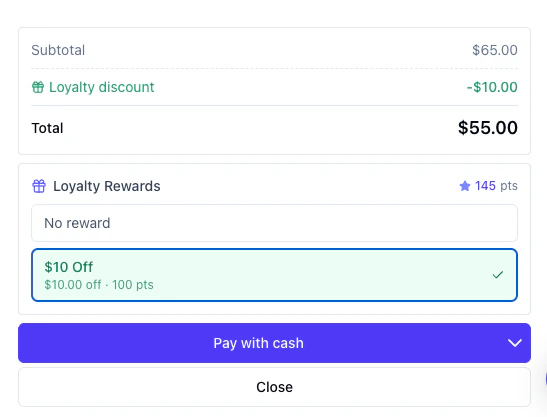
2. In the **Loyalty rewards** section, you'll see:
* The client's available points balance
* A list of rewards they can afford
3. Select a reward (or "No reward")
4. The discount is applied to the total
5. Complete the checkout
Rewards the client cannot afford are greyed out and show how many more points are needed.
 ### How the discount appears
When a reward is selected:
| | |
| ---------------- | ----------- |
| Subtotal | \$50.00 |
| Loyalty discount | -\$5.00 |
| **Total** | **\$45.00** |
The total cannot go below \$0.
### Viewing loyalty info on past appointments
After checkout, the applied reward is displayed in the appointment details, showing the reward name, points cost, and discount amount.
***
## Viewing a client's loyalty information
### Team member view (client profile)
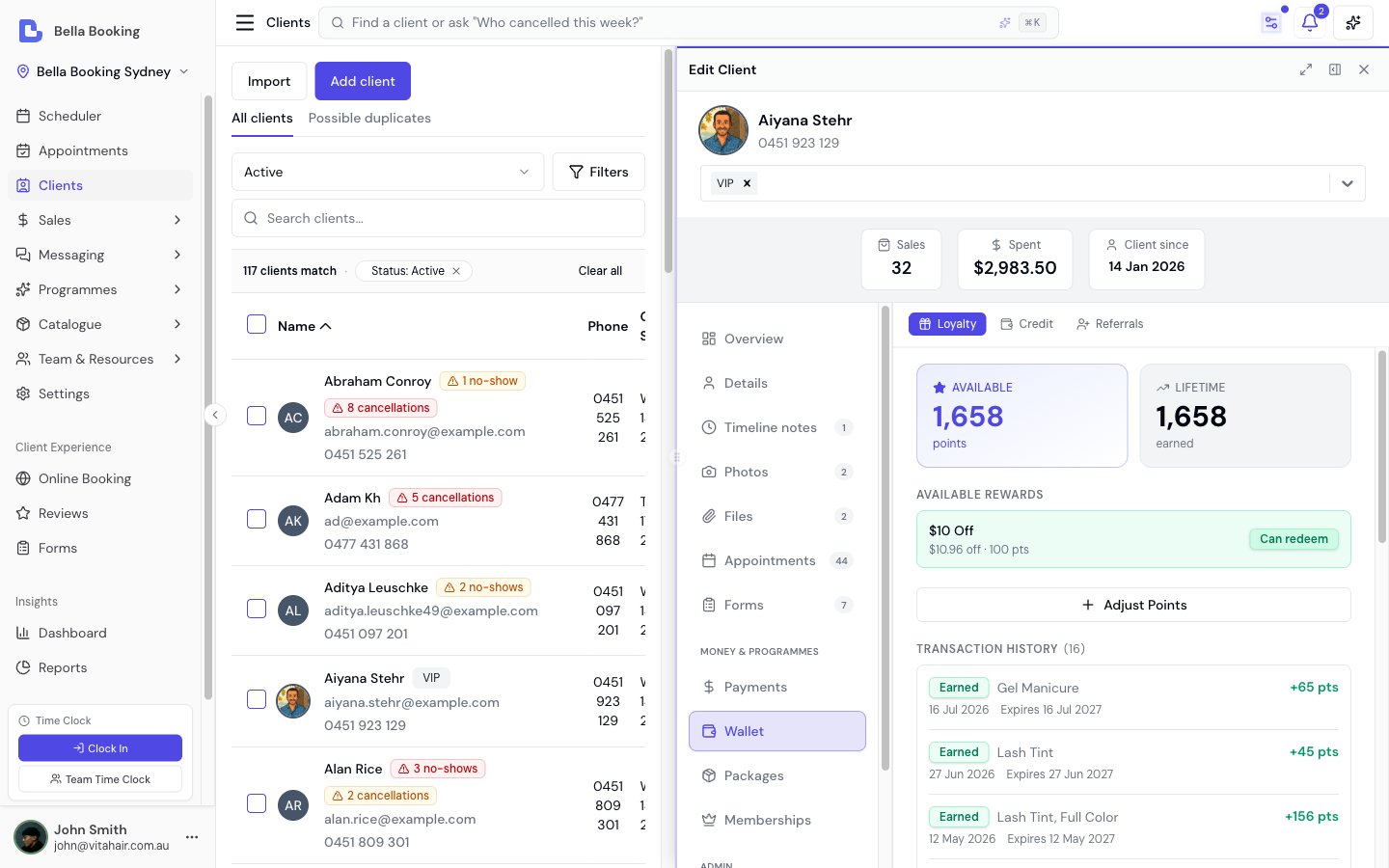
1. Go to **Clients** and click on a client
2. Open the **Loyalty** tab
You'll see:
* **Available Points**: Current redeemable balance
* **Lifetime Points**: Total points earned all-time (including redeemed and expired)
* **Available Rewards**: Which rewards the client can afford, and how many more points are needed for others
* **Transaction History**: A chronological list of all point changes
### How the discount appears
When a reward is selected:
| | |
| ---------------- | ----------- |
| Subtotal | \$50.00 |
| Loyalty discount | -\$5.00 |
| **Total** | **\$45.00** |
The total cannot go below \$0.
### Viewing loyalty info on past appointments
After checkout, the applied reward is displayed in the appointment details, showing the reward name, points cost, and discount amount.
***
## Viewing a client's loyalty information
### Team member view (client profile)
1. Go to **Clients** and click on a client
2. Open the **Loyalty** tab
You'll see:
* **Available Points**: Current redeemable balance
* **Lifetime Points**: Total points earned all-time (including redeemed and expired)
* **Available Rewards**: Which rewards the client can afford, and how many more points are needed for others
* **Transaction History**: A chronological list of all point changes
 #### Transaction types
| Type | Meaning |
| ---------- | ------------------------------------------------------------ |
| Earned | Points awarded from a checkout |
| Redeemed | Points spent on a reward |
| Expired | Points that expired |
| Adjustment | Manual addition or deduction by a team member |
| Reversed | Earned points taken back (cancelled appointment) |
| Restored | Redeemed points returned (cancelled or refunded appointment) |
#### Adjusting points manually
**Owners** and **Admins** can manually add or deduct points:
1. Click **Adjust points** in the Loyalty section of the client's **Wallet** tab
2. Choose **Add points** or **Deduct points**
3. Enter the amount
4. Enter a reason (required for the audit trail)
5. Click **Save**
You cannot deduct more points than the client has available.
***
### Client view (online booking portal)
Clients can view their own loyalty information in the online booking portal:
1. Log in to the online booking portal
2. Click the avatar menu (top right)
3. Select **My loyalty**
The page shows:
* **Points balance**: Current available points
* **Progress to next reward**: A visual progress bar towards the next reward
* **Available rewards**: All rewards with their point costs
* **Recent activity**: Transaction history with dates and expiry information
***
## Cancellations and refunds
The loyalty programme automatically handles point reversals when appointments are cancelled or refunded.
### When a completed appointment is cancelled
* **Earned points are reversed**: Points awarded at checkout are deducted from the client's balance
* **Redeemed points are restored**: If a reward was used, the points are returned to the client's balance
**Note:** Only appointments transitioning from "Completed" to "Cancelled" trigger a reversal. Cancelling an appointment before checkout does not affect points (no points were awarded).
### When a sale is refunded
* Points are reversed **proportionally** to the refund amount
* The reversal is based on the original points earned, not the current earning rate
**Example:**
A client earned 100 points from a $100 appointment. If $50 is refunded, 50 points are reversed.
***
## Automated expiration notifications
When points expiration is enabled, the system can automatically notify clients before their points expire.
* Notifications are sent **30 days** before points expire
* Each client receives at most **one notification per 30-day period**
* The notification includes the total number of expiring points and the earliest expiry date
To configure this notification:
1. Go to **Settings** > **Automated messages**
2. Under the **Loyalty** section (visible when the programme is enabled), click **Loyalty points expiring soon**
3. Enable SMS, Email, or both
4. Optionally customise the message template
**Available template variables:**
* `{{FirstName}}` - Client's first name
* `{{Points}}` - Total number of expiring points
* `{{ExpirationDate}}` - Earliest expiry date
* `{{BusinessName}}` - Your business name
For more details, see [Automated messages](/settings/automated-messages).
***
## FAQs
**Q: Who can configure the loyalty programme?**
A: Only **Owners** and **Admins** can access and modify the loyalty programme settings. All team members can view a client's loyalty balance (in the Wallet tab) and redeem rewards during checkout.
**Q: Who can manually adjust a client's points?**
A: Only **Owners** and **Admins** can add or deduct points manually.
**Q: What happens to points when I disable the programme?**
A: Existing points are preserved. Clients keep their balance but cannot earn or redeem points while the programme is paused. Points will still expire if an expiration period is configured.
**Q: Can a client redeem more than one reward per appointment?**
A: No. Only one reward can be applied per checkout.
**Q: What if the reward discount is more than the appointment total?**
A: The total is reduced to \$0. No negative balance is created.
**Q: How are points handled for family bookings?**
A: Each family member earns on the net amount paid for their own services — a discount or membership benefit targeted at one member's service only reduces that member's points, not the others'. Order-level rewards (with no specific service) are shared proportionally, and products are attributed to the primary client.
**Q: Can I set different points for different services?**
A: Yes. Each service can override the business-wide earn rate on its **Booking policies** tab. Set a custom points-per-dollar rate to earn more (or less) on that service, or set the rate to `0` so the service earns no points at all — handy for gift cards or heavily discounted services. Any service left on **Use business default** earns at your business-wide rate, exactly as before. Add-ons earn at their parent service's rate; products and prepaid packages always earn at the business-wide default.
**Q: What happens if I change the earning rate?**
A: The new business-wide rate applies to future sales only. Previously earned points are not affected. Refund reversals use the original earned amount, not the current rate. **Per-service custom rates do not track the business-wide rate** — a service you set to a fixed rate (for example, `2` per \$1) keeps that exact rate even if you later change your business-wide default. If you want a service to move with the default again, set its Booking policies loyalty option back to **Use business default**.
**Q: Can I delete a reward that clients have already redeemed?**
A: You must archive it first. Archiving preserves the transaction history. You can then permanently delete it from the archived list.
**Q: How often does the expiration process run?**
A: Expired points are removed daily by an automated background process.
**Q: Do clients need an account to earn points?**
A: Points are linked to the client profile in your system. Clients do not need an online booking account to earn points, but they need one to view their balance in the online booking portal.
**Q: Are referrals part of the loyalty programme?**
A: Referrals share the same plan feature as loyalty, but they are configured separately under **Settings → Referrals**. See [Referrals](/programmes/referrals) for how clients find their share link and how fixed-amount rewards work.
***
With the loyalty programme, you can reward repeat clients, encourage bookings, and build lasting relationships with your clientele.
#### Transaction types
| Type | Meaning |
| ---------- | ------------------------------------------------------------ |
| Earned | Points awarded from a checkout |
| Redeemed | Points spent on a reward |
| Expired | Points that expired |
| Adjustment | Manual addition or deduction by a team member |
| Reversed | Earned points taken back (cancelled appointment) |
| Restored | Redeemed points returned (cancelled or refunded appointment) |
#### Adjusting points manually
**Owners** and **Admins** can manually add or deduct points:
1. Click **Adjust points** in the Loyalty section of the client's **Wallet** tab
2. Choose **Add points** or **Deduct points**
3. Enter the amount
4. Enter a reason (required for the audit trail)
5. Click **Save**
You cannot deduct more points than the client has available.
***
### Client view (online booking portal)
Clients can view their own loyalty information in the online booking portal:
1. Log in to the online booking portal
2. Click the avatar menu (top right)
3. Select **My loyalty**
The page shows:
* **Points balance**: Current available points
* **Progress to next reward**: A visual progress bar towards the next reward
* **Available rewards**: All rewards with their point costs
* **Recent activity**: Transaction history with dates and expiry information
***
## Cancellations and refunds
The loyalty programme automatically handles point reversals when appointments are cancelled or refunded.
### When a completed appointment is cancelled
* **Earned points are reversed**: Points awarded at checkout are deducted from the client's balance
* **Redeemed points are restored**: If a reward was used, the points are returned to the client's balance
**Note:** Only appointments transitioning from "Completed" to "Cancelled" trigger a reversal. Cancelling an appointment before checkout does not affect points (no points were awarded).
### When a sale is refunded
* Points are reversed **proportionally** to the refund amount
* The reversal is based on the original points earned, not the current earning rate
**Example:**
A client earned 100 points from a $100 appointment. If $50 is refunded, 50 points are reversed.
***
## Automated expiration notifications
When points expiration is enabled, the system can automatically notify clients before their points expire.
* Notifications are sent **30 days** before points expire
* Each client receives at most **one notification per 30-day period**
* The notification includes the total number of expiring points and the earliest expiry date
To configure this notification:
1. Go to **Settings** > **Automated messages**
2. Under the **Loyalty** section (visible when the programme is enabled), click **Loyalty points expiring soon**
3. Enable SMS, Email, or both
4. Optionally customise the message template
**Available template variables:**
* `{{FirstName}}` - Client's first name
* `{{Points}}` - Total number of expiring points
* `{{ExpirationDate}}` - Earliest expiry date
* `{{BusinessName}}` - Your business name
For more details, see [Automated messages](/settings/automated-messages).
***
## FAQs
**Q: Who can configure the loyalty programme?**
A: Only **Owners** and **Admins** can access and modify the loyalty programme settings. All team members can view a client's loyalty balance (in the Wallet tab) and redeem rewards during checkout.
**Q: Who can manually adjust a client's points?**
A: Only **Owners** and **Admins** can add or deduct points manually.
**Q: What happens to points when I disable the programme?**
A: Existing points are preserved. Clients keep their balance but cannot earn or redeem points while the programme is paused. Points will still expire if an expiration period is configured.
**Q: Can a client redeem more than one reward per appointment?**
A: No. Only one reward can be applied per checkout.
**Q: What if the reward discount is more than the appointment total?**
A: The total is reduced to \$0. No negative balance is created.
**Q: How are points handled for family bookings?**
A: Each family member earns on the net amount paid for their own services — a discount or membership benefit targeted at one member's service only reduces that member's points, not the others'. Order-level rewards (with no specific service) are shared proportionally, and products are attributed to the primary client.
**Q: Can I set different points for different services?**
A: Yes. Each service can override the business-wide earn rate on its **Booking policies** tab. Set a custom points-per-dollar rate to earn more (or less) on that service, or set the rate to `0` so the service earns no points at all — handy for gift cards or heavily discounted services. Any service left on **Use business default** earns at your business-wide rate, exactly as before. Add-ons earn at their parent service's rate; products and prepaid packages always earn at the business-wide default.
**Q: What happens if I change the earning rate?**
A: The new business-wide rate applies to future sales only. Previously earned points are not affected. Refund reversals use the original earned amount, not the current rate. **Per-service custom rates do not track the business-wide rate** — a service you set to a fixed rate (for example, `2` per \$1) keeps that exact rate even if you later change your business-wide default. If you want a service to move with the default again, set its Booking policies loyalty option back to **Use business default**.
**Q: Can I delete a reward that clients have already redeemed?**
A: You must archive it first. Archiving preserves the transaction history. You can then permanently delete it from the archived list.
**Q: How often does the expiration process run?**
A: Expired points are removed daily by an automated background process.
**Q: Do clients need an account to earn points?**
A: Points are linked to the client profile in your system. Clients do not need an online booking account to earn points, but they need one to view their balance in the online booking portal.
**Q: Are referrals part of the loyalty programme?**
A: Referrals share the same plan feature as loyalty, but they are configured separately under **Settings → Referrals**. See [Referrals](/programmes/referrals) for how clients find their share link and how fixed-amount rewards work.
***
With the loyalty programme, you can reward repeat clients, encourage bookings, and build lasting relationships with your clientele.