> ## Documentation Index
> Fetch the complete documentation index at: https://docs.bellabooking.com/llms.txt
> Use this file to discover all available pages before exploring further.
# Messages
> Send and receive SMS and email messages in one threaded inbox, and reach many clients at once with SMS and email campaigns
## Overview
The **Messages** section is a two-way inbox built into Bella Booking that handles both **SMS and email**. Send a client a text or an email, and their replies land back in a single threaded conversation. SMS uses your dedicated business phone number; email needs no number to send. The inbox itself is unlocked by that number, so it isn't available in countries where we can't provision one yet.
Messages is part of **Messages Plus**, an add-on subscription. See [Settings — Messaging](/settings/messaging) for setup and pricing.
 ***
## Key features
* **SMS and email in one inbox** — Message a client by text or email and see both in the same conversation
* **Dedicated phone number** — Your business gets its own local number for sending and receiving SMS. It also unlocks this inbox, so the inbox isn't available in countries where we can't provision one yet
* **Threaded inbox** — One conversation per client, with full message history across channels
* **Two-way messaging** — Clients reply by SMS or email and their responses appear in the thread
* **Internal notes** — Add private notes to any conversation (visible to your team only, never sent to the client)
* **Automated messages in context** — Appointment reminders and other automated messages appear in the same thread
* **Real-time updates** — New messages and delivery status updates appear automatically
* **Client profile integration** — See client details, upcoming appointments, and consent status alongside conversations
* **Campaigns** — Send one message to many clients at once, by SMS or email — see [Campaigns (SMS and Email)](#campaigns-sms-and-email)
***
## The messaging inbox
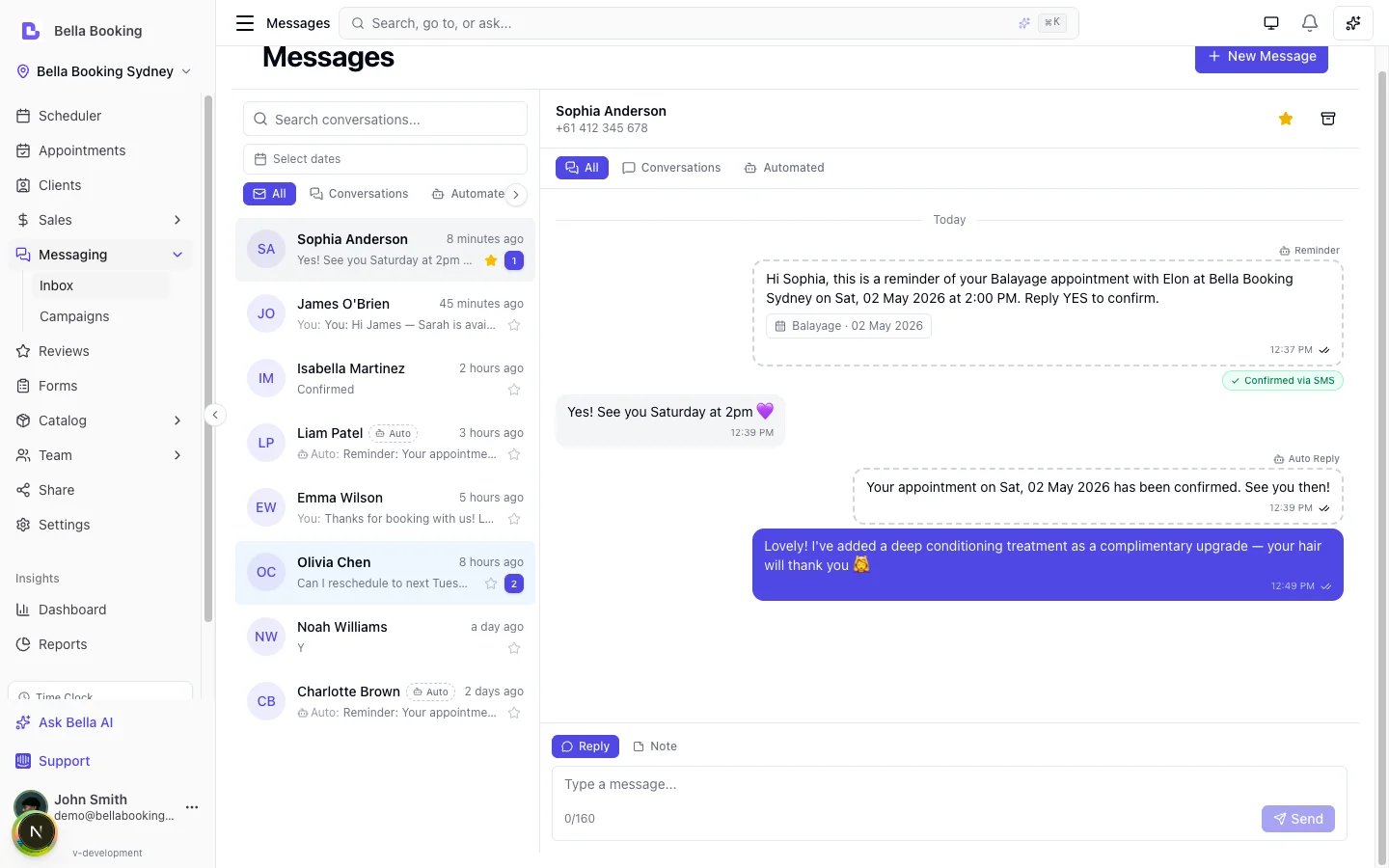
The Messages page is a three-panel layout:
* **Thread list** (left) — All your conversations, with search and filters
* **Conversation view** (centre) — The selected conversation's full message history
* **Contact info** (right, desktop only) — Client details and upcoming appointments
### Thread list
The thread list shows all conversations sorted by most recent message. Each thread displays the client name (or phone number for unknown senders), a preview of the last message, and the timestamp. Email conversations carry an **Email** badge so you can tell them apart from SMS at a glance, and you can filter the list by channel.
**Filters:**
| Filter | Shows |
| ----------------- | ---------------------------------------------------------------------------------------- |
| **All** | All active conversations |
| **Conversations** | Threads whose latest message is from a person — you or the client |
| **Automated** | Threads whose latest message is an automated send (a reminder, confirmation, or receipt) |
| **Unread** | Conversations with unread messages |
| **Unanswered** | Conversations where the last message is from the client |
| **Starred** | Conversations you have starred for follow-up |
| **Archived** | Conversations you have archived |
Use the **search bar** to find conversations by client name, phone number, or email address.
Automated messages in the list are prefixed with a small **Auto** label before the preview, so you can tell automated traffic apart from messages you or the client sent.
### Conversation view
Select a thread to see the full message history. Messages are displayed chronologically with date separators between days.
**Message types are visually distinct:**
* **Your messages** — Sent by your team, shown on the right in a coloured bubble
* **Client messages** — Received from the client, shown on the left
* **Internal notes** — Shown full-width with an amber background, visible to your team only
* **Automated messages** — Appointment reminders and other system messages, shown with a dashed border and bot icon
**Delivery status indicators** appear on sent messages:
| Icon | Status |
| ----------- | -------------------------------------- |
| Spinner | Queued — message is being sent |
| Single tick | Sent — delivered to the carrier |
| Double tick | Delivered — reached the client's phone |
| Red X | Failed — could not be delivered |
**Message filters** at the top of the conversation let you toggle between:
* **All** — Every message in the thread
* **Conversations** — Only manual messages and internal notes
* **Automated** — Only automated messages (reminders, confirmations, etc.)
**Thread actions** in the conversation header:
* **Star / Unstar** — Flag important conversations for follow-up
* **Archive** — Move the conversation out of your active inbox
* **Mark as read** — Clear the unread badge
### Contact info panel
The right-hand panel shows:
* Client name, phone number, and email
* **Communication consent** — Whether the client has opted in to announcements and marketing
* **Upcoming appointments** — The next three scheduled appointments
* Quick links to **View profile** and **Book appointment**
For messages from unknown phone numbers, you will see an option to **create a new client** linked to that number.
***
## Sending messages
### Reply to an existing conversation
1. Select a conversation from the thread list.
2. Type your message in the compose box at the bottom.
3. Press **Enter** (or click **Send**) to send.
Use **Shift + Enter** to add a new line without sending.
### Start a new conversation
1. Click the **New Message** button at the top of the thread list.
2. Search for a client by name, phone number, or email address.
3. Choose the channel — **SMS** or **Email** (see below).
4. Type your message.
5. Click **Send**.
You can also start a new message from a client's profile — click **Send Message** in the client details, and the Messages page opens with the client pre-selected.
### Send by SMS or email
When a client can be reached more than one way, pick the channel before sending:
* **SMS** — sent from your dedicated number; uses SMS credits. Available when the client has a mobile number.
* **Email** — sent from your business, with the client's reply threading back into this conversation. Add a **subject** line. Available when the client has an email address that hasn't bounced. Email uses **no dedicated number and no SMS credits** to send; the shared inbox itself still needs a live number, so it isn't available where we can't provision one yet.
If a client only has one contact method, that channel is used automatically and the inbox shows which one a reply will go out on.
### Add an internal note
Internal notes let you record information about a conversation without sending anything to the client.
1. In the compose box, click the **Note** toggle (switch from Reply to Note).
2. Type your note.
3. Press **Enter** to save.
Notes are free — they do not consume SMS credits.
***
## SMS segments and character counting
This section applies to **SMS only** — email messages have no segments and never use SMS credits.
SMS messages are billed per **segment**, not per message. The compose box shows a real-time character count and segment indicator as you type.
| Encoding | Characters per segment | Multi-part segment |
| ---------------- | ---------------------- | ------------------ |
| Standard (GSM-7) | 160 | 153 per segment |
| Unicode | 70 | 67 per segment |
* **Standard encoding** is used for basic Latin characters, numbers, and common punctuation
* **Unicode** activates automatically when you use emoji, accented characters, or non-Latin scripts — a badge appears in the compose box to let you know
Keep messages under 160 characters when possible to use a single segment and
conserve credits.
***
## Automated messages in threads
Automated messages — appointment reminders, confirmations, cancellation notices, and other notifications — appear inside the relevant client's conversation thread. This gives you a complete communication history with each client in one place.
Automated messages are marked with a **bot icon** and labelled with the message type (e.g., "Automated — Reminder"). They count toward your SMS credits just like manual messages.
You can filter the conversation view to show only automated messages using the **Automated** tab, or hide them to focus on your manual conversations.
Configure your automated messages in [Settings — Automated
Messages](/settings/automated-messages). The Messages inbox shows them
alongside your conversations but does not control when or how they are sent.
***
## Communication consent
Bella Booking tracks two types of communication consent on each client profile:
| Consent type | Default | Purpose |
| ----------------- | ----------------- | ------------------------------- |
| **Announcements** | Enabled (opt-out) | General business announcements |
| **Marketing** | Disabled (opt-in) | Promotional messages and offers |
Consent status is shown in the **Contact info** panel of each conversation. You can update consent preferences from the client's profile in **Clients** → select client → **Information** tab.
Always respect client consent preferences. Only send marketing messages to
clients who have opted in.
***
## Notification preferences
Each client's profile includes notification preferences that control how they receive automated messages:
* **SMS notifications** — Requires a phone number on file
* **Email notifications** — Requires an email address on file
These preferences apply to automated messages (reminders, confirmations, etc.) and can be managed from the client's profile.
***
## Unread badge
The **Messages** item in the sidebar shows a badge with the number of unread conversations. This updates in real time as new messages arrive.
The badge is a silent, visual signal — an incoming client reply doesn't play a sound or raise a device notification. The [notification sound](/teams#notification-sound) on the bell is tied to business events (appointments confirmed, cancelled or rescheduled, check-ins and the like), not to the Messages inbox, so keep an eye on the sidebar badge for replies.
***
## Auto-handling client replies
When a client texts your dedicated number, Bella checks the message against a small set of keywords and may take action automatically. Anything that doesn't match a keyword is left untouched and shows up in your inbox for you to read and reply to manually.
Keyword auto-handling (confirm/decline/STOP) applies to **SMS only**. Email
replies are not scanned for keywords — they always land in your inbox for you
to read and respond to.
### Confirmation keywords
If a client replies to an appointment reminder with one of these single-word affirmatives within **48 hours**, Bella will:
1. Confirm the appointment automatically
2. Send a one-line auto-reply: *"Your appointment on {date} has been confirmed. See you then!"*
3. Add a green **Confirmed via SMS** pill below the original reminder bubble
**Confirm keywords (case-insensitive, exact whole-message match):**
`yes`, `y`, `yeah`, `yep`, `yup`, `confirm`, `confirmed`, `ok`, `okay`, `sure`, `absolutely`, `definitely`, `yea`, 👍
**Single-word match.** A client who texts back *"Yes please, see you then!"*
will **not** auto-confirm — only a one-word affirmative does. Their message
still lands in your inbox; you confirm it manually.
### Decline keywords
If the client replies to a reminder with a decline keyword within 48 hours, Bella will:
1. **Not** auto-cancel the appointment (a "No" could mean "I need to reschedule")
2. Send an auto-reply: *"We've noted your response. {Business} will follow up shortly."*
3. Add an amber **Declined — needs follow-up** pill below the reminder bubble
**Decline keywords:**
`no`, `n`, `nah`, `nope`, `cancel`, `decline`, 👎
You'll see the pill at a glance and can ring or text the client to figure out the next step.
### Consent keywords
These take effect immediately and apply to all automated messaging from your business:
| Keyword | Action |
| ----------------------------------------------- | ----------------------------------------------------------------------------------------------- |
| `STOP`, `UNSUBSCRIBE`, `END`, `QUIT`, `OPT OUT` | Stops **all** SMS to this client. They will not receive reminders, confirmations, or marketing. |
| `NO PROMOS`, `STOP PROMOS`, `STOP MARKETING` | Stops only marketing SMS. Transactional messages (reminders, confirmations) continue. |
| `START`, `SUBSCRIBE`, `OPT IN` | Re-subscribes them to all messaging. |
Each consent change triggers a confirmation auto-reply so the client knows it took effect. Consent state is also visible in the **Contact info** panel.
### Inviting clients to confirm via SMS
The default reminder template doesn't tell clients they can reply YES — so unless they happen to text back one of the confirm keywords, the auto-confirm flow won't fire.
To get more reminders auto-confirmed, edit your reminder template in [Settings → Automated messages](/settings/automated-messages) and add a prompt like:
> *Reply **YES** to confirm.*
Keep the prompt concise — adding extra characters may push your reminder over
the 160-character single-segment limit and double its credit cost. Most
reminders fit comfortably with the YES suffix.
### Auto-reply visibility
Auto-replies that Bella sends to the client appear in the conversation thread with a dashed border and a small **Auto-reply** label, so you always know exactly what the system told the client. Their delivery status (sent, delivered, failed) is shown the same way as any other outbound SMS.
***
## Campaigns (SMS and email)
**Campaigns** let you send one message to many clients at once — ideal for promotions, announcements, seasonal offers, or re-engagement. Every campaign can be sent as an **SMS** or an **Email**: SMS for short, urgent messages; email for branded content with images and formatting, your own HTML or a Canva design, and a booking button.
***
## Key features
* **SMS and email in one inbox** — Message a client by text or email and see both in the same conversation
* **Dedicated phone number** — Your business gets its own local number for sending and receiving SMS. It also unlocks this inbox, so the inbox isn't available in countries where we can't provision one yet
* **Threaded inbox** — One conversation per client, with full message history across channels
* **Two-way messaging** — Clients reply by SMS or email and their responses appear in the thread
* **Internal notes** — Add private notes to any conversation (visible to your team only, never sent to the client)
* **Automated messages in context** — Appointment reminders and other automated messages appear in the same thread
* **Real-time updates** — New messages and delivery status updates appear automatically
* **Client profile integration** — See client details, upcoming appointments, and consent status alongside conversations
* **Campaigns** — Send one message to many clients at once, by SMS or email — see [Campaigns (SMS and Email)](#campaigns-sms-and-email)
***
## The messaging inbox
The Messages page is a three-panel layout:
* **Thread list** (left) — All your conversations, with search and filters
* **Conversation view** (centre) — The selected conversation's full message history
* **Contact info** (right, desktop only) — Client details and upcoming appointments
### Thread list
The thread list shows all conversations sorted by most recent message. Each thread displays the client name (or phone number for unknown senders), a preview of the last message, and the timestamp. Email conversations carry an **Email** badge so you can tell them apart from SMS at a glance, and you can filter the list by channel.
**Filters:**
| Filter | Shows |
| ----------------- | ---------------------------------------------------------------------------------------- |
| **All** | All active conversations |
| **Conversations** | Threads whose latest message is from a person — you or the client |
| **Automated** | Threads whose latest message is an automated send (a reminder, confirmation, or receipt) |
| **Unread** | Conversations with unread messages |
| **Unanswered** | Conversations where the last message is from the client |
| **Starred** | Conversations you have starred for follow-up |
| **Archived** | Conversations you have archived |
Use the **search bar** to find conversations by client name, phone number, or email address.
Automated messages in the list are prefixed with a small **Auto** label before the preview, so you can tell automated traffic apart from messages you or the client sent.
### Conversation view
Select a thread to see the full message history. Messages are displayed chronologically with date separators between days.
**Message types are visually distinct:**
* **Your messages** — Sent by your team, shown on the right in a coloured bubble
* **Client messages** — Received from the client, shown on the left
* **Internal notes** — Shown full-width with an amber background, visible to your team only
* **Automated messages** — Appointment reminders and other system messages, shown with a dashed border and bot icon
**Delivery status indicators** appear on sent messages:
| Icon | Status |
| ----------- | -------------------------------------- |
| Spinner | Queued — message is being sent |
| Single tick | Sent — delivered to the carrier |
| Double tick | Delivered — reached the client's phone |
| Red X | Failed — could not be delivered |
**Message filters** at the top of the conversation let you toggle between:
* **All** — Every message in the thread
* **Conversations** — Only manual messages and internal notes
* **Automated** — Only automated messages (reminders, confirmations, etc.)
**Thread actions** in the conversation header:
* **Star / Unstar** — Flag important conversations for follow-up
* **Archive** — Move the conversation out of your active inbox
* **Mark as read** — Clear the unread badge
### Contact info panel
The right-hand panel shows:
* Client name, phone number, and email
* **Communication consent** — Whether the client has opted in to announcements and marketing
* **Upcoming appointments** — The next three scheduled appointments
* Quick links to **View profile** and **Book appointment**
For messages from unknown phone numbers, you will see an option to **create a new client** linked to that number.
***
## Sending messages
### Reply to an existing conversation
1. Select a conversation from the thread list.
2. Type your message in the compose box at the bottom.
3. Press **Enter** (or click **Send**) to send.
Use **Shift + Enter** to add a new line without sending.
### Start a new conversation
1. Click the **New Message** button at the top of the thread list.
2. Search for a client by name, phone number, or email address.
3. Choose the channel — **SMS** or **Email** (see below).
4. Type your message.
5. Click **Send**.
You can also start a new message from a client's profile — click **Send Message** in the client details, and the Messages page opens with the client pre-selected.
### Send by SMS or email
When a client can be reached more than one way, pick the channel before sending:
* **SMS** — sent from your dedicated number; uses SMS credits. Available when the client has a mobile number.
* **Email** — sent from your business, with the client's reply threading back into this conversation. Add a **subject** line. Available when the client has an email address that hasn't bounced. Email uses **no dedicated number and no SMS credits** to send; the shared inbox itself still needs a live number, so it isn't available where we can't provision one yet.
If a client only has one contact method, that channel is used automatically and the inbox shows which one a reply will go out on.
### Add an internal note
Internal notes let you record information about a conversation without sending anything to the client.
1. In the compose box, click the **Note** toggle (switch from Reply to Note).
2. Type your note.
3. Press **Enter** to save.
Notes are free — they do not consume SMS credits.
***
## SMS segments and character counting
This section applies to **SMS only** — email messages have no segments and never use SMS credits.
SMS messages are billed per **segment**, not per message. The compose box shows a real-time character count and segment indicator as you type.
| Encoding | Characters per segment | Multi-part segment |
| ---------------- | ---------------------- | ------------------ |
| Standard (GSM-7) | 160 | 153 per segment |
| Unicode | 70 | 67 per segment |
* **Standard encoding** is used for basic Latin characters, numbers, and common punctuation
* **Unicode** activates automatically when you use emoji, accented characters, or non-Latin scripts — a badge appears in the compose box to let you know
Keep messages under 160 characters when possible to use a single segment and
conserve credits.
***
## Automated messages in threads
Automated messages — appointment reminders, confirmations, cancellation notices, and other notifications — appear inside the relevant client's conversation thread. This gives you a complete communication history with each client in one place.
Automated messages are marked with a **bot icon** and labelled with the message type (e.g., "Automated — Reminder"). They count toward your SMS credits just like manual messages.
You can filter the conversation view to show only automated messages using the **Automated** tab, or hide them to focus on your manual conversations.
Configure your automated messages in [Settings — Automated
Messages](/settings/automated-messages). The Messages inbox shows them
alongside your conversations but does not control when or how they are sent.
***
## Communication consent
Bella Booking tracks two types of communication consent on each client profile:
| Consent type | Default | Purpose |
| ----------------- | ----------------- | ------------------------------- |
| **Announcements** | Enabled (opt-out) | General business announcements |
| **Marketing** | Disabled (opt-in) | Promotional messages and offers |
Consent status is shown in the **Contact info** panel of each conversation. You can update consent preferences from the client's profile in **Clients** → select client → **Information** tab.
Always respect client consent preferences. Only send marketing messages to
clients who have opted in.
***
## Notification preferences
Each client's profile includes notification preferences that control how they receive automated messages:
* **SMS notifications** — Requires a phone number on file
* **Email notifications** — Requires an email address on file
These preferences apply to automated messages (reminders, confirmations, etc.) and can be managed from the client's profile.
***
## Unread badge
The **Messages** item in the sidebar shows a badge with the number of unread conversations. This updates in real time as new messages arrive.
The badge is a silent, visual signal — an incoming client reply doesn't play a sound or raise a device notification. The [notification sound](/teams#notification-sound) on the bell is tied to business events (appointments confirmed, cancelled or rescheduled, check-ins and the like), not to the Messages inbox, so keep an eye on the sidebar badge for replies.
***
## Auto-handling client replies
When a client texts your dedicated number, Bella checks the message against a small set of keywords and may take action automatically. Anything that doesn't match a keyword is left untouched and shows up in your inbox for you to read and reply to manually.
Keyword auto-handling (confirm/decline/STOP) applies to **SMS only**. Email
replies are not scanned for keywords — they always land in your inbox for you
to read and respond to.
### Confirmation keywords
If a client replies to an appointment reminder with one of these single-word affirmatives within **48 hours**, Bella will:
1. Confirm the appointment automatically
2. Send a one-line auto-reply: *"Your appointment on {date} has been confirmed. See you then!"*
3. Add a green **Confirmed via SMS** pill below the original reminder bubble
**Confirm keywords (case-insensitive, exact whole-message match):**
`yes`, `y`, `yeah`, `yep`, `yup`, `confirm`, `confirmed`, `ok`, `okay`, `sure`, `absolutely`, `definitely`, `yea`, 👍
**Single-word match.** A client who texts back *"Yes please, see you then!"*
will **not** auto-confirm — only a one-word affirmative does. Their message
still lands in your inbox; you confirm it manually.
### Decline keywords
If the client replies to a reminder with a decline keyword within 48 hours, Bella will:
1. **Not** auto-cancel the appointment (a "No" could mean "I need to reschedule")
2. Send an auto-reply: *"We've noted your response. {Business} will follow up shortly."*
3. Add an amber **Declined — needs follow-up** pill below the reminder bubble
**Decline keywords:**
`no`, `n`, `nah`, `nope`, `cancel`, `decline`, 👎
You'll see the pill at a glance and can ring or text the client to figure out the next step.
### Consent keywords
These take effect immediately and apply to all automated messaging from your business:
| Keyword | Action |
| ----------------------------------------------- | ----------------------------------------------------------------------------------------------- |
| `STOP`, `UNSUBSCRIBE`, `END`, `QUIT`, `OPT OUT` | Stops **all** SMS to this client. They will not receive reminders, confirmations, or marketing. |
| `NO PROMOS`, `STOP PROMOS`, `STOP MARKETING` | Stops only marketing SMS. Transactional messages (reminders, confirmations) continue. |
| `START`, `SUBSCRIBE`, `OPT IN` | Re-subscribes them to all messaging. |
Each consent change triggers a confirmation auto-reply so the client knows it took effect. Consent state is also visible in the **Contact info** panel.
### Inviting clients to confirm via SMS
The default reminder template doesn't tell clients they can reply YES — so unless they happen to text back one of the confirm keywords, the auto-confirm flow won't fire.
To get more reminders auto-confirmed, edit your reminder template in [Settings → Automated messages](/settings/automated-messages) and add a prompt like:
> *Reply **YES** to confirm.*
Keep the prompt concise — adding extra characters may push your reminder over
the 160-character single-segment limit and double its credit cost. Most
reminders fit comfortably with the YES suffix.
### Auto-reply visibility
Auto-replies that Bella sends to the client appear in the conversation thread with a dashed border and a small **Auto-reply** label, so you always know exactly what the system told the client. Their delivery status (sent, delivered, failed) is shown the same way as any other outbound SMS.
***
## Campaigns (SMS and email)
**Campaigns** let you send one message to many clients at once — ideal for promotions, announcements, seasonal offers, or re-engagement. Every campaign can be sent as an **SMS** or an **Email**: SMS for short, urgent messages; email for branded content with images and formatting, your own HTML or a Canva design, and a booking button.
 | | SMS campaigns | Email campaigns |
| ------------------------------- | --------------------------------------------- | ------------------------------------------------------------------------------------------------------------------------------------------------------------------------------------------------------------------------------------ |
| **Content** | Plain text, 160-character segments | Subject line; a visual composer (rich text, inline images, a hero image, a **Book now** button, your logo and brand colours) — or paste your own **HTML**, including a **Canva Email** design, for full control of layout and colour |
| **Cost** | Uses SMS credits (per segment, per recipient) | **Unlimited** within Messages Plus (fair use) — no credits used |
| **Requires a dedicated number** | Yes | No |
| **Reaches clients with** | A mobile number | An email address |
| **Tracking** | Sent, delivered, failed | Sent, delivered, **opened, clicked**, failed |
### How it works in brief
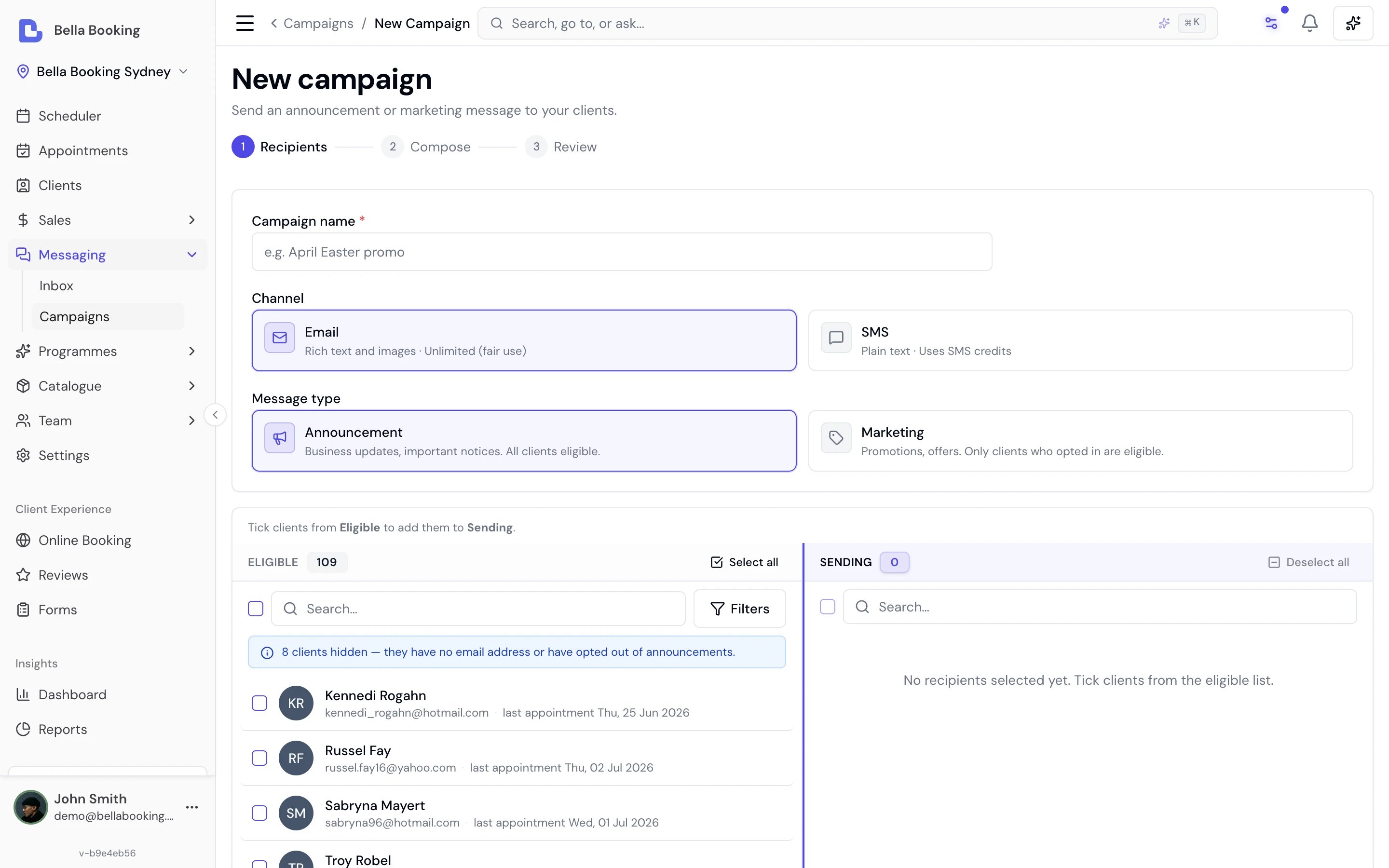
The campaign builder is a short, step-by-step wizard — **Recipients → Compose → Review**. You move between steps with the **Continue** and **Back** buttons. Your subject and body aren't on the first screen: you write them on the **Compose** step, *after* you've named the campaign, chosen your recipients, and clicked **Continue**.
1. **Recipients** — name the campaign, choose the **channel** (Email or SMS) and **message type** (Marketing or Announcement), then build and filter your audience. Clients who can't receive it — no contact method or no consent for the type — are excluded automatically.
2. **Compose** — write your message. For email, a **Visual / HTML** toggle lets you either build a branded email in Bella's editor (rich text, inline images, a hero image, a **Book now** button, your logo and brand colours, and an optional AI-drafted first pass) or paste your own **HTML** — including a **Canva Email** design — to send exactly as it looks.
3. **Analyse & continue** — Bella runs a pre-send check. Serious problems (like a misleading subject) must be fixed; the softer deliverability and structural suggestions — image-heavy content, missing alt text, an oversized email — are **warnings, never blocks**, so you can send anyway.
4. **Review** — check the recipient count and preview, **Send test to myself**, then **Send now** or **Schedule for later**.
Every campaign email automatically ends with a compact footer carrying your business name, address and an **unsubscribe link** — added by Bella Booking, can't be removed, and required by anti-spam law (in Australia, the Spam Act 2003). Appointment reminders and confirmations are not affected by campaign unsubscribes.
**Email campaigns are unlimited** within Messages Plus (fair use), never use SMS credits, and don't need a dedicated phone number *or* business verification — you can send your first one the moment you subscribe. A dedicated number and verification (KYC) gate **SMS** only.
For the complete guide — the Visual and HTML compose modes, importing a Canva
Email design, the pre-send check, previewing and test-sending, scheduling,
consent, unsubscribes, and campaign history — see [Email & SMS
Campaigns](/messages/campaigns).
***
## Verifying your business
Messaging regulations require a one-time verification of your business with our messaging provider — so your number is registered under **your** business's identity. **What's involved, and when it happens, depends on your country:**
This applies only where we can provision a dedicated number. If we can't yet in your country, there's nothing for you to verify — see [Countries where dedicated numbers aren't available yet](/settings/messaging#countries-where-dedicated-numbers-arent-available-yet).
### Most countries (Australia, United Kingdom, Sweden, …)
Verify first, then your number is provisioned:
1. Go to **Settings → Messaging** and select **Verify your business**
2. Confirm your registered business details — in Australia, your ABN is checked against the business register so you can confirm your registered name
3. Confirm your business address (a street address — PO boxes can't be used)
4. Provide what your country's regulator asks for. In **Australia**, that's one business registration document — an ASIC company extract or an ABR extract — a single file showing your registered name, registration number and address together (PDF, JPEG or PNG). If it doesn't show your business address, you can add a separate proof of address (a utility bill, lease or bank statement). Other countries are asked only for what their own register needs — some confirm registered details with no document upload at all
5. Submit — approval usually lands within **1–3 business days**, and we'll email you either way
What's required depends on your country — the wizard only asks for what your own country needs; some countries (such as Sweden) require nothing and are verified instantly.
If you already have a dedicated number, it keeps working as normal — you'll
just see a reminder to complete verification so your number is registered
under your own business details.
### United States and Canada
These countries use a **toll-free** number rather than a mobile number, so the order inverts — your number is purchased automatically as part of verification, rather than afterwards:
1. Go to **Settings → Messaging** and select **Verify your business**
2. Confirm your legal business details, business type (company, sole proprietor, non-profit, etc.), and — unless you're a sole proprietor — your business registration number (EIN in the US; CBN, provincial number, or NEQ in Canada)
3. Confirm your business address (a street address — PO boxes can't be used)
4. Describe how you'll use messaging, add a sample message, your expected monthly volume, and a screenshot showing where clients consent to receive texts (e.g. your online booking confirmation step)
5. Submit — your toll-free number is purchased automatically and carrier review usually takes a few business days
Your messages send from a shared number while carrier review is in
progress, and switch over to your own number automatically once approved.
We'll email you either way.
### For every country
Your progress saves as you go, so you can finish later. If anything can't be verified, we'll show you exactly what to fix — everything else you entered is kept. Documents and screenshots are passed directly to our messaging provider for review — Bella doesn't keep copies.
***
## Permissions
Access to messaging is controlled by team permissions:
| Permission | Allows |
| ----------------------------- | ---------------------------------------------------------------- |
| **View messages** | See the inbox and read conversations |
| **Send messages** | Send replies, compose new messages, add internal notes |
| **Manage campaigns** | Create, edit, send, schedule, and cancel SMS and email campaigns |
| **Manage messaging settings** | Provision phone numbers, manage subscription, purchase credits |
Configure permissions in [Settings — Team permissions](/settings/team-permissions).
***
## FAQs
**Q: Do I need a Messages Plus subscription to see automated messages in threads?**
A: No. Automated appointment messages (reminders, confirmations, etc.) are sent through your plan's included SMS allowance regardless of Messages Plus. The Messages Plus subscription adds the two-way inbox, dedicated phone number, and the ability to send manual messages.
**Q: What happens when a client replies to an automated message?**
A: Their reply appears in the conversation thread. If the message matches one of Bella's auto-handled keywords (YES/STOP/NO PROMOS/etc.) the appropriate action runs automatically — see [Auto-handling Client Replies](#auto-handling-client-replies). Anything else lands in your inbox for you to read and reply to. Receiving replies needs an active Messages Plus subscription. An email reply threads back into the conversation without consuming SMS credits, but reading and replying to it happens in this inbox, which your dedicated number unlocks — so in countries where we can't provision a number yet, use email campaigns instead.
**Q: A client replied "Yes please" to a reminder — why didn't the appointment auto-confirm?**
A: The auto-confirm classifier requires a single-word affirmative like *Yes* or *Y* on its own. *Yes please*, *Yes thanks*, or any longer message lands in your inbox for manual confirmation. If you'd like a wider range of replies to auto-confirm, raise a request — we may relax the classifier in a future update.
**Q: Can I message clients who are not in my client list?**
A: You can only compose new messages to existing clients. However, if an unknown number sends you an SMS, their messages appear in your inbox and you can reply — you will also see an option to create a new client record for them.
**Q: Can I send a client an email from the inbox?**
A: Yes. With Messages Plus active, choose the **Email** channel when composing or replying (available when the client has an email address that hasn't bounced). Add a subject, send, and the client's reply threads back into the same conversation. Email needs **no dedicated phone number** and uses **no SMS credits** to send. The inbox you compose from is unlocked by your dedicated number, so this isn't available in countries where we can't provision one yet — email campaigns still are. See [Email Messaging](/settings/messaging#email-messaging).
**Q: Do I need a dedicated phone number to email a client?**
A: Not to send the email itself — that needs only an active Messages Plus subscription, and it uses no SMS credits. The inbox you compose from is unlocked by your dedicated number, so in countries where we can't provision one yet you'd use email campaigns instead.
**Q: Are internal notes visible to clients?**
A: No. Internal notes are only visible to your team members who have messaging permissions. They are never sent to the client.
**Q: What does "Unanswered" mean in the thread filters?**
A: A conversation is unanswered when the most recent message is from the client (inbound). Once you send a reply, it moves out of the unanswered filter.
**Q: How quickly do client replies appear?**
A: Replies appear within seconds. The inbox updates in real time using live notifications, with a fallback refresh every 15 seconds.
**Q: Can I get a sound or audible alert when a new message arrives?**
A: Not for inbound messages. A client reply updates the **Messages** badge in the sidebar in real time, but it does so silently — there's no chime and no device notification for it. Bella does have a [notification sound](/teams#notification-sound) on the bell (bell icon > speaker icon), but that's tied to business events like appointments confirmed, cancelled or rescheduled, waitlist entries and check-ins, so it won't fire for a message. If an audible alert for new messages would help you, tell us through the in-app support chat — it helps us prioritise.
**Q: Does archiving a conversation delete it?**
A: No. Archiving moves the conversation to the **Archived** filter. You can unarchive it at any time to bring it back to your active inbox. All messages are preserved.
**Q: Do automated messages consume my SMS credits?**
A: Yes. Every SMS sent — whether manual or automated — consumes credits from your monthly allowance. See [Settings — Messaging](/settings/messaging) for credit details.
**Q: Do email campaigns use SMS credits?**
A: No. Email campaigns are unlimited within Messages Plus (fair use) and never touch your SMS credits. Only SMS — manual, automated, or campaign — consumes credits.
**Q: Do I need a dedicated phone number to send email campaigns?**
A: No. Email campaigns only need an active Messages Plus subscription — no number, no verification. The dedicated number is what carries SMS and unlocks the shared inbox, so campaigns are the email route for a business that doesn't have one yet.
**Q: What happens when a client unsubscribes from a campaign email?**
A: The unsubscribe link opens a confirmation page where one click opts them out of that message type (marketing or announcements) — with a Re-subscribe button if they change their mind. They're then excluded from future campaign audiences automatically. Appointment reminders and confirmations are unaffected, and the consent change is recorded in the client's Activity tab.
**Q: Can Bella write my campaign email for me?**
A: Bella can give you a starting point. On the Compose step, **Generate with AI** turns a short brief — a sentence or two about what you want to say — into a draft subject and body. It's a first draft, not the finished email: review and edit it so it sounds like your business before you send. You'll need an active Messages Plus subscription to use it.
***
| | SMS campaigns | Email campaigns |
| ------------------------------- | --------------------------------------------- | ------------------------------------------------------------------------------------------------------------------------------------------------------------------------------------------------------------------------------------ |
| **Content** | Plain text, 160-character segments | Subject line; a visual composer (rich text, inline images, a hero image, a **Book now** button, your logo and brand colours) — or paste your own **HTML**, including a **Canva Email** design, for full control of layout and colour |
| **Cost** | Uses SMS credits (per segment, per recipient) | **Unlimited** within Messages Plus (fair use) — no credits used |
| **Requires a dedicated number** | Yes | No |
| **Reaches clients with** | A mobile number | An email address |
| **Tracking** | Sent, delivered, failed | Sent, delivered, **opened, clicked**, failed |
### How it works in brief
The campaign builder is a short, step-by-step wizard — **Recipients → Compose → Review**. You move between steps with the **Continue** and **Back** buttons. Your subject and body aren't on the first screen: you write them on the **Compose** step, *after* you've named the campaign, chosen your recipients, and clicked **Continue**.
1. **Recipients** — name the campaign, choose the **channel** (Email or SMS) and **message type** (Marketing or Announcement), then build and filter your audience. Clients who can't receive it — no contact method or no consent for the type — are excluded automatically.
2. **Compose** — write your message. For email, a **Visual / HTML** toggle lets you either build a branded email in Bella's editor (rich text, inline images, a hero image, a **Book now** button, your logo and brand colours, and an optional AI-drafted first pass) or paste your own **HTML** — including a **Canva Email** design — to send exactly as it looks.
3. **Analyse & continue** — Bella runs a pre-send check. Serious problems (like a misleading subject) must be fixed; the softer deliverability and structural suggestions — image-heavy content, missing alt text, an oversized email — are **warnings, never blocks**, so you can send anyway.
4. **Review** — check the recipient count and preview, **Send test to myself**, then **Send now** or **Schedule for later**.
Every campaign email automatically ends with a compact footer carrying your business name, address and an **unsubscribe link** — added by Bella Booking, can't be removed, and required by anti-spam law (in Australia, the Spam Act 2003). Appointment reminders and confirmations are not affected by campaign unsubscribes.
**Email campaigns are unlimited** within Messages Plus (fair use), never use SMS credits, and don't need a dedicated phone number *or* business verification — you can send your first one the moment you subscribe. A dedicated number and verification (KYC) gate **SMS** only.
For the complete guide — the Visual and HTML compose modes, importing a Canva
Email design, the pre-send check, previewing and test-sending, scheduling,
consent, unsubscribes, and campaign history — see [Email & SMS
Campaigns](/messages/campaigns).
***
## Verifying your business
Messaging regulations require a one-time verification of your business with our messaging provider — so your number is registered under **your** business's identity. **What's involved, and when it happens, depends on your country:**
This applies only where we can provision a dedicated number. If we can't yet in your country, there's nothing for you to verify — see [Countries where dedicated numbers aren't available yet](/settings/messaging#countries-where-dedicated-numbers-arent-available-yet).
### Most countries (Australia, United Kingdom, Sweden, …)
Verify first, then your number is provisioned:
1. Go to **Settings → Messaging** and select **Verify your business**
2. Confirm your registered business details — in Australia, your ABN is checked against the business register so you can confirm your registered name
3. Confirm your business address (a street address — PO boxes can't be used)
4. Provide what your country's regulator asks for. In **Australia**, that's one business registration document — an ASIC company extract or an ABR extract — a single file showing your registered name, registration number and address together (PDF, JPEG or PNG). If it doesn't show your business address, you can add a separate proof of address (a utility bill, lease or bank statement). Other countries are asked only for what their own register needs — some confirm registered details with no document upload at all
5. Submit — approval usually lands within **1–3 business days**, and we'll email you either way
What's required depends on your country — the wizard only asks for what your own country needs; some countries (such as Sweden) require nothing and are verified instantly.
If you already have a dedicated number, it keeps working as normal — you'll
just see a reminder to complete verification so your number is registered
under your own business details.
### United States and Canada
These countries use a **toll-free** number rather than a mobile number, so the order inverts — your number is purchased automatically as part of verification, rather than afterwards:
1. Go to **Settings → Messaging** and select **Verify your business**
2. Confirm your legal business details, business type (company, sole proprietor, non-profit, etc.), and — unless you're a sole proprietor — your business registration number (EIN in the US; CBN, provincial number, or NEQ in Canada)
3. Confirm your business address (a street address — PO boxes can't be used)
4. Describe how you'll use messaging, add a sample message, your expected monthly volume, and a screenshot showing where clients consent to receive texts (e.g. your online booking confirmation step)
5. Submit — your toll-free number is purchased automatically and carrier review usually takes a few business days
Your messages send from a shared number while carrier review is in
progress, and switch over to your own number automatically once approved.
We'll email you either way.
### For every country
Your progress saves as you go, so you can finish later. If anything can't be verified, we'll show you exactly what to fix — everything else you entered is kept. Documents and screenshots are passed directly to our messaging provider for review — Bella doesn't keep copies.
***
## Permissions
Access to messaging is controlled by team permissions:
| Permission | Allows |
| ----------------------------- | ---------------------------------------------------------------- |
| **View messages** | See the inbox and read conversations |
| **Send messages** | Send replies, compose new messages, add internal notes |
| **Manage campaigns** | Create, edit, send, schedule, and cancel SMS and email campaigns |
| **Manage messaging settings** | Provision phone numbers, manage subscription, purchase credits |
Configure permissions in [Settings — Team permissions](/settings/team-permissions).
***
## FAQs
**Q: Do I need a Messages Plus subscription to see automated messages in threads?**
A: No. Automated appointment messages (reminders, confirmations, etc.) are sent through your plan's included SMS allowance regardless of Messages Plus. The Messages Plus subscription adds the two-way inbox, dedicated phone number, and the ability to send manual messages.
**Q: What happens when a client replies to an automated message?**
A: Their reply appears in the conversation thread. If the message matches one of Bella's auto-handled keywords (YES/STOP/NO PROMOS/etc.) the appropriate action runs automatically — see [Auto-handling Client Replies](#auto-handling-client-replies). Anything else lands in your inbox for you to read and reply to. Receiving replies needs an active Messages Plus subscription. An email reply threads back into the conversation without consuming SMS credits, but reading and replying to it happens in this inbox, which your dedicated number unlocks — so in countries where we can't provision a number yet, use email campaigns instead.
**Q: A client replied "Yes please" to a reminder — why didn't the appointment auto-confirm?**
A: The auto-confirm classifier requires a single-word affirmative like *Yes* or *Y* on its own. *Yes please*, *Yes thanks*, or any longer message lands in your inbox for manual confirmation. If you'd like a wider range of replies to auto-confirm, raise a request — we may relax the classifier in a future update.
**Q: Can I message clients who are not in my client list?**
A: You can only compose new messages to existing clients. However, if an unknown number sends you an SMS, their messages appear in your inbox and you can reply — you will also see an option to create a new client record for them.
**Q: Can I send a client an email from the inbox?**
A: Yes. With Messages Plus active, choose the **Email** channel when composing or replying (available when the client has an email address that hasn't bounced). Add a subject, send, and the client's reply threads back into the same conversation. Email needs **no dedicated phone number** and uses **no SMS credits** to send. The inbox you compose from is unlocked by your dedicated number, so this isn't available in countries where we can't provision one yet — email campaigns still are. See [Email Messaging](/settings/messaging#email-messaging).
**Q: Do I need a dedicated phone number to email a client?**
A: Not to send the email itself — that needs only an active Messages Plus subscription, and it uses no SMS credits. The inbox you compose from is unlocked by your dedicated number, so in countries where we can't provision one yet you'd use email campaigns instead.
**Q: Are internal notes visible to clients?**
A: No. Internal notes are only visible to your team members who have messaging permissions. They are never sent to the client.
**Q: What does "Unanswered" mean in the thread filters?**
A: A conversation is unanswered when the most recent message is from the client (inbound). Once you send a reply, it moves out of the unanswered filter.
**Q: How quickly do client replies appear?**
A: Replies appear within seconds. The inbox updates in real time using live notifications, with a fallback refresh every 15 seconds.
**Q: Can I get a sound or audible alert when a new message arrives?**
A: Not for inbound messages. A client reply updates the **Messages** badge in the sidebar in real time, but it does so silently — there's no chime and no device notification for it. Bella does have a [notification sound](/teams#notification-sound) on the bell (bell icon > speaker icon), but that's tied to business events like appointments confirmed, cancelled or rescheduled, waitlist entries and check-ins, so it won't fire for a message. If an audible alert for new messages would help you, tell us through the in-app support chat — it helps us prioritise.
**Q: Does archiving a conversation delete it?**
A: No. Archiving moves the conversation to the **Archived** filter. You can unarchive it at any time to bring it back to your active inbox. All messages are preserved.
**Q: Do automated messages consume my SMS credits?**
A: Yes. Every SMS sent — whether manual or automated — consumes credits from your monthly allowance. See [Settings — Messaging](/settings/messaging) for credit details.
**Q: Do email campaigns use SMS credits?**
A: No. Email campaigns are unlimited within Messages Plus (fair use) and never touch your SMS credits. Only SMS — manual, automated, or campaign — consumes credits.
**Q: Do I need a dedicated phone number to send email campaigns?**
A: No. Email campaigns only need an active Messages Plus subscription — no number, no verification. The dedicated number is what carries SMS and unlocks the shared inbox, so campaigns are the email route for a business that doesn't have one yet.
**Q: What happens when a client unsubscribes from a campaign email?**
A: The unsubscribe link opens a confirmation page where one click opts them out of that message type (marketing or announcements) — with a Re-subscribe button if they change their mind. They're then excluded from future campaign audiences automatically. Appointment reminders and confirmations are unaffected, and the consent change is recorded in the client's Activity tab.
**Q: Can Bella write my campaign email for me?**
A: Bella can give you a starting point. On the Compose step, **Generate with AI** turns a short brief — a sentence or two about what you want to say — into a draft subject and body. It's a first draft, not the finished email: review and edit it so it sounds like your business before you send. You'll need an active Messages Plus subscription to use it.
***