> ## Documentation Index
> Fetch the complete documentation index at: https://docs.bellabooking.com/llms.txt
> Use this file to discover all available pages before exploring further.
# Email & SMS Campaigns
> Send one message to many clients at once — branded email with images, your own HTML, or a Canva design, plus SMS — all from Bella Booking
## Overview
**Campaigns** let you send one message to many clients at once — ideal for promotions, announcements, seasonal offers, or re-engagement. Every campaign goes out as an **SMS** or an **Email**: SMS for short, urgent nudges; email for branded content with images, formatting, your own design, and a booking button.
Campaigns are part of **Messages Plus**, an add-on subscription. Email campaigns are **unlimited** within Messages Plus (fair use), never use SMS credits, and don't need a dedicated phone number — you can send your first one the moment you subscribe.
 ***
## SMS or Email
Pick the channel that fits the message:
| | SMS campaigns | Email campaigns |
| ------------------------------- | --------------------------------------------- | -------------------------------------------------------------------------------------------------------------------------------------------------------------------------------------------------------------------------------------------- |
| **Content** | Plain text, 160-character segments | Subject line; a visual composer (rich text, inline images, a hero image, a **Book now** button, your logo and brand colours) — **or paste your own HTML**, including a **Canva Email** design, for full control of layout, images and colour |
| **Cost** | Uses SMS credits (per segment, per recipient) | **Unlimited** within Messages Plus (fair use) — no credits used |
| **Requires a dedicated number** | Yes | No |
| **Reaches clients with** | A mobile number | An email address |
| **Tracking** | Sent, delivered, failed | Sent, delivered, **opened, clicked**, failed |
***
## Creating a Campaign
The campaign builder is a short, step-by-step wizard — **Recipients → Compose → Review**. You move between steps with the **Continue** and **Back** buttons, shown at both the top and bottom of each step. Your subject and body aren't on the first screen: you write them on the **Compose** step, *after* you've named the campaign, chosen your recipients, and clicked **Continue**.
1. Go to **Messaging** → **Campaigns** in the sidebar and click **New campaign**.
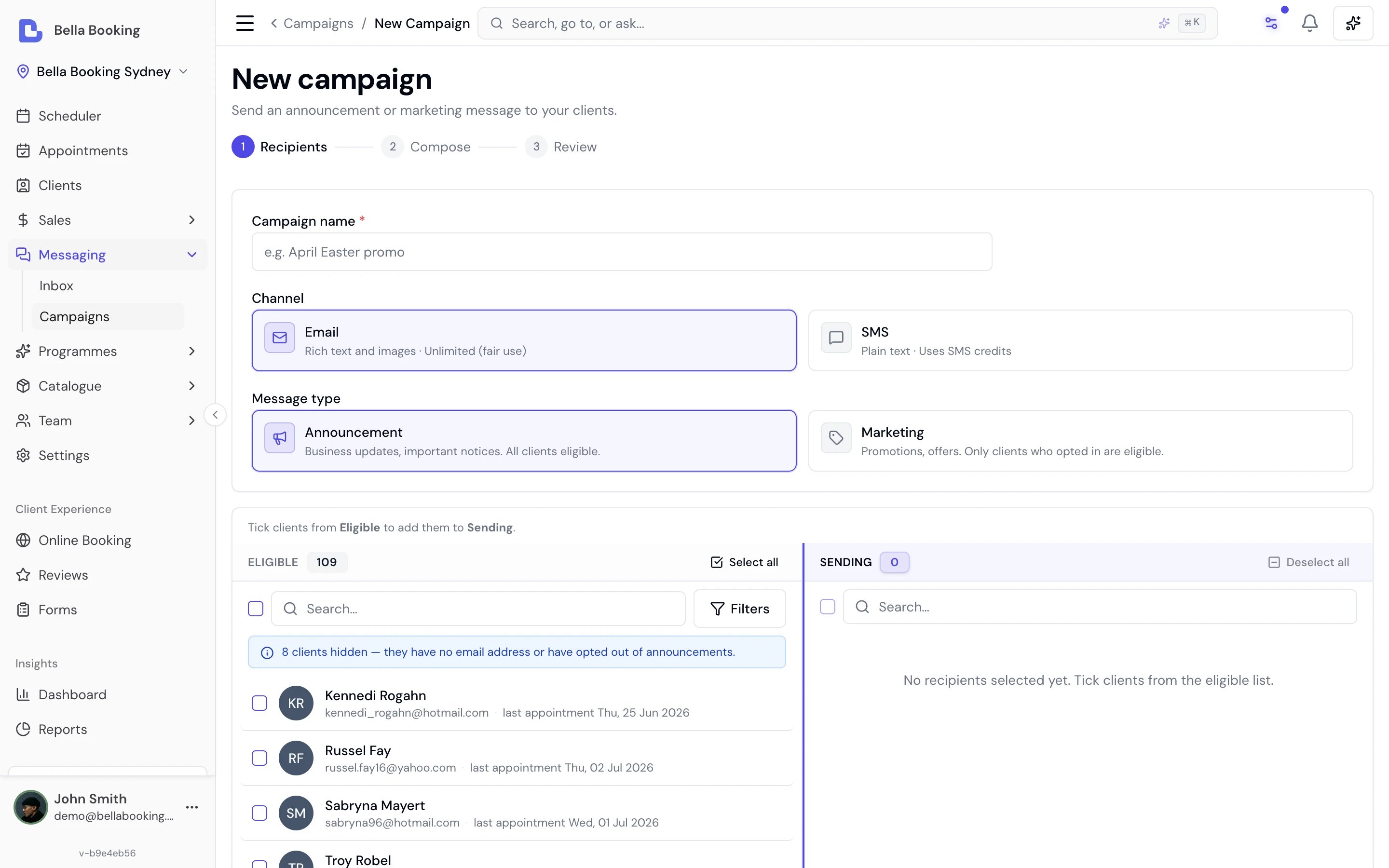
2. **Recipients** — name the campaign, choose the **channel** (Email or SMS) and the **message type** (Marketing or Announcement), then build your audience. The picker shows every eligible client and lets you search, filter (last visit, client-since date, total spent, no-shows, the services a client has had, birthdays this month or this week), and hand-pick who's included. Clients who can't receive the campaign — no email address or mobile number, or no consent for the message type — are excluded automatically, with a count of how many were hidden. When your audience is ready, click **Continue**.
3. **Compose** — write your message (see below). The live preview on the right updates as you type.
4. **Analyse & continue** — before you reach Review, Bella checks your message and shows any issues (see [The pre-send content check](#the-pre-send-content-check)).
5. **Review** — check the recipient count and the rendered preview, use **Send test to myself** to receive the exact email first, then either **Send now** or **Schedule for later**.
***
## Composing an Email
On the **Compose** step, a **Visual / HTML** toggle sits above the subject line. Both are first-class ways to build the same email — pick whichever suits you:
* **Visual** — Bella's built-in editor. Write copy, drop in images, and let Bella wrap it in your branded template. Best if you want a good-looking email without touching code.
* **HTML** — paste a complete email design (for example a **Canva Email** export or a template you already own) and send it exactly as it looks. Best if you've designed the email elsewhere.
The subject line and the personalisation chips (`{{FirstName}}`, `{{LastName}}`, `{{BusinessName}}`) work in both modes — type or insert them anywhere and each recipient sees their own details.
### Visual mode
The visual editor gives you:
* **Rich text** — bold, italics, bulleted and numbered lists, and links.
* **Inline images** — click the image button in the toolbar to upload a photo (for example a product shot, or a graphic you exported from Canva) and place it in the body of the email.
* **A hero image** — an optional wide banner shown above your message. Turn on **Show business name header** to add a branded header band, or turn it off when your hero image already carries your branding so the email opens straight with the image.
* **Your logo and brand colours** — the email is wrapped in a branded template in your colours, and your business logo appears in the header band (the same logo you use on your online booking page). If you have a logo set, it shows at the top automatically.
* **A Book now button** — an optional button that links straight to your online booking page, in your brand colour.
* **Generate with AI** — short on words? Describe the email in a sentence or two and Bella drafts a subject and body as a starting point for you to edit and make your own.
A Canva design that you exported as a **PNG or JPG** image (rather than as
HTML) is easy to use here: stay in **Visual** mode and add it as an inline
image, then write a line or two of real text around it so the email isn't one
giant picture.
### HTML mode
Switch the toggle to **HTML** to paste a complete email design and send it exactly as it looks — no branded card wrapped around it, because your pasted design owns its own layout. (The hero image, header band, and Book-now controls are hidden in this mode for the same reason — your design carries its own.)
1. Paste your email's HTML into the code editor.
2. Click **Import HTML**.
3. Bella brings the design in: it **checks the code**, **brings your images into your own Bella hosting** (both linked images and images embedded in the file, up to 40 per import), and **keeps the design safe to send** (anything unsafe, like scripts, is removed). The cleaned-up HTML is placed back in the editor, so what you see is exactly what will send, and a message confirms how many images were brought in.
4. Review it in the preview, send a test to yourself, and send.
Importing brings images into Bella's own hosting so they always load for your
recipients and don't inflate the email's size. A single import brings in up to
**40 images**; if a design has more, or an image can't be reached, those are
left out and Bella tells you how many were skipped.
Table-based email layouts (the format Canva Email and most email tools export)
are the most reliable across inboxes, for two reasons. Outlook in particular
ignores a lot of modern CSS but respects table layouts; and Bella's
send-safety cleanup keeps only email-safe layout styles — it drops most
flexbox and grid styling (which inboxes like Outlook don't reliably support
anyway). So a design built with flexbox or grid from elsewhere may not lay out
as intended, while a table-based design — like a Canva Email export — is the
reliable path.
***
## Bringing a Canva Design In
Canva is a great way to design an email, and there are two ways to use one in Bella.
### Paste the HTML (keeps it editable and crisp)
This works **only** from Canva's dedicated **Canva Email** design type. A regular Canva graphic or "newsletter" template exports as an **image**, not as HTML — so for the HTML paste you need a Canva Email design.
1. In Canva, build your email using the **Canva Email** design type.
2. Choose **Share** → **Copy HTML**.
3. In Bella, on the campaign **Compose** step, switch the toggle to **HTML**.
4. Paste, then click **Import HTML**.
5. Check the preview, send yourself a test, and send.
### Or export an image
If you'd rather not use HTML, export your Canva design as a **PNG or JPG** and add it as an inline image in **Visual** mode (see the tip above). Add a couple of lines of real text around it so the email reads well and lands in the inbox.
***
## Preview and Test Send
The **Compose** and **Review** steps both show a live preview built from exactly what recipients will receive, with your sample client details filled in. Use the **desktop / mobile** toggle above the preview to check how the email looks on a phone as well as a computer.
On the **Review** step, **Send test to myself** delivers the real email to your own inbox — subject line, layout, images, and buttons — so you can see it end to end before anyone else does.
***
## The Pre-send Content Check
Before you reach Review, Bella checks your message and returns a **pass**, a **warning**, or a **fail**.
* **Email** — Bella reviews your subject line and body for deliverability and spam-trigger problems: clickbait or ALL-CAPS subjects, misleading claims, excessive urgency, too many links, and image-heavy emails with very little text. When you're in HTML or use images, it also checks for practical issues — **images missing alt text** and an email so large **Gmail may clip it**.
* **SMS** — Bella checks compliance with anti-spam rules: making sure your business name is identified, and adding a "Reply STOP to opt out" line to marketing messages.
The structural and deliverability suggestions — image-heavy content, missing
alt text, or an oversized email — are **warnings, never blocks**. You can read
them, act on them or not, and still send. Only a
genuinely serious problem (such as a misleading subject line or misleading
claims in the body) must be fixed before you can send.
The content check protects your sending reputation. Email campaigns from every
business share one sending stream, so a spammy blast can hurt deliverability
for everyone — the check helps your emails land in the inbox rather than the
spam folder.
***
## The Automatic Footer and Unsubscribe
Every campaign email automatically ends with a compact footer carrying your business name and address and an **unsubscribe link**. This footer is added by Bella Booking and can't be removed — it's required by anti-spam law (in Australia, the Spam Act 2003). It's included on every email regardless of whether you compose in Visual or HTML mode, so a pasted design is always compliant. Appointment reminders and confirmations are not affected by campaign unsubscribes.
Recipients also get a one-click **Unsubscribe** option near the sender's name in Gmail, Yahoo and Outlook — the standard mail-client unsubscribe — which opts them out the same way.
***
## Scheduling a Campaign
Both channels support **send later**: choose **Schedule for later** on the Review step and pick a date and time in your business's timezone. Scheduled campaigns show on their detail page with the fire time, where you can **cancel the schedule** or **send now** instead. The audience is re-checked at send time, so clients who joined, left, or changed their consent in the meantime are handled correctly.
***
## Consent — Who Receives a Campaign
Campaigns respect each client's communication consent, per channel and message type:
| Message type | Who's included |
| ---------------- | -------------------------------------------------------- |
| **Announcement** | Everyone who hasn't opted out of announcements (opt-out) |
| **Marketing** | Only clients who have opted **in** to marketing (opt-in) |
For email campaigns, clients with a bounced or unsubscribed email address are also excluded automatically.
***
## When a Client Unsubscribes from Email
Every campaign email's unsubscribe link opens a confirmation page on your online booking site. One click opts the client out of that message type — marketing or announcements — and the page offers a **Re-subscribe** button in case they change their mind. The page also reassures them that appointment reminders and confirmations are unaffected. Clients who use their email app's built-in unsubscribe button are opted out in exactly the same way, and clients who mark a campaign as spam are opted out of all marketing email automatically. Consent changes appear in the client's **Activities** tab.
***
## Campaign History and Results
The Campaigns page lists every campaign with its channel, status, recipients, and date. Open a campaign to see its results:
* **Email campaigns** — recipients, sent, delivered, **opened**, **clicked**, and failed
* **SMS campaigns** — recipients, sent, delivered, failed, and credits used
***
## Requirements
* Campaigns require an active **Messages Plus** subscription and the **Manage campaigns** permission.
* **Email campaigns are unlimited** within Messages Plus (fair use) and don't need a dedicated phone number *or* business verification — you can send email campaigns even before provisioning a number or completing verification. A dedicated number and business verification (KYC) are required only for **SMS**, never for email.
* Each SMS recipient consumes credits per 160-character segment; email consumes nothing.
* SMS campaign messages appear in each recipient's conversation thread in the Messages inbox.
***
## FAQs
**Q: Do I need to know HTML to send a good-looking email?**
A: No. The **Visual** editor wraps your text and images in your branded template automatically — most businesses never touch HTML mode. HTML mode is there for when you've designed an email elsewhere (like Canva Email) and want to paste it in exactly as it looks.
**Q: Can I use a design I made in Canva?**
A: Yes, two ways. If you built it as a **Canva Email** design, use **Share → Copy HTML** and paste it into HTML mode, then click **Import HTML**. If it's a regular Canva graphic, export it as a **PNG or JPG** and add it as an inline image in Visual mode. (A regular Canva graphic can only export as an image, not as HTML.)
**Q: What does "Import HTML" actually do?**
A: It reads your pasted code, brings your images (up to 40 per import) into your own Bella hosting so they always load, and strips anything unsafe (like scripts) so the email is safe to send. The cleaned-up HTML goes back in the editor, so what you see is exactly what sends.
**Q: Will the content check stop me sending?**
A: Only for something genuinely serious, like a misleading subject line. The practical suggestions — an image-heavy email, missing alt text, or a very large email — are warnings you can act on or ignore, and you can still send.
**Q: Do email campaigns use SMS credits or need a phone number?**
A: No to both. Email campaigns are unlimited within Messages Plus (fair use), never touch your SMS credits, and don't need a dedicated number or business verification. You can send your first one the moment you subscribe.
***
## SMS or Email
Pick the channel that fits the message:
| | SMS campaigns | Email campaigns |
| ------------------------------- | --------------------------------------------- | -------------------------------------------------------------------------------------------------------------------------------------------------------------------------------------------------------------------------------------------- |
| **Content** | Plain text, 160-character segments | Subject line; a visual composer (rich text, inline images, a hero image, a **Book now** button, your logo and brand colours) — **or paste your own HTML**, including a **Canva Email** design, for full control of layout, images and colour |
| **Cost** | Uses SMS credits (per segment, per recipient) | **Unlimited** within Messages Plus (fair use) — no credits used |
| **Requires a dedicated number** | Yes | No |
| **Reaches clients with** | A mobile number | An email address |
| **Tracking** | Sent, delivered, failed | Sent, delivered, **opened, clicked**, failed |
***
## Creating a Campaign
The campaign builder is a short, step-by-step wizard — **Recipients → Compose → Review**. You move between steps with the **Continue** and **Back** buttons, shown at both the top and bottom of each step. Your subject and body aren't on the first screen: you write them on the **Compose** step, *after* you've named the campaign, chosen your recipients, and clicked **Continue**.
1. Go to **Messaging** → **Campaigns** in the sidebar and click **New campaign**.
2. **Recipients** — name the campaign, choose the **channel** (Email or SMS) and the **message type** (Marketing or Announcement), then build your audience. The picker shows every eligible client and lets you search, filter (last visit, client-since date, total spent, no-shows, the services a client has had, birthdays this month or this week), and hand-pick who's included. Clients who can't receive the campaign — no email address or mobile number, or no consent for the message type — are excluded automatically, with a count of how many were hidden. When your audience is ready, click **Continue**.
3. **Compose** — write your message (see below). The live preview on the right updates as you type.
4. **Analyse & continue** — before you reach Review, Bella checks your message and shows any issues (see [The pre-send content check](#the-pre-send-content-check)).
5. **Review** — check the recipient count and the rendered preview, use **Send test to myself** to receive the exact email first, then either **Send now** or **Schedule for later**.
***
## Composing an Email
On the **Compose** step, a **Visual / HTML** toggle sits above the subject line. Both are first-class ways to build the same email — pick whichever suits you:
* **Visual** — Bella's built-in editor. Write copy, drop in images, and let Bella wrap it in your branded template. Best if you want a good-looking email without touching code.
* **HTML** — paste a complete email design (for example a **Canva Email** export or a template you already own) and send it exactly as it looks. Best if you've designed the email elsewhere.
The subject line and the personalisation chips (`{{FirstName}}`, `{{LastName}}`, `{{BusinessName}}`) work in both modes — type or insert them anywhere and each recipient sees their own details.
### Visual mode
The visual editor gives you:
* **Rich text** — bold, italics, bulleted and numbered lists, and links.
* **Inline images** — click the image button in the toolbar to upload a photo (for example a product shot, or a graphic you exported from Canva) and place it in the body of the email.
* **A hero image** — an optional wide banner shown above your message. Turn on **Show business name header** to add a branded header band, or turn it off when your hero image already carries your branding so the email opens straight with the image.
* **Your logo and brand colours** — the email is wrapped in a branded template in your colours, and your business logo appears in the header band (the same logo you use on your online booking page). If you have a logo set, it shows at the top automatically.
* **A Book now button** — an optional button that links straight to your online booking page, in your brand colour.
* **Generate with AI** — short on words? Describe the email in a sentence or two and Bella drafts a subject and body as a starting point for you to edit and make your own.
A Canva design that you exported as a **PNG or JPG** image (rather than as
HTML) is easy to use here: stay in **Visual** mode and add it as an inline
image, then write a line or two of real text around it so the email isn't one
giant picture.
### HTML mode
Switch the toggle to **HTML** to paste a complete email design and send it exactly as it looks — no branded card wrapped around it, because your pasted design owns its own layout. (The hero image, header band, and Book-now controls are hidden in this mode for the same reason — your design carries its own.)
1. Paste your email's HTML into the code editor.
2. Click **Import HTML**.
3. Bella brings the design in: it **checks the code**, **brings your images into your own Bella hosting** (both linked images and images embedded in the file, up to 40 per import), and **keeps the design safe to send** (anything unsafe, like scripts, is removed). The cleaned-up HTML is placed back in the editor, so what you see is exactly what will send, and a message confirms how many images were brought in.
4. Review it in the preview, send a test to yourself, and send.
Importing brings images into Bella's own hosting so they always load for your
recipients and don't inflate the email's size. A single import brings in up to
**40 images**; if a design has more, or an image can't be reached, those are
left out and Bella tells you how many were skipped.
Table-based email layouts (the format Canva Email and most email tools export)
are the most reliable across inboxes, for two reasons. Outlook in particular
ignores a lot of modern CSS but respects table layouts; and Bella's
send-safety cleanup keeps only email-safe layout styles — it drops most
flexbox and grid styling (which inboxes like Outlook don't reliably support
anyway). So a design built with flexbox or grid from elsewhere may not lay out
as intended, while a table-based design — like a Canva Email export — is the
reliable path.
***
## Bringing a Canva Design In
Canva is a great way to design an email, and there are two ways to use one in Bella.
### Paste the HTML (keeps it editable and crisp)
This works **only** from Canva's dedicated **Canva Email** design type. A regular Canva graphic or "newsletter" template exports as an **image**, not as HTML — so for the HTML paste you need a Canva Email design.
1. In Canva, build your email using the **Canva Email** design type.
2. Choose **Share** → **Copy HTML**.
3. In Bella, on the campaign **Compose** step, switch the toggle to **HTML**.
4. Paste, then click **Import HTML**.
5. Check the preview, send yourself a test, and send.
### Or export an image
If you'd rather not use HTML, export your Canva design as a **PNG or JPG** and add it as an inline image in **Visual** mode (see the tip above). Add a couple of lines of real text around it so the email reads well and lands in the inbox.
***
## Preview and Test Send
The **Compose** and **Review** steps both show a live preview built from exactly what recipients will receive, with your sample client details filled in. Use the **desktop / mobile** toggle above the preview to check how the email looks on a phone as well as a computer.
On the **Review** step, **Send test to myself** delivers the real email to your own inbox — subject line, layout, images, and buttons — so you can see it end to end before anyone else does.
***
## The Pre-send Content Check
Before you reach Review, Bella checks your message and returns a **pass**, a **warning**, or a **fail**.
* **Email** — Bella reviews your subject line and body for deliverability and spam-trigger problems: clickbait or ALL-CAPS subjects, misleading claims, excessive urgency, too many links, and image-heavy emails with very little text. When you're in HTML or use images, it also checks for practical issues — **images missing alt text** and an email so large **Gmail may clip it**.
* **SMS** — Bella checks compliance with anti-spam rules: making sure your business name is identified, and adding a "Reply STOP to opt out" line to marketing messages.
The structural and deliverability suggestions — image-heavy content, missing
alt text, or an oversized email — are **warnings, never blocks**. You can read
them, act on them or not, and still send. Only a
genuinely serious problem (such as a misleading subject line or misleading
claims in the body) must be fixed before you can send.
The content check protects your sending reputation. Email campaigns from every
business share one sending stream, so a spammy blast can hurt deliverability
for everyone — the check helps your emails land in the inbox rather than the
spam folder.
***
## The Automatic Footer and Unsubscribe
Every campaign email automatically ends with a compact footer carrying your business name and address and an **unsubscribe link**. This footer is added by Bella Booking and can't be removed — it's required by anti-spam law (in Australia, the Spam Act 2003). It's included on every email regardless of whether you compose in Visual or HTML mode, so a pasted design is always compliant. Appointment reminders and confirmations are not affected by campaign unsubscribes.
Recipients also get a one-click **Unsubscribe** option near the sender's name in Gmail, Yahoo and Outlook — the standard mail-client unsubscribe — which opts them out the same way.
***
## Scheduling a Campaign
Both channels support **send later**: choose **Schedule for later** on the Review step and pick a date and time in your business's timezone. Scheduled campaigns show on their detail page with the fire time, where you can **cancel the schedule** or **send now** instead. The audience is re-checked at send time, so clients who joined, left, or changed their consent in the meantime are handled correctly.
***
## Consent — Who Receives a Campaign
Campaigns respect each client's communication consent, per channel and message type:
| Message type | Who's included |
| ---------------- | -------------------------------------------------------- |
| **Announcement** | Everyone who hasn't opted out of announcements (opt-out) |
| **Marketing** | Only clients who have opted **in** to marketing (opt-in) |
For email campaigns, clients with a bounced or unsubscribed email address are also excluded automatically.
***
## When a Client Unsubscribes from Email
Every campaign email's unsubscribe link opens a confirmation page on your online booking site. One click opts the client out of that message type — marketing or announcements — and the page offers a **Re-subscribe** button in case they change their mind. The page also reassures them that appointment reminders and confirmations are unaffected. Clients who use their email app's built-in unsubscribe button are opted out in exactly the same way, and clients who mark a campaign as spam are opted out of all marketing email automatically. Consent changes appear in the client's **Activities** tab.
***
## Campaign History and Results
The Campaigns page lists every campaign with its channel, status, recipients, and date. Open a campaign to see its results:
* **Email campaigns** — recipients, sent, delivered, **opened**, **clicked**, and failed
* **SMS campaigns** — recipients, sent, delivered, failed, and credits used
***
## Requirements
* Campaigns require an active **Messages Plus** subscription and the **Manage campaigns** permission.
* **Email campaigns are unlimited** within Messages Plus (fair use) and don't need a dedicated phone number *or* business verification — you can send email campaigns even before provisioning a number or completing verification. A dedicated number and business verification (KYC) are required only for **SMS**, never for email.
* Each SMS recipient consumes credits per 160-character segment; email consumes nothing.
* SMS campaign messages appear in each recipient's conversation thread in the Messages inbox.
***
## FAQs
**Q: Do I need to know HTML to send a good-looking email?**
A: No. The **Visual** editor wraps your text and images in your branded template automatically — most businesses never touch HTML mode. HTML mode is there for when you've designed an email elsewhere (like Canva Email) and want to paste it in exactly as it looks.
**Q: Can I use a design I made in Canva?**
A: Yes, two ways. If you built it as a **Canva Email** design, use **Share → Copy HTML** and paste it into HTML mode, then click **Import HTML**. If it's a regular Canva graphic, export it as a **PNG or JPG** and add it as an inline image in Visual mode. (A regular Canva graphic can only export as an image, not as HTML.)
**Q: What does "Import HTML" actually do?**
A: It reads your pasted code, brings your images (up to 40 per import) into your own Bella hosting so they always load, and strips anything unsafe (like scripts) so the email is safe to send. The cleaned-up HTML goes back in the editor, so what you see is exactly what sends.
**Q: Will the content check stop me sending?**
A: Only for something genuinely serious, like a misleading subject line. The practical suggestions — an image-heavy email, missing alt text, or a very large email — are warnings you can act on or ignore, and you can still send.
**Q: Do email campaigns use SMS credits or need a phone number?**
A: No to both. Email campaigns are unlimited within Messages Plus (fair use), never touch your SMS credits, and don't need a dedicated number or business verification. You can send your first one the moment you subscribe.