> ## Documentation Index
> Fetch the complete documentation index at: https://docs.bellabooking.com/llms.txt
> Use this file to discover all available pages before exploring further.
# Prepaid Packages
> Sell prepaid session packages to clients, track remaining sessions, and redeem them at checkout or during online booking
## Introduction
**Prepaid Packages** let you sell bundles of sessions that clients pay for upfront at a fixed price. A package defines which services are included, how many sessions of each, a single prepaid price (typically discounted), and an optional expiry period. When a client purchases a package, they receive a balance of prepaid sessions that can be redeemed at checkout by a team member or applied by the client themselves when booking online — replacing the normal service charge.
This is ideal for encouraging client commitment and repeat visits. For example, you might offer a "10 Haircut Pack" where the client pays upfront for 10 haircuts at a discounted rate, then redeems one session each visit.
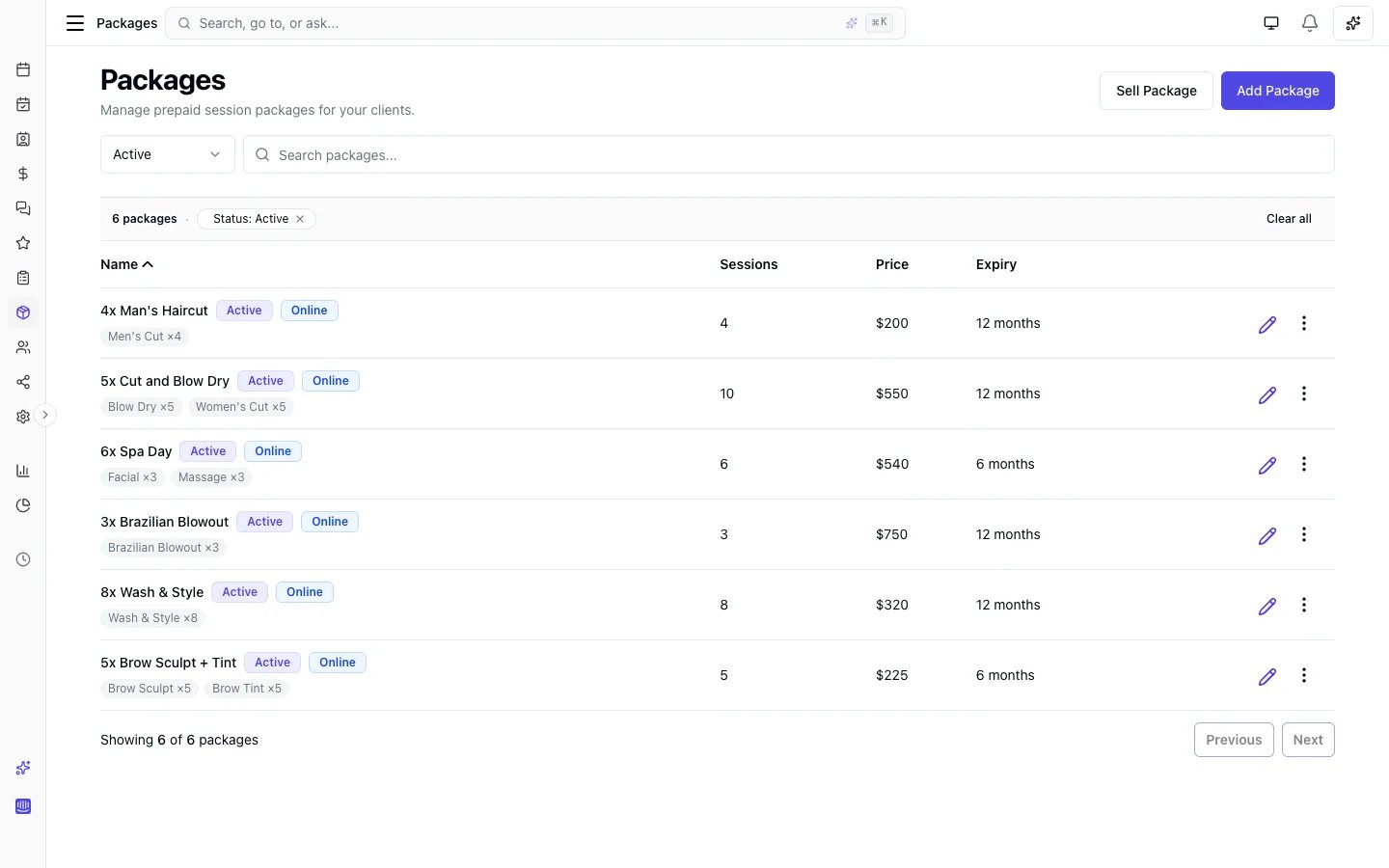 Packages are managed from the **Catalogue** section and can be sold through the **Sales** form (POS) or purchased by clients through your **online booking portal**. Sold packages and their session balances appear on each client's profile and in the **Sold packages** list under **Sales**.
***
## Key features
* **Flexible composition**: Include one or more services and bundles in a package, each with its own session count
* **Variant-level allocations**: Restrict sessions to a specific service variant (e.g., "Haircut — Short" rather than any haircut)
* **Prepaid pricing**: Set one upfront price for the entire package, typically at a discount compared to booking sessions individually
* **Expiry periods**: Optionally set how many months a package is valid after purchase
* **Session tracking**: Real-time balance tracking shows how many sessions remain for each service
* **Checkout redemption**: Team members select a client's package at checkout to cover service charges
* **Online redemption**: Clients can apply their package credits when booking online — no team member intervention needed
* **Multiple packages per sale**: Sell more than one package in a single transaction
* **Online purchase**: Clients can browse and purchase packages through your online booking portal
* **Purchase confirmation email**: Clients receive an email with their package details after purchase
* **My packages portal**: Clients can view their purchased packages and session balances online
* **Sold packages list**: Browse and manage all sold packages with status filtering
* **Archive & restore**: Archive packages you no longer sell and restore them later if needed
* **Cancellation restore**: When an appointment is cancelled, redeemed sessions are automatically returned to the client's balance
* **Voiding**: Cancel an active package if needed, with a mandatory reason
* **Package reports**: Track packages sold, revenue, sessions redeemed, and sessions outstanding
***
## How packages work
1. You create a package definition in **Catalogue** > **Packages** (e.g., "10 Haircut Pack" — 10 sessions of Haircut for \$400, paid upfront)
2. The package is sold to a client — either by a team member through **Sales** > **Add sale**, or by the client themselves through the online booking portal
3. The client receives a prepaid session balance (e.g., 10 haircut sessions) and a confirmation email
4. Sessions are redeemed in one of two ways:
* **At checkout (team member)**: When checking out an appointment, the team member selects the client's package to cover the service charge
* **During online booking (client)**: The client applies their package credits at the confirm step when booking online — sessions are redeemed immediately
5. One session is deducted per covered service — or, for a bundle line, one session covers the whole bundle in a single redemption — and the charge is covered by the prepaid balance, so no additional payment is needed for covered services
6. If an appointment is cancelled, any redeemed sessions are automatically restored to the client's balance
7. When all sessions are used, the package status changes to **Exhausted**
**Sessions belong to the client who pays.** When a client books an appointment for their family or guests — a couples session, a shared-space booking, or a party — and pays for it, their package balance covers that **whole booking**. The attendees' own packages are **not** drawn on automatically; a package is always redeemed from the person paying. This is deliberate.
**A package line can be a whole bundle.** As well as individual services, you can add a **bundle** as a package line — pick it from the bundle picker when building the package. **One bundle session covers every service in that bundle** when the client books it, redeemed in a single step rather than service-by-service. You can still allocate individual services too, and mix both in the same package (e.g. "1× Spa Day bundle + 3× Massage").
***
## Creating a package
1. Go to **Catalogue** > **Packages** in the sidebar
2. Click **Add package**
3. Fill in the details:
* **Package name** (required): A descriptive name (e.g., "10 Haircut Pack")
* **Description** (optional): Additional details about what's included
* **Services and bundles included** (required): Click **Choose services** to select which services and variants are part of the package, then set the number of sessions for each. Use **Add bundle** to add a whole bundle as a line — each session of it covers every service in the bundle
* **Price** (required): The total price for the package
* **Expiry period**: Choose **Limited** and enter a number of months, or **Unlimited** for no expiry
* **Active**: Toggle whether the package is available for sale
* **Allow online purchase**: Toggle whether clients can purchase this package through the online booking portal (requires Stripe payments to be configured)
4. Click **Save**
### Service and bundle allocations
Each allocation defines a service (or a specific variant of a service), or a whole bundle, and how many sessions of it are included.
| Allocation type | Example | Redemption behaviour |
| --------------------------------------- | -------------------- | ----------------------------------------------------------------------------------------------- |
| **Service-level** (no variant selected) | "Haircut x10" | Any variant of that service can be redeemed against these sessions |
| **Variant-level** | "Haircut — Short x5" | Only the "Short" variant can be redeemed against these sessions |
| **Bundle-level** | "Spa Day x3" | One session covers the **whole bundle** — every service in it is covered in a single redemption |
You can mix all three types in a single package. For example, a package could include 10 sessions of any Haircut variant, 3 sessions of Colour (no variants), and 2 sessions of your "Spa Day" bundle.
### Editing a package
You can update a package's name, description, price, expiry period, and active status at any time. However, if the package has been sold to any client, the **service composition cannot be changed** — this protects existing session balances from being altered after purchase.
### Archiving a package
If you no longer want to sell a package but need to keep it for reference (e.g., clients still have active balances):
1. Open the package from **Catalogue** > **Packages**
2. Click the **Archive** option from the dropdown menu
3. The package is hidden from the main list and can no longer be sold
To view archived packages, toggle the **Archived** filter on the packages list. You can **restore** an archived package at any time to make it available for sale again.
**Note:** You can only permanently delete a package that has been archived and has never been sold.
***
## Selling a package
Packages are sold through the **Sales** form, just like products. You can start a sale from multiple places:
### From the sales page
1. Go to **Sales** in the sidebar and click **Add sale**
2. Select a **Client**
3. Click **Add package**
4. Browse or search the available packages, then click one to add it
5. You can add multiple packages to a single sale
6. Each added package appears as a line item with its price
7. Select a payment method and complete the sale
### From the client profile
1. Open a client's profile and go to the **Packages** tab
2. Click **Sell package** in the tab header (or in the empty state if no packages exist yet)
3. This opens the Sales form with the client pre-selected — just add packages and complete the sale
### From the client list
Right-click (or use the **⋮** menu) on any client row and select **New sale** to open the Sales form pre-populated with that client.
### From the command palette
Press **Cmd+K** (Mac) or **Ctrl+K** (Windows/Linux) and search for "Sell package" to jump straight to the Sales form.
Once the sale is confirmed, a **Sold Package** record is created for the client with the full session balance.
***
## Online purchase
Clients can browse and purchase packages directly through your online booking portal. This requires:
* Packages to be enabled in **Settings** > **Packages**
* At least one package with **Allow online purchase** toggled on
* Stripe payments configured for your location
### Discoverability
Packages are surfaced to clients in several places on your online booking portal:
* **Navigation bar**: A "Packages" link appears in the main navigation when online packages are enabled
* **Packages section on your booking page**: A prominent section encourages clients to browse available packages
* **Services section**: A subtle "Save with prepaid packages" link appears below the services heading, guiding clients to explore packages
* **Account menu**: "My packages" appears in the client's account hub (grid menu) for quick access to their purchased packages
### How it works
1. The client visits the **Packages** page on your online booking portal
2. They browse the available packages, viewing services included, price, and expiry
3. They click **Purchase package** and are redirected to Stripe Checkout to complete payment
4. After payment, they see a confirmation page with their package details
5. The client receives a **purchase confirmation email** with a summary of their package
6. The package appears on their **My packages** page, where they can view session balances
### My packages
Clients can view all their purchased packages from the **My packages** page in the online booking portal (accessible from the user menu). For each package they can see:
* Package name and status
* Session balance per service (remaining / total)
* Purchase date and expiry date
* A link to book an appointment
### Purchase confirmation email
When a client purchases a package, they automatically receive a confirmation email showing:
* Package name and included services
* Price paid and expiry date
* A link to view their packages online
You can customise this email in **Settings** > **Automated messages** > **Package purchase confirmation**.
### Processing fees
If your location has **Pass processing fees to clients** enabled in payment settings, a small note is shown on the packages page informing clients that a processing fee applies.
***
## Package indicators when booking
When creating or editing an appointment, the system helps team members identify clients with active packages:
* **Package banner**: After selecting a client, a blue banner shows the number of active packages and remaining sessions with a per-service breakdown. Each service is a clickable **quick-add button** — click to instantly add that service to the appointment
* **Service dropdown**: A **"Covered by package"** group appears at the top of the service selection dropdown, highlighting services the client has prepaid sessions for. Each matching service also shows a blue badge with the number of remaining sessions (e.g., "7 sessions")
* **Suggested services**: If a suggested service is also covered by a package, the package session badge appears alongside the booking count
* **Total hint**: The total section shows a blue hint indicating how many services are covered by a package and the potential savings at checkout (e.g., "All services covered by package — potential total \$0 at checkout")
The total hint also appears when viewing an appointment (appointment preview and detail page) for appointments that haven't been checked out yet.
These indicators are informational — actual package redemption happens at checkout (where packages are **automatically applied**). They help team members select the right services and see the financial impact upfront.
***
## Redeeming packages
There are two ways to redeem package sessions: team members can apply them at checkout, or clients can apply them when booking online.
### Redeeming at checkout (team member)
When checking out an appointment for a client who has an active package, the team member can apply it to cover the service charge.
1. Open the appointment and click **Check Out**
2. If the client has an active package that covers any of the appointment's services, matching packages are **automatically applied** — no manual action needed
3. The service price is set to \$0 (covered by the package) and one session is deducted from the balance
4. Any add-on charges remain payable as normal — packages cover the base service price only
5. The team member can remove or change the applied package if needed
6. Complete the checkout with any remaining balance paid via the chosen payment method
Packages are auto-applied when entering checkout to streamline the process. If the client already applied a package during online booking, it appears as **"Applied (online)"** in the checkout view. The team member can keep the pre-applied package or remove it and choose a different one.
### Redeeming during online booking (client)
Clients with active packages can apply their credits when booking online — no team member action is needed.
1. The client selects their service(s) and reaches the **Confirm** step of the booking flow
2. A **Package credits** section appears in the booking summary, showing packages that match the selected services
3. For each service, the client can see available packages with the number of remaining sessions and expiry date
4. The client clicks **Apply** to use a package for that service
5. The booking summary updates to show the package discount as a line item deduction
6. If the package covers all services, the client sees **"Fully covered by your package — no payment required"** and no deposit is collected
7. When the booking is confirmed, sessions are redeemed immediately
**Important details:**
* Each service slot can have at most one package applied
* Only packages with an exact variant match are available during online booking (service-level packages match any variant)
* Package-covered services are excluded from the deposit calculation
* If the appointment is later cancelled, redeemed sessions are automatically restored to the client's balance
### Cancellation and session restore
When an appointment with package redemptions is cancelled, the redeemed sessions are **automatically restored** to the client's package balance. This applies to both team-member-applied and client-applied redemptions.
* The restoration is recorded in the redemption history as a **Reversal** entry
* The package status may change back from Exhausted to Active if sessions are restored
* No manual action is required — the restore happens automatically on cancellation
### What a session covers inside a bundle
Because a **bundle** expands at booking into one appointment line per component service, what a package line covers depends on how the line was set up.
* A **service-level** package line covers the matching component line of a bundle — one session per matching line, leaving the other lines charged.
* A **bundle-level** package line covers the **whole bundle** in a single redemption — one session covers every component line at once.
Add-on charges are never covered — a package session covers the base service price only, and any add-ons are always paid by the client (see [Service Add-ons](/service-catalog/addons)). Redeemed sessions are automatically restored on cancellation, whichever kind of line was used.
**Worked example 3 — a service-scoped package against a bundle.** A client holds a **10× Massage** package (a service-level line for the Massage service). They book a **Spa Day** bundle containing **Massage + Facial**, which expands into a Massage line and a Facial line.
* The **Massage** line is covered by **one** Massage session from the package — its charge is set to \$0.
* The **Facial** line is **charged** — the package doesn't include Facial, so it isn't covered.
* The package balance drops by one session.
**Contrast — a package whose line is the whole bundle.** If instead the package had a **bundle-level** "Spa Day" line, booking the Spa Day bundle redeems **one** session that covers **both** the Massage and Facial lines together — the whole bundle is covered in a single redemption, and the balance drops by one Spa Day session.
***
## Managing sold packages
### Client profile
Each client's profile includes a **Packages** tab showing all their purchased packages. For each package you can see:
* Package name, purchase date, and expiry date
* Status badge
* Session progress bar (used / total)
* Per-service session breakdown
* Links to view the sale or the full package detail
### Sold packages list
Go to **Sales** > **Sold packages** in the sidebar to browse all sold packages across all clients.
* Search by package, client name, email, or phone
* Filter by one or more statuses: **Active**, **Exhausted**, **Expired**, or **Voided**
* Click any row to open the detail page
### Sold package detail page
The detail page shows:
* **Package details**: Client (linked), purchase date, expiry date, purchase price, sale origin (online booking or point of sale), and a link to the original sale
* **Session summary**: Progress bar and per-service breakdown showing remaining / total sessions
* **Redemptions table**: A log of every redemption and reversal — date, service name, type (redemption or reversal), and a link to the appointment
### Voiding a package
If you need to cancel a client's package — for example, if it was sold in error or the client requests a cancellation:
1. Open the sold package detail page (from **Sales** > **Sold packages** or the client's **Packages** tab)
2. Click **Void**
3. Enter a reason (required)
4. Confirm
**Note:** Voiding is permanent. The remaining sessions are forfeited and the package can no longer be redeemed. Voiding does not automatically issue a refund — process a refund on the original sale separately if needed.
***
## Package statuses
| Status | Meaning |
| -------------- | ------------------------------------------------------------------- |
| **Active** | Valid and redeemable — has remaining sessions and has not expired |
| **Exhausted** | All sessions have been used |
| **Expired** | The expiry date has passed — can no longer be redeemed |
| **Voided** | Cancelled by a team member — remaining sessions forfeited |
| **Processing** | Online purchase payment is being processed (visible to client only) |
***
## Package reports
Go to **Insights** > **Reports** > **Packages summary** to view analytics for your packages.
The report shows:
* **Packages sold**: Number of packages sold in the selected period
* **Total sold amount**: Revenue from package sales
* **Sessions redeemed**: Number of sessions used in the selected period
* **Sessions outstanding**: Total unredeemed sessions across all active packages
You can filter by date range and use comparison mode to compare against a previous period.
***
## Enabling prepaid packages
Prepaid packages must be enabled before they can be created or sold.
1. Go to **Settings** > **Packages**
2. Toggle **Enable Packages** on
3. Optionally set a **Default expiry** — this pre-fills the expiry period when creating new packages
***
## FAQs
**Q: Can I include multiple services in one package?**
A: Yes. A package can include any number of services, each with its own session count. For example, "10 Haircuts + 3 Colours".
**Q: Can a package contain a whole bundle?**
A: Yes. As well as individual services, you can add a bundle as a package line using the bundle picker. Each session of a bundle line covers the **entire** bundle in a single redemption — every service in it — rather than deducting a session per service. You can mix bundle lines and service lines in the same package.
**Q: What happens if a service has variants?**
A: When choosing services for a package, you can select specific variants (e.g., "Haircut — Short") or the service as a whole. A service-level allocation allows any variant to be redeemed; a variant-level allocation restricts redemption to that specific variant.
**Q: Can a client have multiple active packages?**
A: Yes. A client can purchase and hold multiple packages simultaneously.
**Q: Can I sell multiple packages in one sale?**
A: Yes. You can add multiple packages to a single sale transaction.
**Q: Do packages cover add-on charges?**
A: No. Packages cover the base service price only. Any add-on charges remain payable at checkout, consistent with membership benefits and per-line discounts. See [Service Add-ons](/service-catalog/addons).
**Q: If I book a bundle, does a service-level package cover it?**
A: A service-level package line covers only the matching component line of the bundle (one session), leaving the other lines charged. A bundle-level package line covers the whole bundle in a single session. See [What a session covers inside a bundle](#what-a-session-covers-inside-a-bundle).
**Q: What happens when a package expires?**
A: Expired packages cannot be redeemed. The expiry date is calculated from the purchase date plus the number of months set on the package.
**Q: Can I change the services in a package after it has been sold?**
A: No. Once a package has been sold to any client, the service composition is locked to protect existing session balances. You can still update the name, description, price, and expiry period.
**Q: Who can void a package?**
A: Team members with the **Void Packages** permission. By default, Owners and Admins have this permission.
**Q: Does voiding a package issue a refund?**
A: No. Voiding cancels the remaining sessions but does not process a refund. If a refund is needed, process it separately on the original sale.
**Q: Can clients redeem packages when booking online?**
A: Yes. When a client with active packages reaches the confirm step of online booking, they see a **Package credits** section showing applicable packages. They can apply a package to cover each service — sessions are redeemed immediately when the booking is confirmed.
**Q: What happens to package sessions if an appointment is cancelled?**
A: Redeemed sessions are automatically restored to the client's package balance. This works for both team-member-applied and client-applied redemptions.
**Q: Can clients purchase packages online?**
A: Yes. Toggle **Allow online purchase** on individual packages to make them available on your online booking portal. Clients pay via Stripe Checkout and receive a confirmation email.
**Q: What happens if a client abandons the checkout?**
A: If the client closes the browser before completing payment, the package stays in **Processing** status. When the Stripe Checkout session expires (typically after 24 hours), the package is automatically marked as failed and cleaned up. It never appears in admin views.
**Q: Can I control which packages are available online?**
A: Yes. The **Allow online purchase** toggle is per-package, so you can offer some packages exclusively at the point of sale while making others available online.
**Q: Do packages affect the deposit amount for online bookings?**
A: Yes. Services covered by a package are excluded from the deposit calculation. If all services are covered, no deposit is required.
**Q: What's the difference between archiving and deleting a package?**
A: Archiving hides the package from the active list but preserves it for reference — you can restore it later. Deleting permanently removes the package. You can only delete a package that has been archived and has never been sold.
**Q: Is there a difference between how packages work at checkout vs. online booking?**
A: The core behaviour is the same — one session is redeemed per service. The main difference is that online booking requires an exact variant match when applying packages, whereas team members at checkout have more flexibility to match service-level allocations.
***
To enable and configure prepaid packages, see [Prepaid Package Settings](/settings/packages).
Packages are managed from the **Catalogue** section and can be sold through the **Sales** form (POS) or purchased by clients through your **online booking portal**. Sold packages and their session balances appear on each client's profile and in the **Sold packages** list under **Sales**.
***
## Key features
* **Flexible composition**: Include one or more services and bundles in a package, each with its own session count
* **Variant-level allocations**: Restrict sessions to a specific service variant (e.g., "Haircut — Short" rather than any haircut)
* **Prepaid pricing**: Set one upfront price for the entire package, typically at a discount compared to booking sessions individually
* **Expiry periods**: Optionally set how many months a package is valid after purchase
* **Session tracking**: Real-time balance tracking shows how many sessions remain for each service
* **Checkout redemption**: Team members select a client's package at checkout to cover service charges
* **Online redemption**: Clients can apply their package credits when booking online — no team member intervention needed
* **Multiple packages per sale**: Sell more than one package in a single transaction
* **Online purchase**: Clients can browse and purchase packages through your online booking portal
* **Purchase confirmation email**: Clients receive an email with their package details after purchase
* **My packages portal**: Clients can view their purchased packages and session balances online
* **Sold packages list**: Browse and manage all sold packages with status filtering
* **Archive & restore**: Archive packages you no longer sell and restore them later if needed
* **Cancellation restore**: When an appointment is cancelled, redeemed sessions are automatically returned to the client's balance
* **Voiding**: Cancel an active package if needed, with a mandatory reason
* **Package reports**: Track packages sold, revenue, sessions redeemed, and sessions outstanding
***
## How packages work
1. You create a package definition in **Catalogue** > **Packages** (e.g., "10 Haircut Pack" — 10 sessions of Haircut for \$400, paid upfront)
2. The package is sold to a client — either by a team member through **Sales** > **Add sale**, or by the client themselves through the online booking portal
3. The client receives a prepaid session balance (e.g., 10 haircut sessions) and a confirmation email
4. Sessions are redeemed in one of two ways:
* **At checkout (team member)**: When checking out an appointment, the team member selects the client's package to cover the service charge
* **During online booking (client)**: The client applies their package credits at the confirm step when booking online — sessions are redeemed immediately
5. One session is deducted per covered service — or, for a bundle line, one session covers the whole bundle in a single redemption — and the charge is covered by the prepaid balance, so no additional payment is needed for covered services
6. If an appointment is cancelled, any redeemed sessions are automatically restored to the client's balance
7. When all sessions are used, the package status changes to **Exhausted**
**Sessions belong to the client who pays.** When a client books an appointment for their family or guests — a couples session, a shared-space booking, or a party — and pays for it, their package balance covers that **whole booking**. The attendees' own packages are **not** drawn on automatically; a package is always redeemed from the person paying. This is deliberate.
**A package line can be a whole bundle.** As well as individual services, you can add a **bundle** as a package line — pick it from the bundle picker when building the package. **One bundle session covers every service in that bundle** when the client books it, redeemed in a single step rather than service-by-service. You can still allocate individual services too, and mix both in the same package (e.g. "1× Spa Day bundle + 3× Massage").
***
## Creating a package
1. Go to **Catalogue** > **Packages** in the sidebar
2. Click **Add package**
3. Fill in the details:
* **Package name** (required): A descriptive name (e.g., "10 Haircut Pack")
* **Description** (optional): Additional details about what's included
* **Services and bundles included** (required): Click **Choose services** to select which services and variants are part of the package, then set the number of sessions for each. Use **Add bundle** to add a whole bundle as a line — each session of it covers every service in the bundle
* **Price** (required): The total price for the package
* **Expiry period**: Choose **Limited** and enter a number of months, or **Unlimited** for no expiry
* **Active**: Toggle whether the package is available for sale
* **Allow online purchase**: Toggle whether clients can purchase this package through the online booking portal (requires Stripe payments to be configured)
4. Click **Save**
### Service and bundle allocations
Each allocation defines a service (or a specific variant of a service), or a whole bundle, and how many sessions of it are included.
| Allocation type | Example | Redemption behaviour |
| --------------------------------------- | -------------------- | ----------------------------------------------------------------------------------------------- |
| **Service-level** (no variant selected) | "Haircut x10" | Any variant of that service can be redeemed against these sessions |
| **Variant-level** | "Haircut — Short x5" | Only the "Short" variant can be redeemed against these sessions |
| **Bundle-level** | "Spa Day x3" | One session covers the **whole bundle** — every service in it is covered in a single redemption |
You can mix all three types in a single package. For example, a package could include 10 sessions of any Haircut variant, 3 sessions of Colour (no variants), and 2 sessions of your "Spa Day" bundle.
### Editing a package
You can update a package's name, description, price, expiry period, and active status at any time. However, if the package has been sold to any client, the **service composition cannot be changed** — this protects existing session balances from being altered after purchase.
### Archiving a package
If you no longer want to sell a package but need to keep it for reference (e.g., clients still have active balances):
1. Open the package from **Catalogue** > **Packages**
2. Click the **Archive** option from the dropdown menu
3. The package is hidden from the main list and can no longer be sold
To view archived packages, toggle the **Archived** filter on the packages list. You can **restore** an archived package at any time to make it available for sale again.
**Note:** You can only permanently delete a package that has been archived and has never been sold.
***
## Selling a package
Packages are sold through the **Sales** form, just like products. You can start a sale from multiple places:
### From the sales page
1. Go to **Sales** in the sidebar and click **Add sale**
2. Select a **Client**
3. Click **Add package**
4. Browse or search the available packages, then click one to add it
5. You can add multiple packages to a single sale
6. Each added package appears as a line item with its price
7. Select a payment method and complete the sale
### From the client profile
1. Open a client's profile and go to the **Packages** tab
2. Click **Sell package** in the tab header (or in the empty state if no packages exist yet)
3. This opens the Sales form with the client pre-selected — just add packages and complete the sale
### From the client list
Right-click (or use the **⋮** menu) on any client row and select **New sale** to open the Sales form pre-populated with that client.
### From the command palette
Press **Cmd+K** (Mac) or **Ctrl+K** (Windows/Linux) and search for "Sell package" to jump straight to the Sales form.
Once the sale is confirmed, a **Sold Package** record is created for the client with the full session balance.
***
## Online purchase
Clients can browse and purchase packages directly through your online booking portal. This requires:
* Packages to be enabled in **Settings** > **Packages**
* At least one package with **Allow online purchase** toggled on
* Stripe payments configured for your location
### Discoverability
Packages are surfaced to clients in several places on your online booking portal:
* **Navigation bar**: A "Packages" link appears in the main navigation when online packages are enabled
* **Packages section on your booking page**: A prominent section encourages clients to browse available packages
* **Services section**: A subtle "Save with prepaid packages" link appears below the services heading, guiding clients to explore packages
* **Account menu**: "My packages" appears in the client's account hub (grid menu) for quick access to their purchased packages
### How it works
1. The client visits the **Packages** page on your online booking portal
2. They browse the available packages, viewing services included, price, and expiry
3. They click **Purchase package** and are redirected to Stripe Checkout to complete payment
4. After payment, they see a confirmation page with their package details
5. The client receives a **purchase confirmation email** with a summary of their package
6. The package appears on their **My packages** page, where they can view session balances
### My packages
Clients can view all their purchased packages from the **My packages** page in the online booking portal (accessible from the user menu). For each package they can see:
* Package name and status
* Session balance per service (remaining / total)
* Purchase date and expiry date
* A link to book an appointment
### Purchase confirmation email
When a client purchases a package, they automatically receive a confirmation email showing:
* Package name and included services
* Price paid and expiry date
* A link to view their packages online
You can customise this email in **Settings** > **Automated messages** > **Package purchase confirmation**.
### Processing fees
If your location has **Pass processing fees to clients** enabled in payment settings, a small note is shown on the packages page informing clients that a processing fee applies.
***
## Package indicators when booking
When creating or editing an appointment, the system helps team members identify clients with active packages:
* **Package banner**: After selecting a client, a blue banner shows the number of active packages and remaining sessions with a per-service breakdown. Each service is a clickable **quick-add button** — click to instantly add that service to the appointment
* **Service dropdown**: A **"Covered by package"** group appears at the top of the service selection dropdown, highlighting services the client has prepaid sessions for. Each matching service also shows a blue badge with the number of remaining sessions (e.g., "7 sessions")
* **Suggested services**: If a suggested service is also covered by a package, the package session badge appears alongside the booking count
* **Total hint**: The total section shows a blue hint indicating how many services are covered by a package and the potential savings at checkout (e.g., "All services covered by package — potential total \$0 at checkout")
The total hint also appears when viewing an appointment (appointment preview and detail page) for appointments that haven't been checked out yet.
These indicators are informational — actual package redemption happens at checkout (where packages are **automatically applied**). They help team members select the right services and see the financial impact upfront.
***
## Redeeming packages
There are two ways to redeem package sessions: team members can apply them at checkout, or clients can apply them when booking online.
### Redeeming at checkout (team member)
When checking out an appointment for a client who has an active package, the team member can apply it to cover the service charge.
1. Open the appointment and click **Check Out**
2. If the client has an active package that covers any of the appointment's services, matching packages are **automatically applied** — no manual action needed
3. The service price is set to \$0 (covered by the package) and one session is deducted from the balance
4. Any add-on charges remain payable as normal — packages cover the base service price only
5. The team member can remove or change the applied package if needed
6. Complete the checkout with any remaining balance paid via the chosen payment method
Packages are auto-applied when entering checkout to streamline the process. If the client already applied a package during online booking, it appears as **"Applied (online)"** in the checkout view. The team member can keep the pre-applied package or remove it and choose a different one.
### Redeeming during online booking (client)
Clients with active packages can apply their credits when booking online — no team member action is needed.
1. The client selects their service(s) and reaches the **Confirm** step of the booking flow
2. A **Package credits** section appears in the booking summary, showing packages that match the selected services
3. For each service, the client can see available packages with the number of remaining sessions and expiry date
4. The client clicks **Apply** to use a package for that service
5. The booking summary updates to show the package discount as a line item deduction
6. If the package covers all services, the client sees **"Fully covered by your package — no payment required"** and no deposit is collected
7. When the booking is confirmed, sessions are redeemed immediately
**Important details:**
* Each service slot can have at most one package applied
* Only packages with an exact variant match are available during online booking (service-level packages match any variant)
* Package-covered services are excluded from the deposit calculation
* If the appointment is later cancelled, redeemed sessions are automatically restored to the client's balance
### Cancellation and session restore
When an appointment with package redemptions is cancelled, the redeemed sessions are **automatically restored** to the client's package balance. This applies to both team-member-applied and client-applied redemptions.
* The restoration is recorded in the redemption history as a **Reversal** entry
* The package status may change back from Exhausted to Active if sessions are restored
* No manual action is required — the restore happens automatically on cancellation
### What a session covers inside a bundle
Because a **bundle** expands at booking into one appointment line per component service, what a package line covers depends on how the line was set up.
* A **service-level** package line covers the matching component line of a bundle — one session per matching line, leaving the other lines charged.
* A **bundle-level** package line covers the **whole bundle** in a single redemption — one session covers every component line at once.
Add-on charges are never covered — a package session covers the base service price only, and any add-ons are always paid by the client (see [Service Add-ons](/service-catalog/addons)). Redeemed sessions are automatically restored on cancellation, whichever kind of line was used.
**Worked example 3 — a service-scoped package against a bundle.** A client holds a **10× Massage** package (a service-level line for the Massage service). They book a **Spa Day** bundle containing **Massage + Facial**, which expands into a Massage line and a Facial line.
* The **Massage** line is covered by **one** Massage session from the package — its charge is set to \$0.
* The **Facial** line is **charged** — the package doesn't include Facial, so it isn't covered.
* The package balance drops by one session.
**Contrast — a package whose line is the whole bundle.** If instead the package had a **bundle-level** "Spa Day" line, booking the Spa Day bundle redeems **one** session that covers **both** the Massage and Facial lines together — the whole bundle is covered in a single redemption, and the balance drops by one Spa Day session.
***
## Managing sold packages
### Client profile
Each client's profile includes a **Packages** tab showing all their purchased packages. For each package you can see:
* Package name, purchase date, and expiry date
* Status badge
* Session progress bar (used / total)
* Per-service session breakdown
* Links to view the sale or the full package detail
### Sold packages list
Go to **Sales** > **Sold packages** in the sidebar to browse all sold packages across all clients.
* Search by package, client name, email, or phone
* Filter by one or more statuses: **Active**, **Exhausted**, **Expired**, or **Voided**
* Click any row to open the detail page
### Sold package detail page
The detail page shows:
* **Package details**: Client (linked), purchase date, expiry date, purchase price, sale origin (online booking or point of sale), and a link to the original sale
* **Session summary**: Progress bar and per-service breakdown showing remaining / total sessions
* **Redemptions table**: A log of every redemption and reversal — date, service name, type (redemption or reversal), and a link to the appointment
### Voiding a package
If you need to cancel a client's package — for example, if it was sold in error or the client requests a cancellation:
1. Open the sold package detail page (from **Sales** > **Sold packages** or the client's **Packages** tab)
2. Click **Void**
3. Enter a reason (required)
4. Confirm
**Note:** Voiding is permanent. The remaining sessions are forfeited and the package can no longer be redeemed. Voiding does not automatically issue a refund — process a refund on the original sale separately if needed.
***
## Package statuses
| Status | Meaning |
| -------------- | ------------------------------------------------------------------- |
| **Active** | Valid and redeemable — has remaining sessions and has not expired |
| **Exhausted** | All sessions have been used |
| **Expired** | The expiry date has passed — can no longer be redeemed |
| **Voided** | Cancelled by a team member — remaining sessions forfeited |
| **Processing** | Online purchase payment is being processed (visible to client only) |
***
## Package reports
Go to **Insights** > **Reports** > **Packages summary** to view analytics for your packages.
The report shows:
* **Packages sold**: Number of packages sold in the selected period
* **Total sold amount**: Revenue from package sales
* **Sessions redeemed**: Number of sessions used in the selected period
* **Sessions outstanding**: Total unredeemed sessions across all active packages
You can filter by date range and use comparison mode to compare against a previous period.
***
## Enabling prepaid packages
Prepaid packages must be enabled before they can be created or sold.
1. Go to **Settings** > **Packages**
2. Toggle **Enable Packages** on
3. Optionally set a **Default expiry** — this pre-fills the expiry period when creating new packages
***
## FAQs
**Q: Can I include multiple services in one package?**
A: Yes. A package can include any number of services, each with its own session count. For example, "10 Haircuts + 3 Colours".
**Q: Can a package contain a whole bundle?**
A: Yes. As well as individual services, you can add a bundle as a package line using the bundle picker. Each session of a bundle line covers the **entire** bundle in a single redemption — every service in it — rather than deducting a session per service. You can mix bundle lines and service lines in the same package.
**Q: What happens if a service has variants?**
A: When choosing services for a package, you can select specific variants (e.g., "Haircut — Short") or the service as a whole. A service-level allocation allows any variant to be redeemed; a variant-level allocation restricts redemption to that specific variant.
**Q: Can a client have multiple active packages?**
A: Yes. A client can purchase and hold multiple packages simultaneously.
**Q: Can I sell multiple packages in one sale?**
A: Yes. You can add multiple packages to a single sale transaction.
**Q: Do packages cover add-on charges?**
A: No. Packages cover the base service price only. Any add-on charges remain payable at checkout, consistent with membership benefits and per-line discounts. See [Service Add-ons](/service-catalog/addons).
**Q: If I book a bundle, does a service-level package cover it?**
A: A service-level package line covers only the matching component line of the bundle (one session), leaving the other lines charged. A bundle-level package line covers the whole bundle in a single session. See [What a session covers inside a bundle](#what-a-session-covers-inside-a-bundle).
**Q: What happens when a package expires?**
A: Expired packages cannot be redeemed. The expiry date is calculated from the purchase date plus the number of months set on the package.
**Q: Can I change the services in a package after it has been sold?**
A: No. Once a package has been sold to any client, the service composition is locked to protect existing session balances. You can still update the name, description, price, and expiry period.
**Q: Who can void a package?**
A: Team members with the **Void Packages** permission. By default, Owners and Admins have this permission.
**Q: Does voiding a package issue a refund?**
A: No. Voiding cancels the remaining sessions but does not process a refund. If a refund is needed, process it separately on the original sale.
**Q: Can clients redeem packages when booking online?**
A: Yes. When a client with active packages reaches the confirm step of online booking, they see a **Package credits** section showing applicable packages. They can apply a package to cover each service — sessions are redeemed immediately when the booking is confirmed.
**Q: What happens to package sessions if an appointment is cancelled?**
A: Redeemed sessions are automatically restored to the client's package balance. This works for both team-member-applied and client-applied redemptions.
**Q: Can clients purchase packages online?**
A: Yes. Toggle **Allow online purchase** on individual packages to make them available on your online booking portal. Clients pay via Stripe Checkout and receive a confirmation email.
**Q: What happens if a client abandons the checkout?**
A: If the client closes the browser before completing payment, the package stays in **Processing** status. When the Stripe Checkout session expires (typically after 24 hours), the package is automatically marked as failed and cleaned up. It never appears in admin views.
**Q: Can I control which packages are available online?**
A: Yes. The **Allow online purchase** toggle is per-package, so you can offer some packages exclusively at the point of sale while making others available online.
**Q: Do packages affect the deposit amount for online bookings?**
A: Yes. Services covered by a package are excluded from the deposit calculation. If all services are covered, no deposit is required.
**Q: What's the difference between archiving and deleting a package?**
A: Archiving hides the package from the active list but preserves it for reference — you can restore it later. Deleting permanently removes the package. You can only delete a package that has been archived and has never been sold.
**Q: Is there a difference between how packages work at checkout vs. online booking?**
A: The core behaviour is the same — one session is redeemed per service. The main difference is that online booking requires an exact variant match when applying packages, whereas team members at checkout have more flexibility to match service-level allocations.
***
To enable and configure prepaid packages, see [Prepaid Package Settings](/settings/packages).