> ## Documentation Index
> Fetch the complete documentation index at: https://docs.bellabooking.com/llms.txt
> Use this file to discover all available pages before exploring further.
# Importing Products from a CSV
> Import your product list into Bella Booking from a spreadsheet — match columns and fix any invalid rows with the guided wizard.
Bring your whole product list into Bella from a spreadsheet. The guided wizard matches your columns automatically and checks every row before anything is saved.
## What Bella recognises
Bella matches common header names automatically. The required fields are **Product name** and **Unit price** — everything else is optional.
| Column | What it's for |
| ----------------------------- | ------------------------------------------------------------ |
| **Product name** *(required)* | The name of the product. |
| **Unit price** *(required)* | The retail price per unit (e.g. `24.00`). |
| **Brand name** | The brand or manufacturer. |
| **Purchase cost** | What you pay per unit — used for stock and margin reporting. |
| **SKU** | Your stock-keeping-unit identifier. |
| **Barcode** | The product barcode. |
| **Description** | An optional description. |
## 1. Open the importer
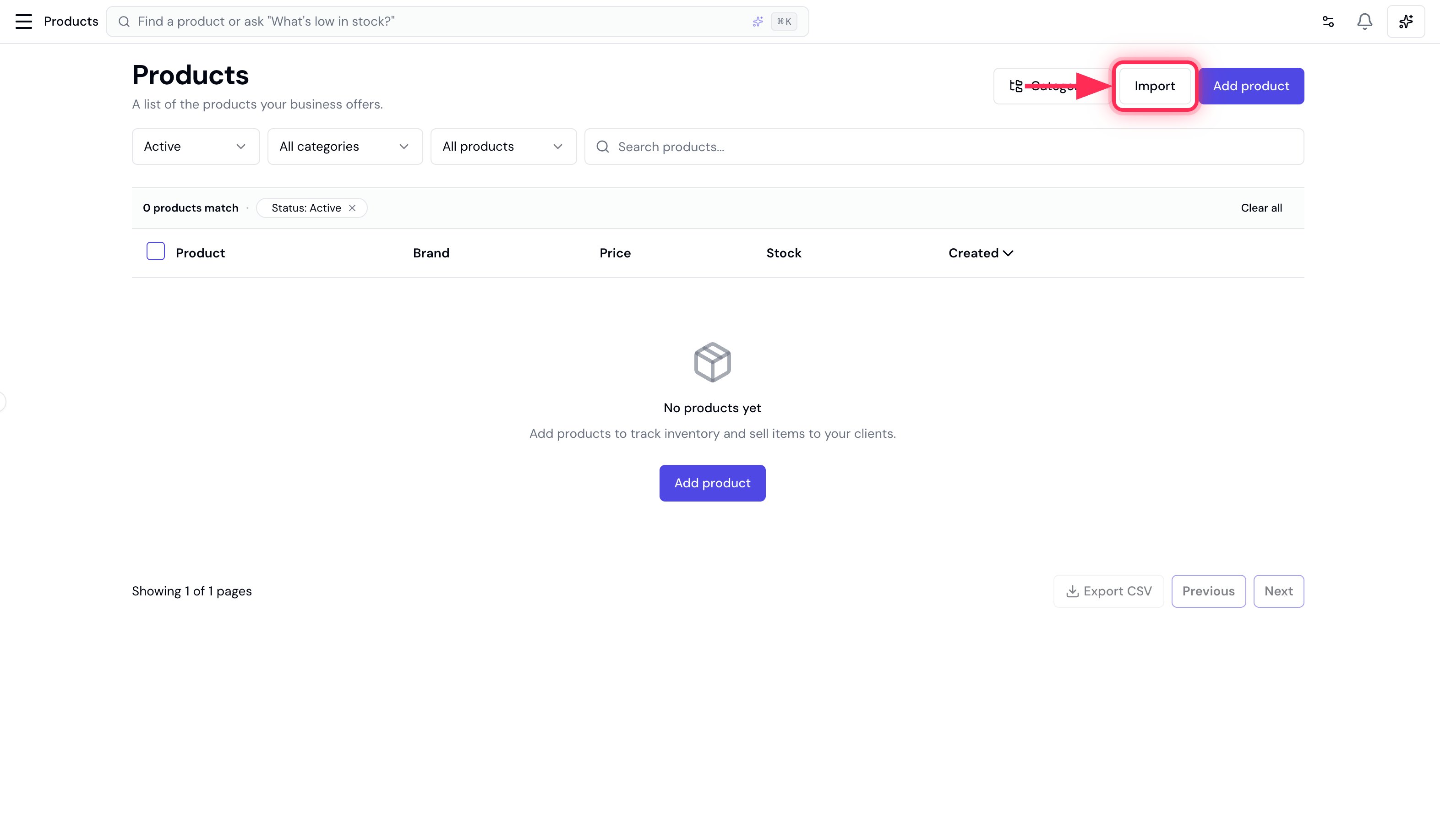
On the **Products** page (**Catalogue → Products**), click **Import** (top right, next to **Add product**). You'll need the **Manage products** permission.
 ## 2. Upload your file
Drag your CSV onto the upload area, or click **Choose a CSV file**. No file yet? Click **Download template** for a ready-made CSV with the right headers.
## 3. Match your columns
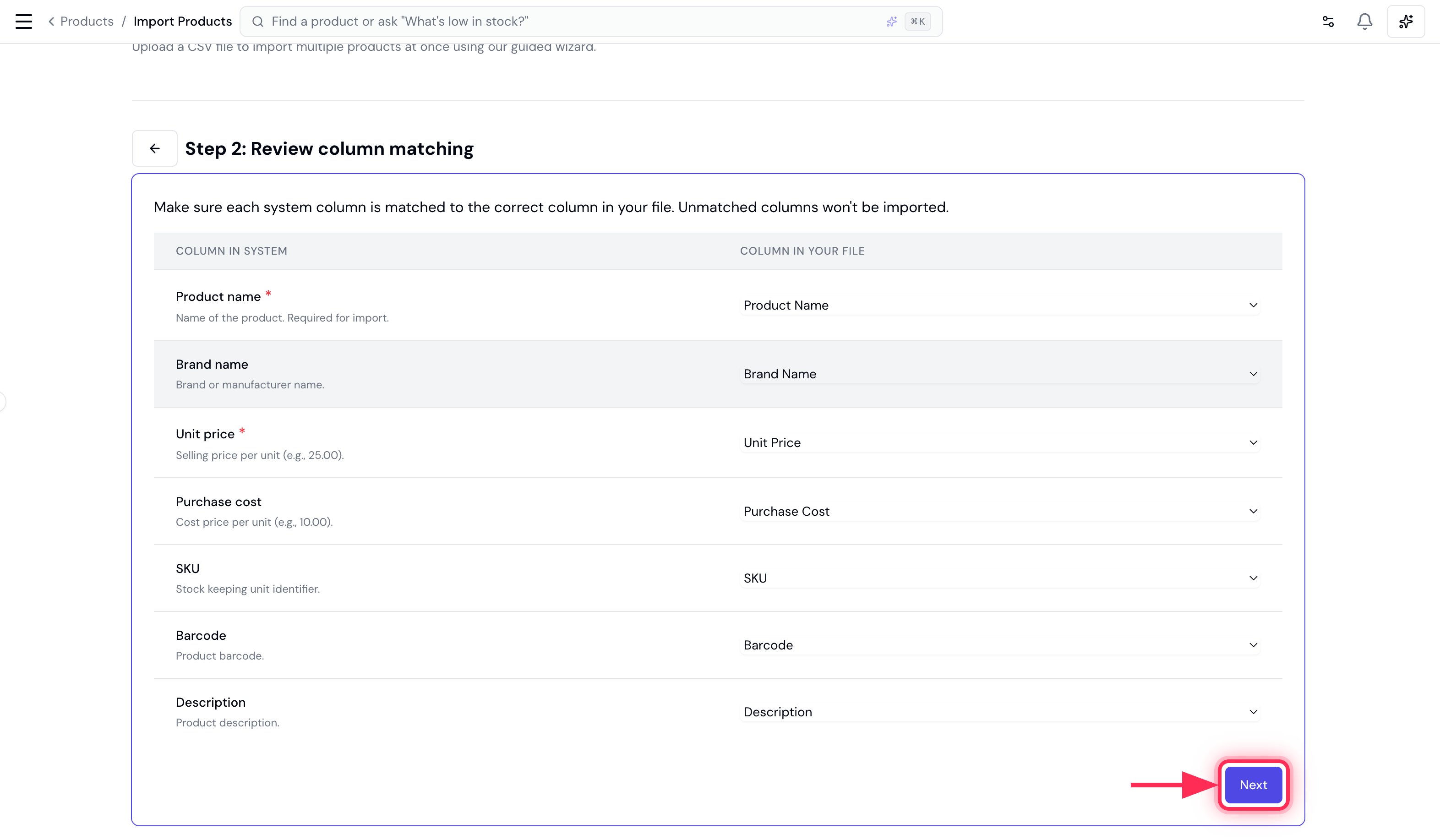
Bella auto-matches each of its fields to a column in your file. Check the matches (**Product name** and **Unit price** are required), then click **Next**.
## 2. Upload your file
Drag your CSV onto the upload area, or click **Choose a CSV file**. No file yet? Click **Download template** for a ready-made CSV with the right headers.
## 3. Match your columns
Bella auto-matches each of its fields to a column in your file. Check the matches (**Product name** and **Unit price** are required), then click **Next**.
 ## 4. Review and fix errors
Bella validates every row and splits the results into two tabs:
* **Ready to Import** — rows that will be added, with their brand, price, cost, SKU and barcode.
* **Validation Errors** — rows that can't be imported yet.
## 4. Review and fix errors
Bella validates every row and splits the results into two tabs:
* **Ready to Import** — rows that will be added, with their brand, price, cost, SKU and barcode.
* **Validation Errors** — rows that can't be imported yet.
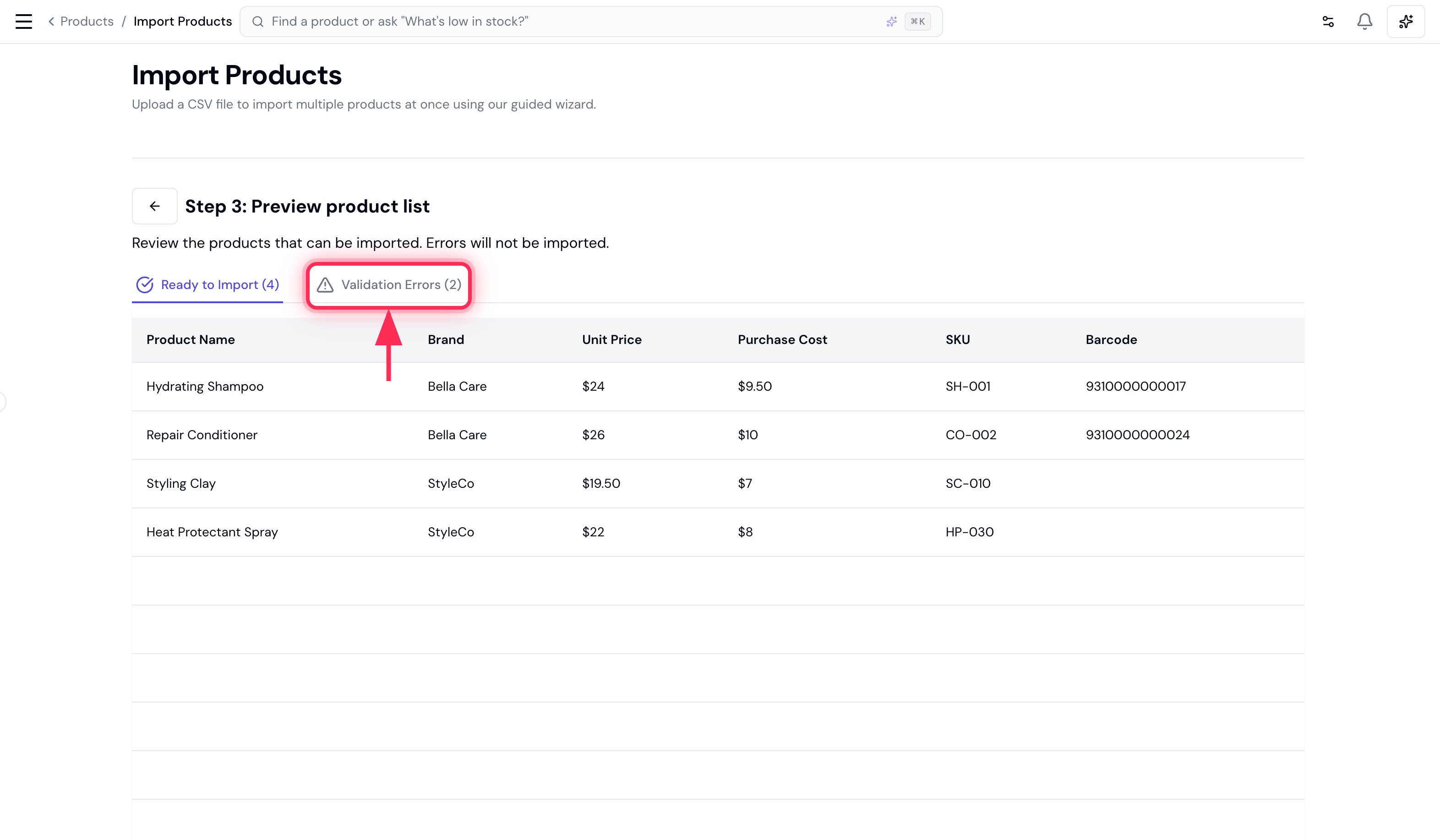 Open the **Validation Errors** tab to see what's wrong with each row — for example a missing price, or the same product name appearing twice. Product imports don't have an inline editor: click **Download Invalid Rows** to get just those rows as a CSV, fix them in your spreadsheet, and re-upload.
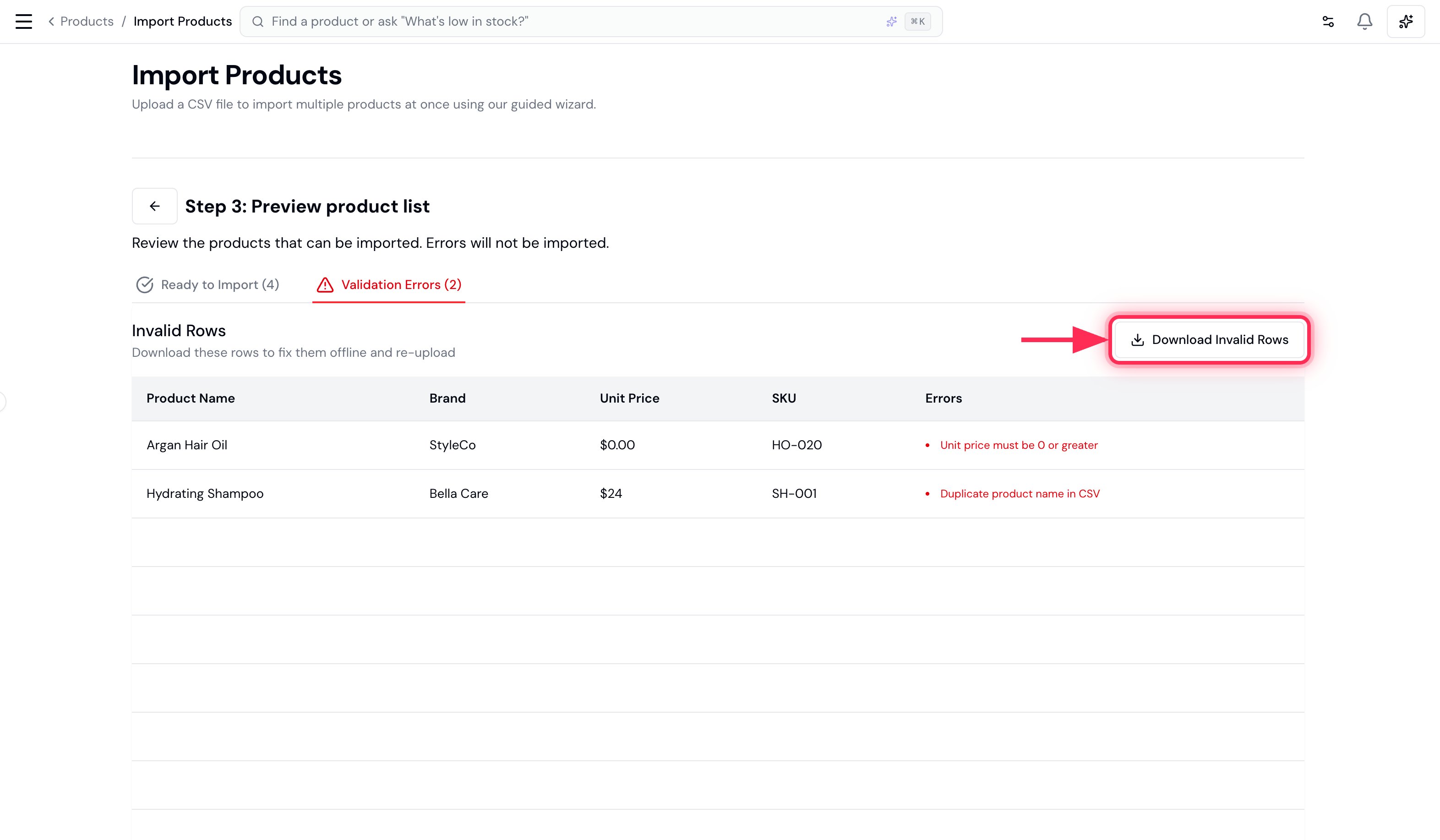 A product whose name already exists in your catalogue is also flagged here, so re-running an import never creates duplicate products.
## 5. Import
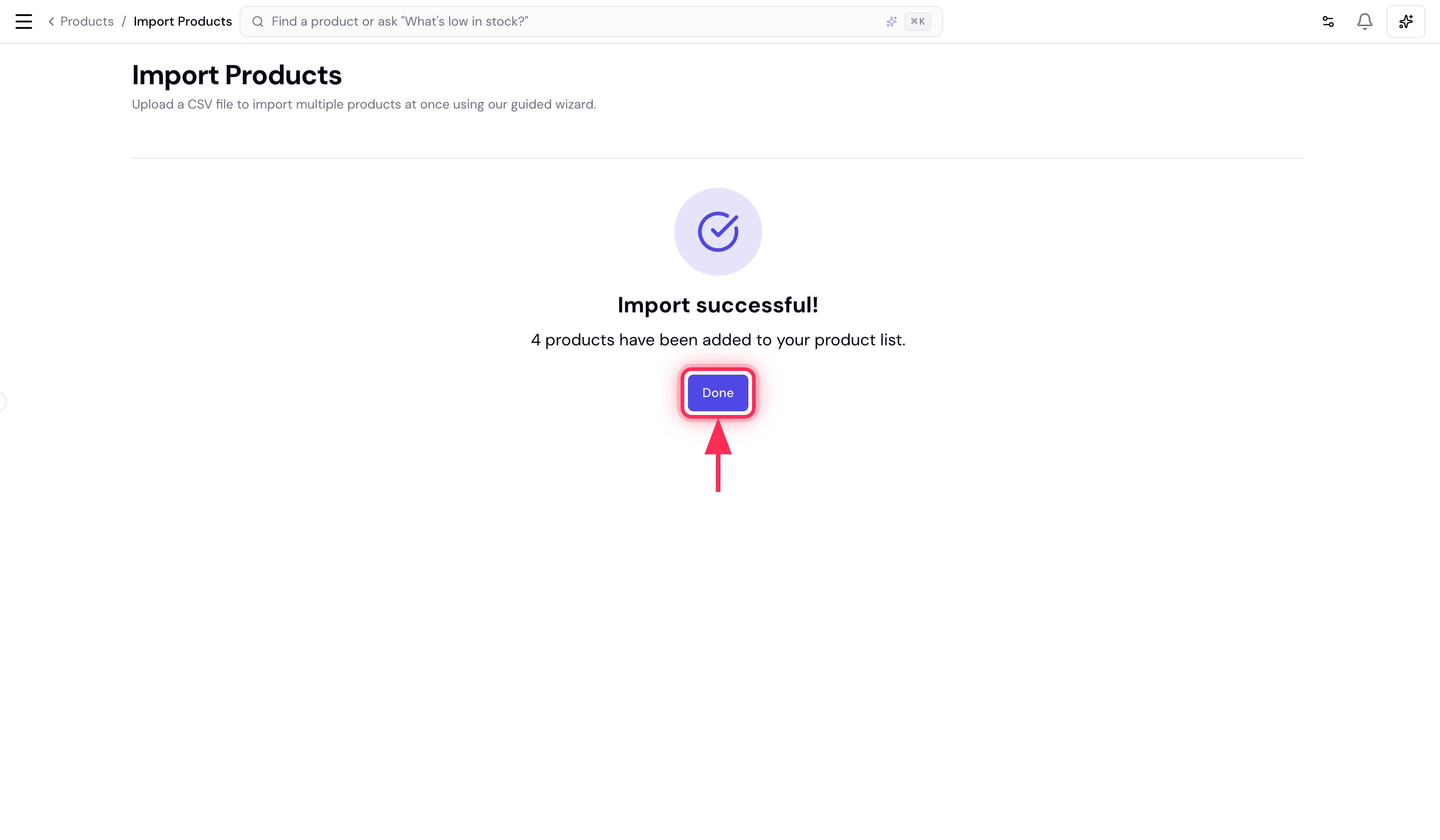
Click **Import** and your products are added to your catalogue.
A product whose name already exists in your catalogue is also flagged here, so re-running an import never creates duplicate products.
## 5. Import
Click **Import** and your products are added to your catalogue.