> ## Documentation Index
> Fetch the complete documentation index at: https://docs.bellabooking.com/llms.txt
> Use this file to discover all available pages before exploring further.
# Supplier Orders
> Place and manage supplier orders with inventory tracking
## Introduction
The **Supplier Orders** feature allows you to order products from your suppliers, track order status, and automatically update inventory when orders are received. Streamline your ordering process and maintain accurate stock levels. (Looking for orders your clients place on the online shop? See [Client Orders](/products/sell-online#fulfil-orders-in-the-dashboard).)
***
## Key Features
* **Order Creation**: Place orders with suppliers for multiple products at once
* **Status Tracking**: Monitor orders from placed to received
* **Inventory Integration**: Automatically update product inventory when orders are received
* **Order History**: View all past and current orders
***
## Order Statuses
Each supplier order has a status that tracks its lifecycle:
**Ordered:**
* Order has been placed with the supplier
* Waiting for delivery
* Can be received or cancelled
**Received:**
* Order has been delivered
* Inventory has been updated
* Order is complete and closed
**Cancelled:**
* Order was cancelled before receiving
* No inventory changes
* Kept for historical records
***
## Creating a Supplier Order
### Step-by-Step: Placing an Order
1. Navigate to **Products → Supplier Orders**
2. Click **Add order** (top right)
3. The new order form opens with today's date
**Order Date:**
* Automatically set to today
* This is the date you're placing the order
**Select Supplier:**
1. Click the **Supplier** dropdown
2. Search or select from your supplier list
3. **Note:** Add suppliers in the Suppliers section before ordering
**Add Products:**
1. Click **Add Product**
2. Search for and select a product from your products list
3. For each product, enter:
* **Quantity**: How many units you're ordering
* **Unit Cost**: Cost per unit from supplier
* **Total**: Automatically calculated (Qty × Unit Cost)
4. Add more products by clicking **Add Product** again
5. Remove products with the trash/delete icon
**Review Order:**
* Check all products are correct
* Verify quantities and costs
* Ensure the correct supplier is selected
4. Click **Create Order**
**What Happens:**
* Order is created with status "Ordered"
* Order number is automatically generated
* Order appears in your Supplier Orders list
***
## Managing Existing Orders
### Viewing All Orders
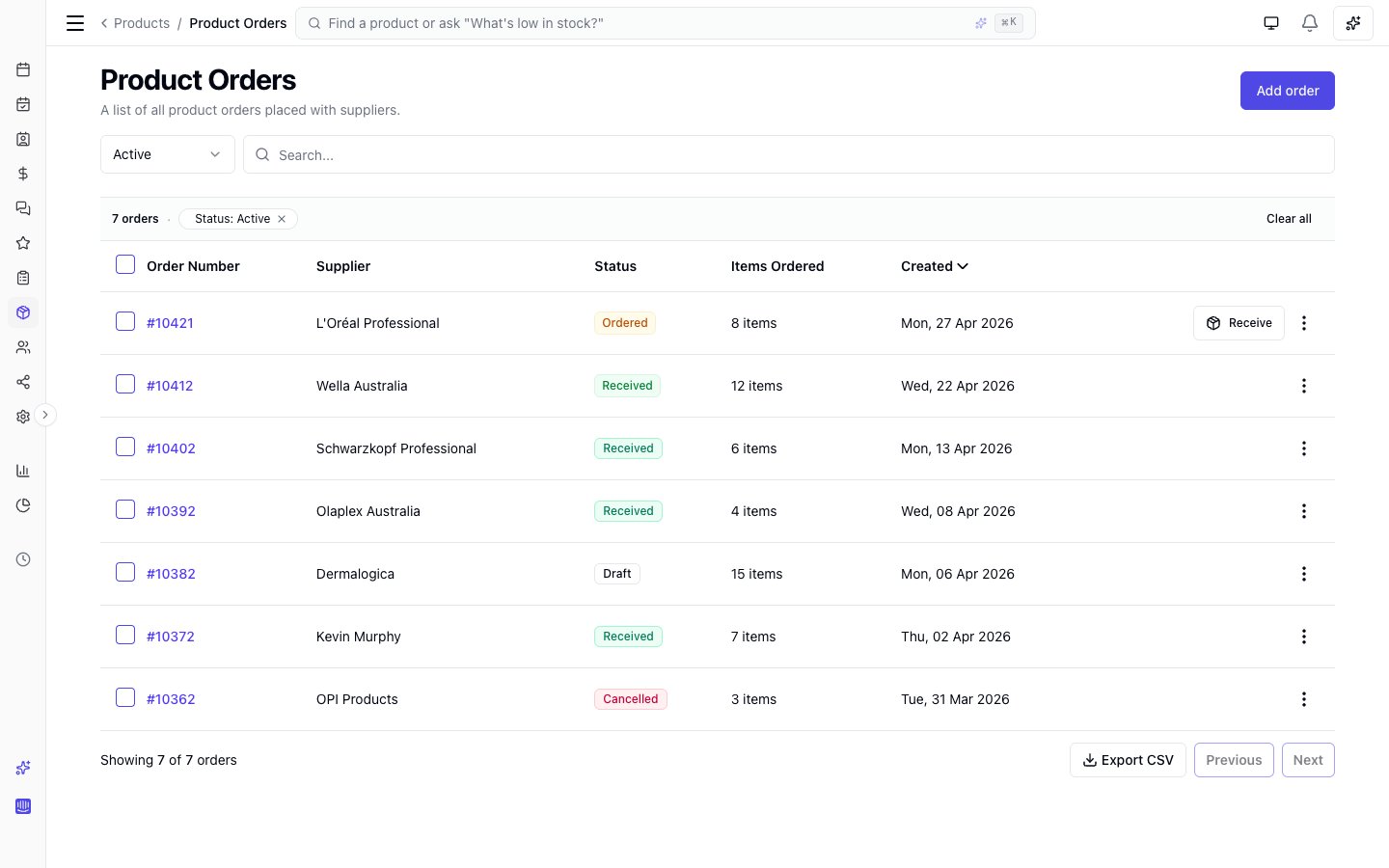 The Supplier Orders table shows:
* **Order Number**: Sequential number (e.g., #1001)
* **Supplier**: Which vendor the order is from
* **Status**: Ordered, Received, or Cancelled
* **Items Ordered**: Number of different products
* **Created**: Order date
***
### Viewing Order Details
1. Click the **Order Number** in the table
2. The order details panel opens, showing:
**Order Header:**
* Order number
* Supplier name
* Status badge
* Total cost
**Order Information:**
* Ordered date
* Received date (if received)
**Products Section:**
* List of all products in the order
* For each product:
* Product name
* Ordered quantity and unit cost
* Received quantity (if received)
* Received unit cost (if received)
* Line total
***
### Receiving an Order
When your supplier delivers the order, record what you actually received:
**From Order List:**
1. Find the order with status "Ordered"
2. Click **Receive** button or menu option
3. The Receive Order form opens
**Receiving Process:**
1. The form shows:
* Order number and supplier
* List of all products ordered
* Received date (today by default)
2. For each product, enter:
* **Received Quantity**: How many units you actually received
* May differ from ordered quantity (damaged, out of stock, etc.)
* Pre-filled with ordered quantity
* **Received Unit Cost**: Actual cost per unit
* Pre-filled with ordered cost
* Update if supplier changed the price
3. Review totals:
* Each product shows calculated total
* Overall order total displayed
4. Click **Receive Order**
**What Happens:**
* Order status changes to "Received"
* **Inventory automatically updated**: Product stock quantities increase by the received amounts
* Received date is recorded
* Order is closed (no further edits)
***
### Canceling an Order
If you need to cancel an order before receiving it:
1. Find the order with status "Ordered"
2. Click the menu (three dots) next to the order
3. Select **Cancel Order**
4. Confirm the cancellation
**What Happens:**
* Order status changes to "Cancelled"
* No inventory changes occur
* Order remains in history for records
**Note:** You can only cancel orders with status "Ordered". Received orders cannot be cancelled.
***
## FAQs
**Q: Can I edit an order after creating it?**
A: No. If you made a mistake, cancel the order and create a new one.
**Q: What if I received an order but forgot to record it in the system?**
A: Receive the order as soon as you remember.
**Q: Do I need to create a separate order for each product?**
A: No — add multiple products to a single order from the same supplier.
**Q: What if I receive products in multiple shipments?**
A: Receive the order with the quantities from the first shipment. Create a new order for back-ordered items.
**Q: What happens to inventory if I cancel an order?**
A: Nothing. Inventory only changes when you receive an order.
**Q: Can I create an order without having the product in my catalogue yet?**
A: No. Add the product to your Products list first, then create the order.
**Q: What if the supplier sent a product I didn't order?**
A: You can only receive products that are on the order. Add the extra product manually to inventory.
***
With organised supplier ordering, you'll maintain optimal inventory levels, avoid stockouts, reduce waste from over-ordering, and have complete visibility into your product costs and supplier relationships.
The Supplier Orders table shows:
* **Order Number**: Sequential number (e.g., #1001)
* **Supplier**: Which vendor the order is from
* **Status**: Ordered, Received, or Cancelled
* **Items Ordered**: Number of different products
* **Created**: Order date
***
### Viewing Order Details
1. Click the **Order Number** in the table
2. The order details panel opens, showing:
**Order Header:**
* Order number
* Supplier name
* Status badge
* Total cost
**Order Information:**
* Ordered date
* Received date (if received)
**Products Section:**
* List of all products in the order
* For each product:
* Product name
* Ordered quantity and unit cost
* Received quantity (if received)
* Received unit cost (if received)
* Line total
***
### Receiving an Order
When your supplier delivers the order, record what you actually received:
**From Order List:**
1. Find the order with status "Ordered"
2. Click **Receive** button or menu option
3. The Receive Order form opens
**Receiving Process:**
1. The form shows:
* Order number and supplier
* List of all products ordered
* Received date (today by default)
2. For each product, enter:
* **Received Quantity**: How many units you actually received
* May differ from ordered quantity (damaged, out of stock, etc.)
* Pre-filled with ordered quantity
* **Received Unit Cost**: Actual cost per unit
* Pre-filled with ordered cost
* Update if supplier changed the price
3. Review totals:
* Each product shows calculated total
* Overall order total displayed
4. Click **Receive Order**
**What Happens:**
* Order status changes to "Received"
* **Inventory automatically updated**: Product stock quantities increase by the received amounts
* Received date is recorded
* Order is closed (no further edits)
***
### Canceling an Order
If you need to cancel an order before receiving it:
1. Find the order with status "Ordered"
2. Click the menu (three dots) next to the order
3. Select **Cancel Order**
4. Confirm the cancellation
**What Happens:**
* Order status changes to "Cancelled"
* No inventory changes occur
* Order remains in history for records
**Note:** You can only cancel orders with status "Ordered". Received orders cannot be cancelled.
***
## FAQs
**Q: Can I edit an order after creating it?**
A: No. If you made a mistake, cancel the order and create a new one.
**Q: What if I received an order but forgot to record it in the system?**
A: Receive the order as soon as you remember.
**Q: Do I need to create a separate order for each product?**
A: No — add multiple products to a single order from the same supplier.
**Q: What if I receive products in multiple shipments?**
A: Receive the order with the quantities from the first shipment. Create a new order for back-ordered items.
**Q: What happens to inventory if I cancel an order?**
A: Nothing. Inventory only changes when you receive an order.
**Q: Can I create an order without having the product in my catalogue yet?**
A: No. Add the product to your Products list first, then create the order.
**Q: What if the supplier sent a product I didn't order?**
A: You can only receive products that are on the order. Add the extra product manually to inventory.
***
With organised supplier ordering, you'll maintain optimal inventory levels, avoid stockouts, reduce waste from over-ordering, and have complete visibility into your product costs and supplier relationships.