> ## Documentation Index
> Fetch the complete documentation index at: https://docs.bellabooking.com/llms.txt
> Use this file to discover all available pages before exploring further.
# Suppliers
> Manage your product suppliers and their contact information
## Introduction
The **Suppliers** section helps you maintain a database of vendors who provide products to your business. Track supplier contact information, manage relationships, and streamline your product ordering process.
***
## Key features
* **Supplier Database**: Centralised list of all your product vendors
* **Contact Management**: Store supplier names, contact persons, emails, and phone numbers
* **Integration**: Linked to Supplier orders for streamlined ordering
***
## Managing suppliers
### Viewing your supplier list
1. Navigate to **Suppliers** in the sidebar
2. View the table showing all suppliers with:
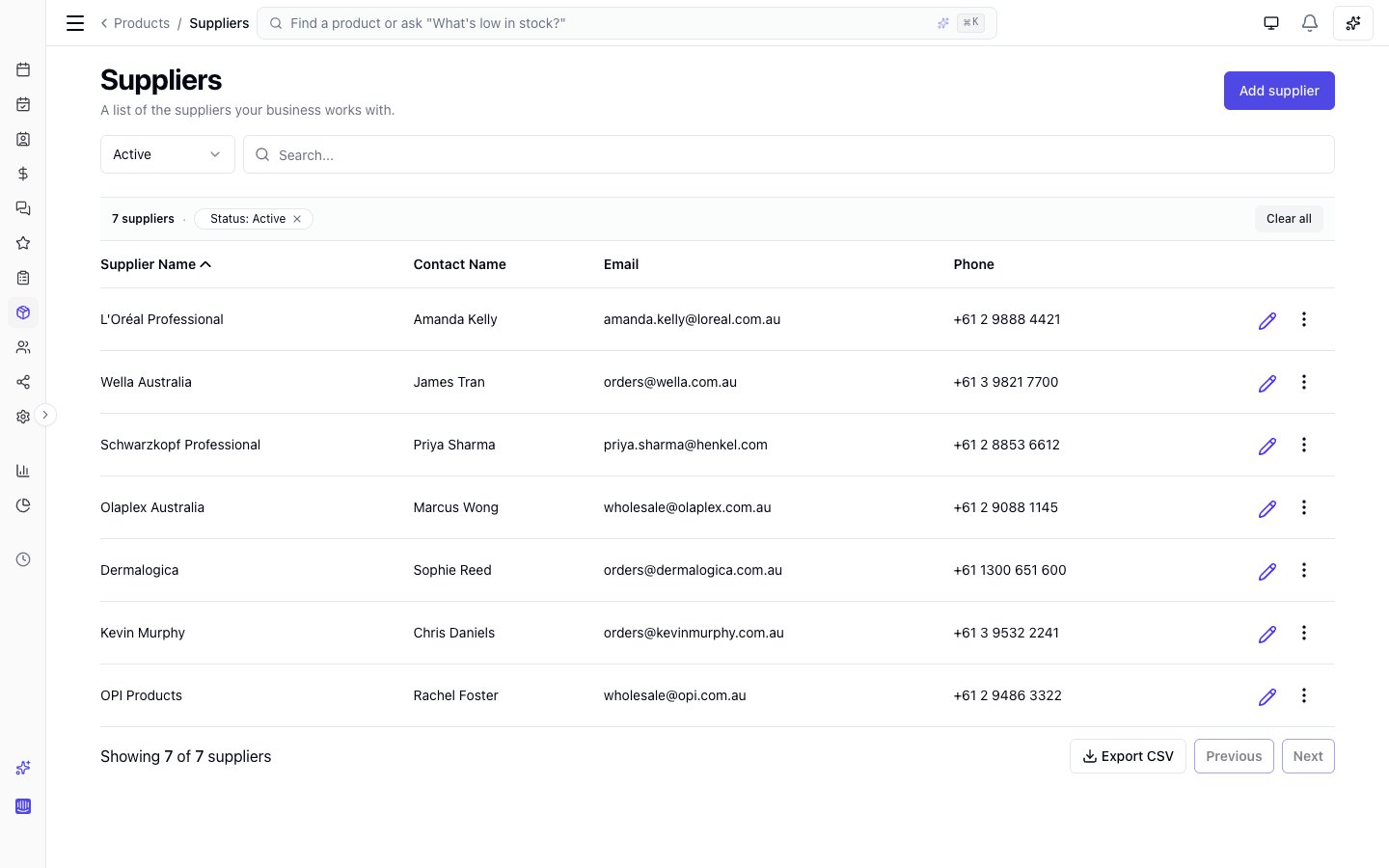 * Supplier name (business name)
* Contact name (person at the supplier)
* Email
* Phone
***
### Adding a new supplier
1. Click the **Add supplier** button (top right)
2. Fill in the supplier form:
* **Supplier name (required):** The business or company name
* **Contact first name (Optional):** First name of your sales rep or contact person
* **Contact last name (Optional):** Last name of your sales rep or contact person
* **Email (Optional):** Supplier's email address
* **Phone number (optional):** Supplier's contact phone
3. Click **Save** to add the supplier
***
### Editing a supplier
1. Find the supplier in the list
2. Click the **Edit** (pencil) icon
3. Update any information on the **Details** tab
4. Click **Save** to store changes
***
### Products you order from a supplier
The supplier panel has a second tab, **Products**, listing every product you've ordered from that supplier. It's built from your order history — there's no assignment to maintain, so a product appears as soon as it's on one of their stock orders.
Each row shows:
* **Product name**
* **Last ordered** — the date of the most recent stock order containing it
* **Total ordered** — the number of units across all their orders
* **Last received unit cost** — what you actually paid per unit the last time a delivery of it was received. Products on an order you haven't received yet show **Not received yet**.
Cancelled orders are excluded, so a withdrawn order never looks like a purchase.
***
### Archiving a supplier
Suppliers cannot be deleted directly — they must be archived first.
1. Click the three-dot menu next to the supplier
2. Select **Archive**
3. Confirm in the dialog
Archived suppliers are hidden from the active list but can be viewed using the status filter. To restore an archived supplier, select **Restore** from the three-dot menu on the archived supplier.
To permanently delete a supplier, it must be archived first. Click the three-dot menu on the archived supplier and select **Permanently delete**. You must type the supplier's name to confirm.
Consider archiving inactive suppliers rather than deleting them to preserve your order history and records.
***
## FAQs
**Q: Can I add a supplier without contact information?**
A: You need at least the supplier name. Contact info is optional but recommended.
**Q: What if I have multiple contacts at one supplier?**
A: Add the primary contact. You can update this as your main contact changes.
**Q: What happens to orders if I archive a supplier?**
A: Historical orders remain. The supplier is hidden from the active list but can be restored at any time.
**Q: How do I reactivate an archived supplier?**
A: Use the status filter to show archived suppliers, then click the three-dot menu and select **Restore**. The supplier returns to the active list with all their records intact.
***
With an organised supplier database, you'll streamline your ordering process, maintain vendor relationships, and always have contact information at your fingertips when you need it.
* Supplier name (business name)
* Contact name (person at the supplier)
* Email
* Phone
***
### Adding a new supplier
1. Click the **Add supplier** button (top right)
2. Fill in the supplier form:
* **Supplier name (required):** The business or company name
* **Contact first name (Optional):** First name of your sales rep or contact person
* **Contact last name (Optional):** Last name of your sales rep or contact person
* **Email (Optional):** Supplier's email address
* **Phone number (optional):** Supplier's contact phone
3. Click **Save** to add the supplier
***
### Editing a supplier
1. Find the supplier in the list
2. Click the **Edit** (pencil) icon
3. Update any information on the **Details** tab
4. Click **Save** to store changes
***
### Products you order from a supplier
The supplier panel has a second tab, **Products**, listing every product you've ordered from that supplier. It's built from your order history — there's no assignment to maintain, so a product appears as soon as it's on one of their stock orders.
Each row shows:
* **Product name**
* **Last ordered** — the date of the most recent stock order containing it
* **Total ordered** — the number of units across all their orders
* **Last received unit cost** — what you actually paid per unit the last time a delivery of it was received. Products on an order you haven't received yet show **Not received yet**.
Cancelled orders are excluded, so a withdrawn order never looks like a purchase.
***
### Archiving a supplier
Suppliers cannot be deleted directly — they must be archived first.
1. Click the three-dot menu next to the supplier
2. Select **Archive**
3. Confirm in the dialog
Archived suppliers are hidden from the active list but can be viewed using the status filter. To restore an archived supplier, select **Restore** from the three-dot menu on the archived supplier.
To permanently delete a supplier, it must be archived first. Click the three-dot menu on the archived supplier and select **Permanently delete**. You must type the supplier's name to confirm.
Consider archiving inactive suppliers rather than deleting them to preserve your order history and records.
***
## FAQs
**Q: Can I add a supplier without contact information?**
A: You need at least the supplier name. Contact info is optional but recommended.
**Q: What if I have multiple contacts at one supplier?**
A: Add the primary contact. You can update this as your main contact changes.
**Q: What happens to orders if I archive a supplier?**
A: Historical orders remain. The supplier is hidden from the active list but can be restored at any time.
**Q: How do I reactivate an archived supplier?**
A: Use the status filter to show archived suppliers, then click the three-dot menu and select **Restore**. The supplier returns to the active list with all their records intact.
***
With an organised supplier database, you'll streamline your ordering process, maintain vendor relationships, and always have contact information at your fingertips when you need it.