> ## Documentation Index
> Fetch the complete documentation index at: https://docs.bellabooking.com/llms.txt
> Use this file to discover all available pages before exploring further.
# Service Catalogue
> Learn how to create and manage your services, bundles, and categories in Bella Booking
## Introduction
The **Services** is where you define all the services your business offers. This section allows you to create individual services, group them into bundles, and organise them using categories. Each service can have custom pricing, duration, and be assigned to specific team members.
***
## Key features
* **Services management**: Create, edit, archive, and manage individual services with pricing and duration
* **[Service Variants](/service-catalog/variants)**: Create named variations of a service (e.g., Short / Medium / Long Hair) with different pricing and durations — including automatic initial vs return client handling
* **[Service Add-ons](/service-catalog/addons)**: Attach add-on option groups to services (e.g., conditioning treatment, scalp massage). Each add-on has its own price and duration. Groups can be optional or required, with single or multi-select
* **[Group Bookings](/service-catalog/group-bookings)**: Let clients book one service for a small party in a single online booking — each guest gets their own team member at the same time. You set the maximum party size; a time only appears when that many qualified team members are free. The one-toggle alternative to maintaining separate "Couple"/"Double" services
* **[Service Bundles](/service-catalog/bundles)**: Package multiple services together at a bundle price, sequential or parallel — a first-class item that packages, memberships, gift cards and forms can all be scoped to
* **[Prerequisite services](/service-catalog/prerequisites)**: Require a consultation (or any other service) before a treatment can be booked online — Completed or Booked mode, Any or All when you list more than one
* **Service Categories**: Organise services into logical groups for better navigation
* **Pricing tiers**: Set different prices for the same service based on team member experience level
* **Team Assignment**: Assign specific services to specific team members
* **Drag-and-Drop Ordering**: Reorder services and categories for optimal display
* **[Bulk Import](/service-catalog/import)**: Import your whole service menu from a CSV — categories are created for you automatically
***
## Services
### Viewing your services
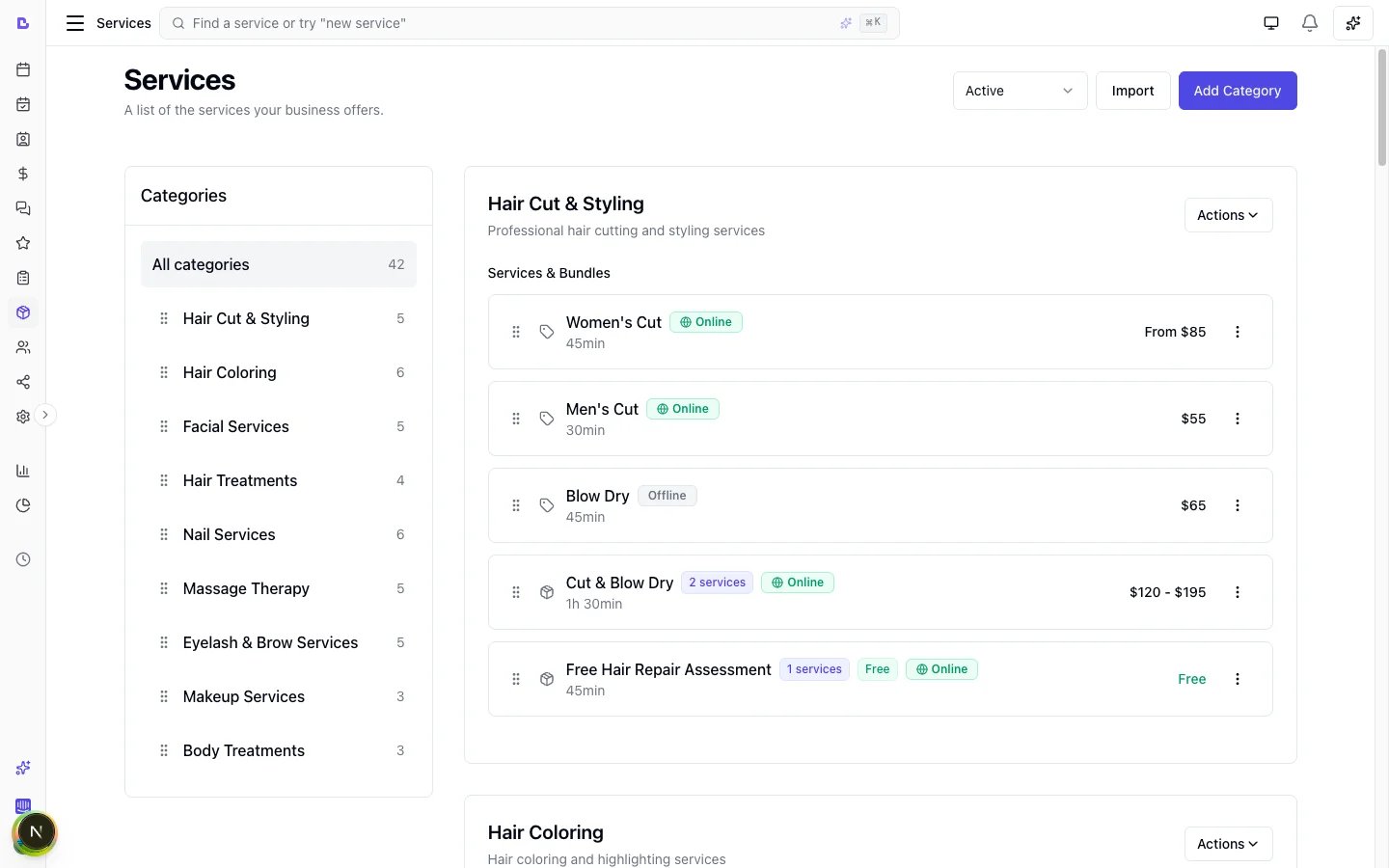
1. Navigate to the **Services** section from the sidebar
2. You'll see all your services organised by category
3. Each service displays:
* Service name
* Duration (in minutes)
* Base price
 ### Adding a new service
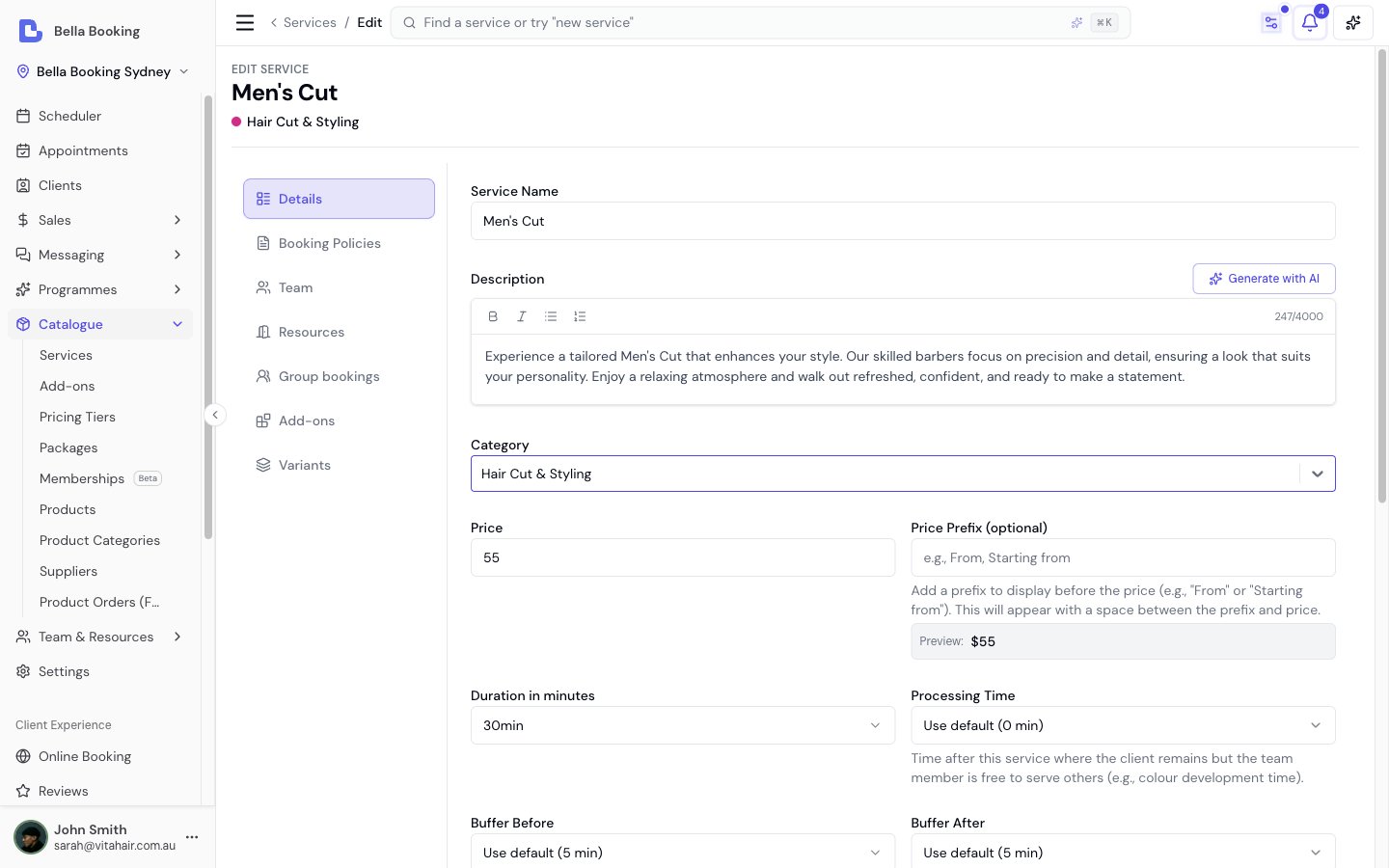 1. Click the **Add service** button at the top of the service list
2. In the service form, enter:
* **Service name** (required): The name of your service (e.g., "Women's Haircut")
* **Description** (optional): Additional details about the service
* **Category** (required): Select or create a category to organise this service
* **Duration** (required): Select how long this service takes (in minutes)
* **Price** (required): The standard price for this service
* **Price prefix** (optional): Add a prefix to display before the price (e.g., "From" or "Starting from"). When set, the prefix appears before the price with a space between them, in your business's own currency.
* Example: If you enter "From" as the prefix and set the price to `50`, clients will see "From `50.00`"
* Example: If you enter "Starting from" as the prefix and set the price to `30`, clients will see "Starting from `30.00`"
* A live preview shows how the price will appear to clients while you're editing
* **Add-ons** (optional): Configure add-on option groups for this service. Each group has a name (e.g., "Treatment"), an optional client-facing prompt (e.g., "Choose your preferred oil"), and one or more selectable options (e.g., "Deep Conditioning +`25`, 15 min"). Groups can be marked as **required** (clients must select before proceeding) or left optional. Multi-select groups support minimum and maximum selection limits. Add-on prices and durations are added to the service total and affect availability calculations.
* **Team members**: Choose who can perform this service — **All team members** (the default: anyone on your team, including team members you add later) or **Specific team members** (only the ones you select, with at least one required). This is a skill setting, independent of online booking — a qualified team member still only appears online if their own online-booking is enabled. This setting doesn't apply to resource-only services (see below)
* **Team Member Required** (optional): Toggle OFF if this service does not need a team member — for example, float tanks, saunas, tanning beds, or infrared pods where only a resource (room or equipment) is needed. When turned off, the service must have **Require resource** enabled and at least one eligible resource assigned. See [Resource-Only Services](#resource-only-services) for details
3. **Pricing tiers** (optional):
* If you have pricing tiers set up, you can set different prices for different tiers
* For example, a senior stylist might charge more than a junior stylist for the same service
4. **Minimum notice period** (optional):
* Override the default minimum notice period for this specific service
* Select "Use default" to keep your standard setting
* Or select a custom notice period (e.g., 12 hours, 24 hours, 48 hours)
* Useful for services that need more or less preparation time
5. **Cancellation policy** (optional):
* Override the default cancellation policy for this specific service
* **Cancellation Period**: Set how many hours before appointment cancellation fees apply
* **Cancellation Percentage**: Set the cancellation fee percentage
* **Allow Self-Service Cancellation**: Control whether clients can cancel this service online
* Select "Use default" for any setting to keep your standard policy
* Useful for services with different cancellation needs (e.g., wedding packages vs quick trims)
6. **Payment policy** (optional):
* Override the default payment policy for this specific service
* **Use default**: Apply your standard payment settings
* **No upfront payment**: No deposit required for this service
* **Require deposit**: Require a deposit when booking this service
* **Fixed amount**: Set a specific amount in your currency (e.g., `50`)
* **Percentage**: Set a percentage of the service price (e.g., 25%)
* **Require a card on file**: The client saves a card to confirm this booking — no charge and no hold is taken. The saved card lets you charge a late-cancellation or no-show fee if your cancellation policy applies. (A pre-authorised hold is planned but not yet available.)
* Useful for high-value services that need a deposit or a card on file regardless of your default settings
7. **Allow client to choose team member** (optional):
* Override whether clients can select their preferred team member when booking this service online
* Select "Use default" to keep your standard setting
8. **Allow join waitlist** (optional):
* Override the location-level waitlist setting for this specific service
* Select "Yes - Allow waitlist for this service" to enable even if location default is disabled
* Select "No - Don't allow waitlist for this service" to disable even if location default is enabled
* Select "Use default" to follow the location setting
9. **Available for online booking** (optional):
* Toggle OFF to hide this service from your online booking page entirely
* When ON (the default), the service appears online if at least one qualified team member has online booking enabled — for an *All team members* service that's any online-bookable member; for a *Specific* service it's any of the selected members
* When OFF, the service is completely hidden from the booking portal regardless of team member assignments
* This only affects online booking — your team can still book this service from the dashboard
* The Services page shows "Online", "Offline", or "No team members" badges to indicate status
10. **Hide prices in online booking** (optional):
* Hide service prices during online booking when prices vary based on consultation
* Only the price prefix (e.g., "From") will be shown if set
* Useful for services with variable pricing
* Select "Yes - Hide prices for this service" or "No - Show prices for this service" to override the location default
11. **Resources** (optional):
* **Require resource**: Toggle ON if this service requires a room, chair, or equipment to be booked. When enabled, online booking will only show time slots where at least one eligible resource has available capacity.
* **Eligible resources**: Select which resources can be used for this service. Multiple resources can be eligible (e.g., "Room 1" or "Room 2"). During online booking, the system automatically assigns the first available resource.
* You can list eligible resources without requiring them — this lets your team optionally assign resources from the dashboard without blocking availability.
* **People per booking** / **Reserves the whole space** (only visible when **Require resource** is on): two independent ways to share a room. **People per booking** is how many people can share **one** booking — default **1** (solo); set **2** for a couples room, higher for a shared class or high tea, and at booking time the booker declares **how many people are coming** (naming them is optional — linked family and/or plain guest names). **Reserves the whole space** is **private hire** — one booking takes the entire room regardless of headcount (a private sauna). See [People per booking and private hire](#people-per-booking-and-private-hire) below for the full walk-through.
12. **Processing time** (optional):
* Time after the active service where the client remains but the team member is free to serve others
* Select "Use default" to inherit the location-level default, or choose a specific value
* Values step in 5 minutes up to an hour, then in quarter-hours to 2 hours — so a 40-minute colour development is entered as exactly that. Worth being precise: processing time is what frees your team member, so declaring more than you actually have lets the next appointment run past the point you need to be back with the first client
* Common uses:
* **Colour development**: Allow hair colour to develop (e.g., 30-45 minutes)
* **Treatment absorption**: Let skincare products work before the next step
* **Setting time**: Allow a perm or treatment to set
* During processing time, team members can serve other clients while the client waits
* Processing time is included in the total duration shown to clients (e.g., "90 mins (incl. 30 min processing time)")
* This applies whether the service is booked alone, in a bundle, or stacked with other services
13. **Buffer Time** (optional):
* Blocked time before and/or after the service where the team member is unavailable for other appointments
* **Buffer before**: Setup or preparation time before the service begins
* **Buffer after**: Cleanup or reset time after the service ends
* Select "Use default" to inherit the location-level default, or choose a specific value for each
* Values step in 5 minutes up to an hour
* Unlike processing time, buffer time is **not visible to clients** — it only affects team member availability
* Common uses:
* **Room setup**: Preparing the treatment room or station
* **Equipment sterilisation**: Cleaning tools between clients
* **Consultation review**: Reviewing client notes before the appointment
14. Click **Save** to add the service to your catalogue
### Scheduler colour
Each service has an optional **Scheduler colour** field that controls the background colour of its appointment tiles on the scheduler.
**Colour inheritance:**
* If the service has a colour set, that colour is used
* If the service has no colour but its **category** has a colour, the category colour is inherited
* If neither has a colour set, the default palette colour is used
**How to set a service colour:**
1. Edit the service
2. Go to the **Details** tab
3. Find the **Scheduler colour** picker
4. Choose a colour from the presets or enter a custom hex value
5. To revert to the category colour, click **Reset to category colour**
**Colour mode on the scheduler:**
The scheduler supports two colour modes, toggled under the sliders icon in the scheduler header toolbar:
* **Status** (default): Tiles are coloured by appointment status (Confirmed, Completed, etc.), or by the client's check-in state (Waiting, In progress) once they've arrived. Both are configured in **Settings > Scheduling > [Scheduler colours](/settings/scheduling#scheduler-colours)**
* **Service**: Tiles are coloured by the service colour (with category fallback). In the Day, 3 days and Week views a small strip along the top still shows the status — or the check-in colour, when the client is with you
When using **Service** colour mode, team member identity is shown as a coloured left border on each tile.
Set distinct colours for your most popular services or categories to quickly identify appointment types at a glance in the scheduler.
### People per booking and private hire
A service in a **shared room** can be sold three ways, using three independent settings on the service's **Group bookings** tab (its eligible rooms stay on the **Resources** tab). Pick the ones that match how the service is actually delivered — you don't need separate "Solo"/"Couple"/"Private" services.
These settings are for **one booking that several people share, or that takes the whole room**. When instead you want a **party who each need their own team member at the same time** (e.g. a couples massage with two therapists), use [Group Bookings](/service-catalog/group-bookings) — group bookings and *People per booking* are alternatives, not used together on the same service. Unsure which of the multi-person setups you need? Start at **[Bookings for more than one person](/service-catalog/bookings-for-more-than-one-person)** — a decision table covering family visits, parties, shared-space sittings, private hire and discounted duos.
**The two settings**
* **People per booking** — how many people can **share one booking** (the booker plus co-attendees). A couples float room is **2**; a group high tea is **8**. At booking time the booker declares **how many people are coming** (a **How many people?** stepper) — that headcount reserves the space. You also choose whether the price is charged **per booking** or **per person** — see [Per-booking or per-person pricing](#per-booking-or-per-person-pricing) below. **Naming** those people is optional: pick linked family members and/or just type a guest's name, up to the headcount minus one. A typed guest name is a **label only**: it creates no client record and carries none of that guest's own entitlements.
* **Reserves the whole space** — **private hire**. One booking takes the **entire** room regardless of headcount, so no one else can be booked into it at that time (a private sauna session, an exclusive room buy-out).
#### Per-booking or per-person pricing
1. Click the **Add service** button at the top of the service list
2. In the service form, enter:
* **Service name** (required): The name of your service (e.g., "Women's Haircut")
* **Description** (optional): Additional details about the service
* **Category** (required): Select or create a category to organise this service
* **Duration** (required): Select how long this service takes (in minutes)
* **Price** (required): The standard price for this service
* **Price prefix** (optional): Add a prefix to display before the price (e.g., "From" or "Starting from"). When set, the prefix appears before the price with a space between them, in your business's own currency.
* Example: If you enter "From" as the prefix and set the price to `50`, clients will see "From `50.00`"
* Example: If you enter "Starting from" as the prefix and set the price to `30`, clients will see "Starting from `30.00`"
* A live preview shows how the price will appear to clients while you're editing
* **Add-ons** (optional): Configure add-on option groups for this service. Each group has a name (e.g., "Treatment"), an optional client-facing prompt (e.g., "Choose your preferred oil"), and one or more selectable options (e.g., "Deep Conditioning +`25`, 15 min"). Groups can be marked as **required** (clients must select before proceeding) or left optional. Multi-select groups support minimum and maximum selection limits. Add-on prices and durations are added to the service total and affect availability calculations.
* **Team members**: Choose who can perform this service — **All team members** (the default: anyone on your team, including team members you add later) or **Specific team members** (only the ones you select, with at least one required). This is a skill setting, independent of online booking — a qualified team member still only appears online if their own online-booking is enabled. This setting doesn't apply to resource-only services (see below)
* **Team Member Required** (optional): Toggle OFF if this service does not need a team member — for example, float tanks, saunas, tanning beds, or infrared pods where only a resource (room or equipment) is needed. When turned off, the service must have **Require resource** enabled and at least one eligible resource assigned. See [Resource-Only Services](#resource-only-services) for details
3. **Pricing tiers** (optional):
* If you have pricing tiers set up, you can set different prices for different tiers
* For example, a senior stylist might charge more than a junior stylist for the same service
4. **Minimum notice period** (optional):
* Override the default minimum notice period for this specific service
* Select "Use default" to keep your standard setting
* Or select a custom notice period (e.g., 12 hours, 24 hours, 48 hours)
* Useful for services that need more or less preparation time
5. **Cancellation policy** (optional):
* Override the default cancellation policy for this specific service
* **Cancellation Period**: Set how many hours before appointment cancellation fees apply
* **Cancellation Percentage**: Set the cancellation fee percentage
* **Allow Self-Service Cancellation**: Control whether clients can cancel this service online
* Select "Use default" for any setting to keep your standard policy
* Useful for services with different cancellation needs (e.g., wedding packages vs quick trims)
6. **Payment policy** (optional):
* Override the default payment policy for this specific service
* **Use default**: Apply your standard payment settings
* **No upfront payment**: No deposit required for this service
* **Require deposit**: Require a deposit when booking this service
* **Fixed amount**: Set a specific amount in your currency (e.g., `50`)
* **Percentage**: Set a percentage of the service price (e.g., 25%)
* **Require a card on file**: The client saves a card to confirm this booking — no charge and no hold is taken. The saved card lets you charge a late-cancellation or no-show fee if your cancellation policy applies. (A pre-authorised hold is planned but not yet available.)
* Useful for high-value services that need a deposit or a card on file regardless of your default settings
7. **Allow client to choose team member** (optional):
* Override whether clients can select their preferred team member when booking this service online
* Select "Use default" to keep your standard setting
8. **Allow join waitlist** (optional):
* Override the location-level waitlist setting for this specific service
* Select "Yes - Allow waitlist for this service" to enable even if location default is disabled
* Select "No - Don't allow waitlist for this service" to disable even if location default is enabled
* Select "Use default" to follow the location setting
9. **Available for online booking** (optional):
* Toggle OFF to hide this service from your online booking page entirely
* When ON (the default), the service appears online if at least one qualified team member has online booking enabled — for an *All team members* service that's any online-bookable member; for a *Specific* service it's any of the selected members
* When OFF, the service is completely hidden from the booking portal regardless of team member assignments
* This only affects online booking — your team can still book this service from the dashboard
* The Services page shows "Online", "Offline", or "No team members" badges to indicate status
10. **Hide prices in online booking** (optional):
* Hide service prices during online booking when prices vary based on consultation
* Only the price prefix (e.g., "From") will be shown if set
* Useful for services with variable pricing
* Select "Yes - Hide prices for this service" or "No - Show prices for this service" to override the location default
11. **Resources** (optional):
* **Require resource**: Toggle ON if this service requires a room, chair, or equipment to be booked. When enabled, online booking will only show time slots where at least one eligible resource has available capacity.
* **Eligible resources**: Select which resources can be used for this service. Multiple resources can be eligible (e.g., "Room 1" or "Room 2"). During online booking, the system automatically assigns the first available resource.
* You can list eligible resources without requiring them — this lets your team optionally assign resources from the dashboard without blocking availability.
* **People per booking** / **Reserves the whole space** (only visible when **Require resource** is on): two independent ways to share a room. **People per booking** is how many people can share **one** booking — default **1** (solo); set **2** for a couples room, higher for a shared class or high tea, and at booking time the booker declares **how many people are coming** (naming them is optional — linked family and/or plain guest names). **Reserves the whole space** is **private hire** — one booking takes the entire room regardless of headcount (a private sauna). See [People per booking and private hire](#people-per-booking-and-private-hire) below for the full walk-through.
12. **Processing time** (optional):
* Time after the active service where the client remains but the team member is free to serve others
* Select "Use default" to inherit the location-level default, or choose a specific value
* Values step in 5 minutes up to an hour, then in quarter-hours to 2 hours — so a 40-minute colour development is entered as exactly that. Worth being precise: processing time is what frees your team member, so declaring more than you actually have lets the next appointment run past the point you need to be back with the first client
* Common uses:
* **Colour development**: Allow hair colour to develop (e.g., 30-45 minutes)
* **Treatment absorption**: Let skincare products work before the next step
* **Setting time**: Allow a perm or treatment to set
* During processing time, team members can serve other clients while the client waits
* Processing time is included in the total duration shown to clients (e.g., "90 mins (incl. 30 min processing time)")
* This applies whether the service is booked alone, in a bundle, or stacked with other services
13. **Buffer Time** (optional):
* Blocked time before and/or after the service where the team member is unavailable for other appointments
* **Buffer before**: Setup or preparation time before the service begins
* **Buffer after**: Cleanup or reset time after the service ends
* Select "Use default" to inherit the location-level default, or choose a specific value for each
* Values step in 5 minutes up to an hour
* Unlike processing time, buffer time is **not visible to clients** — it only affects team member availability
* Common uses:
* **Room setup**: Preparing the treatment room or station
* **Equipment sterilisation**: Cleaning tools between clients
* **Consultation review**: Reviewing client notes before the appointment
14. Click **Save** to add the service to your catalogue
### Scheduler colour
Each service has an optional **Scheduler colour** field that controls the background colour of its appointment tiles on the scheduler.
**Colour inheritance:**
* If the service has a colour set, that colour is used
* If the service has no colour but its **category** has a colour, the category colour is inherited
* If neither has a colour set, the default palette colour is used
**How to set a service colour:**
1. Edit the service
2. Go to the **Details** tab
3. Find the **Scheduler colour** picker
4. Choose a colour from the presets or enter a custom hex value
5. To revert to the category colour, click **Reset to category colour**
**Colour mode on the scheduler:**
The scheduler supports two colour modes, toggled under the sliders icon in the scheduler header toolbar:
* **Status** (default): Tiles are coloured by appointment status (Confirmed, Completed, etc.), or by the client's check-in state (Waiting, In progress) once they've arrived. Both are configured in **Settings > Scheduling > [Scheduler colours](/settings/scheduling#scheduler-colours)**
* **Service**: Tiles are coloured by the service colour (with category fallback). In the Day, 3 days and Week views a small strip along the top still shows the status — or the check-in colour, when the client is with you
When using **Service** colour mode, team member identity is shown as a coloured left border on each tile.
Set distinct colours for your most popular services or categories to quickly identify appointment types at a glance in the scheduler.
### People per booking and private hire
A service in a **shared room** can be sold three ways, using three independent settings on the service's **Group bookings** tab (its eligible rooms stay on the **Resources** tab). Pick the ones that match how the service is actually delivered — you don't need separate "Solo"/"Couple"/"Private" services.
These settings are for **one booking that several people share, or that takes the whole room**. When instead you want a **party who each need their own team member at the same time** (e.g. a couples massage with two therapists), use [Group Bookings](/service-catalog/group-bookings) — group bookings and *People per booking* are alternatives, not used together on the same service. Unsure which of the multi-person setups you need? Start at **[Bookings for more than one person](/service-catalog/bookings-for-more-than-one-person)** — a decision table covering family visits, parties, shared-space sittings, private hire and discounted duos.
**The two settings**
* **People per booking** — how many people can **share one booking** (the booker plus co-attendees). A couples float room is **2**; a group high tea is **8**. At booking time the booker declares **how many people are coming** (a **How many people?** stepper) — that headcount reserves the space. You also choose whether the price is charged **per booking** or **per person** — see [Per-booking or per-person pricing](#per-booking-or-per-person-pricing) below. **Naming** those people is optional: pick linked family members and/or just type a guest's name, up to the headcount minus one. A typed guest name is a **label only**: it creates no client record and carries none of that guest's own entitlements.
* **Reserves the whole space** — **private hire**. One booking takes the **entire** room regardless of headcount, so no one else can be booked into it at that time (a private sauna session, an exclusive room buy-out).
#### Per-booking or per-person pricing
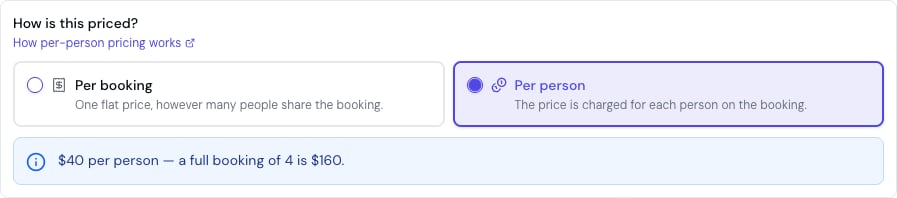 A shared-space service (**People per booking** above 1) chooses how its price scales with the headcount. Every figure below is in **your business's own currency** — read `60` as A\$60, £60, €60, or whatever your business trades in.
* **Per booking** *(the default)* — **one flat charge** for the whole booking, however many people come. A `90` private sauna session is `90` whether two people or four share it. This is exactly how shared-space services have always priced, so **nothing changes for your existing services** until you opt one in.
* **Per person** — the price you set is the **per-head** price, and the booking is charged for **every** person coming. A float priced `60` per person is `120` for two, `180` for three.
The [online booking page](/online-booking) reflects the choice: a per-person service's card reads **"From `60` per person"**, and once the client picks the headcount the review line shows the sum — **`2 × 60 = 120`**, "For 2 people · priced per person". A per-booking service shows its single price exactly as before.
**Worked example — a couples float priced per person.** Your Float Session seats two (**People per booking 2**) and you set it to charge **per person** at `60`. A couple books and chooses **2** on the *How many people?* stepper:
* The card shows **"From `60` per person"**.
* The review line reads **`2 × 60 = 120`** — the whole booking is `120`.
* It's still **one booking, one line, one payment**: the headcount is folded into the line price, so a [membership](/memberships), [package](/packages), [deposit](/settings/payments) or [discount](/programmes) settles the whole `120` exactly as it would any other line — no per-head special cases. *(Add-ons stay per line — added once, never multiplied per head.)*
Leave it priced **per booking** for a genuine flat rate (a `300` room hire, priced once no matter the headcount), or choose **per person** when each head adds to the price (a per-person float, a per-guest high tea). For a fixed *discounted* party price instead — a "2-for" special below the natural sum — use a [fixed-total bundle](/service-catalog/bundles) rather than per-person pricing.
**How room capacity fits in**
Each resource has a total **capacity** (e.g., a bathhouse sauna that seats 6). Independent bookings share that room up to its capacity: six solo sauna sessions fill a 6-seat sauna. A booking that carries several people (*People per booking*) takes one seat per person; a *whole-space* booking takes all of it. A new booking is allowed only when the room still has room for it.
**Worked example — a bathhouse sauna that seats 6 (capacity 6):**
| Service | Setting | What it means |
| ------------------ | ------------------------ | -------------------------------------------------------------------------- |
| Open sauna session | People per booking 1 | Up to 6 independent bookings share the sauna at once |
| Couples session | People per booking 2 | Two people share one booking; up to three couples in together |
| Private hire | Reserves the whole space | Exclusive — one booking holds the whole sauna, so no one else is booked in |
Mixed bookings are allowed up to the room's capacity — e.g. one couples session (2 people) plus four open sessions = 6 = full.
**To configure:**
1. Edit the service and open the **Resources** tab: turn **Require resource** ON and select the eligible resources
2. Open the **Group bookings** tab
3. Under **How do people book this?**, pick the option that matches — *Just one person*, *Several share the space*, *Booked together, a team member each* (group bookings), or *Private hire*. The chooser sets the underlying options for you (*Private hire* only becomes available once the service requires a resource with at least one eligible resource selected — step 1); the raw switches stay visible below if you'd rather set them by hand
4. Or set them directly: **People per booking** for a shared booking (or leave it at **1**), and/or turn on **Reserves the whole space** for private hire
5. For a shared booking (**People per booking** above 1), choose how it's priced — **per booking** (one flat charge, the default) or **per person** (the per-head price × the declared headcount). See [Per-booking or per-person pricing](#per-booking-or-per-person-pricing) above
**On the scheduler**, a booking that carries several people or reserves the whole space is shown so your team can tell at a glance who and how many are in the room.
**Other common setups:**
* **Couples massage room (capacity 2)** — Solo Massage = People per booking 1; Couples Massage = People per booking 2, with the booker naming who's coming.
* **Private sauna (capacity 4)** — a shared session sets **People per booking** to how many share it; a private hire turns on **Reserves the whole space** so the whole sauna is held for the one booking.
* **Group treatment room with 8 recliners (capacity 8)** — Standard session = People per booking 1 (up to 8 independent bookings share the room); a corporate buy-out turns on **Reserves the whole space**.
**Legacy data**: every existing service and appointment is treated as one person per booking, taking one place — your scheduler behaves exactly as before until you configure a service otherwise.
### Editing a service
1. Find the service you want to edit in the list
2. Click the **Edit** icon or open the service details
3. Update any field:
* Basic information (name, description, category, duration, price, price prefix)
* Add-on option groups and options
* Team member assignments
* Pricing tiers
* **Minimum notice period**: Override or use default
* **Cancellation policy**: Override or use default settings
* **Payment policy**: Override or require specific deposit
* **Allow client to choose team member**: Override or use default
* **Available for online booking**: Enable or disable this service for online booking
* **Allow join waitlist**: Override or use default
* **Hide prices in online booking**: Override or use default
* **Resources**: Toggle "Require resource" and select eligible resources
* **Processing time**: Set or remove processing time after this service, or use the location default
* **Buffer before / Buffer after**: Set or remove buffer times, or use the location default
4. Click **Save** to apply your changes
**Service-Level Overrides:**
* When you set a custom minimum notice period or cancellation policy for a service, it overrides the default setting
* To revert to defaults, select "Use default" for that setting
* For appointments with multiple services, the most restrictive policy applies
### Archiving a service
Services cannot be deleted directly — they must be archived first. Archiving hides the service from active views and online booking while preserving all historical records.
1. Locate the service you want to remove
2. Click the toggle menu (three dots) and select **Archive**
3. Confirm in the dialog
The service is now hidden from the active catalogue and online booking. Past appointments that used this service are not affected.
To permanently delete an archived service, see [Archiving and Restoring Services, Categories & Bundles](#archiving-and-restoring-services-categories--bundles) below.
### Reordering services
Services and bundles can be displayed in a custom order to prioritise popular offerings:
**On desktop:**
1. Use the drag handle (⋮⋮) next to each service or bundle
2. Drag and drop items to reorder them within their category
3. The order is automatically saved
4. Services and bundles can be intermixed in any order
**On mobile:**
* Drag-and-drop is not available on mobile devices
***
## Members-only services and bundles
You can restrict a service — or a whole bundle — so that **only clients with a covering membership can book it online**. This is the **Members only** toggle, available on both the service form (under the **Booking policies** tab) and the bundle form.
### How it works
* Turn **Members only** on for a service or bundle. From then on, that item can only be booked **online** by a client whose active membership has a benefit covering it (the same membership benefit that would discount it — see [Memberships](/memberships)). A benefit scoped to the service, or to the bundle, satisfies the gate.
* A client without a covering membership simply can't complete an online booking for that item — they're told it's available to members only.
* This gates **online booking** only. Your team can still book a members-only service or bundle for anyone from the dashboard.
### Members-only services inside a bundle
A members-only service placed in a bundle now requires a covering membership too — **closing a previous gap where bundling a members-only service let non-members book it online**. In other words, a bundle is members-gated if the **bundle itself** is marked members only, **or** if **any service inside it** is members only. Either way, a non-member is correctly turned away online.
***
## Prerequisite services
Require a consultation (or any other service) before a treatment can be booked online — **Completed** or **Booked** mode, **Any** or **All** when you list more than one. Full walkthrough: [Prerequisite services](/service-catalog/prerequisites).
***
## Resource-only services
Some services don't require a team member at all — only a resource (room, bed, or piece of equipment). Examples include float tanks, saunas, tanning beds, infrared pods, cryotherapy chambers, and self-service laser rooms.
### How it works
Each service has a **Team member required** toggle (enabled by default). When you turn it off:
* The service no longer requires a team member to be assigned
* At least one of **Team member required** or **Require resource** must remain enabled — a service cannot have both turned off
* Team member assignment fields are removed from the service form and the appointment creation screen
* The service can still have team members assigned optionally from the dashboard if needed
### Setting up a resource-only service
1. Create or edit a service
2. In the **Resources** section, enable **Require resource** and select eligible resources
3. Turn off the **Team member required** toggle
4. Save the service
You must enable **Require resource** and assign at least one eligible resource before turning off **Team member required**. This ensures every appointment for this service has a resource allocated.
### Online booking behaviour
When a client books a resource-only service online:
* The **team member selection step is skipped** entirely — clients go straight from selecting the service to choosing a time
* Availability is based on the **resource's own schedule and capacity** — not on any team member's schedule. A resource has its own operating hours and can be marked out of service or blocked; if it has no schedule of its own, it follows your business opening hours. See [Resource Operating hours and Out of service](/resources#resource-operating-hours-and-out-of-service)
* The system automatically assigns an available resource, just as it does for standard services with required resources
* Clients never see resource names or capacity details
### Notifications
If you have customised your email or SMS templates to include `{{TeamMemberName}}`, that variable will be **blank** for resource-only appointments (since no team member is assigned). Review your [automated message templates](/settings/automated-messages) and ensure they read naturally when `{{TeamMemberName}}` is empty — for example, avoid phrasing like "Your appointment with {{TeamMemberName}}" which would render as "Your appointment with ".
### Scheduler display
Resource-only appointments appear in the scheduler differently depending on the view:
* **Resource view**: The appointment appears under the assigned resource column, just like any resource-assigned appointment
* **Team member view**: The appointment does not appear under any team member column (since no team member is assigned). Use the resource view to see these appointments
If your business relies heavily on resource-only services, consider using the **Resources** grouping mode in the scheduler as your default view. This gives you a clear overview of all resource utilisation including appointments with and without team members.
### Constraints
* At least one of **Team member required** or **Require resource** must be enabled on every service
* Pricing tiers (which are team-member-based) do not apply to resource-only services
***
## Team members and resources: every setup
Every service is built from two switches — **Team member required** and **Require resource** — and you combine services with **bundles**. Together these cover almost any setup. The one hard rule: **a service must need a team member, a resource, or both** — never neither.
### Two principles that govern everything
1. **A service reserves exactly what it needs, for as long as it needs it.**
* The **team member** is held from start to end plus buffers, but is **free during processing time** — so a stylist can start another client while a colour develops.
* A **resource** (room, bed, machine) is held for the whole time *including* processing — the room stays occupied while the colour develops.
* The **client** is present for the service plus processing.
2. **"Eligible resources" is a pool of interchangeable options, and a service reserves only one of them.** List Room 1 *and* Room 2 and the system reserves whichever is free — not both. To reserve **two different resources at the same time** (a sauna **and** an ice bath), use a **parallel bundle** (see below).
### Every combination, with a real example
| Setup | Team member | Resource | Example | How it books |
| ---------------------------------- | ------------------- | -------------------------- | ----------------------------------------------- | ---------------------------------------------------------------------------------------------------------------------------------------------------------------- |
| Team member only | Required | — | **Haircut** | Pick or auto-assign a qualified team member; reserves that person. |
| Team member, specific skills | Required (specific) | — | **Laser (certified team members only)** | Only qualified team members are offered or accepted. |
| Team member + room | Required | Required | **Facial** | Reserves a team member **and** a room; offered only when both are free. |
| Team member + optional gear | Required | Optional | **Barber with an optional chair** | Books on team member availability; the listed resource is advisory only (see note). |
| Resource only | Not required | Required | **Infrared sauna · float tank** | No team member; reserves the resource; availability = the resource's own schedule + capacity (falling back to opening hours when it has no schedule of its own). |
| One room, several bookings at once | Optional | Required, **capacity > 1** | **Couples massage room (2 beds)** | A booking takes one place per person coming, so it can fill more than one place; the room fills up to its limit. |
| **Two resources at once** | Not required (each) | Required (each) | **Contrast therapy: barrel sauna + ice bath** | A **parallel bundle** of two resource-only services — both reserved for the same slot. |
| **Two team members at once** | Required (each) | Optional/Required | **Spa package: massage + facial together** | A **parallel bundle** of two staffed services — each gets its **own** team member. |
| Back-to-back | Any | Any | **Recovery circuit (sauna → boots → ice bath)** | A **sequential bundle** — services run one after another; one person *can* run the whole chain. |
### Bundles: sequential vs parallel
* **Sequential bundle** — services run one after another (back-to-back). The **same** team member can perform every step.
* **Parallel bundle** — services run at the **same time**. Each *staffed* service needs its **own** team member (one person can't be in two places at once), so when booking online you choose **"Any available"** and the system assigns distinct team members. **Resource-only services in a parallel bundle need no team member**, so a sauna + ice bath package books with no team members at all.
**To reserve a sauna *and* an ice bath for one session:** create two resource-only services — one requiring only the sauna, one requiring only the ice bath — and combine them in a **parallel bundle**. Both are reserved for the same slot, and the slot is only offered when both are free, so neither can be double-booked. Keep each service pointed at **only its own** resource — if the sauna service also lists the ice bath, the system may reserve the ice bath for the sauna and leave the ice-bath service with nothing.
**A bundle is a first-class item — scope things to it directly.** As well as recognising the services inside a bundle, Bella lets you point a feature **at the bundle itself**: a **membership benefit** can be scoped to a bundle, a **prepaid package** can include a bundle as a line (one session covers the whole bundle), a **linked form** can be attached to a bundle, and a **gift card** can be sold for a bundle. A bundle can also be marked **members only**. Pick the bundle from the same picker you'd use for services. (Scoping to the underlying services — or to "all services" — still works too. Discount codes are scoped to services, not bundles.)
### Dashboard vs online booking
* **Dashboard (team members):** flexible. Most constraints — a resource at capacity, a double-booking, an ineligible resource — are **warnings you can override**, so you can handle exceptions. Only true blockers stop you: a required team member or resource left empty, or the client already booked at that time.
* **Online (clients):** strict. A time is only offered when **every** requirement is genuinely free — team member, resources and capacity all check out. Clients never see or choose resources; the system assigns them behind the scenes.
**Optional resources are advisory online.** If a service *lists* resources but doesn't *require* them, online booking ignores them — it won't reserve one or count it against capacity. Only the dashboard surfaces optional-resource contention, and only as a warning. If you want a resource to actually gate availability, turn **Require resource** on.
### Common questions
**Q: Can one service reserve two different resources at the same time?**
A: Not a single service — it reserves **one** resource from its eligible pool. To hold two at once (e.g. a sauna **and** an ice bath), make a resource-only service for each and combine them in a **parallel bundle**.
**Q: Can a service have no team member?**
A: Yes — turn off **Team member required** (it must then **Require resource**). It becomes resource-only: online booking skips team-member selection and books on the resource's own schedule and capacity (falling back to your business opening hours when the resource has no schedule of its own).
**Q: Can a service need neither a team member nor a resource?**
A: No. Every service must need at least one — you'll see "At least one of 'Team member required' or 'Resource required' must be enabled."
**Q: In a parallel bundle, why does it ask for different team members?**
A: Parallel services happen at the same time, so one person can't do both — each staffed service needs its own team member. Choose **"Any available"** when booking online and the system assigns distinct team members. Resource-only services in the bundle are exempt (they need no one).
**Q: My sauna + ice bath bundle wouldn't book — why?**
A: Two things to check: (1) each service should require **only its own** resource (the barrel-sauna service shouldn't also list the ice bath); (2) make sure both are resource-only and the bundle is set to **parallel**. With that, the bundle reserves both and shows on each resource's column.
**Q: My service lists a room but it isn't blocking online bookings — why?**
A: The resource is **optional** (listed but not required), and optional resources don't gate online availability. Turn on **Require resource** if it should.
**Q: How do I let one room take both solo and couple bookings?**
A: Give the room a **capacity** (e.g. 2) and set the service's **People per booking** to how many people share one booking (1 for solo, 2 for a couple). The booker names who's coming, and the room fills up to its capacity across overlapping bookings. For exclusive use of the room, turn on **Reserves the whole space** instead.
**Q: Does processing time free up my team member?**
A: Yes. During a service's processing time the team member is free to start another client, while the room (if any) and the client stay reserved.
***
## Service categories
Categories help organise your services into logical groups, making it easier for clients to find what they need.
### Adding a category
1. On the Services page, click **Add category** at the top
2. Enter:
* **Category name** (required)
* **Description** (optional)
3. Click **Save**
### Editing a category
1. Find the category in the left sidebar (on desktop) or tabs (on mobile)
2. Click the category to select it
3. Click the **Actions** dropdown and select **Edit**
4. Update the name or description
5. Click **Save**
### Archiving a category
Categories follow the same **archive-first** approach as services and bundles.
1. Select the category you want to archive
2. Click the **Actions** dropdown
3. Select **Archive**
4. Confirm in the dialog
You cannot archive a category that has active services or bundles. Archive or move all services and bundles in the category first.
### Restoring an archived category
1. Use the status filter to show archived categories
2. Select the archived category
3. Click the **Actions** dropdown
4. Select **Restore**
### Permanently deleting a category
Permanent deletion is only available for archived categories:
1. Use the status filter to show archived categories
2. Select the archived category
3. Click the **Actions** dropdown
4. Select **Permanently delete** (shown in red)
5. Confirm in the dialog
You cannot permanently delete a category that contains services or bundles (including archived ones). Remove all services and bundles from the category first.
### Reordering categories
**On desktop:**
1. Use the drag handle (⋮⋮) next to each category in the left sidebar
2. Drag and drop categories to reorder them
3. The order is automatically saved
**On mobile:**
* Drag-and-drop is not available on mobile devices
***
## Service bundles
Bundles package several services together at a bundle price, booked in one go. At booking a bundle **expands into one appointment line per component service** — each carrying its own variant, pricing tier and add-ons — and runs either **sequential** (back-to-back, one team member can do it all) or **parallel** (at the same time, each staffed service with its own team member). A bundle is a first-class item: a [package](/packages), a [membership](/memberships) benefit, a [gift card](/gift-cards), a linked [form](/forms) and the **Members only** gate can all be scoped to the bundle itself.
Execution modes, all four pricing modes with worked examples and how a fixed total / % discount is split across the component lines, members-only bundles, the "show individual services" toggle, and how packages, memberships and gift cards cover a bundle. **Read the full Bundles guide →**
A shared-space service (**People per booking** above 1) chooses how its price scales with the headcount. Every figure below is in **your business's own currency** — read `60` as A\$60, £60, €60, or whatever your business trades in.
* **Per booking** *(the default)* — **one flat charge** for the whole booking, however many people come. A `90` private sauna session is `90` whether two people or four share it. This is exactly how shared-space services have always priced, so **nothing changes for your existing services** until you opt one in.
* **Per person** — the price you set is the **per-head** price, and the booking is charged for **every** person coming. A float priced `60` per person is `120` for two, `180` for three.
The [online booking page](/online-booking) reflects the choice: a per-person service's card reads **"From `60` per person"**, and once the client picks the headcount the review line shows the sum — **`2 × 60 = 120`**, "For 2 people · priced per person". A per-booking service shows its single price exactly as before.
**Worked example — a couples float priced per person.** Your Float Session seats two (**People per booking 2**) and you set it to charge **per person** at `60`. A couple books and chooses **2** on the *How many people?* stepper:
* The card shows **"From `60` per person"**.
* The review line reads **`2 × 60 = 120`** — the whole booking is `120`.
* It's still **one booking, one line, one payment**: the headcount is folded into the line price, so a [membership](/memberships), [package](/packages), [deposit](/settings/payments) or [discount](/programmes) settles the whole `120` exactly as it would any other line — no per-head special cases. *(Add-ons stay per line — added once, never multiplied per head.)*
Leave it priced **per booking** for a genuine flat rate (a `300` room hire, priced once no matter the headcount), or choose **per person** when each head adds to the price (a per-person float, a per-guest high tea). For a fixed *discounted* party price instead — a "2-for" special below the natural sum — use a [fixed-total bundle](/service-catalog/bundles) rather than per-person pricing.
**How room capacity fits in**
Each resource has a total **capacity** (e.g., a bathhouse sauna that seats 6). Independent bookings share that room up to its capacity: six solo sauna sessions fill a 6-seat sauna. A booking that carries several people (*People per booking*) takes one seat per person; a *whole-space* booking takes all of it. A new booking is allowed only when the room still has room for it.
**Worked example — a bathhouse sauna that seats 6 (capacity 6):**
| Service | Setting | What it means |
| ------------------ | ------------------------ | -------------------------------------------------------------------------- |
| Open sauna session | People per booking 1 | Up to 6 independent bookings share the sauna at once |
| Couples session | People per booking 2 | Two people share one booking; up to three couples in together |
| Private hire | Reserves the whole space | Exclusive — one booking holds the whole sauna, so no one else is booked in |
Mixed bookings are allowed up to the room's capacity — e.g. one couples session (2 people) plus four open sessions = 6 = full.
**To configure:**
1. Edit the service and open the **Resources** tab: turn **Require resource** ON and select the eligible resources
2. Open the **Group bookings** tab
3. Under **How do people book this?**, pick the option that matches — *Just one person*, *Several share the space*, *Booked together, a team member each* (group bookings), or *Private hire*. The chooser sets the underlying options for you (*Private hire* only becomes available once the service requires a resource with at least one eligible resource selected — step 1); the raw switches stay visible below if you'd rather set them by hand
4. Or set them directly: **People per booking** for a shared booking (or leave it at **1**), and/or turn on **Reserves the whole space** for private hire
5. For a shared booking (**People per booking** above 1), choose how it's priced — **per booking** (one flat charge, the default) or **per person** (the per-head price × the declared headcount). See [Per-booking or per-person pricing](#per-booking-or-per-person-pricing) above
**On the scheduler**, a booking that carries several people or reserves the whole space is shown so your team can tell at a glance who and how many are in the room.
**Other common setups:**
* **Couples massage room (capacity 2)** — Solo Massage = People per booking 1; Couples Massage = People per booking 2, with the booker naming who's coming.
* **Private sauna (capacity 4)** — a shared session sets **People per booking** to how many share it; a private hire turns on **Reserves the whole space** so the whole sauna is held for the one booking.
* **Group treatment room with 8 recliners (capacity 8)** — Standard session = People per booking 1 (up to 8 independent bookings share the room); a corporate buy-out turns on **Reserves the whole space**.
**Legacy data**: every existing service and appointment is treated as one person per booking, taking one place — your scheduler behaves exactly as before until you configure a service otherwise.
### Editing a service
1. Find the service you want to edit in the list
2. Click the **Edit** icon or open the service details
3. Update any field:
* Basic information (name, description, category, duration, price, price prefix)
* Add-on option groups and options
* Team member assignments
* Pricing tiers
* **Minimum notice period**: Override or use default
* **Cancellation policy**: Override or use default settings
* **Payment policy**: Override or require specific deposit
* **Allow client to choose team member**: Override or use default
* **Available for online booking**: Enable or disable this service for online booking
* **Allow join waitlist**: Override or use default
* **Hide prices in online booking**: Override or use default
* **Resources**: Toggle "Require resource" and select eligible resources
* **Processing time**: Set or remove processing time after this service, or use the location default
* **Buffer before / Buffer after**: Set or remove buffer times, or use the location default
4. Click **Save** to apply your changes
**Service-Level Overrides:**
* When you set a custom minimum notice period or cancellation policy for a service, it overrides the default setting
* To revert to defaults, select "Use default" for that setting
* For appointments with multiple services, the most restrictive policy applies
### Archiving a service
Services cannot be deleted directly — they must be archived first. Archiving hides the service from active views and online booking while preserving all historical records.
1. Locate the service you want to remove
2. Click the toggle menu (three dots) and select **Archive**
3. Confirm in the dialog
The service is now hidden from the active catalogue and online booking. Past appointments that used this service are not affected.
To permanently delete an archived service, see [Archiving and Restoring Services, Categories & Bundles](#archiving-and-restoring-services-categories--bundles) below.
### Reordering services
Services and bundles can be displayed in a custom order to prioritise popular offerings:
**On desktop:**
1. Use the drag handle (⋮⋮) next to each service or bundle
2. Drag and drop items to reorder them within their category
3. The order is automatically saved
4. Services and bundles can be intermixed in any order
**On mobile:**
* Drag-and-drop is not available on mobile devices
***
## Members-only services and bundles
You can restrict a service — or a whole bundle — so that **only clients with a covering membership can book it online**. This is the **Members only** toggle, available on both the service form (under the **Booking policies** tab) and the bundle form.
### How it works
* Turn **Members only** on for a service or bundle. From then on, that item can only be booked **online** by a client whose active membership has a benefit covering it (the same membership benefit that would discount it — see [Memberships](/memberships)). A benefit scoped to the service, or to the bundle, satisfies the gate.
* A client without a covering membership simply can't complete an online booking for that item — they're told it's available to members only.
* This gates **online booking** only. Your team can still book a members-only service or bundle for anyone from the dashboard.
### Members-only services inside a bundle
A members-only service placed in a bundle now requires a covering membership too — **closing a previous gap where bundling a members-only service let non-members book it online**. In other words, a bundle is members-gated if the **bundle itself** is marked members only, **or** if **any service inside it** is members only. Either way, a non-member is correctly turned away online.
***
## Prerequisite services
Require a consultation (or any other service) before a treatment can be booked online — **Completed** or **Booked** mode, **Any** or **All** when you list more than one. Full walkthrough: [Prerequisite services](/service-catalog/prerequisites).
***
## Resource-only services
Some services don't require a team member at all — only a resource (room, bed, or piece of equipment). Examples include float tanks, saunas, tanning beds, infrared pods, cryotherapy chambers, and self-service laser rooms.
### How it works
Each service has a **Team member required** toggle (enabled by default). When you turn it off:
* The service no longer requires a team member to be assigned
* At least one of **Team member required** or **Require resource** must remain enabled — a service cannot have both turned off
* Team member assignment fields are removed from the service form and the appointment creation screen
* The service can still have team members assigned optionally from the dashboard if needed
### Setting up a resource-only service
1. Create or edit a service
2. In the **Resources** section, enable **Require resource** and select eligible resources
3. Turn off the **Team member required** toggle
4. Save the service
You must enable **Require resource** and assign at least one eligible resource before turning off **Team member required**. This ensures every appointment for this service has a resource allocated.
### Online booking behaviour
When a client books a resource-only service online:
* The **team member selection step is skipped** entirely — clients go straight from selecting the service to choosing a time
* Availability is based on the **resource's own schedule and capacity** — not on any team member's schedule. A resource has its own operating hours and can be marked out of service or blocked; if it has no schedule of its own, it follows your business opening hours. See [Resource Operating hours and Out of service](/resources#resource-operating-hours-and-out-of-service)
* The system automatically assigns an available resource, just as it does for standard services with required resources
* Clients never see resource names or capacity details
### Notifications
If you have customised your email or SMS templates to include `{{TeamMemberName}}`, that variable will be **blank** for resource-only appointments (since no team member is assigned). Review your [automated message templates](/settings/automated-messages) and ensure they read naturally when `{{TeamMemberName}}` is empty — for example, avoid phrasing like "Your appointment with {{TeamMemberName}}" which would render as "Your appointment with ".
### Scheduler display
Resource-only appointments appear in the scheduler differently depending on the view:
* **Resource view**: The appointment appears under the assigned resource column, just like any resource-assigned appointment
* **Team member view**: The appointment does not appear under any team member column (since no team member is assigned). Use the resource view to see these appointments
If your business relies heavily on resource-only services, consider using the **Resources** grouping mode in the scheduler as your default view. This gives you a clear overview of all resource utilisation including appointments with and without team members.
### Constraints
* At least one of **Team member required** or **Require resource** must be enabled on every service
* Pricing tiers (which are team-member-based) do not apply to resource-only services
***
## Team members and resources: every setup
Every service is built from two switches — **Team member required** and **Require resource** — and you combine services with **bundles**. Together these cover almost any setup. The one hard rule: **a service must need a team member, a resource, or both** — never neither.
### Two principles that govern everything
1. **A service reserves exactly what it needs, for as long as it needs it.**
* The **team member** is held from start to end plus buffers, but is **free during processing time** — so a stylist can start another client while a colour develops.
* A **resource** (room, bed, machine) is held for the whole time *including* processing — the room stays occupied while the colour develops.
* The **client** is present for the service plus processing.
2. **"Eligible resources" is a pool of interchangeable options, and a service reserves only one of them.** List Room 1 *and* Room 2 and the system reserves whichever is free — not both. To reserve **two different resources at the same time** (a sauna **and** an ice bath), use a **parallel bundle** (see below).
### Every combination, with a real example
| Setup | Team member | Resource | Example | How it books |
| ---------------------------------- | ------------------- | -------------------------- | ----------------------------------------------- | ---------------------------------------------------------------------------------------------------------------------------------------------------------------- |
| Team member only | Required | — | **Haircut** | Pick or auto-assign a qualified team member; reserves that person. |
| Team member, specific skills | Required (specific) | — | **Laser (certified team members only)** | Only qualified team members are offered or accepted. |
| Team member + room | Required | Required | **Facial** | Reserves a team member **and** a room; offered only when both are free. |
| Team member + optional gear | Required | Optional | **Barber with an optional chair** | Books on team member availability; the listed resource is advisory only (see note). |
| Resource only | Not required | Required | **Infrared sauna · float tank** | No team member; reserves the resource; availability = the resource's own schedule + capacity (falling back to opening hours when it has no schedule of its own). |
| One room, several bookings at once | Optional | Required, **capacity > 1** | **Couples massage room (2 beds)** | A booking takes one place per person coming, so it can fill more than one place; the room fills up to its limit. |
| **Two resources at once** | Not required (each) | Required (each) | **Contrast therapy: barrel sauna + ice bath** | A **parallel bundle** of two resource-only services — both reserved for the same slot. |
| **Two team members at once** | Required (each) | Optional/Required | **Spa package: massage + facial together** | A **parallel bundle** of two staffed services — each gets its **own** team member. |
| Back-to-back | Any | Any | **Recovery circuit (sauna → boots → ice bath)** | A **sequential bundle** — services run one after another; one person *can* run the whole chain. |
### Bundles: sequential vs parallel
* **Sequential bundle** — services run one after another (back-to-back). The **same** team member can perform every step.
* **Parallel bundle** — services run at the **same time**. Each *staffed* service needs its **own** team member (one person can't be in two places at once), so when booking online you choose **"Any available"** and the system assigns distinct team members. **Resource-only services in a parallel bundle need no team member**, so a sauna + ice bath package books with no team members at all.
**To reserve a sauna *and* an ice bath for one session:** create two resource-only services — one requiring only the sauna, one requiring only the ice bath — and combine them in a **parallel bundle**. Both are reserved for the same slot, and the slot is only offered when both are free, so neither can be double-booked. Keep each service pointed at **only its own** resource — if the sauna service also lists the ice bath, the system may reserve the ice bath for the sauna and leave the ice-bath service with nothing.
**A bundle is a first-class item — scope things to it directly.** As well as recognising the services inside a bundle, Bella lets you point a feature **at the bundle itself**: a **membership benefit** can be scoped to a bundle, a **prepaid package** can include a bundle as a line (one session covers the whole bundle), a **linked form** can be attached to a bundle, and a **gift card** can be sold for a bundle. A bundle can also be marked **members only**. Pick the bundle from the same picker you'd use for services. (Scoping to the underlying services — or to "all services" — still works too. Discount codes are scoped to services, not bundles.)
### Dashboard vs online booking
* **Dashboard (team members):** flexible. Most constraints — a resource at capacity, a double-booking, an ineligible resource — are **warnings you can override**, so you can handle exceptions. Only true blockers stop you: a required team member or resource left empty, or the client already booked at that time.
* **Online (clients):** strict. A time is only offered when **every** requirement is genuinely free — team member, resources and capacity all check out. Clients never see or choose resources; the system assigns them behind the scenes.
**Optional resources are advisory online.** If a service *lists* resources but doesn't *require* them, online booking ignores them — it won't reserve one or count it against capacity. Only the dashboard surfaces optional-resource contention, and only as a warning. If you want a resource to actually gate availability, turn **Require resource** on.
### Common questions
**Q: Can one service reserve two different resources at the same time?**
A: Not a single service — it reserves **one** resource from its eligible pool. To hold two at once (e.g. a sauna **and** an ice bath), make a resource-only service for each and combine them in a **parallel bundle**.
**Q: Can a service have no team member?**
A: Yes — turn off **Team member required** (it must then **Require resource**). It becomes resource-only: online booking skips team-member selection and books on the resource's own schedule and capacity (falling back to your business opening hours when the resource has no schedule of its own).
**Q: Can a service need neither a team member nor a resource?**
A: No. Every service must need at least one — you'll see "At least one of 'Team member required' or 'Resource required' must be enabled."
**Q: In a parallel bundle, why does it ask for different team members?**
A: Parallel services happen at the same time, so one person can't do both — each staffed service needs its own team member. Choose **"Any available"** when booking online and the system assigns distinct team members. Resource-only services in the bundle are exempt (they need no one).
**Q: My sauna + ice bath bundle wouldn't book — why?**
A: Two things to check: (1) each service should require **only its own** resource (the barrel-sauna service shouldn't also list the ice bath); (2) make sure both are resource-only and the bundle is set to **parallel**. With that, the bundle reserves both and shows on each resource's column.
**Q: My service lists a room but it isn't blocking online bookings — why?**
A: The resource is **optional** (listed but not required), and optional resources don't gate online availability. Turn on **Require resource** if it should.
**Q: How do I let one room take both solo and couple bookings?**
A: Give the room a **capacity** (e.g. 2) and set the service's **People per booking** to how many people share one booking (1 for solo, 2 for a couple). The booker names who's coming, and the room fills up to its capacity across overlapping bookings. For exclusive use of the room, turn on **Reserves the whole space** instead.
**Q: Does processing time free up my team member?**
A: Yes. During a service's processing time the team member is free to start another client, while the room (if any) and the client stay reserved.
***
## Service categories
Categories help organise your services into logical groups, making it easier for clients to find what they need.
### Adding a category
1. On the Services page, click **Add category** at the top
2. Enter:
* **Category name** (required)
* **Description** (optional)
3. Click **Save**
### Editing a category
1. Find the category in the left sidebar (on desktop) or tabs (on mobile)
2. Click the category to select it
3. Click the **Actions** dropdown and select **Edit**
4. Update the name or description
5. Click **Save**
### Archiving a category
Categories follow the same **archive-first** approach as services and bundles.
1. Select the category you want to archive
2. Click the **Actions** dropdown
3. Select **Archive**
4. Confirm in the dialog
You cannot archive a category that has active services or bundles. Archive or move all services and bundles in the category first.
### Restoring an archived category
1. Use the status filter to show archived categories
2. Select the archived category
3. Click the **Actions** dropdown
4. Select **Restore**
### Permanently deleting a category
Permanent deletion is only available for archived categories:
1. Use the status filter to show archived categories
2. Select the archived category
3. Click the **Actions** dropdown
4. Select **Permanently delete** (shown in red)
5. Confirm in the dialog
You cannot permanently delete a category that contains services or bundles (including archived ones). Remove all services and bundles from the category first.
### Reordering categories
**On desktop:**
1. Use the drag handle (⋮⋮) next to each category in the left sidebar
2. Drag and drop categories to reorder them
3. The order is automatically saved
**On mobile:**
* Drag-and-drop is not available on mobile devices
***
## Service bundles
Bundles package several services together at a bundle price, booked in one go. At booking a bundle **expands into one appointment line per component service** — each carrying its own variant, pricing tier and add-ons — and runs either **sequential** (back-to-back, one team member can do it all) or **parallel** (at the same time, each staffed service with its own team member). A bundle is a first-class item: a [package](/packages), a [membership](/memberships) benefit, a [gift card](/gift-cards), a linked [form](/forms) and the **Members only** gate can all be scoped to the bundle itself.
Execution modes, all four pricing modes with worked examples and how a fixed total / % discount is split across the component lines, members-only bundles, the "show individual services" toggle, and how packages, memberships and gift cards cover a bundle. **Read the full Bundles guide →**
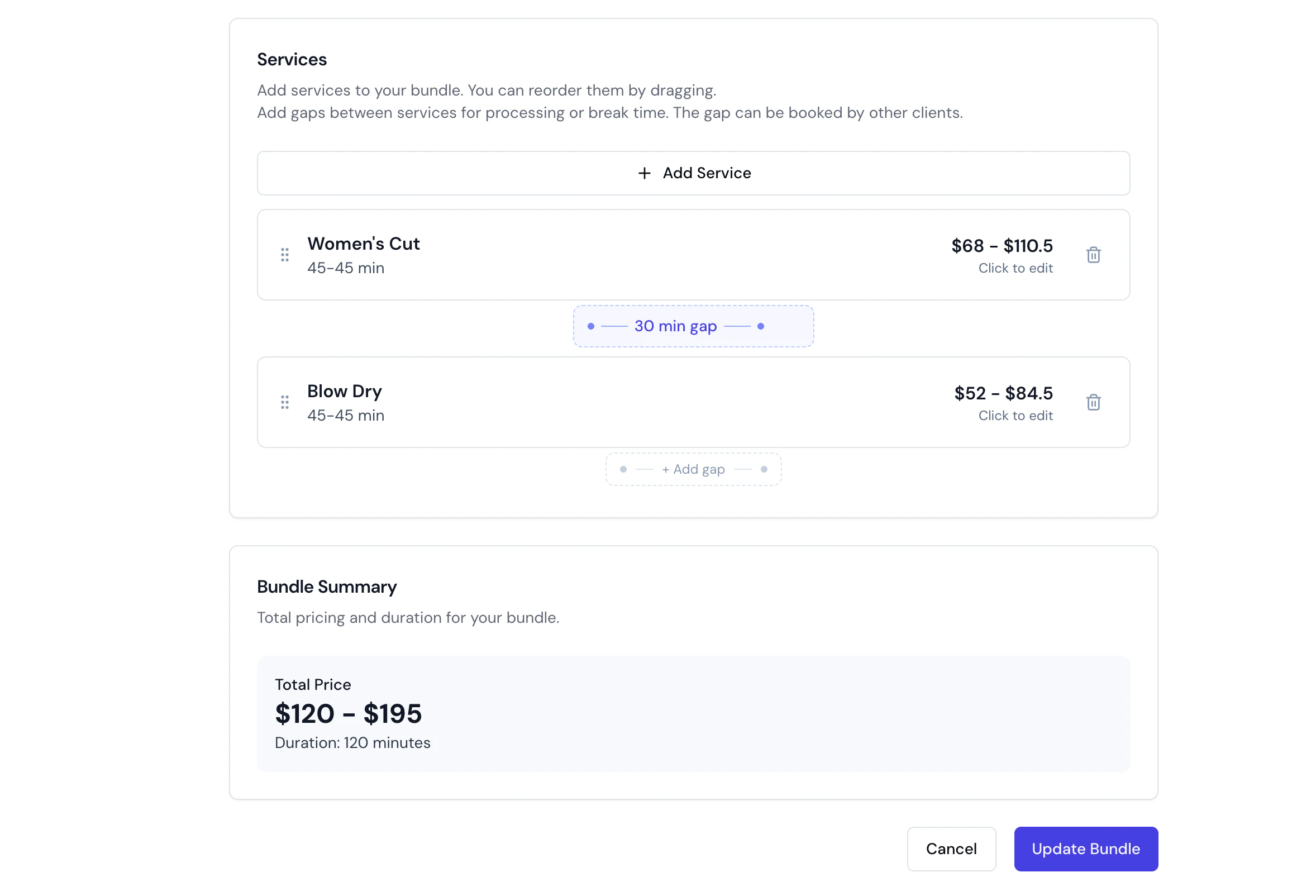 Bundles group **different** services for one client. To book the **same** service for a party — a couples massage, friends in together — use [Group Bookings](/service-catalog/group-bookings) instead.
***
## FAQs
**Q: Can I have the same service with different durations?**
A: Yes. The recommended approach is to use [service variants](/service-catalog/variants) — create one service with named variants (e.g., "Short Hair", "Long Hair"), each with its own price and duration. Alternatively, you can create separate service entries if the services are substantially different (e.g., "Express Blowdry" and "Luxury Blowdry").
**Q: Do I need to create a separate service for each team member?**
A: No — a service is created once and offered by your whole team. When adding or editing a service, set **Team members** to **All team members** or pick **Specific team members**; every qualified member can then perform it, and clients still choose their preferred team member at booking (unless you turn that off). For different pricing per team member, use [pricing tiers](/pricing-tiers) instead of duplicate services. Only create separate services when the offerings genuinely differ (e.g. a different duration or treatment) — there's no need to add a team member's name to the service name.
**Q: What happens to past appointments if I archive a service?**
A: Past appointments remain unchanged. The service is only hidden from new bookings and online booking.
**Q: Can a bundle include services from different categories?**
A: Yes! Bundles can include any combination of services across all categories.
**Q: Can I change service prices without affecting existing appointments?**
A: Yes. Price changes only apply to new bookings. Existing appointments retain their original pricing.
**Q: How do I set bundle pricing?**
A: Bundles support four pricing modes — **Use service prices**, **Set total price**, **% discount**, and **Free** — and a fixed total or discount is split proportionally across the component lines. See the [Bundles guide → Pricing modes](/service-catalog/bundles#pricing-modes) for worked examples.
**Q: What is "Processing Time" on a service and why would I use it?**
A: Processing time is the time after the active service where the client remains but the team member is free to serve others. Common uses include:
* **Colour development**: Allow hair colour to develop before cutting
* **Treatment absorption**: Let skincare products absorb before the next step
* **Setting time**: Allow a perm or treatment to set
During processing time, the team member can serve other clients, optimising your schedule. The processing time applies whether the service is booked alone, in a bundle, or stacked with other services.
**Q: What is "Buffer Time" on a service?**
A: Buffer time is blocked time before (Buffer before) and/or after (Buffer after) a service where the team member is unavailable. Unlike processing time, buffer time is **not visible to clients** — it only affects team member availability on the scheduler. Common uses include:
* **Room setup**: Preparing the treatment room before the client arrives
* **Equipment sterilisation**: Cleaning and sanitising tools between clients
* **Consultation review**: Reviewing client notes before the appointment
**Q: What is the difference between processing time and buffer time?**
A: **Processing time** is client-facing — the client stays for the duration (e.g., waiting for colour to develop) and the team member is free to serve others. **Buffer time** is internal — the team member is blocked for setup or cleanup, and clients do not see it. In the scheduler, buffer time appears as grey striped blocks before or after the appointment.
**Q: How do processing times work with bundles?**
A: When you add a service to a bundle, its default processing time is automatically applied between services. You can then customise the processing time for each service in that specific bundle:
* Processing times labelled **(default)** use the service's own setting
* Processing times labelled **(custom)** have been overridden for this bundle
* Click the reset icon to restore a service's default processing time
**Q: How does buffer time work with bundles?**
A: Buffer time applies to the **bundle as a whole**, not between individual services. Buffer before appears at the top of the service list (before the first service), and Buffer after appears at the bottom (after the last service). Each can be overridden per bundle.
**Q: Can I set processing time for the last service in a bundle?**
A: Yes! Processing time can be set for **all services** in a bundle, including the last one. This is useful because:
* Single services may need processing time after completion
* When services are stacked, the processing time ensures proper spacing for the next appointment
* The processing time represents time inherent to the service itself
**Q: Do processing and buffer times affect availability and scheduling?**
A: Yes. Both are included in availability calculations. When a client books a service or bundle, the system ensures the team member is available for the full duration including all processing and buffer times. During processing time, the team member can serve other clients. During buffer time, the team member is blocked.
**Q: How are processing and buffer times displayed to clients during online booking?**
A: Processing time is included in the total duration shown to clients. For example, a 60-minute colour service with a 30-minute processing time shows as "90 mins (incl. 30 min processing time)". Buffer time is **never shown to clients** — it only affects team member blocking on the calendar.
**Q: What happens if I set "Use default" for processing or buffer time?**
A: The service inherits the location-level default value set in **Settings** > **Scheduling** under "Processing time & buffer defaults". This makes it easy to set a standard value for all services and only override where needed.
**Q: Can I set different cancellation policies for different services?**
A: Yes! Each service can override the default cancellation policy. You can set custom cancellation periods, fee percentages, and self-service cancellation settings per service. Services without overrides use your default policy.
**Q: How do cancellation policies work when an appointment has multiple services?**
A: When an appointment includes multiple services with different cancellation policies, the most restrictive policy applies. This means the shortest cancellation period and highest cancellation fee percentage are used. This protects your business by applying the strictest rules.
**Q: Can I set a minimum notice period per service?**
A: Yes! Each service can have its own minimum notice period that overrides the default. When booking multiple services, the maximum (most restrictive) notice period applies. This ensures adequate preparation time for complex service combinations.
**Q: What happens if I don't set service-level overrides?**
A: Services without overrides use your default settings for minimum notice period, cancellation policy, payment policy, and team member selection. This keeps configuration simple while allowing customisation when needed.
**Q: Can I require a deposit for specific services even if my default settings don't require deposits?**
A: Yes! Each service can have its own payment policy. Set the payment policy to "Require deposit" and specify either a fixed amount or percentage. This is useful for high-value services like wedding packages or extensive treatments.
**Q: What are service add-ons and how do they work?**
A: Add-ons let you attach extra options to a service (e.g., a deep conditioning treatment added to a haircut). You create add-on option groups on the service, each with one or more selectable options. Each option has its own price and duration. Groups can be **optional** (clients can skip) or **required** (clients must select at least one option before proceeding). Multi-select groups support minimum and maximum selection limits. When a client books online, required groups must be completed; from the dashboard, team members see a soft warning but can proceed without selecting. Add-on prices and durations are added to the service total and appear on the appointment, checkout, notifications, and reports. Add-on durations also affect availability — the system only shows time slots that fit the full duration including selected add-ons.
**Q: Can I enable online waitlist for specific services only?**
A: Yes! Each service can override the location-level waitlist setting. Set "Allow join waitlist" to "Yes" to enable for that service even if the location default is disabled, or "No" to disable for that service even if the location default is enabled.
**Q: How do I hide prices for services with variable pricing?**
A: Edit the service and set "Hide prices in online booking" to "Yes". Only the price prefix (e.g., "From") will be shown during online booking if you've set one. This is useful for services like colour treatments where the final price depends on hair length or complexity.
**Q: What's the resolution logic when multiple services have different settings?**
A: For waitlist settings, if ANY selected service explicitly disables waitlist, it's disabled for the booking. If ANY service explicitly enables it, it's enabled. If all services inherit, the location default applies. For hide prices, each service's setting is applied individually.
**Q: What is a parallel bundle, and how does it differ from a group booking?**
A: A parallel bundle runs several **different** services at the same time, each with its own team member — a 60-min hair styling and a 45-min makeup application together for a 60-min total instead of 105 sequentially. A [group booking](/service-catalog/group-bookings) instead runs the **same** service N times at once, one per guest. See the [Bundles guide → Sequential vs parallel](/service-catalog/bundles#sequential-vs-parallel-execution).
**Q: What is a resource-only service?**
A: A resource-only service is one where no team member is needed — only a resource (room, bed, or equipment). Examples include float tanks, saunas, tanning beds, and cryotherapy chambers. Turn off the **Team member required** toggle and enable **Require resource** to set this up. See [Resource-Only Services](#resource-only-services) for full details.
**Q: Can I turn off team member required for any service?**
A: You can turn off **Team member required** as long as **Require resource** is enabled and at least one eligible resource is assigned. At least one of the two must remain enabled so that every appointment has either a team member or a resource (or both).
**Q: Where do resource-only appointments appear in the scheduler?**
A: Resource-only appointments appear in the **resource view** under the assigned resource column. They do not appear in the team member view since no team member is assigned. Switch to the resource grouping mode in the scheduler to see them.
**Q: How do I control which services appear on my online booking page?**
A: Each service has an "Available for online booking" toggle in the **Booking policies** tab. When enabled (the default), the service appears on your online booking page if it has at least one assigned team member with online booking enabled. When disabled, the service is completely hidden from your booking portal regardless of team member assignments. The Services page shows "Online", "Offline", or "No team members" badges to indicate each service's online booking status.
**Q: Can I disable a bundle from online booking independently of its services?**
A: Yes! Each bundle has its own "Available for online booking" toggle in the bundle edit form. This is independent of the component services — a bundle can be available online even if one of its services is disabled for online booking, and vice versa.
**Q: Can I show a bundle online without revealing the individual services that make it up?**
A: Yes — turn off **Show individual services online** and clients see only the bundle name, total price and total duration, while your team, scheduler, reports and business-facing notifications keep the full breakdown. See the [Bundles guide → Show individual services online](/service-catalog/bundles#show-individual-services-online).
***
## Archiving and restoring services, categories & bundles
Bella Booking uses an **archive-first** approach. Services, categories, and bundles cannot be deleted directly — they must be archived first. Archived items are hidden from active views and online booking but their records are preserved.
### Archiving
1. Find the service, category, or bundle in the **Services**
2. Click the three-dot menu (or the **Actions** dropdown for categories)
3. Select **Archive**
4. Confirm in the dialog
Archived items will not appear in the service selection when creating appointments or in online booking.
* You cannot archive a **service** that has active appointments, is used in active bundles, or has active waitlist entries.
* You cannot archive a **category** that has active services or bundles. Archive or move them first.
* You cannot archive a **bundle** that has active appointments or waitlist entries.
### Viewing archived items
Use the status filter on the Services page to see archived services, categories, and bundles.
### Restoring
1. Find the archived item using the status filter
2. Click the three-dot menu (or the **Actions** dropdown for categories)
3. Select **Restore**
4. The item returns to the active catalogue
### Permanently deleting
Permanent deletion is only available for archived items:
1. Find the archived item using the status filter
2. Click the three-dot menu (or the **Actions** dropdown for categories)
3. Select **Permanently delete** (shown in red)
4. A confirmation dialog appears — **you must type the item's name** to confirm
5. Click **Permanently delete** to remove the item
Permanent deletion cannot be undone and all associated data will be lost. If the item has historical records, it may not be eligible for permanent deletion.
Archiving is reversible and is the recommended approach. Past appointments that used the service are not affected — historical records are preserved. Restoring an archived service makes it available for new bookings again.
Bundles group **different** services for one client. To book the **same** service for a party — a couples massage, friends in together — use [Group Bookings](/service-catalog/group-bookings) instead.
***
## FAQs
**Q: Can I have the same service with different durations?**
A: Yes. The recommended approach is to use [service variants](/service-catalog/variants) — create one service with named variants (e.g., "Short Hair", "Long Hair"), each with its own price and duration. Alternatively, you can create separate service entries if the services are substantially different (e.g., "Express Blowdry" and "Luxury Blowdry").
**Q: Do I need to create a separate service for each team member?**
A: No — a service is created once and offered by your whole team. When adding or editing a service, set **Team members** to **All team members** or pick **Specific team members**; every qualified member can then perform it, and clients still choose their preferred team member at booking (unless you turn that off). For different pricing per team member, use [pricing tiers](/pricing-tiers) instead of duplicate services. Only create separate services when the offerings genuinely differ (e.g. a different duration or treatment) — there's no need to add a team member's name to the service name.
**Q: What happens to past appointments if I archive a service?**
A: Past appointments remain unchanged. The service is only hidden from new bookings and online booking.
**Q: Can a bundle include services from different categories?**
A: Yes! Bundles can include any combination of services across all categories.
**Q: Can I change service prices without affecting existing appointments?**
A: Yes. Price changes only apply to new bookings. Existing appointments retain their original pricing.
**Q: How do I set bundle pricing?**
A: Bundles support four pricing modes — **Use service prices**, **Set total price**, **% discount**, and **Free** — and a fixed total or discount is split proportionally across the component lines. See the [Bundles guide → Pricing modes](/service-catalog/bundles#pricing-modes) for worked examples.
**Q: What is "Processing Time" on a service and why would I use it?**
A: Processing time is the time after the active service where the client remains but the team member is free to serve others. Common uses include:
* **Colour development**: Allow hair colour to develop before cutting
* **Treatment absorption**: Let skincare products absorb before the next step
* **Setting time**: Allow a perm or treatment to set
During processing time, the team member can serve other clients, optimising your schedule. The processing time applies whether the service is booked alone, in a bundle, or stacked with other services.
**Q: What is "Buffer Time" on a service?**
A: Buffer time is blocked time before (Buffer before) and/or after (Buffer after) a service where the team member is unavailable. Unlike processing time, buffer time is **not visible to clients** — it only affects team member availability on the scheduler. Common uses include:
* **Room setup**: Preparing the treatment room before the client arrives
* **Equipment sterilisation**: Cleaning and sanitising tools between clients
* **Consultation review**: Reviewing client notes before the appointment
**Q: What is the difference between processing time and buffer time?**
A: **Processing time** is client-facing — the client stays for the duration (e.g., waiting for colour to develop) and the team member is free to serve others. **Buffer time** is internal — the team member is blocked for setup or cleanup, and clients do not see it. In the scheduler, buffer time appears as grey striped blocks before or after the appointment.
**Q: How do processing times work with bundles?**
A: When you add a service to a bundle, its default processing time is automatically applied between services. You can then customise the processing time for each service in that specific bundle:
* Processing times labelled **(default)** use the service's own setting
* Processing times labelled **(custom)** have been overridden for this bundle
* Click the reset icon to restore a service's default processing time
**Q: How does buffer time work with bundles?**
A: Buffer time applies to the **bundle as a whole**, not between individual services. Buffer before appears at the top of the service list (before the first service), and Buffer after appears at the bottom (after the last service). Each can be overridden per bundle.
**Q: Can I set processing time for the last service in a bundle?**
A: Yes! Processing time can be set for **all services** in a bundle, including the last one. This is useful because:
* Single services may need processing time after completion
* When services are stacked, the processing time ensures proper spacing for the next appointment
* The processing time represents time inherent to the service itself
**Q: Do processing and buffer times affect availability and scheduling?**
A: Yes. Both are included in availability calculations. When a client books a service or bundle, the system ensures the team member is available for the full duration including all processing and buffer times. During processing time, the team member can serve other clients. During buffer time, the team member is blocked.
**Q: How are processing and buffer times displayed to clients during online booking?**
A: Processing time is included in the total duration shown to clients. For example, a 60-minute colour service with a 30-minute processing time shows as "90 mins (incl. 30 min processing time)". Buffer time is **never shown to clients** — it only affects team member blocking on the calendar.
**Q: What happens if I set "Use default" for processing or buffer time?**
A: The service inherits the location-level default value set in **Settings** > **Scheduling** under "Processing time & buffer defaults". This makes it easy to set a standard value for all services and only override where needed.
**Q: Can I set different cancellation policies for different services?**
A: Yes! Each service can override the default cancellation policy. You can set custom cancellation periods, fee percentages, and self-service cancellation settings per service. Services without overrides use your default policy.
**Q: How do cancellation policies work when an appointment has multiple services?**
A: When an appointment includes multiple services with different cancellation policies, the most restrictive policy applies. This means the shortest cancellation period and highest cancellation fee percentage are used. This protects your business by applying the strictest rules.
**Q: Can I set a minimum notice period per service?**
A: Yes! Each service can have its own minimum notice period that overrides the default. When booking multiple services, the maximum (most restrictive) notice period applies. This ensures adequate preparation time for complex service combinations.
**Q: What happens if I don't set service-level overrides?**
A: Services without overrides use your default settings for minimum notice period, cancellation policy, payment policy, and team member selection. This keeps configuration simple while allowing customisation when needed.
**Q: Can I require a deposit for specific services even if my default settings don't require deposits?**
A: Yes! Each service can have its own payment policy. Set the payment policy to "Require deposit" and specify either a fixed amount or percentage. This is useful for high-value services like wedding packages or extensive treatments.
**Q: What are service add-ons and how do they work?**
A: Add-ons let you attach extra options to a service (e.g., a deep conditioning treatment added to a haircut). You create add-on option groups on the service, each with one or more selectable options. Each option has its own price and duration. Groups can be **optional** (clients can skip) or **required** (clients must select at least one option before proceeding). Multi-select groups support minimum and maximum selection limits. When a client books online, required groups must be completed; from the dashboard, team members see a soft warning but can proceed without selecting. Add-on prices and durations are added to the service total and appear on the appointment, checkout, notifications, and reports. Add-on durations also affect availability — the system only shows time slots that fit the full duration including selected add-ons.
**Q: Can I enable online waitlist for specific services only?**
A: Yes! Each service can override the location-level waitlist setting. Set "Allow join waitlist" to "Yes" to enable for that service even if the location default is disabled, or "No" to disable for that service even if the location default is enabled.
**Q: How do I hide prices for services with variable pricing?**
A: Edit the service and set "Hide prices in online booking" to "Yes". Only the price prefix (e.g., "From") will be shown during online booking if you've set one. This is useful for services like colour treatments where the final price depends on hair length or complexity.
**Q: What's the resolution logic when multiple services have different settings?**
A: For waitlist settings, if ANY selected service explicitly disables waitlist, it's disabled for the booking. If ANY service explicitly enables it, it's enabled. If all services inherit, the location default applies. For hide prices, each service's setting is applied individually.
**Q: What is a parallel bundle, and how does it differ from a group booking?**
A: A parallel bundle runs several **different** services at the same time, each with its own team member — a 60-min hair styling and a 45-min makeup application together for a 60-min total instead of 105 sequentially. A [group booking](/service-catalog/group-bookings) instead runs the **same** service N times at once, one per guest. See the [Bundles guide → Sequential vs parallel](/service-catalog/bundles#sequential-vs-parallel-execution).
**Q: What is a resource-only service?**
A: A resource-only service is one where no team member is needed — only a resource (room, bed, or equipment). Examples include float tanks, saunas, tanning beds, and cryotherapy chambers. Turn off the **Team member required** toggle and enable **Require resource** to set this up. See [Resource-Only Services](#resource-only-services) for full details.
**Q: Can I turn off team member required for any service?**
A: You can turn off **Team member required** as long as **Require resource** is enabled and at least one eligible resource is assigned. At least one of the two must remain enabled so that every appointment has either a team member or a resource (or both).
**Q: Where do resource-only appointments appear in the scheduler?**
A: Resource-only appointments appear in the **resource view** under the assigned resource column. They do not appear in the team member view since no team member is assigned. Switch to the resource grouping mode in the scheduler to see them.
**Q: How do I control which services appear on my online booking page?**
A: Each service has an "Available for online booking" toggle in the **Booking policies** tab. When enabled (the default), the service appears on your online booking page if it has at least one assigned team member with online booking enabled. When disabled, the service is completely hidden from your booking portal regardless of team member assignments. The Services page shows "Online", "Offline", or "No team members" badges to indicate each service's online booking status.
**Q: Can I disable a bundle from online booking independently of its services?**
A: Yes! Each bundle has its own "Available for online booking" toggle in the bundle edit form. This is independent of the component services — a bundle can be available online even if one of its services is disabled for online booking, and vice versa.
**Q: Can I show a bundle online without revealing the individual services that make it up?**
A: Yes — turn off **Show individual services online** and clients see only the bundle name, total price and total duration, while your team, scheduler, reports and business-facing notifications keep the full breakdown. See the [Bundles guide → Show individual services online](/service-catalog/bundles#show-individual-services-online).
***
## Archiving and restoring services, categories & bundles
Bella Booking uses an **archive-first** approach. Services, categories, and bundles cannot be deleted directly — they must be archived first. Archived items are hidden from active views and online booking but their records are preserved.
### Archiving
1. Find the service, category, or bundle in the **Services**
2. Click the three-dot menu (or the **Actions** dropdown for categories)
3. Select **Archive**
4. Confirm in the dialog
Archived items will not appear in the service selection when creating appointments or in online booking.
* You cannot archive a **service** that has active appointments, is used in active bundles, or has active waitlist entries.
* You cannot archive a **category** that has active services or bundles. Archive or move them first.
* You cannot archive a **bundle** that has active appointments or waitlist entries.
### Viewing archived items
Use the status filter on the Services page to see archived services, categories, and bundles.
### Restoring
1. Find the archived item using the status filter
2. Click the three-dot menu (or the **Actions** dropdown for categories)
3. Select **Restore**
4. The item returns to the active catalogue
### Permanently deleting
Permanent deletion is only available for archived items:
1. Find the archived item using the status filter
2. Click the three-dot menu (or the **Actions** dropdown for categories)
3. Select **Permanently delete** (shown in red)
4. A confirmation dialog appears — **you must type the item's name** to confirm
5. Click **Permanently delete** to remove the item
Permanent deletion cannot be undone and all associated data will be lost. If the item has historical records, it may not be eligible for permanent deletion.
Archiving is reversible and is the recommended approach. Past appointments that used the service are not affected — historical records are preserved. Restoring an archived service makes it available for new bookings again.