> ## Documentation Index
> Fetch the complete documentation index at: https://docs.bellabooking.com/llms.txt
> Use this file to discover all available pages before exploring further.
# Business settings
> Configure your business information, contact details, location, timezone, and currency
## Introduction
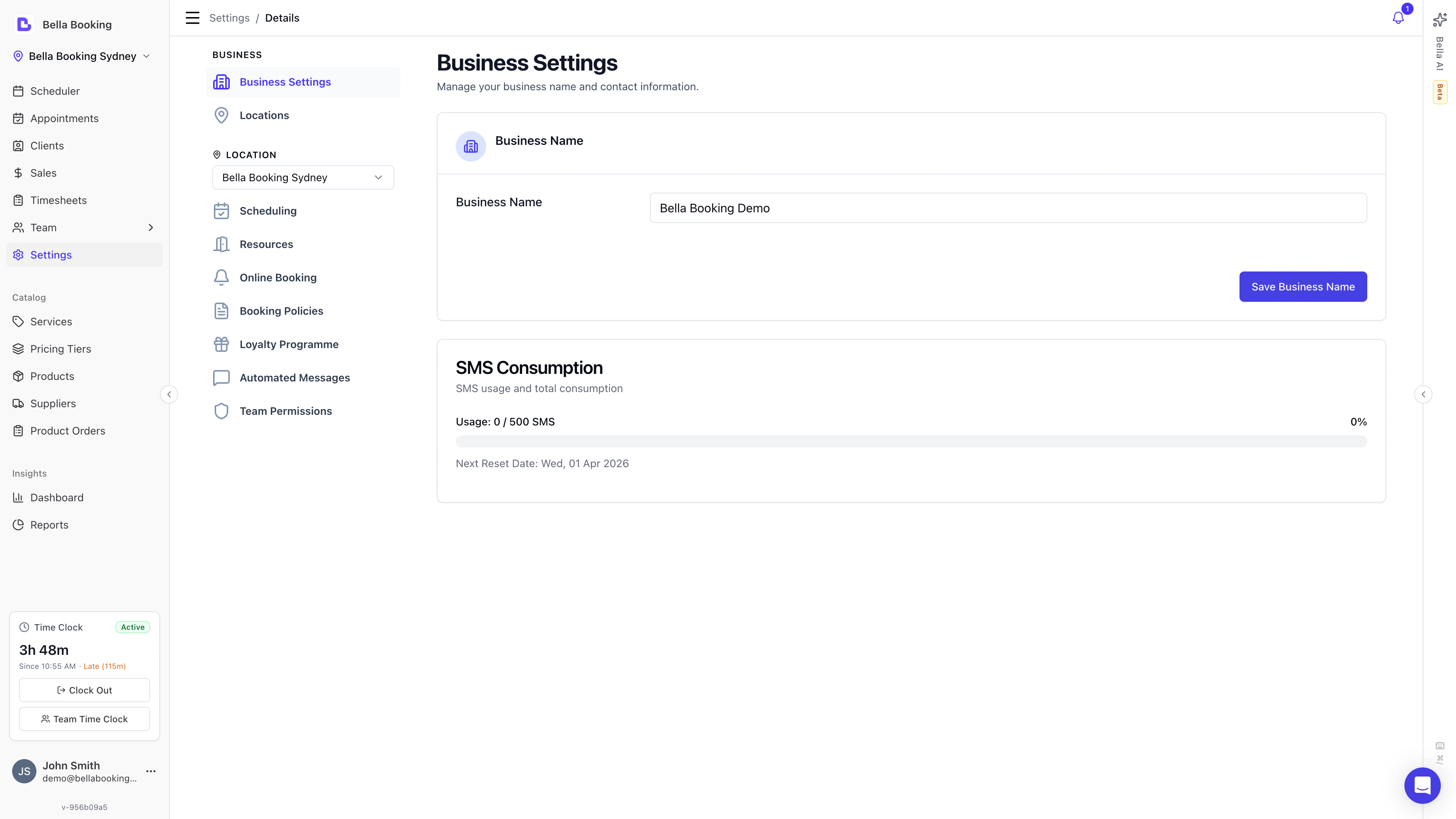
The **Business settings** page is where you configure core business information that appears throughout Bella Booking and on your online booking page.
***
 ## Business Information
### General Section
**Website:**
* Enter your business website URL (optional)
**About:**
* Write a brief description of your business
* Keep it concise and welcoming
* Highlights what makes your business special
***
## Contact Details
Configure contact information to display on your booking page:
**Phone number:**
* Main business phone number
* Clients can call this number for inquiries or appointments
**Email:**
* Primary business email address (required)
* Used as the Reply-To on emails clients receive (receipts, confirmations) and as the destination for business notifications
* On multi-location accounts, each location has its own email — client replies go to that location's address
***
## Location
Set your business address for client directions and mapping:
**Address:**
* Street address (e.g., "123 Main Street")
**City:**
* City or town name
**State:**
* State, province, or region
**Postcode:**
* ZIP or postal code
**Country:**
* Select your country from the dropdown
**Timezone:**
* Critical for accurate appointment scheduling
* Important for businesses in areas with daylight saving time
* Choose from available timezones for your selected country
**Note:** When you select a country, only relevant timezones for that country will be shown.
**Currency:**
* Select Your Local Currency
* Affects how prices are displayed throughout the system
* Used for all services, products, and transactions
**Time Format:**
* Choose **12-hour** (e.g. 2:30 PM) or **24-hour** (e.g. 14:30)
* Applies everywhere a time is shown — the scheduler, appointment forms, emails and SMS to clients and team members, and your online booking page
* Defaults to 12-hour, so nothing changes unless you switch it
***
## Saving Changes
1. Update any fields on the Business settings page
2. Scroll to the bottom and click **Save**
3. Changes take effect immediately throughout the system
***
## SMS Consumption
At the bottom of the Business settings page, you'll see an **SMS Consumption** widget that tracks:
* Total SMS messages sent
* SMS usage for the current billing period
* Remaining SMS credits
This helps you monitor your automated messaging usage.
**Running low on SMS?** If you reach your plan's SMS limit, you can purchase additional SMS credit packs from **Settings** → **Messaging**.
***
## Danger Zone (Owner Only)
The **Danger zone** section is only visible to the account owner. It contains irreversible actions. To access it, scroll to the bottom of Business settings and expand the **Danger zone** section.
### Transfer Ownership
Transfer account ownership to another admin team member. After transferring:
* You become a regular admin and lose access to billing and payment settings
* The new owner gains full control over the account
* **This action cannot be undone**
**Requirements:** You must have at least one other team member with an Admin role before you can transfer ownership.
### Delete Account
Request permanent deletion of your account and all associated data. This action cannot be undone.
**How account deletion works depends on your subscription status:**
* **Trial users (no active subscription):** Go to **Settings** → **Business settings** → **Danger zone** → **Request account deletion**. Select a reason, then submit the request. The Bella Booking team will process the deletion.
* **Subscribed users (active subscription):** You must first cancel your subscription through the Stripe billing portal (**Settings** → **Billing** → **Manage billing & subscription**). Once your subscription is cancelled, you can then request account deletion from **Settings** → **Business settings** → **Danger zone**.
**Steps:**
1. Go to **Settings** → **Business settings**
2. Scroll down and expand **Danger zone**
3. Click **Request account deletion**
4. Select a reason for leaving
5. Provide additional details if prompted
6. Click **Submit** — this opens a chat with the Bella Booking team to process your request
**Note:** Account deletion is permanent. All your data including appointments, clients, team members, and settings will be permanently removed.
## Business Information
### General Section
**Website:**
* Enter your business website URL (optional)
**About:**
* Write a brief description of your business
* Keep it concise and welcoming
* Highlights what makes your business special
***
## Contact Details
Configure contact information to display on your booking page:
**Phone number:**
* Main business phone number
* Clients can call this number for inquiries or appointments
**Email:**
* Primary business email address (required)
* Used as the Reply-To on emails clients receive (receipts, confirmations) and as the destination for business notifications
* On multi-location accounts, each location has its own email — client replies go to that location's address
***
## Location
Set your business address for client directions and mapping:
**Address:**
* Street address (e.g., "123 Main Street")
**City:**
* City or town name
**State:**
* State, province, or region
**Postcode:**
* ZIP or postal code
**Country:**
* Select your country from the dropdown
**Timezone:**
* Critical for accurate appointment scheduling
* Important for businesses in areas with daylight saving time
* Choose from available timezones for your selected country
**Note:** When you select a country, only relevant timezones for that country will be shown.
**Currency:**
* Select Your Local Currency
* Affects how prices are displayed throughout the system
* Used for all services, products, and transactions
**Time Format:**
* Choose **12-hour** (e.g. 2:30 PM) or **24-hour** (e.g. 14:30)
* Applies everywhere a time is shown — the scheduler, appointment forms, emails and SMS to clients and team members, and your online booking page
* Defaults to 12-hour, so nothing changes unless you switch it
***
## Saving Changes
1. Update any fields on the Business settings page
2. Scroll to the bottom and click **Save**
3. Changes take effect immediately throughout the system
***
## SMS Consumption
At the bottom of the Business settings page, you'll see an **SMS Consumption** widget that tracks:
* Total SMS messages sent
* SMS usage for the current billing period
* Remaining SMS credits
This helps you monitor your automated messaging usage.
**Running low on SMS?** If you reach your plan's SMS limit, you can purchase additional SMS credit packs from **Settings** → **Messaging**.
***
## Danger Zone (Owner Only)
The **Danger zone** section is only visible to the account owner. It contains irreversible actions. To access it, scroll to the bottom of Business settings and expand the **Danger zone** section.
### Transfer Ownership
Transfer account ownership to another admin team member. After transferring:
* You become a regular admin and lose access to billing and payment settings
* The new owner gains full control over the account
* **This action cannot be undone**
**Requirements:** You must have at least one other team member with an Admin role before you can transfer ownership.
### Delete Account
Request permanent deletion of your account and all associated data. This action cannot be undone.
**How account deletion works depends on your subscription status:**
* **Trial users (no active subscription):** Go to **Settings** → **Business settings** → **Danger zone** → **Request account deletion**. Select a reason, then submit the request. The Bella Booking team will process the deletion.
* **Subscribed users (active subscription):** You must first cancel your subscription through the Stripe billing portal (**Settings** → **Billing** → **Manage billing & subscription**). Once your subscription is cancelled, you can then request account deletion from **Settings** → **Business settings** → **Danger zone**.
**Steps:**
1. Go to **Settings** → **Business settings**
2. Scroll down and expand **Danger zone**
3. Click **Request account deletion**
4. Select a reason for leaving
5. Provide additional details if prompted
6. Click **Submit** — this opens a chat with the Bella Booking team to process your request
**Note:** Account deletion is permanent. All your data including appointments, clients, team members, and settings will be permanently removed.