> ## Documentation Index
> Fetch the complete documentation index at: https://docs.bellabooking.com/llms.txt
> Use this file to discover all available pages before exploring further.
# Gift Card Settings
> Enable gift cards, configure denominations, custom amounts, and expiry periods for your location
## Introduction
The **Gift card settings** page lets you enable digital gift cards for your location and configure how they work. Gift cards can be sold by your team from the Gift cards screen (**Sales** → **Gift cards** → **Sell gift card**) or purchased by clients through your online booking portal. An **online** purchase always emails the recipient their code; at the **till** the email is on by default and can be switched off so you hand the code over yourself. Either way, the code is redeemed at checkout.
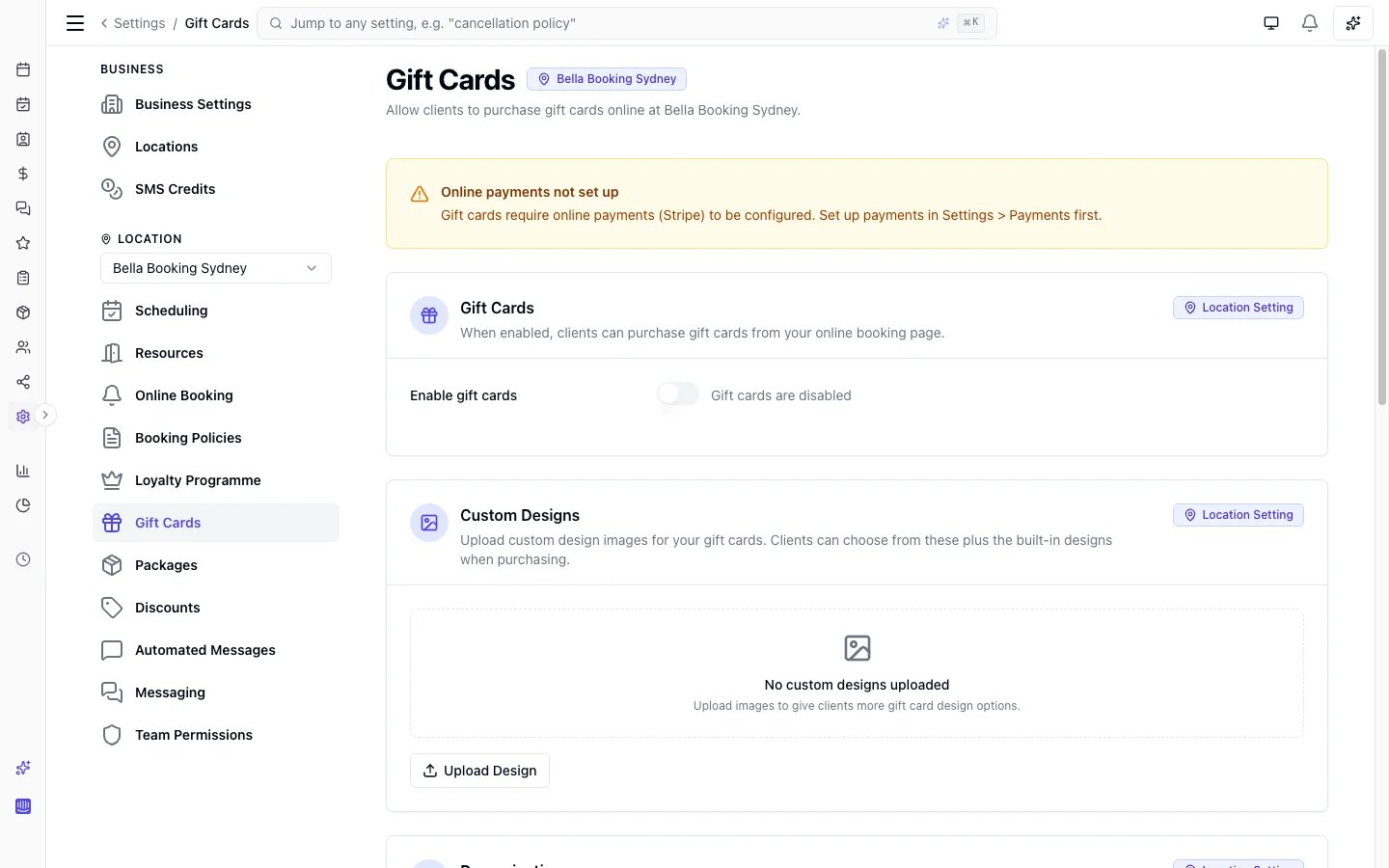 **Prerequisite for online purchases:** Stripe payments must be configured for online gift card purchases. Selling gift cards from the business dashboard does **not** require Stripe — your team settles the sale via cash, manual card, or other, so you can configure and sell gift cards at the till without connecting online payments. See [Payments](/settings/payments) for Stripe setup to also offer online purchases.
***
## Accessing Gift Card Settings
1. Go to **Settings** in the sidebar
2. Click **Gift cards** (under the location settings group)
***
## Enabling Gift Cards
1. In the **Gift cards** row, click to change the status from **Paused** to **Active**
2. Click **Save changes** in the summary card that appears
When enabled, your team can sell gift cards from the business dashboard, and clients can purchase them through your online booking portal.
When disabled:
* No new gift cards can be sold (the **Sell gift card** button is hidden; online purchases are blocked)
* Existing active gift cards can still be redeemed at checkout
***
## Configuring Denominations
Denominations are preset amounts shown to clients during purchase — for example, $25, $50, $100, and $250.
### Adding a denomination
1. Click **Add denomination**
2. Enter the amount
3. Click **Save**
You can add up to 10 denominations.
### Removing a denomination
Click the remove icon next to a denomination and click **Save**.
**Tip:** Choose amounts that reflect common service prices at your business — for example, the cost of a haircut, colour treatment, or massage.
***
## Allowing Custom Amounts
By default, clients can only select from your preset denominations. You can optionally allow clients to enter any amount they choose.
1. Toggle **Allow custom amount**
2. Optionally set:
* **Minimum amount**: The lowest amount a client can enter (e.g., \$10)
* **Maximum amount**: The highest amount a client can enter (e.g., \$500)
3. Click **Save**
Leaving either field blank removes that restriction.
**Example:** With a minimum of $20 and a maximum of $500, clients can enter any amount between $20 and $500.
***
## Service and Bundle Gift Cards
As well as dollar-value (Amount) cards, you can offer gift cards tied to a specific **service** or a whole **bundle**. Each type has its own switch, and you choose exactly which services and bundles are eligible — so you can feature your most giftable treatments and packages without exposing your entire menu. Service and bundle gift cards can be sold from the business dashboard (**Sales** → **Gift cards** → **Sell gift card**) or purchased online by clients through your online booking portal.
### Allow service gift cards
1. Toggle **Service gift cards** on
2. Choose the **eligible services** — only the services you select can be sold as a gift card
3. Click **Save**
A service gift card is priced automatically at the chosen service's price at the time of sale, and the service name appears in the recipient's delivery email.
### Allow bundle gift cards
1. Toggle **Bundle gift cards** on
2. Choose the **eligible bundles** — only the bundles you select can be sold as a gift card
3. Click **Save**
A bundle gift card is priced automatically at the bundle's fixed total — or, for a bundle priced from its component services, its **"from"** price — at the time of sale, and the bundle name appears in the recipient's delivery email. The recipient redeems it at checkout as a balance, exactly like any other gift card.
**Note:** When a type is switched on but no services or bundles are selected as eligible, that type won't be offered until you add at least one. A bundle with no price can't be offered as a gift card.
***
## Expiry Period
Set how long gift cards remain valid after purchase.
1. Enter a number in the **Expiry (months)** field (e.g., `12` for 1 year, `36` for 3 years)
2. Click **Save**
The expiry date is calculated from the date of purchase and is shown to recipients in their gift card delivery email.
**Note:** Changing the expiry period only affects newly purchased gift cards. Gift cards already issued keep their original expiry date.
***
## Custom designs and built-in designs
Upload up to 10 custom design images so clients can choose branded gift cards online. Bella also ships six built-in designs (Classic, Birthday, Thank You, Congrats, Holiday, Floral).
Once you have at least one custom design uploaded, the **Built-in designs** row appears under **Custom designs** (same Visible / Hidden control as **Prices** in booking policies):
1. Set **Built-in designs** to **Hidden** if you only want clients to see your custom uploads
2. Leave it **Visible** (the default) to show built-ins alongside your customs
3. Click **Save changes**
Hiding built-in designs requires at least one custom upload. Removing your last custom design automatically shows the built-ins again.
***
## FAQs
**Q: Can I disable gift cards after selling some?**
A: Yes. Disabling stops new purchases but allows existing active gift cards to continue being redeemed at checkout.
**Q: What happens if I remove a denomination?**
A: Removing a denomination only affects future purchases. Previously issued gift cards are not affected.
**Q: Do I need Stripe to use gift cards?**
A: Only for **online** gift card purchases — those flow through Stripe Checkout, so a connected Stripe account is required for that path. Selling a gift card **from the business dashboard** doesn't require Stripe: your team settles the sale through cash, manual card, or other. See [Payments](/settings/payments) for Stripe setup if you want the online path too.
**Q: Can I offer gift cards in different currencies?**
A: Gift cards are issued in your location's configured currency.
**Q: Can I sell a gift card for a specific service or a whole bundle?**
A: Yes. Switch on **Service gift cards** and/or **Bundle gift cards** and choose which services and bundles are eligible. A service card is priced automatically at that service's price; a bundle card at the bundle's fixed total, or its "from" price for a component-priced bundle. The recipient redeems it at checkout like any balance card. Service and bundle gift cards can be sold from the business dashboard or purchased online by clients through your online booking portal.
***
To learn how clients purchase gift cards and how your team manages and redeems them, see [Gift cards](/gift-cards/index).
To configure the automated delivery email sent to recipients, see [Automated messages](/settings/automated-messages).
**Prerequisite for online purchases:** Stripe payments must be configured for online gift card purchases. Selling gift cards from the business dashboard does **not** require Stripe — your team settles the sale via cash, manual card, or other, so you can configure and sell gift cards at the till without connecting online payments. See [Payments](/settings/payments) for Stripe setup to also offer online purchases.
***
## Accessing Gift Card Settings
1. Go to **Settings** in the sidebar
2. Click **Gift cards** (under the location settings group)
***
## Enabling Gift Cards
1. In the **Gift cards** row, click to change the status from **Paused** to **Active**
2. Click **Save changes** in the summary card that appears
When enabled, your team can sell gift cards from the business dashboard, and clients can purchase them through your online booking portal.
When disabled:
* No new gift cards can be sold (the **Sell gift card** button is hidden; online purchases are blocked)
* Existing active gift cards can still be redeemed at checkout
***
## Configuring Denominations
Denominations are preset amounts shown to clients during purchase — for example, $25, $50, $100, and $250.
### Adding a denomination
1. Click **Add denomination**
2. Enter the amount
3. Click **Save**
You can add up to 10 denominations.
### Removing a denomination
Click the remove icon next to a denomination and click **Save**.
**Tip:** Choose amounts that reflect common service prices at your business — for example, the cost of a haircut, colour treatment, or massage.
***
## Allowing Custom Amounts
By default, clients can only select from your preset denominations. You can optionally allow clients to enter any amount they choose.
1. Toggle **Allow custom amount**
2. Optionally set:
* **Minimum amount**: The lowest amount a client can enter (e.g., \$10)
* **Maximum amount**: The highest amount a client can enter (e.g., \$500)
3. Click **Save**
Leaving either field blank removes that restriction.
**Example:** With a minimum of $20 and a maximum of $500, clients can enter any amount between $20 and $500.
***
## Service and Bundle Gift Cards
As well as dollar-value (Amount) cards, you can offer gift cards tied to a specific **service** or a whole **bundle**. Each type has its own switch, and you choose exactly which services and bundles are eligible — so you can feature your most giftable treatments and packages without exposing your entire menu. Service and bundle gift cards can be sold from the business dashboard (**Sales** → **Gift cards** → **Sell gift card**) or purchased online by clients through your online booking portal.
### Allow service gift cards
1. Toggle **Service gift cards** on
2. Choose the **eligible services** — only the services you select can be sold as a gift card
3. Click **Save**
A service gift card is priced automatically at the chosen service's price at the time of sale, and the service name appears in the recipient's delivery email.
### Allow bundle gift cards
1. Toggle **Bundle gift cards** on
2. Choose the **eligible bundles** — only the bundles you select can be sold as a gift card
3. Click **Save**
A bundle gift card is priced automatically at the bundle's fixed total — or, for a bundle priced from its component services, its **"from"** price — at the time of sale, and the bundle name appears in the recipient's delivery email. The recipient redeems it at checkout as a balance, exactly like any other gift card.
**Note:** When a type is switched on but no services or bundles are selected as eligible, that type won't be offered until you add at least one. A bundle with no price can't be offered as a gift card.
***
## Expiry Period
Set how long gift cards remain valid after purchase.
1. Enter a number in the **Expiry (months)** field (e.g., `12` for 1 year, `36` for 3 years)
2. Click **Save**
The expiry date is calculated from the date of purchase and is shown to recipients in their gift card delivery email.
**Note:** Changing the expiry period only affects newly purchased gift cards. Gift cards already issued keep their original expiry date.
***
## Custom designs and built-in designs
Upload up to 10 custom design images so clients can choose branded gift cards online. Bella also ships six built-in designs (Classic, Birthday, Thank You, Congrats, Holiday, Floral).
Once you have at least one custom design uploaded, the **Built-in designs** row appears under **Custom designs** (same Visible / Hidden control as **Prices** in booking policies):
1. Set **Built-in designs** to **Hidden** if you only want clients to see your custom uploads
2. Leave it **Visible** (the default) to show built-ins alongside your customs
3. Click **Save changes**
Hiding built-in designs requires at least one custom upload. Removing your last custom design automatically shows the built-ins again.
***
## FAQs
**Q: Can I disable gift cards after selling some?**
A: Yes. Disabling stops new purchases but allows existing active gift cards to continue being redeemed at checkout.
**Q: What happens if I remove a denomination?**
A: Removing a denomination only affects future purchases. Previously issued gift cards are not affected.
**Q: Do I need Stripe to use gift cards?**
A: Only for **online** gift card purchases — those flow through Stripe Checkout, so a connected Stripe account is required for that path. Selling a gift card **from the business dashboard** doesn't require Stripe: your team settles the sale through cash, manual card, or other. See [Payments](/settings/payments) for Stripe setup if you want the online path too.
**Q: Can I offer gift cards in different currencies?**
A: Gift cards are issued in your location's configured currency.
**Q: Can I sell a gift card for a specific service or a whole bundle?**
A: Yes. Switch on **Service gift cards** and/or **Bundle gift cards** and choose which services and bundles are eligible. A service card is priced automatically at that service's price; a bundle card at the bundle's fixed total, or its "from" price for a component-priced bundle. The recipient redeems it at checkout like any balance card. Service and bundle gift cards can be sold from the business dashboard or purchased online by clients through your online booking portal.
***
To learn how clients purchase gift cards and how your team manages and redeems them, see [Gift cards](/gift-cards/index).
To configure the automated delivery email sent to recipients, see [Automated messages](/settings/automated-messages).