> ## Documentation Index
> Fetch the complete documentation index at: https://docs.bellabooking.com/llms.txt
> Use this file to discover all available pages before exploring further.
# Payments & Deposits
> Connect Stripe to accept online payments, configure deposit requirements, and manage saved cards for bookings
## Introduction
The **Payments** settings page allows you to connect your Stripe account and configure payment policies for online bookings. This is where you set up deposits, view transaction fees, and manage your Stripe Connect integration.
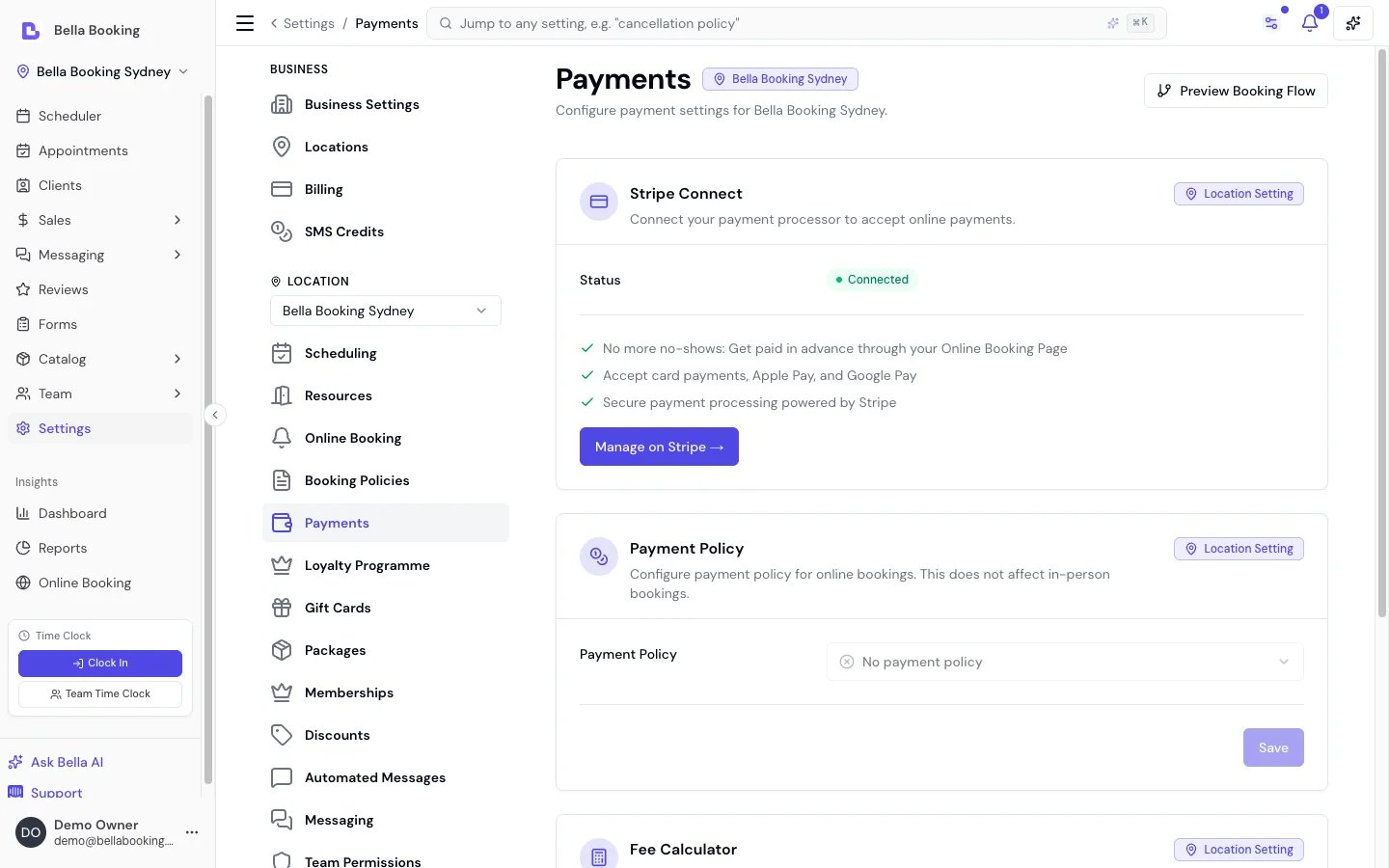 **Note:** Payments is separate from [Billing & subscription](/settings/billing). Billing manages your Bella Booking subscription plan. Payments manages how your clients pay you for appointments.
### Plan Availability
Stripe Connect, deposits, saved cards (Card on File), Afterpay, and pass-through processing fees are available on **every plan** — Solo, Starter, and Professional. There are no plan restrictions on core payment functionality. Digital tipping is part of the review-and-tip flow on the client portal, which comes with client reviews — a **Professional**-plan feature (see [Tips](/tips)).
***
## Accessing Payment Settings
1. In the main sidebar, go to **Settings**
2. Select **Payments** from the settings menu (under the location settings group)
**Access:** Owner only (requires SettingsBilling permission)
***
## Stripe Connect
Stripe Connect lets you accept card payments from clients who book online. You connect your own Stripe account so funds go directly to your bank account.
### Connection Status
The status badge shows one of these states:
* **Connected** (green): Your Stripe account is fully set up and ready to accept payments
* **Setup incomplete** (amber): You started connecting Stripe but haven't finished its steps. Click **Finish Stripe setup** to pick up where you left off
* **Restricted** (amber): Your Stripe account requires additional verification. Click **Stripe dashboard** to complete it
* **Not connected** (grey): No Stripe account is linked yet
### Connecting Stripe
If you haven't connected yet:
1. Go to **Settings** → **Payments**
2. Click **Connect Stripe**
3. A confirmation dialog explains what will happen:
* Create a new Stripe Express account, or connect your existing one
* Redirect you to Stripe to verify your identity and business details
* Enable you to accept card payments through Bella Booking
4. Click **Continue to Stripe**
5. Complete the Stripe onboarding process (typically 5–10 minutes)
6. You may need to provide business documentation (ABN for Australia, EIN or SSN for United States, IRD number for New Zealand) and bank account details
### After Connecting
Once connected, the page shows:
* **Status**: Connected (Setup incomplete if you haven't finished Stripe's steps, or Restricted if verification is required)
* **Account ID**: Your Stripe connected account identifier
* **Finish Stripe setup** button (while setup is incomplete): Reopens Stripe's setup flow so you can finish the remaining steps
* **Stripe dashboard** button (once set up): Opens your Stripe Express dashboard in a new tab, where you can view payouts, transactions, and account settings
### What You Can Do Once Connected
* Accept deposits when clients book online (fixed amount or percentage)
* Accept card payments, Apple Pay, and Google Pay through your online booking page
* Accept Afterpay / Clearpay payments for deposits, gift cards, and packages (see [Afterpay / Clearpay](#afterpay--clearpay-buy-now-pay-later))
* Let clients save cards for faster checkout (see [Saved Cards & Card on File](#saved-cards--card-on-file))
* Charge saved cards during appointment checkout (Card on File)
* Automatic refunds when clients cancel within the cancellation policy (see [Cancellation Policy](/settings/booking-policies#cancellation-policy))
* Sell digital gift cards through your online booking portal (see [Gift cards](/gift-cards/index))
* Process recurring membership subscription payments (see [Memberships](/memberships))
* Accept payments for online product purchases through the [Product shop](/products/sell-online)
***
## Account Balance
When Stripe is connected, an **Account Balance** card appears at the top of the Payments settings page showing a snapshot of your Stripe account finances:
| Field | Description |
| --------------------- | ------------------------------------------------------------------------------------------------------------------------------ |
| **Available balance** | Funds that have cleared and are ready to be paid out to your bank account |
| **Pending balance** | Funds from recent transactions that are still being processed by Stripe (typically 2–7 business days depending on your region) |
| **Reserved balance** | Funds held by Stripe as a reserve (e.g., for potential refunds or disputes). Not all accounts have a reserve |
| **Next payout date** | The date of your next scheduled payout to your bank account |
This card provides a quick overview without needing to open the Stripe Dashboard. For detailed transaction history and payout breakdowns, click **Stripe dashboard**.
***
## Payment Policy
Configure whether clients must pay a deposit (or save a card) to secure a booking.
A required **deposit** applies to **both** online bookings and appointments you create yourself in the Scheduler — it is not online-only. The two paths differ only in how the deposit is collected:
* **Online bookings** — the client pays the deposit during checkout, which confirms the appointment.
* **Appointments you create** — the appointment is held with a "Deposit required" indicator and the client is sent a payment link. You can instead record the deposit manually (cash, bank transfer), charge a saved card on file at the moment you create it, or waive/override the deposit for that one appointment.
**Note:** If Stripe is not connected — or you started connecting but haven't finished Stripe's setup — the payment policy options are unavailable. An alert in their place prompts you to [connect Stripe](#connecting-stripe) (or finish its remaining steps) first.
### Policy Options
| Option | Description |
| ----------------------------- | --------------------------------------------------------------------------------------------------------------------------------------------------------------------------------------------------------------------------------------------------------------------------------------------------------------------- |
| **No payment policy** | No deposit required. Clients book without any upfront payment. |
| **Require a deposit upfront** | Clients must pay a deposit to confirm their booking. |
| **Require a card on file** | Clients save a card to confirm their booking — no charge and no hold is taken. The saved card secures the booking so you can charge a late-cancellation or no-show fee if your [cancellation policy](/settings/booking-policies#cancellation-policy) applies. A pre-authorised hold is planned but not yet available. |
### What happens when a client doesn't finish paying
A payment policy **holds** an online booking until the client completes the payment step. Most
clients finish straight away — and a client who already has a saved card confirms instantly under
the card-on-file policy, with nothing to do. When someone doesn't finish, the booking waits rather
than disappearing:
| Policy | The booking shows as | It confirms automatically when | You can also |
| ----------------------------- | -------------------- | ------------------------------ | ------------------------------------------------------------------------------------ |
| **Require a deposit upfront** | **Awaiting Deposit** | the client pays the deposit | Approve it (confirms without the deposit), record the deposit yourself, or cancel it |
| **Require a card on file** | **Awaiting Card** | the client saves a card | Approve it (confirms without a saved card) or decline it |
The client is sent a link to finish, and you're notified so nothing sits unnoticed. A card hold shows
**Approve** and **Decline** right on the appointment, because approving it gives up the saved card. A
deposit hold uses the appointment's own menu instead — **Approve**, **Record deposit**, or **Cancel**.
Approving a held booking waives the payment step for that appointment. For a card-on-file hold
that means there's no saved card to charge if the client later cancels late or doesn't show, so
Bella asks you to confirm before it goes through.
**Using Square?** Under **Require a deposit upfront**, paying the deposit confirms the booking but does
**not** save the client's card — Square's hosted checkout can't store a card for later. So there may be
no saved card to charge a late-cancellation or no-show fee against. On Stripe, paying a deposit saves
the card as well. If charging those fees matters to you on Square, use **Require a card on file**, or ask
clients to add a card from the online booking portal.
These holds are **not** the same as [Require approval for online
bookings](/settings/booking-policies#require-approval-for-online-bookings) — that setting waits on
**you**, a payment hold waits on the **client**. You can leave approval off and still see held
bookings if a payment policy is on.
### Deposit Configuration
When "Require a deposit upfront" is selected, configure the deposit type:
| Deposit Type | Description |
| ----------------------- | ------------------------------------------------------------------------------- |
| **Fixed amount** | A specific dollar amount (e.g., \$50) regardless of service total |
| **Percentage of total** | A percentage of the total booking price including any add-on prices (e.g., 25%) |
**Additional fields:**
* **Deposit Amount**: Shown when deposit type is "Fixed amount". Enter the dollar amount clients must pay.
* **Deposit Percentage**: Shown when deposit type is "Percentage of total". Enter a value between 0 and 100.
### How Deposits Work
1. Client selects services and, if enabled, a team member on your [online booking page](/online-booking/index)
2. Appointment is created in "Booked" status with an "Awaiting Deposit" indicator
3. Client receives a **Pending confirmation / deposit** notification (SMS and/or email) containing a deposit payment link
4. The email shows a "Pay deposit & confirm" button (amber) with the deposit amount. The SMS includes a link to the appointment details page where the client can pay
5. Client clicks the link, logs in (or registers with their phone number), and completes payment via Stripe
6. On successful payment, the appointment status changes to "Confirmed" and a confirmation notification is sent
7. The deposit is applied toward the total service cost — any remaining balance is due at the appointment
The deposit payment link is sent via the **Pending confirmation / deposit**
notification, which can be configured as SMS, email, or both (see [Automated
Messages](/settings/automated-messages)). However, the client portal uses
**phone-based login** (SMS verification code). If a client does not have a
phone number, they can receive the link via email but will not be able to log
in to complete payment. In this case, add a phone number to the client's
profile or collect the deposit manually using the **Record deposit** action.
### Auto-Cancel Unpaid Deposits
You can automatically cancel appointments when the deposit is not paid within a specified time:
1. Under **Deposit Configuration**, select a period from the **Auto-Cancel Unpaid Deposits** dropdown
2. Choose from: 1 hour, 2 hours, 4 hours, 8 hours, 12 hours, 24 hours (1 day), 48 hours (2 days), 72 hours (3 days), or 168 hours (1 week)
3. Select "Disabled" to turn off auto-cancellation
When enabled:
* The system checks for unpaid deposits every 15 minutes
* Appointments past the configured window are automatically cancelled with reason "Deposit Expired"
* This applies to **both online bookings and appointments created by team members** — any appointment requiring a deposit is subject to auto-cancel
* Cancelled appointments do **not** count toward the client's cancellation record
* The client receives a cancellation notification (email and/or SMS) so they can rebook if desired
If a client's card is declined or they close the payment page without
completing, the appointment is **not** cancelled immediately. The client can
retry the payment using the same deposit link. The auto-cancel timer is the
only mechanism that cancels appointments for unpaid deposits.
### Deposit Precedence Over Confirmation
When both deposits and client confirmation are configured:
* **Deposit takes precedence** — the appointment stays "Booked" until the deposit is paid, even if appointment confirmation is disabled in Booking policies
* **Payment acts as confirmation** — once the deposit is paid (online or recorded manually), the appointment is automatically confirmed
* Recording a manual deposit (e.g. cash or bank transfer) also confirms the appointment automatically
* The client receives the deposit payment link instead of a simple confirmation link
### Service-Level Overrides
Each service can override the location-level payment policy. Open the service in the [Service Catalogue](/service-catalog), go to its **Booking policies** tab, and scroll to the **Payment** section at the bottom:
* **Use default**: Apply the location payment policy
* **No deposit**: No upfront payment for this service
* **Require deposit**: Specify a fixed amount or percentage for this service
* **Card on file**: The client saves a card to secure the booking — no upfront charge
This is useful for requiring deposits on high-value services (e.g., wedding packages) even if the default policy doesn't require one. A paid booking always confirms on payment, so a service that takes a deposit never waits [for your approval](/settings/booking-policies#require-approval-for-online-bookings), even when approval is on — that's a side effect of the payment step, not an approval setting. Approval itself is a separate policy you can also override per service (on the service's Booking policies tab).
### Deposits and Cancellation Refunds
When a client cancels an appointment that had a deposit paid via Stripe, the refund is calculated based on your [Cancellation Policy](/settings/booking-policies#cancellation-policy):
* **Sufficient notice** (cancelled before the cancellation period): Full deposit refunded automatically through Stripe
* **Insufficient notice** (cancelled within the cancellation period): The cancellation fee is applied to the deposit. For example, if the deposit was $100 and the cancellation fee is 50% of the deposit, the client receives a $50 refund and \$50 is forfeited
* **Business override**: A team member can manually override the calculated refund amount when processing a cancellation
The cancellation fee can be set as a **percentage of the deposit**, a **percentage of the booking total**, or a **fixed amount** — configured under [Cancellation Policy](/settings/booking-policies#cancellation-policy). When you use **Require a card on file** instead of a deposit, no money is taken at booking; if a client cancels late or doesn't show, you charge the fee to their saved card using [Card on File](#saved-cards--card-on-file) when you cancel the appointment or mark it as a no-show.
***
## Saved Cards & Card on File
Clients can save their payment cards for faster checkout. Once saved, these cards can be used by both the client when booking online and by a team member when checking out an appointment in the Scheduler.
### How Clients Save Cards
Clients manage their saved cards through the online booking portal:
1. The client logs in to your online booking page
2. From the user menu (top right), they select **Payment methods**
3. On the Payment methods page they can:
* **Add a card** — click **Add a card** to be redirected to a secure Stripe-hosted page where they enter their card details
* **Remove a card** — click the delete icon next to a saved card and confirm removal
Clients can save a card at any time — they do NOT need to pay a deposit first.
The Payment methods page lets them add a card purely for future convenience
(faster checkout, tip payments, or if you later need to charge a cancellation
fee). This uses Stripe's secure SetupIntent flow — no payment is taken when
saving the card.
Clients must have an account and be logged in to manage payment methods. The
Payment methods page is only available when Stripe Connect is configured for
your location.
### How Cards Get Saved
Cards are always saved through a **client-initiated** action — a team member cannot add a card on the client's behalf. Your team can, however, **send the client a link to add one**: the **Copy/Send add-a-card link** action on a client (in Clients) opens the portal's Payment methods page for them, and **Send** pre-writes an SMS or email with the link.
| Path | Payment taken? |
| ---------------------------------------------------- | ----------------------------------------------- |
| **Client adds card via Payment methods page** | No — card saved for future use only |
| **Client pays a deposit during online booking** | Yes — deposit charged, card saved automatically |
| **Client pays a tip** (first time, no existing card) | Yes — tip charged, card saved automatically |
Once a card is saved through any of these paths, a team member can then charge it from the dashboard (checkout, deposit recording, rebooking).
### Card on File at Checkout
When recording a deposit, checking out an appointment, or creating a sale, a team member sees the same four payment options:
| Payment Method | Description |
| ----------------- | --------------------------------------------------------------------------------------------------------------------------------------- |
| **Cash** | Cash payment (record-keeping only) |
| **Card (Manual)** | In-person card payment processed outside Bella (record-keeping only). Use this for EFTPOS as well — there is no separate EFTPOS method. |
| **Other** | Any other payment method — bank transfer, voucher, barter, etc. (record-keeping only) |
| **Card on File** | Charge the client's saved card via Stripe (processes a real payment). Only available when the client has a valid saved card. |
The Card on File option always shows the card's brand, last four digits and expiry date so you can see before charging whether the card is expiring soon or already expired. An expired card shows a red **Expired** label and cannot be charged; a card expiring within two months shows an amber **Expiring** label so you can prompt the client to update it.
When **Card on File** is selected:
1. If the client has multiple saved cards, a dropdown appears so you can pick which one to charge
2. The action button label updates to reflect the choice — for example "Charge Visa ····4242" or "Charge Visa ····4242 for Deposit"
3. Clicking the action button processes the payment through Stripe automatically
4. The sale or deposit is recorded with the payment details for reporting and refunds
Unlike Cash, Card (Manual) and Other, **Card on File** processes a real
payment through Stripe. Standard Stripe fees and the platform application fee
apply.
### Refunds for Card on File Payments
When a sale was paid using Card on File, refunds are processed automatically through Stripe:
* Navigate to the sale in **Sales** and click **Refund**
* Enter the refund amount and reason
* The refund is submitted to Stripe and returned to the client's original card
* Both full and partial refunds are supported
For Cash and Card (Manual) payments, refunds remain record-keeping only and must be handled outside the system.
***
## Payment Links (Pay Your Balance Online)
Ask a client to pay their appointment's remaining balance online instead of at the counter — useful when they've already left, or you simply prefer they pay without you handling a card.
Open the appointment (Scheduler, appointment page, or the **⋯** menu on the Appointments list), choose **Send payment link**, and pick SMS or email. The client signs in to their booking account, taps **Pay now** and pays by card — and the appointment checks itself out, creating the sale exactly as the till would.
See [Payment links](/sales/payment-links) for the full walkthrough, when the action is available, what the client sees, and the answers to the common questions.
***
## Fee Calculator
The fee calculator helps you understand how much you'll receive after fees for a given deposit amount.
### Fee Structure
| Fee | Description |
| ------------------- | ------------------------------------------------------------------------------------------------------------------------------ |
| **Stripe Fee** | Payment processing fee charged by Stripe. Varies by region (e.g., 1.7% + A$0.30 for Australia, 2.9% + $0.30 for United States) |
| **Application Fee** | 1% Bella Booking platform fee |
| **Total Fees** | Combined Stripe + Application fees |
| **You Receive** | Net amount after all fees |
### Regional Stripe Fees
| Region | Stripe Fee |
| ------------- | ------------------------------- |
| Australia | 1.7% + A\$0.30 per transaction |
| New Zealand | 2.7% + NZ\$0.30 per transaction |
| United States | 2.9% + \$0.30 per transaction |
Stripe fees are based on the connected account's country, not the platform's. The fee calculator automatically uses the correct rates for your region.
***
## Tax & GST
If your business is registered for GST, VAT or sales tax, Bella captures the tax component on every sale, shows it on the receipt (a **tax invoice**), and reports it per period for your BAS or VAT return. Turn it on in **Settings → Tax**.
* **Register once, per location.** Set your rate and label (GST / VAT / Sales tax). Bella suggests sensible defaults from your business's country.
* **Prices already include tax.** Enter your prices tax-inclusive — Bella backs the tax out of the price and shows it on the receipt without changing the total. (Tax-added-on-top pricing is coming soon.)
* **Per-service and per-product control.** Every service and product is taxable by default when you're registered; mark any of them exempt.
* **Tax collected report.** **Insights → Reports → Tax collected** shows taxable sales, exempt sales, tax collected and tax refunded per period.
See [Taxes (GST / VAT / Sales Tax)](/settings/tax) for the full guide.
**Your Bella subscription is separate.** GST *is* applied to what **you pay
Bella** — your subscription and SMS-credit invoices are issued by Bella with
GST added automatically where required (handled by Stripe). That tax sits on
Bella's invoices to you, separate from the tax you capture on the payments you
take from your own clients.
***
## Pass Processing Fees to Clients
By default, Stripe and platform fees are deducted from the amount you receive. With **Pass Processing Fees** enabled, processing fees are added as a separate line item on the client's payment — so you receive the exact service price. This option is **not available in countries that ban card surcharging** — the United Kingdom now, and **Australia from 1 October 2026** (when the Reserve Bank of Australia's surcharge ban takes effect) — where Bella hides the setting entirely and never adds a fee. Australian businesses can pass fees up to that date, but only up to their cost of acceptance; a reminder of the upcoming ban is shown until then, after which Bella stops passing card fees automatically and removes the setting.
### Enabling Fee Passing
1. Go to **Settings** → **Payments**
2. Under **Pass Processing Fees**, toggle the switch to **on**
3. Click **Save**
**Requirement:** Stripe must be connected before this option is available.
### What Clients See
When fee passing is enabled, clients see a **Processing Fee** line item added to their payment total — both on the online booking checkout page and when charged via Card on File. For example:
| Item | Amount |
| -------------- | ------------ |
| Haircut | \$100.00 |
| Processing Fee | \$3.04 |
| **Total** | **\$103.04** |
### How the Fee Is Calculated
The processing fee is calculated using an **inverse formula** so that, after Stripe deducts its fees from the total charged amount, you receive the exact service price.
For example, with Australian Stripe fees (1.7% + A\$0.30) and the 1% application fee:
* Service price: \$100.00
* Gross charge = ($100.00 + $0.30) ÷ (1 − 0.017 − 0.01) = \$103.04
* Processing fee shown to client: $103.04 − $100.00 = **\$3.04**
* After Stripe and platform fees are deducted from $103.04, you receive **$100.00\*\*
The system automatically uses the correct Stripe fee rates for your region (see [Regional Stripe Fees](#regional-stripe-fees)).
### Service-Level Override
Each service can override the location-level fee passing setting. Configure this in the [Service Catalogue](/service-catalog) under each service's settings:
* **Use default**: Apply the location-level fee passing setting
* **Pass fees**: Always add the processing fee for this service, regardless of the location setting (except in countries that ban surcharging — the United Kingdom now, and Australia from 1 October 2026 — where fees are never passed and this override is hidden)
* **Absorb fees**: Never add the processing fee for this service, regardless of the location setting
This is useful if you want to absorb fees on lower-priced services but pass them on for premium services, or vice versa.
### Where Fee Passing Applies
Processing fees are added when a payment is processed through Stripe:
* **Online booking deposits** — the fee is calculated on the deposit amount
* **Card on File charges** — the fee is added when a team member charges a client's saved card at checkout
* **Gift card purchases** — the fee is added to the gift card total at checkout
* **Tips** — the fee is added to the tip amount
Cash and Card (Manual) (in-person) payments are not processed through Stripe, so no processing fee is added for those methods.
### Deposit and Checkout Fees Are Separate
When a client pays a deposit online and then pays the remaining balance at checkout, **two independent processing fees** are charged — one for each Stripe transaction:
1. **At booking** — A processing fee is calculated on the **deposit amount** and charged in the deposit's Stripe Checkout session. This fee is stored against the appointment's deposit record.
2. **At checkout** — A processing fee is calculated on the **remaining balance** (service total minus deposit) and charged via Card on File. This fee is stored on the sale record.
These fees are never combined. Each Stripe charge is an independent transaction with its own fee calculated on its own amount.
**Example** (default Stripe rates: 2.9% + \$0.30 + 1% platform):
| Step | Base Amount | Processing Fee | Total Charged |
| ---------------------------- | ------------ | -------------- | ------------- |
| Deposit (at booking) | \$100.00 | \$4.36 | \$104.36 |
| Checkout (remaining balance) | \$200.00 | \$8.42 | \$208.42 |
| **Total collected** | **\$300.00** | **\$12.78** | **\$312.78** |
The deposit fee ($4.36) appears on the appointment details. The checkout fee ($8.42) appears on the sale. They are tracked and refunded independently.
### Refunds
When a payment that included a processing fee is refunded, the full amount — including the processing fee — is returned to the client. The Stripe processing fees on the original transaction are not refunded to you by Stripe.
**Legal considerations:** Some jurisdictions ban or restrict surcharging card
payments. Bella automatically blocks fee pass-through in countries where it is
prohibited — the United Kingdom now, and **Australia from 1 October 2026**,
when the Reserve Bank of Australia's ban on card surcharging takes effect. In
a banned country the setting and any per-service override are hidden and fees
are never passed; where a ban is scheduled (Australia), a reminder is shown
until the ban date, after which Bella stops passing card fees automatically
and removes the setting. Where surcharging is still permitted, check the laws
and card network rules for your region before enabling: in Australia, until
the ban, surcharges must not exceed the cost of acceptance. Ensure the
processing fee shown to clients accurately reflects your actual costs.
***
## Digital Tipping
Allow clients to leave tips for team members after their appointment. Tips are processed securely through your connected payment account and go directly to you.
### Enabling Tips
1. Go to **Settings** → **Payments**
2. In the **Tipping** section, set **Tipping** to **On**
3. Apply the change
**Requirements:** A payment account must be connected (Stripe, or Square where connected), and client reviews must be available on your plan — the tip prompt is part of the review-and-tip flow, and reviews are a **Professional**-plan feature.
### How Tipping Works
1. After an appointment is completed, the client opens **Leave a review & tip** on the appointment in the online booking portal
2. The tip prompt shows a card for each team member who provided the service
3. The client selects a preset amount ($5, $10, or \$20) or enters a custom amount
4. The tip is paid on a secure checkout page
5. Your business receives a notification via the notification centre, email, and/or SMS, and the team member who provided the service is also notified
Tips are recorded against the appointment and included in your payouts. Standard processing fees apply to tip payments.
### Tip Notifications
When a client leaves a tip, your business receives a **Tip received** notification. This can be configured in [Automated messages](/settings/automated-messages) with customisable email and SMS templates. Template variables include `{{TipAmount}}` and `{{TeamMemberName}}`.
***
## Afterpay / Clearpay (Buy Now, Pay Later)
Allow clients to pay using Afterpay (or Clearpay in the United Kingdom) — a buy now, pay later service that splits payments into 4 interest-free instalments. Clients pay over time; you receive the full amount upfront through Stripe.
### Eligible Countries
Afterpay is available for businesses in the following countries:
| Country | Brand Name |
| -------------- | ---------- |
| Australia | Afterpay |
| New Zealand | Afterpay |
| United States | Afterpay |
| Canada | Afterpay |
| United Kingdom | Clearpay |
The Afterpay section only appears on the Payments settings page if your business is in an eligible country. Stripe also requires that both your business and the client are in the same country.
### Enabling Afterpay
1. Go to **Settings** → **Payments**
2. Under **Afterpay** (or **Clearpay** in the UK), toggle the switch to **on**
3. Click **Save**
**Requirement:** Stripe must be connected and fully onboarded before this option is available.
### Where Afterpay Appears
When enabled, Afterpay appears as an additional payment option alongside card on Stripe Checkout pages for:
* **Online booking deposits** — clients choose between card and Afterpay when paying a deposit
* **Gift card purchases** — Afterpay is available on the gift card checkout page
* **Package purchases** — Afterpay is available on the package checkout page
Stripe automatically shows or hides Afterpay based on the transaction amount. Orders outside Afterpay's eligible range (approximately $1–$2,000, varying by region) will only show card as a payment option.
### What Clients See
When a client reaches the Stripe Checkout page, they see both **Card** and **Afterpay** as payment options. If they select Afterpay, Stripe shows the instalment breakdown (e.g., 4 payments of $30.00 for a $120.00 deposit). The client is redirected to Afterpay to approve the purchase, then returned to your booking page.
No changes are needed to your online booking page — Stripe handles the Afterpay UI automatically.
### How It Works for Your Business
* **You receive the full amount upfront** — Afterpay pays you immediately through Stripe, and collects the instalments from the client over time
* **Stripe processing fees apply** — Afterpay transactions are subject to Stripe's Afterpay processing fees (separate from standard card rates). These fees are set in your Stripe merchant agreement
* **If "Pass Processing Fees" is enabled**, the processing fee shown to clients is calculated at standard card rates. If the client chooses Afterpay, you absorb the difference between card and Afterpay processing rates
* **Refunds work the same way** — cancellation refunds and sale refunds are processed through Stripe regardless of whether the client paid with card or Afterpay. Stripe handles reversing the Afterpay instalments automatically
### Cards and Afterpay
When a client pays with a card on a checkout page that also offers Afterpay, their card is still saved for future use (Card on File) as normal. When a client pays with Afterpay, no card is saved — Afterpay is a separate payment method that does not store card details through Bella Booking.
***
## EFTPOS & Payment Terminals (Coming Soon)
We are working on integrated EFTPOS and payment terminal support, compatible with Stripe Terminal and other providers including Square. This will allow you to accept tap-and-go, chip, and swipe payments directly from your business, with transactions syncing automatically to Bella Booking.
Stay tuned for updates on the [What's New](https://www.bellabooking.com/updates) page.
***
## Payment Policy on Booking Policies Page
The payment policy can also be configured from the [Booking policies](/settings/booking-policies) page, where it appears alongside cancellation and confirmation settings. Both pages manage the same underlying setting — changes made on either page are reflected on the other.
If Stripe is not fully set up, the Booking policies page shows an alert with a link to the Payments page — "Stripe Connect required" if you haven't connected yet, or "Finish your Stripe setup" if you started connecting but haven't completed Stripe's steps.
***
## FAQs
**Q: Is Stripe / deposits available on all plans?**
A: Yes. Stripe Connect, deposits, saved cards (Card on File), Afterpay, and pass-through processing fees are available on every plan — Solo, Starter, and Professional. There are no plan restrictions on core payment functionality. Digital tipping is part of the review-and-tip flow, which comes with client reviews — a Professional-plan feature (see [Tips](/tips)).
**Q: What's the difference between the Payments page and the Billing page?**
A: **Payments** (Settings → Payments) is for accepting client payments — connecting Stripe, configuring deposits, and viewing fees. **Billing** (Settings → Billing) is for managing your own Bella Booking subscription plan and purchasing SMS packages.
**Q: Do Apple Pay and Google Pay work everywhere?**
A: Apple Pay and Google Pay are available on your online booking page, where Stripe's hosted payment form handles the checkout. They are not available for in-person payments recorded through the Scheduler or Sales pages (those support Cash and Card (Manual) only).
**Q: Do deposits apply to appointments created by team members?**
A: Yes — the deposit policy applies to appointments you create in the Scheduler as well as online bookings (it's the same policy, not online-only), as long as Stripe is connected. When a deposit is required, the new appointment is held with a "Deposit required" indicator and the deposit payment link is sent to the client via SMS/email. You can also record a manual deposit (e.g. cash or bank transfer) from the appointment details panel, charge a saved card on file at the moment you create the appointment, or waive/override the deposit for that appointment. Recording a deposit (or charging the saved card) automatically confirms the appointment, just like an online payment would.
**Q: What happens if the client doesn't pay the deposit?**
A: The appointment stays in "Booked" status with an "Awaiting Deposit" indicator. If the client's card is declined or they close the payment page, the appointment is not cancelled immediately — the client can retry using the same deposit link. You can also resend the deposit request from the appointment details menu ("Resend deposit request"). If auto-cancel is configured, the appointment is automatically cancelled after the specified number of hours, and the client receives a cancellation notification.
**Q: What if my client doesn't have a phone number?**
A: The deposit link can be sent via SMS, email, or both — depending on your **Pending confirmation / deposit** notification settings. However, the client portal uses **phone-based login** (SMS verification code). A client without a phone number can receive the link via email but will not be able to log in to complete payment. Alternatives: charge the client's saved Card on File using the "Record deposit" action, or collect the deposit manually (cash, card, bank transfer, etc.) using the same action.
**Q: What happens if I disconnect Stripe?**
A: If Stripe is disconnected, online payment features are disabled. Existing deposit settings are preserved but won't be applied until Stripe is reconnected.
**Q: Are deposit amounts shown when prices are hidden?**
A: Yes. Even when "Hide prices in online booking" is enabled, deposit amounts are always displayed to clients so they know how much they need to pay.
**Q: How are refunds processed?**
A: When a client cancels within the cancellation policy, refunds are calculated automatically based on the cancellation fee percentage and processed through Stripe. A team member can override the refund amount. For manual deposits (recorded as Cash or Card (Manual) in-person), refunds must be handled outside the system.
**Q: What is Card on File?**
A: Card on File lets a team member charge a client's saved card for a deposit, an appointment checkout, or a product sale — without the client needing to be present. The client saves their card through the online booking portal, and a team member can then select it as a payment method in any payment action. The payment is processed through Stripe, so fees apply.
**Q: Can clients save multiple cards?**
A: Yes. Clients can save multiple cards from the Payment methods page in the online booking portal. When a team member checks out using Card on File, they can choose which saved card to charge.
**Q: What happens to saved cards if I disconnect Stripe?**
A: Saved cards are stored on Stripe's connected account. If Stripe is disconnected, the Card on File payment method will not appear during checkout. Cards remain stored on Stripe and will be available again if you reconnect.
**Q: What does "Pass Processing Fees" do?**
A: When enabled, processing fees (Stripe fees + the 1% platform fee) are added as a separate line item on the client's payment instead of being deducted from your earnings. The fee is calculated using an inverse formula so you receive the exact service price after all deductions. You can override this setting per service if you want to absorb fees on some services but pass them on for others.
**Q: If a client pays a deposit and then the remaining balance at checkout, are there two processing fees?**
A: Yes. The deposit and checkout are two separate Stripe transactions. Each has its own processing fee calculated on its respective amount. The deposit fee is tracked on the appointment, and the checkout fee is tracked on the sale. They are never combined — each fee covers only the Stripe charge it was calculated for.
**Q: How do digital tips work?**
A: When tipping is enabled, clients find the tip prompt through the **Leave a review & tip** button on a completed appointment in the online booking portal. They pick a preset amount ($5, $10, or \$20) or enter a custom amount, and pay on a secure checkout page. Your business and the team member are notified, and tips are included in your regular payouts.
**Q: Do Stripe fees apply to tips?**
A: Yes. Standard Stripe processing fees and the platform application fee apply to tip payments, just like deposits and Card on File charges. If "Pass Processing Fees" is enabled, the processing fee is added to the tip amount — except in countries that ban surcharging (see above), where tips, like every other payment, are never surcharged.
**Q: What is Afterpay / Clearpay?**
A: Afterpay (called Clearpay in the United Kingdom) is a buy now, pay later service. When enabled, clients can split their payment into 4 interest-free instalments. You receive the full amount upfront through Stripe — Afterpay collects the instalments from the client over time. It's available for businesses in Australia, New Zealand, United States, Canada, and the United Kingdom.
**Q: Why don't I see the Afterpay option on my Payments page?**
A: The Afterpay section only appears if your business is in an eligible country (Australia, New Zealand, United States, Canada, or United Kingdom) and Stripe is connected. If you're in an eligible country but don't see it, make sure your Stripe account is fully onboarded.
**Q: Does Afterpay work for tips?**
A: No. Tips are processed via card payment only. Afterpay is available for deposits, gift card purchases, and package purchases.
**Q: Are Afterpay processing fees different from card fees?**
A: Yes. Afterpay transactions have separate Stripe processing fees that are typically higher than standard card rates. These fees are set in your Stripe merchant agreement. If you have "Pass Processing Fees" enabled, the fee shown to clients is calculated at card rates — if the client chooses Afterpay, you absorb the difference.
**Q: Do Afterpay refunds work differently?**
A: Refunds are processed through Stripe the same way for both card and Afterpay payments. When you refund an Afterpay payment, Stripe reverses the remaining instalments and refunds any amounts already paid. Afterpay refunds may take 5–7 business days to appear on the client's Afterpay account. Afterpay refunds must be processed within 120 days of the original payment.
**Q: Will you support EFTPOS or payment terminals?**
A: Yes, integrated EFTPOS and payment terminal support is coming soon. We are building compatibility with Stripe Terminal and other providers including Square, so you can accept tap-and-go payments in your business with transactions syncing automatically.
**Q: Can I send a client a payment link?**
A: Yes. From the appointment in the Scheduler, open the **⋯** menu and select **Send payment link**. The client logs in to their online booking portal and pays the live remaining balance by card — no need to key anything in yourself. See [Payment links](/sales/payment-links).
**Q: Does the client need an account to pay their balance online?**
A: Yes, in the current release they log in with their phone number (the same passwordless login as the rest of the portal) before they can pay. A no-login pay page is planned for a future release.
***
**Note:** Payments is separate from [Billing & subscription](/settings/billing). Billing manages your Bella Booking subscription plan. Payments manages how your clients pay you for appointments.
### Plan Availability
Stripe Connect, deposits, saved cards (Card on File), Afterpay, and pass-through processing fees are available on **every plan** — Solo, Starter, and Professional. There are no plan restrictions on core payment functionality. Digital tipping is part of the review-and-tip flow on the client portal, which comes with client reviews — a **Professional**-plan feature (see [Tips](/tips)).
***
## Accessing Payment Settings
1. In the main sidebar, go to **Settings**
2. Select **Payments** from the settings menu (under the location settings group)
**Access:** Owner only (requires SettingsBilling permission)
***
## Stripe Connect
Stripe Connect lets you accept card payments from clients who book online. You connect your own Stripe account so funds go directly to your bank account.
### Connection Status
The status badge shows one of these states:
* **Connected** (green): Your Stripe account is fully set up and ready to accept payments
* **Setup incomplete** (amber): You started connecting Stripe but haven't finished its steps. Click **Finish Stripe setup** to pick up where you left off
* **Restricted** (amber): Your Stripe account requires additional verification. Click **Stripe dashboard** to complete it
* **Not connected** (grey): No Stripe account is linked yet
### Connecting Stripe
If you haven't connected yet:
1. Go to **Settings** → **Payments**
2. Click **Connect Stripe**
3. A confirmation dialog explains what will happen:
* Create a new Stripe Express account, or connect your existing one
* Redirect you to Stripe to verify your identity and business details
* Enable you to accept card payments through Bella Booking
4. Click **Continue to Stripe**
5. Complete the Stripe onboarding process (typically 5–10 minutes)
6. You may need to provide business documentation (ABN for Australia, EIN or SSN for United States, IRD number for New Zealand) and bank account details
### After Connecting
Once connected, the page shows:
* **Status**: Connected (Setup incomplete if you haven't finished Stripe's steps, or Restricted if verification is required)
* **Account ID**: Your Stripe connected account identifier
* **Finish Stripe setup** button (while setup is incomplete): Reopens Stripe's setup flow so you can finish the remaining steps
* **Stripe dashboard** button (once set up): Opens your Stripe Express dashboard in a new tab, where you can view payouts, transactions, and account settings
### What You Can Do Once Connected
* Accept deposits when clients book online (fixed amount or percentage)
* Accept card payments, Apple Pay, and Google Pay through your online booking page
* Accept Afterpay / Clearpay payments for deposits, gift cards, and packages (see [Afterpay / Clearpay](#afterpay--clearpay-buy-now-pay-later))
* Let clients save cards for faster checkout (see [Saved Cards & Card on File](#saved-cards--card-on-file))
* Charge saved cards during appointment checkout (Card on File)
* Automatic refunds when clients cancel within the cancellation policy (see [Cancellation Policy](/settings/booking-policies#cancellation-policy))
* Sell digital gift cards through your online booking portal (see [Gift cards](/gift-cards/index))
* Process recurring membership subscription payments (see [Memberships](/memberships))
* Accept payments for online product purchases through the [Product shop](/products/sell-online)
***
## Account Balance
When Stripe is connected, an **Account Balance** card appears at the top of the Payments settings page showing a snapshot of your Stripe account finances:
| Field | Description |
| --------------------- | ------------------------------------------------------------------------------------------------------------------------------ |
| **Available balance** | Funds that have cleared and are ready to be paid out to your bank account |
| **Pending balance** | Funds from recent transactions that are still being processed by Stripe (typically 2–7 business days depending on your region) |
| **Reserved balance** | Funds held by Stripe as a reserve (e.g., for potential refunds or disputes). Not all accounts have a reserve |
| **Next payout date** | The date of your next scheduled payout to your bank account |
This card provides a quick overview without needing to open the Stripe Dashboard. For detailed transaction history and payout breakdowns, click **Stripe dashboard**.
***
## Payment Policy
Configure whether clients must pay a deposit (or save a card) to secure a booking.
A required **deposit** applies to **both** online bookings and appointments you create yourself in the Scheduler — it is not online-only. The two paths differ only in how the deposit is collected:
* **Online bookings** — the client pays the deposit during checkout, which confirms the appointment.
* **Appointments you create** — the appointment is held with a "Deposit required" indicator and the client is sent a payment link. You can instead record the deposit manually (cash, bank transfer), charge a saved card on file at the moment you create it, or waive/override the deposit for that one appointment.
**Note:** If Stripe is not connected — or you started connecting but haven't finished Stripe's setup — the payment policy options are unavailable. An alert in their place prompts you to [connect Stripe](#connecting-stripe) (or finish its remaining steps) first.
### Policy Options
| Option | Description |
| ----------------------------- | --------------------------------------------------------------------------------------------------------------------------------------------------------------------------------------------------------------------------------------------------------------------------------------------------------------------- |
| **No payment policy** | No deposit required. Clients book without any upfront payment. |
| **Require a deposit upfront** | Clients must pay a deposit to confirm their booking. |
| **Require a card on file** | Clients save a card to confirm their booking — no charge and no hold is taken. The saved card secures the booking so you can charge a late-cancellation or no-show fee if your [cancellation policy](/settings/booking-policies#cancellation-policy) applies. A pre-authorised hold is planned but not yet available. |
### What happens when a client doesn't finish paying
A payment policy **holds** an online booking until the client completes the payment step. Most
clients finish straight away — and a client who already has a saved card confirms instantly under
the card-on-file policy, with nothing to do. When someone doesn't finish, the booking waits rather
than disappearing:
| Policy | The booking shows as | It confirms automatically when | You can also |
| ----------------------------- | -------------------- | ------------------------------ | ------------------------------------------------------------------------------------ |
| **Require a deposit upfront** | **Awaiting Deposit** | the client pays the deposit | Approve it (confirms without the deposit), record the deposit yourself, or cancel it |
| **Require a card on file** | **Awaiting Card** | the client saves a card | Approve it (confirms without a saved card) or decline it |
The client is sent a link to finish, and you're notified so nothing sits unnoticed. A card hold shows
**Approve** and **Decline** right on the appointment, because approving it gives up the saved card. A
deposit hold uses the appointment's own menu instead — **Approve**, **Record deposit**, or **Cancel**.
Approving a held booking waives the payment step for that appointment. For a card-on-file hold
that means there's no saved card to charge if the client later cancels late or doesn't show, so
Bella asks you to confirm before it goes through.
**Using Square?** Under **Require a deposit upfront**, paying the deposit confirms the booking but does
**not** save the client's card — Square's hosted checkout can't store a card for later. So there may be
no saved card to charge a late-cancellation or no-show fee against. On Stripe, paying a deposit saves
the card as well. If charging those fees matters to you on Square, use **Require a card on file**, or ask
clients to add a card from the online booking portal.
These holds are **not** the same as [Require approval for online
bookings](/settings/booking-policies#require-approval-for-online-bookings) — that setting waits on
**you**, a payment hold waits on the **client**. You can leave approval off and still see held
bookings if a payment policy is on.
### Deposit Configuration
When "Require a deposit upfront" is selected, configure the deposit type:
| Deposit Type | Description |
| ----------------------- | ------------------------------------------------------------------------------- |
| **Fixed amount** | A specific dollar amount (e.g., \$50) regardless of service total |
| **Percentage of total** | A percentage of the total booking price including any add-on prices (e.g., 25%) |
**Additional fields:**
* **Deposit Amount**: Shown when deposit type is "Fixed amount". Enter the dollar amount clients must pay.
* **Deposit Percentage**: Shown when deposit type is "Percentage of total". Enter a value between 0 and 100.
### How Deposits Work
1. Client selects services and, if enabled, a team member on your [online booking page](/online-booking/index)
2. Appointment is created in "Booked" status with an "Awaiting Deposit" indicator
3. Client receives a **Pending confirmation / deposit** notification (SMS and/or email) containing a deposit payment link
4. The email shows a "Pay deposit & confirm" button (amber) with the deposit amount. The SMS includes a link to the appointment details page where the client can pay
5. Client clicks the link, logs in (or registers with their phone number), and completes payment via Stripe
6. On successful payment, the appointment status changes to "Confirmed" and a confirmation notification is sent
7. The deposit is applied toward the total service cost — any remaining balance is due at the appointment
The deposit payment link is sent via the **Pending confirmation / deposit**
notification, which can be configured as SMS, email, or both (see [Automated
Messages](/settings/automated-messages)). However, the client portal uses
**phone-based login** (SMS verification code). If a client does not have a
phone number, they can receive the link via email but will not be able to log
in to complete payment. In this case, add a phone number to the client's
profile or collect the deposit manually using the **Record deposit** action.
### Auto-Cancel Unpaid Deposits
You can automatically cancel appointments when the deposit is not paid within a specified time:
1. Under **Deposit Configuration**, select a period from the **Auto-Cancel Unpaid Deposits** dropdown
2. Choose from: 1 hour, 2 hours, 4 hours, 8 hours, 12 hours, 24 hours (1 day), 48 hours (2 days), 72 hours (3 days), or 168 hours (1 week)
3. Select "Disabled" to turn off auto-cancellation
When enabled:
* The system checks for unpaid deposits every 15 minutes
* Appointments past the configured window are automatically cancelled with reason "Deposit Expired"
* This applies to **both online bookings and appointments created by team members** — any appointment requiring a deposit is subject to auto-cancel
* Cancelled appointments do **not** count toward the client's cancellation record
* The client receives a cancellation notification (email and/or SMS) so they can rebook if desired
If a client's card is declined or they close the payment page without
completing, the appointment is **not** cancelled immediately. The client can
retry the payment using the same deposit link. The auto-cancel timer is the
only mechanism that cancels appointments for unpaid deposits.
### Deposit Precedence Over Confirmation
When both deposits and client confirmation are configured:
* **Deposit takes precedence** — the appointment stays "Booked" until the deposit is paid, even if appointment confirmation is disabled in Booking policies
* **Payment acts as confirmation** — once the deposit is paid (online or recorded manually), the appointment is automatically confirmed
* Recording a manual deposit (e.g. cash or bank transfer) also confirms the appointment automatically
* The client receives the deposit payment link instead of a simple confirmation link
### Service-Level Overrides
Each service can override the location-level payment policy. Open the service in the [Service Catalogue](/service-catalog), go to its **Booking policies** tab, and scroll to the **Payment** section at the bottom:
* **Use default**: Apply the location payment policy
* **No deposit**: No upfront payment for this service
* **Require deposit**: Specify a fixed amount or percentage for this service
* **Card on file**: The client saves a card to secure the booking — no upfront charge
This is useful for requiring deposits on high-value services (e.g., wedding packages) even if the default policy doesn't require one. A paid booking always confirms on payment, so a service that takes a deposit never waits [for your approval](/settings/booking-policies#require-approval-for-online-bookings), even when approval is on — that's a side effect of the payment step, not an approval setting. Approval itself is a separate policy you can also override per service (on the service's Booking policies tab).
### Deposits and Cancellation Refunds
When a client cancels an appointment that had a deposit paid via Stripe, the refund is calculated based on your [Cancellation Policy](/settings/booking-policies#cancellation-policy):
* **Sufficient notice** (cancelled before the cancellation period): Full deposit refunded automatically through Stripe
* **Insufficient notice** (cancelled within the cancellation period): The cancellation fee is applied to the deposit. For example, if the deposit was $100 and the cancellation fee is 50% of the deposit, the client receives a $50 refund and \$50 is forfeited
* **Business override**: A team member can manually override the calculated refund amount when processing a cancellation
The cancellation fee can be set as a **percentage of the deposit**, a **percentage of the booking total**, or a **fixed amount** — configured under [Cancellation Policy](/settings/booking-policies#cancellation-policy). When you use **Require a card on file** instead of a deposit, no money is taken at booking; if a client cancels late or doesn't show, you charge the fee to their saved card using [Card on File](#saved-cards--card-on-file) when you cancel the appointment or mark it as a no-show.
***
## Saved Cards & Card on File
Clients can save their payment cards for faster checkout. Once saved, these cards can be used by both the client when booking online and by a team member when checking out an appointment in the Scheduler.
### How Clients Save Cards
Clients manage their saved cards through the online booking portal:
1. The client logs in to your online booking page
2. From the user menu (top right), they select **Payment methods**
3. On the Payment methods page they can:
* **Add a card** — click **Add a card** to be redirected to a secure Stripe-hosted page where they enter their card details
* **Remove a card** — click the delete icon next to a saved card and confirm removal
Clients can save a card at any time — they do NOT need to pay a deposit first.
The Payment methods page lets them add a card purely for future convenience
(faster checkout, tip payments, or if you later need to charge a cancellation
fee). This uses Stripe's secure SetupIntent flow — no payment is taken when
saving the card.
Clients must have an account and be logged in to manage payment methods. The
Payment methods page is only available when Stripe Connect is configured for
your location.
### How Cards Get Saved
Cards are always saved through a **client-initiated** action — a team member cannot add a card on the client's behalf. Your team can, however, **send the client a link to add one**: the **Copy/Send add-a-card link** action on a client (in Clients) opens the portal's Payment methods page for them, and **Send** pre-writes an SMS or email with the link.
| Path | Payment taken? |
| ---------------------------------------------------- | ----------------------------------------------- |
| **Client adds card via Payment methods page** | No — card saved for future use only |
| **Client pays a deposit during online booking** | Yes — deposit charged, card saved automatically |
| **Client pays a tip** (first time, no existing card) | Yes — tip charged, card saved automatically |
Once a card is saved through any of these paths, a team member can then charge it from the dashboard (checkout, deposit recording, rebooking).
### Card on File at Checkout
When recording a deposit, checking out an appointment, or creating a sale, a team member sees the same four payment options:
| Payment Method | Description |
| ----------------- | --------------------------------------------------------------------------------------------------------------------------------------- |
| **Cash** | Cash payment (record-keeping only) |
| **Card (Manual)** | In-person card payment processed outside Bella (record-keeping only). Use this for EFTPOS as well — there is no separate EFTPOS method. |
| **Other** | Any other payment method — bank transfer, voucher, barter, etc. (record-keeping only) |
| **Card on File** | Charge the client's saved card via Stripe (processes a real payment). Only available when the client has a valid saved card. |
The Card on File option always shows the card's brand, last four digits and expiry date so you can see before charging whether the card is expiring soon or already expired. An expired card shows a red **Expired** label and cannot be charged; a card expiring within two months shows an amber **Expiring** label so you can prompt the client to update it.
When **Card on File** is selected:
1. If the client has multiple saved cards, a dropdown appears so you can pick which one to charge
2. The action button label updates to reflect the choice — for example "Charge Visa ····4242" or "Charge Visa ····4242 for Deposit"
3. Clicking the action button processes the payment through Stripe automatically
4. The sale or deposit is recorded with the payment details for reporting and refunds
Unlike Cash, Card (Manual) and Other, **Card on File** processes a real
payment through Stripe. Standard Stripe fees and the platform application fee
apply.
### Refunds for Card on File Payments
When a sale was paid using Card on File, refunds are processed automatically through Stripe:
* Navigate to the sale in **Sales** and click **Refund**
* Enter the refund amount and reason
* The refund is submitted to Stripe and returned to the client's original card
* Both full and partial refunds are supported
For Cash and Card (Manual) payments, refunds remain record-keeping only and must be handled outside the system.
***
## Payment Links (Pay Your Balance Online)
Ask a client to pay their appointment's remaining balance online instead of at the counter — useful when they've already left, or you simply prefer they pay without you handling a card.
Open the appointment (Scheduler, appointment page, or the **⋯** menu on the Appointments list), choose **Send payment link**, and pick SMS or email. The client signs in to their booking account, taps **Pay now** and pays by card — and the appointment checks itself out, creating the sale exactly as the till would.
See [Payment links](/sales/payment-links) for the full walkthrough, when the action is available, what the client sees, and the answers to the common questions.
***
## Fee Calculator
The fee calculator helps you understand how much you'll receive after fees for a given deposit amount.
### Fee Structure
| Fee | Description |
| ------------------- | ------------------------------------------------------------------------------------------------------------------------------ |
| **Stripe Fee** | Payment processing fee charged by Stripe. Varies by region (e.g., 1.7% + A$0.30 for Australia, 2.9% + $0.30 for United States) |
| **Application Fee** | 1% Bella Booking platform fee |
| **Total Fees** | Combined Stripe + Application fees |
| **You Receive** | Net amount after all fees |
### Regional Stripe Fees
| Region | Stripe Fee |
| ------------- | ------------------------------- |
| Australia | 1.7% + A\$0.30 per transaction |
| New Zealand | 2.7% + NZ\$0.30 per transaction |
| United States | 2.9% + \$0.30 per transaction |
Stripe fees are based on the connected account's country, not the platform's. The fee calculator automatically uses the correct rates for your region.
***
## Tax & GST
If your business is registered for GST, VAT or sales tax, Bella captures the tax component on every sale, shows it on the receipt (a **tax invoice**), and reports it per period for your BAS or VAT return. Turn it on in **Settings → Tax**.
* **Register once, per location.** Set your rate and label (GST / VAT / Sales tax). Bella suggests sensible defaults from your business's country.
* **Prices already include tax.** Enter your prices tax-inclusive — Bella backs the tax out of the price and shows it on the receipt without changing the total. (Tax-added-on-top pricing is coming soon.)
* **Per-service and per-product control.** Every service and product is taxable by default when you're registered; mark any of them exempt.
* **Tax collected report.** **Insights → Reports → Tax collected** shows taxable sales, exempt sales, tax collected and tax refunded per period.
See [Taxes (GST / VAT / Sales Tax)](/settings/tax) for the full guide.
**Your Bella subscription is separate.** GST *is* applied to what **you pay
Bella** — your subscription and SMS-credit invoices are issued by Bella with
GST added automatically where required (handled by Stripe). That tax sits on
Bella's invoices to you, separate from the tax you capture on the payments you
take from your own clients.
***
## Pass Processing Fees to Clients
By default, Stripe and platform fees are deducted from the amount you receive. With **Pass Processing Fees** enabled, processing fees are added as a separate line item on the client's payment — so you receive the exact service price. This option is **not available in countries that ban card surcharging** — the United Kingdom now, and **Australia from 1 October 2026** (when the Reserve Bank of Australia's surcharge ban takes effect) — where Bella hides the setting entirely and never adds a fee. Australian businesses can pass fees up to that date, but only up to their cost of acceptance; a reminder of the upcoming ban is shown until then, after which Bella stops passing card fees automatically and removes the setting.
### Enabling Fee Passing
1. Go to **Settings** → **Payments**
2. Under **Pass Processing Fees**, toggle the switch to **on**
3. Click **Save**
**Requirement:** Stripe must be connected before this option is available.
### What Clients See
When fee passing is enabled, clients see a **Processing Fee** line item added to their payment total — both on the online booking checkout page and when charged via Card on File. For example:
| Item | Amount |
| -------------- | ------------ |
| Haircut | \$100.00 |
| Processing Fee | \$3.04 |
| **Total** | **\$103.04** |
### How the Fee Is Calculated
The processing fee is calculated using an **inverse formula** so that, after Stripe deducts its fees from the total charged amount, you receive the exact service price.
For example, with Australian Stripe fees (1.7% + A\$0.30) and the 1% application fee:
* Service price: \$100.00
* Gross charge = ($100.00 + $0.30) ÷ (1 − 0.017 − 0.01) = \$103.04
* Processing fee shown to client: $103.04 − $100.00 = **\$3.04**
* After Stripe and platform fees are deducted from $103.04, you receive **$100.00\*\*
The system automatically uses the correct Stripe fee rates for your region (see [Regional Stripe Fees](#regional-stripe-fees)).
### Service-Level Override
Each service can override the location-level fee passing setting. Configure this in the [Service Catalogue](/service-catalog) under each service's settings:
* **Use default**: Apply the location-level fee passing setting
* **Pass fees**: Always add the processing fee for this service, regardless of the location setting (except in countries that ban surcharging — the United Kingdom now, and Australia from 1 October 2026 — where fees are never passed and this override is hidden)
* **Absorb fees**: Never add the processing fee for this service, regardless of the location setting
This is useful if you want to absorb fees on lower-priced services but pass them on for premium services, or vice versa.
### Where Fee Passing Applies
Processing fees are added when a payment is processed through Stripe:
* **Online booking deposits** — the fee is calculated on the deposit amount
* **Card on File charges** — the fee is added when a team member charges a client's saved card at checkout
* **Gift card purchases** — the fee is added to the gift card total at checkout
* **Tips** — the fee is added to the tip amount
Cash and Card (Manual) (in-person) payments are not processed through Stripe, so no processing fee is added for those methods.
### Deposit and Checkout Fees Are Separate
When a client pays a deposit online and then pays the remaining balance at checkout, **two independent processing fees** are charged — one for each Stripe transaction:
1. **At booking** — A processing fee is calculated on the **deposit amount** and charged in the deposit's Stripe Checkout session. This fee is stored against the appointment's deposit record.
2. **At checkout** — A processing fee is calculated on the **remaining balance** (service total minus deposit) and charged via Card on File. This fee is stored on the sale record.
These fees are never combined. Each Stripe charge is an independent transaction with its own fee calculated on its own amount.
**Example** (default Stripe rates: 2.9% + \$0.30 + 1% platform):
| Step | Base Amount | Processing Fee | Total Charged |
| ---------------------------- | ------------ | -------------- | ------------- |
| Deposit (at booking) | \$100.00 | \$4.36 | \$104.36 |
| Checkout (remaining balance) | \$200.00 | \$8.42 | \$208.42 |
| **Total collected** | **\$300.00** | **\$12.78** | **\$312.78** |
The deposit fee ($4.36) appears on the appointment details. The checkout fee ($8.42) appears on the sale. They are tracked and refunded independently.
### Refunds
When a payment that included a processing fee is refunded, the full amount — including the processing fee — is returned to the client. The Stripe processing fees on the original transaction are not refunded to you by Stripe.
**Legal considerations:** Some jurisdictions ban or restrict surcharging card
payments. Bella automatically blocks fee pass-through in countries where it is
prohibited — the United Kingdom now, and **Australia from 1 October 2026**,
when the Reserve Bank of Australia's ban on card surcharging takes effect. In
a banned country the setting and any per-service override are hidden and fees
are never passed; where a ban is scheduled (Australia), a reminder is shown
until the ban date, after which Bella stops passing card fees automatically
and removes the setting. Where surcharging is still permitted, check the laws
and card network rules for your region before enabling: in Australia, until
the ban, surcharges must not exceed the cost of acceptance. Ensure the
processing fee shown to clients accurately reflects your actual costs.
***
## Digital Tipping
Allow clients to leave tips for team members after their appointment. Tips are processed securely through your connected payment account and go directly to you.
### Enabling Tips
1. Go to **Settings** → **Payments**
2. In the **Tipping** section, set **Tipping** to **On**
3. Apply the change
**Requirements:** A payment account must be connected (Stripe, or Square where connected), and client reviews must be available on your plan — the tip prompt is part of the review-and-tip flow, and reviews are a **Professional**-plan feature.
### How Tipping Works
1. After an appointment is completed, the client opens **Leave a review & tip** on the appointment in the online booking portal
2. The tip prompt shows a card for each team member who provided the service
3. The client selects a preset amount ($5, $10, or \$20) or enters a custom amount
4. The tip is paid on a secure checkout page
5. Your business receives a notification via the notification centre, email, and/or SMS, and the team member who provided the service is also notified
Tips are recorded against the appointment and included in your payouts. Standard processing fees apply to tip payments.
### Tip Notifications
When a client leaves a tip, your business receives a **Tip received** notification. This can be configured in [Automated messages](/settings/automated-messages) with customisable email and SMS templates. Template variables include `{{TipAmount}}` and `{{TeamMemberName}}`.
***
## Afterpay / Clearpay (Buy Now, Pay Later)
Allow clients to pay using Afterpay (or Clearpay in the United Kingdom) — a buy now, pay later service that splits payments into 4 interest-free instalments. Clients pay over time; you receive the full amount upfront through Stripe.
### Eligible Countries
Afterpay is available for businesses in the following countries:
| Country | Brand Name |
| -------------- | ---------- |
| Australia | Afterpay |
| New Zealand | Afterpay |
| United States | Afterpay |
| Canada | Afterpay |
| United Kingdom | Clearpay |
The Afterpay section only appears on the Payments settings page if your business is in an eligible country. Stripe also requires that both your business and the client are in the same country.
### Enabling Afterpay
1. Go to **Settings** → **Payments**
2. Under **Afterpay** (or **Clearpay** in the UK), toggle the switch to **on**
3. Click **Save**
**Requirement:** Stripe must be connected and fully onboarded before this option is available.
### Where Afterpay Appears
When enabled, Afterpay appears as an additional payment option alongside card on Stripe Checkout pages for:
* **Online booking deposits** — clients choose between card and Afterpay when paying a deposit
* **Gift card purchases** — Afterpay is available on the gift card checkout page
* **Package purchases** — Afterpay is available on the package checkout page
Stripe automatically shows or hides Afterpay based on the transaction amount. Orders outside Afterpay's eligible range (approximately $1–$2,000, varying by region) will only show card as a payment option.
### What Clients See
When a client reaches the Stripe Checkout page, they see both **Card** and **Afterpay** as payment options. If they select Afterpay, Stripe shows the instalment breakdown (e.g., 4 payments of $30.00 for a $120.00 deposit). The client is redirected to Afterpay to approve the purchase, then returned to your booking page.
No changes are needed to your online booking page — Stripe handles the Afterpay UI automatically.
### How It Works for Your Business
* **You receive the full amount upfront** — Afterpay pays you immediately through Stripe, and collects the instalments from the client over time
* **Stripe processing fees apply** — Afterpay transactions are subject to Stripe's Afterpay processing fees (separate from standard card rates). These fees are set in your Stripe merchant agreement
* **If "Pass Processing Fees" is enabled**, the processing fee shown to clients is calculated at standard card rates. If the client chooses Afterpay, you absorb the difference between card and Afterpay processing rates
* **Refunds work the same way** — cancellation refunds and sale refunds are processed through Stripe regardless of whether the client paid with card or Afterpay. Stripe handles reversing the Afterpay instalments automatically
### Cards and Afterpay
When a client pays with a card on a checkout page that also offers Afterpay, their card is still saved for future use (Card on File) as normal. When a client pays with Afterpay, no card is saved — Afterpay is a separate payment method that does not store card details through Bella Booking.
***
## EFTPOS & Payment Terminals (Coming Soon)
We are working on integrated EFTPOS and payment terminal support, compatible with Stripe Terminal and other providers including Square. This will allow you to accept tap-and-go, chip, and swipe payments directly from your business, with transactions syncing automatically to Bella Booking.
Stay tuned for updates on the [What's New](https://www.bellabooking.com/updates) page.
***
## Payment Policy on Booking Policies Page
The payment policy can also be configured from the [Booking policies](/settings/booking-policies) page, where it appears alongside cancellation and confirmation settings. Both pages manage the same underlying setting — changes made on either page are reflected on the other.
If Stripe is not fully set up, the Booking policies page shows an alert with a link to the Payments page — "Stripe Connect required" if you haven't connected yet, or "Finish your Stripe setup" if you started connecting but haven't completed Stripe's steps.
***
## FAQs
**Q: Is Stripe / deposits available on all plans?**
A: Yes. Stripe Connect, deposits, saved cards (Card on File), Afterpay, and pass-through processing fees are available on every plan — Solo, Starter, and Professional. There are no plan restrictions on core payment functionality. Digital tipping is part of the review-and-tip flow, which comes with client reviews — a Professional-plan feature (see [Tips](/tips)).
**Q: What's the difference between the Payments page and the Billing page?**
A: **Payments** (Settings → Payments) is for accepting client payments — connecting Stripe, configuring deposits, and viewing fees. **Billing** (Settings → Billing) is for managing your own Bella Booking subscription plan and purchasing SMS packages.
**Q: Do Apple Pay and Google Pay work everywhere?**
A: Apple Pay and Google Pay are available on your online booking page, where Stripe's hosted payment form handles the checkout. They are not available for in-person payments recorded through the Scheduler or Sales pages (those support Cash and Card (Manual) only).
**Q: Do deposits apply to appointments created by team members?**
A: Yes — the deposit policy applies to appointments you create in the Scheduler as well as online bookings (it's the same policy, not online-only), as long as Stripe is connected. When a deposit is required, the new appointment is held with a "Deposit required" indicator and the deposit payment link is sent to the client via SMS/email. You can also record a manual deposit (e.g. cash or bank transfer) from the appointment details panel, charge a saved card on file at the moment you create the appointment, or waive/override the deposit for that appointment. Recording a deposit (or charging the saved card) automatically confirms the appointment, just like an online payment would.
**Q: What happens if the client doesn't pay the deposit?**
A: The appointment stays in "Booked" status with an "Awaiting Deposit" indicator. If the client's card is declined or they close the payment page, the appointment is not cancelled immediately — the client can retry using the same deposit link. You can also resend the deposit request from the appointment details menu ("Resend deposit request"). If auto-cancel is configured, the appointment is automatically cancelled after the specified number of hours, and the client receives a cancellation notification.
**Q: What if my client doesn't have a phone number?**
A: The deposit link can be sent via SMS, email, or both — depending on your **Pending confirmation / deposit** notification settings. However, the client portal uses **phone-based login** (SMS verification code). A client without a phone number can receive the link via email but will not be able to log in to complete payment. Alternatives: charge the client's saved Card on File using the "Record deposit" action, or collect the deposit manually (cash, card, bank transfer, etc.) using the same action.
**Q: What happens if I disconnect Stripe?**
A: If Stripe is disconnected, online payment features are disabled. Existing deposit settings are preserved but won't be applied until Stripe is reconnected.
**Q: Are deposit amounts shown when prices are hidden?**
A: Yes. Even when "Hide prices in online booking" is enabled, deposit amounts are always displayed to clients so they know how much they need to pay.
**Q: How are refunds processed?**
A: When a client cancels within the cancellation policy, refunds are calculated automatically based on the cancellation fee percentage and processed through Stripe. A team member can override the refund amount. For manual deposits (recorded as Cash or Card (Manual) in-person), refunds must be handled outside the system.
**Q: What is Card on File?**
A: Card on File lets a team member charge a client's saved card for a deposit, an appointment checkout, or a product sale — without the client needing to be present. The client saves their card through the online booking portal, and a team member can then select it as a payment method in any payment action. The payment is processed through Stripe, so fees apply.
**Q: Can clients save multiple cards?**
A: Yes. Clients can save multiple cards from the Payment methods page in the online booking portal. When a team member checks out using Card on File, they can choose which saved card to charge.
**Q: What happens to saved cards if I disconnect Stripe?**
A: Saved cards are stored on Stripe's connected account. If Stripe is disconnected, the Card on File payment method will not appear during checkout. Cards remain stored on Stripe and will be available again if you reconnect.
**Q: What does "Pass Processing Fees" do?**
A: When enabled, processing fees (Stripe fees + the 1% platform fee) are added as a separate line item on the client's payment instead of being deducted from your earnings. The fee is calculated using an inverse formula so you receive the exact service price after all deductions. You can override this setting per service if you want to absorb fees on some services but pass them on for others.
**Q: If a client pays a deposit and then the remaining balance at checkout, are there two processing fees?**
A: Yes. The deposit and checkout are two separate Stripe transactions. Each has its own processing fee calculated on its respective amount. The deposit fee is tracked on the appointment, and the checkout fee is tracked on the sale. They are never combined — each fee covers only the Stripe charge it was calculated for.
**Q: How do digital tips work?**
A: When tipping is enabled, clients find the tip prompt through the **Leave a review & tip** button on a completed appointment in the online booking portal. They pick a preset amount ($5, $10, or \$20) or enter a custom amount, and pay on a secure checkout page. Your business and the team member are notified, and tips are included in your regular payouts.
**Q: Do Stripe fees apply to tips?**
A: Yes. Standard Stripe processing fees and the platform application fee apply to tip payments, just like deposits and Card on File charges. If "Pass Processing Fees" is enabled, the processing fee is added to the tip amount — except in countries that ban surcharging (see above), where tips, like every other payment, are never surcharged.
**Q: What is Afterpay / Clearpay?**
A: Afterpay (called Clearpay in the United Kingdom) is a buy now, pay later service. When enabled, clients can split their payment into 4 interest-free instalments. You receive the full amount upfront through Stripe — Afterpay collects the instalments from the client over time. It's available for businesses in Australia, New Zealand, United States, Canada, and the United Kingdom.
**Q: Why don't I see the Afterpay option on my Payments page?**
A: The Afterpay section only appears if your business is in an eligible country (Australia, New Zealand, United States, Canada, or United Kingdom) and Stripe is connected. If you're in an eligible country but don't see it, make sure your Stripe account is fully onboarded.
**Q: Does Afterpay work for tips?**
A: No. Tips are processed via card payment only. Afterpay is available for deposits, gift card purchases, and package purchases.
**Q: Are Afterpay processing fees different from card fees?**
A: Yes. Afterpay transactions have separate Stripe processing fees that are typically higher than standard card rates. These fees are set in your Stripe merchant agreement. If you have "Pass Processing Fees" enabled, the fee shown to clients is calculated at card rates — if the client chooses Afterpay, you absorb the difference.
**Q: Do Afterpay refunds work differently?**
A: Refunds are processed through Stripe the same way for both card and Afterpay payments. When you refund an Afterpay payment, Stripe reverses the remaining instalments and refunds any amounts already paid. Afterpay refunds may take 5–7 business days to appear on the client's Afterpay account. Afterpay refunds must be processed within 120 days of the original payment.
**Q: Will you support EFTPOS or payment terminals?**
A: Yes, integrated EFTPOS and payment terminal support is coming soon. We are building compatibility with Stripe Terminal and other providers including Square, so you can accept tap-and-go payments in your business with transactions syncing automatically.
**Q: Can I send a client a payment link?**
A: Yes. From the appointment in the Scheduler, open the **⋯** menu and select **Send payment link**. The client logs in to their online booking portal and pays the live remaining balance by card — no need to key anything in yourself. See [Payment links](/sales/payment-links).
**Q: Does the client need an account to pay their balance online?**
A: Yes, in the current release they log in with their phone number (the same passwordless login as the rest of the portal) before they can pay. A no-login pay page is planned for a future release.
***