> ## Documentation Index
> Fetch the complete documentation index at: https://docs.bellabooking.com/llms.txt
> Use this file to discover all available pages before exploring further.
# Attendance Tracking & Timesheets
> Track team member hours with PIN-based clock-in/out, view timesheets, and export attendance data for payroll. Available on the Professional plan.
***
## Introduction
Attendance tracking lets you monitor when team members clock in and out using a PIN code. The system records actual hours worked, flags late arrivals and missing entries, and provides exportable timesheets for payroll preparation.
 Attendance tracking is available on the **Professional plan** and during trials.
***
## Enabling attendance tracking
1. Go to **Settings > Scheduling**
2. Find the **Attendance Tracking** section
3. Toggle **Enable Attendance Tracking** on
4. Each team member will need a PIN set up (see below)
***
## Setting up PINs
Each team member needs a 4-6 digit PIN to clock in and out.
### Setting a PIN for a team member
1. Go to **Team** in the sidebar
2. Click on the team member
3. In their profile, find the **Clock-in PIN** section
4. Click **Set PIN**
5. Enter a 4-6 digit PIN and confirm
### Clearing a PIN
1. Open the team member's profile
2. Click **Clear PIN** next to their current PIN status
Without a PIN, the team member cannot use the time clock. Make sure all team members who need to track attendance have a PIN set.
***
## Clocking in and out
### For team members
1. Open Bella Booking (or the installed PWA)
2. The **My timesheet** page is available from the sidebar
3. Enter your PIN to clock in
4. When your shift ends, enter your PIN again to clock out
Attendance tracking is available on the **Professional plan** and during trials.
***
## Enabling attendance tracking
1. Go to **Settings > Scheduling**
2. Find the **Attendance Tracking** section
3. Toggle **Enable Attendance Tracking** on
4. Each team member will need a PIN set up (see below)
***
## Setting up PINs
Each team member needs a 4-6 digit PIN to clock in and out.
### Setting a PIN for a team member
1. Go to **Team** in the sidebar
2. Click on the team member
3. In their profile, find the **Clock-in PIN** section
4. Click **Set PIN**
5. Enter a 4-6 digit PIN and confirm
### Clearing a PIN
1. Open the team member's profile
2. Click **Clear PIN** next to their current PIN status
Without a PIN, the team member cannot use the time clock. Make sure all team members who need to track attendance have a PIN set.
***
## Clocking in and out
### For team members
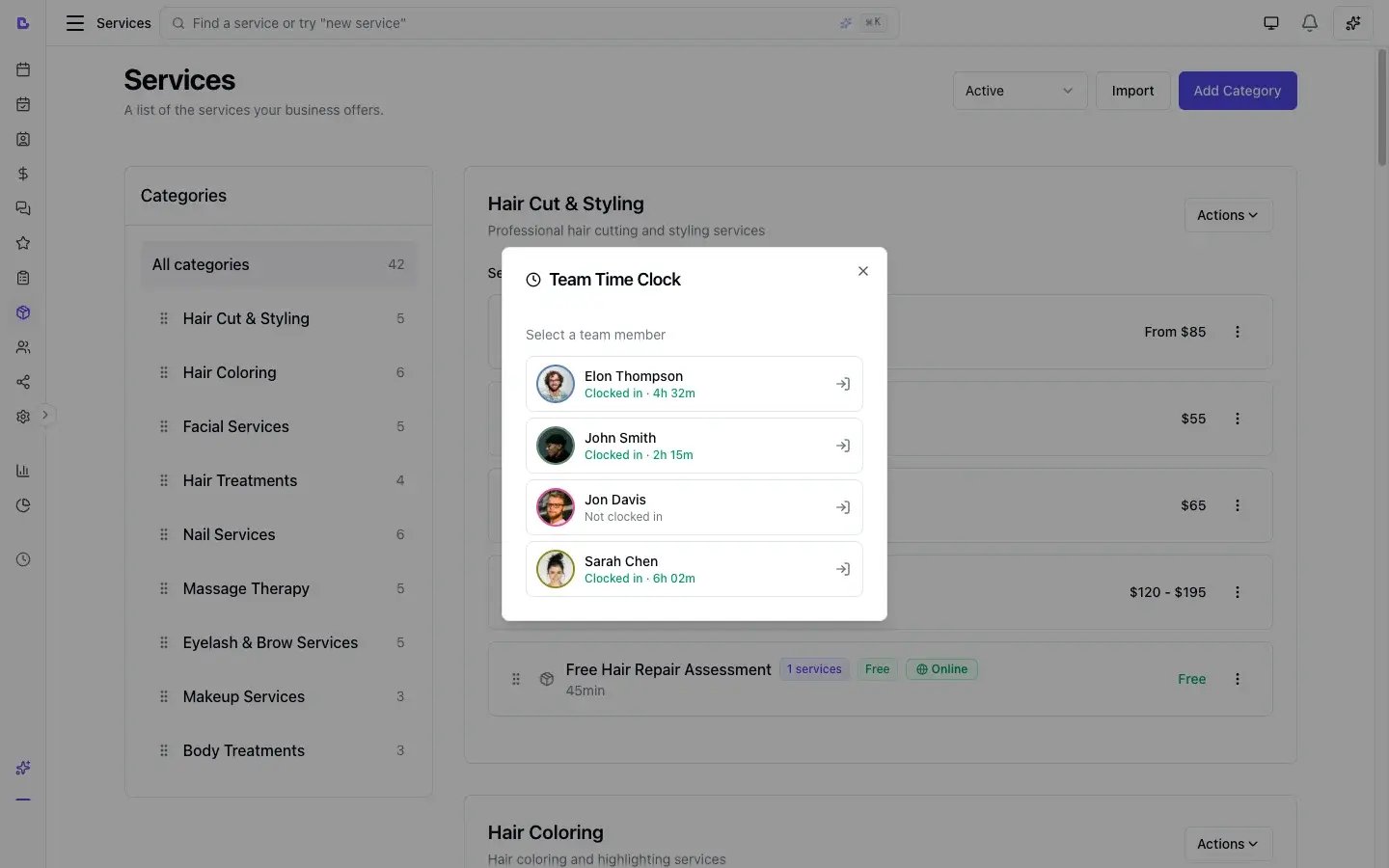
1. Open Bella Booking (or the installed PWA)
2. The **My timesheet** page is available from the sidebar
3. Enter your PIN to clock in
4. When your shift ends, enter your PIN again to clock out
 ### Forgotten clock-outs
If a team member forgets to clock out, the system flags it as a missing entry. Owners and admins can manually edit the entry to add the correct clock-out time.
***
## Viewing timesheets
### My timesheet (team member view)
Team members can view their own timesheet from **My timesheet** in the sidebar. This shows:
* Clock-in and clock-out times
* Total hours for each day
* Any flagged entries (late arrivals, missing clock-outs)
### Attendance report (admin/owner view)
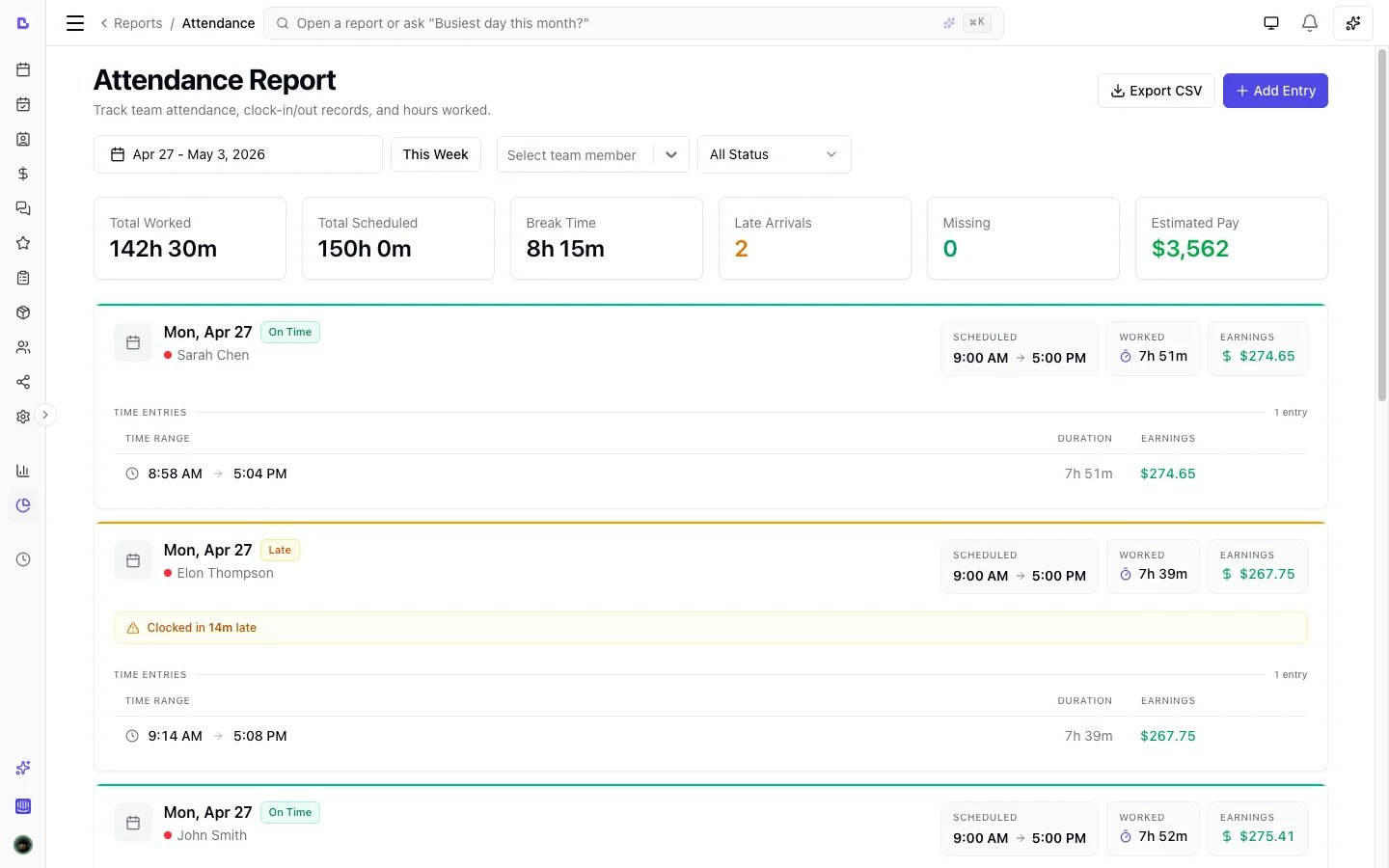
Owners and admins can view all team members' attendance from **Reports > Attendance**. This report shows:
* Clock-in and clock-out times for each team member
* Total hours worked
* Late arrivals (compared to scheduled start time)
* Missing entries (forgot to clock in or out)
* Estimated pay (if pay rates are configured)
***
## Editing entries
Owners and admins can edit attendance entries to correct mistakes:
1. Go to **Reports > Attendance**
2. Find the entry that needs correcting
3. Click the edit button
4. Update the clock-in or clock-out time
5. Save the changes
This is useful for correcting forgotten clock-outs or adjusting entries when the time clock wasn't available.
***
## Exporting to CSV
Export attendance data for payroll processing:
1. Go to **Reports > Attendance**
2. Set the date range for the pay period
3. Click **Export CSV**
4. The download includes clock-in/out times, total hours, and estimated pay for each team member
***
## FAQ
**Q: Can team members see each other's timesheets?**
A: No. Team members can only see their own timesheet. Owners and admins can see all team members' attendance in the Attendance report.
**Q: What happens if the internet goes down during clock-in?**
A: Clock-in/out requires an internet connection. If the connection is temporarily unavailable, the team member should try again once it's restored. Admins can manually add entries if needed.
**Q: Can I set pay rates for team members?**
A: Yes. You can configure estimated hourly pay rates which are used to calculate estimated pay in the attendance report and CSV export. These are for estimation only — actual payroll should be processed through your payroll system.
**Q: Does attendance tracking work with the PWA?**
A: Yes. Team members can clock in and out from the installed PWA on their phone, which is ideal for front-of-house use.
### Forgotten clock-outs
If a team member forgets to clock out, the system flags it as a missing entry. Owners and admins can manually edit the entry to add the correct clock-out time.
***
## Viewing timesheets
### My timesheet (team member view)
Team members can view their own timesheet from **My timesheet** in the sidebar. This shows:
* Clock-in and clock-out times
* Total hours for each day
* Any flagged entries (late arrivals, missing clock-outs)
### Attendance report (admin/owner view)
Owners and admins can view all team members' attendance from **Reports > Attendance**. This report shows:
* Clock-in and clock-out times for each team member
* Total hours worked
* Late arrivals (compared to scheduled start time)
* Missing entries (forgot to clock in or out)
* Estimated pay (if pay rates are configured)
***
## Editing entries
Owners and admins can edit attendance entries to correct mistakes:
1. Go to **Reports > Attendance**
2. Find the entry that needs correcting
3. Click the edit button
4. Update the clock-in or clock-out time
5. Save the changes
This is useful for correcting forgotten clock-outs or adjusting entries when the time clock wasn't available.
***
## Exporting to CSV
Export attendance data for payroll processing:
1. Go to **Reports > Attendance**
2. Set the date range for the pay period
3. Click **Export CSV**
4. The download includes clock-in/out times, total hours, and estimated pay for each team member
***
## FAQ
**Q: Can team members see each other's timesheets?**
A: No. Team members can only see their own timesheet. Owners and admins can see all team members' attendance in the Attendance report.
**Q: What happens if the internet goes down during clock-in?**
A: Clock-in/out requires an internet connection. If the connection is temporarily unavailable, the team member should try again once it's restored. Admins can manually add entries if needed.
**Q: Can I set pay rates for team members?**
A: Yes. You can configure estimated hourly pay rates which are used to calculate estimated pay in the attendance report and CSV export. These are for estimation only — actual payroll should be processed through your payroll system.
**Q: Does attendance tracking work with the PWA?**
A: Yes. Team members can clock in and out from the installed PWA on their phone, which is ideal for front-of-house use.