

Introduction
The Clients section serves as your comprehensive database for client management.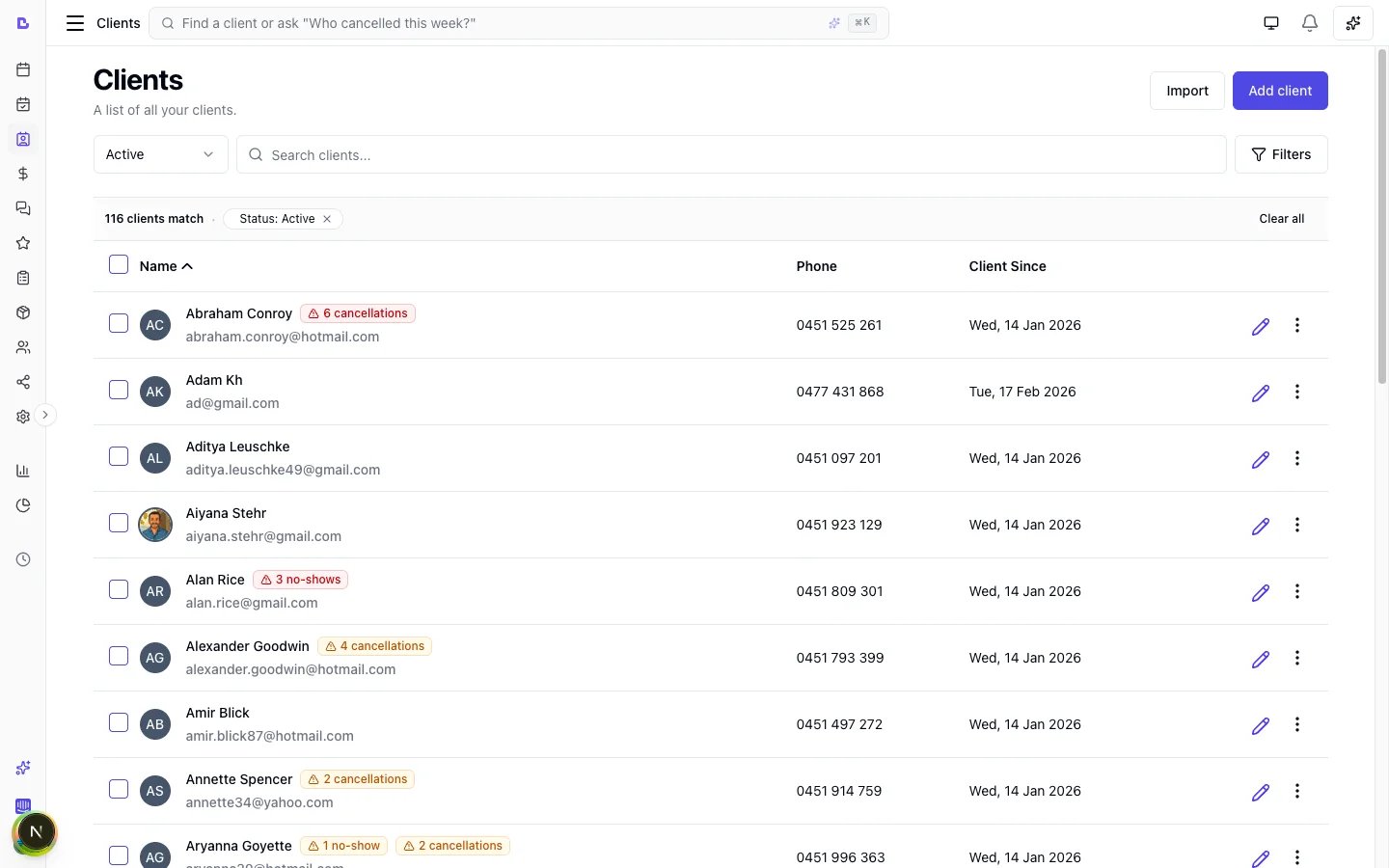
The new-client star (new / first marker)
A small star appears next to a client to flag someone who is genuinely new to your business - so your team can prepare for a first visit. It shows as “New” on client surfaces (your Clients list, the client’s record) and as “First” on appointment surfaces (the scheduler card, agenda, appointment details and appointment list). A client is flagged new only when both of these are true:- They have never attended before - they have no appointment that has already happened and wasn’t cancelled. (An upcoming booking still counts as new - that’s the point of the cue; a no-show doesn’t make someone “attended”.) It is not based on whether appointments were marked Completed, so it works even if your team doesn’t mark appointments complete.
- They were added as a new client in Bella - created by your team or via online booking. Clients you imported/migrated from another system, and older clients from before we started recording how each client was added, are never flagged new - so migrating your existing client book doesn’t make all your regulars light up.
If a client who has clearly visited before is showing the star, it usually means they were imported or created before new-client tracking existed, combined with no in-Bella appointment history yet - reach out to support if a client looks wrong and we’ll take a look.
Key features
- Client List View: See all clients in a table, including Name, Phone, and Client since. See Sorting and filters.
- Client Statistics: View total revenue, appointment count, cancellation count, and no-show count for each client.
- Add Client: Create new profiles with full contact and notification preferences.
- Search: Find any client instantly by name or phone number.
- Import: Bring in multiple clients at once using a CSV spreadsheet.
- Export: Export your client list to CSV for backups or external use.
- Edit & Details: View and update client information, files, and appointments using an interactive side panel.
- Archive & Delete: Archive clients to hide them from the active list, restore them later, or permanently delete archived clients with no history.
- Merge Duplicates: Combine a duplicate client into the one you keep - all appointments, sales, loyalty, credit balance, documents, and family links transfer across, and the duplicate is archived. See Handling Duplicate Clients.
- Block from Online booking: Stop a specific client from self-booking through your booking page while keeping their profile active so your team can still book them manually.
- Note & Document Visibility: Separate note fields for private (team-only), client-visible, and client-written notes. Files and photos stay in the business dashboard - they are not published to the client’s booking portal.
- Document Management: Upload, view, and delete files attached to client profiles - including files clients attach on forms.
- Avatar Photos: Upload a profile photo for any client - JPG, PNG, WebP, or HEIC (straight from an iPhone). Photos appear across the scheduler, client profiles, and appointment views.
- Photos & Comparison: A visual gallery of every image on a client - direct uploads, timeline-note attachments, appointment photos, and form uploads - with Before/After/Progress/Reference categories, side-by-side before/after comparison, and grouping by appointment.
- Family members: Link dependents and family members to a client’s account, manage relationships, and book appointments on their behalf.
- Loyalty: View a client’s loyalty points balance, transaction history, and available rewards. Manually adjust points when needed.
- Communication Consent: Manage announcement and marketing opt-in preferences, and send direct messages from the client profile. See Messages.
Step-by-step usage instructions
1. Adding a new client
- Go to the Clients section in the main sidebar.
- Click the
Add clientbutton (top-right). - In the side panel, enter:
- First name (required)
- Last name (optional)
- Email (optional, for appointment notifications)
- Phone number (optional, for appointment notifications)
- Date of birth (optional; the year is optional too) - used for the birthday reward, the birthday greeting and the “birthdays this month” filter. All three work from the day and month alone, so a birthday with no year is complete
- Notes (optional, for internal business notes)
- Notification preferences: Select whether to send booking reminders via SMS and/or email for this client.
- Once all fields are filled, click
Saveat the bottom of the panel. - The client is saved. The list keeps its current sort, so they appear where that order places them. To put the newest clients first, sort Client since with the arrow pointing down. See Sorting and filters.
Sorting and filters
Search and filters choose which rows are listed. They do not change the order. To change the order, click a column heading that sorts. Unless the page says otherwise, the first click sorts text A to Z, and numbers and dates highest or newest first. Click the same heading again, or the heading the list already opens on, to reverse it. The arrow beside the heading shows the direction: up is A to Z, oldest first or lowest first, and down is Z to A, newest first or highest first. A heading that sorts by name ignores capital letters: “anna” and “Anna” sort together. Name sorts by first name. The list opens that way, arrow up (A to Z). A down arrow on Name is Z to A. Client since is the date the client was added. A down arrow is newest first. An up arrow is oldest first. Phone does not sort. On a narrow screen Phone and Client since are hidden: widen the window to sort by Client since. Filters on this page has its own Client since range (after and before). That limits which clients are listed.2. Viewing and editing a client’s details
- Locate the desired client:
- Use the Search bar at the top to type part of their name or phone number.
- Or, navigate through the paginated list with Next/Previous.
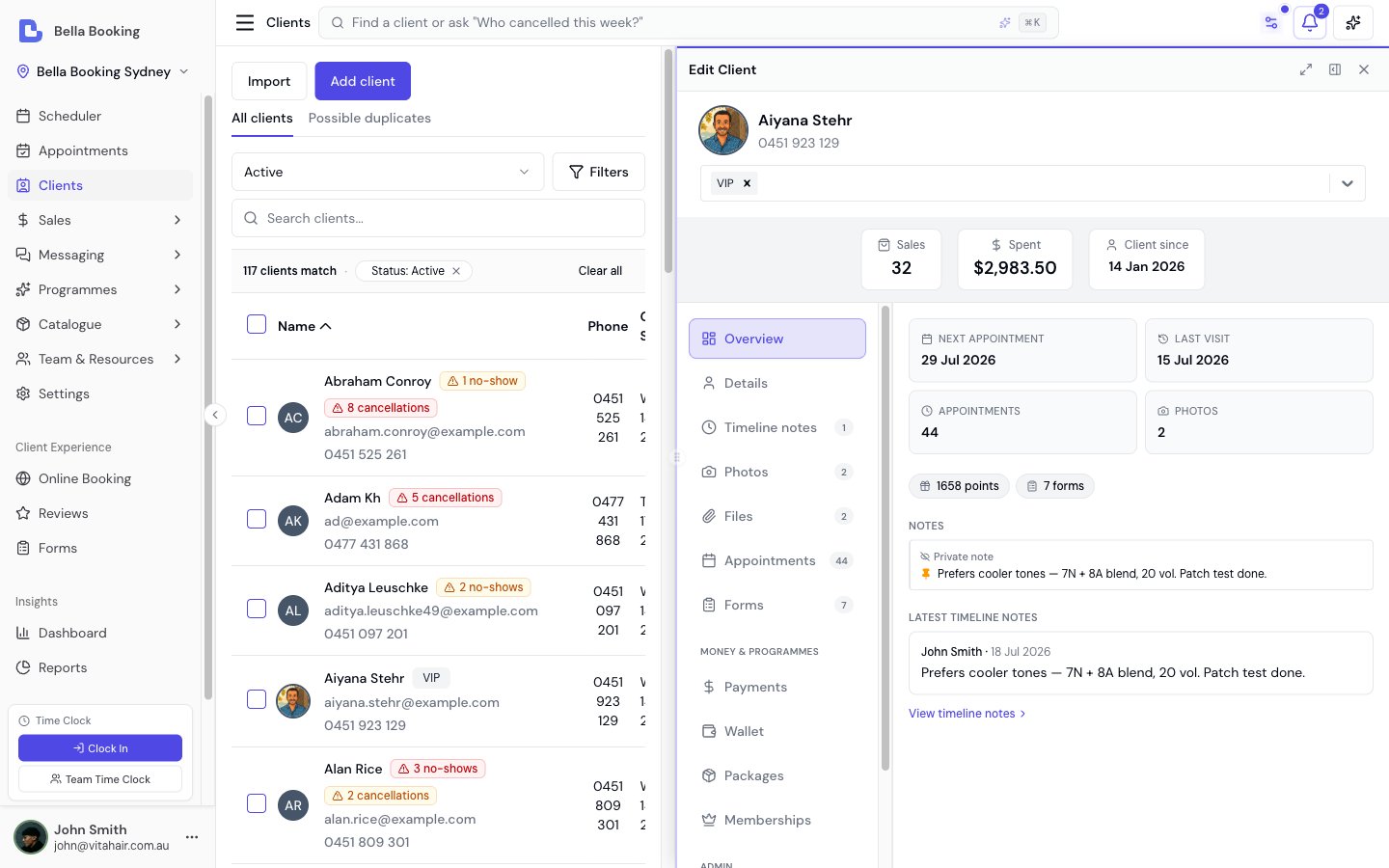
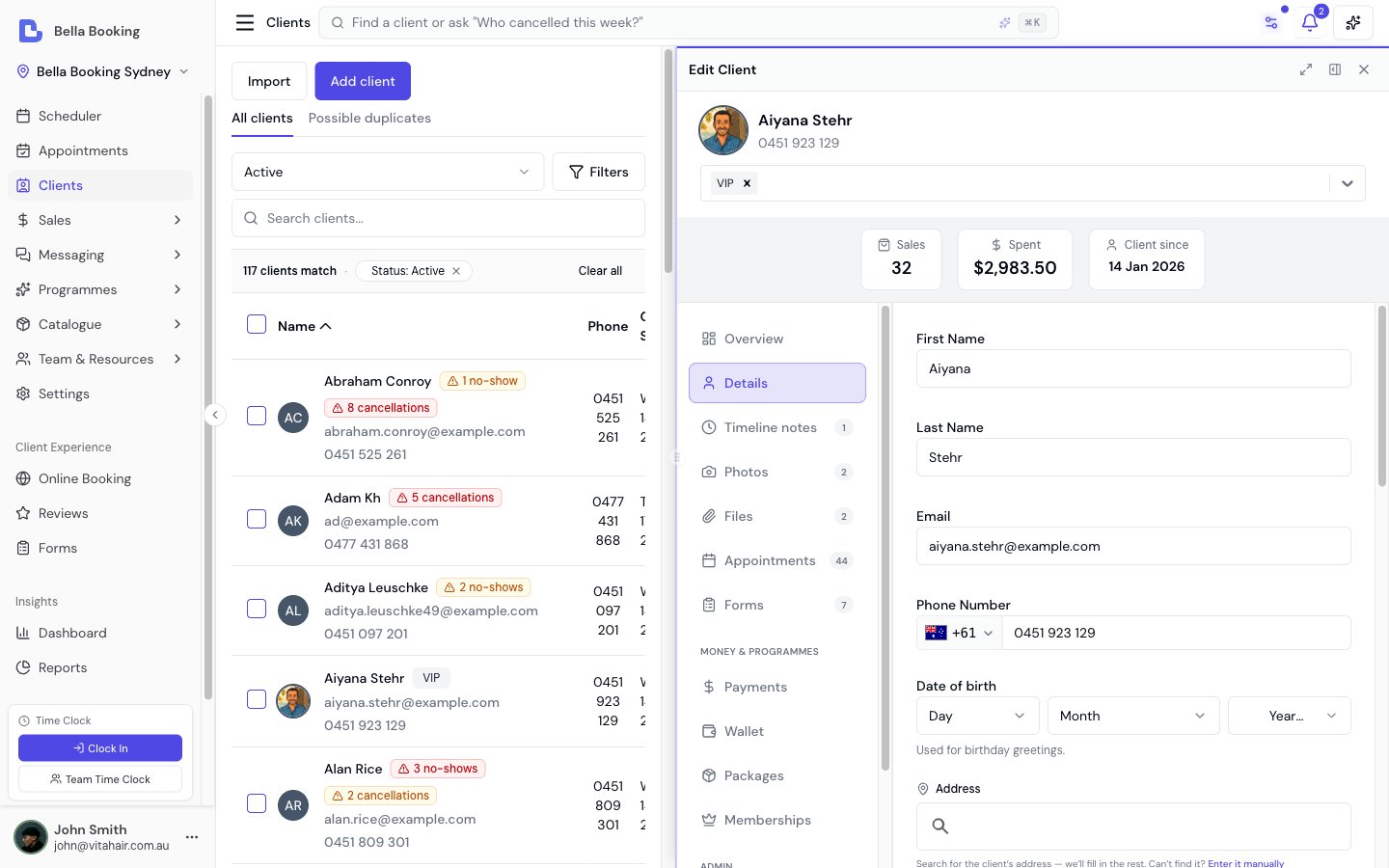
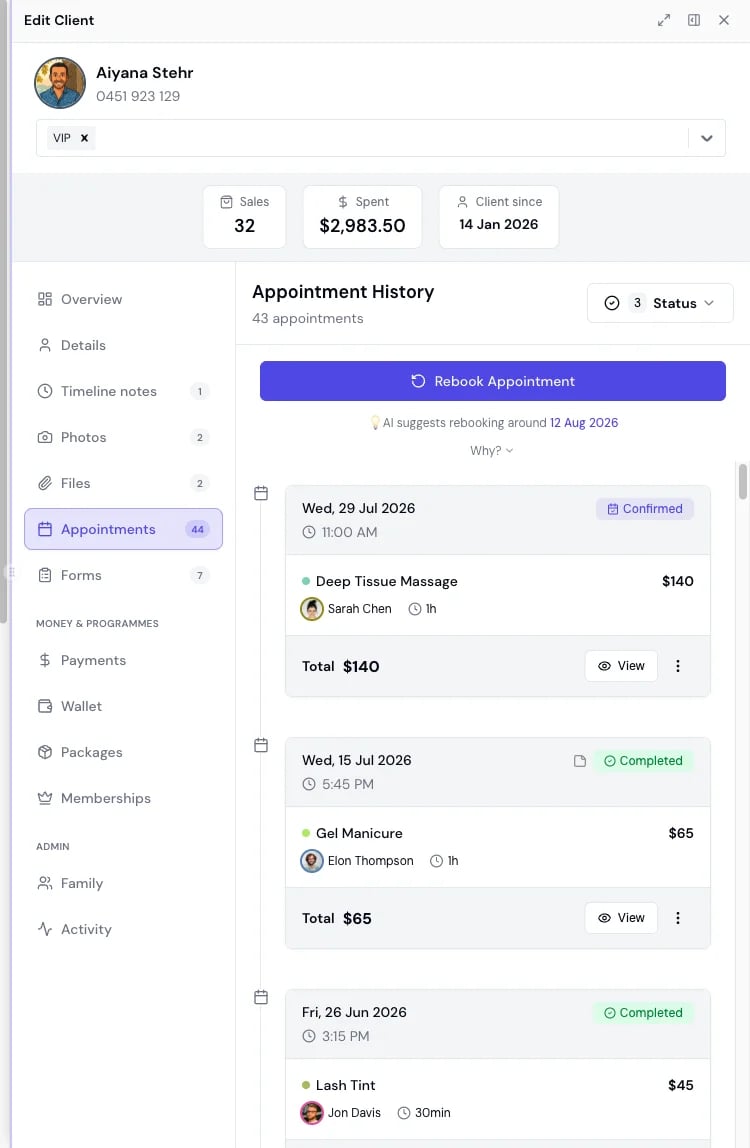
- Click any client row in the list. This opens the side panel with several tabs. Tabs with content show a count badge, and the tab rail groups record tabs, then money & programmes, then admin:
- Overview: The landing view - next appointment, last appointment, appointment and photo counts, active programmes and balances, pinned timeline notes, quick notes, and the latest timeline entries. Every figure links straight into the tab it comes from.
- Details: View/edit personal info, notes, and notification settings. Make changes and click
Saveto update. - Timeline notes: Keep a dated, append-only history of this client - consultation notes, colour formulas, observations - each entry with its author, category, and optional file or photo attachments. Pin important entries to surface them on the scheduler and the new-appointment form.
- Photos: A visual gallery of every image on the client - direct uploads, timeline-note attachments, appointment photos, and photos from form uploads - with Before/After/Progress/Reference categories, filtering, before/after comparison, and grouping by appointment.
- Files: Every file on the client’s record in one list - direct uploads (added here with
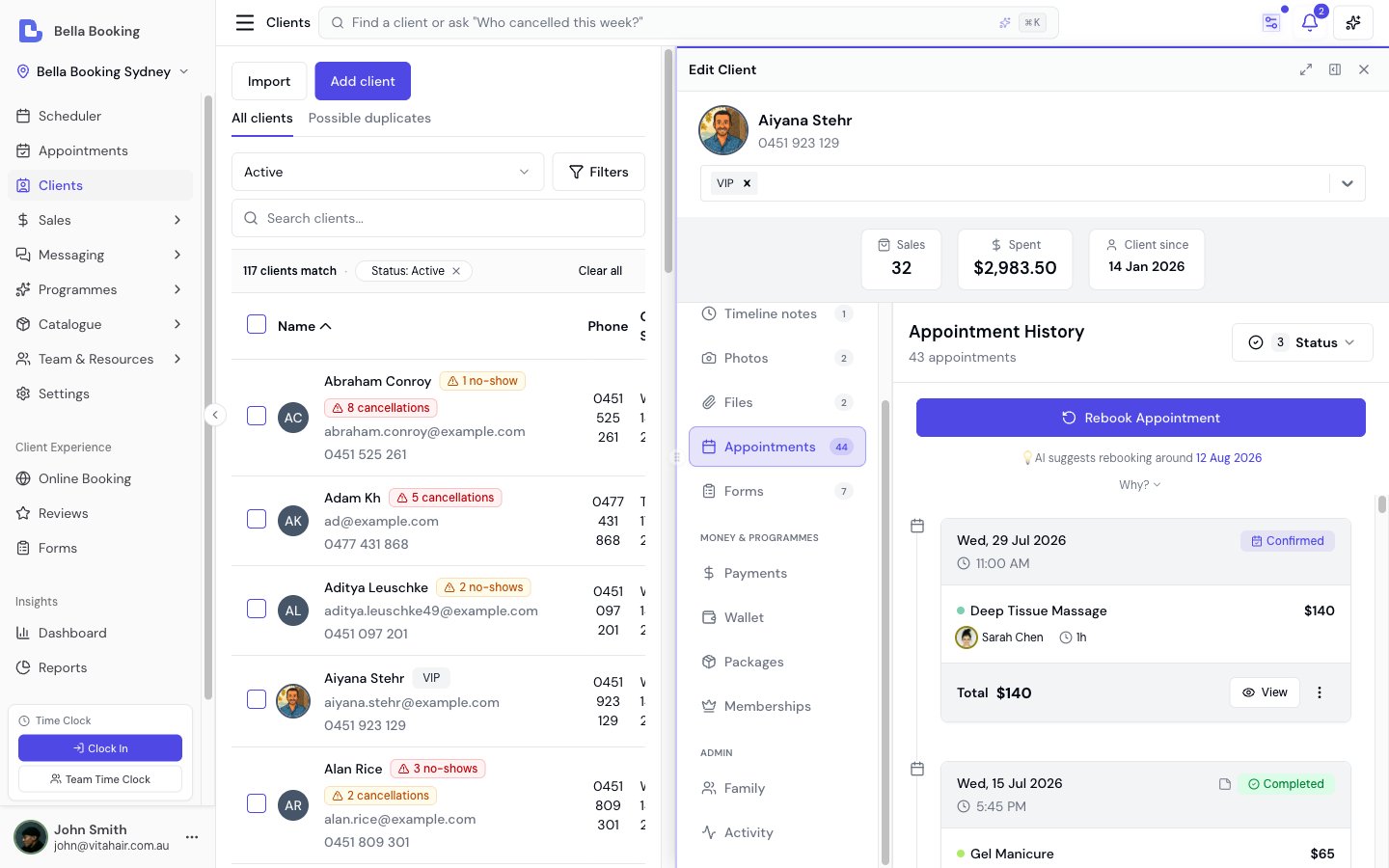
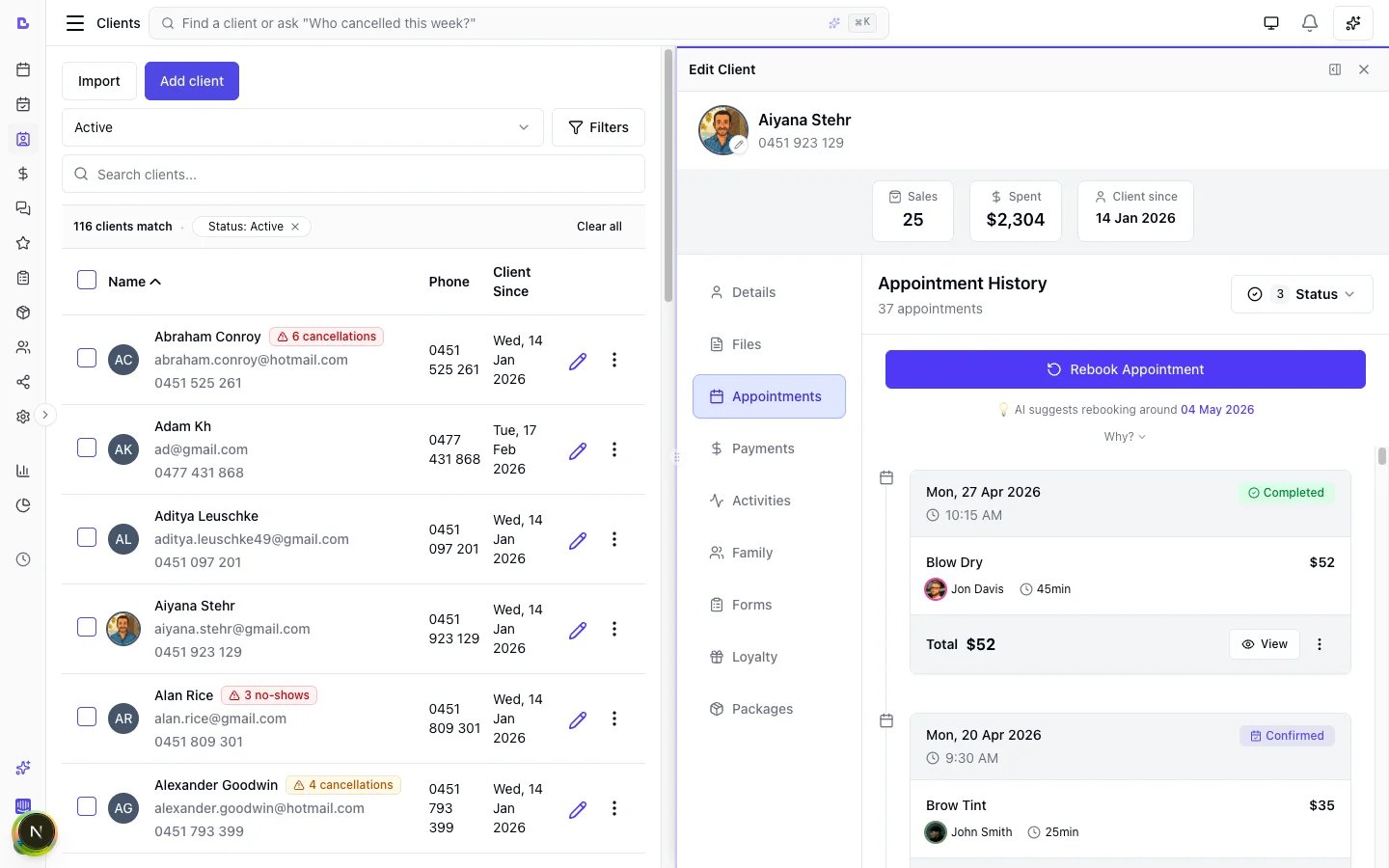
Add), files attached to timeline notes, files from the client’s appointments, and files from form uploads - each labelled with its source (form files show as Form - {template name}). When files come from more than one source, filter pills let you narrow to direct uploads, timeline notes, appointments, or Form. Files are deleted where they were added - note and appointment files are view-only here. - Appointments: Upcoming first (nearest at the top), then past (most recent first). Each group shows up to five appointments, then Show more if there are more. View opens the appointment. The three-dot menu has Confirm (if Booked), Check in / Start / Undo (on Booked or Confirmed), Rebook, Cancel (including a completed appointment), and Permanently delete on a cancelled one. Confirm opens the same confirmation as everywhere else, including Notify the client. When notify is on, the dialog lists whether Email and SMS will send, or why not. Permanently delete opens a simple confirm. Rebook at the top of the tab copies the most recent past appointment. The three-dot Rebook on a row copies that appointment. Both open the scheduler in a new tab (so this record stays open) on the suggested next date, so you can tap a time on the calendar.
- Family: Manage family members and dependents linked to this client. Add, edit, or remove family relationships.
- Wallet: The client’s balances and rewards in one tab, switched with pills at the top: Loyalty (points balance, available rewards, full transaction history - Owners and Admins can manually adjust points; see Loyalty programme), Credit (stored-value balance split into the client’s own money and promotional bonus, top-ups, and the full ledger - applies automatically at checkout; see Client credit), and Referrals (the client’s refer-a-friend link and referral activity - see Referrals). Clients find the same link themselves on your booking site under Account → Refer a friend (not on My profile).
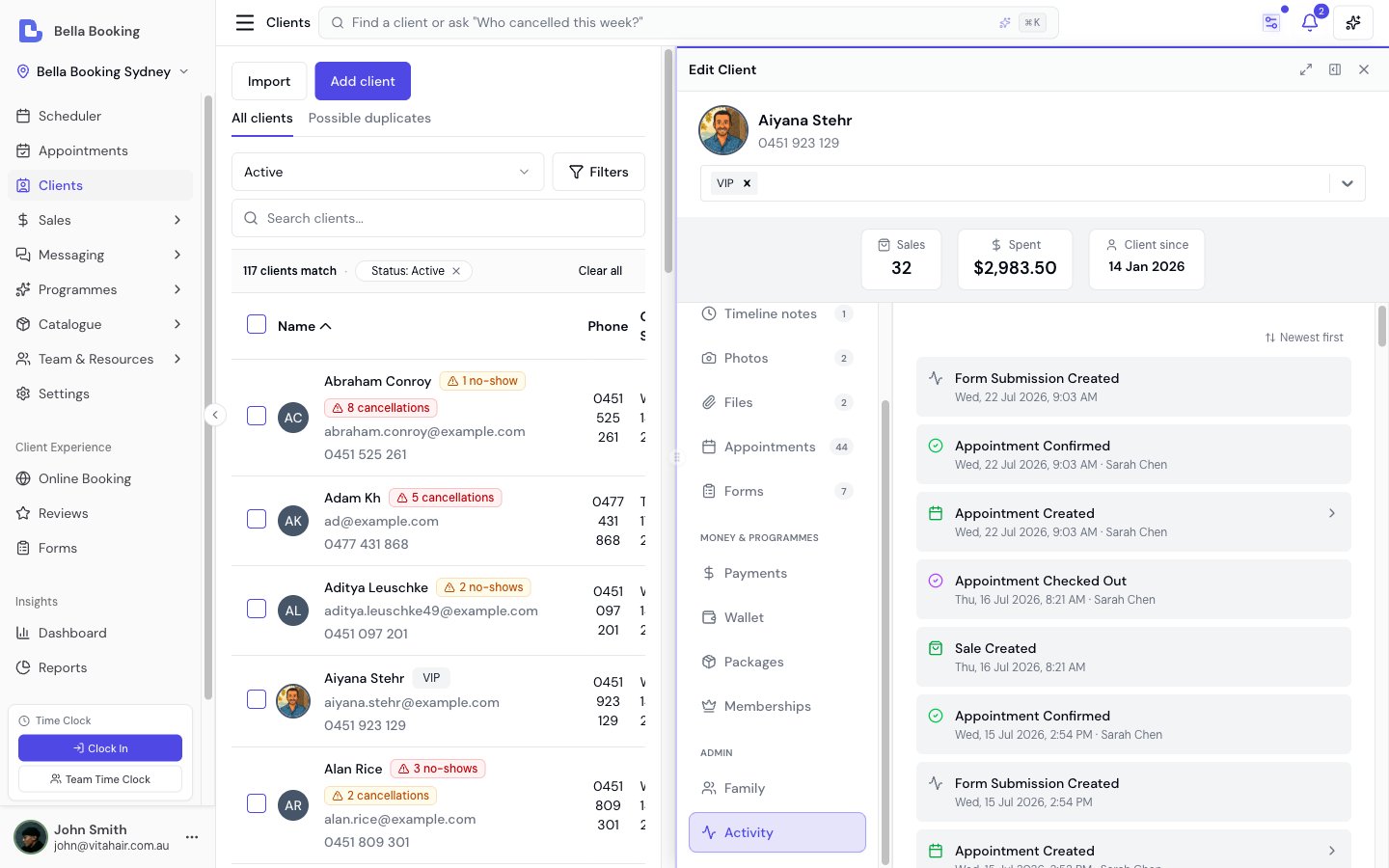
- Activity: View a chronological history of all activities related to this client, including appointment creation, confirmations, reschedules, cancellations, and notifications sent.
Client statistics
When viewing a client’s details, you can see key statistics at a glance:
These statistics help you:
- Identify your most valuable clients by total spend
- Track appointment history and patterns
- Monitor cancellation and no-show rates per client
- Make informed decisions about client management
Note and document visibility
Clients and appointments each have three quick-note fields to control who can see what: Quick-note fields:- Private note is for internal information like colour formulas, medical details, or personal preferences.
- Note for client on the client profile is a standing note. The client sees it as From the business on My profile and on every appointment in the booking portal (shown to your team with a “Shared with client” badge). Use it for allergies, accessibility needs, or standing instructions that apply across every appointment. This is separate from the appointment Note for client, which appears only on that appointment as For this appointment.
- Note from client is written by the client (for example when booking online) and is shown to your team on the client record and on that appointment. It appears to the client on the appointment page as Your notes.
- These quick notes are not included in SMS or appointment confirmation/reminder emails. For a one-off message on a receipt, use the Receipt note at checkout instead.
- Files and photos on the client or appointment record are for your team in the dashboard - they are not shown in the client’s booking portal.
- There is no public/private toggle that publishes a file into the booking site. (Sharing a file with the client online is not available yet.)
Timeline notes
The quick-note fields above hold the client’s current state - you overwrite them as things change. The Timeline notes tab is different: it’s an append-only history of dated entries, so nothing is ever lost. Use it to log consultation notes, colour formulas, and observations over time. Each timeline entry records:- Who added it and when - captured automatically.
- A category - General, Formula, or Consultation - to keep entries organised.
- Formatted text - use bold, italic, and bullet or numbered lists to keep longer consultation notes readable.
- Optional attachments - add a file or photo (PDF, Word, Excel, image incl. HEIC and TIFF, or text, up to 20 MB) directly to the entry.
Profile photos
Every client can have a small profile photo (avatar) that appears across the scheduler, client list, client profile, and appointment views. It can come from three places:- You upload one - open the client’s edit panel and click their avatar to upload a photo (JPG, PNG, WebP, or HEIC - straight from an iPhone).
- The client uploads one - clients with an online account can add or change their own photo from the My profile page of your booking site.
- A default from the client’s Gravatar - when a client signs in to your booking site, Bella checks Gravatar, a public profile-picture service many people have linked to their email address (often years ago, through WordPress or a blog). If the client has a public Gravatar, it’s used as their starting default photo - the same way Slack, GitHub, and ChatGPT use Gravatar for new accounts. If they don’t, no photo is stored and their initials show instead. Bella never takes photos from Google, Facebook, social media, or the client’s phone; a client can manage or delete their Gravatar itself at gravatar.com, and a deleted Gravatar is cleared from Bella at their next sign-in.
Client photos
Client photos are internal records. They are only ever seen by you and your team, never on your booking page. The photos clients see while choosing what to book are service images.
- Add photos - click
Add(or drag and drop) to upload JPG, PNG, WebP or HEIC images, up to 20 MB each (iPhone HEIC photos are converted automatically). Optionally choose a category, and link the photo to one of the client’s appointments so it groups under that appointment. - Group by appointment - switch the view to By appointment to see photos organised under each appointment’s date and services.
- Before/after comparison - click
Compare, select any two photos, and view them side by side with a shared zoom. Download the pair as a single image for a consultation record or to share. - Full screen - click any photo to open it full screen, with thumbnails and zoom.
- Download - save the original image from a photo’s menu, or from the full-screen view’s download button.
Annotate a photo
You can mark up any gallery image - a client photo or one taken on an appointment - to highlight treatment areas, map injection points, or note progress. Annotation works on uploaded images (JPG, PNG, or WebP); it isn’t available for PDF or other file attachments.- Find the photo in the Photos gallery and open its ⋮ menu.
- Choose Annotate. The Annotate photo dialog opens with a canvas over the image.
- Mark it up with the tools provided - pen, rectangle, ellipse, arrow, and text - and set the colour and stroke width. Use undo to step back.
- Click Save annotated copy.
3. Importing clients (CSV upload)
If you prefer to do it yourself:- In the Clients section, click the
Importbutton. - Download the provided template CSV to see required fields and formatting.
- Fill in your client data in the CSV. Save the file.
- Back in Bella Booking, upload the completed CSV file.
- Map your CSV columns to Bella Booking fields (first name is required; last name, email, phone, date of birth, notes, and family relationships are optional). Dates of birth in ambiguous numeric formats are read using your business’s country format.
- Review the preview - the importer runs a validation and duplicate check before anything is saved:
- Within your CSV: Rows with the same email or phone number as another row are flagged as duplicates.
- Against your existing clients: Rows matching an existing client’s email or phone number are flagged as duplicates.
- Flagged rows appear in a “Needs attention” tab with clear error messages. You can fix each row inline, drop the offending field, skip the row, or download the flagged rows as a CSV to fix and re-import.
- Only rows that pass all validation are imported. You’ll see a summary of successful and failed rows.
- Newly imported clients appear in your client list.
Importing family members - to bring in family members who share a primary
client’s contact (for example, a child on a parent’s phone or email), add a
Main client email or Main client phone column with the primary account
holder’s contact, plus a Relationship type column (Child, Spouse, Partner,
Sibling, Parent, Friend, Pet, or Other). Each family member is imported as
their own client record, linked to the primary - and a dependant is allowed to
share the primary’s email or phone without being flagged as a duplicate.
The importer prevents duplicate records automatically. You don’t need to
worry about creating duplicates - any row that matches an existing client by
email or phone will be rejected with a clear message, so you can decide how to
handle it.
4. Archiving, restoring, and deleting clients
Bella Booking uses an archive-first approach to client management. You cannot delete a client directly - you must archive them first. This protects against accidental data loss.Archiving a client
Archiving hides a client from the active list while preserving all their records (appointments, history, notes, documents, family links, and loyalty points). From the client list:- Find the client you wish to archive.
- Click the three-dot menu next to their row.
- Select Archive.
- Confirm in the dialog. The client is now hidden from the active list.
- Open the client’s side panel by clicking their row.
- Click the three-dot menu at the bottom of the Details tab (next to the Save button).
- Select Archive.
- Confirm in the dialog.
Viewing archived clients
- On the Clients page, use the Status filter dropdown at the top of the table.
- Select Archived to see only archived clients, or All to see both active and archived clients.
- Archived clients are displayed with an “Archived” badge next to their name.
Restoring an archived client
From the client list:- Filter the client list to show archived clients using the status filter.
- Click the three-dot menu next to the archived client.
- Select Restore.
- The client returns to the active list with all their records intact.
- Open the archived client’s side panel.
- Click the three-dot menu at the bottom of the Details tab.
- Select Restore.
Archiving is reversible. All appointment history, notes, documents, family
members, and loyalty points are preserved while archived.
What you cannot do with an archived client
While a client is archived:- Their profile details are read-only - you cannot edit their information
- You cannot create new appointments for them
- You cannot upload or delete files from their profile
- You cannot adjust their loyalty points
- Activity history and loyalty history are view-only
- They are blocked from online booking - they will not be able to book appointments through your booking page
Permanently deleting a client
Permanent deletion is only available for archived clients and has strict requirements: From the client list:- Filter the client list to show archived clients.
- Click the three-dot menu next to the archived client.
- Select Permanently delete (shown in red).
- A confirmation dialog appears. You must type the client’s full name to confirm.
- Click Permanently delete to remove the client and all their data.
- Open the archived client’s side panel.
- Click the three-dot menu at the bottom of the Details tab.
- Select Permanently delete (shown in red).
- Confirm in the dialog.
In practice, most clients who have ever had an appointment cannot be
permanently deleted. Archiving is the recommended way to manage inactive
clients.
5. Blocking a client from online booking
Use this when you want to stop a specific client from self-booking through your booking page - for repeated no-shows, payment disputes, or anyone you’d rather book in manually - but you still want to keep their profile, history, and the ability to book them yourself. Blocking is a softer alternative to archiving. The client stays on your active list; only the self-service booking path is closed.How a blocked client sees it
When a blocked client opens your booking page, they see a generic “Online booking unavailable. Please contact us.” message - the same message archived clients see. They are not told they have been specifically blocked, which keeps the experience low-confrontation for both sides.Blocking a client
- Open the client’s side panel from the Clients list.
- On the Details tab, scroll down to the Online booking access card (below Communication preferences).
- Turn the Block from online booking toggle on.
- Click Save. An amber Blocked badge appears next to the client’s name on the list and in the panel header.
Unblocking a client
- Open the client’s side panel.
- On the Details tab, find the Online booking access card.
- Turn Block from online booking off, then click Save. The Blocked badge disappears and the client can self-book again.
What stays the same when a client is blocked
- Their profile, notes, family links, loyalty points, and history are untouched.
- Your team can still book appointments for them from the scheduler - blocking only affects self-service through the booking page.
- Any existing future appointments stay confirmed. Blocking does not cancel anything that’s already on the calendar. Automated reminders continue to fire as normal.
- If they ever had a Bella online-booking account, they can still sign in to view their existing appointments, and cancel one if your policy allows self-service cancellation - but they can’t create a new booking or reschedule an existing one themselves.
When to block vs archive
Blocking only affects the online booking page. Anyone with your **Clients
- Edit** permission can apply or remove a block; no extra permission is required.
6. Handling duplicate clients
Prevention during import
The CSV importer has built-in duplicate detection - it checks every row against your existing clients by email and phone number, and also checks for duplicates within the CSV itself. Possible duplicates are flagged in the preview so you can decide how to handle each one - merge into the existing client, link as a family member, keep both, or skip - before anything is saved. See Importing Clients for details.Reviewing possible duplicates
Bella also scans your existing list for you. On the Clients page, open the Possible duplicates tab (the badge shows how many records could be merged away). It compares active clients that share a phone number or email address and have matching names - family members who share a contact are deliberately left alone. Each pair offers the right action in place:- Merge - when the duplicate record has no appointments, sales, or other history, you can merge it right from the list (after a confirmation). If it carries history, family links, or differing contact details, Bella takes you to the full merge preview instead so you can review before confirming.
- Keep both - if they’re genuinely two different people, choose Keep both and the pair won’t be listed again. (You can undo this straight away if you tap it by mistake.)
Merging existing duplicates
If you already have duplicate client records (for example, from manual entry, or spotted after an import), you can merge them so no history is lost - either from the Possible duplicates tab above, or manually:- Open the client profile you want to keep.
- From that client’s ”⋯” menu, choose Merge with another client.
- Search for the duplicate you want to fold in. (Try partial searches like “Sarah J” or “0412” to catch variations.)
- Review the preview. Bella shows exactly how many appointments, sales, loyalty entries, documents, and family members will move across, flags anything you should check first, and shows the profile you’ll end up with - if the client you’re keeping is missing a surname or an email, it’s filled in from the duplicate automatically.
- Resolve any differences - if the two profiles have different email addresses, phone numbers, or loyalty balances, choose which to keep (or combine the points).
- Confirm the merge. Every appointment, sale, loyalty entry, document, note, and family link transfers to the client you kept, and the duplicate is archived automatically. A same-currency client credit balance is combined too; if the two profiles hold credit in different currencies, zero one balance before merging.
- Copy important notes from the duplicate into the profile you’re keeping.
- Rebook future appointments under the profile you’re keeping.
- Archive the duplicate once everything important has been moved across.
7. Managing client files and documents
Each client profile can have attached files such as consent forms, photos, or any relevant documents.Viewing client files
- Click on a client to open their side panel
- Navigate to the Files tab
- You’ll see every file on the client’s record - direct uploads, timeline-note attachments, files from the client’s appointments, and files from form uploads - including:
- File name
- File type
- Source (where the file was added - form files show as Form - {template name})
- Upload date
Uploading files to a client profile
- Open the client’s side panel
- Go to the Files tab
- Click Add to browse for files on your computer
- Select a file to upload
-
File Requirements:
- Maximum size: 20 MB per file
- Allowed file types:
- Documents: PDF, DOC, DOCX, TXT
- Images: JPG, PNG, WEBP, HEIC (iPhone photos), TIFF (scanners)
- Spreadsheets: XLS, XLSX
HEIC photos straight from an iPhone are converted to JPEG in your browser as they upload, so they always display. TIFF scans are stored as-is and appear in the Files list as a download - browsers can’t display TIFF, so they don’t show in the Photos gallery. - Wait for the upload to complete
- The file appears in the client’s file list
Downloading client files
- In the Files tab of a client’s side panel
- Find the file you want to download and click on it to open the preview window
- Click the Download button to download the file
- The file will download to your device
Deleting client files
- In the Files tab
- Locate the file you want to remove and click on Toggle menu (three dots)
- Click the Delete
- Confirm the deletion
- Note: Once deleted, the file cannot be recovered
- Use clear, descriptive file names before uploading (e.g., “consent-form-2024.pdf”)
- Organise files by date or type for easy retrieval
- Regularly review and remove outdated files
- Keep file sizes under 20 MB (the system limit)
- Ensure sensitive documents comply with privacy regulations
8. Managing family members
The Family tab lets you link dependents and family members to a client’s account. This is useful for parents booking on behalf of children, partners sharing an account, or any situation where one client manages appointments for others.Once family members are linked, you can book several of them on one
appointment \u2014 a line for each member, each having their own service
\u2014 with the account holder paying once and their benefits funding every
line. See Bookings for more than one person \u2192 Family and multi-client
booking.
Relationship types
When adding a family member, you choose a relationship type:Adding a family member
The Add dialog has two modes - pick the one that matches whether the person is already one of your clients. New person - they don’t have a profile yet:- Open a client’s side panel and go to the Family tab.
- Click the Add button (or Add family member if no members exist yet), and stay on New person.
- In the dialog, fill in:
- First name (required)
- Last name (optional)
- Email (optional)
- Phone number (optional)
- Relationship select from the dropdown (defaults to Child)
- Click Add family member to save.
- The new family member is created as a separate client record and linked to the primary client.
- Open the Family tab and click Add, then switch to Existing client.
- Search for them by name or phone number.
- Choose the Relationship to this client.
- Click Link.
Two clients who want to share an email address or mobile number - for example a couple where one
partner books for both - need to be linked as a family first. Email addresses and mobile numbers must be
unique across your active clients, and the only exception is people linked as a family. Link them with
Existing client above, then put the shared address on both profiles.
Viewing family members
Each family member card shows:- Name and relationship badge
- Email and phone number (if provided)
- A View profile link to open the family member’s own client record
Editing a relationship
- Click the three-dot menu on a family member card.
- Select Edit Relationship.
- Choose a new relationship type from the dropdown.
- Click Save.
Letting a family member book independently
By default a dependant’s appointments and notifications are managed through the account holder (the primary client). If a family member should be able to sign in and book for themselves - for example a teenager old enough to manage their own appointments - you can graduate them to independent:- Click the three-dot menu on the family member’s card.
- Select Graduate to independent.
- Confirm.
Changing the account holder
If a family was set up the wrong way round - for example a parent was added under their child instead of the other way round - you can swap the roles:- Click the three-dot menu on the family member’s card.
- Select Make [name] the account holder.
Changing the account holder is only available for two-person families - an
account holder with a single linked dependant and no other members. For larger
families, remove and re-add members to restructure the relationships.
Removing a family member
- Click the three-dot menu on a family member card.
- Select Remove from Family.
- Confirm the removal.
9. Viewing loyalty points
The Wallet tab’s Loyalty section shows a client’s loyalty programme activity when the Loyalty programme is enabled. If the programme is paused, the section displays a message that existing points are preserved.Points balance
Two cards are displayed at the top:- Available: The client’s current redeemable points balance
- Lifetime: Total points the client has earned over time (includes points that have been redeemed or expired)
Available rewards
Below the balance, each active reward is listed with:- Reward name and discount value (e.g., “$5.00 off · 100 pts”)
- A Can redeem badge if the client has enough points
- A Need X more badge showing the shortfall if they don’t
Adjusting points manually
Owners and Admins see an Adjust points button below the rewards list. Clicking it opens a dialog where you can:- Toggle between Add points and Deduct points
- Enter the Number of points
- Enter a Reason (required - recorded for the audit trail)
- Click Add points or Deduct points to confirm
Transaction history
A chronological list of all point changes for this client. Each entry shows:- Transaction type badge (Earned, Redeemed, Expired, Adjustment, Reversed, or Restored)
- Description - service names for earned points, reward name for redemptions, or reason for manual adjustments
- Date the transaction occurred
- Expiry date (for earned and adjustment transactions, if points expiration is configured)
- Points amount (+/- with colour coding)
Note: If the client is archived, the Loyalty section is read-only - you can view the history but cannot adjust points.
For full details on setting up and managing the loyalty programme, see Loyalty programme.
10. Bulk actions - selecting multiple clients
Tick the checkbox next to any client to select them. A floating action bar appears at the bottom of the page with these options:- Email selected - Starts a new email campaign with the selected clients pre-filled as recipients, so you can send them a branded email from Bella Booking. You’re taken straight to the campaign builder to compose the message. Requires the Manage campaigns permission and an active Messages Plus subscription. See Emailing your clients below.
- Copy emails - Copies the email addresses of the selected clients to your clipboard (comma-separated, with duplicates removed so family members who share an address appear once). Clients without an email address are skipped. This is the fallback for businesses without Messages Plus - once you have it, send from Bella instead with Email selected, which respects each client’s consent, skips addresses that have bounced, and includes an unsubscribe link.
- Send SMS campaign - Pre-fills a new SMS campaign with the selected clients as recipients. Requires the Manage campaigns permission and an active Messages Plus subscription.
- Send booking portal link - Opens a campaign with the selected clients as recipients and an invitation to their booking portal already written, ready to adjust and send. Requires online booking, the Manage campaigns permission and Messages Plus.
- Export selected - Downloads a CSV file with just the selected clients (name, email, phone, notes, client-since date). Requires the Export clients permission.
- Copy to location - For multi-location businesses. The same action is also on a single client’s ⋯ menu (on their row or in their record panel) when you only need to copy one - use this floating-bar version to copy several at once. Copies the selected clients’ profiles - name, contact details, notification preferences, date of birth, tags, and profile notes - into another of your locations. Family members are copied too: a client’s whole family travels with them and the family links are kept, so families are never split across locations. A client (or their whole family) is skipped (and told why) when they already exist at that location, or when a member shares an email or phone number with a different client in your selection. You get a summary of how many were copied and skipped. Appointment history, payments, saved cards, loyalty points, account credit, and the client’s timeline notes and files all stay with the original location.
Email selected, Send SMS campaign and Send booking portal link
appear only when you have the Manage campaigns permission and Messages
Plus is active (the portal invitation also needs online booking switched on).
Copy emails is the reverse - it appears only when those aren’t available,
since sending from Bella is the better route once you have it. Copy to
location appears only when you have more than one location and the Create
clients permission. Export selected is always available with the
Export clients permission.
11. Emailing your clients
To email a group of clients - a promotion, a newsletter, a closure notice, or a seasonal hello - use an email campaign. Select the clients you want on the Clients page and click Email selected in the floating bar: this hands the selection straight to the campaign builder with those clients pre-filled as recipients, ready for you to compose and send. Email campaigns send from Bella Booking, so there’s no recipient cap and nothing to set up in your own email app. They include audience filters, consent handling, an automatic unsubscribe link, branded formatting with images and a Book now button, and delivery, open, and click tracking. Email campaigns are part of Messages Plus. For the full walkthrough - composing, scheduling, consent, and unsubscribes - see Campaigns (SMS and Email).FAQs
Q: Do I need all fields to add a new client? A: Only the first name is required. Last name, email, and phone are optional. Q: Can I customise notification settings per client? A: Yes. While adding or editing, use the notification toggles for SMS and email notifications. Q: How do I correct a bulk import mistake? A: You can edit individual clients after import. To remove an imported client, archive them first, then permanently delete if they have no history. Q: Can I delete a client directly? A: No. You must archive a client first. Once archived, you can permanently delete them only if they have no appointment history, sales history, waitlist entries, or credit balance. See Archiving, Restoring, and Deleting Clients for details. Q: What happens when I archive a client? A: The client is hidden from the active list and blocked from online booking - they will not be able to book through your booking page. All their records are preserved and you can restore them at any time. Archiving is fully reversible. Q: Can an archived client still book online? A: No. Archived clients are blocked from online booking. If they try to book, they will be unable to proceed. To allow them to book again, restore the client from the archived list. Q: What happens if I permanently delete a client - can they book online again? A: Yes. Once permanently deleted, the system has no record of the client. If they use online booking in the future, they will appear as a new client. If your goal is to stop someone from booking online without losing their history, use Block from Online booking (or archive them) instead. Q: How do I stop a specific client from self-booking online without archiving them? A: Open the client’s side panel, scroll to Online booking access on the Details tab, and turn Block from online booking on. They keep their profile, history, and existing appointments - the online-booking page stops accepting new bookings from them, and they can no longer reschedule an existing appointment themselves. Your team can still book and reschedule for them. See Blocking a Client from Online booking. Q: Does blocking a client cancel their existing future appointments? A: No. Any appointments already on the calendar stay confirmed and automated reminders continue to fire as normal. The block prevents new self-service bookings and stops the client rescheduling an existing appointment themselves - they can still cancel it if your policy allows self-service cancellation, and your team can reschedule for them. Q: What does a blocked client see when they try to book? A: The same generic “Online booking unavailable. Please contact us.” message that archived clients see. They are not told they have been specifically blocked. Q: Why can’t I permanently delete a client? A: Permanent deletion requires the client to have no appointment history, no sales history, no waitlist entries - even archived or cancelled ones - and a zero credit balance. This is by design to preserve your business records. If the client has any history, archiving is the recommended approach. Q: Will importing clients create duplicates? A: No. The importer automatically checks every row against your existing clients by email and phone number. Any matches are flagged in the preview, where you choose to merge, link as family, keep both, or skip - so duplicates are never created silently. See Importing Clients for details. Q: Can you import my data for me? A: Yes! We offer a free data cleanup and import service. Send us your client data in any format and our team will handle everything. Just reach out via Support in the sidebar. Q: How do I handle duplicate client records that already exist? A: Open the client you want to keep, then choose Merge with another client from its ”⋯” menu and pick the duplicate. All of the duplicate’s appointments, sales, loyalty, same-currency credit balance, documents, and family links transfer to the client you kept, and the duplicate is archived. See Handling Duplicate Clients for the full process. Q: Can I filter by more than name or phone? A: The search bar matches across name, email, and phone (with formatting and country-code variations handled automatically). You can also filter by status (Active, Archived, or All), plus the Filters popover for lapsed dates, spend, no-shows, contact preferences, the services a client has had, and birthdays (this month or this week). Sorting is the column heading. See Sorting and filters. Q: How do I sort clients so the newest ones are first? A: On Clients, click the Client since column heading. The first click sorts newest first (arrow down), and a second click sorts oldest first. The Client since dates inside Filters limit the list to a range. On a narrow screen that column is hidden: widen the window. The list opens sorted by first name (arrow up on Name). Q: Can I export my client list? A: Yes. Click the Export CSV button in the table footer to download your client list. You can also select specific clients and use Export selected from the floating action bar. If you need a full copy of everything we hold for your account, email hello@bellabooking.com. Q: Can I copy a client to another location? A: Yes, if you run more than one location. Copy a single client from the ⋯ menu on their row or in their record panel and choose Copy to location - or tick several clients on the Clients page and click Copy to location in the floating action bar to copy them all at once. Bella copies each client’s profile - name, contact details, notification preferences, date of birth, tags, and profile notes - into that location. Family members come along too - a client’s whole family is copied with the family links kept intact, so families are never split across locations. A client (or their whole family) is skipped (and told why) if they already exist there, or if a member shares an email or phone number with a different client in your selection. Appointment history, payments, saved cards, loyalty points, account credit, and the client’s timeline notes and files stay with the original location and are not copied. You need the Create clients permission at the destination location to copy into it. Q: How do I attach a document to a client? A: In the side panel, go to the Files tab, then click Add to add documents or photos directly to that client’s profile. Q: Is there a quick way to see all of a client’s appointments? A: Click on a client and open the Appointments tab in the side panel. Q: How can I see what actions have been taken for a client? A: Click on a client and open the Activity tab in the side panel. This shows a chronological history of all activities including appointment creation, confirmations, reschedules, cancellations, and notifications sent. Q: What file types can I upload to a client profile? A: You can upload PDF, DOC, DOCX, TXT, JPG, PNG, WEBP, HEIC, TIFF, XLS, and XLSX files. Each file must be under 20 MB. HEIC photos from an iPhone are converted to JPEG automatically; TIFF scans are kept as-is and appear in the Files list as a download. Q: Can I recover a deleted client file? A: No, once a file is deleted from a client profile, it cannot be recovered. Always double-check before deleting important documents. Q: How do I email a group of my clients? A: Tick the clients you want to include on the Clients page, then click Email selected in the floating bar that appears. This starts an email campaign with those clients pre-filled as recipients, ready for you to compose and send from Bella Booking. See Emailing your clients for details. (Requires the Manage campaigns permission and an active Messages Plus subscription.) Q: Will my clients see each other’s email addresses when I email a group? A: No. Email campaigns send each client their own individual email - recipients never see each other’s addresses. Q: Does Bella Booking track email opens or clicks? A: Yes. Every email campaign shows delivery, open, and click stats on its detail page. Q: How can I send a mass email to all my clients? A: Send an email campaign: go to Messaging → Campaigns, click New campaign, choose the Email channel, pick your audience, and compose a branded email with formatting, an image, and a Book-now button. Campaigns send from Bella Booking with no recipient caps, respect each client’s consent, include an automatic unsubscribe link, and track delivery, opens, and clicks. Email campaigns are part of Messages Plus - unlimited sends, fair use. See Campaigns for the full guide. For text-based outreach, use the Send SMS campaign bulk action on the Clients page.Additional tips
- Use the Import function for fast migration when first setting up your account - or let us do it for you with our free data cleanup and import service (just reach out via Support in the sidebar).
- Regularly update client notes for personal touches that always impress.
- Double-check notification preferences if clients are missing reminder emails or texts.
- Use Search for rapid access, especially during busy shifts.
- Archive clients who haven’t visited in a long time to keep your active list clean - you can always restore them later.
- Before archiving, cancel or complete any outstanding appointments and remove active waitlist entries.
- When you spot duplicate profiles, merge them (open the client you want to keep → ”⋯” menu → Merge with another client) so appointment history and loyalty are preserved rather than lost.
With these tools, managing your clients in Bella Booking will be seamless and efficient. If you ever need further help, click Support in the sidebar to contact our team.