

Introduction
Pricing tiers charge different prices for the same service depending on which team member performs it. This suits businesses where team members have varying levels of experience, seniority, or specialisation. For example, a master stylist might charge more than a junior stylist for the same haircut service.Sorting and filters
Search and filters choose which rows are listed. They do not change the order. To change the order, click a column heading that sorts. Unless the page says otherwise, the first click sorts text A to Z, and numbers and dates highest or newest first. Click the same heading again, or the heading the list already opens on, to reverse it. The arrow beside the heading shows the direction: up is A to Z, oldest first or lowest first, and down is Z to A, newest first or highest first. A heading that sorts by name ignores capital letters: “anna” and “Anna” sort together. The list opens on Pricing tier, arrow up (A to Z). Created sorts as well. Team members does not. On a narrow screen Team members and Created are hidden: widen the window to sort by Created.Key features
- Multiple Tier Levels: Create as many pricing tiers as your business needs
- Team Member Assignment: Assign each team member to a specific pricing tier
- Service-Specific Pricing: Set different tier prices for each service in your catalogue
- Automatic Price Calculation: System applies correct pricing based on who’s performing the service
- Flexible structure: Use tiers for experience levels, specialisations, or any other criteria
- Revenue Optimisation: Maximise earnings while offering entry-level pricing options
Understanding pricing tiers
How it works
- You create pricing tiers (e.g., Junior, Senior, Master)
- You assign each team member to a tier
- For each service, you set different prices per tier
- When a client books with a specific team member, the system automatically applies that team member’s tier pricing
Common pricing tier structures
Experience-Based:- Junior Stylist
- Stylist
- Senior Stylist
- Master Stylist
- Apprentice
- Professional
- Senior Professional
- Expert
- General
- Specialist
- Master Specialist
- New Team Member
- Intermediate (1-2 years)
- Advanced (3-5 years)
- Expert (5+ years)
Step-by-step usage instructions
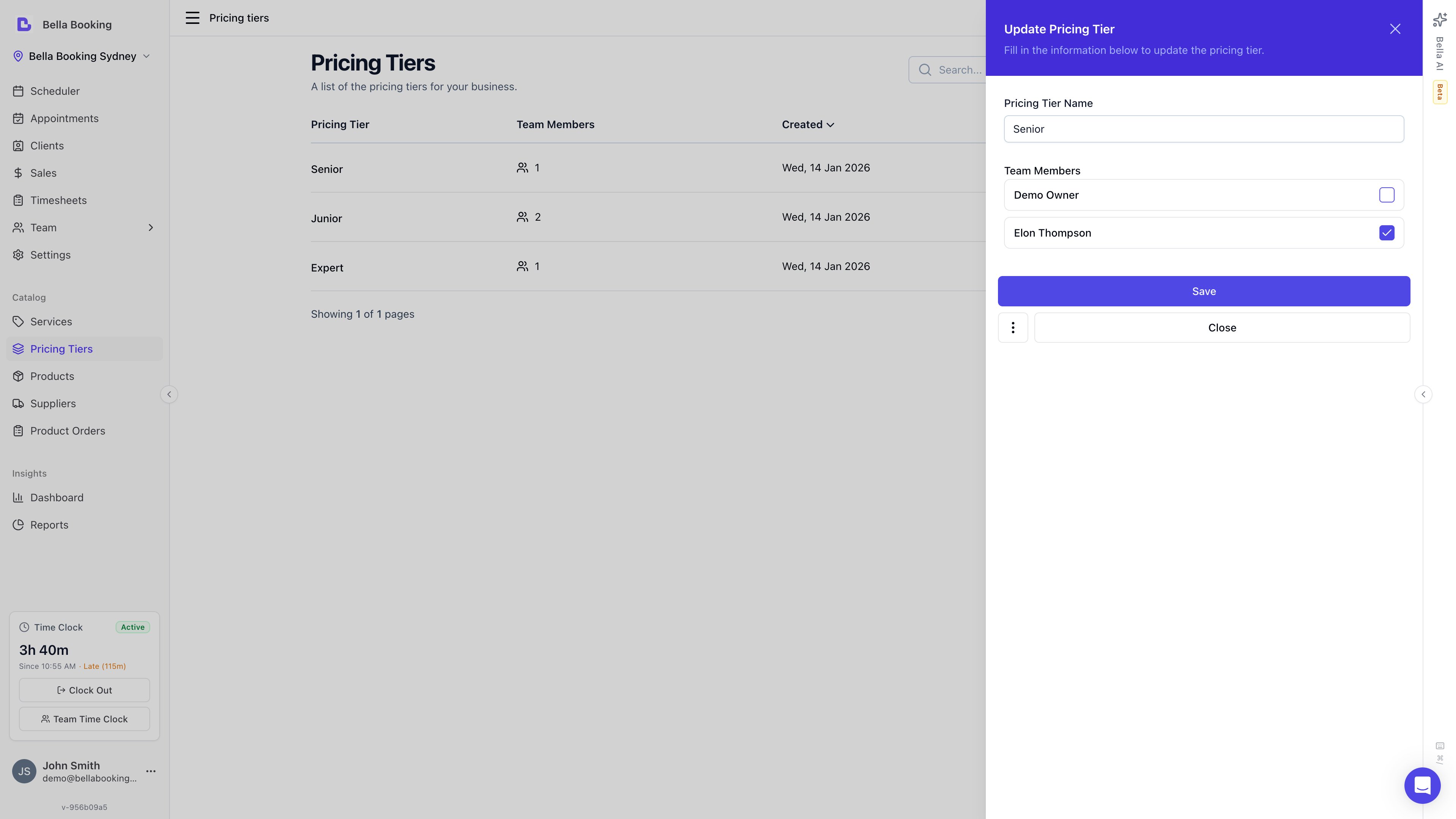
Creating a pricing tier
- Navigate to Pricing tiers from the sidebar
- Click Add Pricing Tier
- Fill in the tier details:
- Tier name (required): Descriptive name like “Senior Stylist” or “Master Level”
- Assign team members from the Team members section with checkboxes (Only unassigned team members will be shown)
- Click Save
Viewing all pricing tiers
- Go to the Pricing tiers section
- You’ll see a list of all your tiers with:
- Tier name
- Number of team members assigned to this tier
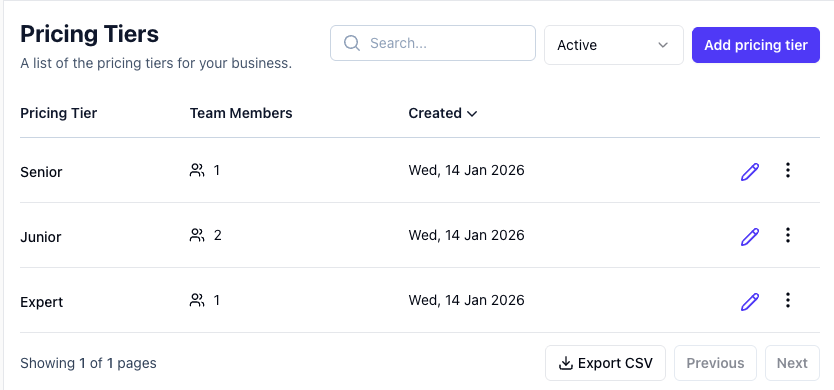
Editing a pricing tier
- Go to the Pricing tiers section
- Find the tier you want to modify
- Click Edit icon
- Update the name, and change Team members
- Click Save
- Note: Changing the tier name doesn’t affect pricing or assignments. It’s just a label change
Archiving a pricing tier
Pricing tiers cannot be deleted directly - they must be archived first.- Go to the Pricing tiers section
- Locate the tier in the list
- Click the three-dot menu and select Archive
- Confirm in the dialog
- Important Considerations:
- Team members assigned to this tier will need to be reassigned to another tier
- Services with pricing set for this tier will revert to base pricing
- Ensure you reassign team members before archiving
Assigning team members to pricing tiers
Each team member should be assigned to a pricing tier that reflects their skill level or role. Team member assignment is done from the Pricing tiers section.Assigning team members to a tier
- Go to the Pricing tiers section
- Click Edit on the pricing tier you want to assign team members to
- In the tier edit form, you’ll see a Team members section with checkboxes
- When creating a new tier: Only unassigned team members will be shown
- When editing an existing tier: All available team members will be shown
- Check the boxes next to the team members you want to assign to this tier
- Click Save
Changing a team member’s pricing tier
To move a team member from one tier to another:- Go to the Pricing tiers section
- Edit the tier the team member is currently assigned to
- Uncheck that team member
- Save the changes
- Edit the new tier you want to assign them to
- Check the team member’s checkbox
- Save the changes
- Effect: All future bookings with this team member will use the new tier’s pricing
Setting service prices by tier
After creating tiers and assigning team members, you set tier-specific pricing for each service.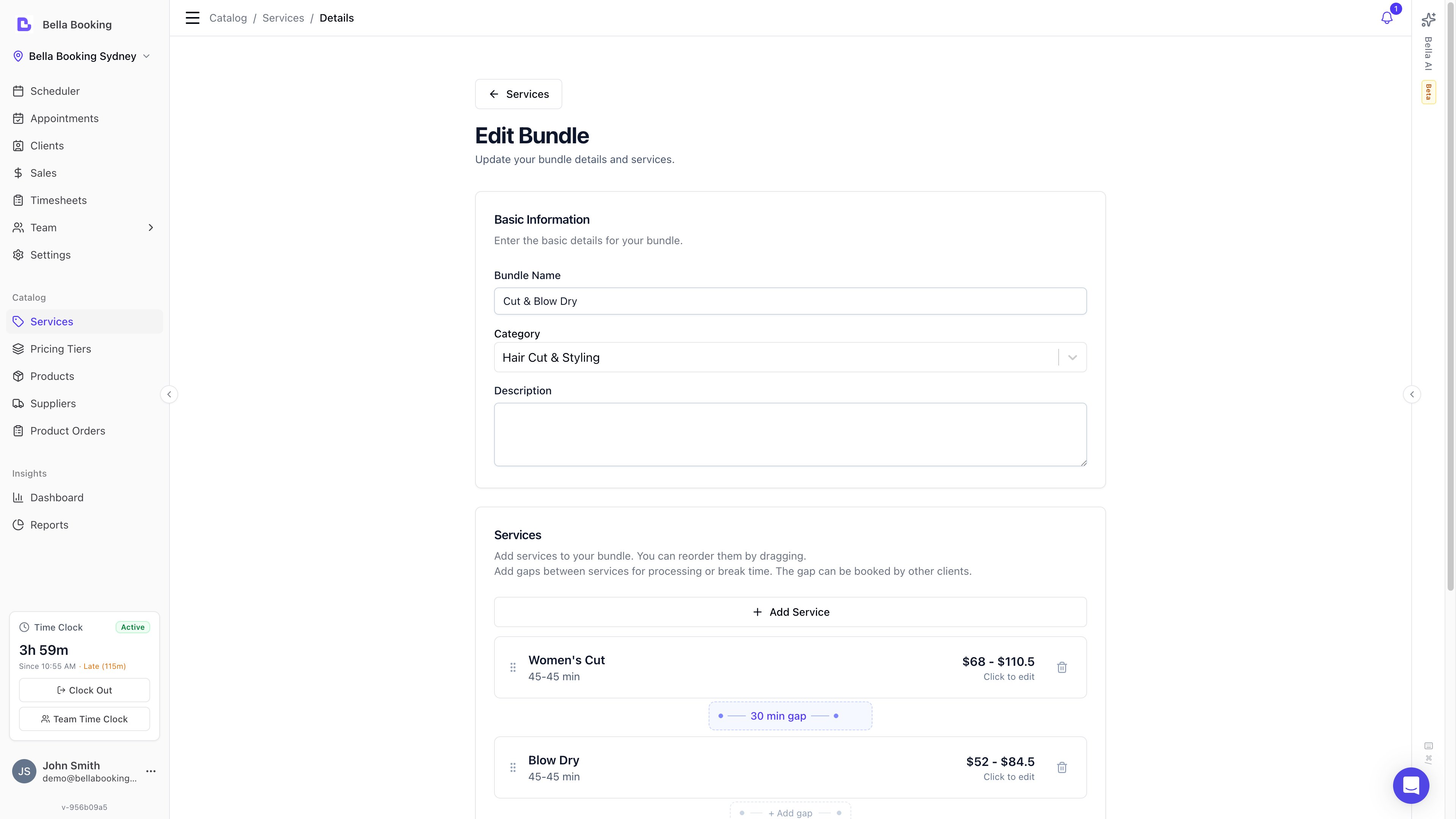
Adding tier pricing to a service
- Go to Services
- Create a new service or edit an existing one
- Enter the Price (used when a team member has no tier, or when pricing tiers are off)
- Turn on Enable pricing tiers
- In Service pricing tiers, every location tier is listed highest price first. Matching prices are listed A-Z by name. The Pricing tiers page itself is A-Z by name. You cannot drag the list to a custom order.
- Enter a price and duration for each tier. A blank price blocks Update
- Example for “Women’s Haircut”:
- Price: $50
- Master Tier: $75
- Senior Tier: $60
- Junior Tier: $40
- Click Update
How pricing is resolved
When a client books a service with a specific team member, the system resolves the price using this chain (highest priority first):- Pricing tier + variant override - if the service has variants and the team member’s tier has a per-variant price override, that price is used
- Variant base price - if the service has variants but no tier override for that variant, the variant’s own price is used
- Pricing tier base price - if the service does not use variants but the team member’s tier has a price set, the tier price is used
- Service base price - if none of the above apply, the service’s default price is used
Leave Enable pricing tiers off and the service uses its base price (or variant prices) for everyone. Turn it on and every location tier needs a price on that service. A team member with no tier still uses the base (or variant) price. If a saved service is missing a tier row, booking also falls back to that base price.
Pricing tiers and service variants
Pricing tiers and service variants work together. They answer different questions:- Pricing tiers answer: “Who is performing the service?” - a senior stylist charges more than a junior
- Service variants answer: “What variation of the service is being performed?” - long hair costs more than short hair
Setting per-variant tier prices
When a service has both pricing tiers and variants enabled:- Go to Services and open the service
- On the Variants tab, you’ll see your variants listed
- On the Details tab with Enable pricing tiers on, each tier shows per-variant price and duration fields
- Set the price and duration for each tier + variant combination
If a client books “Long Hair” with a Senior stylist, the price is 35.
Per-variant tier overrides are optional. If you don’t set a tier override for a specific variant, the variant’s base price is used for team members in that tier.
How tiers appear in booking
Online booking
When a client selects a team member, the displayed price automatically updates to reflect that team member’s pricing tier. Clients see the final price - they do not see tier names or the resolution logic.Dashboard (internal booking)
When a team member is selected on the scheduler, the service price updates automatically based on their tier. If the team member is changed, the price recalculates. Team members can still manually override the price if needed.Deposits and checkout
Deposit calculations use the tier-resolved price. If a service requires a deposit of 50% and the tier price is 30 - not 50% of the base price.Tiers in bundles
When a tier-priced service is used as a component of a bundle, tier pricing still applies to that component line:- The line resolves to the assigned team member’s tier price and duration for that service - the same resolution chain as a standalone booking
- If the bundle uses a fixed total (or a %-discount), the line’s charged amount comes from the bundle’s distributed split rather than the tier price, but the tier still sets the component’s duration
- Availability sizes the slot for the longest possible tier duration, so a component never under-books when a slower tier is assigned - the appointment can’t overrun into the next slot
Tiers are never a client-facing choice inside a bundle. Which tier applies is derived automatically from the team member assigned to each component.
Common use cases
Experience-based pricing
A hair salon with stylists at different experience levels:Specialist pricing
A beauty clinic where certain practitioners have specialist qualifications:Combined with variants
A barber shop using both tiers (seniority) and variants (hair length):
This gives you a full pricing matrix without creating 9 separate services.
FAQs
Q: Can I assign a team member to multiple pricing tiers? A: No. Each team member belongs to one tier at a time. Q: What happens to existing appointments when I change a team member’s tier? A: Existing appointments keep their original pricing. Only new bookings use the updated tier pricing. Q: Can I have different tier structures for different service categories? A: Typically, no. Pricing tiers are global. However, you can set different tier prices per service, effectively creating custom tier structures. Q: Do I have to set tier pricing for every service? A: No. Leave Enable pricing tiers off on a service and everyone uses that service’s base price. Q: Do I have to fill in every tier on a service? A: Once Enable pricing tiers is on, yes. Every location tier needs a price and duration. A blank cell blocks Update. The price does not decide who can do the service. Q: Does a tier price make that team member available for the service? A: No. Who is offered is set on the service’s Team tab. They also need Online booking enabled on their team member profile to appear on your booking page. Q: I entered prices but they do not show on the booking page. A: Check Prices on the service’s Booking policies tab. If it is Hidden, or Use default while Settings → Booking policies is Hidden, clients will not see the amount. Set Prices to Visible for that service, or change the location default. Q: How many pricing tiers should I create? A: Most businesses use 2-4 tiers. Too many tiers can confuse clients and complicate management. Q: Can I rename a tier without affecting pricing? A: Yes. Changing a tier’s name is just a label change and doesn’t affect any pricing or assignments. Q: What if I don’t want to use pricing tiers? A: Simply don’t create any tiers or assign team members to them. Use base pricing for all services and team members. Q: How do pricing tiers work with service variants? A: They compose together. Each pricing tier can optionally override the price for each variant. If no tier override is set for a variant, the variant’s base price is used. See Pricing tiers and Service Variants above for details and examples. Q: Do pricing tiers affect deposit amounts? A: Yes. Deposits are calculated based on the tier-resolved price, not the base service price. If a senior stylist’s tier price is higher, the deposit amount will be proportionally higher. Q: How do tiers affect online booking prices? A: When a client selects a team member in online booking, the displayed price automatically updates to reflect that team member’s tier. The client sees the final price without seeing the tier name or resolution logic. Q: What if a team member is not assigned to any tier? A: They use the service’s base price (or the variant’s base price if the service has variants). Pricing tiers are entirely optional - team members without a tier assignment are unaffected. Q: Can I set different durations per tier? A: Yes. Each tier can have its own duration for a service, not just a different price. This is useful when junior team members need more time to perform the same service. The same applies to per-variant tier overrides - each combination of tier + variant can have its own duration.With a well-designed pricing tier system, you can attract a wider range of clients, reward experienced team members, and optimise your business revenue.