

Introduction
The Appearance Editor lets you customise how your online booking page looks and feels. From a single split-pane view, you can change your layout, set your brand palette, reorder sections, upload images, and preview the result in real time. Note: This page covers appearance and branding settings. For booking policies and rules (minimum notice, cancellation, reschedule, confirmation, payment, and other booking options), see Booking policies. For Reserve with Google (a Book button on Search and Maps), see Reserve with Google - that toggle lives on the Online booking share page, not here. For service add-ons, see Service Catalogue.Accessing the Appearance Editor
- In the main sidebar, go to Settings
- Select Online booking from the settings menu
The Editor
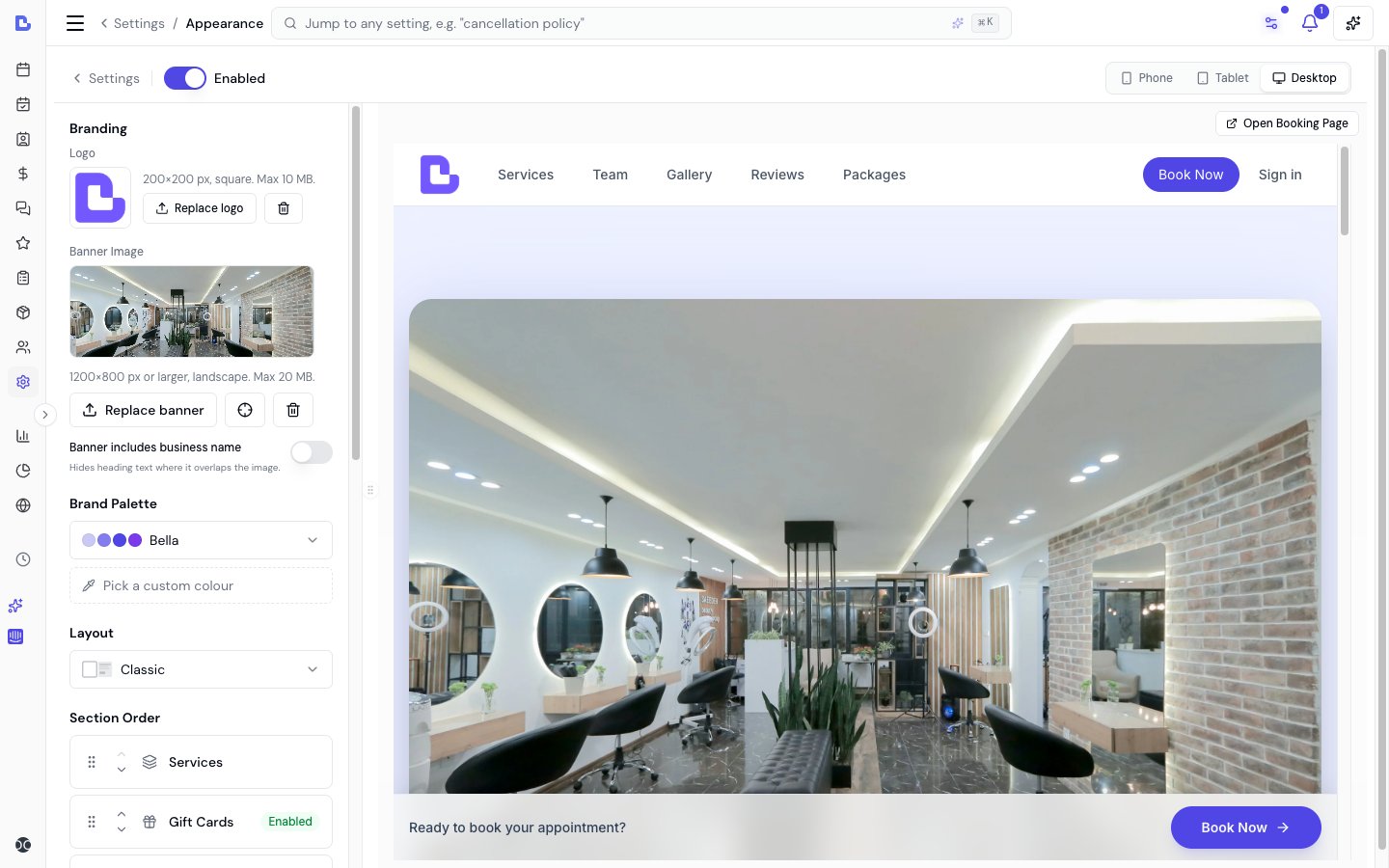
- Left panel - all your appearance controls (branding, palette, layout, sections, gallery, text & wording)
- Right panel - a live preview of your booking page that updates as you make changes
Enable/Disable Online Booking
The toggle at the top of the editor controls whether your booking page is accessible to clients.- Enabled - your booking page is live and accepting appointments
- Disabled - clients see a message that online booking is temporarily unavailable; existing appointments are unaffected
Branding
Logo
Upload your business logo (200x200 px, square, max 10 MB). The logo appears in your booking page navigation bar. Click Replace logo to change it or the delete button to remove it.Banner Image
Upload a banner image that appears prominently at the top of your booking page. For best results:- Minimum size: 1200x800 px
- Orientation: landscape (wider than tall)
- Max file size: 20 MB
- Accepted formats: JPG, PNG, WebP, and HEIC (iPhone photos)
Focal Point
After uploading a banner, click the crosshair icon to open the Focal Point Picker.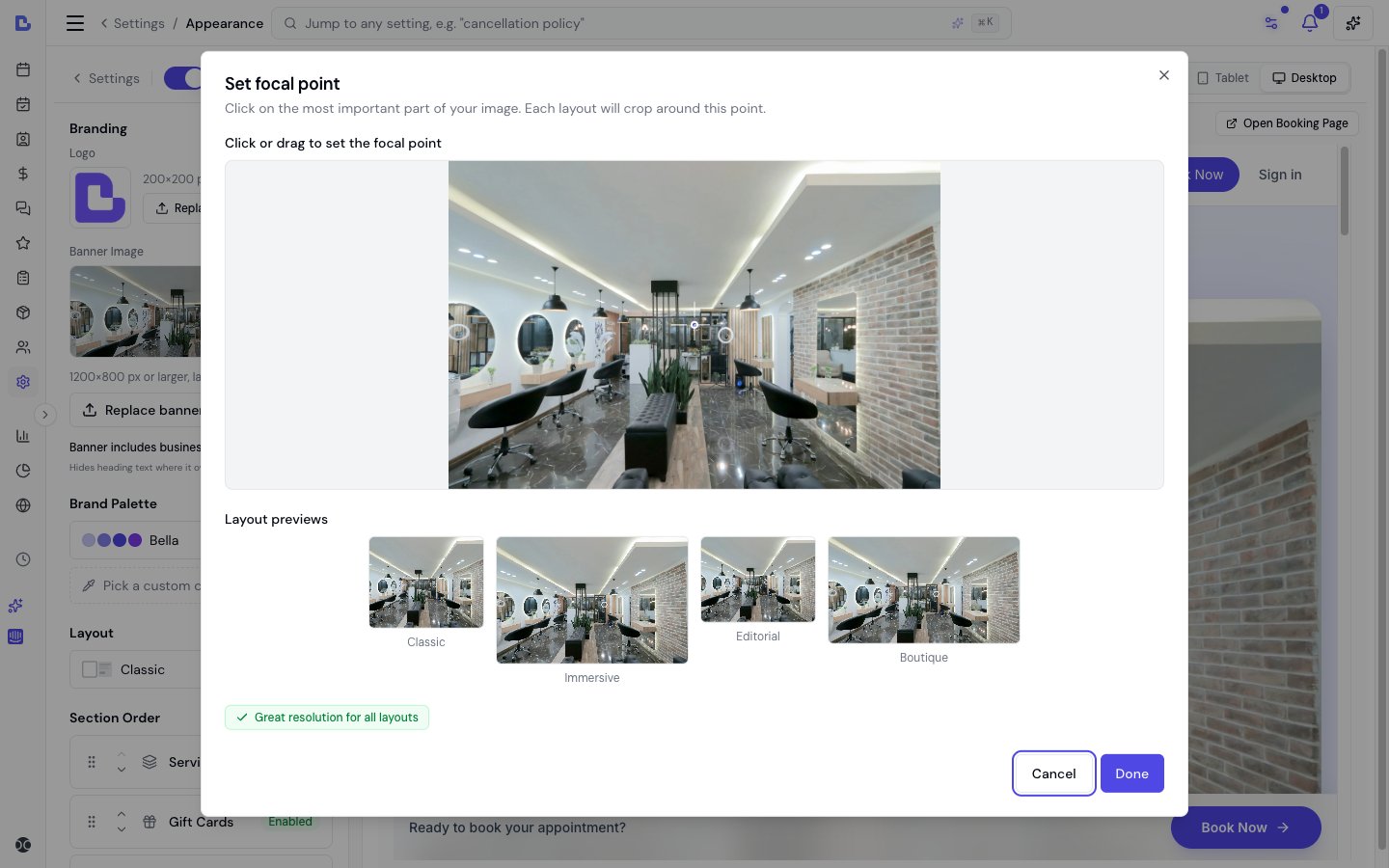
Banner Includes Business Name
Toggle this on if your banner image already contains your business name. When enabled, the heading text is hidden where it overlaps the image, preventing a double-up.Brand Palette
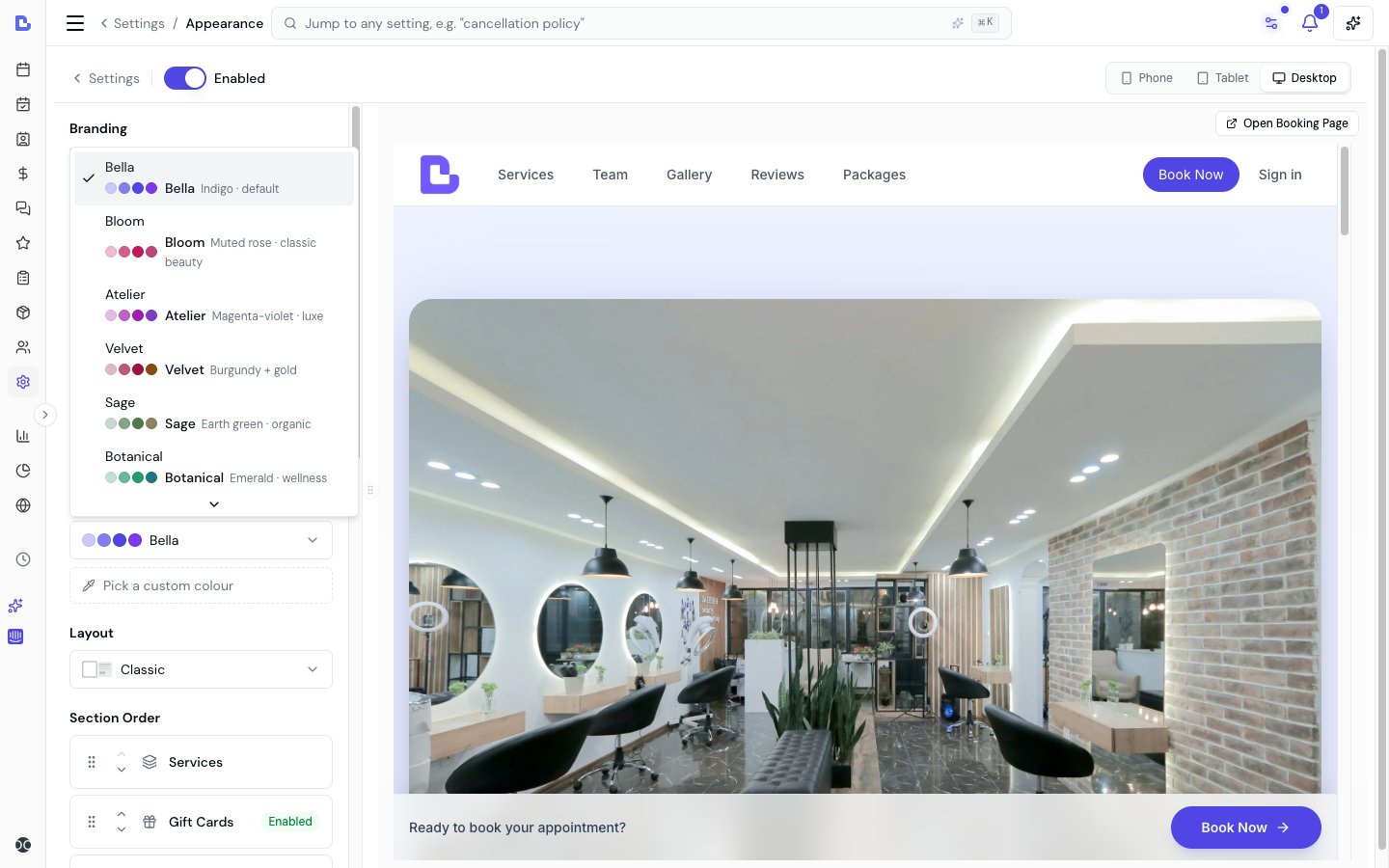
Custom Colour
Click Pick a custom colour below the dropdown to set your own brand colour using a hex colour picker. The editor shows a contrast ratio to help you ensure readability against white backgrounds.Layout Templates
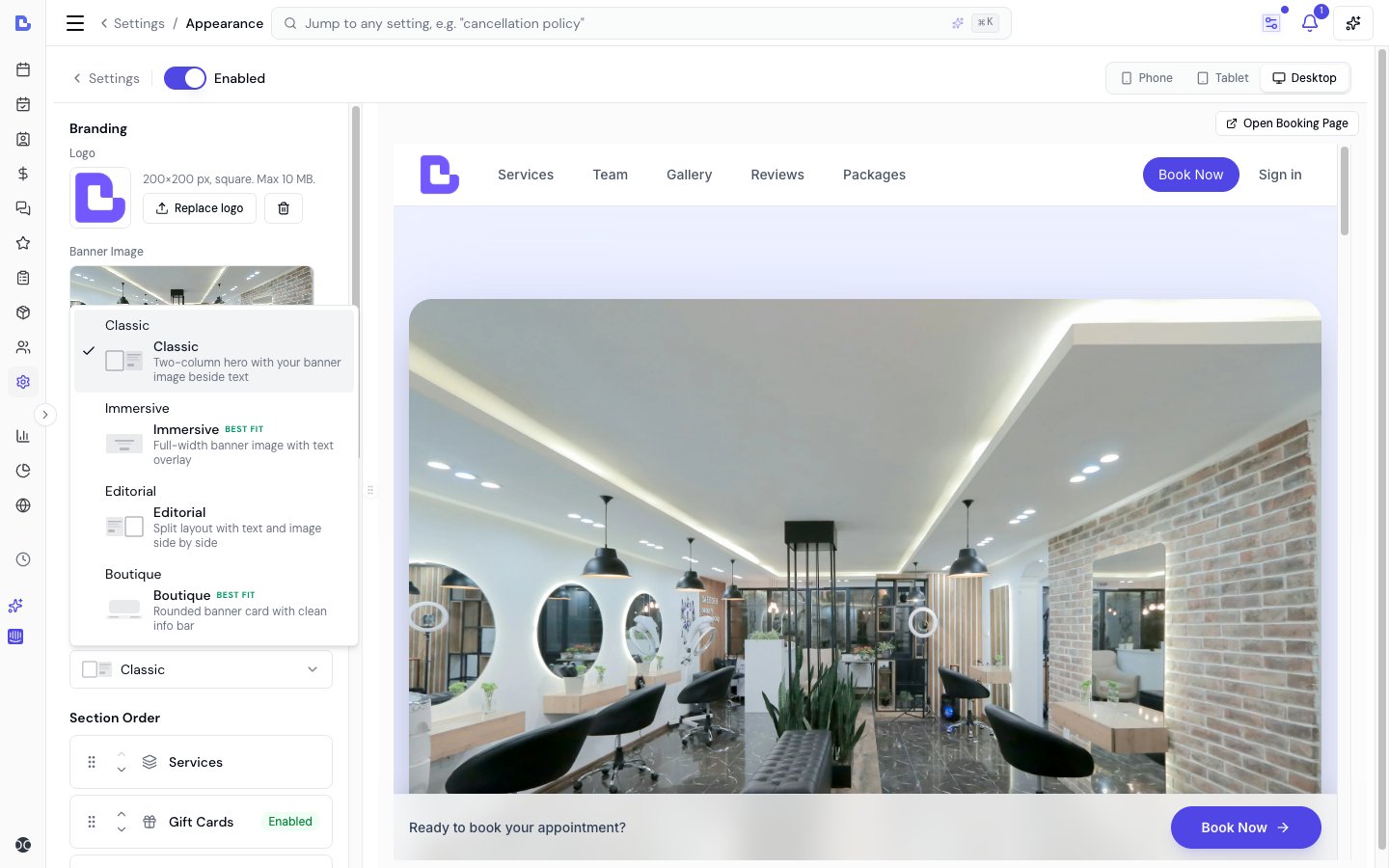
Section Order
This order is used on the booking page itself, in the menu at the top, in Browse on a phone, and in the footer Quick links.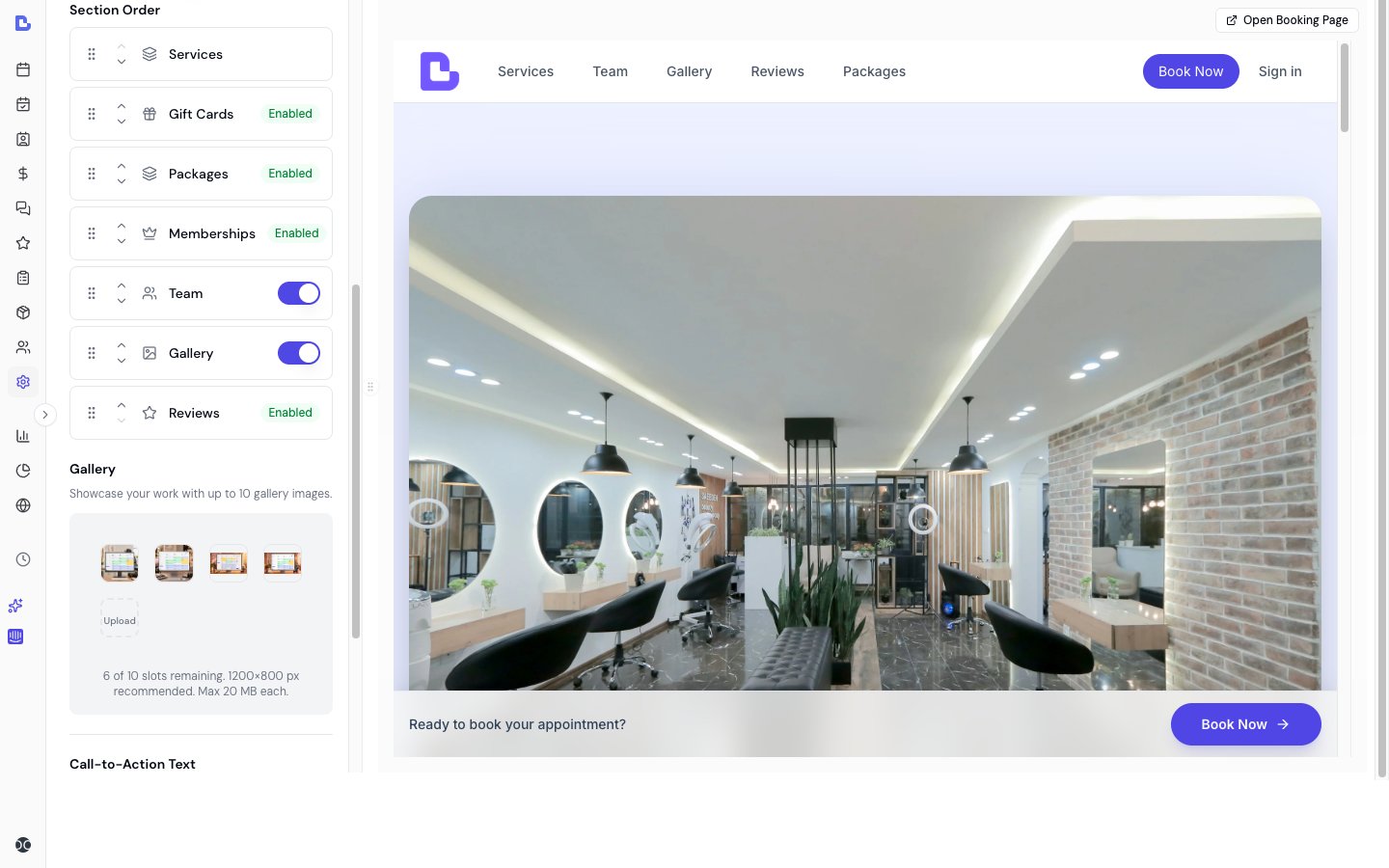
- Drag the grip on the left of a section row. On a phone or tablet, press and hold the grip, then drag
- Or open the row menu and choose Move up or Move down
- Tap a row to edit that section’s text. Team and Gallery also have Show on booking page here, and in the row menu
Available sections
Gift cards, Packages, Memberships, Products and Reviews appear here only when that feature is on and has something to show. Team and Gallery stay in the list so you can show or hide them from the row.
Opening Hours
Under Booking options, the Show opening hours switch controls whether your weekly hours appear on the booking page - in the page footer, as an open/closed badge near the top, inside the booking steps when a day has no times left, and in the information search engines read about your business. It’s on by default. Turn it off if you’re appointment-only or your hours vary, so visitors don’t see a fixed weekly schedule. This only changes what’s displayed - it doesn’t affect which times clients can actually book, which are still set by your working hours and team schedules.Members-only services
Also under Booking options, Hide members-only services decides how a members-only service or bundle appears to someone who can’t book it. It’s off by default. Off, the service stays on your booking page with a Members only badge, so people can see what joining gets them. If you sell memberships online, the card also offers a way through to your plans. That’s the setting to keep if members-only work is part of how you sell memberships. On, it comes off the booking page entirely for anyone whose own membership doesn’t cover it. That covers the whole page, not just the service list:- The service list in the booking steps, and the search box that filters it
- Bundles, including a bundle that’s members-only only because one service inside it is
- Your landing page’s service list, and the information search engines read about you
- A shared link straight to that service, which now says the service isn’t available rather than naming it
- Rebooking a past appointment, starting a booking from a package, and resuming a saved booking, which all drop the line rather than pre-filling it
- Your gift card page’s service and bundle picker. This one hides members-only items from everyone, members included: gift buyers usually aren’t the member, so listing the work there would advertise it
Hidden means hidden from your booking page, not secret. A member whose plan covers the service still sees it when booking, at their member price. If their plan includes a set number of sessions, the service comes off their page once this cycle’s allowance is used up, the same way the Members only lock treats an exhausted allowance today. Your team can still book it for anyone from the Scheduler. And the setting decides what’s shown, never who may book: that’s still the Members only toggle on the service or bundle itself, which Bella checks again when the booking is submitted.
Contact details
Under Contact details, choose which of your business details clients see on your booking page:- Show phone number - in the footer and in the information search engines read. Most page layouts also show it near the top
- Show email address - in the footer
- Show website link - in the footer
- Show social links - your Instagram, Facebook and TikTok, in the footer and near the top of the page
- Address - Full address, an area-only option named for your country (“Suburb and state only” in Australia, “City and state only” in the US), or Don’t show my address
Turning something off here only stops it being published. Your receipts, appointment confirmations and automated messages still use the details you’ve saved in Business settings - so you never need to delete a detail just to stop showing it.One exception: Reserve with Google needs a published street address, because the Book button sends clients to your door. If you set Address to Suburb and state only or Don’t show my address, your listing is held back from Reserve until you switch it back - the Reserve panel on the Online booking page shows this as a checklist item.
Gallery
Upload up to 30 gallery images to showcase your work and space. The gallery appears as a masonry layout on your booking page with a full-screen lightbox when clients click an image.The gallery is your business’s own set of photos and is not tied to any one service. To put photos beside a particular service in your booking list, use service images instead.
- Recommended: 1200 px or wider, high-resolution photos
- Max file size: 20 MB each
- Accepted formats: JPG, PNG, WebP, and HEIC (iPhone photos)
- Your business space and interior
- Work samples and before/after results (with client permission)
- Team members at work
- Product displays
Announcement Banner
Add a highlighted message that appears above the Book now button on your booking page - perfect for holiday closures, a parking change, “please arrive 5 minutes early”, or a seasonal promo. Type your message under Announcement banner in the controls panel and click Save all text. Leave it empty to hide the banner - a blank announcement never shows anything on the page, so you can turn it off any time by clearing the text. The message supports line breaks and is capped at 500 characters. It appears just above the booking button on every layout and screen size.Text & Wording
Make your booking page sound like you - most of the copy on the page can be reworded. Page-level text (in the Text & wording group at the bottom of the controls panel):- Book now button - the main booking button shown in the menu, the header and the booking bar (up to 28 characters, e.g. “Our Services / Book Online”). Default: “Book Now”
- Booking bar prompt - the line beside the button in the floating booking bar. Default: “Ready to book your appointment?”
- Call-to-action heading - default: “Ready when you are”
- Call-to-action description - default: “Pick a time that suits you.”
Booking step text
The Booking steps group, just below Text & wording, holds the copy a client reads inside the booking flow itself, after they tap Book now:- Services step heading and subtitle - defaults: “Services” and “Choose the services you’d like to book”
- Team member step heading and subtitle - defaults: “Team member” and “Select your preferred professional”
- Date & time step heading and subtitle - defaults: “Date & time” and “Pick a date and time that works for you”
- Continue button - the button that moves a client to the next step, up to 28 characters. Default: “Continue”
- Keep headings short and action-oriented
- Make descriptions benefit-focused
- Match your brand voice and tone
Saving Changes
- Logo, banner, and gallery - saved automatically after upload
- Enable/disable toggle - saved automatically
- Brand palette, layout, section order, and toggles - saved automatically when changed
- Announcement banner and text & wording - click Save all text after editing
FAQs
Q: What happens if I disable online bookings? A: Your booking page becomes inaccessible. Clients see a message that online booking is temporarily unavailable. Existing appointments remain unaffected. Q: Can I change the wording on the Book Now button? A: Yes. Go to Settings > Online booking > Appearance and edit Book now button under Text & wording. The new label (up to 28 characters) applies everywhere the button appears - the menu, the page header and the booking bar. Q: My clients don’t speak English. Can I put the booking page in our language? A: You can rewrite the copy Bella supplies. Under Settings > Online booking > Appearance, the Text & wording group covers the landing page and the Booking steps group covers the services, team member and date steps plus the Continue button. Your own service, bundle and team member names already show exactly as you typed them. The rest of the interface stays in English, and clients can run the page through their browser’s own translate feature. Q: Can I change my booking page URL? A: Your booking URL is automatically generated based on your business name. Contact support if you need to change it. Q: I have multiple locations - can one link let clients choose a location? A: Each location has its own booking page with its own URL, so clients book directly with the right location. There isn’t a combined page that asks the client to pick a location first - share each location’s link where it’s most relevant (for example, on the matching location page of your website, or in that location’s social profiles). Q: Which layout should I choose? A: If you have a strong banner image, try Immersive or Editorial. Without a banner, Classic works best. For boutique or high-end businesses, Boutique gives an elegant, minimal feel. Use the?layout= URL parameter to preview each without saving.
Q: Do I need to upload all images (logo, banner, gallery)?
A: No, all are optional. However, a complete booking page with branding elements creates the best client experience.
Q: Can I use a custom brand colour?
A: Yes. Click Pick a custom colour below the palette dropdown. You can enter any hex colour value. The editor shows the contrast ratio to ensure your colour is readable.
Q: What is the focal point?
A: The focal point tells each layout template where the most important part of your banner image is. Different layouts crop your banner at different aspect ratios - the focal point ensures the key area stays visible in every crop.
Q: Where do I configure cancellation policies and payment settings?
A: All booking policies are configured in Settings > Booking policies. See Booking policies for details.
Q: Where do I configure whether clients can choose team members?
A: This is controlled per service in the Service Catalogue and globally in Settings > Booking policies under the booking options section.
Q: How do I preview my booking page on different devices?
A: Use the device switcher (Phone, Tablet, Desktop) at the top right of the Appearance Editor to see how your page looks at different screen sizes. You can also click View booking page to open the full page in a new tab.
Q: How do I show a temporary notice, like a holiday closure, on my booking page?
A: Use the Announcement banner field above Text & wording. Type your message and click Save all text - it appears as a highlighted note above the Book now button on every layout. Clear the text and save again to hide it.