

Introduction
Automated messages is where you manage the notifications Bella sends clients by SMS, by email, or both. These messages keep clients informed and reduce no-shows through timely reminders. If you have Messages Plus enabled, automated messages also appear in the client’s conversation thread in the Messages inbox, giving you a complete communication history in one place.Message Types
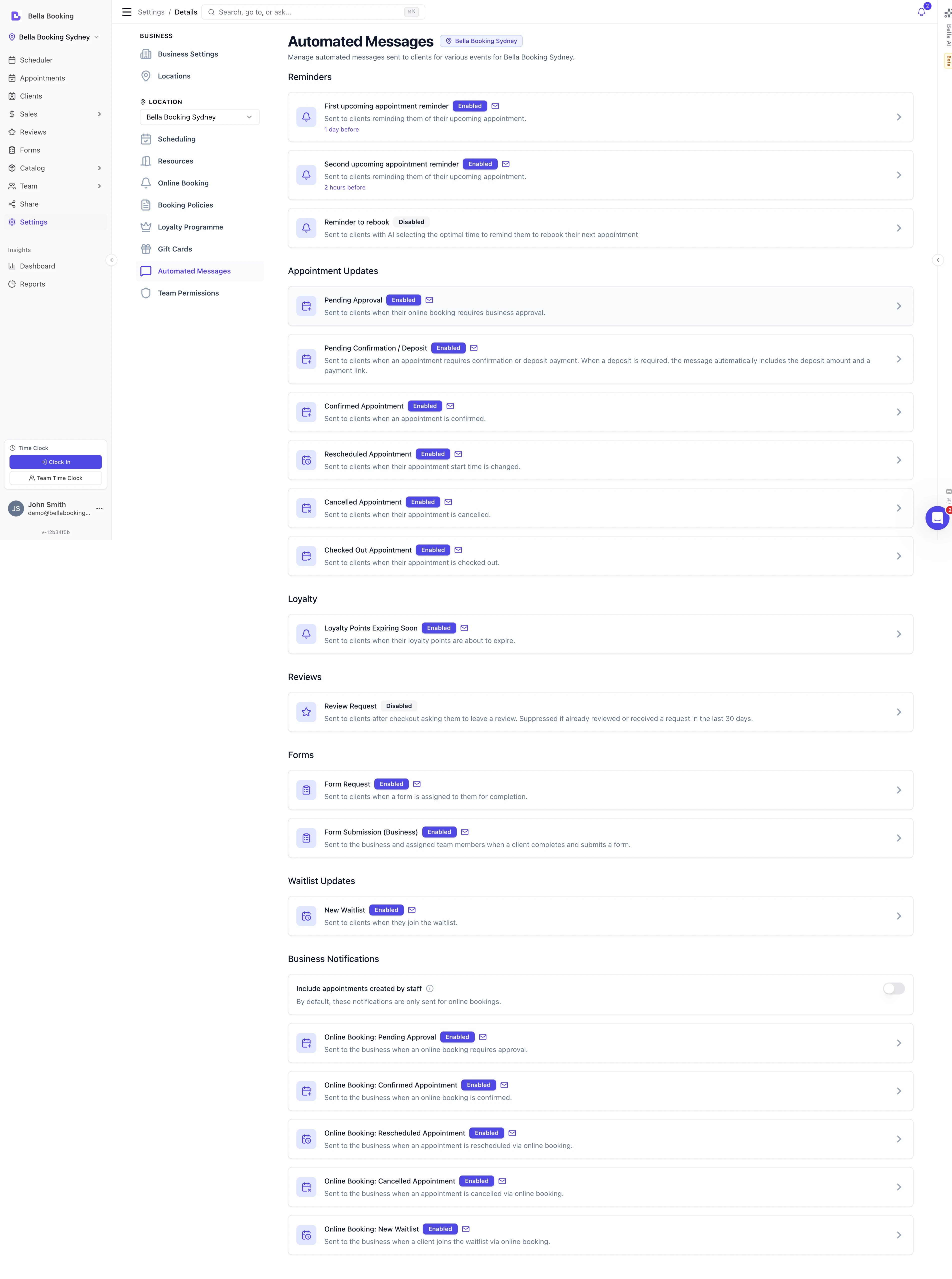
1. Reminders
First upcoming appointment reminder:- Sent before the appointment (timing configurable)
- Reminds clients of their scheduled appointment
- Timing options: 1, 2, 3 or 4 hours, 24 hours, or 2, 3, 4, 5, 6 or 7 days before the appointment (default: 24 hours). Common timing: 24 or 48 hours before
- A reminder only fires if the appointment was booked before its send time - a first reminder set to 7 days is skipped for appointments booked less than 7 days ahead (the second reminder still fires at its own timing)
- When creating or editing an appointment within the reminder window, a team member can choose to send it immediately or leave it turned off via the Notifications section on the form
- Optional secondary reminder closer to appointment time
- Reduces last-minute no-shows
- Same timing options as the first reminder (default: 2 hours). Common timing: 2-4 hours before appointment
- Same per-appointment override options as the first reminder
Reminders chase unpaid deposits automatically. While an appointment’s deposit is
unpaid, the default reminder emails swap in an amber Pay deposit button with a
deposit-amount callout (via the
{{SelfServiceButton}} variable in the template - if you’ve
customised the template and removed the variable, no button appears). If Collect at booking
took an appointment fee on that charge, the button says Pay to confirm instead.
Reminder SMS includes a payment link only if your SMS template contains
{{SelfServiceLink}} - nothing is added automatically. Setting the first reminder to 7 days
makes it an effective “deposit due” nudge a week out for appointments booked further ahead.- Your own words for after the appointment: aftercare instructions, a check-in, a thank-you. Email and SMS are both off to start with, so nothing goes out until you write yours and switch a channel on
- Sent once after a confirmed or completed appointment ends. Cancelled appointments and no-shows never get one
- First follow-up timing: within 15 minutes of the appointment ending, 1, 2 or 4 hours, or 1, 2, 3, 5, 7 or 14 days after it ends (default: 1 day)
- Second follow-up timing: the same options, plus 30, 60, 90, 180 and 365 days after it ends (default: 365 days). Use it for a six-month check-up or a yearly reminder
- Within 15 minutes of the appointment ending is the shortest option. The sender runs on a 15-minute cycle, so the message goes out on the first run after the appointment’s end time, up to 15 minutes later. The 8:00 am to 8:00 pm window and the one-per-appointment rule still hold. It doesn’t wait for checkout either, so it goes whether or not you’ve rung the client up. The message that goes at checkout itself is the Checkout summary
- Sent between 8:00 am and 8:00 pm in your business’s timezone. One due before 8:00 am waits until 8:00 am; one due after 7:45 pm waits until 8:00 am the next day. Nothing is sent automatically outside those hours
- Which appointments: all services, or specific services and bundles that you pick. If any service on the appointment is in scope, that appointment gets one follow-up - never one per service
- Only after a client’s first visit (optional): returning clients are skipped. First visit counts clients added in Bella, whether by your team, through online booking, or through your own API. Clients imported from another system never count, and nor do older records where Bella doesn’t know how the client was added, so all of them are skipped while this is on
- At most one of each follow-up per client every 3 days, however many appointments they had in that time. First follow-up and Second follow-up count separately, so a client can get both inside 3 days
- Respects each client’s notification preferences. Email needs no dedicated number and costs no message credits. SMS goes from your active dedicated number, so a client’s reply lands in your Messages inbox - without a live number the SMS is skipped and the email still goes. Email replies go to your business email address
- Can also be sent by hand: Send first follow-up or Send second follow-up on the appointment’s Activity tab, or in the appointment’s three-dot menu on the Appointments list. You see a preview first and can edit the wording for that one send. A manual send works with both channels off (it goes by email) and ignores the service scope, the first-visit switch, the 8:00 am to 8:00 pm window and the 3-day limit. The appointment still has to be confirmed or completed and already finished
- Changing the delay applies from then on. Shortening it can still send one for an appointment whose new send time falls in the last 12 hours; anything older is never picked up
{{ServiceName}}- The service(s) the client had{{BookedFor}}- “for [Name]” when the appointment was booked for someone else; empty (with its surrounding spaces removed) otherwise{{OnlineBookingUrl}}- A link to your booking page so the client can book again
- AI-powered timing to encourage rebooking
- Sent after appointment completion
- Helps maintain client retention
- System automatically selects optimal send time
- Sent automatically when an authenticated client starts an online booking but doesn’t finish
- Triggers 10 minutes after the client abandons the Review step, aligned with the client-side review-session countdown. A client who got as far as paying a deposit or saving a card is chased as soon as their 30-minute hold ends instead, with no further wait
- Includes a
{{ResumeBookingLink}}/{{ResumeBookingButton}}that takes the client back to their saved selections - Opt-in by default - Email and SMS channels start disabled so you choose when to turn the reminder on
- Fires once per draft. If the client re-engages and abandons again, a fresh reminder can fire
- Only sent to clients with a verified phone number - anonymous visitors are never contacted
- Pairs with the Waitlist panel’s Incomplete bookings tab for manual follow-up. See Incomplete Bookings
2. Appointment Updates
Pending confirmation / deposit:- Sent immediately when an appointment requires client confirmation or a payment step
- Sent when confirmation policy is enabled, when a deposit is required, or when a card on file is required
- Includes
{{ConfirmAppointmentButton}}or{{ConfirmAppointmentLink}}for easy confirmation - When a deposit is required: the button text automatically changes to “Pay deposit & confirm” (amber style instead of green), a deposit amount callout is injected, and the link redirects to the appointment details page where the client can pay. If Collect at booking took an appointment fee on that charge, the button says “Pay to confirm” and the callout is “Amount due”
- When a card on file is required: the button text changes to “Save card & confirm” (same amber style), a callout explains nothing is charged now, and the link redirects to the booking page where the client can save their card. This is the way back in for a client who abandoned the card step on a booking that already exists
- The
{{DepositAmountRequired}}variable is available and automatically shows the deposit amount (e.g., “Deposit required: $50.00”) when a deposit is needed; empty otherwise. If Collect at booking took an appointment fee, it shows “Amount due” instead {{ConfirmationRequirement}}writes the sentence naming what this client still has to do: pay the deposit (with the hold deadline, when the booking has one), save a card, or confirm. It is empty when the wait is on you rather than the client- New businesses get a stock template built around
{{ConfirmationRequirement}}, so one message stays true for all three. Businesses created before this arrived keep the wording they have: templates are your copy, and Bella never rewrites them. You can switch to the newer shape yourself by editing the template - Client must confirm (or pay the deposit, or save a card) to secure their booking
- Under Pay to book this message is never sent for an online booking: the deposit arrives with the booking, so the client gets the confirmation instead
- Under the Card on file policy it is not sent for the bookings that policy holds: no appointment exists until the card is saved, and then it arrives confirmed. It is sent for the two bookings still created first, which wait as Awaiting Card: one a service or membership override asks the card for, and one carrying products you take full payment for at booking
- Sent immediately when an online booking requires business approval
- Only sent when “Require approval” is enabled
- Informs the client their booking request has been received and is awaiting review
- Client receives a separate “Confirmed appointment” notification once you approve
- Sent immediately when an appointment is confirmed
- Confirms booking details (date, time, services, team member)
- Provides appointment details for client records
- For auto-confirm accounts: sent when appointment is created
- For require-confirmation accounts: sent after client confirms
- Sent when an appointment’s date or start time is changed - unless the person moving it turns Notify the client off for that move (the toggle appears on the reschedule screen and the calendar’s move confirmation)
- Shows new date/time and updated details
- Includes previous date/time for reference (using
{{PreviousDateTime}}variable) - Confirms the change was successful
- Sent when an appointment is cancelled
- Confirms cancellation
- Products on the appointment are not billed here: the message drops the retail rows and its total covers the services only, because a cancellation releases any products held against the booking and nothing is charged for them
{{ProductNotice}}states what actually happened to those products - released and not charged, or (when the client paid for them up front in the booking flow) still theirs to collect. It renders nothing when the appointment had no products
- Sent when you charge a late-cancellation or no-show fee to a client’s saved card - money leaves their card, so they are told
- Not used by deposit bookings: there the fee is withheld from the deposit refund and disclosed in the Cancelled appointment message instead
- Suppressed when you turn off Notify the client on the cancel dialog
{{CancellationFeeAmount}}is the total charged to the card, including any card processing fee you pass on;{{CancellationFeeBreakdown}}names that processing fee and renders nothing when you absorb fees{{CancellationPolicy}}restates the policy the fee came from
- Sent after appointment checkout is completed
- Thanks the client and summarises their appointment - acts as their receipt
- A team member can turn it off for an individual checkout using the Notifications control on the checkout panel; your global setting stays unchanged
- The receipt for a sale without an appointment - a walk-in or retail purchase
- Sent automatically when the sale is created, and re-sendable any time from the Sales screen (Send receipt)
- The email carries the itemised receipt (
{{LineItems}}); the SMS is a short acknowledgement - Email is on and SMS is off by default - turn on the SMS channel to text receipts too
- Not sent for a sale that’s already covered by another message: an appointment checkout (which gets the Checkout summary) or a package-only purchase (which gets the Package purchase confirmation)
{{LineItems}}- The itemised receipt (each line with its price, the total, and the receipt number in its heading){{TotalPrice}}- The amount the client paid
- Sent when you refund money against a sale - to the client’s card or to their credit balance
- The email carries the amended receipt with the refund on its own row, so the client can see exactly what came back
- Sent for partial refunds too: a part refund is the one a client is most likely to query
- Suppressed when you turn off Notify the client on the refund dialog, so a correction can go through quietly without changing the setting for everyone
- Sale refunds only: refunding a deposit from the appointment sends the client nothing today
- Email is on and SMS is off by default
{{RefundAmount}}- The amount just refunded{{LineItems}}- The amended receipt, with the refund on its own row
3. Waitlist Updates
New waitlist:- Sent when a client is added to the waitlist
- Confirms waitlist entry
4. Loyalty Notifications
These messages are sent to clients related to the loyalty programme. The section is shown whenever your plan includes loyalty; while the Loyalty programme is switched off, its messages appear locked with a set-up link. Loyalty points expiring soon:- Sent to clients when their loyalty points are about to expire
- Triggered 30 days before the earliest expiring points
- Each client receives at most one notification per 30-day period
- Includes the total number of expiring points and the earliest expiry date
{{Points}}- Total number of points about to expire{{ExpirationDate}}- Earliest expiry date for the expiring points
- Sent to a client when a friend they referred completes their first appointment, earning the referrer a reward
- Email on, SMS off by default - adjust each channel like any other notification
- Confirms the reward has been added to their account, ready to use at their next appointment
{{FriendName}}- Name of the referred friend who completed their first visit{{RewardAmount}}- The referral reward as a formatted currency amount (e.g. “$15”) - referrals are fixed amounts only, never a percentage{{RewardExpiry}}- The date the referral reward expires
5. Gift Card Notifications
These messages are sent when a gift card is purchased and paid for. The section is shown whenever your plan includes gift cards; while Gift cards are switched off, its messages appear locked with a set-up link. Gift card delivery:- Sent to the gift card recipient once payment is confirmed
- Contains the gift card code, amount, expiry date, and the sender’s personal message (if provided)
- Sent by email to the recipient’s email address
{{RecipientName}}- Gift card recipient’s name{{SenderName}}- Name of the person who sent the gift card{{GiftCardCode}}- Styled gift card code card (email) or plain code (SMS){{GiftCardCodePlain}}- Plain-text gift card code (e.g., BELLA-A2K9-M7L3){{Amount}}- Formatted gift card value (e.g., $50.00){{ExpiryDate}}- Expiry date of the gift card (e.g., 15 March 2027){{PersonalMessage}}- Optional personal message from the sender (empty if none was provided)
6. Package Notifications
These messages are sent when a client purchases a prepaid package. The section is shown whenever your plan includes packages; while Prepaid Packages are switched off, its messages appear locked with a set-up link. Package purchase confirmation:- Sent to the client when their package purchase is confirmed (payment completed)
- Contains the package name, included services with session counts, price, and expiry date
- Includes a link to view their packages online
{{PackageName}}- Name of the purchased package (e.g., 10 Haircut Pack){{PackagePurchasePrice}}- Formatted price with currency (e.g., $450.00){{PackageExpiryDate}}- Expiry date or “No expiry”{{PackageServices}}- Formatted list of services (e.g., 10 × Women’s Haircut, 5 × Blow Dry){{PackageCard}}- Styled card showing package name, services, price, and expiry (email only){{ViewMyPackagesButton}}- Button linking to the client’s My packages page (email only)
7. Product Shop Notifications
These messages are sent in response to online product orders placed through your booking page. The section is always listed; until the Product Shop is enabled, its messages appear locked with a set-up link. Order received:- Sent to the client as soon as their payment succeeds
- Contains the order number, line items, total paid, fulfilment mode, and your pickup instructions (when Collect in business)
- Tells the client what happens next - collect in person, or wait for their upcoming appointment
- Sent to the client when you click Mark ready for collection in Sales → Client orders
- Only fires for Collect in business orders - Reserve for next appointment orders skip this step and are handed over at the appointment
- Contains the order number, line items, and pickup instructions
- Sent to the business location email/SMS and to the assigned team members when a paid order comes in
- Lets the team know an order needs prepping (Collect in business) or setting aside for an appointment (Reserve for next appointment)
- Contains the client name, order number, line items, total, fulfilment mode, and - for reserve orders - the linked appointment
{{OrderNumber}}- Short identifier shown to the client and on the order detail page (e.g., “ORD-A2K9-M7L3”){{FulfilmentMode}}- Human-readable mode (“Collect in business” or “Reserve for next appointment”){{PickupInstructions}}- Your business-level pickup instructions (empty when no instructions are configured or when the mode is Reserve for next appointment){{LineItems}}- Renders the product receipt with quantities and prices (email shows a styled table; SMS shows a compact list)
8. Membership Notifications
These messages are sent to clients in response to membership lifecycle events. The section is shown whenever your plan includes memberships; while Memberships are switched off, its messages appear locked with a set-up link. Membership activated:- Sent when the first payment is confirmed and the membership becomes active
- Contains the membership name, price, billing cycle, and a link to view the membership online
- Includes a styled membership card in email showing the key details at a glance
- Sent when a renewal payment attempt fails
- Prompts the client to update their payment method to keep the membership active
- Includes a button linking to the client’s membership page where they can update payment details
- Sent when the membership is cancelled or expires
- Confirms the cancellation to the client
- Sent when a past-due membership becomes active again after a successful payment
- Distinct from Membership activated, which is the first-ever activation
- Confirms the membership is running again and when it next renews
- Sent when you move a client’s membership to a new billing day
- Tells the client the date their next payment will be taken, and that the cycle continues from there
- Sent when you move a client’s membership to a different plan (price or benefits change, same billing cycle)
- Confirms the new plan name, price, and billing cycle
{{MembershipName}}- Name of the membership plan (e.g., “Gold Membership”){{MembershipPrice}}- Formatted membership price with currency (e.g., “$99.00”){{BillingCycleDisplay}}- Human-readable billing cycle (e.g., “monthly”, “every 3 months”){{MembershipNextBillingDate}}- The date the next payment will be taken (for billing day changed messages){{MembershipCard}}- Styled membership summary card showing name, price, and billing cycle (email only){{ViewMyMembershipButton}}- Button linking to the client’s My membership page (email only){{UpdatePaymentButton}}- Button linking to the client’s membership page to update payment details (email only; used in payment failed messages)
9. Business Notifications
These messages are sent to your business (location email/SMS) rather than to clients. In addition to the business email/phone, each notification is also sent to the team members assigned to the appointment, based on each team member’s own notification preferences (set on their profile under Team). A team member who has never saved their preferences receives the role defaults - owners and admins are emailed about confirmed, pending-approval, cancelled and rescheduled appointments by default (check-in and waitlist alerts appear in the notification bell only) - and their notification settings screen shows exactly those defaults (labelled “Role defaults”) until they save their own. The team member who made a change is never sent their own copy.Include Appointments Created by Team Members
By default, business notifications are sent for online bookings and for changes clients make themselves online - when a client cancels or reschedules through your booking page, you’re notified no matter how the appointment was originally created. You can extend this to all appointment activity (including appointments your team creates, cancels or reschedules in the dashboard) using the Include appointments created by team members toggle at the top of the Business Notifications section. When disabled (default):- Notifications sent for online bookings, and whenever a client cancels or reschedules online
- Labels are prefixed, e.g. “Online booking: Confirmed appointment”
- Notifications sent for ALL appointments, regardless of how they were created or who changed them
- Labels drop the prefix, e.g. “Confirmed appointment”, “Cancelled appointment”
- An extra “Pending confirmation / deposit” notification also becomes available (see below)
- Useful if you want to be notified of all appointment activity, including team-created appointments
Turning off or reducing business notifications
Business notifications go to your business email and SMS - which is often your own inbox. If you’re getting an email for every online booking and want to stop it, this is how it works:Online bookings - and changes clients make themselves online - always notify the business by default. The Include appointments created by team members toggle above only adds team-created activity on top - turning it off does not stop online-booking or client-made-change notifications, because those are on by default.To stop the emails (or texts): open the specific business notification below - for example Confirmed appointment - and switch off its Email (and/or SMS) channel, then save. That channel toggle is the actual off-switch for that notification.
Confirmed appointment (previously labelled “New Appointment”):
- Sent when an appointment becomes confirmed - immediately for auto-confirm bookings, or after you approve it or a required deposit is paid (depends on your booking policy)
- By default: only online bookings; when the toggle is enabled: all appointments
- Notifies the business and assigned team members of the booking
- When a deposit is required, the notification includes the deposit amount via
{{DepositAmountRequired}}
- Only shown when “Include appointments created by team members” is enabled
- Sent when a team-created appointment requires the client to confirm attendance or pay a deposit
- Lets you keep track of bookings that are awaiting the client’s confirmation
- Sent when an online booking requires business approval
- Notifies the business that a booking needs to be reviewed
- Sent when an online booking is held waiting for the client to pay a required deposit
- Lets you follow up if the client abandons the payment step, rather than the booking sitting unnoticed
- Confirms automatically once the deposit is paid - you’ll then get the “Confirmed appointment” notification
- Includes the amount owed via
{{DepositAmountRequired}}, and the release time via{{DepositDeadline}}when a window will release the booking - Not sent for online bookings under Pay to book: nothing is booked until the deposit is paid, so the first you hear of it is “Confirmed appointment”
- Sent when an online booking is held waiting for the client to save a card on file
- Confirms automatically once the card is saved - you’ll then get the “Confirmed appointment” notification
- You can also approve it manually, which waives the card requirement. Note that a late-cancellation or no-show fee then has nothing to charge against
- Not sent for the bookings the Card on file policy holds: nothing is booked until the card is saved, so the first you hear of those is “Confirmed appointment”. Two bookings still reach this state: one a service or membership override asks the card for, and one carrying products you take full payment for at booking, which is created first so its single combined payment can settle them and save the card
- Sent when an appointment is cancelled
- By default: only online cancellations; when the toggle is enabled: all cancellations
- Sent when an appointment is rescheduled
- By default: only online reschedules; when the toggle is enabled: all reschedules
- Sent when a client joins the waitlist
- By default: only online waitlist entries; when the toggle is enabled: all waitlist entries
- Includes client name, phone, preferred date, and services
10. Form Notifications
These messages are sent in relation to forms. This section only appears when Forms are enabled. Form request (client):- Sent to the client when a team member sends them a form to complete
- Contains the form name and a link to fill it out
- Triggered from the client profile or appointment actions when a team member selects Send form
- Sent to the client to confirm their completed form has been received
- Email only by default - you can switch on SMS for this message if you prefer
- Includes the form name
- Sent when a client submits a completed form
- Notifies the business location email/SMS and the assigned team members
- Includes the client name and form name
{{FormName}}- Name of the form template (e.g., “Hair Consultation”){{FormLink}}- Direct link to the form for the client to complete (for form request messages only){{FormLinkButton}}- Email only - Styled button linking to the form (for form request messages only)
11. Tip Notifications
These messages are sent to your business when a client leaves a tip after an appointment. The section is always listed; until Tips are enabled in your payment settings, its messages appear locked with a set-up link. Tip received:- Sent when a client leaves a tip via the online booking portal
- Notifies the business location email/SMS and the team member who received the tip
- Includes the tip amount and team member name
{{TipAmount}}- Formatted tip amount with currency (e.g., “15.00 AUD”){{TeamMemberName}}- Name of the team member who received the tip
12. Review Requests
These messages are sent to clients after their appointment is checked out, inviting them to leave a review. This section only appears when Client Reviews are enabled (Professional plan). Review request:- Sent after appointment checkout (timing configurable)
- Includes a direct link for the client to leave a review
- Uses neutral wording with no incentives
- Can also be sent manually for a completed appointment - open the appointment, go to the Activity tab, and use the Review request card’s Send review request button (also available from the Send review request item in the appointment’s three-dot menu on the Appointments list)
- A manual send works even if the automated Review request is switched off - it sends by email so you can request a review from selected clients without turning on automatic review requests for everyone (requires the client to have an email address and email notifications enabled)
{{ReviewLink}}- Direct link to the review submission page
- Sent to your business (location email/SMS) and the reviewed appointment’s team member(s) when a client submits a new review
- Also appears in the in-app notification bell, which links straight to the Reviews page
- Includes the rating, the client’s name, and the review text
- Email on, SMS off by default - adjust each channel like any other notification. The bell alert always appears, regardless of the email/SMS channels
{{Rating}}- The review’s star rating out of 5{{ReviewText}}- The text the client wrote (empty for a rating-only review){{TeamMemberName}}- The team member(s) on the reviewed appointment
13. Birthday Greeting
A warm, automated message sent to each client around their birthday. Sending requires Messages Plus - the message appears in your Automated messages list on every plan, but it only goes out while Messages Plus is active. Birthday greeting:- Sent automatically on the client’s birthday, at around 9 am in your business’s timezone
- Treated as an announcement, not marketing - it goes to every client who hasn’t opted out of announcements, so you don’t need a separate marketing opt-in to send a friendly birthday note
- Email and SMS, both off by default - turn on whichever channel(s) you’d like once you’ve added a personal touch to the wording
- Each client receives it at most once per year, even if you change the message or it runs more than once on the day
- Respects each client’s notification preferences. Both channels need Messages Plus to send; within it, email is included (no message credits) while SMS is metered and needs an active dedicated number (the same rule as campaigns) - without one, the SMS is skipped and only the email goes out
- Only sent to clients who have a date of birth on file (see Capturing a client’s birthday below)
- Clients born on 29 February receive their greeting on 28 February in non-leap years
{{FirstName}}- Client’s first name{{LastName}}- Client’s last name{{BusinessName}}- Your business name{{OnlineBookingUrl}}- A link to your booking page so the client can book an appointment to celebrate{{RewardAmount}}- What the birthday reward gives (e.g. “10%”, “$15”, or “a free Express Facial”), if a reward is set up{{BirthdayGift}}- A whole sentence describing the gift and when it expires, so you can drop it into the message without rewriting the rest. Empty when no reward is set up{{RewardExpiry}}- The date the reward expires{{OfferCode}}- The code to enter, when the reward is delivered as a code
- Sent once, a few days before the birthday reward expires, and only if the client hasn’t used it yet
- Automatically suppressed the moment the client redeems the reward
- Requires Messages Plus to send, like the greeting
- Only sent to clients who are eligible for the reward - clients excluded from the reward never receive it
{{FirstName}}- Client’s first name{{LastName}}- Client’s last name{{BusinessName}}- Your business name{{RewardAmount}}- What the birthday reward gives (e.g. “10%”, “$15”, or “a free Express Facial”){{BirthdayGift}}- A whole sentence describing the gift and when it expires{{RewardExpiry}}- The date the reward expires{{OfferCode}}- The code to enter, when the reward is delivered as a code
Capturing a client’s birthday
A client’s date of birth (the year is optional) can be recorded in a few ways - by your team, or by clients themselves through online booking:- Client profile - open a client and edit their details; the birthday sits alongside their contact information
- Client import - map a Date of birth column when importing clients from a spreadsheet or another system. Bella reads the day, month and year and interprets ambiguous numeric dates using your business’s country format
- Online booking profile - a signed-in client can add or update their own birthday from their account on your booking page
- Family members - a birthday can be recorded for each family member a client adds through online booking
- After booking - once a client finishes booking, the confirmation screen invites them to add their birthday (they can skip it). This invitation only appears when you’re actually using birthdays - your Messages Plus subscription is active, and either the Birthday greeting above is switched on or your birthday reward is active. Without Messages Plus, or with both of those off, clients aren’t asked
The birthday reward
Turn the greeting into a genuine treat with the birthday reward - set it up once on the Birthday page (under Programmes, alongside your other client-incentive programmes). The reward is applied automatically for the client when they book - there’s no code to remember - or you can deliver it as a code the client enters instead. You control:- The discount - a percentage off, or a fixed amount off
- How long it lasts - a number of days from the client’s birthday (30 by default, roughly their birthday month)
- Who gets it - all clients, or a filtered audience; you can also exclude an individual client from their profile (they still receive the greeting, just not the discount)
- An optional minimum spend
{{RewardAmount}}, {{RewardExpiry}} and (in code mode) {{OfferCode}} variables.
14. New Client Welcome
Announces your new-client offer to a recently-added client who hasn’t visited yet. Sending requires Messages Plus and an active new-client offer. The message always appears in your Automated messages list, shown as a disabled Set up offer card until you enable the New client offer programme - once the offer is on you can switch on a channel, and it goes out while Messages Plus is active. New client welcome:- Sent to a newly-added client to introduce your new-client offer (their first-visit reward)
- Treated as an announcement, not marketing - it goes only to clients who haven’t opted out of announcements
- Email and SMS, both off by default - turn on whichever channel(s) you’d like once you’ve added a personal touch to the wording
- Sent once per client ever, and only to recently-added clients who haven’t visited yet while the offer is live
- Set up the offer itself on the New client offer page (under Programmes)
{{FirstName}}- Client’s first name{{LastName}}- Client’s last name{{BusinessName}}- Your business name{{OnlineBookingUrl}}- A link to your booking page{{RewardAmount}}- The new-client reward amount (e.g. “10%” or “$15”){{OfferCode}}- The code to enter, when the reward is delivered as a code
15. Campaign Notifications
SMS campaign completed and Email campaign completed:- Sent to the team member who initiated the campaign once all messages have been dispatched - each channel has its own editable notification
- Contains the campaign name, sent/failed/skipped counts, completion time, and a link to the full results
- Configurable in Automated messages like any other notification type
{{CampaignName}}- Name of the campaign{{TotalRecipients}}- Total number of recipients in the campaign{{SentCount}}- Number of messages successfully sent{{FailedCount}}- Number of messages that failed to send{{SkippedCount}}- Number of messages skipped (e.g., missing contact details or consent){{CompletedAt}}- Formatted completion date and time{{CampaignLink}}- Link to view the full campaign results
Message Configuration Options
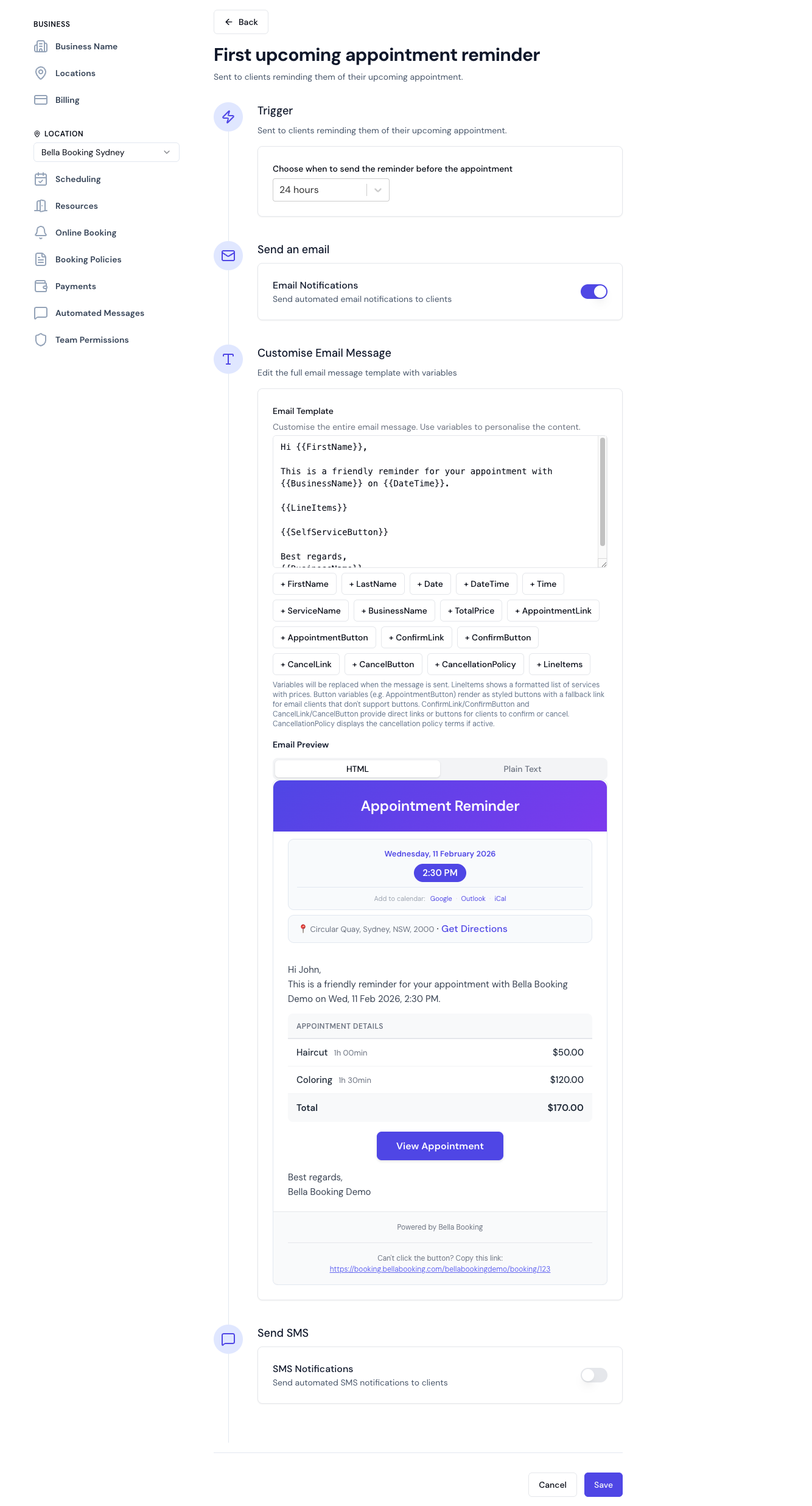
- Toggle the message on or off
- Disabled messages won’t be sent to clients
- SMS, Email, or both
- Based on your subscription and client contact preferences
- Hours or days before the appointment: 1, 2, 3 or 4 hours, 24 hours, or 2, 3, 4, 5, 6 or 7 days
- For First follow-up, within 15 minutes of the appointment ending, or hours or days after it ends: 1, 2 or 4 hours, or 1, 2, 3, 5, 7 or 14 days. Second follow-up adds 30, 60, 90, 180 and 365 days
- Custom timing per reminder type
- Customise the message greeting with your preferred greeting
- Create fully customised message templates using variables
- Personalise messages to match your brand voice
- Use template variables for dynamic content
Template Customisation
Bella Booking allows full customisation of SMS and email templates using template variables. This gives you complete control over your message content and branding.Available Template Variables
You can use these variables in your custom templates:{{FirstName}}- Client’s first name{{LastName}}- Client’s last name{{BusinessName}}- Your business name{{Date}}- Formatted date (Mon, 18 Nov 2025){{Time}}- Formatted time (2:05 PM){{DateTime}}- Formatted date and time (Mon, 18 Nov 2025, 2:05 PM){{PreviousDate}}- Previous date for rescheduled appointments (Mon, 18 Nov 2025){{PreviousTime}}- Previous time for rescheduled appointments (2:05 PM){{PreviousDateTime}}- Previous date and time for rescheduled appointments (Mon, 18 Nov 2025, 2:05 PM){{ServiceName}}- Service name(s){{TotalPrice}}- Formatted total price{{LineItems}}- Formatted line items (email only){{SelfServiceLink}}- Link to appointment details page (view, confirm, or cancel - and pay the deposit when one is outstanding){{SelfServiceButton}}- Email only - Styled button linking to appointment details page. While the appointment has an unpaid deposit (pending confirmation and reminder messages), it renders as an amber Pay deposit button with a deposit-amount callout. If Collect at booking took an appointment fee on that charge, the button says Pay to confirm{{CancelAppointmentLink}}- Direct link to cancel appointment (shows confirmation dialog){{CancelAppointmentButton}}- Email only - Styled button to cancel appointment (outline/red style){{ConfirmAppointmentLink}}- Link to confirm appointment. When deposit is required, redirects to appointment details page (for payment) instead of one-click confirmation{{ConfirmAppointmentButton}}- Email only - Styled button to confirm appointment. Green “Confirm your appointment” by default; changes to amber “Pay deposit & confirm” with a deposit amount callout when a deposit is required, or “Pay to confirm” when Collect at booking took an appointment fee{{DepositAmountRequired}}- Deposit amount with label (e.g., “Deposit required: $50.00”) - for pending confirmation messages when deposit is required; empty otherwise. “Amount due” when Collect at booking took an appointment fee{{ConfirmationRequirement}}- What the client must do before the appointment is confirmed: pay the deposit (with the hold deadline, when the booking has one), save a card, or confirm. Empty when the appointment is waiting on you instead{{DepositDeadline}}- “Released at 2:45 PM if unpaid.”, naming the day too when the release is not today. Empty when nothing will release the booking{{ProductCount}}- Number of product items the client added while booking online (for the business new-booking notifications; shows 0 when the booking has no products){{CancellationPolicy}}- Human-readable cancellation policy text (if active policy exists){{Reason}}- Cancellation reason with label (e.g., “Reason: No show”) - for cancellation messages only; empty if no reason provided{{BookedFor}}- Family-booking clause with label (e.g., “for Emily” or “for Emily and Jack”) when the appointment is booked for family members; empty (and its surrounding spaces removed) for a normal booking{{PreferredDates}}- Client’s preferred dates for waitlist entries{{PhoneNumber}}- Client’s phone number (for business notifications){{Points}}- Total number of expiring loyalty points (for loyalty expiration messages only){{ExpirationDate}}- Earliest expiry date for loyalty points (for loyalty expiration messages only){{RecipientName}}- Gift card recipient’s name (for gift card delivery messages only){{SenderName}}- Name of the gift card sender (for gift card delivery messages only){{GiftCardCode}}- Styled gift card code card in email, plain code in SMS (for gift card delivery messages only){{GiftCardCodePlain}}- Plain-text gift card code (for gift card delivery messages only){{Amount}}- Formatted gift card value (for gift card delivery messages only){{ExpiryDate}}- Gift card expiry date (for gift card delivery messages only){{PersonalMessage}}- Sender’s personal message (for gift card delivery messages only){{PackageName}}- Name of the purchased package (for package purchase messages only){{PackagePurchasePrice}}- Formatted package price (for package purchase messages only){{PackageExpiryDate}}- Package expiry date or “No expiry” (for package purchase messages only){{PackageServices}}- Formatted service list with session counts (for package purchase messages only){{PackageCard}}- Styled package summary card (for package purchase emails only){{ViewMyPackagesButton}}- Button to view packages online (for package purchase emails only){{MembershipName}}- Name of the membership plan (for membership messages only){{MembershipPrice}}- Formatted membership price with currency (for membership messages only){{BillingCycleDisplay}}- Human-readable billing cycle, e.g. “monthly” (for membership messages only){{MembershipNextBillingDate}}- The date the next membership payment will be taken (for membership billing day changed messages only){{MembershipCard}}- Styled membership summary card (for membership emails only){{ViewMyMembershipButton}}- Button to view membership online (for membership emails only){{UpdatePaymentButton}}- Button to update payment details (for membership payment failed emails only){{ResumeBookingLink}}- Link to resume an incomplete online booking (for incomplete booking reminder messages only){{ResumeBookingButton}}- Email only - Styled button linking to the incomplete booking (for incomplete booking reminder messages only){{FormName}}- Name of the form template (for form request and form submission messages only){{FormLink}}- Direct link to the form for the client to complete (for form request messages only){{FormLinkButton}}- Email only - Styled button linking to the form (for form request messages only){{ReviewButton}}- Email only - Styled button linking to the review page (for review request messages only){{BusinessAppointmentLink}}- Link to the appointment in the dashboard (for business notification messages only){{BusinessAppointmentButton}}- Email only - Styled button linking to the appointment in the dashboard (for business notification messages only){{TipAmount}}- Formatted tip amount with currency (for tip received messages only){{TeamMemberName}}- The team member who received the tip, or the team member(s) on the appointment (for tip received and review received messages){{Rating}}- The review’s star rating out of 5 (for review received messages only){{ReviewText}}- The text the client wrote in their review; empty for a rating-only review (for review received messages only){{OrderNumber}}- Short order identifier (for Product shop messages only){{FulfilmentMode}}- Human-readable fulfilment mode, “Collect in business” or “Reserve for next appointment” (for Product shop messages only){{PickupInstructions}}- Business-level pickup instructions; empty when none are configured or when the order is Reserve for next appointment (for Product shop messages only){{CampaignName}}- Name of the campaign (for campaign completed messages only){{TotalRecipients}}- Total number of campaign recipients (for campaign completed messages only){{SentCount}}- Number of messages successfully sent (for campaign completed messages only){{FailedCount}}- Number of messages that failed (for campaign completed messages only){{SkippedCount}}- Number of messages skipped (for campaign completed messages only){{CompletedAt}}- Formatted campaign completion date and time (for campaign completed messages only){{CampaignLink}}- Link to the campaign results page (for campaign completed messages only){{RewardAmount}}- The reward amount (for birthday greeting, birthday reward reminder, referral reward earned and new client welcome messages only). Birthday and new-client rewards may be a percentage or a formatted amount (e.g. “10%” or “$15”); referral rewards are always a formatted currency amount - never a percentage{{RewardExpiry}}- The date the reward expires (for birthday greeting, birthday reward reminder and referral reward earned messages only){{OfferCode}}- The code the client enters when the reward is in code-delivery mode (for birthday greeting, birthday reward reminder and new client welcome messages only){{FriendName}}- Name of the referred friend who completed their first visit (for referral reward earned messages only)
When to Use Each Link:
- SelfServiceLink: General-purpose link for appointment management; best for initial booking confirmations
- CancelAppointmentLink: When you want to make cancellation easy but still require confirmation
- ConfirmAppointmentLink: Best for reminder messages when you want clients to confirm with one click
- All date/time variables are automatically formatted using standard formats
- Dates include the day of week (Mon, 18 Nov 2025)
- Times follow your location’s Time Format setting - 12-hour with AM/PM (2:05 PM) or 24-hour (14:05). Change it under Settings → Business settings; see General Settings
- Formatting is consistent across all messages
Creating Custom Templates
How to Customise:- Click on any message card to open configuration
- Toggle “Use custom template” if available
- Enter your custom message using variables above
- Preview shows how variables will be replaced
- Save to apply changes
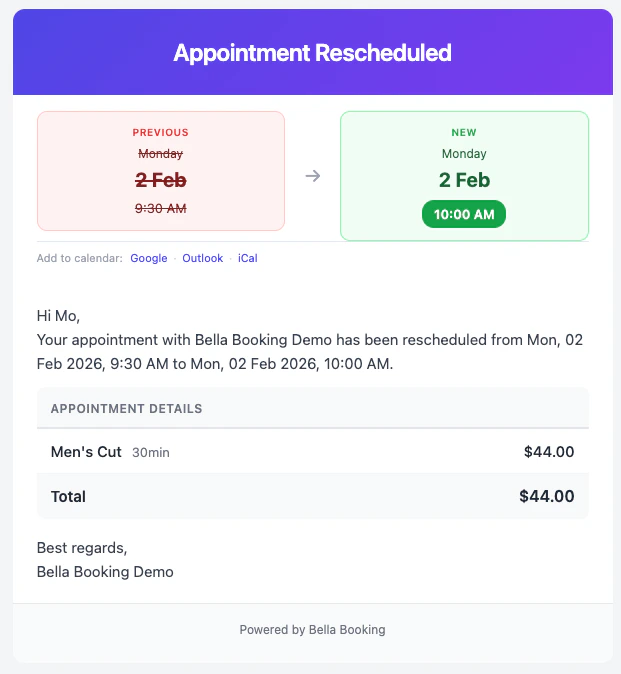
{{PreviousDateTime}} variable is automatically populated with the original appointment date and time when an appointment is rescheduled. This helps clients understand what changed.
Reminder with Confirmation Link:
{{ConfirmAppointmentLink}} in reminder messages when client confirmation is enabled. This helps reduce no-shows by prompting clients to actively confirm their attendance.
Online Booking Waitlist Notification (Business):
{{CancellationPolicy}} variable displays a concise cancellation policy message if one is active. Examples:
- “24 hours notice required, 50% late fee.”
- “48 hours notice required.”
{{Reason}} variable displays the cancellation reason if one was provided (e.g., “Reason: No show” or “Reason: Client requested”). If no reason was recorded, the variable will be empty.
Best Practices:
- Keep SMS messages concise (under 320 characters when possible)
- Use email templates for detailed information
- Always include date and time for appointment-related messages
- Personalise with client’s first name
- Include your business name for brand recognition
- Avoid emoji, curly apostrophes and long dashes in SMS templates - see How SMS credits are counted
- Test templates before enabling to ensure proper formatting
Message Delivery
Client Contact Preferences
Messages are sent based on:- Client’s contact information on file
- Client notification preferences (if set)
- Your message channel settings (SMS, Email, or both)
- SMS: Client must have valid phone number
- Email: Client must have valid email address
Monitoring Message Usage
SMS Consumption:- Track SMS usage in General Settings
- Monitor remaining credits
- Upgrade plan if needed
Troubleshooting Notifications
If a client didn’t receive an expected SMS or email, check the following:1. Check the Appointment’s Activity Tab
Open the appointment and go to the Activity tab. Its activity log shows every notification event with timestamps (and the Notifications section above it shows what’s planned or sent for this appointment):- Sent - the notification was delivered to the provider (Postmark for email, Twilio for SMS)
- Skipped - the notification was not sent, with a reason (e.g., “Client has no phone number”, “SMS notifications disabled”, “Monthly SMS limit reached”)
- Failed - the send attempt failed (provider error)
- Scheduled - a reminder is queued for future delivery
- Turned off for this appointment - a reminder, confirmation, or checkout summary was switched off for this specific appointment when it was created, edited, or checked out. Global settings are unaffected
2. Check the Client Profile
Go to Clients, find the client, and check:- Phone number - must be a valid mobile number with country code for SMS
- Email address - must be valid and not hard-bounced (an amber warning appears if the email has bounced)
- Notification preferences - SMS and Email checkboxes must be ticked for the client to receive notifications via those channels
3. Check Notification Settings
Go to Settings > Automated messages and verify:- The notification type (e.g., Confirmation, Reminder) is enabled
- The desired channel (SMS, Email, or both) is turned on for that notification type
4. Check SMS Quota
Go to Settings > SMS credits to see your remaining SMS credits. If your monthly limit is reached, SMS notifications will be skipped until your allowance next resets (monthly, on your billing day). On a paid plan you can purchase additional SMS credit packs from the same page (not during the trial).5. Send or resend a notification by hand
If a notification was sent but the client didn’t receive it (carrier issue, spam filter), or you want to send one that isn’t scheduled, you can do it from the appointment:- Open the appointment details
- On the Activity tab, use the card for that message - Send reminder, Send rebook reminder, Send review request, Send first follow-up, Send second follow-up, or Resend confirmation (whose label names whichever confirmation applies) - or click Resend next to a message in the activity log
- The same actions are on the Appointments list, in the appointment’s three-dot menu
- A preview of what the client will get, on an Email tab and an SMS tab, built from this appointment’s own details. The SMS tab counts the segments and credits the text will cost
- A switch per channel, showing the address or number it will go to, or the reason it can’t (no email on file, SMS muted, no credit left). Email can be switched on for this send even when its channel is off in settings. SMS can only be switched off, never on, so a manual send never spends credit on a channel you turned off
- With both channels off in settings, the reminders and the rebook reminder can’t be sent by hand at all - turn a channel on first. The confirmation, the review request and both follow-ups still go by email
- Edit this message rewrites the wording for this send only. Reset to template puts it back, and closing the dialog discards it. To change what everyone gets from now on, use Customise the template, which opens this message’s settings
- If it has gone out before, the dialog says how many times and when
- Afterwards the activity log records which channels went and who sent it. If one channel went and the other didn’t, you are told which and why
FAQs
Q: Will clients receive messages if I disable them? A: No. Disabled messages are not sent until you re-enable them. Q: What if a client doesn’t have an email address? A: Email messages won’t be sent. Use SMS-only or collect email addresses during booking. Q: Do automated messages count against my SMS limit? A: Yes. Each SMS sent counts toward your plan’s SMS allotment. If you reach your limit, you can purchase additional SMS credit packs from Settings → SMS credits (paid plans only; credit packs aren’t available during the trial). Q: What happens if I create an appointment within the reminder window (e.g., booking for tomorrow when the reminder is set to 24 hours before)? A: When creating or editing an appointment, a Notifications section appears above the save button showing the status of each reminder. If a reminder’s scheduled time has already passed, the toggle defaults to off and shows “Window passed - toggle to send now”. You can toggle it on to send the reminder immediately when you save. Reminders whose window is still in the future are toggled on by default and will fire at their scheduled time. Q: Can I prevent a specific reminder from being sent for one appointment? A: Yes. When creating or editing an appointment, expand the Notifications section and toggle off any reminder you don’t want sent. For example, if you’ve just spoken to the client on the phone, you can turn off the 24-hour reminder for that appointment only - your global reminder settings stay unchanged. Q: Can I send aftercare instructions automatically? A: Yes, with First follow-up. Write your aftercare in its template, choose when it goes (anywhere from within 15 minutes of the appointment ending up to 14 days after it), and pick the services and bundles it applies to - so a peel gets its aftercare and a blow-dry doesn’t. The shortest option goes out on the sender’s first run after the appointment’s end time, which can be up to 15 minutes later. It goes out after confirmed and completed appointments only, between 8:00 am and 8:00 pm in your timezone, and at most once per client every 3 days. Second follow-up is the same message with a longer reach, out to 365 days, for a six-month check-up or a yearly reminder. The 3-day limit counts each one separately, so a client can get both inside 3 days. Sending needs Messages Plus; the email works on its own, and the SMS goes from your dedicated number. You can also send either by hand from an appointment with Send first follow-up or Send second follow-up, which ignores the service scope, the first-visit switch, the 8:00 am to 8:00 pm window and the 3-day limit. Q: Can I manually send a reminder to a client? A: Yes. Open the appointment details and click the menu (three dots) to find “Send reminder”. This sends an immediate reminder using your configured reminder template, regardless of whether automated reminders are scheduled. This is useful when:- A client didn’t receive or see their automated reminder
- You want to send an extra reminder closer to the appointment
- You need to resend a reminder that may have failed
- Auto-confirm accounts (no deposit): Only “Confirmed appointment” is sent when an appointment is created
- Require-confirmation accounts: “Pending confirmation / deposit” is sent first, then “Confirmed appointment” is sent after the client confirms
- Deposit required: “Pending confirmation / deposit” is sent with the deposit amount and a payment link. Once the client pays, “Confirmed appointment” is sent automatically
- Client books → appointment created in “Booked” status
- Pending confirmation / deposit is sent with a “Pay deposit & confirm” button (amber) and the deposit amount. If Collect at booking took an appointment fee, the button says “Pay to confirm”
- The confirmation link redirects to the appointment details page where the client can pay
- Client completes payment → appointment moves to “Confirmed” and Confirmed appointment is sent