

Introduction
The Team permissions page lets you control exactly what each role in your business can do. Bella Booking uses a granular permission matrix - you can toggle dozens of individual permissions, grouped into modules, for each role. This gives you complete control over who can view, create, edit, or manage every part of your business.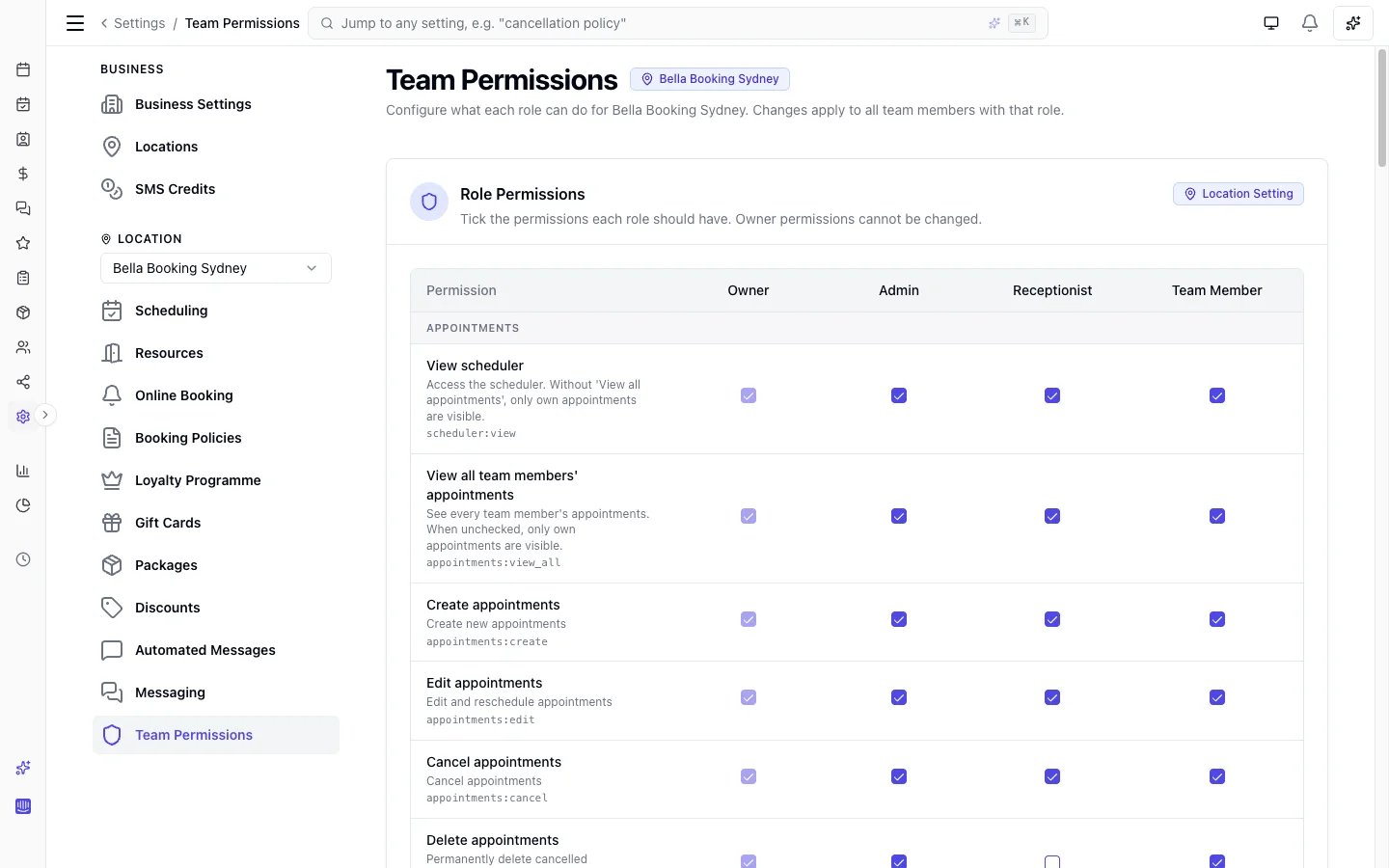
Accessing Team Permissions
- In the main sidebar, go to Settings
- Select Team permissions from the settings menu
Understanding Roles
Bella Booking comes with four built-in roles. All roles except Owner can be fully customised - you can add or remove any permission to tailor each role to your business needs.The Owner role is immutable - its permissions cannot be changed. All other roles can be fully customised through the permission matrix.
The Permission Matrix
The Team permissions page displays a visual matrix with roles as columns and permissions as rows, grouped by module. Toggle any permission on or off for any customisable role.Permission Modules
Scheduler
Appointments
Clients
Catalogue
Products
Sales
Create and View are deliberately separable. Give someone Create without View and they can ring up a sale from the scheduler’s + New → New sale - the panel opens over the calendar - while the Sales screen, and everyone else’s takings, stay out of reach.
Edit prices at checkout is on for every role to begin with, so nothing changes until you turn it off. Turn it off for a role and their price fields become read-only wherever a price is set - creating an appointment, editing one, and at checkout - showing the catalogue price for the service (including the assigned team member’s pricing tier, the chosen variant, and bundle pricing) or the product. The Custom button that adds an ad-hoc charge is hidden for them too, because there is no catalogue price to hold such a line to.They can still take payment, apply a package or membership, redeem a gift card, and change the headcount on a shared-space booking - the headcount isn’t a price. Applying a discount is a separate permission (Apply discounts), so a role can be allowed to discount at an agreed reason without being able to retype the price itself.
Team
Reports
Settings
Timesheets
Inventory
Locations
Loyalty
Gift Cards
Client Credit
Reviews
Forms
Messaging
Default Role Permissions
Each built-in role comes with sensible default permissions. Here’s what each role includes out of the box:Owner (Immutable)
All permissions enabled. Cannot be modified.Admin (Default)
All permissions except Billing (your Bella plan and payment method) and Messaging: Manage billing (SMS credit packs, auto-top-up, and Messages Plus). Admins can still manage messaging settings and dedicated numbers.Receptionist (Default)
Designed for front-desk team members:- Appointments: View all, create, edit, cancel, checkout, manage waitlist
- Clients: View, create, edit
- Catalogue & Products: View only
- Sales: View, create, edit prices at checkout
- Team: View, view all schedules
- Timesheets: View own
- Loyalty: View, adjust client points
- Gift cards: View
- Client credit: View, manage balances (top up, reverse, adjust)
- Reviews: View, respond
Team Member (Default)
Designed for service providers (stylists, barbers, therapists):- Appointments: Create, edit, cancel, checkout
- Sales: Edit prices at checkout
- Clients: View, edit
- Catalogue & Products: View only
- Team: View, view own schedule
- Timesheets: View own
- Reviews: View
Customising Role Permissions
You can fully customise any role except Owner:- Navigate to Settings → Team permissions
- The permission matrix shows all roles and their current permissions
- Toggle individual permissions on or off for any role
- Click Save to apply changes
- Click Discard to revert unsaved changes
Implied Permissions
Some permissions are automatically included when you enable related permissions:- Enabling any Appointments permission automatically grants read access to Catalogue, Products, Team, and Clients (view). These are shown as “implied” in the matrix.
Assigning Roles to Team Members
Each team member is assigned a role per location:- Go to the Team section
- Edit a team member
- Select their Role (Owner, Admin, Receptionist, or Team Member)
- For multi-location businesses, you can assign different roles at different locations
Best Practices
For Small Teams
- Start with the default role permissions - they cover most scenarios
- Customise only when specific team members need more or less access
For Larger Teams
- Use the Receptionist role for front-desk team members who handle bookings and check-ins
- Keep the Team Member role focused on service delivery
- Promote trusted team members to Admin for broader access without sharing billing
For Multi-Location Businesses
- Permissions are per location - each location can have its own permission configuration
- Assign location-specific roles based on each team member’s responsibilities at that site