

Introduction
The Team section in Bella Booking lets you view, manage, and organise your team efficiently. Whether you’re adding new team members, updating contact details, managing work schedules, or handling time off, this section provides all the tools you need in one place. Beginners and intermediate users will find intuitive controls and smart workflows to make team administration easy.Key features
- Team List View: Displays all team members with columns for Name, Phone, and Member since.
- Column order: Drag team members to set the left-to-right order of their columns on the scheduler (and in booking pickers).
- Member Management: Easily add, edit, archive, and manage team members.
- Profile Photos & Colours: Upload photos and assign custom colours for visual identification in the scheduler.
- Working hours: Set regular weekly shifts or add custom hours by date for each member.
- Time off: Schedule vacation and other leaves with specific dates, times, and descriptions.
- Team schedule: View and manage all team members’ schedules in a visual grid (see Team schedule for details).
- Notification preferences: Configure how each team member is notified about bookings - by email, SMS, in-app (bell), and push - and which events trigger a notification. A member is notified about their assigned appointments; those with full appointment access can also choose to be notified about all appointments, not just their own. Admins can manage preferences for any team member, or team members can configure their own.
- Notification Settings: A consolidated view to manage notification preferences for all team members at once from one page.
- Clock-in PIN: Assign PINs so team members can clock in/out on a shared device without needing their own login.
- Google Calendar sync: Choose how each team member’s calendar syncs - push Bella Booking appointments to Google, pull personal events back as blocked time, or both. New connections start push-only (see Google Calendar sync for details).
- Calendar feed: Subscribe to a team member’s appointments in external calendar apps (Google Calendar, Apple Calendar, Outlook).
Step-by-step usage instructions
1. Viewing your team
- Go to Team & resources > Team management from the sidebar.
- You’ll see a table with each member’s name (with avatar showing their scheduler colour), contact details, and the date they joined.
- Use the search bar at the top to quickly filter members by name or contact info.
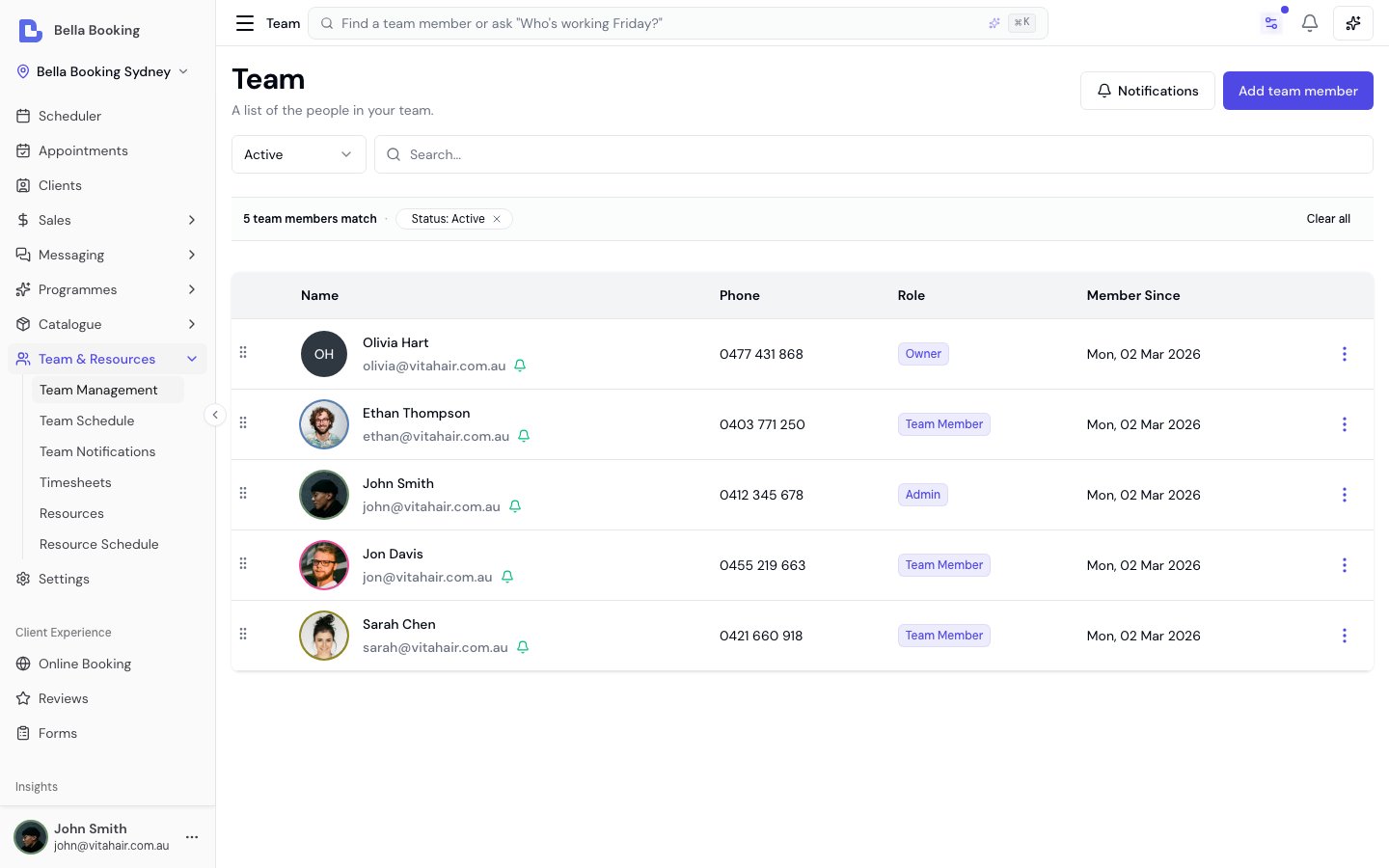
Reordering team members (scheduler column order)
The order of team members on this list is the same order as their columns on the scheduler (left to right), and the order they appear in booking pickers.- Open Team with the status filter set to Active (reordering is disabled while All, Archived, or a search filter is active)
- Drag the grip on the left of a row. On a phone or tablet, press and hold the grip, then drag
- Or open the row menu and choose Move up or Move down
- Drop the team member in the position you want. The new order saves automatically
- Open the scheduler to see the updated column order
3. Adding a team member
- Click Add team member at the top right of the table.
- Fill out the form:
- First name (required)
- Last name (optional)
- Email (required if access is enabled)
- Phone number (optional)
- Access enabled: Toggle to allow system login
- Online booking enabled: Toggle to allow clients to book this team member via the online booking portal. Turning it off also removes them from the Our team section on your booking page, so they are neither shown nor bookable. This is independent of service qualification - a team member can still be qualified to perform services (and booked from the dashboard) with this turned off; it only controls whether clients can choose them online
- Hide from scheduler: Toggle on for someone who doesn’t take appointments - a receptionist, manager or bookkeeper. They’re kept off the scheduler columns, the team schedule and the appointment pickers
- Role (required if access is enabled): Select the member’s role (Team Member, Receptionist, or Admin). Each role has customisable permissions - see Team permissions for details
- Click Save to add the new member. The team list will update automatically.
Your plan includes a set number of team members per location (unlimited on Professional). Only team members who appear on the scheduler or can be booked online count towards it. Someone with Hide from scheduler on and Online booking enabled off doesn’t count, so you can add them even when your plan is full - see Team member limit.
Profile photos and avatars
Team member profile photo appear throughout the system and on your online booking page, helping clients recognise and choose their preferred service provider. Uploading a Photo:- Edit an existing team member (photos cannot be added when creating a new team member)
- Click the Edit icon on the profile photo placeholder at the top of the form
- Select an image from your device or drag and drop
- File requirements:
- Format: JPG, PNG, WEBP, or HEIC (iPhone photos, converted automatically)
- File size: Maximum 5 MB
- Crop and adjust your photo:
- Use the zoom slider to zoom in or out on your image
- Drag the image to reposition it within the circular crop area
- The preview shows exactly how the avatar will appear
- Click Upload to save the cropped photo
- Click Save on the team member form to apply all changes
- Edit the team member’s profile
- Click the Edit icon on the current photo
- Choose Replace to upload a new photo or Delete to remove it
- Click Save on the team member form to apply changes
Scheduler colour
Each team member can have a custom colour assigned for visual identification across the system. This colour appears:- As a coloured ring around their avatar in the team list
- As a coloured ring around their avatar in the team schedule grid
- As a coloured border on their appointments in the scheduler
- In the scheduler header when viewing by team member
- Edit an existing team member
- Scroll down to the Scheduler colour section
- Click on the colour picker to choose a colour
- Click Save to apply the colour
- Edit the team member’s profile
- In the Scheduler colour section, click Clear
- Click Save to apply changes
Receipt note (registration or provider number)
Each team member can have a receipt note - a short line that prints beneath their name on the client’s receipt, against each service they performed. It’s most often used for a practitioner registration, licence, or provider number (for example a physiotherapy, chiropractic, or remedial-massage registration number) so clients can claim a private-health-fund or insurance rebate from the receipt. This is standing text that appears on every receipt the team member is credited on - for a one-off message on a single receipt, use the receipt note typed at checkout instead.- Edit the team member’s profile
- Enter the number or note in the Receipt note field
- Click Save
4. Viewing & editing a team member
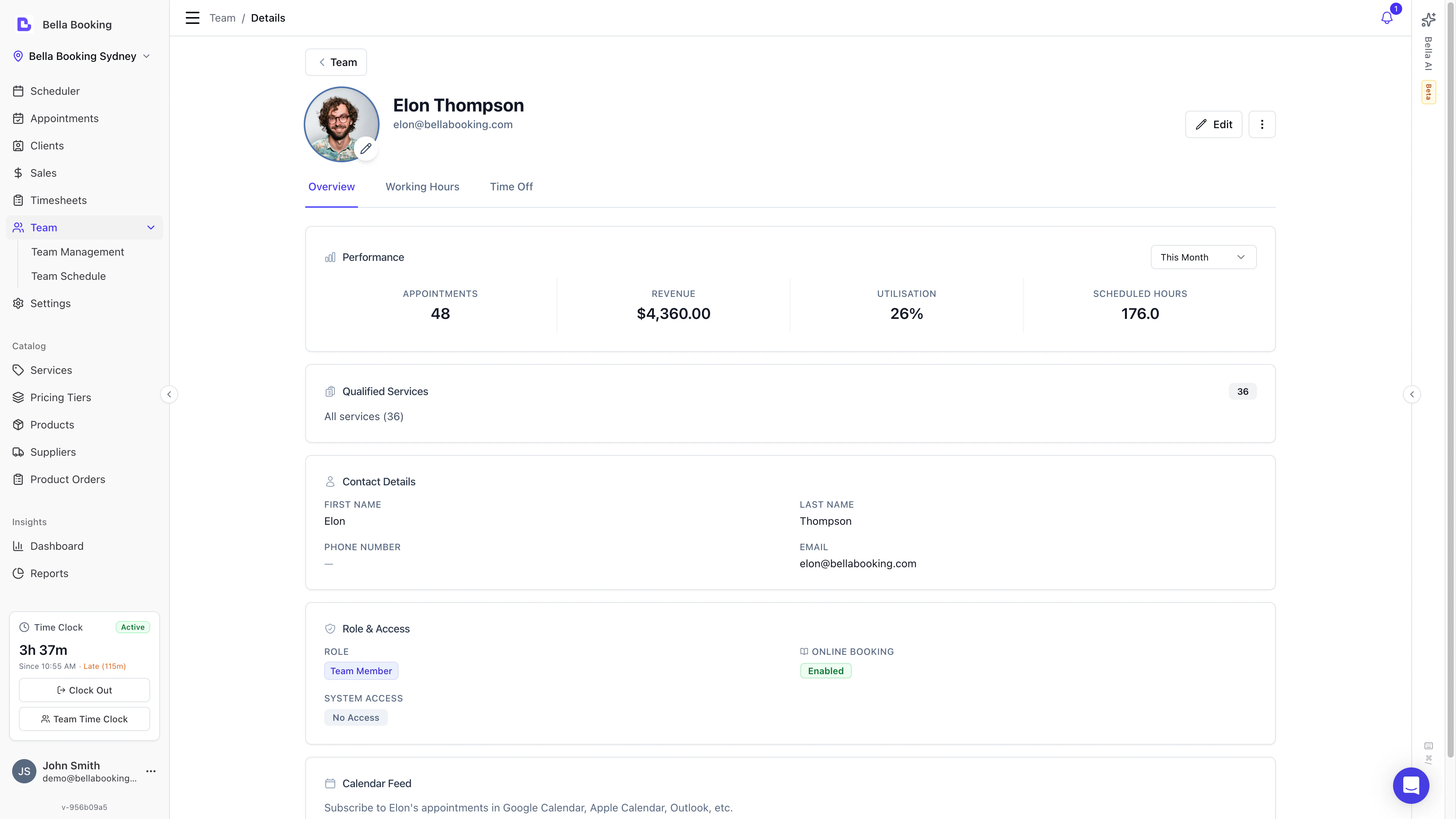
Viewing the detail page: Click on a team member’s name in the table to open their detail page. The detail page has five tabs:- Overview: Performance stats, qualified services, contact details, role & access, calendar feed
- Working hours: Default and custom working hours
- Time off: Scheduled leave and time off
- Calendar: Google Calendar sync connection and preferences
- Notifications: Email, SMS, in-app and push notification preferences, including which appointments (assigned or all) trigger them
- In the team table, click the Edit (pencil) icon to open the edit slideover.
- Update any fields:
- Personal information (name, email, phone)
- Access status (enable/disable login)
- Role and permissions
- Profile photo/avatar
- Scheduler colour
- Online booking enabled and Hide from scheduler
- Notification preferences (email, SMS, in-app and push channels, the appointments scope, and event types)
- Click Save and your changes will appear in the list.
5. Resending access email
If a team member didn’t receive their initial access email or needs it sent again:- In the team table, locate the team member
- Click the Edit (pencil) icon
- If the team member has access enabled, you’ll see a Resend access email button
- Click Resend access email
- A confirmation message will appear
- The access email will be sent to the team member’s email address
- Team member didn’t receive the initial access email
- Team member lost their login credentials
- Email address was updated and access needs to be re-sent
- Team member requests a new access email
6. Notification preferences
Each team member can be notified about bookings via Email, SMS, In-App (bell icon), and Push (device) notifications. By default a member is notified about the appointments assigned to them. A member with full appointment access (the appointments: view all permission) can additionally switch on All appointments to be notified about every appointment at the business - including ones team members create at the till - not just those assigned to them. This is off by default (opt-in), and applies uniformly across all four channels. Admins can configure these preferences for any team member, and team members can also manage their own preferences.Default behaviour
When a new team member is created, they automatically receive default notification preferences:- Email: Enabled (if the team member has an email address)
- SMS: Disabled
- In-App: Enabled
- Event types: Confirmed appointment, Cancelled, Rescheduled, and Client checked in
Configuring notifications for a team member
There are two ways to configure a team member’s notification preferences: From the team member detail page:- Click on a team member’s name to open their detail page
- Select the Notifications tab
- Toggle channels on or off:
- Email notifications: Requires an email address on the team member’s profile
- SMS notifications: Requires a phone number on the team member’s profile
- In-app notifications: Shows events in the bell icon within the app (see Needs attention below)
- Push notifications: Sends OS notifications to the member’s subscribed devices
- Choose what triggers a notification:
- All appointments (shown only for members with full appointment access): notify about every appointment at the business - including ones team members create at the till - not just those assigned to them. Off by default - switch it on to opt in.
- Event types: Confirmed appointment, Pending approval, Awaiting deposit, Awaiting card, Pending confirmation / deposit, Cancelled, Rescheduled, New waitlist, Waitlist match, Incomplete booking, Client checked in, Tip received (if tips are enabled), Form completed (if forms are enabled), New order (if the product shop is enabled), New review (if reviews are enabled)
- Click Save notification preferences
- Click the Edit (pencil) icon on a team member
- Scroll down to the Notifications section at the bottom
- Configure channels and event types as above
- Click Save notification preferences
Notification settings page
For a consolidated view of all team members’ notification preferences:- Go to the Team section
- Click the Notifications button in the top toolbar
- View and edit notification channels and event types for all team members in a matrix grid
- Click Save next to any team member whose preferences you’ve changed
Self-Service
Team members who have app access can manage their own notification preferences:- Click the bell icon in the top navigation
- Select My notification preferences
- Configure their preferred channels and event types
- Click Save preferences
Needs attention
When something is waiting on you, the bell shows it first. A Needs attention section sits at the top of the panel and pins up to five of the newest notifications that need action: a client SMS or email that failed to send, and online bookings held for your approval, for a card on file, or for a deposit. Everything else sits under Recent, newest first. A team member without full appointment access sees failures on their own appointments only. If more than five need action, View all opens the full notifications list already filtered to Needs attention. The section disappears the moment nothing needs action. Opening a notification marks it read and it leaves the bell; the full list keeps a failed message flagged as Needs attention even after you have read it, so nothing slips past. Which of these reach your bell follows your event types above: failed messages reach everyone with in-app notifications on, and the held-booking types (Pending approval, Awaiting card, Awaiting deposit) are on by default for Owner and Admin roles.Notification sound
The in-app bell can also play a sound when something new arrives, so you don’t have to watch the screen. To turn the audible alert on or off:- Click the bell icon in the top navigation
- Click the speaker icon in the panel header
- Off by default. Each person turns the sound on for themselves - it’s never on without someone asking for it.
- Remembered per device and per browser. You can have the sound on at the front desk and off on your phone. Switching it on doesn’t turn it on for anyone else on your team.
- It follows your bell. You hear a chime for exactly what reaches your bell, so the channels and event types above decide what you hear. If you switch In-app notifications off, nothing reaches the bell and the sound never plays.
The sound is tied to the notification bell, so it covers the business events
listed above - appointments confirmed, cancelled or rescheduled, waitlist
entries, check-ins, tips, completed forms, product orders, reviews, and a
client’s yes or no to a reminder. It does not play for an ordinary client
reply in the Messages inbox; those arrive as a badge on the
sidebar instead.
Managing working hours
Working hours determine when a team member is available for appointments. Set a default weekly schedule for each person, and override it for specific dates when you need to.Understanding working hours inheritance
Working hours follow a priority system:- Time off (Highest Priority) - If a team member has time off scheduled, they are unavailable
- Custom Working hours - Override default hours for a specific date
- Team Member Default Hours - The member’s regular weekly schedule
- Account Default Hours (Lowest Priority) - Falls back to your business’s default schedule
Setting default working hours
Default working hours define a team member’s regular weekly schedule. Once set, these hours apply automatically to future dates.Accessing default working hours
From the team member profile:- Go to Team from the sidebar
- Click Edit on the team member
- Select the Working hours tab
- You’ll see the current week’s schedule with each day’s shifts
- Go to Team → Schedule
- Click the settings icon next to a team member
- Select Edit Default Schedule
Setting up a weekly schedule
- In the Working hours tab, you’ll see a weekly view of all seven days, listed from the day your week starts on
- For each day, you can set one or more shifts (work periods)
- Each shift has a Start time and End time
- Times are available in 15-minute increments
- Monday: 9:00 AM - 5:00 PM
- Tuesday: 9:00 AM - 5:00 PM
- Wednesday: 10:00 AM - 6:00 PM
- Thursday: 9:00 AM - 5:00 PM
- Friday: 9:00 AM - 1:00 PM
- Saturday & Sunday: No shifts (off days)
Split shifts (multiple shifts per day)
For team members who work split shifts (e.g., morning and afternoon with a long break):- Click Add a shift on the relevant day
- Set the first shift (e.g., 9:00 AM - 12:00 PM)
- Set the second shift (e.g., 2:00 PM - 6:00 PM)
- The gap between shifts (12:00 PM - 2:00 PM) will not be available for bookings
Setting recurring (fixed) days off
To make a team member regularly unavailable on the same day each week (for example, always off on Mondays), leave that day with no shifts in their default weekly schedule. A weekday with no shifts is treated as a recurring day off and repeats automatically - there’s nothing else to turn on.- Recurring weekly day off → remove all shifts from that weekday in the Working hours tab (as with Saturday and Sunday in the example above). It applies every week. On the Team schedule grid these show as “No Shifts” (or “Off (recurring)” for alternating-week schedules).
- One-off or date-range leave (a single day, a holiday, a few weeks) → use Time off instead. Time off takes specific dates, overrides working hours for that period, and always takes priority over the weekly schedule.
- A whole-team closure (public holiday, business closure) → use the Set not working bulk action on the Team schedule page to set several team members off for a date range in one step, instead of adding time off for each person individually.
Future-dated schedule changes
You can schedule a change to default working hours to take effect on a future date:- In the Working hours tab, select a Start date
- Configure the new weekly schedule
- Click Save
- The new schedule will automatically apply from that date onwards
Apply to all days
When configuring working hours, use the copy icon next to any day’s time settings to quickly apply those hours to all other open days. This saves time when most working days share the same schedule.Saving default hours
- Configure the weekly schedule as needed
- Set the Start date (defaults to the beginning of the current week)
- Click Save to apply the changes
- The schedule will take effect from the start date
Setting custom working hours
Custom working hours let you override the default schedule for a specific date. This is perfect for one-off changes like:- Starting work late or early
- Finishing early for an appointment
- Working on a normally off day
- Covering for a colleague
When to use custom hours vs default hours
Setting custom hours
From the team member profile:- Go to Team → Edit the team member
- In the Working hours tab, find the day you want to modify
- Click the menu (three dots) next to that day
- Select Custom hours
- Set the Date (confirms the specific date)
- Add one or more shifts with start and end times
- Click Save
- Go to Team → Schedule
- Find the team member and date in the grid
- Click on the cell or use the quick menu
- Select Edit this day
- Configure the custom hours
- Click Save
Visual indicators for custom hours
Custom hours are clearly marked in the system:- In the Working hours tab: Shows an “Overridden” badge next to days with custom hours
- In the Team schedule grid: Shows a “Custom” badge on days with custom hours
Clearing custom hours
To remove custom hours and revert to the default schedule: From the Working hours tab:- Click the menu on the day with custom hours
- Select Delete Custom hours
- The day reverts to the default schedule
- Click on the cell with custom hours
- Select Clear custom hours from the menu
- The schedule reverts to defaults
Managing time off
Time off records when team members are unavailable through leave, holidays, or other absences. Unlike custom hours (which modify when someone works), time off blocks out availability entirely.Time off types
Bella Booking supports the following types of time off:All-day vs partial time off
All-Day Time off:- Blocks the entire day
- Team member is completely unavailable
- No appointments can be booked
- Blocks a specific time range (e.g., 9:00 AM - 12:00 PM)
- Team member is available outside that time range
- Perfect for medical appointments, school pickups, etc.
Adding time off
From the team member profile:- Go to Team → Edit the team member
- Select the Time off tab
- Click Add time off
- Fill in the details:
- Type: Select the type of time off (Annual leave, Sick leave, Personal leave, Training, or Other)
- All day: Toggle on for full-day time off, off for partial
- Start date: When the time off begins
- End Date: When the time off ends (same as start for single day)
- Start Time / End Time (if partial): The specific hours unavailable
- Description (optional): Notes about the time off
- Click Add time off to save
When adding all-day time off, if the team member has existing booked or
confirmed appointments during the selected dates, a warning will appear
showing the number of conflicting appointments. Review and reschedule these
appointments before proceeding.
- Go to Team → Schedule
- Find the team member and date
- Click on the cell or use the quick menu
- Select Add time off
- Complete the form and save
Single day vs multi-day time off
Single Day:- Set the same date for both Start Date and End Date
- Can be all-day or partial
- Set different Start and End dates
- All days in the range are affected
- For partial time off over multiple days:
- First day: Time off starts at the specified start time
- Middle days: Full day time off
- Last day: Time off ends at the specified end time
- Start Date: Monday, Start Time: 2:00 PM
- End Date: Wednesday, End Time: 10:00 AM
- Result:
- Monday: Available until 2:00 PM, then off
- Tuesday: Off all day
- Wednesday: Off until 10:00 AM, then available
Viewing time off
From Team Member Profile:- Go to Team → Edit the team member
- Select the Time off tab
- See all scheduled time off with type, dates, times, and descriptions
- Time off is displayed in the schedule grid
- All-day time off shows “Time off” badge
- Partial time off shows the unavailable time range
How time off affects availability
When time off is scheduled:- Online booking: Clients cannot book during time off periods
- Scheduler: Time slots during time off are blocked
- Availability Calculation: System automatically excludes time off periods
- Working hours: Time off takes precedence over all working hours settings
- The time off period (in grey)
- The remaining available work hours (in colour)
Deleting time off
- Go to the Time off tab in the team member’s profile
- Find the time off entry you want to remove
- Click the Delete icon
- Confirm the deletion
- The time off is removed and availability is restored
- Click on the time off cell
- Select Delete time off
- Confirm the deletion
Calendar feed
The Calendar feed feature allows team members to subscribe to their appointments in external calendar applications like Google Calendar, Apple Calendar, or Microsoft Outlook. Unlike the one-time iCal export (available on the Appointments page), the calendar feed is a subscription URL that automatically syncs new and updated appointments.How it works
When you generate a calendar feed URL for a team member:- A unique, secure URL is created for that team member
- The URL can be added to any calendar application that supports iCal subscriptions
- The calendar app will automatically fetch and display the team member’s appointments
- New appointments, changes, and cancellations sync automatically (refresh frequency depends on the calendar app)
Generating a calendar feed URL
- Go to Team from the sidebar
- Click on a team member’s name to view their profile
- In the Overview tab, scroll down to the Calendar feed section
- Click Get calendar URL
- Copy the generated URL using the copy button
Adding to calendar applications
Google Calendar:- Open Google Calendar
- Click the + next to “Other calendars” in the left sidebar
- Select From URL
- Paste the calendar feed URL
- Click Add calendar
- Open Calendar
- Go to File → New Calendar Subscription
- Paste the calendar feed URL
- Click Subscribe
- Configure refresh frequency and other options
- Open Outlook Calendar
- Go to Add calendar → Subscribe from web
- Paste the calendar feed URL
- Click Import
What’s included in the feed
Each appointment in the calendar feed includes:- Event title: Client name and service(s)
- Date and time: Appointment start and end time (in your business timezone)
- Description: Client contact details (phone, email), service details with prices, appointment notes, and total
Security considerations
- The URL contains a unique secure token that grants access to the team member’s appointments
- If you believe a URL has been compromised, you can regenerate it (this will invalidate the old URL)
- Calendar applications cannot modify appointments-the feed is read-only
Regenerating a calendar feed URL
If you need to invalidate an existing calendar feed URL (e.g., if it was shared accidentally):- Generate a new URL by clicking Get calendar URL again
- The system will create a new unique URL
- The old URL will no longer work
- Update any calendar subscriptions with the new URL
Feed refresh and sync
- Calendar applications typically refresh external feeds every 12-24 hours
- Some applications allow you to configure refresh frequency (Apple Calendar is often every 5 to 15 minutes)
- The feed includes appointments from the past year through the next year
- Appointments older than a year drop off the next time the calendar app refreshes
- Cancelled appointments are left out of the feed, so they disappear on that same refresh
Clock-in PIN
When attendance tracking is enabled, you can assign a clock-in PIN to team members so they can clock in and out on a shared front-desk device without needing their own login. This is especially useful for team members who do not have system access enabled - they can simply walk up to the shared device, enter their PIN, and record their attendance.Setting a clock-in PIN
- Go to the Team section from the sidebar
- Open the options menu (three dots) next to the team member
- Select Set PIN
- Enter a 4 to 6 digit numeric PIN
- Click Save PIN
Changing or removing a PIN
- Open the options menu next to the team member
- Select Change PIN
- Enter a new PIN and click Save PIN, or click Remove PIN to clear it
Using the team time clock
Once PINs are set up, admins and owners can access the Team time clock from the Time clock widget in the sidebar. This opens a modal where team members can:- Select their name from the list
- Enter their 4-digit PIN
- Clock in or clock out
The Set PIN option only appears in the team member menu when attendance
tracking is enabled in your scheduling settings.
Archiving, restoring, and deleting a team member
Bella Booking uses an archive-first approach to team member management. You cannot delete a team member directly - you must archive them first.The business Owner cannot be archived.
Archiving
From the team list:- Open the three-dot menu next to the member in the team table.
- Select Archive.
- Confirm in the dialog. The member is archived and no longer appears in the active team list.
- Open the team member’s profile by clicking their name.
- Click the three-dot menu in the header (top-right).
- Select Archive.
- Confirm in the dialog.
The business Owner cannot be archived.
Viewing archived team members
Use the status filter on the Team page to show archived members. Archived members are displayed with a visual indicator.Restoring
From the team list:- Filter the team list to show archived members.
- Click the three-dot menu next to the archived member.
- Select Restore.
- The member returns to the active team list with all their records intact.
- Open the archived team member’s profile.
- Click the three-dot menu in the header.
- Select Restore.
Permanently deleting
Permanent deletion is only available for archived team members and can only be done from the team list:- Filter the team list to show archived members.
- Click the three-dot menu next to the archived member.
- Select Permanently delete (shown in red).
- A confirmation dialog appears - you must type the member’s name to confirm.
- Click Permanently delete to remove the member.
Archiving is the recommended approach for team members who have left. All past
appointments and records are preserved while archived.