

Introduction
Set your business opening hours for each day of the week on the Scheduling settings page. These hours serve as the fallback default working hours for your team members.How Opening Hours Work
Opening hours act as a fallback for team member availability. When a team member has no personal schedule, your account’s opening hours are used instead. The system calculates availability using the following precedence (highest to lowest priority):- Time off - Blocks availability entirely for the specified period
- Custom Working Hours - Per-date overrides for individual team members
- Team Member Default Schedule - The team member’s regular weekly schedule
- Account Opening hours - Used only when a team member has no schedule configured
When Account Opening Hours Apply
Account opening hours are used when:- A team member has no default working hours configured at all
- A team member’s schedule doesn’t include a specific day (falls back to account settings for that day)
When Account Opening Hours Don’t Apply
Account opening hours are ignored when:- A team member has their own default working hours that cover that day
- Custom hours have been set for that specific date
Opening Hours
Set your business operating hours for each day of the week. You can configure different hours for each day or mark specific days as closed.Configuring Opening Hours
- Navigate to Settings → Scheduling
- In the Opening hours section, you’ll see all seven days of the week, listed from the day your week starts on (see Week starts on)
- For each day:
- Use the toggle switch to mark the day as open or closed
- For open days, select the start time and end time from the dropdowns
- Click Save to apply your changes
Apply to All Days
Use the copy icon next to any open day’s time settings to quickly apply those hours to all other open days. This only copies the times to days that are already marked as open - it won’t change closed days to open. Tip: This is useful when most of your business days share the same operating hours. Set one day’s hours, then click the copy icon to apply them across all open days.Week Starts On
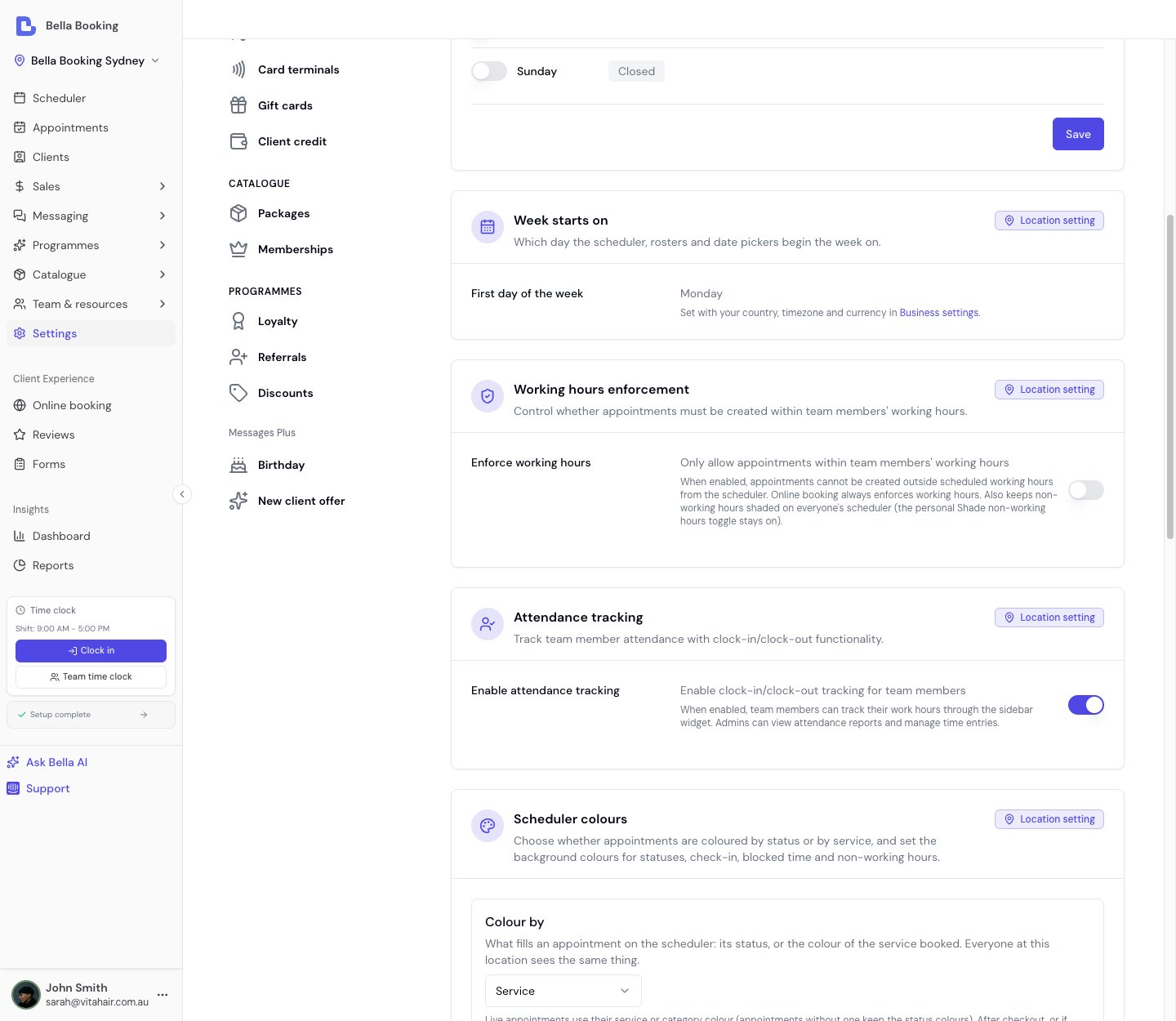
The Scheduling page shows which day your week starts on - the day the scheduler’s Week view, the team roster, timesheets and every date picker begin on, in the dashboard and on your online booking page. It’s set for you when your business is created, based on your country: Sunday in the US and Canada, Saturday in much of the Middle East, Monday almost everywhere else. To change it, go to Settings → Business settings, where it sits with your country, timezone and currency. See Business settings → Week starts on.Time Slot Interval
The Time slot interval - the spacing between the available times clients can pick when booking online - is now set under Settings → Booking policies. See Booking policies → Time slot interval.Closing Your Business Temporarily or Permanently
To prevent all bookings for your location:- Navigate to Settings → Scheduling
- Toggle all seven days to closed (off)
- Click Save
- This only affects team members who rely on account opening hours as their fallback
- Team members with their own default working hours will still show availability unless their schedules are also updated
- For complete closure, you must also update each team member’s schedule (see Team Schedule)
For Temporary Closures
For holidays or short closures, use the Set not working feature on the Team Schedule page. This lets you select a date range and multiple team members at once, creating time off entries for everyone in one action - much faster than adding individual time off for each team member. This preserves your regular schedule configuration and makes it easy to resume normal operations.For Permanent or Long-Term Closure
If ending availability after a specific date (e.g., closing at end of year):- Set account opening hours to closed for all days (safety net)
- For each team member, set a new default schedule starting on the closure date with no shifts
Working Hours Enforcement
Control whether appointments from the scheduler must fall within team members’ working hours.How It Works
When Enforce working hours is enabled:- Scheduler cells outside a team member’s working hours are visually dimmed and show a
not-allowedcursor - clicking them is blocked - Appointment form - if the selected time falls outside working hours (e.g., a long service extends past the end of the day), the warning turns red and the Schedule / Update button is disabled
- Shade non-working hours in the scheduler is automatically turned on and cannot be turned off, so team members’ hours are always visible
- Appointments can be created at any time from the scheduler, even outside working hours
- Shade non-working hours is on by default and can be turned off from the scheduler’s Display menu
Enabling Working Hours Enforcement
- Navigate to Settings → Scheduling
- Scroll to the Working hours enforcement section
- Toggle Enforce working hours on
- The setting takes effect immediately
Shading non-working hours in the scheduler
In Day, 3 days and Week views, the scheduler can dim the time outside each team member’s working hours. This is controlled by the Shade non-working hours toggle in the scheduler’s Display menu.- When Enforce working hours is enabled, the shading is always on and the toggle is disabled
- When Enforce working hours is disabled, the shading is on by default and can be turned off
- Like every scheduler Display setting, the toggle is personal to each team member and follows them across devices - it is not a business-wide setting
Opening Hours & Online Booking
Account opening hours play a special role in online booking availability. Understanding this relationship helps avoid common configuration issues.How Online Booking Slots Are Generated
When a client selects a date on your online booking page, the system:- Collects all team members’ actual working hours for that day, resolving the full hierarchy (custom hours > personal schedule > account opening hours as fallback)
- Generates candidate time slots from the union of all team members’ working hours
- Shows only slots where at least one eligible team member is available and the full service duration fits within their working hours
How Account Opening Hours Affect Online Booking
Account opening hours serve as a fallback for team members without personal schedules. They do not act as a hard boundary:- Team member with a personal schedule: Their own hours are used, regardless of account hours
- Team member without a personal schedule: Account opening hours are used as their working hours
Example
- Account opening hours: Monday-Friday 9:00 AM - 5:00 PM, Saturday-Sunday closed
- Team member “Sarah” has a personal schedule: Monday-Saturday 9:00 AM - 5:00 PM
- Team member “James” has no personal schedule (uses account defaults)
Processing Time & Buffer Defaults
Set location-level default values for processing time and buffer times. These defaults are inherited by all services unless a service explicitly overrides them.What Are Processing Time and Buffer Time?
- Processing Time: Time after the active service where the client remains but the team member is free to serve others (e.g., colour development, treatment absorption). Visible to clients.
- Buffer Before: Setup time before a service that blocks the team member. Not visible to clients.
- Buffer After: Cleanup time after a service that blocks the team member. Not visible to clients.
Configuring Defaults
- Navigate to Settings → Scheduling
- Scroll to the Processing time & buffer defaults section
- Set each value using the dropdown:
- Default processing time: Choose from 0 to 120 minutes
- Default buffer before: Choose from 0 to 60 minutes
- Default buffer after: Choose from 0 to 60 minutes
- Changes save automatically
How Defaults Are Inherited
When a service has “Use default” selected for any of these values, it inherits the location-level default. The resolution order is:- Bundle override (if the service is part of a bundle with a custom value)
- Service-level value (if an explicit value is set on the service)
- Location default (the value set here)
- 0 minutes (if no default is configured)
When to Use Defaults
Set a default processing time when:- Most services at your location require similar processing time (e.g., a colour salon where most services need 30 minutes for colour development)
- You want to avoid setting processing time individually on every service
- All services need consistent setup/cleanup time (e.g., 10 minutes between clients for room sanitisation)
- You want to ensure team members always have preparation time between appointments
- Processing and buffer times vary significantly across services
- You prefer to configure these per service individually
Resources
Resources are physical assets like rooms, chairs, or equipment that can be assigned to services and appointments.Enabling Resources
- Navigate to Team & resources → Resources
- Find the Resources toggle at the top of the page
- Turn it On to enable resources for this location
Attendance Tracking
Attendance tracking allows your team to clock in and out, recording work hours for payroll and reporting.Enabling Attendance Tracking
- Navigate to Settings → Scheduling
- Find the Attendance tracking toggle
- Turn it On to enable for this location
- The Time clock widget appears in the sidebar for all team members with access
- The Timesheets page becomes available in the sidebar
- The Attendance report appears under Reports
- Admins can set up clock-in PINs for team members (see Clock-in PIN)
Scheduler Colours
Customise the background colour used for appointment statuses, check-in, blocked time, and non-working hours in the scheduler. This makes it easy to distinguish between confirmed, completed, pending, cancelled appointments, clients who are waiting or being served, blocked time slots, and time outside working hours at a glance.Default Colours
Each entry has a default colour that is used unless you choose a different one:Cancelled appointments only appear on the calendar once Cancelled is ticked under Filters → Status in the scheduler header - it is off by default. The Cancelled colour fills those cards in both Colour by modes. See Filters.
Colour by status or by service
Colour by decides which colours you see. It sits at the top of the Scheduler colours section on this page, above the swatches:- Status - appointments take their status colour, or their check-in colour while a client is waiting or in progress.
- Service - live appointments keep the colour of their service or service category. After checkout (or if cancelled) the whole tile uses the Completed or Cancelled colour. While the appointment is still live, the Day, 3 days and Week views show the status or check-in colour as a thin strip along the top; Month and Agenda show it with the appointment’s icons instead.
Colour by applies to the whole location - everyone on your team reads the same board - so changing it needs permission to manage settings.The scheduler’s Display menu links straight here for anyone who can manage settings - it holds only the personal view preferences itself.
Changing a Colour
- Navigate to Settings → Scheduling
- Scroll to the Scheduler colours section
- Click the colour button next to the entry you want to change
- In the popover, either:
- Select a preset colour from the swatch grid
- Use the custom colour picker to choose any colour
- The change saves automatically
Resetting a Colour
To reset a single entry back to its default colour:- Click the colour button next to the entry
- Click Reset to default at the bottom of the popover