

Introduction
Products is where you manage your inventory: the items you sell to clients alongside your services. Track stock levels, set pricing, and sell four ways: at appointment checkout, as standalone sales, online through the Product shop on your booking page, or on an appointment before the client arrives.Key features
- Product Inventory: Add and manage all products you sell
- Stock Tracking: Monitor quantity on hand
- Pricing Management: Set unit prices and track cost of goods
- Sales Integration: Products can be added to sales transactions alongside services
- Products on bookings: Add products to any appointment when creating or editing it - stock is secured the moment they’re added, so the last units can’t sell online before the client arrives
- Product shop: Sell products online through your booking page - clients can purchase and collect in person, have items set aside for their next appointment, or add products while they book (see Sell Online)
- Bulk Import: Import products in bulk from a file to add your entire catalogue at once
- CSV Export: Export your product list to CSV for inventory management. The file includes stock quantity and a Stock value column (a plain number, quantity times purchase cost) plus a Totals row. Export CSV sits at the bottom of the Products list.
Step-by-step usage instructions
Viewing your products
- Navigate to the Products section from the sidebar
- You’ll see a searchable table - the search box matches name, brand, SKU and barcode - displaying:
- Product name
- Brand
- Price
- Stock
- Stock value (quantity times purchase cost, for tracked products that have a cost)
- Created
Sorting and filters
Search and filters choose which rows are listed. They do not change the order. To change the order, click a column heading that sorts. Unless the page says otherwise, the first click sorts text A to Z, and numbers and dates highest or newest first. Click the same heading again, or the heading the list already opens on, to reverse it. The arrow beside the heading shows the direction: up is A to Z, oldest first or lowest first, and down is Z to A, newest first or highest first. A heading that sorts by name ignores capital letters: “anna” and “Anna” sort together. The list opens on Created, arrow down (newest first). Product sorts by name. Brand sorts by brand. Stock sorts lowest first on the first click (what to reorder). Stock value sorts highest first on the first click. Price sorts highest first on the first click. Search matches name, brand, SKU, and barcode. It does not change the sort. On a narrow screen Brand, Price, Stock, Stock value, and Created are hidden. Hiding them does not change the order. Widen the window to sort by Brand, Price, Stock, Stock value, or Created. The Totals row is on-hand value at cost for the list you are viewing (the whole filtered catalogue, not just this page). Untracked products and products with no purchase cost are left out of that total. On a narrow screen the total sits next to the Totals label.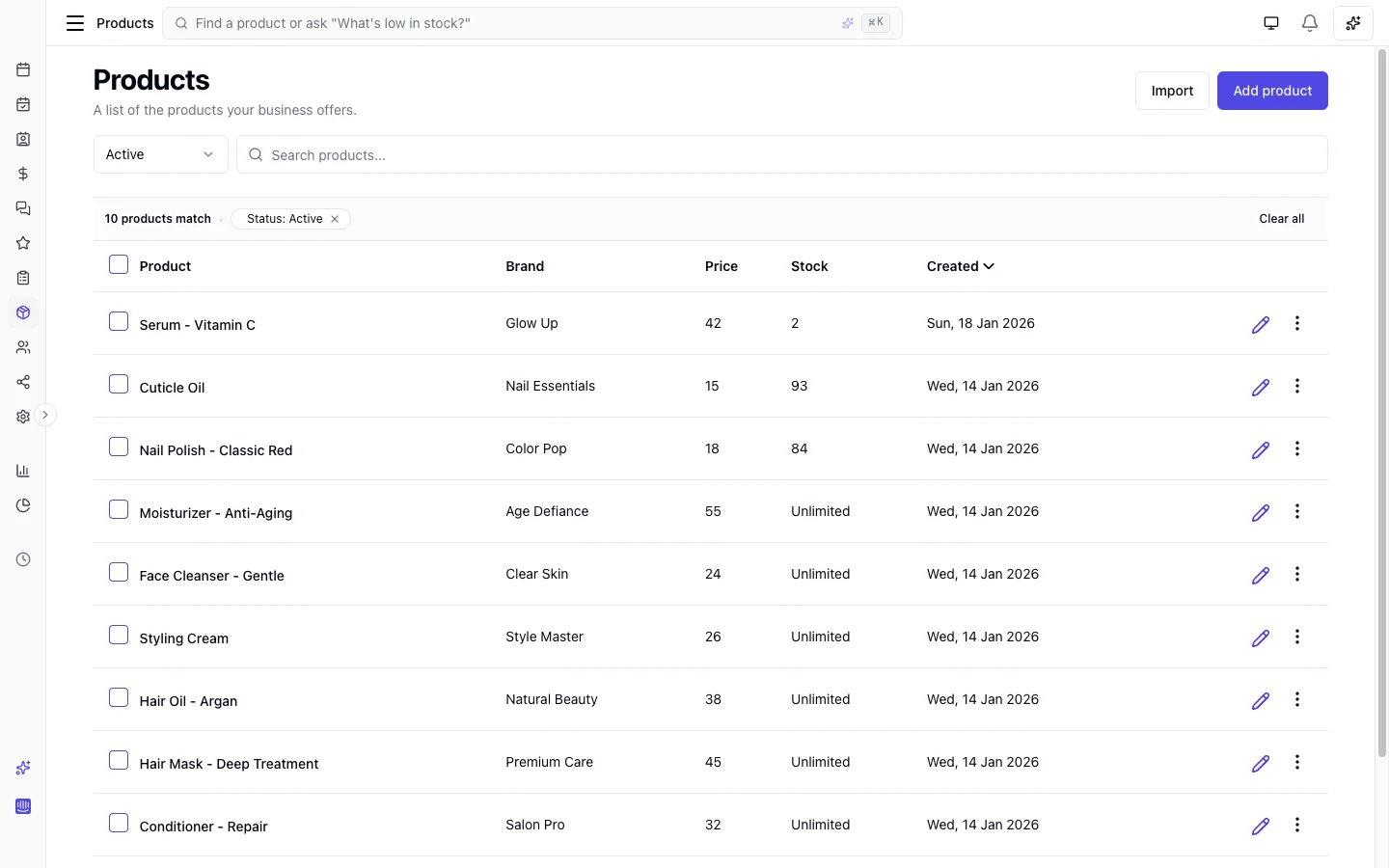
Adding a new product
- Click the Add product button at the top of the product list
- Fill out the product form:
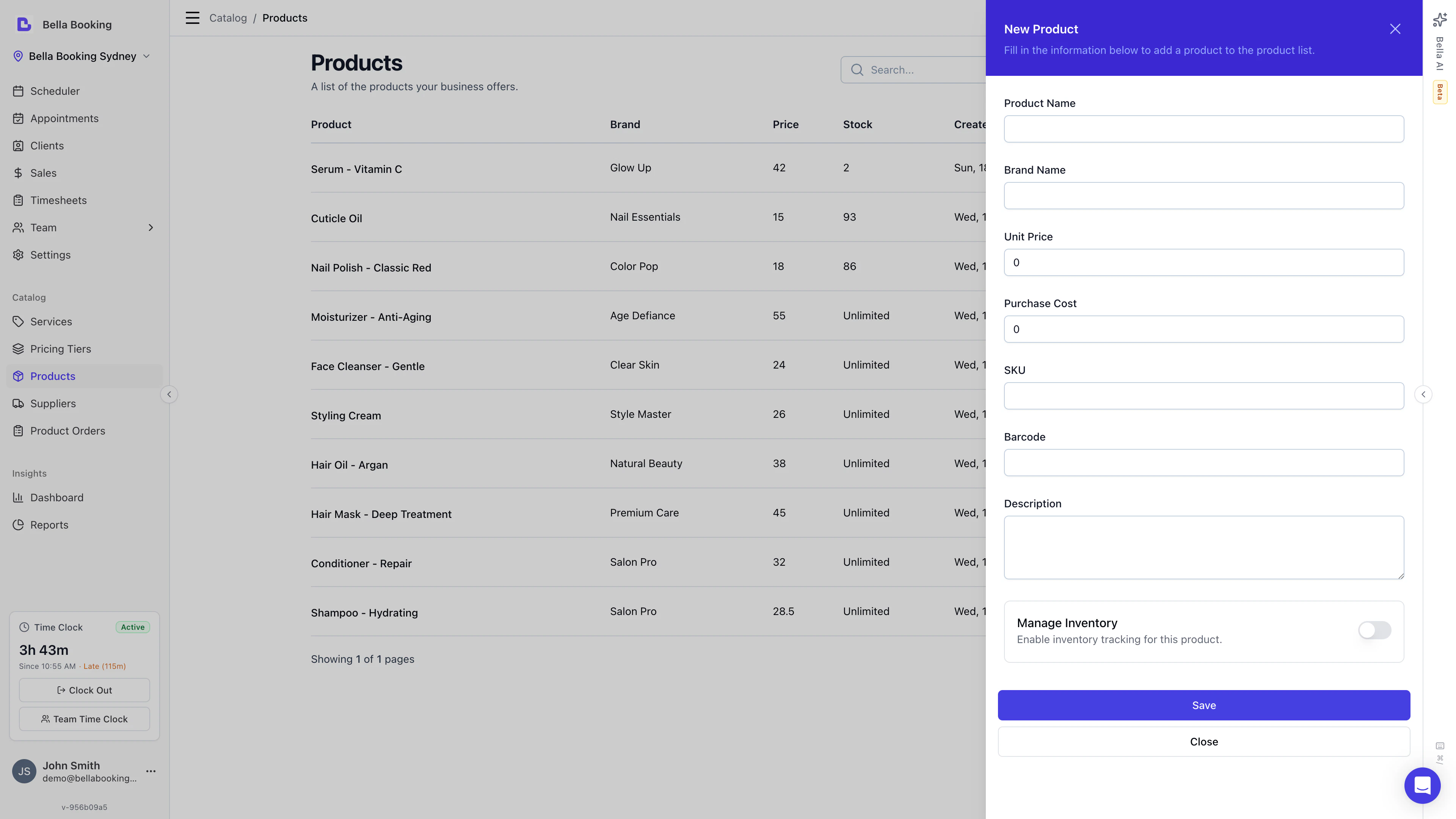
- Product name (required): The display name for this product
- Brand name (optional): Product manufacturer or brand name
- Unit price (required): The price you charge clients for one unit
- Purchase cost (optional): Your cost to purchase or produce this product. Needed for stock value on the Products list
- SKU (optional): Stock keeping unit - searchable on the Products list, at the till, and in the command palette
- Barcode (optional): Product barcode. A USB or Bluetooth scanner that types like a keyboard finds the product in the same places - click the search box first. There is no camera scanning
- Description (optional): Detailed information about the product
- Manage inventory (required): enable/disable tracking inventory count
- Stock quantity (required if Manage inventory enabled): Current inventory count
- Click Save to add the product to your inventory
Editing a product
- In the product list, locate the product you want to modify
- Click the Edit icon to open the product details
- Update any field
- Click Save to apply changes
Adjusting stock levels
When you receive new inventory or need to correct stock counts:- Open the product you want to update
- Click the Edit icon to open the product details
- Update the Stock quantity field, Enter the new total quantity (not the change amount)
- Save the changes
Importing products in bulk
If you have a large product catalogue, import it from a spreadsheet instead of adding products one by one. Click Import on the Products page, match your columns, fix any flagged rows, and confirm. The required fields are product name and unit price - brand, purchase cost, SKU, barcode, description, available online, manage inventory and stock quantity are optional. See Importing Products from a CSV for the full step-by-step walkthrough with screenshots.Archiving a product
Products cannot be deleted directly - they must be archived first. Archiving hides the product from the active list while preserving all records.- Find the product in your list
- Click the three-dot menu and select Archive
- Confirm in the dialog
Permanent deletion is only available for archived products with no sales history. Products that have been sold can only be archived, not permanently deleted.
Selling products
Products can be sold in four ways:1. During an appointment (checkout)
When a client completes their appointment and you’re ready to check them out:- Open the appointment in the Scheduler
- Click Checkout
- The checkout screen shows:
- Services rendered (already listed)
- Option to add products
- Click Add item and choose Product
- Search by name, brand, SKU or barcode (a USB scanner that types into the box works here) and select the product
- Enter quantity and team member that did the sale
- The system automatically:
- Adds the product price to the total
- Deducts quantity from inventory
- Complete the payment process
2. Standalone product sale
If a client purchases products without an appointment:- Go to the Sales section
- Click Add sale
- Select the client
- In the items section, click Add item and choose Product
- Search by name, brand, SKU or barcode (a USB scanner that types into the box works here) and select products
- Enter quantities and team member performed the sale for each product
- Save the sale
Membership benefits apply to retail too. If the client is on a plan whose benefit covers the
product, the discount is applied automatically and the sale shows a membership line. One toggle on
the sale turns the whole membership off for that sale if the client asks to be charged normally.
See Products as membership benefits.
3. Product shop
You can also sell products online through your booking page. Clients browse your product catalogue, add items to their cart, and pay online. Two fulfilment modes are available:- Collect in business - the client picks up the order at your location
- Reserve for next appointment - the order is set aside and handed over at the client’s upcoming appointment
4. On an appointment, before the client arrives
You don’t have to wait for checkout - your team can add products to any appointment when creating or editing it. For inventory-tracked products, stock is secured the moment the line is added (the line shows a Stock secured chip), so the online shop hides the product once stock hits zero and the last units can’t be bought by someone else first. The lines pre-fill at checkout and settle with the rest of the bill - stock is never deducted twice - and removing a line or cancelling the appointment returns the stock automatically. See Adding products before checkout for the step-by-step, including the rule for repeating appointments.FAQs
Q: How do I see stock value for the financial year? A: Open Products. The Totals row is on-hand value at cost for the catalogue you are viewing. Click Stock value once to sort highest first. Export CSV (at the bottom of the list) includes a Stock value column you can sum, and a Totals row. Export on your year-end date and keep the file. Untracked products and products with no purchase cost are left out. Reports > Products sales is what sold in a period, not what is on the shelf. Q: What happens if I try to sell a product that’s out of stock? A: In-person sales at the till are never blocked - the sale goes through and the stock count goes negative so you can spot and correct it. In the online shop, out-of-stock products are hidden from clients automatically - and that count includes units secured on upcoming appointments and units in orders awaiting payment, not just completed sales. Adding a product to an appointment before checkout does check stock, so you get an honest “not enough stock” message rather than overselling a unit that’s already promised to someone else. Q: When does stock come off for online orders? A: The moment the order is created - not when payment completes - so two clients can’t both check out the last unit. If the client abandons the payment, the order is cancelled and the stock released automatically within a few hours. Q: Can I set different prices for the same product? A: You would need to create separate product entries (e.g., “Shampoo - Retail” and “Shampoo - Bulk”). Q: How do I track products with variants (different sizes or colours)? A: Create a separate product entry for each variant (e.g., “Lavender Oil - 50ml” and “Lavender Oil - 100ml”). Each entry keeps its own price and stock count. Q: What if I forget to adjust inventory after receiving a shipment? A: Edit the product and update the stock quantity at any time. Q: How do I see which products are selling best? A: Use the Sales reports or Dashboard analytics to view product sales performance. Q: Can I scan a barcode when adding a product to a sale? A: Yes. Click Add item → Product (on a sale or at appointment checkout), click the search box, and scan. The same scan also works on the Products list and in the command palette (Cmd/Ctrl + K). The product must have the barcode stored on its record. There is no camera scanning or dedicated scanner hardware - any USB or Bluetooth scanner that types like a keyboard works.With effective product management, you can create an additional revenue stream for your business while providing clients with convenient access to the products they need.