

Introduction
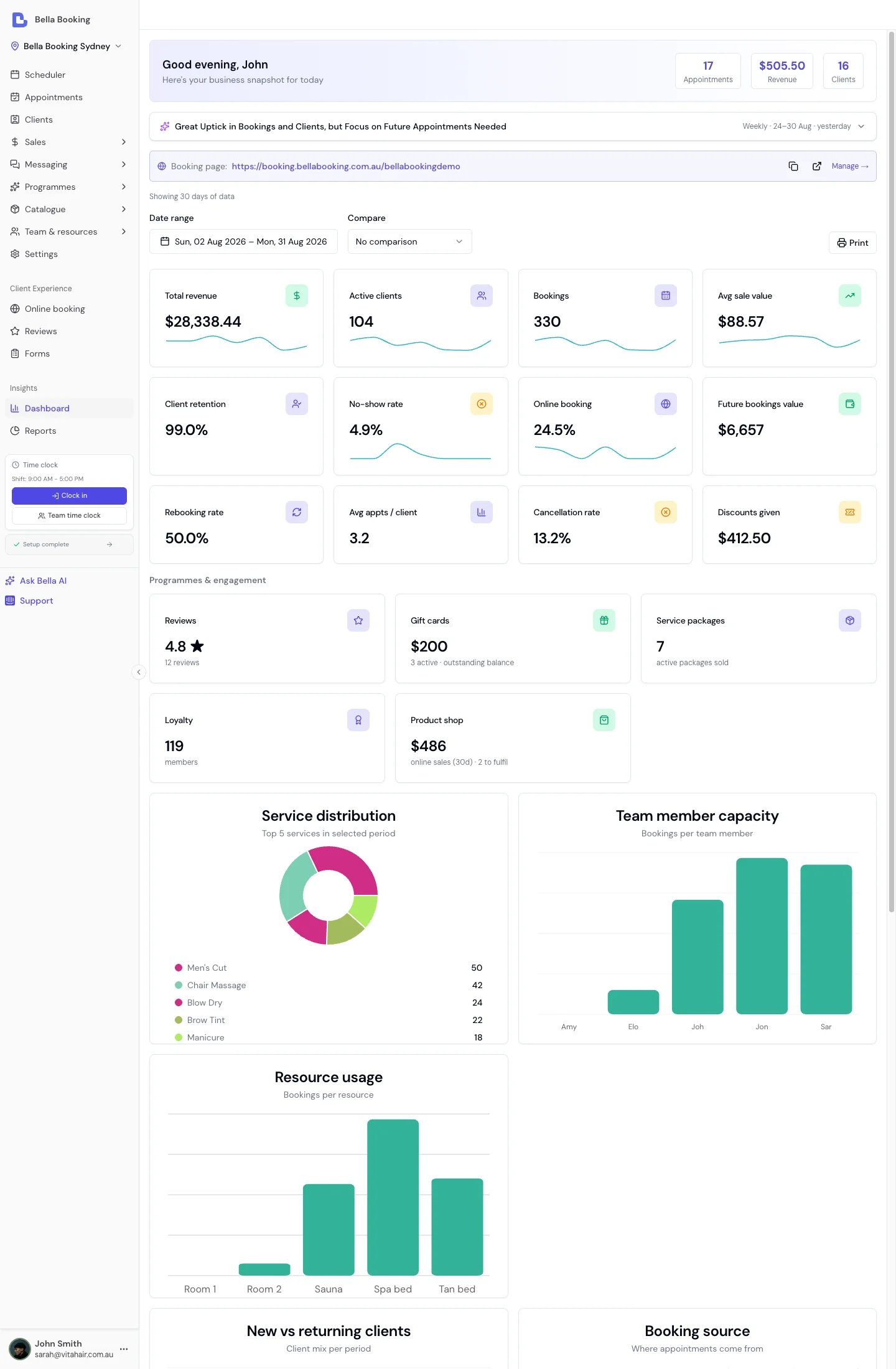
The Dashboard provides an overview of your business performance with key metrics and visual charts to help you understand your business at a glance. You can customise the date range to analyse any period up to 12 months.Date range selection
The dashboard supports flexible date range selection with both quick presets and custom date picking.Quick select presets
Use the Quick select dropdown for common date ranges:- Today: View today’s data only
- Last 7 days: Recent week performance
- Last 30 days: Current month snapshot (default)
- This month: From the first of the current month to today
- Last 3 months: Quarterly view
- Last 6 months: Half-year analysis
- Last 12 months: Full year performance
Custom date range
For specific date ranges:- Click the date range picker button
- Select your start and end dates from the calendar
- Maximum range is 365 days
- Data refreshes automatically when you change the date range
Period comparison
The dashboard supports period-over-period comparison. Use the Comparison toggle to select:- No comparison - Show current period values only (default)
- Previous period - Compare against the same number of days immediately before your selected range
- Same period last year - Compare against the equivalent dates one year ago
Overview cards
The dashboard displays twelve key metrics at the top, calculated for the selected date range.Which money you see depends on how you trade. If you ring your appointments through Checkout, the two money cards are Total revenue and Avg sale value, from your sales. If you book in Bella but take payment on your own terminal or in cash without ringing the appointment through Checkout, the same two cards become Appointment value and Avg appointment: the value of what you booked, worked out from your service prices. Bella reads this from the days in the selected range that have already passed (today’s appointments are still to be rung through), so the cards switch to revenue as those days are rung through, not on the day you start. A handful of checkouts against many bookings still counts as taking payment outside Bella; the cards switch to revenue once a good share of your booked appointments is rung through. A short note under the cards explains what ringing appointments through Checkout adds: revenue, average sale, takings by day and the sales reports. The weekly digest and the location stats under Settings → Business settings follow the same rule.
Total revenue
- Shows the total revenue from all sales within the selected date range
- Includes revenue from appointments, products, and other sales
- Provides a clear view of overall business performance for the period
- Shown when your appointments go through Checkout; otherwise the card reads Appointment value, the total of your booked services for the range (after discounts), with the same period-over-period comparison
Active clients
- Number of unique clients with a non-cancelled appointment in the selected date range
- Counts distinct clients from appointments within your chosen period
- Measures client engagement and activity for the specific timeframe
Bookings
- Total number of non-cancelled appointments within the selected date range
- Gives a snapshot of booking activity for the period
- Useful for comparing booking volumes across different time periods
Avg sale value
- Average revenue per checkout in the selected date range
- Total revenue from appointment-related sales divided by the number of those sales, so it is per bill rung through Checkout, not per booking
- Helps understand the typical transaction value for the period
- Shown when your appointments go through Checkout; otherwise the card reads Avg appointment, the appointment value divided by the number of bookings
Client retention
- Percentage of clients in the current period who also had appointments in a prior equivalent period
- Measures how well your business retains existing clients
- Higher retention rates indicate stronger client loyalty
No-show rate
- Percentage of appointments that were cancelled with a no-show reason
- Helps you identify no-show trends and take action (e.g., deposit requirements, reminders)
- A lower rate is better - the delta indicator inverts colour (green for decrease)
Online booking
- Percentage of appointments booked through your online booking page versus manually through the dashboard
- Helps you understand the adoption of your online booking system
- Higher rates mean less manual work for your team
Future bookings value
- The expected income from every upcoming non-cancelled appointment, from tomorrow onwards - your booked pipeline, net of manual and promo-code discounts
- Calculated the same way as the Future income report - net of manual and promo-code discounts. The report is limited to the forward window you pick and counts only Booked and Confirmed appointments, so the two figures match only when that window covers every upcoming appointment and none of them has already been checked out
- Shows a dash until you have upcoming appointments with value on the books
Rebooking rate
- Percentage of clients who booked their next appointment - a leading indicator of retention
- Click through to the Client retention report for the full breakdown
Avg appts / client
- Average number of appointments per active client in the selected date range
- Helps you see whether clients are returning more or less often over time
Cancellation rate
- Percentage of appointments that were cancelled in the period
- A lower rate is better - the delta indicator inverts colour (green for decrease)
- Click through to the Cancellations report to see reasons and trends
Discounts given
- The total value of discounts applied to sales in the period
- A rising figure is highlighted as a cost, not a win - the delta colour inverts
- Shows a dash until discounts have been used; click through to the Discount summary report
Programmes & engagement
Below the metric cards sits a Programmes & engagement row with five tiles: Reviews, Gift cards, Service packages, Loyalty and Product shop. Each one shows a headline figure once the programme is live - your average rating and review count, the outstanding gift card balance, active packages sold, loyalty members, and online product sales over the last 30 days with the number of orders still to fulfil. Where a programme isn’t running yet, the tile shows a set-up link instead, so you can see at a glance what you haven’t switched on. These tiles show current state, not activity for the selected period - they don’t change when you change the date range.Visual charts
Service distribution
Chart type: Pie Chart What it shows:- Top 5 services in the selected date range
- Each service shown as a slice of the pie
- Service names labelled in the legend below
- Helps identify your most popular services for the period
- See which services drive your business
- Identify services to promote
- Team training priorities
- Compare service popularity across different time periods
Team member capacity
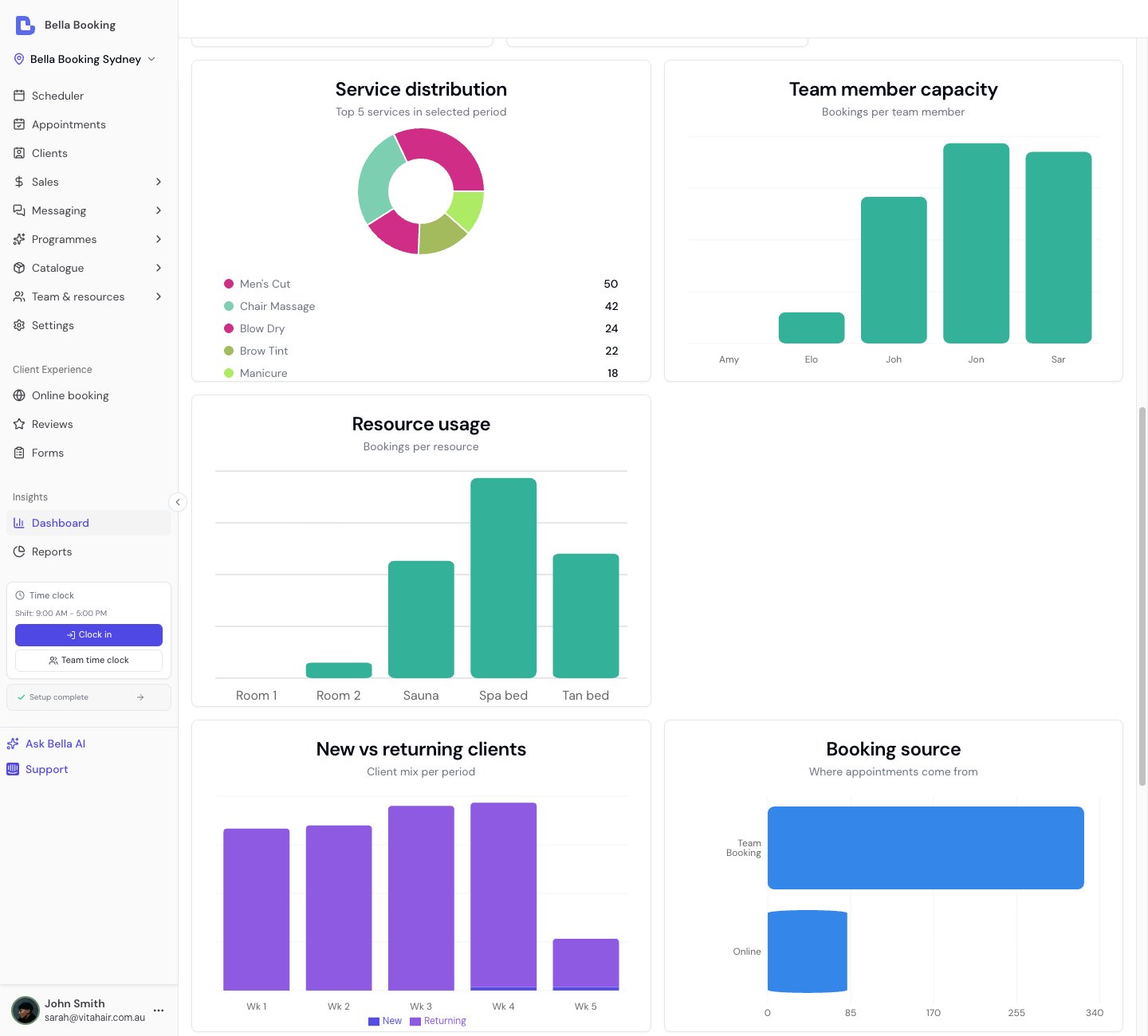
Chart type: Bar Chart What it shows:- Total bookings per team member in the selected date range
- Each team member shown as a bar
- Height represents number of appointments
- Names abbreviated to first 3 letters
- Balance workload across team
- Identify overbooked or underutilised team members
- Capacity planning for specific periods
- Fair distribution of appointments
Revenue trend
Chart type: Line Chart What it shows:- Revenue trend over the selected date range
- Automatically adjusts granularity based on date range:
- Daily revenue: For ranges up to ~30 days
- Weekly revenue: For ranges up to ~90 days
- Monthly revenue: For longer ranges
- Data points with values labelled above each point
- Single-day selections do not show this chart (use a range of at least 2 days)
- Appears only when your appointments go through Checkout in the selected range: without sales there are no takings to plot, and the money cards show appointment value instead
- Identify growth trends
- Spot seasonal patterns
- Compare performance across different periods
- Track business progress over time
- Set realistic revenue goals
Booking source
Chart type: Bar Chart (horizontal) What it shows:- The number of non-cancelled appointments per booking origin in the selected period
- One bar per origin: Online (the client booked themselves on your Bella booking page), Team Booking (someone on your team booked it on the dashboard - including appointments imported from a previous system) and Integration (created through your own API key - typically a booking form on your own website)
- Appointments created before Bella tracked booking origins appear as Unknown
- Helps you measure online booking adoption
New vs returning clients
Chart type: Bar Chart What it shows:- Breakdown of new clients versus returning clients for each period
- Helps you understand the balance between acquiring new clients and retaining existing ones
Services by category
Chart type: Bar Chart (horizontal) What it shows:- Your top five service categories by net service revenue from sales in the period (after refunds)
- Helps you see which categories drive your revenue
- Because it reads sales rather than bookings, an appointment that hasn’t been checked out yet contributes nothing, and a walk-in service sale contributes in full
- If your appointments don’t go through Checkout, the chart reads your booked services instead and its subtitle says Appointment value, so a business that takes payment outside Bella still sees its categories
Resource usage
Chart type: Bar Chart What it shows:- Bookings per resource (rooms, chairs, equipment) for the selected period
- Appears once you have resources configured - see Resources
Upcoming week
Chart type: Bar Chart What it shows:- The number of appointments booked for each of the next seven days
- Independent of the date range you’ve selected - it always looks forward from tomorrow
- Shows “No upcoming appointments” when the week ahead is empty
Today section
The dashboard includes a Today section at the top that shows a greeting with quick stats for the current day:- Appointments today - How many appointments are scheduled for today
- Revenue today - The total of every sale dated today, including retail-only and walk-in sales. Reads Appointment value (today’s booked services) when your appointments don’t go through Checkout, like the overview cards
- Clients today - Number of unique clients being served today
- Waiting - Clients currently checked in and waiting. Appears only when someone is waiting.
- In progress - Clients whose service is currently underway. Appears only when a service is in progress.
- Deposits - The deposits already held against today’s appointments, whenever they were paid. Appears only when at least one of today’s appointments carries a deposit.
Incomplete bookings
When clients start an online booking and don’t finish it, an amber incomplete bookings card appears near the top of the dashboard with the count. Tap it to open the scheduler’s Waitlist panel on the Incomplete tab, where you can review each one and follow up - see Incomplete Bookings. The card only appears when there is at least one incomplete booking to chase, and only for team members with the Appointments → Manage waitlist permission.Sparkline trends
Seven of the KPI cards - Total revenue, Active clients, Bookings, Avg sale value, No-show rate, Online booking, and Discounts given (Appointment value and Avg appointment when your appointments don’t go through Checkout) - include a sparkline: a small trend line showing the metric’s trajectory over the last 7 data points within the selected range. Sparklines give you an instant visual sense of whether a metric is trending up, down, or staying flat, without needing to open a detailed report.Your weekly review email (AI business digest)
The AI Business Digest - your weekly business review email - is an automated performance summary delivered to your inbox. Powered by AI, it analyses your business data and produces a personalised narrative covering your key metrics, trends, and actionable insights, so you get a read on how the week went without opening the dashboard. In the app and in your notification settings, it’s labelled Weekly business summary (the Summary email toggle).What the digest includes
- Performance snapshot - Revenue, bookings, active clients, and other key metrics for the week
- Period comparison - How this week compares to the previous week and the same week last year
- Highlights and concerns - AI-identified trends worth celebrating or addressing
- Actionable insights - Specific, data-backed suggestions tailored to your business
- Metric breakdowns - Cancellation rates, no-show rates, online booking rates, and rebooking rates (shown only when sample sizes are statistically meaningful)
How it works
The digest is generated automatically each week for eligible accounts. It uses your appointment, sales, and client data to build a structured analysis, then an AI model writes a natural-language summary calibrated to your business’s maturity and volume.- New businesses receive encouraging, growth-focused language
- Established businesses receive detailed performance analysis with trend comparisons
- Mixed weeks are reported honestly - the digest doesn’t skew toward optimism or concern
Which week it covers
The digest covers your week - the one you set under Settings > Business > Week starts on. If your week starts on Monday, the digest covers Monday to Sunday and arrives Monday morning. If it starts on Sunday, it covers Sunday to Saturday and arrives Sunday morning. Change the setting and the digest follows from the next completed week. The week already in progress finishes on the old boundary, so the changeover week is a one-off: depending on which day you move to, that single summary may overlap the previous one or leave a few days between them. Every week after it is back-to-back.Delivery
- The weekly review email arrives the morning after your week ends, sent to account owners and administrators, and also appears in the in-app notification bell as Weekly business summary
- A monthly summary is available too, covering the calendar month
- Notification preferences - including which channels you receive it on - are configured in Settings > Notifications under the Business Summary event type (the Summary email toggle)
- If a period has too little activity to say anything useful - for example a second consecutive week with no bookings or clients - the digest stays on your dashboard rather than landing in your inbox, so quiet stretches don’t turn into a stream of zero-filled emails
Viewing past digests
Past digests are accessible through the Bella AI assistant. Ask Bella AI “Show me my latest digest” or “What was in last week’s summary” to retrieve previous digests.Best practices
Dashboard review routine
- Morning Check: Review today’s bookings and team capacity
- Mid-Month: Check if monthly revenue is on track
- Month-End: Analyse service distribution for trends
- Quarterly: Review revenue growth for multi-month patterns
Acting on dashboard insights
If top services show imbalance:- Train more team members on popular services
- Adjust pricing on underused services
- Market less popular services
- Adjust how appointments are assigned
- Cross-train team members to balance workload
- Consider schedules and availability
- Review recent changes (pricing, team, services)
- Check appointment cancellation rates
- Consider promotional campaigns
FAQs
Q: How often is dashboard data updated? A: Dashboard data refreshes when you load the page or change the date range. Q: Can I change the date range for dashboard metrics? A: Yes! Use the Quick select dropdown for common presets (Today, Last 7/30 days, This month, Last 3/6/12 months) or click the date picker to select a custom date range. The maximum range is 365 days. Q: Why can’t I see the dashboard? A: Dashboard access needs the Reports → View all reports permission. Owners and Administrators have it by default; your account owner can grant it to other roles under Settings → Team permissions. Q: Can I print or export the dashboard? A: Use your browser’s print function if needed. Q: What counts as an “active client”? A: Clients who have had appointments within the selected date range. Walk-in appointments without a linked client are excluded from client counts. Q: How is Client retention calculated? A: The dashboard checks how many clients from the current period also had appointments in an equivalent prior period. For example, if you’re viewing the last 30 days, it checks whether those clients also had an appointment in the 30 days before that. Q: Can I compare performance across periods? A: Yes. Use the Comparison toggle to compare against the previous period or the same period last year. Delta indicators showing percentage change appear on every KPI card except Future bookings value, which is forward-looking and carries no comparison. Q: Why don’t I see the Revenue trend chart? A: Two reasons. The revenue trend chart needs a date range of at least 2 days: on a single day (e.g. “Today”) the card shows a prompt instead of a chart, so pick a longer range. And it only appears when your appointments go through Checkout in the selected range; if you take payment outside Bella, there are no takings to plot and the money cards show appointment value instead. Once it has data, the card is titled by its granularity: Daily revenue, Weekly revenue or Monthly revenue. Q: How is the Revenue trend chart granularity determined? A: The system automatically chooses the best granularity based on your date range:- Shorter ranges (up to ~30 days) show daily revenue
- Medium ranges (up to ~90 days) show weekly revenue
- Longer ranges show monthly revenue
Note: The dashboard provides a flexible snapshot of your business performance. For comprehensive analysis with additional filtering options, use the Reports section.