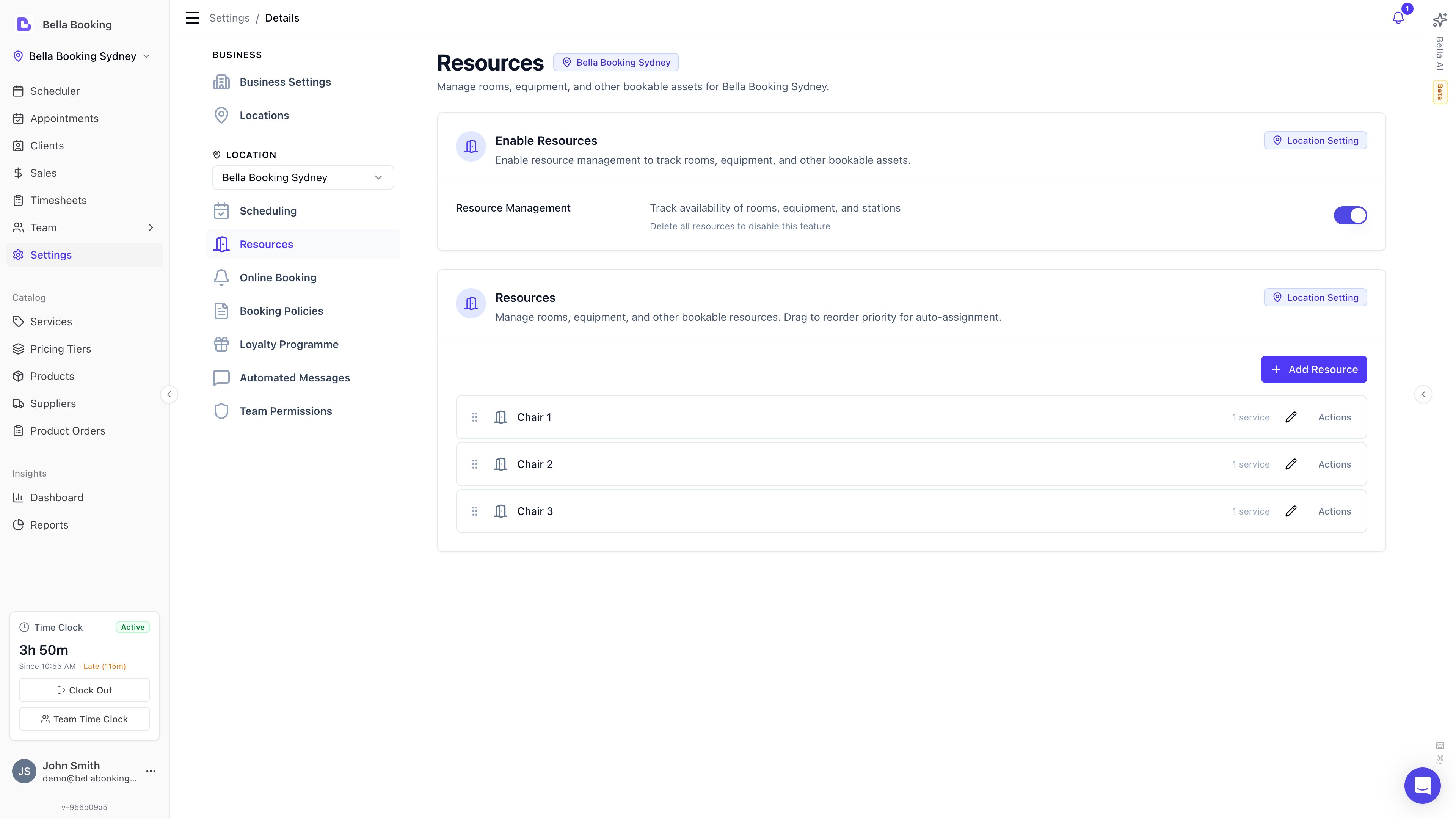
Introduction
Resources represent physical assets in your business that are needed to perform services. Examples include:
- Treatment rooms
- Styling chairs
- Massage tables
- Equipment (lasers, machines, etc.)
- Workstations
Resources help you track utilization, see real-time availability of shared equipment, and filter your scheduler to see resource-specific appointments.
Enabling Resources
Resources are an optional feature that can be enabled per location.
To enable Resources:
- Go to Settings > Resources
- Find the Resource Management toggle
- Turn it On to enable resources for this location
Once enabled, you’ll see the Resources management section appear below the toggle.
Managing Resources
Creating a Resource
- Navigate to Settings > Resources
- In the Resources section, click Add Resource
- Enter the resource name (e.g., “Room 1”, “Chair A”, “Laser Machine”)
- Optionally add a description (e.g., “Ground floor, window view”)
- Set the Capacity (see Resource Capacity below)
- Click Save
Editing a Resource
- Click anywhere on the resource row to open the edit panel
- Modify the resource name, description, and capacity
- Click Update
Reordering Resources
Resources can be reordered using drag-and-drop to set priority for auto-assignment:
- Hover over a resource row
- Click and drag using the drag handle (grip icon) on the left
- Drop the resource in the desired position
- The new order is saved automatically
Note: Resource order determines priority for automatic assignment when booking online appointments.
Resource Capacity
Each resource has a capacity setting that controls how many units of the resource are available at the same time. Services are then configured to consume 1 or more units per booking, which lets a single physical room host different “tiers” — e.g. group, semi-private, and private bookings — without manual juggling.
How Capacity Works
| Setting | Behaviour |
|---|
| Unlimited (default) | No limit on concurrent bookings — the resource can be assigned to any number of overlapping appointments |
| Specific number (e.g., 6) | Total units available at any one time. A booking can consume 1 or more units depending on the service’s Capacity per booking setting (see Capacity per booking). |
Setting Capacity
- Click on a resource to edit it
- Find the Capacity field
- Choose Unlimited or enter a specific number (minimum 1)
- Click Update
If you reduce capacity, the form shows an inline warning to remind you that existing bookings keep their committed units (so nothing breaks), while new bookings respect the lower cap.
Capacity in the Dashboard
When assigning resources to appointments in the scheduler:
- Available resources appear normally in the dropdown
- Resources approaching capacity show usage (e.g., “2/3 booked”)
- Resources at full capacity show “Full (3/3)” with a warning — you can still select them, creating an overbooking
- Resources with unlimited capacity never show as full
Capacity in Online Booking
When a resource reaches capacity for a time slot, online booking automatically hides that slot from clients if no other eligible resource is available. Clients never see resource names, capacity, or availability details — they simply see available time slots.
Common Capacity Examples
| Resource | Suggested Capacity |
|---|
| Private treatment room | 1 |
| Wash basin (2 basins) | 2 |
| Tanning bed | 1 |
| Open-plan styling area (6 chairs) | 6 |
| Shared laser machine | 1 |
| Parking spot (3 spaces) | 3 |
| Couples massage room (2 beds, used for solo or couples bookings) | 2 |
| Pilates reformer studio (6 reformers, used for group / duet / private) | 6 |
| Pedicure lounge (4 chairs, used for standard or bridal-party bookings) | 4 |
| Service | Capacity per booking | Result |
|---|
| Group Reformer Class | 1 | Up to 6 students in the same class |
| Duet (semi-private) | 2 | Up to 3 paired sessions running concurrently |
| Private Session | 6 | Exclusive — blocks all other concurrent bookings in that window |
Archiving a Resource
Archiving a resource removes it from active use while preserving historical data.
- Click on a resource row to select it
- Click the Actions dropdown button
- Select Archive
- Confirm the action in the dialog
Note: You cannot archive a resource that is currently linked to active services. Remove the resource from those services first, or archive the services.
Restoring an Archived Resource
- Click Show Archived to see archived resources (button only appears if archived resources exist)
- Find the archived resource in the “Archived Resources” section that appears below
- Click the Restore button next to the archived resource
- The resource will be restored to active status
Note: The button text changes to “Hide Archived” when archived resources are visible.
Permanently Deleting a Resource
Permanent deletion is only available for archived resources. Active resources must be archived first.
- Archive the resource first (see Archiving a Resource above)
- Show archived resources, then click the trash icon next to the Restore button
- A confirmation dialog appears — you must type the resource name to confirm
- Click Permanently Delete
You cannot permanently delete a resource that is linked to any services (including archived services). This ensures historical appointment data remains intact. Archive the resource instead, or remove it from all services first.
Assigning Resources to Services
Resources are assigned at the service level, defining which resources are eligible for that service and whether a resource is required.
Setting Eligible Resources for a Service
- Go to Settings > Service Catalog
- Click on a service to edit it
- In the Resources section:
- Toggle Require resource ON if this service must have a resource assigned to be booked
- Select which resources are eligible for this service from the checklist
- Click Save
A service can have multiple eligible resources. When booking an appointment, you can select any of the eligible resources.
Require Resource Toggle
The Require resource toggle controls whether a resource must be available for this service to be booked:
| Setting | Behaviour |
|---|
| ON | A resource must be assigned. In online booking, time slots are hidden when no eligible resource has remaining capacity. In the dashboard, resources still show availability status. |
| OFF (default) | Resources are optional. Eligible resources can still be listed and assigned, but they are not enforced. |
You can list eligible resources for a service without requiring them. This lets staff optionally assign a resource when booking in the dashboard, without blocking availability when resources are unavailable.
Using Resources in Appointments
When creating or editing an appointment, you can assign a resource to each service.
Assigning a Resource During Booking
- Create or edit an appointment
- For each service line item, click Edit to modify the service details
- In the edit mode, you’ll see a Resource dropdown (only if the service has eligible resources)
- Select the appropriate resource from the list of available resources
- The dropdown shows availability status - resources marked as “Busy” are already booked for that time
- Click Save to confirm the resource assignment
Resource Availability Checking
The system checks resource availability in real-time using capacity-aware logic:
- Available resources appear normally in the dropdown
- Partially booked resources show usage count (e.g., “2/3 booked”) when the resource has capacity > 1
- Full resources are marked with “Full (3/3)” in red but can still be selected from the dashboard (creating an overbooking)
- Busy resources (unlimited capacity) are marked with a “Busy” badge but can still be selected
Viewing Resource Assignments
In appointment details, you can see which resource is assigned to each service:
- The resource name appears below the team member name with a door icon
Scheduler Resource View
The scheduler supports two grouping modes, letting you view your calendar by team members or by resources (rooms, chairs, equipment).
Grouping Modes
| Mode | Columns | Description |
|---|
| Team Members (default) | Each column = a team member | The standard scheduler view. See each team member’s appointments side by side. |
| Resources | Each column = a resource | See each room, chair, or piece of equipment as its own column. Appointments appear under the resource they are assigned to. |
Switching Modes
- Click the Team or Resources button in the scheduler header to open the filter dropdown
- At the top of the dropdown, select Team members or Resources to switch modes
- The scheduler remounts with the new column layout
Column Toggles
In both modes, toggles work identically — they show or hide columns:
- In team mode: Toggle individual team members on/off to show/hide their columns
- In resource mode: Toggle individual resources on/off to show/hide their columns
At least one item must be toggled on in the active mode.
What Appears in Resource View
- Appointments with resources: Displayed under the resource column they are assigned to
- Resource-only appointments: Appointments for resource-only services (no team member assigned) appear here under their assigned resource column. This is the primary way to view and manage these appointments
- Blocked time: Hidden (blocked time is team-member-specific and has no resource)
- Appointments without resources: Not visible (they have no resource column to appear in)
- Work hours shading: Not shown in resource mode (resources don’t have individual schedules)
What Appears in Team Mode
- All appointments for selected team members, including those with and without resources
- Blocked time and time off are visible
- Work hours shading is shown based on each team member’s schedule
Mode Persistence
Your selected mode and column toggles are saved automatically and persist across sessions. When you return to the scheduler, your previous mode and selections are restored.
Best Practices
Naming Resources
Use clear, descriptive names that your team will easily recognise:
- “Room 1 - Facial Suite” (descriptive)
- “Chair A - Front” (location-specific)
- “Laser - Soprano” (equipment-specific)
Resource Planning
Consider your resource needs when setting up:
- Identify shared resources: Equipment or rooms used by multiple team members
- Define service requirements: Which services need which resources
- Set up eligible resources: Ensure services are linked to appropriate resources
Monitoring Utilization
Use the scheduler’s resource filter to:
- View how resources are being utilized throughout the day
- Identify booking gaps or overbooking
- Plan maintenance or downtime for equipment
FAQs
Q: Can a service have multiple eligible resources?
A: Yes. You can select multiple resources as eligible for a service. When booking, you can manually choose which specific resource to use from the dropdown.
Q: What happens if I archive a resource that’s assigned to future appointments?
A: Existing appointments retain their resource assignments. However, the archived resource won’t be available for new bookings.
Q: Can I assign multiple resources to a single appointment service?
A: A single service reserves one resource — its eligible resources are interchangeable options (e.g. Room 1 or Room 2), not a set held together. To reserve two different resources at the same time (e.g. a barrel sauna and an ice bath), create a resource-only service for each and combine them in a parallel bundle: both are reserved for the same slot, and it’s only offered when both are free. Keep each service pointed at only its own resource. See Team members and resources: every setup for worked examples and FAQs.
Q: Why can’t I delete a resource?
A: Resources must be archived first before they can be permanently deleted. Even then, resources cannot be permanently deleted if they’re linked to any services (including archived services). This preserves historical data integrity. Archive the resource instead, or remove it from all services first.
Q: How do I see all appointments using a specific resource?
A: Use the scheduler filter. Click the “Team and resources” button, then select only the resource(s) you want to view. The scheduler will show only appointments with those resources assigned.
Q: Why don’t I see the Resources section?
A: Resources must be enabled in Settings > Resources. Toggle the “Resource Management” setting to On.
Q: What does “Busy” or “Full” mean in the resource dropdown?
A: “Busy” indicates the resource is already booked for that time slot (for resources with unlimited capacity). “Full (3/3)” means the resource has reached its capacity limit. You can still select either from the dashboard, but this will create an overbooking situation.
Q: What is resource capacity?
A: Capacity controls how many concurrent appointments can use a resource in the same time slot. For example, a wash basin area with 2 basins can be set to capacity 2, allowing two appointments to use it simultaneously. Resources default to unlimited capacity.
Q: How does “Require resource” work?
A: When a service has “Require resource” enabled, a resource must be available for the service to be bookable. In online booking, time slots are automatically hidden when no eligible resource has remaining capacity. In the dashboard, availability is shown but not strictly enforced — staff can still override.
Q: What happens in online booking when a resource is at capacity?
A: The time slot is hidden from clients — they simply won’t see it as available. Clients never see resource names, capacity details, or reasons for unavailability. Resources are managed entirely behind the scenes.
Q: How are resources assigned in online bookings?
A: Resources are automatically assigned during online booking. The system picks the first available eligible resource (by the order you’ve set in Settings > Resources). Clients don’t see or choose resources — the assignment happens transparently.