

Introduction
Set the policies that apply to online bookings on the Booking policies page. These settings control when clients can book (both minimum notice and maximum advance booking), how cancellations are handled, whether clients must confirm appointments, and payment requirements. Note: All booking policies are location-level settings and can be overridden per service.How these settings interact
Before diving into individual settings, it helps to understand the dependencies between them. A few principles run through every booking policy on this page.Deposit and approval are complementary, not redundant
When a client pays a deposit at booking, the appointment is automatically confirmed on successful payment - the deposit IS the commitment, no further approval needed for that booking. But deposit and approval cover different bookings:- Bookings where a deposit is required → the client pays at booking → payment confirms the appointment. Approval setting doesn’t apply to these.
- Bookings where a card on file must be captured (your payment policy requires a saved card and the client doesn’t have one yet) → saving the card is the commitment, so approval doesn’t apply to these either. Under the location’s Card on file policy there is nothing to approve meanwhile: the time is held for 30 minutes and saving the card is what creates the appointment, already confirmed (see When a card on file is required). Two bookings are created first instead and confirm as soon as the card is saved: one a service or membership override asks the card for, and one carrying products you take full payment for at booking. If the client already has a saved card, there’s nothing to capture, so approval (if on) still applies.
- Bookings where no payment step applies → nothing is taken or captured → if approval is on, the booking goes to your queue for review.
- You take deposits for paid services but offer free consultations - those have no deposit, so approval gates them.
- You override the deposit to zero on specific services (e.g. loyalty perks, complimentary touch-ups) - approval gates those.
- A gift card fully covers the deposit for a booking - approval gates it because no payment was taken.
- A membership benefit waives the deposit for members on its covered services - even when the benefit is only a partial discount. See Memberships → Deposit for members.
- You haven’t fully connected Stripe yet - deposits are silently waived for now, so approval is the only active gate until Stripe is connected.
auto-confirm = (no deposit needed) AND (no card capture needed) AND (no approval required). Any gate alone holds the booking; together they cover every path.
Online payments unlocks most protections
Several settings on this page only work when you’re connected to Stripe (online payments):
If you’re seeing no-show or late-cancellation issues, the foundation is connecting Stripe (Settings → Payments). Most other policy protections build on top of it.
Approval applies to online bookings only
Require approval only affects bookings made through your online booking page. It has no effect on appointments you create yourself in the Scheduler.
For team-created appointments, you can use Confirmation Window to require the client to confirm - that’s a separate feature with the opposite scope (team-created only, not online).
Reschedule policy is time-based regardless of deposit
Unlike cancellation, the reschedule policy applies the same way whether or not a deposit was paid. If the reschedule cutoff has passed, the client must contact you directly - deposit status doesn’t change this.What this means in practice
Accessing Booking Policies
- In the main sidebar, go to Settings
- Select Booking policies from the settings menu
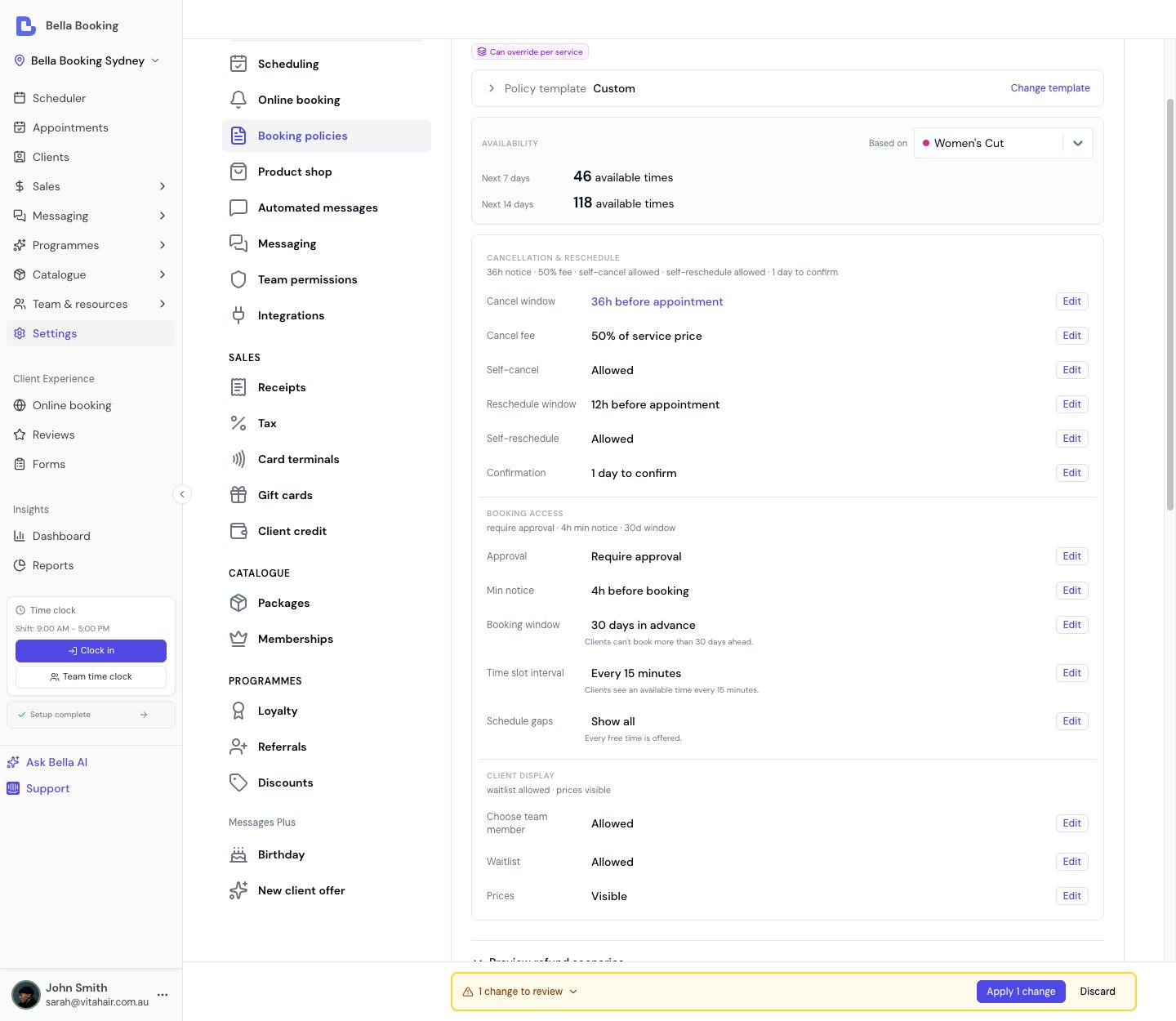
Appointment fee
Use Appointment fee to add one fixed, named fee to every new appointment that includes at least one service - this is the setting to reach for when you want a flat surcharge, service charge, booking fee or levy on appointments. It applies to appointments created by your team and to online bookings. A retail-only sale or an appointment with no services gets no fee. (To pass card processing costs specifically, use Pass processing fees instead.)Turn it on
- Go to Settings > Booking policies.
- Open Appointment fee and switch it on.
- Enter an Amount greater than zero and a client-facing Fee name. The neutral default is Appointment fee. Name it after what the fee genuinely pays for. Bella rejects names that present it as a card or processing surcharge.
- If your business is registered for tax, confirm whether the fee is Taxable.
- Review the change summary and select Apply.
What clients see
Bella includes the fee in the first advertised price clients see for a service or bundle, including tier and variant prices, treatment plans and Reserve with Google. The booking summary then itemises the catalogue service or bundle price and one fee line underneath it. A fee is charged once per appointment, not once per service, bundle component or attendee. For example, if two services have catalogue prices of80 and 150, and the fee is 3 in your location currency, their cards advertise 83 and 153 as one-service offers. When booked together, the appointment total is 233, not 236.
If prices are hidden, catalogue prices and the total stay hidden, but the unavoidable fee name and amount remain visible before the client confirms.
The quoted fee stays with the appointment
The fee is captured when a service-bearing appointment is created. This keeps the amount the client was quoted stable:- Changing or switching off the setting affects new appointments only. Existing appointments keep their saved fee.
- Switching the setting on does not add a fee to an existing appointment that was quoted without one.
- If an existing service-free appointment later receives its first service, the current fee is attached then.
- Removing the last service removes the fee.
- At checkout, a team member with checkout access can Remove the fee. Its amount cannot be edited, and once removed it does not return on refresh or a later checkout.
Collect at booking and Non-refundable
When Appointment fee is on, two extra switches appear. Both start Off. Collect at booking takes the fee in the amount due today as its own line, not as part of the deposit. It only charges when this booking already has a deposit amount to collect. Card on file, pay later, a $0 deposit (a package covering the services, for example), a membership that waives the deposit, and an admin waive all leave the fee until the appointment. Non-refundable leaves this fee out of a default refund, even when the cancellation policy would return the rest of the deposit. It only keeps money that was already paid. A team member can still include the fee with Full refund or a typed amount. Online booking has no override.What the fee does and does not affect
- Discounts, rewards, memberships and packages: these apply to service lines, not the appointment fee. A fully discounted or package-covered service can still leave the fee payable.
- Gift cards and client credit: either can settle the fee as part of the remaining bill.
- Deposits: a fixed or percentage deposit is calculated from the service total, including add-ons, and excludes the appointment fee. Collect at booking takes the fee beside that deposit in the same charge.
- Cancellation and no-show fees: a percentage of service total excludes the appointment fee. Cancelling before the fee is paid does not collect it. When Collect at booking has already taken a Non-refundable fee, a default refund leaves that fee out.
- Commission, tips and loyalty: the fee is a house line. It is not assigned to a team member and earns no loyalty points.
- Refunds: if Non-refundable is off, a paid fee comes back with the deposit or the sale. If it is on, default refunds leave the paid fee out. Full refund still includes it.
- Voids: voiding a sale returns the whole checkout, including a checkout-paid fee, because that sale did not happen. The appointment reopens unpaid, so the next checkout can charge the fee again.
- Receipts and messages: the saved fee name appears as its own line. When Non-refundable is on, the line reads with (Non-refundable) after the name. Appointment and sale totals include it.
Appointment fee is not Pass processing fees. It applies to cash, card, manual card, Afterpay, gift card and client credit alike. Pass processing fees is a separate card-payment surcharge that applies only to supported card charges and may be unavailable in some countries. Do not use Appointment fee to replace card processing fees or remove it only for cash payments.
Seeing the impact before you save
The Availability block above these settings is always there, whether or not you’re changing anything. It shows how many times clients can actually book under the policies you have saved, so you never have to guess what your current rules are costing you.- What it counts: the number of available times over the next 7 days and the next 14 days, worked out against your business’s real calendar - working hours, existing bookings, blocked time - for the service picked in the block’s header. Two windows because a busy business is often full for the coming week: a 7-day figure on its own would read as “we have nothing” while the fortnight is wide open. Start typing in the service picker to search your catalogue.
- When you stage a change to a setting that shapes which times clients can book - Time slot interval, Schedule gaps, Minimum notice, Booking window, or Appointments per day - each window shows what its count would become, for example “127 available times → 9”. A window whose figure doesn’t move simply keeps its number, so you can see at a glance that (say) shortening your booking window leaves next week alone but costs you the week after.
- It updates as you stage changes, and nothing is saved until you click Apply - the second figure is a preview only. Discard the changes and the block goes back to your saved figures.
- When neither window moves, the block says why rather than leaving you to wonder:
- “Unchanged: Women’s Cut sets its own minimum notice, so the business default doesn’t reach it” - that service overrides minimum notice, so changing the business default can’t move its availability. Change it on the service itself in the Service Catalogue.
- “Unchanged in the next 14 days. Changes beyond this window won’t show here” - you changed the booking window to something longer than a fortnight, and the block only counts that far ahead.
- “Unchanged by these changes” - the staged rules genuinely don’t shape this service’s availability.
- When a window has nothing in it, the block names the cause instead of leaving a bare zero - “you’re fully booked”, “no one is rostered” (with a link to set working hours), “Schedule gaps is hiding every free time”, or “blocked time covers every day”.
Warnings you might see
While you’re configuring these settings, Bella may show a recommendation - inline on the relevant row, or in the booking-page panel further down this page. Most of these describe what’s happening and how to change it without blocking a save. Time slot interval longer than your longest service. Your interval spaces available times further apart than your longest service takes to perform, so your calendar can hold more of them than clients are shown. Fix: lower the interval to no more than your longest service’s duration. Schedule gaps set to Reduce or Eliminate with an interval of 60 minutes or more. At a coarse interval, hiding gap-creating available times removes a large share of the times clients see. A new save that turns this pair on is blocked. If you already have this combination, you can still save other settings - Bella keeps recommending you lower the interval, or switch Schedule gaps back to Show all, so clients see more times. Minimum notice of 24 hours. Clients can’t book anything starting within the next 24 hours - there are no same-day bookings. This is the usual starting policy, so Bella notes it on the Min notice row rather than treating it as something to fix. A recommendation only appears if notice is longer than a day. If you’d rather allow same-day bookings, lower the minimum notice. Unpaid-deposit auto-cancel longer than 24 hours, or not set. A booking that never completes its deposit payment holds that available time until the window ends - or forever, if no window is set. Longer than 24 hours parks it for a day or more. Fix: set unpaid deposits to auto-cancel within 24 hours; with Stripe, 30 minutes releases an abandoned checkout the moment its payment page expires, and 2 hours suits a business whose clients pay from the email. Services named with digits or one or two characters. Some imports carry over internal codes (such as “1554082”) as service names, and clients won’t book what they can’t recognise. Fix: rename each one in the Service Catalogue to the name a client would search for - or archive it if you no longer offer it.Per-service minimum notice
A service can set its own minimum notice, which takes precedence over the business default on this page - even when the stored value happens to match it. When any of your services do, the Min notice row shows a quiet note such as “3 services set their own minimum notice - this default doesn’t apply to them.” It’s information, not a warning: per-service notice is a deliberate choice for treatments that need more preparation. To have a service follow the business default again, open it in the Service Catalogue and set its minimum notice back to the default.Minimum Notice Period
Set the minimum advance notice required for online bookings. This prevents clients from booking appointments too close to the appointment time.Setting Minimum Notice
- Navigate to Settings → Booking policies
- Find the Minimum Notice Period section
- Select from the dropdown:
- No minimum notice (allow immediate bookings)
- 0 minutes (allow immediate bookings)
- 15 minutes through 72 hours (3 days)
- Changes save automatically
How It Works
- Clients cannot book appointments within the minimum notice period
- Time slots within the notice period are hidden from clients
- Applies to online bookings only; business users can book anytime
Service-Level Overrides
Each service can have its own minimum notice period:- Override the location default when editing a service
- Select “Use default” to keep the standard setting
- When booking multiple services, the maximum (most restrictive) notice period applies
Example Scenarios
Scenario 1: Same-Day Bookings Allowed- Setting: 0 minutes (no minimum notice)
- Current Time: Monday, 2:00 PM
- Result: Client can book appointments starting from 2:00 PM today
- Use Case: Walk-in friendly businesses, urgent services
- Setting: 24 hours (1 day)
- Current Time: Monday, 2:00 PM
- Result: Client can book appointments starting from Tuesday, 2:00 PM
- Use Case: Most common setting, allows preparation time
- Service A: 12 hours notice required
- Service B: 24 hours notice required
- Current Time: Monday, 2:00 PM
- Result: Appointment requires 24 hours notice (most restrictive)
- Client can book: Starting Tuesday, 2:00 PM
- Location Default: 24 hours
- Service Override: 48 hours (wedding package)
- Current Time: Monday, 2:00 PM
- Result: Wedding package requires 48 hours notice
- Client can book: Starting Wednesday, 2:00 PM
Maximum Booking Window
Set how far in advance clients can book online. This prevents bookings too far into the future, helping you manage your schedule and availability.Setting Maximum Booking Window
- Navigate to Settings → Booking policies
- Find the Maximum Booking Window section
- Select from the dropdown:
- No maximum (allow booking any time in the future)
- 7 days through 365 days (1 year)
- Changes save automatically
Available Options
How It Works
- Dates beyond the maximum are disabled in the date picker
- Time slots are not shown for dates beyond the limit
- Business users can still book appointments at any time through the Scheduler
When to Use
Shorter Windows (7-30 days):- When your schedule changes frequently
- When you prefer more flexibility to adjust availability
- For services where demand is unpredictable
- Standard setting for most businesses
- Allows clients to plan ahead without over-committing your schedule
- Good balance between flexibility and forward booking
- For seasonal services with predictable demand
- When clients need to book well in advance
- For appointments further than a year out (e.g. some weddings), create them yourself from the Scheduler - the booking window applies to online bookings only
Example Scenarios
Scenario 1: Standard Business Setting- Setting: 90 days (3 months)
- Current Date: 1 January
- Result: Clients can book appointments up to 1 April
- Use Case: Hair salons, beauty services, general appointments
- Setting: 365 days (1 year)
- Current Date: 1 January 2025
- Result: Clients can book appointments up to 1 January 2026
- Use Case: Wedding hair and makeup, event services. For dates beyond a year out, create the appointment yourself from the Scheduler.
- Setting: 14 days (2 weeks)
- Current Date: Monday, 1 January
- Result: Clients can book appointments up to Monday, 15 January
- Use Case: Businesses with frequently changing availability
Appointments Per Day
Cap how much work online booking can pile onto a single day. Once a day reaches the number you set, that day stops offering times on your booking page. Your team is never restricted: you can still book any day from the Scheduler. This is the answer to “I can comfortably do eight a day, and online booking keeps giving away a ninth.”Setting a daily limit
- Navigate to Settings → Booking policies
- In the Booking access group, select the Appointments per day row
- Pick a number, or select Custom and type one (1 to 500)
- Watch the availability figures above update to show what the limit would cost you, then select Apply
What counts towards the limit
A booking counts as one appointment however much it contains. A three-service bundle is one appointment. So is a couples or family booking. If your day is limited by chairs or rooms rather than by arrivals, set capacity on your resources instead.
Cancel an appointment on a day that has hit the limit and that day opens back up immediately. Decline a booking waiting for approval and the same thing happens.
How it works
- A day at the limit shows no available times on your booking page, the same as any other day with nothing free
- Your team can keep booking that day from the Scheduler, so a day can end up above the limit. That is intended, not an error: the limit governs online booking, not your own diary
- In Find a time, a day closed by the limit says so, rather than reporting your roster as fully booked
- The limit uses your business’s own calendar date and timezone
Pair it with your waitlist
If your waitlist is on, a day closed by the limit still offers clients the waitlist, so a busy day captures demand instead of turning people away. Without the waitlist, a client on a capped day sees no times and has to pick another day. Turning the waitlist on under Booking options is worth doing before you set a tight limit.Choosing a number
Start from the number of appointments you finish a day feeling good about, not the maximum you have ever squeezed in. The limit is meant to protect the day, so a number you only hit on your best week will never bite.- Setting 1 is allowed - a single high-value appointment a day is a real way to work
- 0 is not. “Never take online bookings” is what the online booking switch is for
- Setting a limit below what a day already holds changes nothing about those appointments. That day simply stops taking online bookings until its count drops below your limit
Cancellation Policy
Configure cancellation policies to protect your business from last-minute cancellations while providing fair refund terms to clients.Cancellation Period
Definition: The minimum notice required to cancel without fees. Cancellations with less notice may incur fees.- Cancelling with at least the required notice → Full refund
- Cancelling with less than the required notice → Cancellation fee applies
- No cancellation policy
- Presets from 0 minutes to 72 hours (3 days)
- If none of the presets suits you, choose Custom and enter any window up to 72 hours (0 means no restriction). Type it in minutes, hours or days, whichever you think in, so a 36-hour policy is just 36 hours.
Cancellation Fee
Definition: The fee that applies when an appointment is cancelled with less than the required notice (or marked as a no-show).- Only applies to cancellations with less than the required notice
- Requires a cancellation period to be set
- Required whenever a cancellation period is set - for a percentage fee, choose No fee (0%) if you don’t charge one (a fixed-amount fee needs a positive amount)
Example: With a 24-hour notice requirement and a 50%-of-deposit fee:
- Client cancels 25 hours before → Full refund (at least 24 hours’ notice)
- Client cancels 12 hours before → 50% of deposit forfeited (less than 24 hours’ notice)
What the fee is calculated on. When the fee is a percentage of service total, the service total means the services being booked - every variant- and tier-resolved service price (a bundle expands into one line per component) plus any add-ons, not a single headline price. The appointment fee, products and custom items added to the appointment are not part of the service total and never increase the fee: a late cancellation forfeits the appointment slot, never goods the client hasn’t received. That’s the wording clients see in your policy text too (“Late fee: X% of the service total”). When no deposit is held, the fee is charged to the client’s card on file.**Worked example - 30% of an A70 and adds a A80 service total. With a card on file (no deposit) and a 30%-of-service-total late-cancellation fee, a late cancellation or no-show charges **A80) to the saved card.
How the fee is applied.
- When a deposit was paid and the client cancels online late: Bella automatically refunds the deposit minus the fee (the payment processing fee is always refunded in full, since the business never received it). If no deposit was taken, there is nothing to withhold automatically.
- When you cancel or mark a no-show yourself: charge the fee to the client’s saved card from the Scheduler - this is how the fee is collected under the Card on file policy rather than a deposit. A no-show is recorded by cancelling the appointment with the No-show reason.
- The client is told. Charging the fee sends them the Cancellation fee charged message (email and/or SMS, per your automated messages settings), quoting the total that reached their card - the fee plus any card processing fee you pass on. Turning off Notify the client on the cancel dialog suppresses it along with the cancellation message.
- Overrides: when a business user cancels, they can override the calculated refund for special circumstances. The refund can be up to the full amount charged to the card, which on a business that passes processing fees on is the deposit plus that fee. If Collect at booking took a Non-refundable appointment fee, the default refund leaves that appointment fee out. Full refund still includes it.
Allow Self-Service Cancellation
Control whether clients can cancel appointments online:- Enabled: Clients see a “Cancel appointment” option in their booking confirmation (only if deposit was paid when cancellation policy exists)
- Disabled: Clients must contact you directly to cancel
Cancellation Policy Calculator
The booking policies page includes a built-in calculator to help you understand how your policy affects refunds:- Enter an example deposit amount
- See two scenarios:
- Green box: Cancellation with at least the required notice (full refund)
- Amber box: Cancellation with less than the required notice (fee applies)
Service-Level Overrides
Each service can override the cancellation policy:- Custom cancellation period
- Custom cancellation percentage
- Custom self-service cancellation setting
Example Scenarios
Scenario 1: Full Refund with Sufficient Notice- Policy: 24-hour notice required, 50% fee
- Deposit Paid: $100
- Cancellation Time: 25 hours before appointment
- Result: Full refund ($100) - client provided at least 24 hours’ notice
- Client Experience: “Free cancellation - full refund applies.”
- Policy: 24-hour notice required, 50% fee
- Deposit Paid: $100
- Cancellation Time: 12 hours before appointment
- Calculation: 100 × 50%) = $50 refund
- Result: 50 forfeited
- Client Experience: “Cancelling with less than 24 hours’ notice: 50% of your deposit will be forfeited.”
- Policy: 24-hour notice required, 0% fee
- Deposit Paid: $100
- Cancellation Time: 12 hours before appointment
- Result: Full refund ($100) - no fee applies despite insufficient notice
- Client Experience: “Free cancellation - no fee applies.”
- Policy: 24-hour notice required, 50% fee
- Deposit Paid: $0 (no deposit)
- Cancellation Time: 12 hours before appointment
- Result: Online cancellation blocked - client must contact business directly
- Client Experience: “This appointment cannot be cancelled online. Please contact us directly to cancel.”
- Policy: 24-hour notice required, 50% fee
- Deposit Paid: $0 (no deposit)
- Cancellation Time: 25 hours before appointment
- Result: Free cancellation available online
- Client Experience: “Free cancellation applies.”
- Service A: 12-hour notice, 25% fee
- Service B: 24-hour notice, 50% fee
- Deposit Paid: $100
- Cancellation Time: 10 hours before appointment
- Applied Policy: 24-hour notice (longest), 50% fee (highest)
- Result: 50 forfeited
- Policy: 24-hour notice, 50% fee
- Deposit Paid: $100
- Cancellation Time: 12 hours before (insufficient notice)
- Business Override: Full refund for special circumstances
- Result: $100 refund (override applied)
Reschedule Policy
Configure how far in advance clients can reschedule their appointments. This helps protect your schedule while providing flexibility to clients.Reschedule Period
Definition: The minimum notice required to reschedule online. Clients need to contact you directly with less notice.- Clients can reschedule if they provide at least the required notice
- Clients cannot reschedule online with less than the required notice
- No reschedule policy (allow rescheduling anytime)
- 0 minutes (allow immediate rescheduling)
- Presets from 15 minutes through 72 hours (3 days)
- If none of the presets suits you, choose Custom and enter any window up to 72 hours (0 means no restriction). Type it in minutes, hours or days, whichever you think in, so a 36-hour policy is just 36 hours.
Allow Self-Service Rescheduling
Control whether clients can reschedule appointments online:- Enabled: Clients see a “Reschedule” button in their appointment details
- Disabled: Clients must contact you directly to reschedule
How It Works
- Client views their appointment details
- System evaluates if rescheduling is allowed:
- Appointment must be in “Booked” or “Confirmed” status
- Appointment must be in the future
- If reschedule policy exists, appointment must be rescheduled with at least the required notice
- Self-service rescheduling must be enabled
- If all conditions met → “Reschedule” button appears
- Client selects new date/time → Appointment is updated
- Appointment is in 25 hours (at least 24 hours’ notice) → Client can reschedule online
- Appointment is in 12 hours (less than 24 hours’ notice) → “Reschedule” button is hidden; client must contact you directly
Important Notes
- No additional payment required: If deposit was already paid, no new payment is needed
- Reminders are updated: Scheduled reminders automatically adjust to the new time
- Services and team member locked: Clients can only change the date/time, not the services or team member
Service-Level Overrides
Each service can override the reschedule policy:- Custom reschedule period per service
- Custom self-service rescheduling setting per service
- When an appointment includes multiple services, the most restrictive policy applies (longest period)
Example Scenarios
Scenario 1: Can Reschedule Online - Sufficient Notice- Policy: 24-hour notice required
- Current Time: Monday, 2:00 PM
- Appointment Time: Tuesday, 3:00 PM (25 hours away)
- Result: “Reschedule” button visible - client can reschedule online
- Client Experience: Can select new date/time from available slots
- Policy: 24-hour notice required
- Deposit Paid: $100
- Current Time: Monday, 2:00 PM
- Appointment Time: Monday, 6:00 PM (4 hours away)
- Result: “Reschedule” button hidden - client must contact business directly
- Client Experience: “Rescheduling requires at least 24 hours’ notice. Please contact us directly to reschedule.”
- Note: Deposit status is irrelevant - reschedule policy is time-based only
- Policy: 24-hour notice required
- Deposit Paid: $0 (no deposit)
- Current Time: Monday, 2:00 PM
- Appointment Time: Monday, 6:00 PM (4 hours away)
- Result: “Reschedule” button hidden - client must contact business directly
- Client Experience: “Rescheduling requires at least 24 hours’ notice. Please contact us directly to reschedule.”
- Note: Same result as Scenario 2 - deposit doesn’t affect reschedule policy
- Policy: No reschedule policy (disabled)
- Current Time: Monday, 2:00 PM
- Appointment Time: Monday, 6:00 PM (4 hours away)
- Result: “Reschedule” button visible - client can reschedule anytime
- Client Experience: Full flexibility to reschedule
- Service A: 12-hour notice required
- Service B: 24-hour notice required
- Current Time: Monday, 2:00 PM
- Appointment Time: Monday, 6:00 PM (4 hours away)
- Applied Policy: 24-hour notice (most restrictive)
- Result: Cannot reschedule online - must contact business directly
- Policy: 24-hour notice required
- Deposit Paid: $100
- Current Time: Monday, 2:00 PM
- Appointment Time: Tuesday, 3:00 PM (25 hours away - sufficient notice)
- Client Reschedules: To Wednesday, 3:00 PM
- Result: Appointment rescheduled, $100 deposit remains applied
- Note: No additional payment required
Require approval for online bookings
Control whether online bookings require your approval before being confirmed. This gives you the opportunity to review each online booking before accepting it.Scope: the setting on this page is your location default for approval. You can also override approval per service - like every other booking policy - from the service’s Booking policies tab in the Service Catalogue: set its Approval field to Use default, Auto-confirm, or Require approval for that service. So you can require approval for one service (e.g. a complex colour correction) while others auto-confirm, resolved service-first and falling back to the location default. There is no per-team-member approval toggle.Approval is separate from payment. A required deposit or card capture confirms a booking on payment - that’s payment behaviour, not the approval lever - see Deposit and approval are complementary above.
Approval flow at a glance (no payment step)
- Client books online → Appointment status is “Booked” (pending approval); no payment taken
- Client receives “Pending approval” notification
- You review in the Scheduler and approve (confirm) or decline (cancel)
- If you decline → Client receives cancellation notification (no refund, as no deposit was paid)
- If you approve → Client receives confirmation notification
Turning it on
When require approval is enabled, online bookings are not automatically confirmed. Instead:- Client books online → Appointment status is “Booked” (pending approval)
- Client receives a “Pending approval” notification explaining their request is being reviewed
- You review the booking in your Scheduler
- You approve (confirm) or decline (cancel) the appointment
- Client receives confirmation or cancellation notification
- Disabled (default): Online bookings are confirmed automatically (or after deposit payment if required)
- Enabled: Online bookings require your approval before being confirmed
- You want to screen bookings before accepting them
- You need to verify client information or service requirements
- You want to control appointment flow and prevent overbooking
- You need time to prepare for specific services or clients
- You want a seamless, instant booking experience for clients
- You trust the online booking process and availability settings
- You don’t have time to manually review each booking
How It Works with Other Settings
With Deposit Required:- When you require a deposit for online bookings, the client pays at booking. On successful payment, the appointment is confirmed automatically. Approval does not apply to those bookings-the system does not hold them for your approval after payment. If you need to reject a booking after the client has paid, cancel the appointment from the Scheduler and process a refund if appropriate.
- Approval and confirmation are independent. You can require approval for online bookings and/or require client confirmation for appointments (e.g. those you create). If both apply to a given appointment, you approve first; the client may then need to confirm if confirmation is enabled.
Automated Messages
When approval is required, clients receive:- Pending approval notification when they book (explains request is being reviewed)
- Confirmed appointment notification when you approve
- Cancelled appointment notification if you decline
Client Confirmation
Require clients to confirm appointments you create for them (phone bookings, walk-in rebookings) to reduce no-shows. When enabled, those appointments stay in “Booked” status until the client explicitly confirms.Scope: the confirmation window applies only to appointments you create in the Scheduler. Online bookings auto-confirm on booking (or on deposit payment) - someone who booked online has already confirmed by booking, so the confirmation window does not hold them.
How It Works
- You create an appointment for a client → Status is “Booked”
- The client sees a “Please confirm your appointment” message on their appointment details page (and via the confirmation link in reminders)
- The client clicks the confirmation link or button → Status changes to “Confirmed”
- Unconfirmed appointments help you identify clients who may not show up
Confirmation Window Options
- Disabled (default): Auto-confirm appointments immediately
- Enabled - Confirm any time before: Clients can confirm at any point before their appointment
- Enabled - Confirm at least X before: Clients must confirm at least X hours/days before their appointment time
- 1 hour, 2 hours, 4 hours, 12 hours
- 24 hours (1 day), 48 hours (2 days)
- Clients see a “Please confirm your appointment” message on their appointment details page
- They must confirm at least the required time before their appointment to secure their booking
- Unconfirmed appointments help you identify clients who may not show up
Choosing the Initial Status
When creating an appointment from the scheduler, the Status selector appears once you’ve chosen a client and no deposit is required. You can choose the initial status:- Confirmed (default for regular bookings) - The appointment is confirmed immediately, with no pending step.
- Pending confirmation (default for bookings created from the waitlist) - Client can confirm their attendance via the self-service link.
- Pending approval - You’ll approve the appointment from the scheduler when ready. The client is notified but cannot confirm themselves. Use this when you need to verify something first (e.g., external deposit payment, stock availability).
- Create an appointment from the scheduler
- Select Pending approval as the initial status
- The appointment is created as “Booked” (pending approval)
- The client receives a “pending approval” notification - no confirm button on the self-service page
- You approve the appointment from the scheduler when ready
- If Confirmation Window is enabled: the appointment moves to “Pending confirmation” - the client is notified and can now confirm their attendance via the self-service link
- If Confirmation Window is not enabled: the appointment is confirmed immediately - the client receives a confirmation notification
The Status selector appears for any appointment you create in the scheduler once you’ve chosen a client and no deposit is required through the system. When a deposit is required through the built-in payment system, the deposit acts as the approval gate automatically and the selector is hidden.
Confirmation Links
Include confirmation links in your automated messages using template variables:{{ConfirmAppointmentLink}}: One-click confirmation (recommended for reminders){{SelfServiceLink}}: Opens appointment details page with confirm/cancel options{{CancelAppointmentLink}}: Opens cancellation dialog
Confirmation vs Deposits
- Appointments with deposits: Successful payment is the confirmation; no additional step needed
- Appointments without deposits: Client confirmation applies if enabled
Service-Level Overrides
Each service can have its own confirmation window setting. When an appointment includes multiple services, the longest confirmation window applies - the most confirmation lead time, so the client is asked to confirm as early as the most restrictive service requires.Example Scenarios
Scenario 1: Confirm Any Time Before- Setting: Confirm any time before (0 minutes)
- Appointment Time: Tuesday, 3:00 PM
- Current Time: Monday, 2:00 PM
- Result: Client can confirm anytime before Tuesday, 3:00 PM
- Client Experience: “To secure your booking, please confirm your appointment before your appointment time.”
- Use Case: Maximum flexibility for clients
- Setting: Confirm at least 24 hours before
- Appointment Time: Tuesday, 3:00 PM
- Current Time: Monday, 2:00 PM (25 hours before)
- Result: Client can confirm now (sufficient time)
- Client Experience: “To secure your booking, please confirm your appointment at least 24 hours before your scheduled time.”
- Setting: Confirm at least 24 hours before
- Appointment Time: Monday, 6:00 PM
- Current Time: Monday, 2:00 PM (4 hours before)
- Result: Confirmation window has passed - client should contact business
- Client Experience: Confirmation button may be disabled or show different message
- Note: Business user can still manually confirm
- Setting: Confirm at least 24 hours before
- Deposit Required: $100
- Appointment Time: Tuesday, 3:00 PM
- Current Time: Monday, 2:00 PM
- Client Pays Deposit: Monday, 2:30 PM
- Result: Appointment automatically confirmed - payment serves as confirmation
- Client Experience: No separate confirmation step needed
- Service A: Confirm at least 12 hours before
- Service B: Confirm at least 24 hours before
- Appointment Time: Tuesday, 3:00 PM
- Applied Window: 24 hours (longest - most confirmation lead time)
- Result: Client must confirm by Monday, 3:00 PM (24 hours before)
- Setting: Confirm at least 24 hours before
- Appointment Time: Tuesday, 3:00 PM
- Current Time: Monday, 2:00 PM
- Client Status: Has not confirmed
- Result: Appointment remains in “Booked” status
- Business Action: Follow up with client to confirm or decide to cancel
Payment Policy
Configure deposit or card-on-file requirements for bookings. A required deposit applies to all bookings or to online bookings only, as you choose under Deposit applies to; When a client books online decides whether an online booking exists before its deposit is paid. Requiring a card on file applies to online bookings, and a client who hasn’t saved one gets no appointment until they do: see When a card on file is required. Note: This section requires Stripe Connect. If Stripe isn’t fully set up, you’ll see an alert prompting you to connect (or finish Stripe’s remaining steps). To set up Stripe Connect, go to Settings → Payments.Payment Policy Options
- No upfront payment: No deposit required for bookings
- Require a deposit: Clients pay a deposit when booking
- Card on file: The client saves a card to confirm the booking. No money is charged and nothing is held on the card - saving it simply secures the booking, so you can charge a late-cancellation or no-show fee to that card if your cancellation policy applies. A client booking online without a saved card creates no appointment: their time is held for 30 minutes while they save one, and saving it creates the appointment, already confirmed. Use this when you want protection against no-shows without asking clients to pay upfront.
Card on file vs deposit. A deposit takes a real payment at booking and applies it toward the service total. Card on file takes no money - it only stores the card so a fee can be charged later if needed. (A future option to pre-authorise a hold on the card is planned but not yet available.)
Deposit Configuration
When requiring a deposit, configure: Deposit Type:- Fixed amount: A specific dollar amount (e.g., $50)
- Percentage: A percentage of the service total (e.g., 25%). Add-ons are included; products and the appointment fee are not, so neither increases the deposit
How Deposits Work
Under Book now, pay within a window:- Client selects services and, if enabled, a team member (see how clients book)
- Appointment is created in “Booked” status
- Client sees “Deposit Required” message with deposit amount
- Client is redirected to payment page
- Payment succeeds → Appointment status changes to “Confirmed”
- Payment fails or is not completed → Client can retry using the same deposit link until your auto-cancel window ends; then the booking is released (with Stripe and a window of up to a day, the moment the payment page expires; otherwise on the next 15-minute check)
- The deposit amount is applied toward the total service cost
- If deposit is less than total, remaining balance is due at the appointment
Fee Calculator
The booking policies page includes a fee calculator showing:- Stripe Fee: Payment processing fee (varies by region)
- Application Fee: Bella Booking platform fee
- Total Fees: Combined fees deducted
- You Receive: Net amount after fees
Service-Level Overrides
Each service can override the payment policy:- Use default: Apply location settings
- No upfront payment: No deposit for this service
- Require deposit: Specify fixed amount or percentage
- Card on file: The client saves a card to secure the booking - no upfront charge. A card asked for by the service rather than by your location policy books the appointment first and shows Awaiting Card until the card is saved
Example Scenarios
Scenario 1: Fixed Amount Deposit- Policy: Require deposit, Fixed amount
- Deposit Amount: $50
- Service Total: $150
- Result: Client pays 100 remaining balance due at appointment
- Client Experience: “A deposit of 100.00 will be due at your appointment.”
- Policy: Require deposit, Percentage
- Deposit Percentage: 25%
- Service Total: $200
- Calculation: 50 deposit
- Result: Client pays 150 remaining balance due at appointment
- Client Experience: “A deposit of 150.00 will be due at your appointment.”
- Policy: Require deposit, Fixed amount
- Deposit Amount: $100
- Service Total: $100
- Result: Client pays $100 deposit, no remaining balance
- Client Experience: “A deposit of $100.00 is required to secure your booking. This will be applied toward your service total.”
- Policy: No upfront payment
- Service Total: $150
- Result: No deposit required, full payment due at appointment
- Client Experience: No deposit message shown, appointment confirmed immediately
- Service A: No deposit required
- Service B: 25% deposit required
- Service A Price: $100
- Service B Price: $200
- Total: $300
- Applied Policy: 25% deposit (most restrictive)
- Calculation: 75 deposit
- Result: Client pays 225 remaining balance
- Policy: Require deposit, Fixed amount $100
- Cancellation Policy: 24-hour notice, 50% fee
- Deposit Paid: $100
- Cancellation Time: 12 hours before (insufficient notice)
- Refund Calculation: 100 × 50%) = $50
- Result: 50 forfeited
Booking Options
Configure client booking options and preferences. All settings in this section can be overridden per service.Looking for the team member selection setting? “Allow clients to choose a team member” has moved to Settings → Online booking under the Team members section. See Online booking settings for details.
Allow Clients to Join Waitlist
Control whether clients can join a waitlist when no time slots are available.- Enabled: Clients can join a waitlist when no slots are available for their selected date
- Disabled (default): Waitlist option is not shown
- Client selects services and a date with no available slots
- System displays “Join the waitlist” option
- Client can add optional notes (e.g., “Morning preferred”)
- Client joins the waitlist with one click
- Entry appears in your Scheduler waitlist panel
- When a slot opens, you contact the client and book from the waitlist
- Each service can override this setting
- Select “Yes - Allow waitlist for this service” to enable even if location default is disabled
- Select “No - Don’t allow waitlist for this service” to disable even if location default is enabled
- Select “Use default” to follow the location setting
- If ANY selected service explicitly disables waitlist → Waitlist disabled
- If ANY selected service explicitly enables waitlist → Waitlist enabled
- If ALL services inherit → Use location default
- Enable for services where demand often exceeds availability
- Consider disabling for express or walk-in services where waitlists don’t make sense
- Review your waitlist regularly to follow up with clients
Hide Prices in Online Booking
The Prices row under Settings → Booking policies (Client display) is Visible or Hidden. Hidden means clients will not see the amount on the booking page, even after you have entered one.- Hidden: the amount is hidden during online booking
- Visible (default): the amount is shown
- Services with prices that vary based on hair length, complexity, or consultation
- When you prefer to discuss pricing in person
- For services where the final price is determined during the appointment
- Services with a fixed price
- When clients expect to see prices before they book
The service list can hide the amount entirely (no dash) when prices are Hidden.
Service-level override:
- Each service can override this setting on its Booking policies tab
- Set Prices to Hidden to hide even if the location default is Visible
- Set Prices to Visible to show even if the location default is Hidden
- Leave Use default to follow the location setting
- Pre-checkout communications (booking confirmations, reminders): amounts hidden when Prices is Hidden
- Post-checkout communications (checkout receipts): Confirmed prices always shown
- Deposits: Always shown regardless of hide prices setting (clients need to know what they’re paying)
- Appointment fee: Its client-facing name and amount are always shown before confirmation because it is unavoidable, even while catalogue prices and the total remain hidden
Time Slot Interval
Control the spacing between the available times clients can pick when booking online. On the page, the row reads this back as “Every 15 minutes” (or whatever interval you’ve set) - a spacing, not a length. For example, a 30-minute interval offers times at 9:00, 9:30, 10:00, and so on; a 15-minute interval offers 9:00, 9:15, 9:30, and so on. Note: This setting applies to online bookings only. It controls the available times clients see - it does not change how the scheduler looks to your team (that is Zoom, a separate display-only setting).Available Options
Presets run 5, 10, 15, 30 and 45 minutes, then quarter-hour steps from 1 hour to 2 hours. If none of them suits you, choose Custom and enter any interval between 5 and 120 minutes. Smaller intervals show more available times and give clients more choice; larger intervals show fewer.10 minutes suits businesses that have moved off the traditional 15-minute grid - common in hairdressing. Choosing 5 minutes would cover every 10-minute time too, but it also offers the in-between ones (9:05, 9:15, 9:25 and so on), which a 10-minute business generally doesn’t want.
Setting the Time Slot Interval
- Navigate to Settings → Booking policies
- Click the Time slot interval row
- Choose a preset, or click Custom and enter your own interval in minutes - any value from 5 to 120 minutes, in steps of 5. The presets are shortcuts, not the whole list, so intervals like 10, 20 or 25 minutes are all available.
- Review the change summary that appears, then click Apply
Scheduling Optimisation
Control how available time slots are presented to clients during online booking. This setting helps you keep your calendar compact by guiding clients toward slots that avoid leaving short, unfillable gaps between appointments. Note: This setting applies to online bookings only. Business users always see all available slots when booking from the Scheduler.Optimisation Modes
Setting Scheduling Optimisation
- Navigate to Settings → Booking policies
- Find the Schedule gaps row, under Booking access
- Select one of the three modes - Show all, Reduce gaps or Eliminate gaps
- Review the staged change and select Apply. Nothing is saved until you do
Preview booking flow
Use Preview booking flow (page header, or search for it in the command palette) to walk through the messages, payments and notifications a client and your business receive after a booking - deposits, approval, reminders, late-cancel fees. It does not show which times clients can pick; for that use Check what clients see / Find a time (below). The two tools answer different halves of “what happens when someone books online.”Checking what clients see
From Booking policies, when Schedule gaps is Reduce or Eliminate, use Check what clients see under that row - it opens Find a time in a new tab, already on the Online booking view, so your policy edits stay on the page. The same check is available from Preview booking flow (under the Booking page chips as Check available times), from Online booking → Live preview, and when a team member or service is turned off for online booking. You can also open Find a time from the Scheduler (or press F). Its Availability view has two presets - Scheduler (every free slot your team can book, the default) and Online booking (exactly what clients see). Each booking rule that can differ between the two - Schedule gaps, the minimum notice period, and the booking window - is listed with its own switch showing whether it is enforced, pre-set by the preset you pick; toggle rules individually for a custom view. An Online vs Scheduler slot count shows how many free times clients do not see (whenever any of those rules can differ), and Find a time explains when Schedule gaps hid free times - including days that still show some options, and days that look empty online even though the calendar still has open pockets (not fully booked). If the selected team member or service is hidden from online booking, Find a time says so - clients can never choose them online. From the Online booking view you can open Preview booking flow in a new tab to walk through messages and payments. Switch back to Scheduler to book any free slot yourself.How It Works
The optimisation filter runs after all other availability checks (working hours, blocked time, notice periods). It examines each candidate time slot and evaluates the gaps it would create relative to existing appointments, blocked time, and shift boundaries. Show all time slots:- No filtering - every available slot is shown
- Default behaviour
- A slot is hidden if it would create a gap that is longer than zero but shorter than your configured time slot interval
- Gaps of zero (back-to-back) and gaps large enough to fit at least one more booking are allowed
- In practice, this removes only the “awkward” slots that leave dead time - when better options exist
- A free window is never made fully unbookable. If every remaining start in a pocket would leave a short remnant (for example a 50-minute service in a 90-minute gap with 60-minute time slots), those starts stay visible instead of the day reading as fully booked. Reduce gaps prefers tidy slots; it does not hide the only bookable times
- A slot is shown only if it is directly adjacent (zero gap) to an existing appointment, blocked time, or shift boundary on at least one side
- On days with no existing bookings or blocked time, all slots are shown - there is nothing to cluster around yet, unless you set a Smallest usable gap (below)
- Once the first booking is placed, subsequent slots are offered only next to existing activity
Smallest Usable Gap
By default, the first booking of a day can start anywhere. If your services are 20 minutes and you open at 10:00, a client can book 10:05 and leave five minutes that nobody can use. Smallest usable gap lets you put a floor on that. Set it to 20 minutes and each end of the first booking of the day has to be tidy: either flush against that team member’s shift - starting the moment it opens, or finishing the moment it ends - or leaving at least 20 minutes on that side. Both ends have to pass. On 5-minute time slots that means 10:00 and 10:20 are offered, while 10:05, 10:10 and 10:15 are not.Setting It
You set this inside the Schedule gaps row - it belongs to Eliminate gaps and exists nowhere else.- Navigate to Settings → Booking policies
- Click the Schedule gaps row, under Booking access
- Select Eliminate gaps. Smallest usable gap appears underneath, in the same editor
- Choose a preset or enter your own, or leave it Off. It has to be at least your time slot interval and at most 4 hours - on a 30-minute interval, picking the 15 or 20 minute preset shows a warning and the page will not save until you raise it
- Review the staged change and select Apply
What It Does and Doesn’t Affect
- Only with Eliminate gaps. It lives inside that choice, so on the other two modes there is nothing to set and the value is cleared if you switch away. Reduce gaps already uses your time slot interval as its threshold
- Only on a day where that team member has nothing on at all. It is judged per team member, so a colleague being busy does not switch it off for someone who is free. Any appointment OR blocked time of their own - including a recurring break they block out each day - makes it a normal day, and once a day has something in it, Eliminate gaps goes back to offering times directly against existing bookings. This is deliberate: applying a floor there too would make a 30-minute pocket between two appointments unbookable for a 20-minute service, because it strands 10 minutes whichever end it takes - losing you the booking to save the gap
- A long service is never made unbookable. If a service is so long that every start a team member could take leaves less than your floor at one end or the other, all of their available times are shown instead. Checked per team member, so a colleague with a longer shift never masks it. This safety net looks at the whole day, so it does not fire when only the remaining part of today is too short - late in the day a floor can legitimately leave nothing bookable until tomorrow
Choosing a Value
Think about the shortest thing you would genuinely sell into a gap. If you offer a 10-minute fringe trim online and it gets booked, a 10-minute gap isn’t wasted and a 20-minute floor would cost you available times for no reason. If your shortest real service is 30 minutes, anything under that is dead time worth blocking.What Counts as an Anchor
The filter considers these calendar items as anchors that slots can be adjacent to:- Appointments - existing confirmed or booked appointments for the team member
- Blocked time - personal breaks and lunch breaks belonging to that team member. Blocked time owned by a resource rather than a person does not count here
- Shift boundaries - the start and end of a team member’s working shift
Example Scenarios
Scenario 1: Reduce Gaps - Removes Awkward Slots- Shift: 9:00 AM - 5:00 PM
- Existing appointment: 10:00 AM - 11:00 AM
- Service duration: 45 minutes
- Time slot interval: 30 minutes
- Slot at 9:00 AM: Would end at 9:45 AM, leaving a 15-minute gap before the 10:00 AM appointment. 15 minutes is shorter than the 30-minute interval → slot hidden
- Slot at 11:00 AM: Starts right after the appointment ends (zero gap) → slot shown
- Slot at 11:30 AM: Gap before the slot is 30 minutes (equals the interval) → slot shown
- Shift: 9:00 AM - 5:00 PM
- Existing appointment: 10:00 AM - 11:00 AM
- Service duration: 60 minutes
- Slot at 9:00 AM: Adjacent to shift start (zero gap before) → slot shown
- Slot at 11:00 AM: Adjacent to appointment end (zero gap before) → slot shown
- Slot at 11:30 AM: Not adjacent on either side → slot hidden
- Slot at 4:00 PM: Service ends at 5:00 PM = shift end (zero gap after) → slot shown
- Shift: 9:00 AM - 5:00 PM
- No existing appointments or blocked time
- Result: All available slots are shown - there is nothing to cluster around yet. Set a Smallest usable gap if you would rather the first booking of the day could not strand a few unsellable minutes against opening or closing time
- Once a client books (e.g., 10:00 AM), subsequent clients see only slots adjacent to that booking and shift edges
- Shift: 9:00 AM - 5:00 PM
- Lunch break (blocked time): 12:00 PM - 1:00 PM
- Mode: Eliminate gaps
- Service duration: 30 minutes
- Slot at 11:30 AM: Service ends at 12:00 PM = lunch start (zero gap after) → slot shown
- Slot at 1:00 PM: Adjacent to lunch end (zero gap before) → slot shown
- Slot at 2:00 PM: Not adjacent on either side → slot hidden
When to Use Each Mode
Show all time slots:- You want maximum flexibility for clients
- Your calendar is mostly empty and you want to fill it quickly
- You handle schedule gaps through other means (walk-ins, internal bookings)
- You want a balanced approach - clients still see plenty of options
- You want to avoid the most obvious dead time without being too restrictive
- Good default for most businesses
- You want tightly packed schedules with minimal dead time
- Your business has high demand and can afford to show fewer slots
- Team members prefer back-to-back appointments to finish earlier
Best Practices
Minimum Notice Period
- 24 hours is most common and fair
- Use longer periods for complex services requiring preparation
- Consider your client base and industry standards
Maximum Booking Window
- 90 days (3 months) is a good starting point for most businesses
- Use the longest window (365 days / 1 year) for event services like weddings; create appointments further out manually from the Scheduler
- Use shorter windows (1-4 weeks) if your schedule changes frequently
- Review periodically and adjust based on your booking patterns
Appointments Per Day
- Start from the number of appointments you finish a day feeling good about, not your record day
- Pair it with the waitlist so a capped day captures demand instead of turning clients away
- Remember it governs online booking only - you can still add to a full day from the Scheduler
- If chairs or rooms are your real constraint, set capacity on your resources instead
Cancellation Policy
- Start with 24-hour cancellation period
- Use 50% fee as a starting point
- Enable self-service cancellation to reduce administrative work
- Review cancellation patterns monthly and adjust as needed
Client Confirmation
- Use 24-hour confirmation window for most services
- Include
{{ConfirmAppointmentLink}}in reminder messages - Follow up with clients who haven’t confirmed close to appointment time
Payment Policy
- Require deposits for high-value services to reduce no-shows
- Consider percentage-based deposits for variable-priced services
- Use fixed deposits for consistent deposit amounts
Booking Options
- Enable waitlist for services where demand often exceeds availability
- Set Prices to Hidden for services with variable pricing based on consultation
- Set price prefixes (e.g., “From”, “Starting at”) when hiding prices to set expectations
- To configure team member selection, go to Settings → Online booking → Team members
Scheduling Optimisation
- Start with Reduce gaps - it removes awkward short gaps without being too restrictive
- Use Eliminate gaps only if your demand is high enough that showing fewer available times won’t reduce bookings
- Remember that on empty days, Eliminate gaps shows every available time - clients get full flexibility for the first booking of the day, unless you set a Smallest usable gap
FAQs
Q: What’s the difference between minimum notice period, maximum booking window, cancellation period, and reschedule period? A:- Minimum notice period: Prevents clients from booking too close to the appointment time
- Maximum booking window: Prevents clients from booking too far into the future
- Cancellation period (restricted): Determines when cancellation fees apply (the restricted time window before appointment)
- Reschedule period (restricted): Determines when clients cannot reschedule online (the restricted time window before appointment)
- Cancelling: Ends the appointment, may trigger refunds based on cancellation policy
- Rescheduling: Changes the date/time but keeps the same appointment, services, team member, and payment status
- Cancellation policies: Online cancellation with less than the required notice is only available for appointments with deposit payments. This ensures that clients who have made a financial commitment can manage their appointments online. Appointments cancelled with at least the required notice can be cancelled online regardless of deposit status.
- Reschedule policies: Online rescheduling with less than the required notice is blocked for all appointments, regardless of deposit status. The reschedule policy is time-based only. Appointments rescheduled with at least the required notice can be rescheduled online. Appointments without deposits can still be cancelled or rescheduled by contacting you directly.