

Introduction
Order products from your suppliers under Supplier orders, track order status, and update stock automatically when an order is received. (Looking for orders your clients place on the online shop? See Client orders.)Sorting and filters
Search and filters choose which rows are listed. They do not change the order. To change the order, click a column heading that sorts. Unless the page says otherwise, the first click sorts text A to Z, and numbers and dates highest or newest first. Click the same heading again, or the heading the list already opens on, to reverse it. The arrow beside the heading shows the direction: up is A to Z, oldest first or lowest first, and down is Z to A, newest first or highest first. A heading that sorts by name ignores capital letters: “anna” and “Anna” sort together. The list opens on Created, arrow down (newest order date first). Order number and Status sort as well; Status sorts by stage (ordered, received, cancelled) rather than A to Z. Supplier and Items ordered do not. On a narrow screen Supplier, Status, Items ordered, and Created are hidden. Hiding them does not change the order.Key features
- Order Creation: Place orders with suppliers for multiple products at once
- Status Tracking: Monitor orders from placed to received
- Inventory Integration: Automatically update product inventory when orders are received
- Order History: View all past and current orders
Order statuses
Each supplier order has a status that tracks its lifecycle: Ordered:- Order has been placed with the supplier
- Waiting for delivery
- Can be received or cancelled
- Order has been delivered
- Inventory has been updated
- Order is complete and closed
- Order was cancelled before receiving
- No inventory changes
- Kept for historical records
Creating a supplier order
Step-by-step: placing an order
- Navigate to Products → Supplier orders
- Click Add order (top right)
- The new order form opens with today’s date
- Automatically set to today
- This is the date you’re placing the order
- Click the Supplier dropdown
- Search or select from your supplier list
- Note: Add suppliers in the Suppliers section before ordering
- Click Add product
- Search by name, brand, SKU or barcode and select a product from your catalogue
- For each product, enter:
- Quantity: How many units you’re ordering
- Unit Cost: Cost per unit from supplier
- Total: Automatically calculated (Qty × Unit Cost)
- Add more products by clicking Add product again
- Remove products with the trash/delete icon
- Check all products are correct
- Verify quantities and costs
- Ensure the correct supplier is selected
- Click Create Order
- Order is created with status “Ordered”
- Order number is automatically generated
- Order appears in your Supplier orders list
Managing existing orders
Viewing all orders
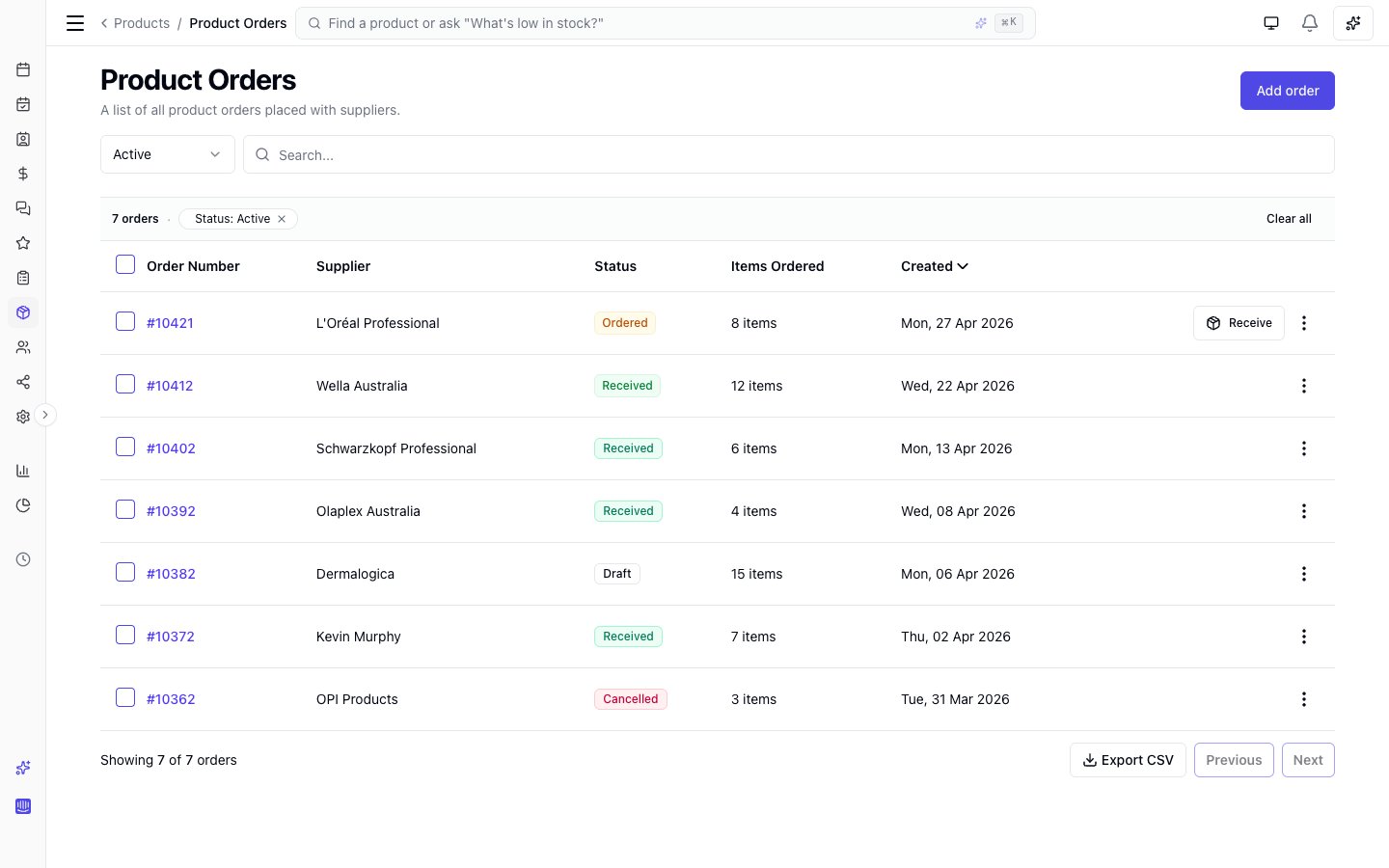
- Order number: Sequential number (e.g., #1001)
- Supplier: Which vendor the order is from
- Status: Ordered, Received, or Cancelled
- Items ordered: Number of different products
- Created: Order date
Viewing order details
- Click the Order number in the table
- The order details panel opens, showing:
- Order number
- Supplier name
- Status badge
- Total cost
- Ordered date
- Received date (if received)
- List of all products in the order
- For each product:
- Product name
- Ordered quantity and unit cost
- Received quantity (if received)
- Received unit cost (if received)
- Line total
Receiving an order
When your supplier delivers the order, record what you actually received: From Order List:- Find the order with status “Ordered”
- Click Receive button or menu option
- The Receive Order form opens
-
The form shows:
- Order number and supplier
- List of all products ordered
- Received date (today by default)
-
For each product, enter:
- Received Quantity: How many units you actually received
- May differ from ordered quantity (damaged, out of stock, etc.)
- Pre-filled with ordered quantity
- Received Unit Cost: Actual cost per unit
- Pre-filled with ordered cost
- Update if supplier changed the price
- Received Quantity: How many units you actually received
-
Review totals:
- Each product shows calculated total
- Overall order total displayed
- Click Receive order
- Order status changes to “Received”
- Inventory automatically updated: Product stock quantities increase by the received amounts
- Received date is recorded
- Order is closed (no further edits)
Cancelling an order
If you need to cancel an order before receiving it:- Find the order with status “Ordered”
- Click the menu (three dots) next to the order
- Select Cancel order
- Confirm the cancellation
- Order status changes to “Cancelled”
- No inventory changes occur
- Order remains in history for records
FAQs
Q: Can I edit an order after creating it? A: No. If you made a mistake, cancel the order and create a new one. Q: What if I received an order but forgot to record it in the system? A: Receive the order as soon as you remember. Q: Do I need to create a separate order for each product? A: No - add multiple products to a single order from the same supplier. Q: What if I receive products in multiple shipments? A: Receive the order with the quantities from the first shipment. Create a new order for back-ordered items. Q: What happens to inventory if I cancel an order? A: Nothing. Inventory only changes when you receive an order. Q: Can I create an order without having the product in my catalogue yet? A: No. Add the product to your Products list first, then create the order. Q: What if the supplier sent a product I didn’t order? A: You can only receive products that are on the order. Add the extra product manually to inventory.With organised supplier ordering, you’ll maintain optimal inventory levels, avoid stockouts, reduce waste from over-ordering, and have complete visibility into your product costs and supplier relationships.