What Bella recognises
Bella matches common header names automatically. The required fields are Product name and Unit price - everything else is optional.1. Open the importer
On the Products page (Catalogue → Products), click Import (top right, next to Add product). You’ll need the Manage products permission.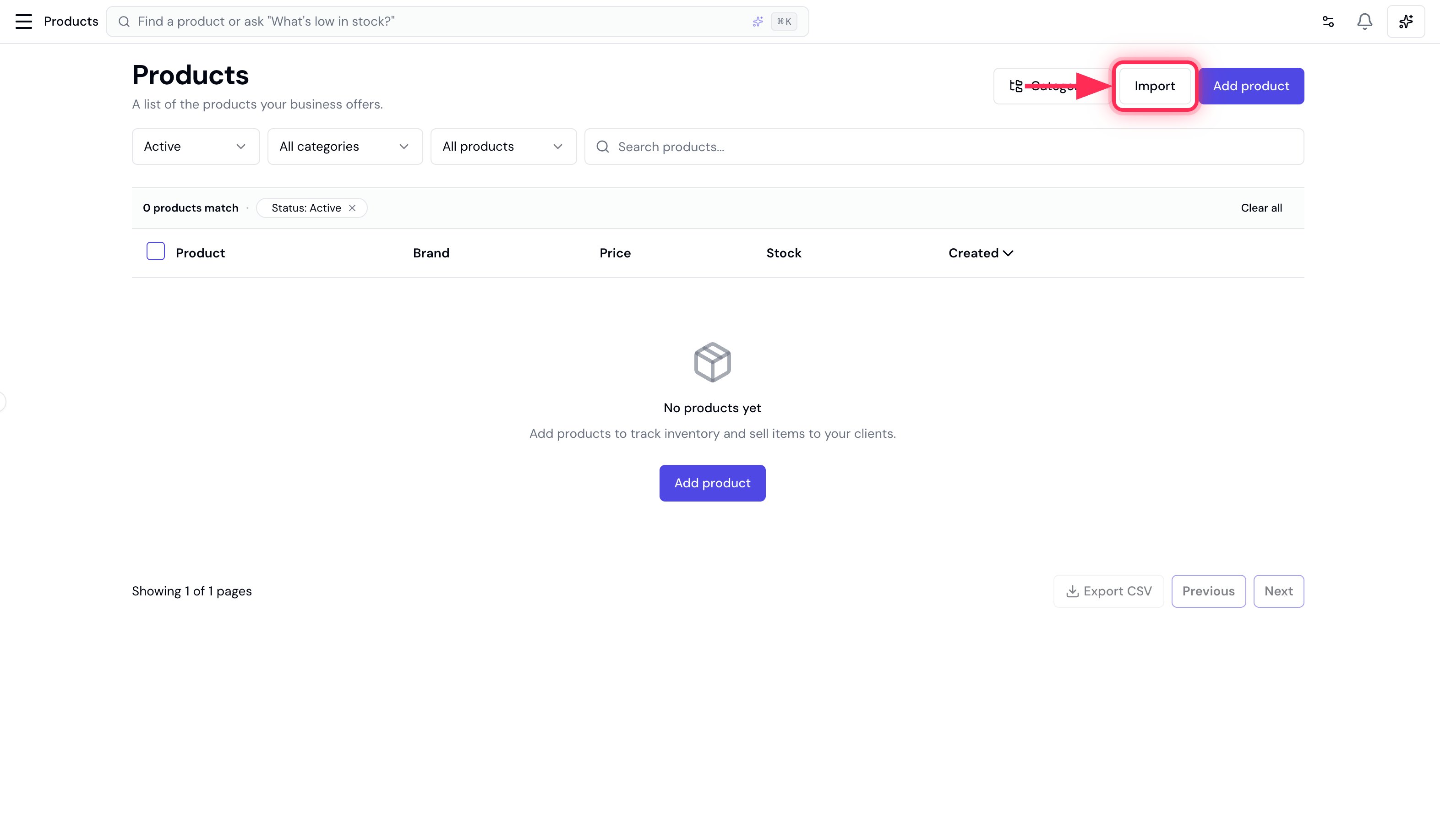
2. Upload your file
Drag your CSV onto the upload area, or click Choose a CSV file. No file yet? Click Download template for a ready-made CSV with the right headers.3. Match your columns
Bella auto-matches each of its fields to a column in your file. Check the matches (Product name and Unit price are required), then click Next.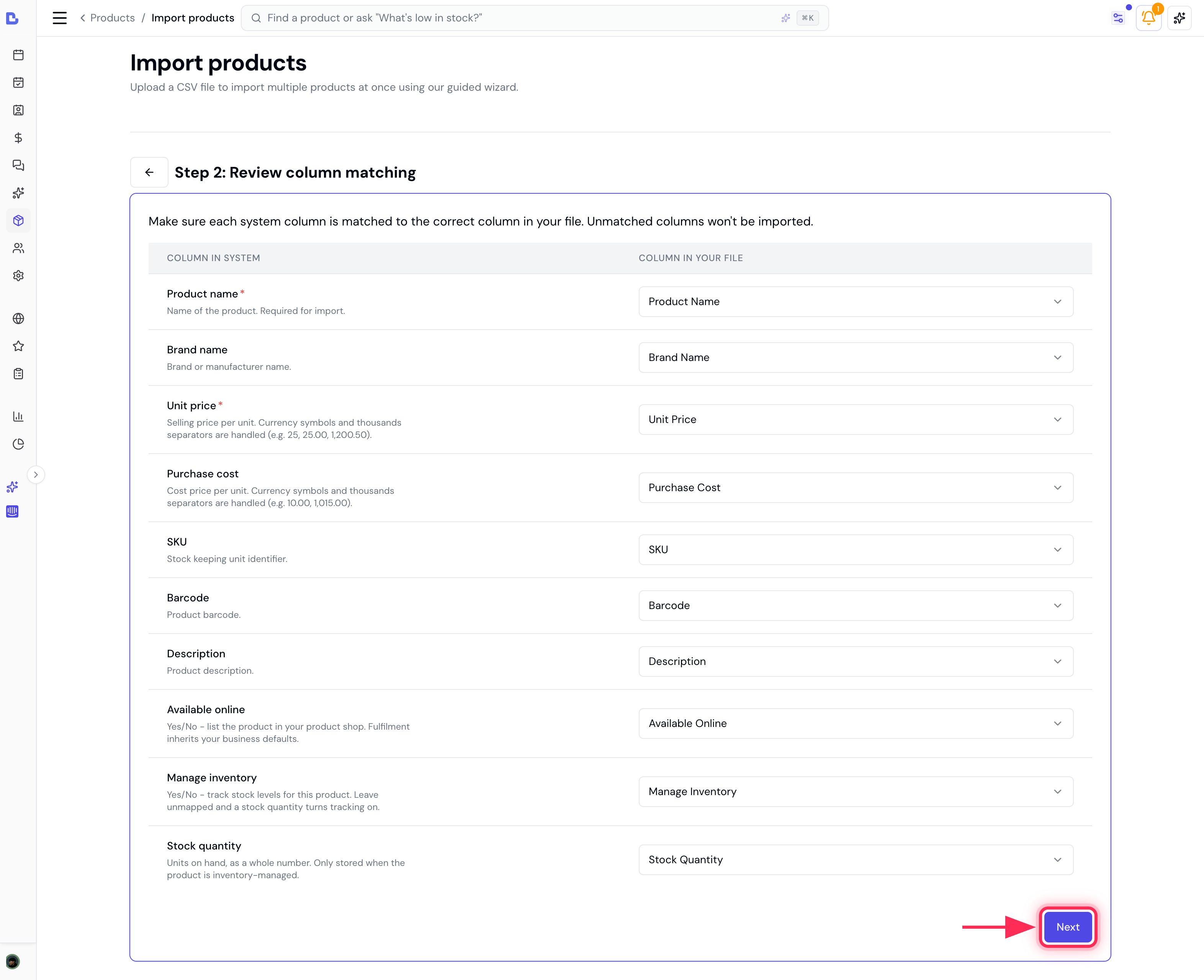
4. Review and fix errors
Bella validates every row and splits the results into two tabs:- Ready to import - rows that will be added, with their brand, price, cost, SKU, barcode, whether they’re available online, and stock.
- Validation errors - rows that can’t be imported yet.
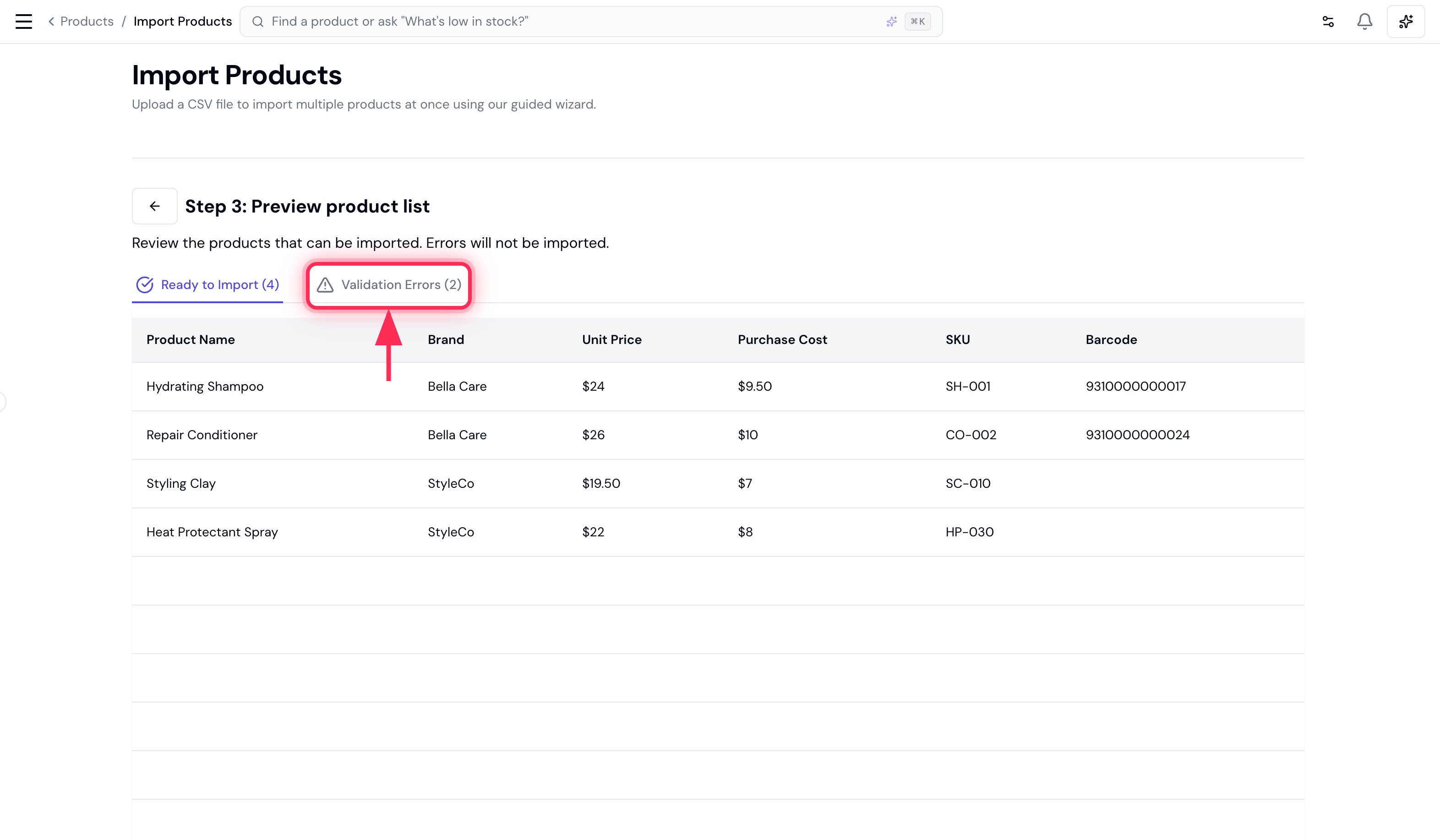
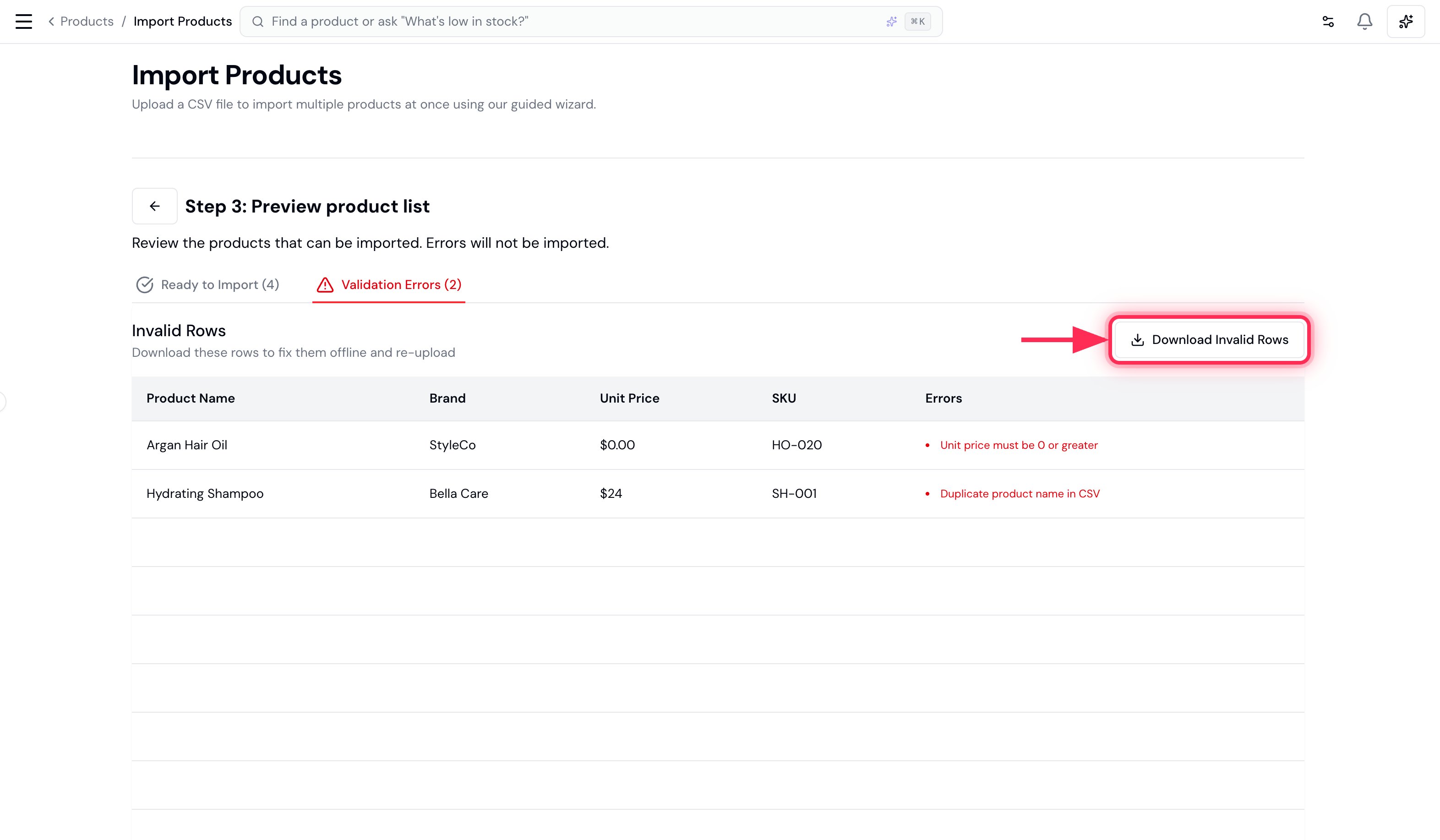
A product whose name already exists in your catalogue is also flagged here, so re-running an import never creates duplicate products.
5. Import
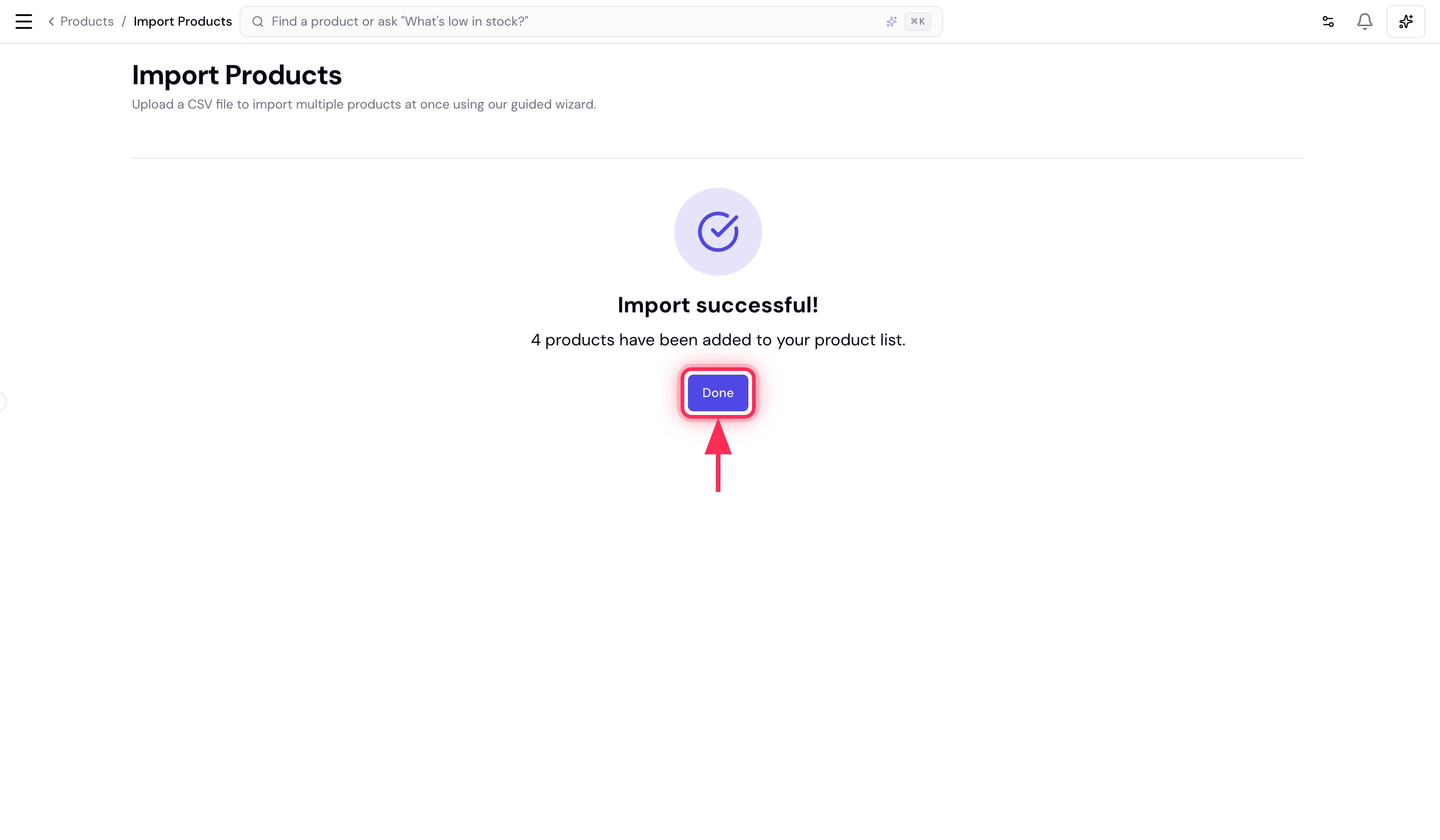
Click Import and your products are added to your catalogue. Products you marked Available online only reach clients once the product shop itself is switched on. See Sell products online.