

What Bella recognises
The columns in your file map across automatically - Bella matches common header names, so there’s usually nothing to adjust. The only required field is First name.1. Open the importer
On the Clients page, click Import (top right, next to Add client). You’ll need the Create clients permission.
2. Upload your file
Drag your CSV onto the upload area, or click Choose a file. A JSON file works too, and carries timeline notes and balances: see Importing from a JSON file.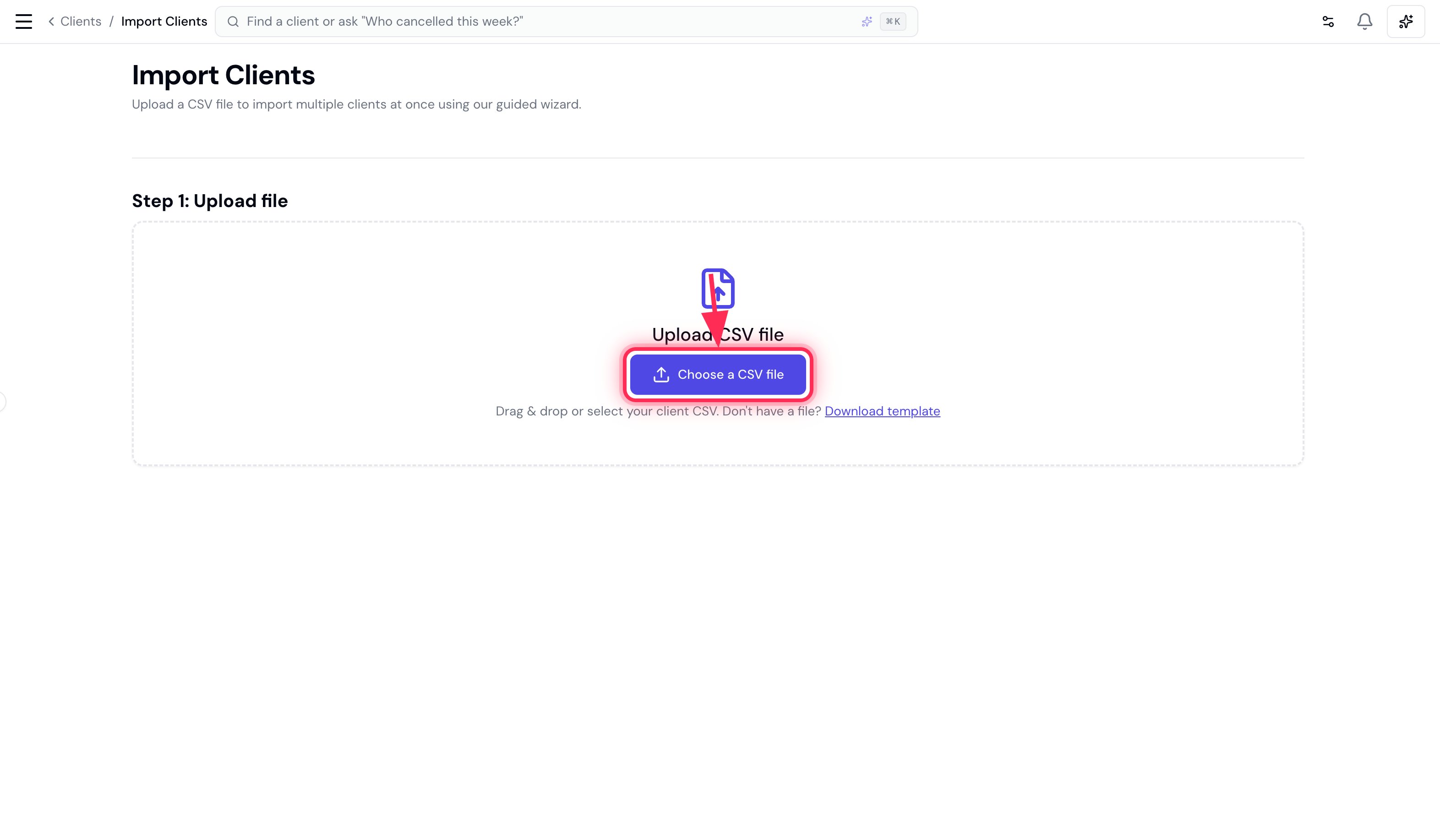
3. Review column matching
Bella auto-matches each of its fields to a column in your file. Check the matches, adjust any with the dropdowns if needed (the only one that must be set is First name), then click Next.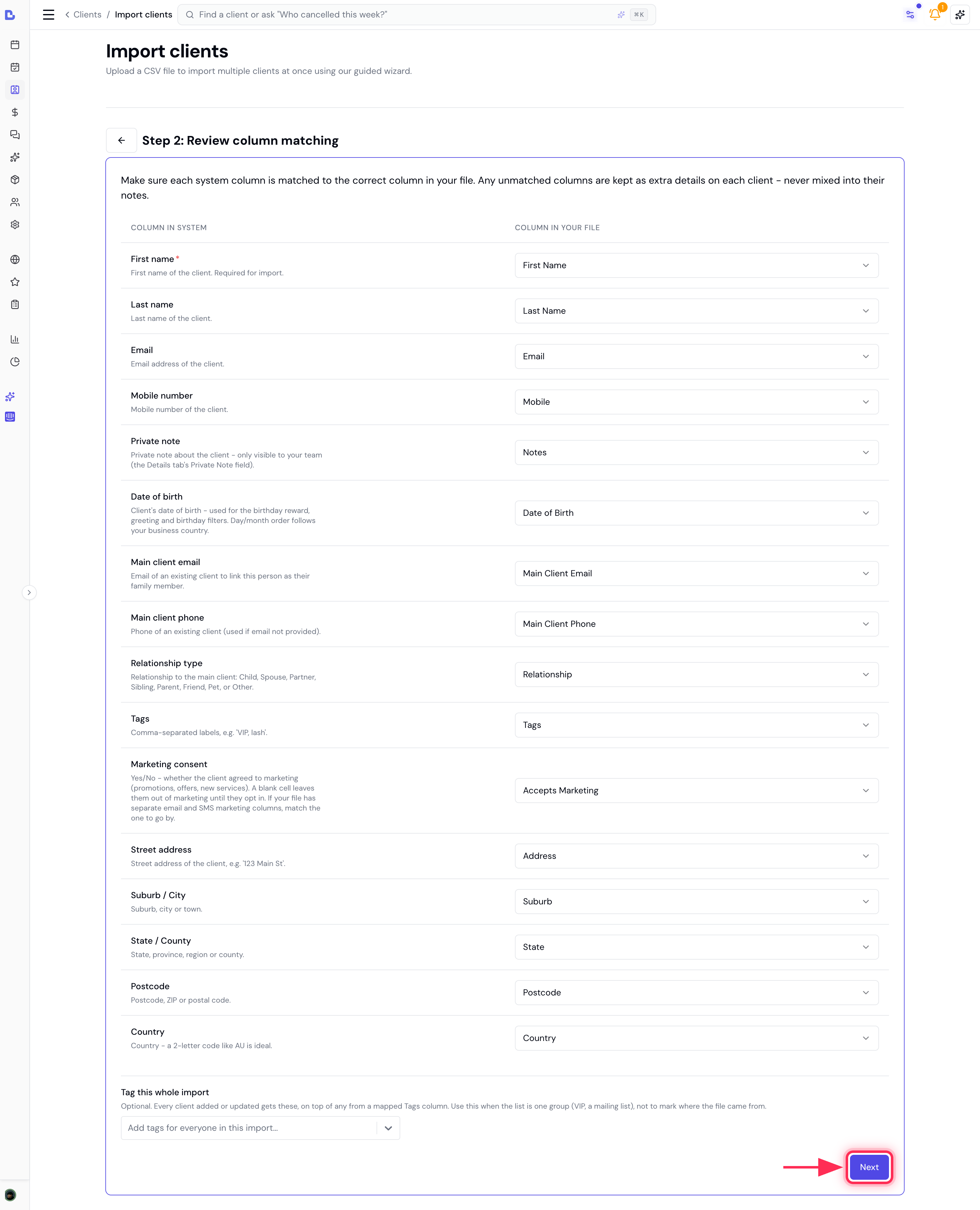
4. Preview and resolve
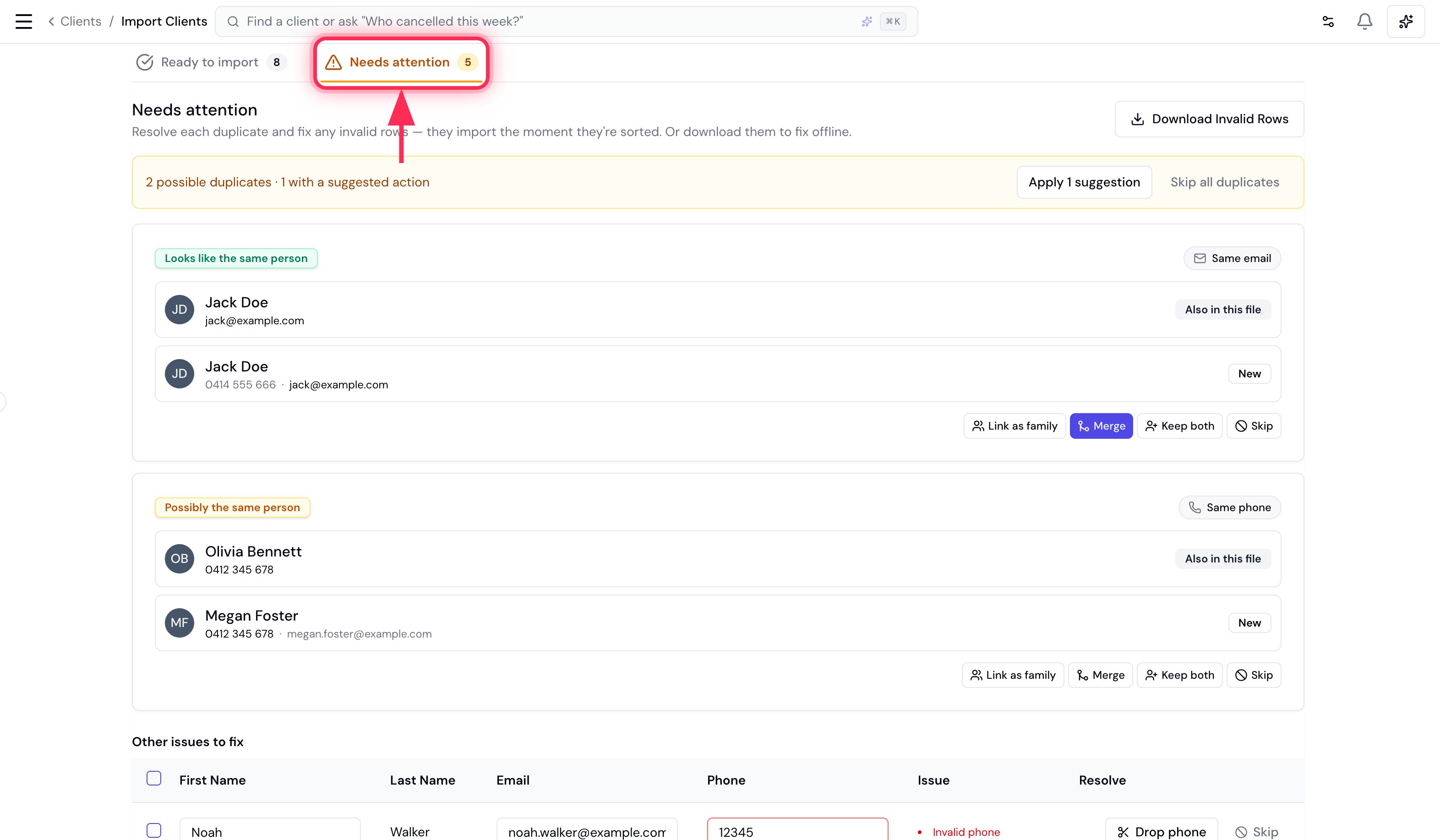
Bella checks every row against your existing clients and against itself, then splits the results into two tabs:- Ready to import - clean rows that will be added.
- Needs attention - duplicates and invalid rows. Nothing here is imported until you sort it out, and each row joins Ready to import the moment it’s resolved.
Resolving duplicates
Each possible duplicate is shown as a pair - the row from your file next to the record it clashes with (labelled Also in this file or Already in your account). Bella tells you why they matched (same email or same phone) and suggests an action. You have four choices:
Use Apply suggestions to accept Bella’s recommended action for every suggested duplicate at once, or Skip all duplicates to drop them. Resolved cards stay in place (dimmed) with an Undo, so you never lose your place.
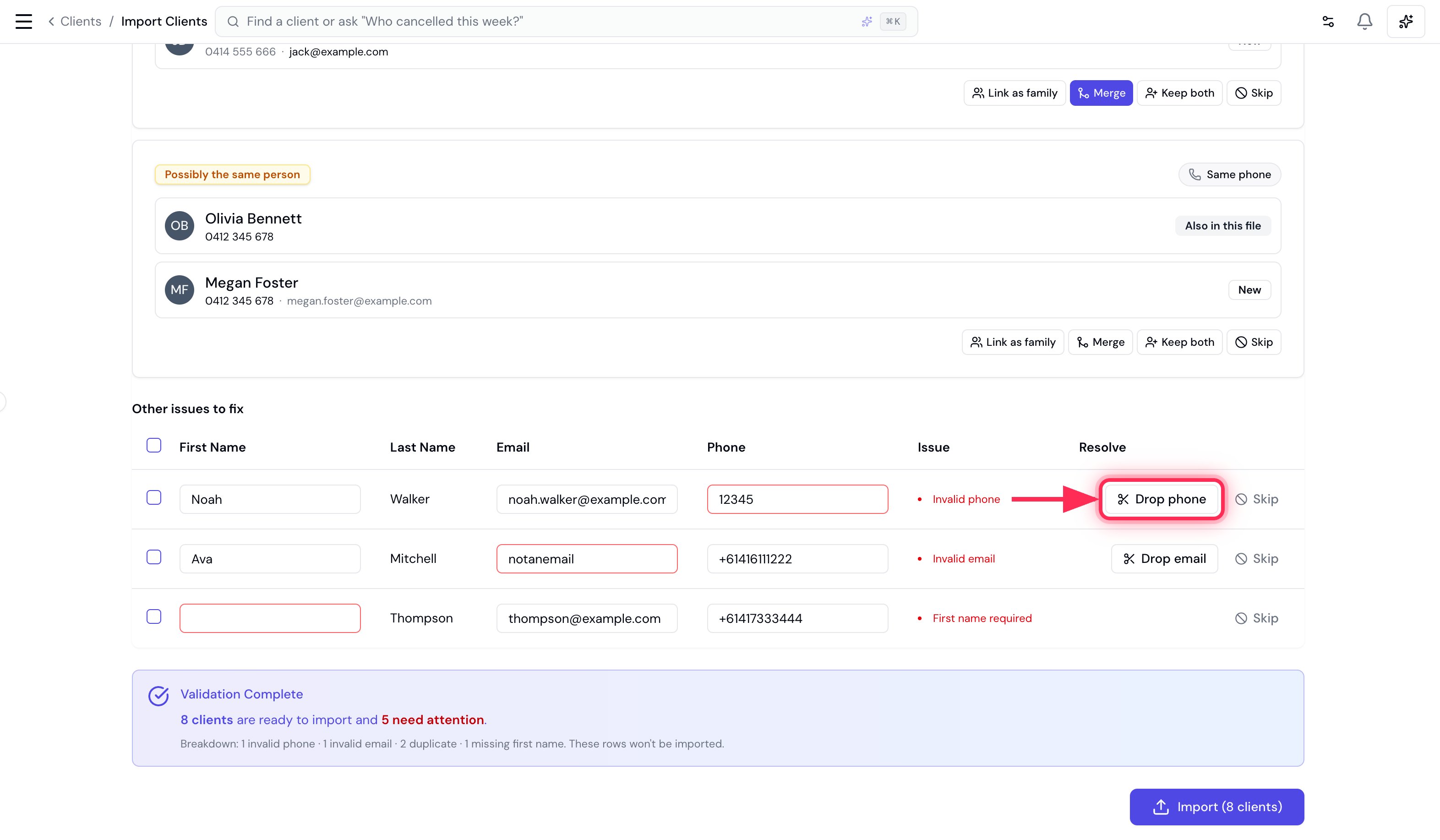
Fixing invalid records
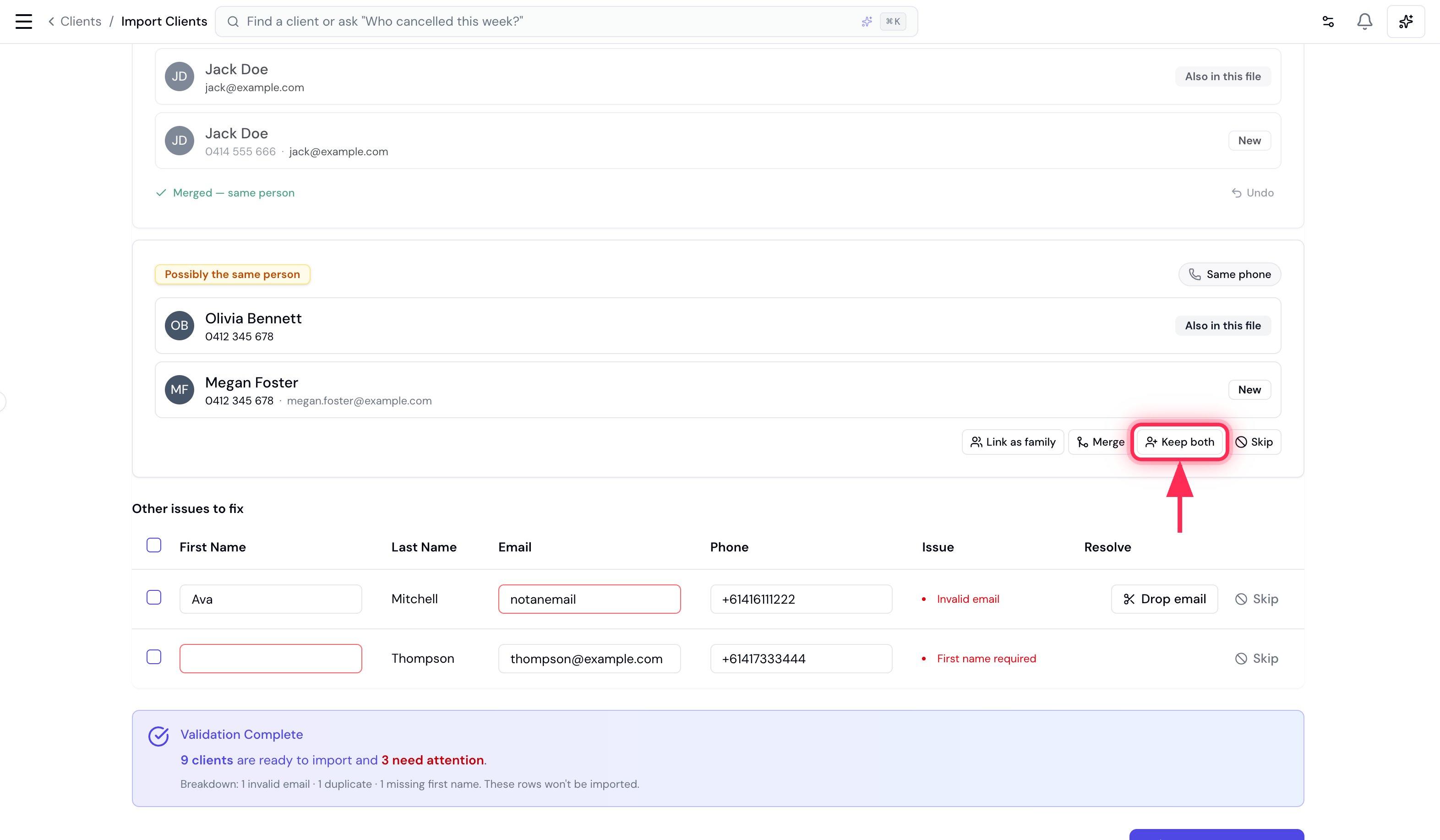
Rows with a bad field appear under Other issues to fix. You can:- Fix it inline - type straight into the First name, Email or Phone cell (the problem field is outlined in red). The row turns green and moves to Ready to import as soon as it’s valid.
- Drop the bad field - e.g. Drop phone keeps the client but removes the unusable number.
- Skip the row entirely.
Family members
A row with a Main client email (or Main client phone) is treated as a family member of that person - so it’s never flagged as a duplicate, even when it shares the primary’s contact details. Family rows sit under Ready to import with their relationship shown, and the link is created when you import. The primary can be elsewhere in the same file or already in your account.5. Import
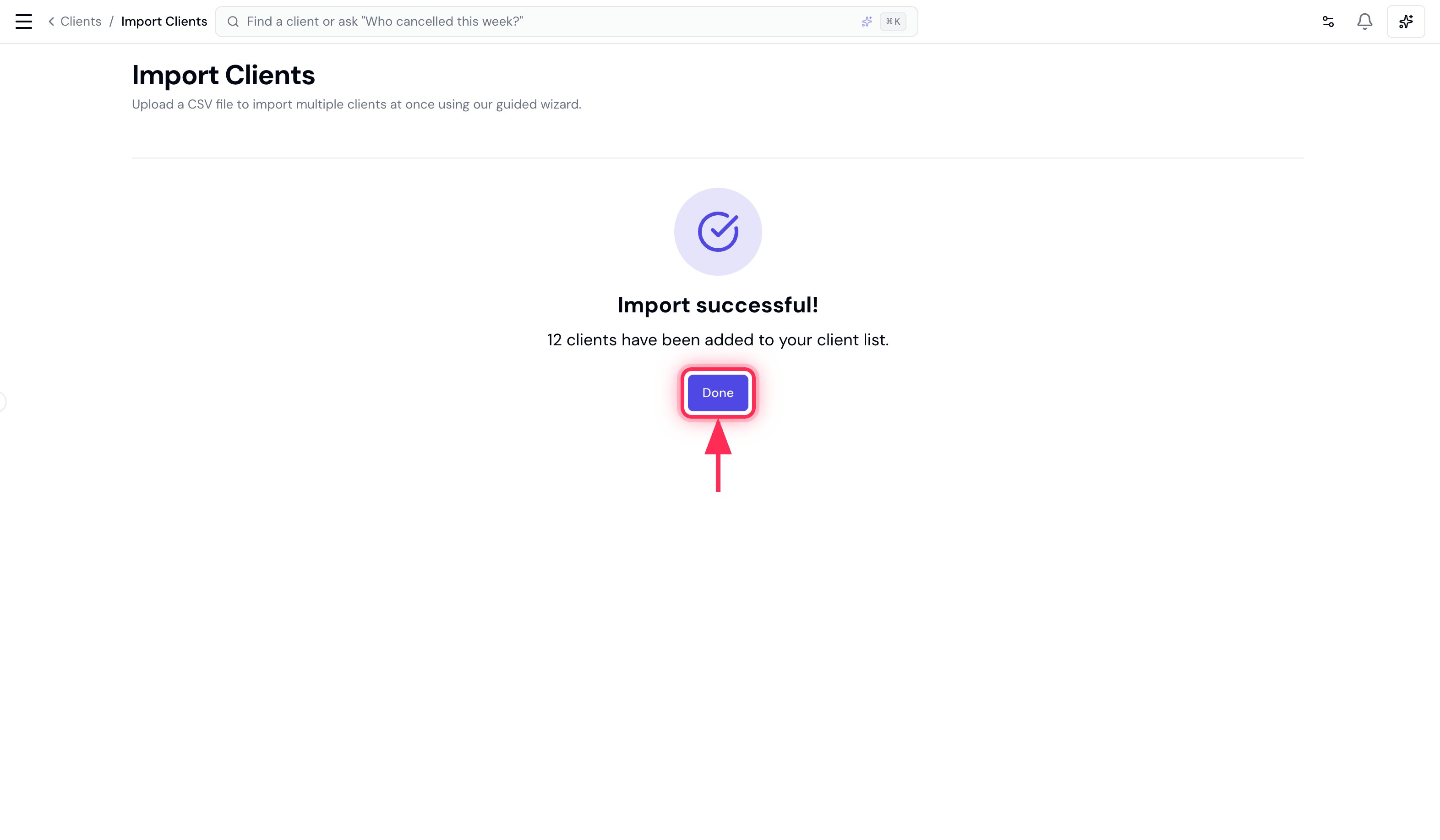
When Needs attention reaches zero (or you’re happy to skip what’s left), click Import.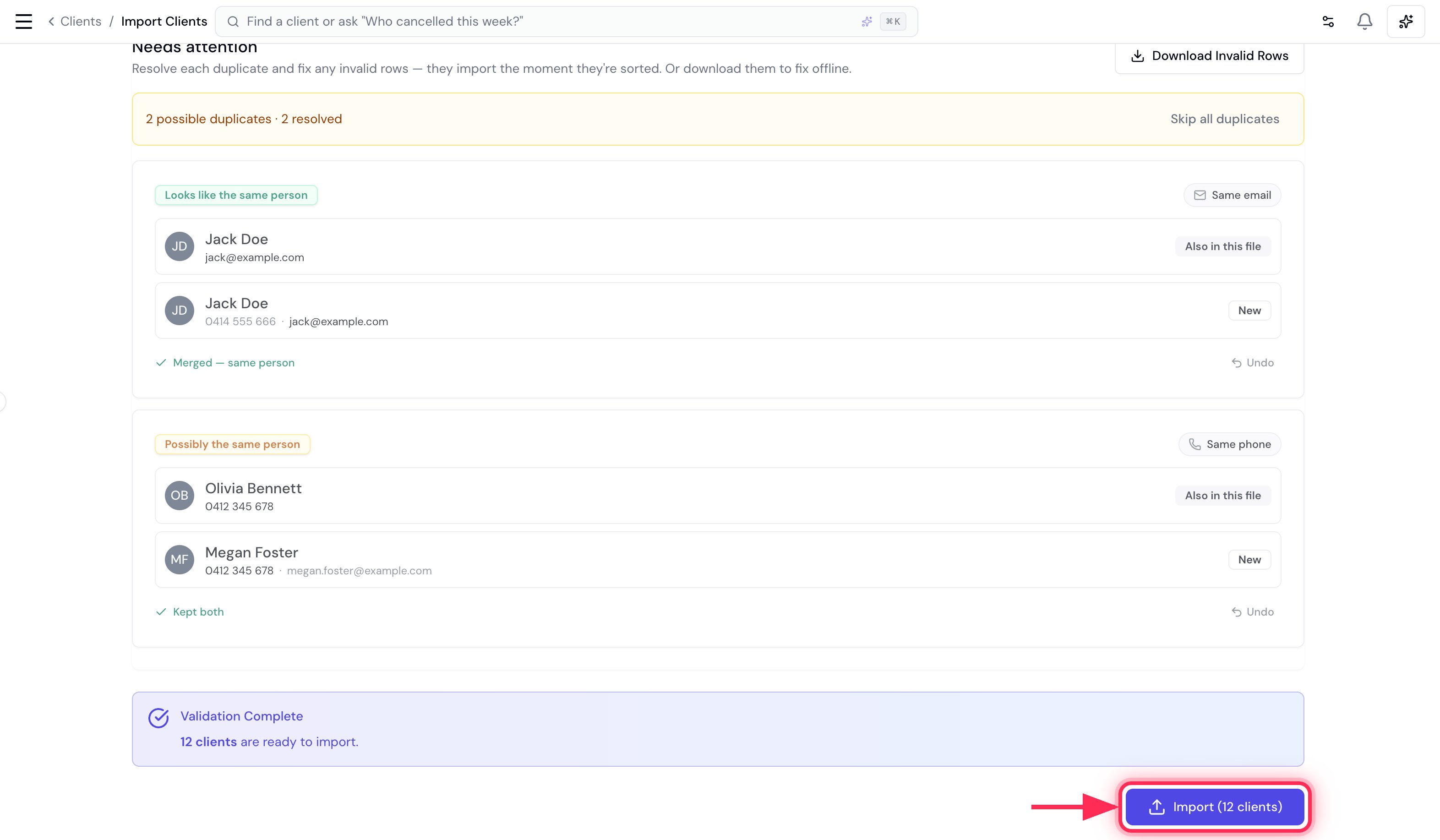
Tips
- Re-importing is safe. Run the same file again and the rows you already added show up as duplicates (Already in your account) for you to merge or skip - Bella won’t silently create copies.
- Fix offline if you prefer. Use Download invalid rows to get just the problem rows as a CSV, correct them in your spreadsheet, and re-upload.
Importing from a JSON file
A JSON file carries more than a spreadsheet can:- each client’s timeline notes, with their original dates
- credit balances and loyalty points
- family links, tags, marketing consent and how each client wants their reminders sent
- the client’s id in your old system, so running the same file again skips the clients it already brought across
If a balance can’t come across (for example, client credit is switched off), that step says so and leaves it out. The rest of the file still imports.
From there it’s the same preview as a CSV: you resolve duplicates, fix anything invalid, and import. When a client from the file merges into someone already in Bella, their notes, tags and balances are added to that client.
Download invalid rows gives you a JSON file of just the clients that still need fixing, with their notes and balances intact and what’s wrong listed on each under
importIssues. Fix those clients and upload the file again. Clients already brought across are skipped.