

Introduction
The Forms module lets you build digital forms - such as intake questionnaires, consent forms, and waivers - and collect responses from clients before their appointments. Forms can be linked to specific services and automatically sent when an appointment is confirmed, linked to products so a paid Product shop order sends them, or manually sent to individual clients at any time. Completed responses are stored against the client’s profile and the appointment, so your team always has the information they need.Sorting and filters
Search and filters choose which rows are listed. They do not change the order. To change the order, click a column heading that sorts. Unless the page says otherwise, the first click sorts text A to Z, and numbers and dates highest or newest first. Click the same heading again, or the heading the list already opens on, to reverse it. The arrow beside the heading shows the direction: up is A to Z, oldest first or lowest first, and down is Z to A, newest first or highest first. A heading that sorts by name ignores capital letters: “anna” and “Anna” sort together. The list opens with the newest forms first (when the form was created). Name and Last modified sort. Status, Fields, Submissions, Frequency, and Auto-send do not. On a narrow screen only Name and the row menu stay: widen the window to sort by Last modified.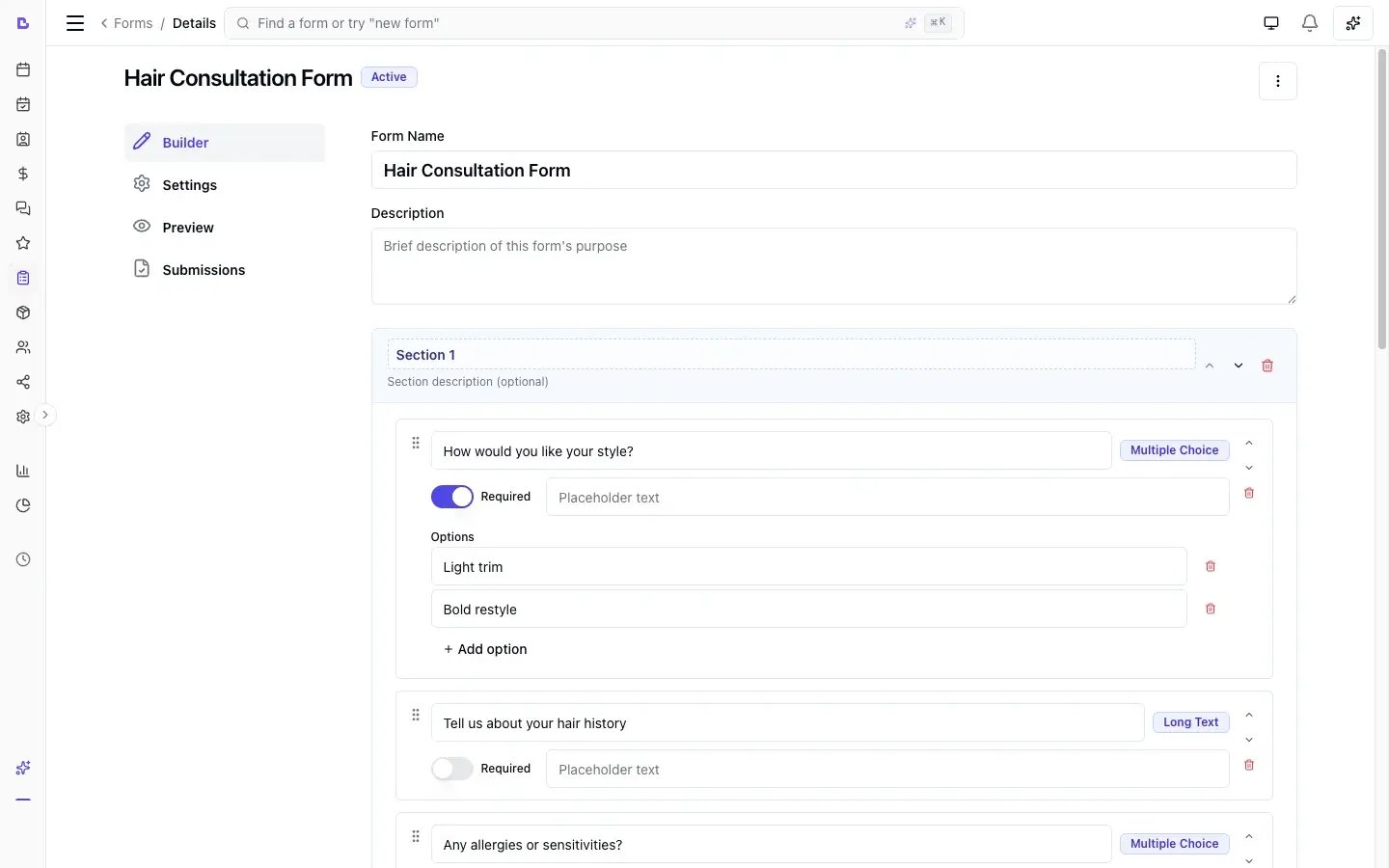
Key features
- Form builder: Create forms with sections and fields using a click-to-add interface with reorder controls
- Who fills it in: A client form goes to the client by email and SMS for them to complete. A team member form is a business record - your team fills it in, and the client never sees it
- Templates: Start from a ready-made form instead of a blank one - a full SOAP clinical note today
- Ten field types: Short text, long text, single choice (radio buttons), multiple choice (checkboxes), dropdown, yes/no, signature, file upload (photos and PDFs), info blocks for display-only content, and Client details
- Client details: Ask for a client’s name, email, phone number or date of birth and it arrives already filled in from their record. What they correct can be saved straight back to the client record
- Sections: Group related fields into named sections with optional descriptions
- Service and bundle linking: Apply a form to all services, or link it to specific services and bundles
- Product linking: Link a form to products so a paid Product shop order sends it automatically
- Frequency control: Send a form every matching appointment or purchase, or only once per client
- Auto-send: Automatically create and send forms when an appointment is confirmed or a linked product is purchased online
- Manual send: Send any active client form to a client on demand with email and SMS notification
- Live preview: See exactly what clients will see before activating a form
- Print: Print form previews and submitted responses directly from the browser with a print-friendly layout
- Submissions: View all responses in the form editor, on the client profile, or on the appointment
- Activate/deactivate: Control when a form is live without archiving it
- Duplicate: Clone an existing form to create a variation quickly
- Archive and restore: Soft-delete forms you no longer need, and bring them back if required
Creating a form
- Go to Forms in the sidebar
- Click Add form
- Enter a Name (e.g., “Hair Consultation”) and an optional Description
- Click Save - you are taken to the form editor
Start from a template
If the form you need is a standard one, you do not have to build it question by question.- Go to Forms in the sidebar
- Click Add from template
- Pick a template and click Use template - you are taken to the form editor
- SOAP note - clinical notes for an appointment in the SOAP format. 52 fields across 6 sections: Subjective, Review of systems, Objective, Assessment, Plan and Follow-up. Only the chief complaint is required, so your team fills in what happened and leaves the rest blank. It is written for a person typing a note during or after an appointment, and it says “client” throughout.
Who fills a form in
Every form is one of two kinds. You choose which on the Settings tab, under Who fills this form in:- Client - the client gets a link by email and SMS and completes it themselves. Intake questionnaires, consent forms and waivers are all this kind, and it is the setting every new form starts on.
- Team member - your team fills it in on the dashboard, and the answers stay a business record. A clinical note, a treatment record, your own notes from an appointment. It is never sent to the client, never sent automatically, and never appears in their account.
Who fills a form in is fixed once the form has submissions. Changing it afterwards would alter what people were told when they answered, so Bella refuses. If you need the other kind, open the three-dot menu, choose Duplicate, set the copy, and deactivate the original.
Already have the form on paper or as a PDF?
You do not have to retype every question. There is no self-service “upload a document and build the form” button yet, but we will build it for you: send your consent, intake or waiver document to the team in the support chat (the Support button in the sidebar) or to hello@bellabooking.com. A PDF, a Word file, or a clear photo of the paper version all work. We map each question to the right Bella field type and hand it back as an inactive form, so you can read it through, adjust anything, and activate it when you are happy. To reuse a form you have already built in Bella, open the three-dot menu on it and choose Duplicate instead.Building your form
The form editor has four tabs: Builder, Settings, Preview, and Submissions.Builder tab
This is where you add sections and fields.Adding a section
- Click Add section
- Enter a Title (e.g., “Medical History”) and an optional Description
- Use the up/down arrows to reorder sections
Adding fields to a section
- Click Add field within a section
- Choose a field type from the menu:
- Configure the field:
- Label: The question or prompt shown to the client
- Required: Toggle on to make the field mandatory
- Placeholder: Optional hint text shown inside the input (not available for Signature or File upload)
- Help Text: Optional additional guidance below the field
- Options: For single choice, multiple choice, and dropdown fields, add the available choices
- Use the up/down arrows to reorder fields within a section
Asking for the client’s own details
Add field ▸ Client details opens a picker of the five details Bella already holds on every client: First name, Last name, Email, Phone number and Date of birth. Tick the ones you want and each becomes its own field, labelled the same way the client record labels it. A form can ask for each detail once, so anything already on the form is greyed out in the picker. These fields behave like any other question: rename the label, mark it required, add help text, move it around. What is different is where the answer comes from and where it goes. They arrive filled in. When the client opens the form, the details already on their record are shown back to them as a short summary with an Update button. Most clients read it, see nothing has changed, and carry on. Anything Bella has not got shows as an empty field, so a form is still a way to collect a birthday you never had. What the client corrects can be saved to their record. Each Client details field carries an Update the client’s profile with this answer switch:
Turn a switch off and the answer is still recorded on the submission. You will see it beside the value on the record, marked Differs, with an Update profile button to apply it when you are ready. That button needs the same permission as editing the client record, so a team member who can only send forms cannot use it.
A blank answer never clears what is already on the record. If you need to remove a detail, do it on the client’s Details tab.
Changing a client’s email here changes where their messages go. It does not change the email they sign in to the online booking portal with, which stays as it was.
Removing sections and fields
Click the delete button on any section or field to remove it. Removing a section removes all its fields.Settings tab
Configure who fills the form in, and how and when it is sent:- Who fills this form in: Client (they get a link by email and SMS) or Team member (your team fills it in; it is never sent to the client). See Who fills a form in. Fixed once the form has submissions
- Apply to all services: Toggle on to link this form to every service, or toggle off and select specific services and bundles to link it to
- Frequency: Choose Every time (sent for each matching appointment or product purchase) or Once per client (sent only if the client hasn’t already completed it)
- Product linking: Click Select to tick the products that should send this form when a client buys them from your Product shop. Tick several at once, or tick a category or brand heading to take the whole group. Product links are always explicit: “Apply to all services” doesn’t cover products.
- Auto-send: Toggle on to automatically create and send the form when an appointment with a linked service is confirmed, or when a linked product is purchased from your Product shop
Preview tab
See a read-only preview of the form as it will be filled in: what the client sees on a client form, and what your team sees on a team member form. Use this to check layout, wording, and field order before activating. Click the Print button to print the form preview in a print-friendly layout.Activating and deactivating a form
A form must be activated before it can be sent to a client or filled in for one.Activating
- Open the form in the editor
- Click Activate
- Confirm in the dialog
Link a form directly to a bundle. As well as services, you can link a form to one or more bundles - select them in the same picker on the Settings tab. The form is then sent whenever that bundle is booked. (Linking to a bundle’s individual services still works too, and linking to all services covers everything.)
Deactivating
- Open the form in the editor
- Click Deactivate
- Confirm in the dialog
Deactivating is different from archiving. A deactivated form is still visible and editable - it simply stops auto-sending. Use deactivate when you want to temporarily pause a form.
Sending a form manually
You can send any active client form to a specific client at any time from three places. A team member form is never sent: fill it in instead, from a client’s profile or an appointment.From the form editor
- Open the form in the editor
- Go to the Submissions tab
- Click Send form
- Select a client and confirm
From a client’s profile
- Go to Clients and open the client
- Open the Forms tab
- Click Send form
- Choose the form and confirm
From an appointment
- Open the appointment
- Open the Forms tab (or the ⋯ menu)
- Click Send form
- Choose the form and confirm
If the form uses Once per client frequency, you cannot send it to a client who has already completed it.
To nudge a client about a form they haven’t completed, don’t send it again - use Resend link instead. It re-sends the email and SMS for the existing form without creating a duplicate. When a form is already awaiting completion, the Send form dialog shows this and offers Resend link right there; the button reads Send new form if you really do want a second submission. Resend link is also available on any pending submission.
Filling in a form for a client
Some clients never open the email, some have no email address at all, and some are simply standing at your front desk right now. Fill in for client lets a team member complete the form on the dashboard instead - the same questions, the same required fields, the same record. You’ll find it anywhere a form appears:- Client profile → Forms tab - on any form awaiting completion, or from the Send form dialog
- Appointment → Forms tab - same, and the form stays linked to that appointment
- Form editor → Submissions tab - on any pending row
- A pending submission - the Fill in for client button sits above Resend link
At the counter, with no form sent yet
- Open the client (or the appointment) and go to the Forms tab
- Click Send form
- Choose the form and click Fill in for client
A form the client was already sent
Click Fill in on the pending row. The same submission is completed, so there’s no second record and no duplicate email, and the client’s original link stops working on its own.On a client form, the signature is always the client’s. When the form has a signature field, hand the
device over - the client draws or types their signature exactly as they would on their own phone.
There is no separate team-member signing path: the same signature pad the client uses is the only way to sign, so hand the device over and let the client sign it themselves. A required signature can’t be skipped.
Who filled it in
Every completed form records who submitted it, and every screen says so: Filled in by Alex Chen when a team member completed it, Completed by Sarah Nguyen when the client did. The CSV export carries the same column, so a spreadsheet of consent records is never misleading. Where a form asks for Client details, those answers export alongside the rest, so a form export can include birthdays and contact details. The client is not sent a “we’ve received your form” message for a form you filled in for them. They watched you do it. Your team is still notified as usual, with the name of whoever filled it in.Filling in a form needs the Send forms permission - the same permission as sending one.
How clients complete forms
When a form is sent - either automatically or manually - the client receives an email and SMS notification with a link. A form can also be completed at your business, by a team member filling it in for the client (see Filling in a form for a client).- The client opens the link in their browser - no sign-in needed: each form link is a private, single-form link
- The form loads in the online booking portal
- The client fills in the fields across each section. Any Client details the form asks for are shown back to them already filled in, to confirm or correct
- Required fields are validated before submission
- The client submits the form
- A confirmation is shown in the browser, the response is recorded, and the client receives a confirmation message
Each form link is private to that one form - anyone the client forwards it to could open it, so clients should treat it like any other personal link. Browsing forms inside the online booking portal (My forms, appointment forms) still requires signing in.
Links from forms sent before this feature don’t carry the private token, so they still ask the client to sign in with the online booking account whose mobile number matches their client record. If such a client reports “Unable to load form”, the quickest fix is to open the pending submission and Resend link - the fresh link opens without sign-in.
Viewing submissions
There are three places to view form submissions:From the form editor
- Open a form and go to the Submissions tab
- See all submissions for this form - both pending and completed
- Click a submission to open the details in a read-only viewer. Use the Print button to print the submission
From a client’s profile
- Go to Clients and open a client’s profile
- Navigate to the Forms tab
- See all form submissions for this client across all forms
From an appointment
- Open an appointment
- Look for the Forms section
- See when each form was sent and its status (pending or completed)
- Resend link - sends the form request email and SMS again for the same form (no duplicate submission is created)
- Copy link - copies the form completion link so you can share it with the client directly, handy when they can’t find the original email or SMS
Editing a form
You can edit a form at any time, whether it is active or inactive.- Go to Forms in the sidebar
- Click the form you want to edit
- Make changes in the Builder or Settings tabs
- Click Save
Duplicating a form
- Go to Forms in the sidebar
- Click the three-dot menu on the form you want to duplicate
- Select Duplicate
Archiving, restoring, and deleting forms
Archiving a form
Archiving hides a form from the default list and stops it from being sent to clients.- Click the three-dot menu on a form
- Select Archive
- Confirm the action
Viewing archived forms
Use the status filter on the Forms page to show archived forms.Restoring a form
- Filter the list to show archived forms
- Click the three-dot menu on the archived form
- Select Restore
Deleting a form
Permanent deletion is only available for forms with no submissions.- Click the three-dot menu on the form
- Select Delete
- Confirm the action
Auto-send behaviour
When a form is active with auto-send enabled, the system automatically creates a pending submission each time a matching appointment is confirmed or a linked product is purchased online. The matching logic works as follows: On appointment confirmation (whether booked online or by a team member):- The system checks for active client forms where auto-send is enabled - a team member form is never sent automatically, whatever its settings say
- For each matching form, it checks whether the booked services or bundles match the form’s linked services and bundles (or if the form applies to all services)
- If the form uses Once per client frequency, it checks whether the client has already completed this form - if so, it skips
- A pending submission is created and the client is notified
- The system checks for active auto-send forms whose linked products include any product in the order
- Product links are always explicit - “All services” does not cover products
- The same Once per client rule applies
- A pending submission is created and the client is notified by email/SMS; the order confirmation page also shows a Start form button
File uploads vs client Files / Photos
Forms can collect files and photos as answers to a question. That is different from the client’s general Files and Photos tabs on their profile.
There is no separate documents inbox in the online booking portal where clients browse every file you have ever uploaded for them. If clients need to re-read something they submitted, they open the completed form. If your team needs a shared attachment history, use the client Files / Photos tabs and appointment attachments.
Limits for form uploads: up to 10 files per question, 20 MB each; JPG, PNG, WebP, HEIC, or PDF.
FAQs
Q: Can a client see a clinical note my team filled in? A: Not on a team member form. Those never reach the client: no email, no SMS, nothing in their account. Set it on the Settings tab under Who fills this form in before the form is used - see Who fills a form in. The SOAP note template already arrives set that way. Q: Can I change who fills a form in after people have answered it? A: No. Bella refuses once the form has submissions, because changing it would alter what people were told when they answered. Duplicate the form, set who fills the copy in, and deactivate the original. Answers already recorded keep the visibility they were given. Q: Can I edit a form after it has been activated? A: Yes. You can edit a form at any time. Changes apply to new submissions only - completed responses are preserved as they were. Q: What happens to submissions if I edit a form? A: Existing submissions are not affected. Each submission stores the field labels and response values as they were at the time of completion. Q: Can I send a form to a client without an appointment? A: Yes. Send from the client’s Forms tab - that path does not require an appointment. Q: What is the difference between deactivating and archiving? A: Deactivating keeps the form visible and editable but stops auto-sending. Archiving hides the form from the default list entirely. Both preserve existing submissions. Q: Can a client complete a form more than once? A: It depends on the frequency setting. If set to Every time, the client receives the form with each matching appointment or product purchase. If set to Once per client, the client only receives it once. Q: What field types are available? A: Short text, long text, single choice (radio buttons), multiple choice (checkboxes), dropdown, yes/no, signature, file upload (photos and PDFs - up to 10 files per question, 20 MB each), info block (display-only), and Client details - the client’s own first name, last name, email, phone number or date of birth, which arrives filled in from their record. See Asking for the client’s own details. Q: Can clients upload photos or files on a form? A: Yes. Add a File upload field in the form builder. See File uploads vs client Files / Photos for limits and how that differs from the client’s Files / Photos tabs. Q: Can I print a form or a client’s submission? A: Yes. Both the form preview and individual submissions have a Print button that opens a print-friendly layout you can print or save as PDF. Q: Can I require certain fields? A: Yes. Toggle the Required option on any field. The client cannot submit the form until all required fields are filled in. Q: How does the client receive the form? A: Clients receive an email and SMS with a link to complete the form in your online booking portal. Q: Can I see which clients have not yet completed a form? A: Yes. In the Submissions tab of any form, pending submissions are shown alongside completed ones. Q: Do I need a specific subscription to use Forms? A: Yes. Forms is available on the Professional plan. If you don’t see Forms in your sidebar, check your subscription or contact support. Q: Can I link a form to specific services or bundles only? A: Yes. In the Settings tab, toggle off Apply to all services and select the specific services and bundles the form should be linked to. A form linked to a bundle is sent whenever that bundle is booked. Q: What happens if I archive a service that is linked to a form? A: Nothing changes on the form side. Archived services won’t generate new appointments, so the form linkage is effectively inactive. You don’t need to update the form.Related documentation
- Clients - View form submissions on a client’s profile
- Services - Manage the services that forms are linked to
- Automated messages - Configure the notifications that include form links
- Online booking - Set up your online booking portal where clients complete forms