

Introduction
The Incomplete Bookings feature captures online bookings that clients start but don’t complete - giving your team a chance to follow up and convert those interrupted sessions into confirmed appointments. When a client signs in with their verified phone number, selects services and a time, but leaves the booking flow before paying or confirming, their selection is saved as a draft booking. You’ll see it in the Waitlist panel under the Incomplete tab, plus an alert card on the dashboard so nothing slips through the cracks.Key features
- Authenticated Capture Only: Incomplete bookings are only captured from clients who have verified their phone number. Anonymous visitors are never tracked - respecting privacy and avoiding unreachable leads.
- 10-Minute Review Session: When a client reaches the Review step, a 10-minute countdown starts to nudge them to finish. This is a client-side urgency timer - the slot is not reserved for them, and another client could book it in the meantime (the first confirm to arrive wins). If the 10 minutes elapse without completion, the booking is treated as incomplete.
- Dashboard KPI Card: An amber alert card surfaces on your dashboard whenever there are incomplete bookings awaiting follow-up. Hidden when the count is zero or you don’t have permission.
- Waitlist Side Panel: The scheduler’s Waitlist panel groups the Waitlist and Incomplete tabs together - same operational category, one place to manage pending intent.
- One Draft per Client: A client only ever has one active draft at a time. If they return and start a new booking, the existing draft is updated - never duplicated.
- Automatic 72-Hour Cleanup: Drafts auto-expire after 72 hours via a Mongo TTL index - no manual housekeeping needed.
- Automatic Reminder (Opt-In): Enable the Incomplete booking reminder in Automated messages to send an SMS and/or email automatically once the draft is treated as abandoned, with a one-tap resume link.
- Manual Follow-Up Actions: From the Waitlist, you can call or email the client directly, book the appointment on their behalf, re-send the reminder, or dismiss the entry.
- Reminder-Once Rule: The automatic reminder fires once per draft. If the client re-engages and abandons again, they’ll get a fresh reminder - but they won’t be spammed while a reminder is already in flight.
How it works
What triggers a capture?
A draft booking is recorded when all of the following are true:- The client is signed in to the online booking page (verified phone via OTP).
- They’ve selected at least one service.
- They’ve reached the Review & Book step - meaning they’re one tap away from confirming.
- They haven’t completed the booking yet.
What happens when the review session expires?
The 10-minute countdown starts as soon as the client lands on Review. Client-side (online booking page):- An amber banner shows the countdown at the top of the Review step (“Finish booking in 9:42”).
- At 2 minutes remaining, the banner turns red to create urgency.
- At 0:00, the client is prompted to pick a new time (their previous choice may still be available, or may have been taken by another client in the meantime).
- Nothing happens while the client is still on the Review step. The draft isn’t visible to the business - there’s no point signalling “pending action” when the client is still in the middle of booking.
- When the 10-minute review session expires, the draft appears in the Waitlist panel’s Incomplete tab with an amber badge count.
- A client who got as far as paying a deposit or saving a card doesn’t wait that out. Their booking held the time for 30 minutes, so the moment that hold ends the draft appears straight away - they’ve already had their half hour and walked away.
- The Dashboard KPI card updates with the new count, on the same rule.
- If Incomplete booking reminder is enabled, the client receives one SMS and/or email with a resume link at the same moment.
What the client sees
If the reminder is enabled and the client has the matching channel preference, they’ll receive a message like:“Hi Sarah, it looks like you didn’t finish booking your hair cut at Bella Hair Co. Your selected time may still be available - tap to complete your booking: [resume link]”Tapping the link takes them back to the Review step with all their selections restored (services, team member, date, time, notes). They can finish in one or two taps.
Why only authenticated clients?
Incomplete booking recovery requires a way to reach the client. Anonymous visitors leave no contact trail, so there’s no ethical way to follow up. Requiring a verified phone number before capture means:- Every lead in your Waitlist is reachable.
- No spam risk - the client has already consented to being contacted during phone verification.
- GDPR/privacy-compliant by design.
Step-by-step usage instructions
Viewing incomplete bookings
- From the Dashboard, if there are incomplete bookings, you’ll see an amber alert card with the count.
- Click Review → to jump straight to the Waitlist panel, or
- Navigate to the Scheduler and click the Waitlist button - then switch to the Incomplete tab.
- Switch to the Incomplete tab - the amber badge shows how many drafts are waiting.
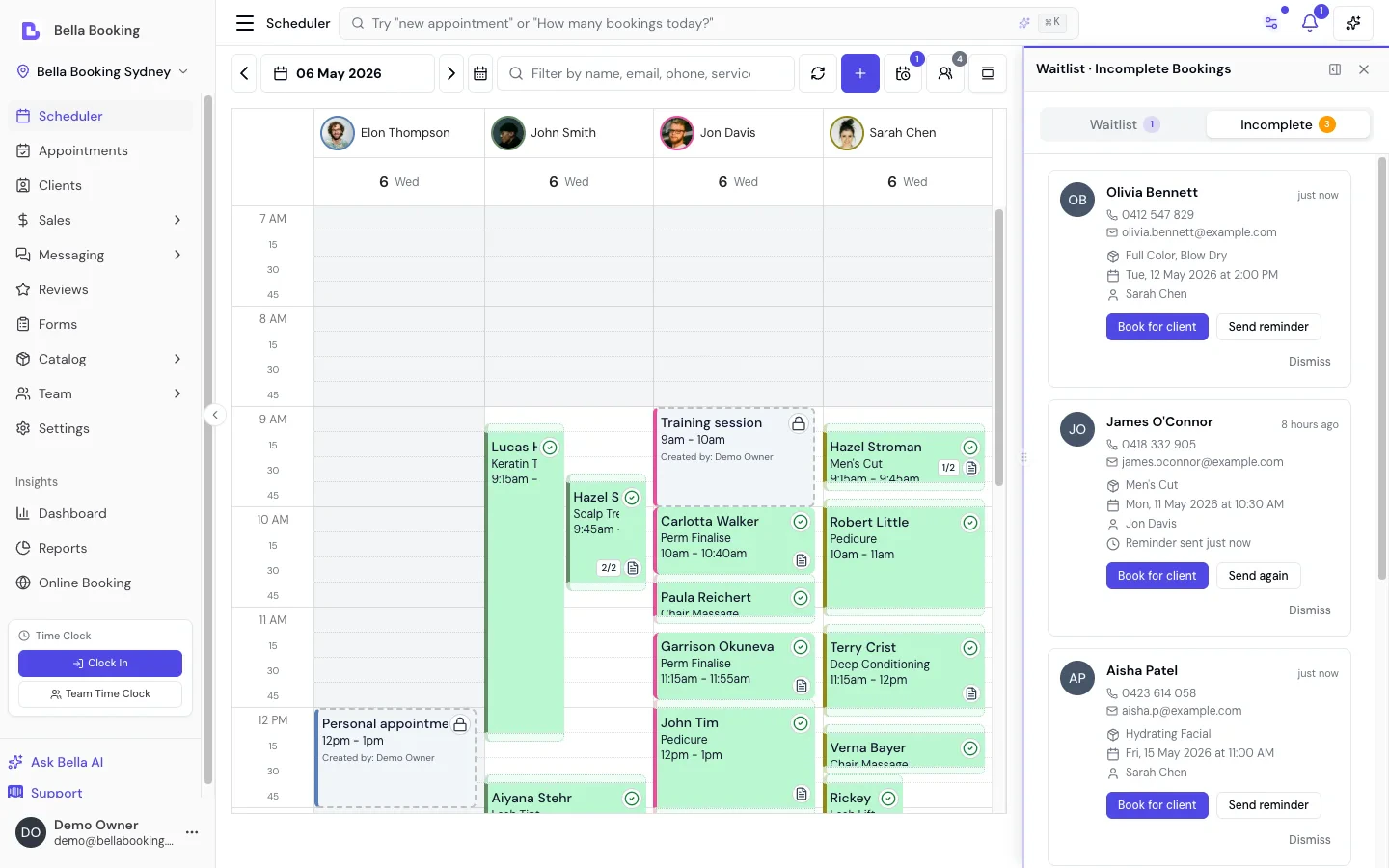
Reading an incomplete booking card
Each card shows:- Client name (tap to call, tap to email)
- Selected services with any variant names
- Requested date and time (if the client chose one)
- Assigned team member (if the client chose one, or “Any team member”)
- Last activity timestamp - shows how long ago they last interacted
- Reminder status - if a reminder has already been sent, you’ll see when
- How far they got - Stopped at payment when the client reached the deposit and their time was held while they paid, Stopped at card when they reached the card form under the Card on file policy, or Stopped at review when they stopped before either
Taking action
From each card, you have four options: Book for client - Opens the appointment-create flow prefilled with the client, the selected services, the team member (if the client chose one), and the requested date and start time. Services the client had selected are resolved against your current catalogue - anything removed or archived is silently skipped so you can review before saving. Use this when you’ve spoken to the client and want to confirm the booking on their behalf. Send reminder (or Send again) - Sends an SMS and/or email reminder with a resume link. The manual send always delivers regardless of whether the automatic Incomplete booking reminder is turned on - the automation toggle only gates the scheduled send. Disabled only if the client has no contact channel on file. The toast message confirms which channels actually went out, or explains why none did (e.g. the client has muted all notification channels). Dismiss - Removes the entry from your Waitlist without contacting the client. Use for drafts you don’t want to pursue (e.g. known test accounts, clients you’ve already spoken to offline). Call / Email - Tap the phone number or email address on the card to open your phone’s dialer or default mail app.Enabling automatic reminders
By default, the automatic reminder is off to avoid surprising businesses with unwanted client messages. To enable:- Go to Settings → Automated messages
- Scroll to the Reminders group
- Click Incomplete booking reminder
- Toggle Email and/or SMS on
- (Optional) Customise the template - the default uses
{{FirstName}},{{ServiceName}},{{BusinessName}}, and{{ResumeBookingLink}}.
Permissions
Viewing and managing incomplete bookings uses the existing Manage Waitlist permission - the same permission that controls the waitlist, because the two are operationally identical (both surface pending intent that hasn’t converted). If you can see the Waitlist tab, you can see and action Incomplete Bookings. No new permission setup is needed.Frequently asked questions
Does the client know I can see their incomplete booking?
Does the client know I can see their incomplete booking?
No direct notification tells the client you have visibility - but if you click Send reminder, they’ll receive a message clearly from your business inviting them to complete their booking. The reminder is always opt-in on the business side.
What if a client completes their booking after I've already sent a reminder?
What if a client completes their booking after I've already sent a reminder?
The draft is automatically marked as Converted and disappears from the Waitlist. The dashboard count updates on the next refresh.
Is the selected time slot actually held/reserved for the client during those 10 minutes?
Is the selected time slot actually held/reserved for the client during those 10 minutes?
Not while the 10-minute countdown is running - it’s a client-side urgency timer, not a reservation. Two clients can select the same time and both see a countdown; whichever submits first wins, and the other sees a conflict error and is asked to pick again. This is consistent with how most booking systems work.The time is held once the client reaches a step that gates bookings at your business: a deposit under Pay to book, or a card under Card on file. Bella then holds that slot for 30 minutes, and it disappears from your booking page until the client finishes or the hold ends.
Can I customise the 10-minute review session duration?
Can I customise the 10-minute review session duration?
Not currently - 10 minutes is a fixed platform constant aligned between the client-side countdown and the server-side abandonment trigger. Changing one without the other would cause drift between what the client sees and what the business treats as abandoned.
What happens to dismissed drafts?
What happens to dismissed drafts?
They stop appearing in the Waitlist panel immediately. The record itself is cleaned up automatically by the 72-hour TTL on the original draft (counted from the last time the client engaged with the draft, not from dismissal). There’s no way to restore a dismissed draft from the UI, so make sure you want to stop following up before clicking Dismiss.
Will I get spammed with notifications every time a client reaches Review?
Will I get spammed with notifications every time a client reaches Review?
No. The business bell fires only once the client has genuinely abandoned the booking: 10 minutes after they stop on the Review step, or when the 30-minute payment or card hold they were on ends. Reaching the Review step and completing normally never creates a notification.
Do clients with no email or SMS preference still get reminders?
Do clients with no email or SMS preference still get reminders?
No. The reminder respects both the business setting (whether the channel is enabled in Automated messages) AND the client’s own notification preference. If both Email and SMS are blocked, the reminder is silently skipped and a descriptive reason appears in the toast when you click Send reminder manually.
Related
- Waitlist - Track clients waiting for specific services or time slots
- Automated messages - Configure the Incomplete booking reminder template and channels
- Online booking settings - Configure your online booking page