The command palette is your shortcut to everything in Bella Booking. Open it from any screen to search records, jump to any page, trigger quick actions, or ask Bella AI a question — all without leaving your keyboard.

Opening the Command Palette

MethodHow
KeyboardPress Cmd+K (Mac) or Ctrl+K (Windows/Linux)
ClickClick the search bar in the top header
MobileTap the search icon in the header

What You Can Do

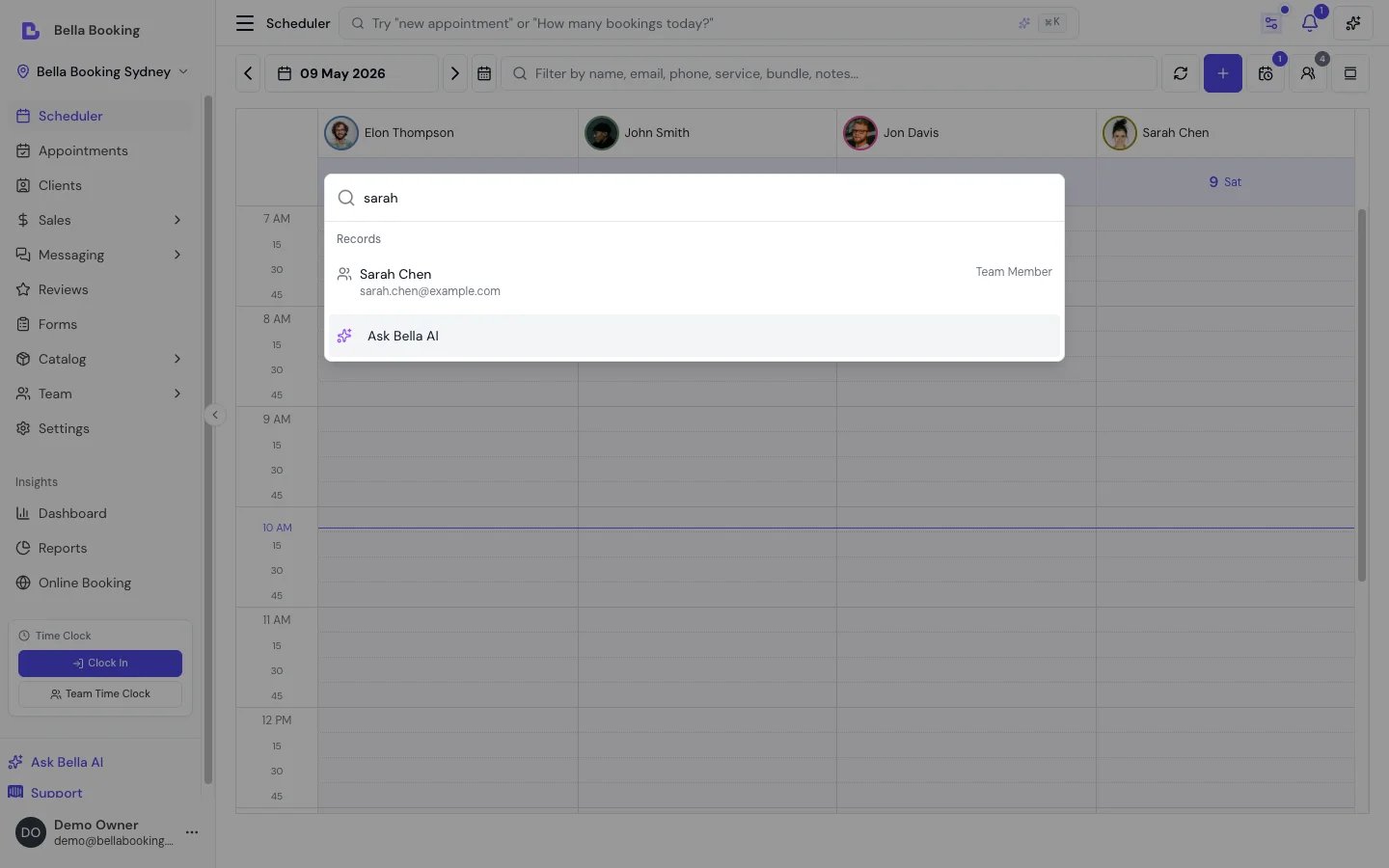
Search Records

Type a name, email, phone number, or reference to search across:
  • Clients — name, email, phone
  • Appointments — client name, service, date
  • Services — service name
  • Products — product name
  • Gift Cards — code or recipient
  • Team Members — team member name
Results appear in real time with links to the full record.

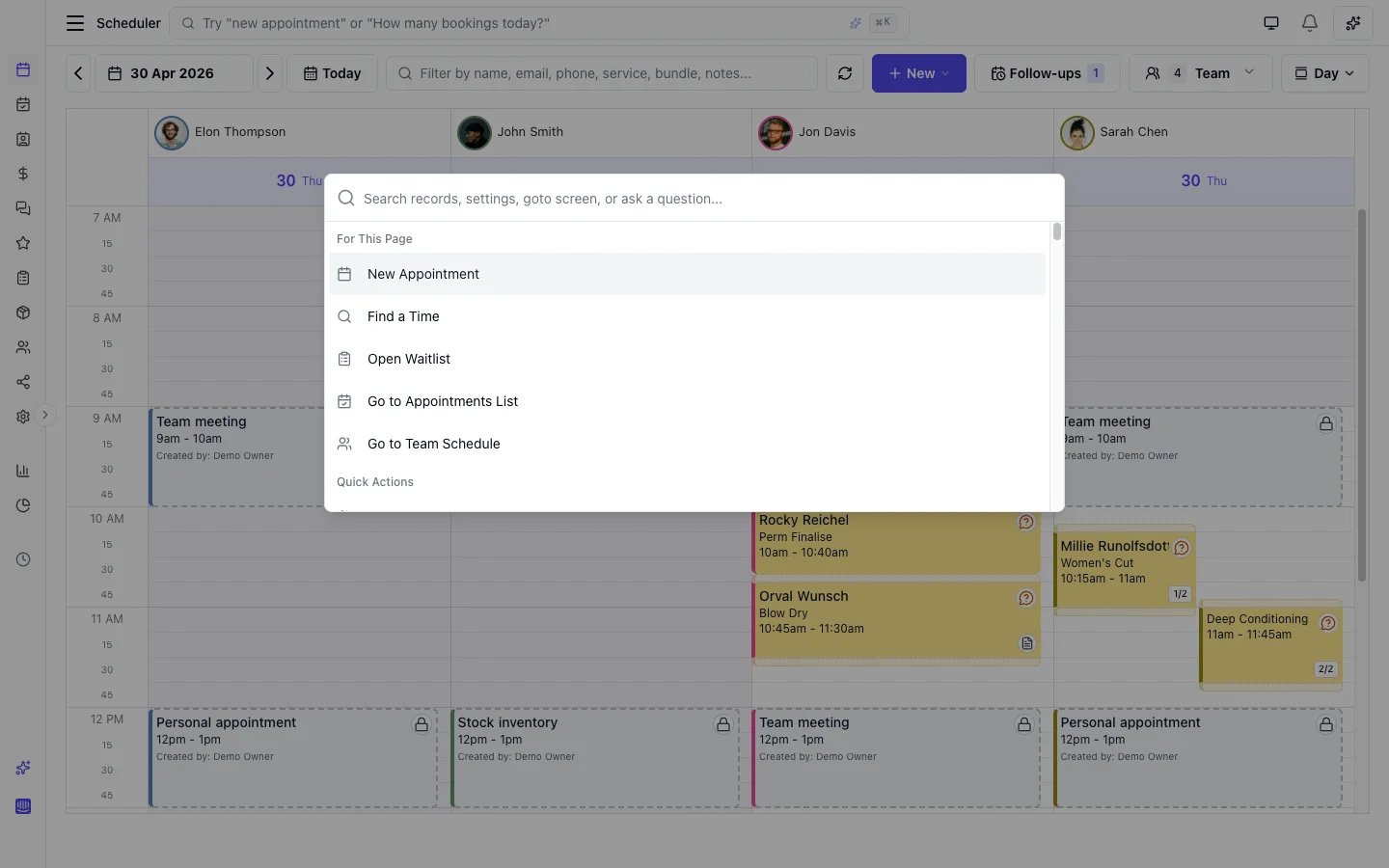
Go To Any Screen

Navigate to any page, settings section, or report by typing its name. The command palette includes every screen in the app — over 130 destinations — with fuzzy search that tolerates typos. Examples:
  • Type “scheduling” to jump to Scheduling Settings
  • Type “rev” to find Revenue reports, Reviews, or Review Settings
  • Type “loc” to go to Location Settings
Items are grouped into:
GroupExamples
Quick ActionsNew Appointment, New Client, New Sale, New Service
NavigationScheduler, Appointments, Dashboard, Clients, Transactions
CatalogueServices, Add-ons, Pricing Tiers, Products
TeamTeam Management, Team Schedule, Timesheets
ReportsRevenue, Appointments, Cancellations, Team Utilisation
SettingsGeneral, Locations, Scheduling, Online Booking, Payments

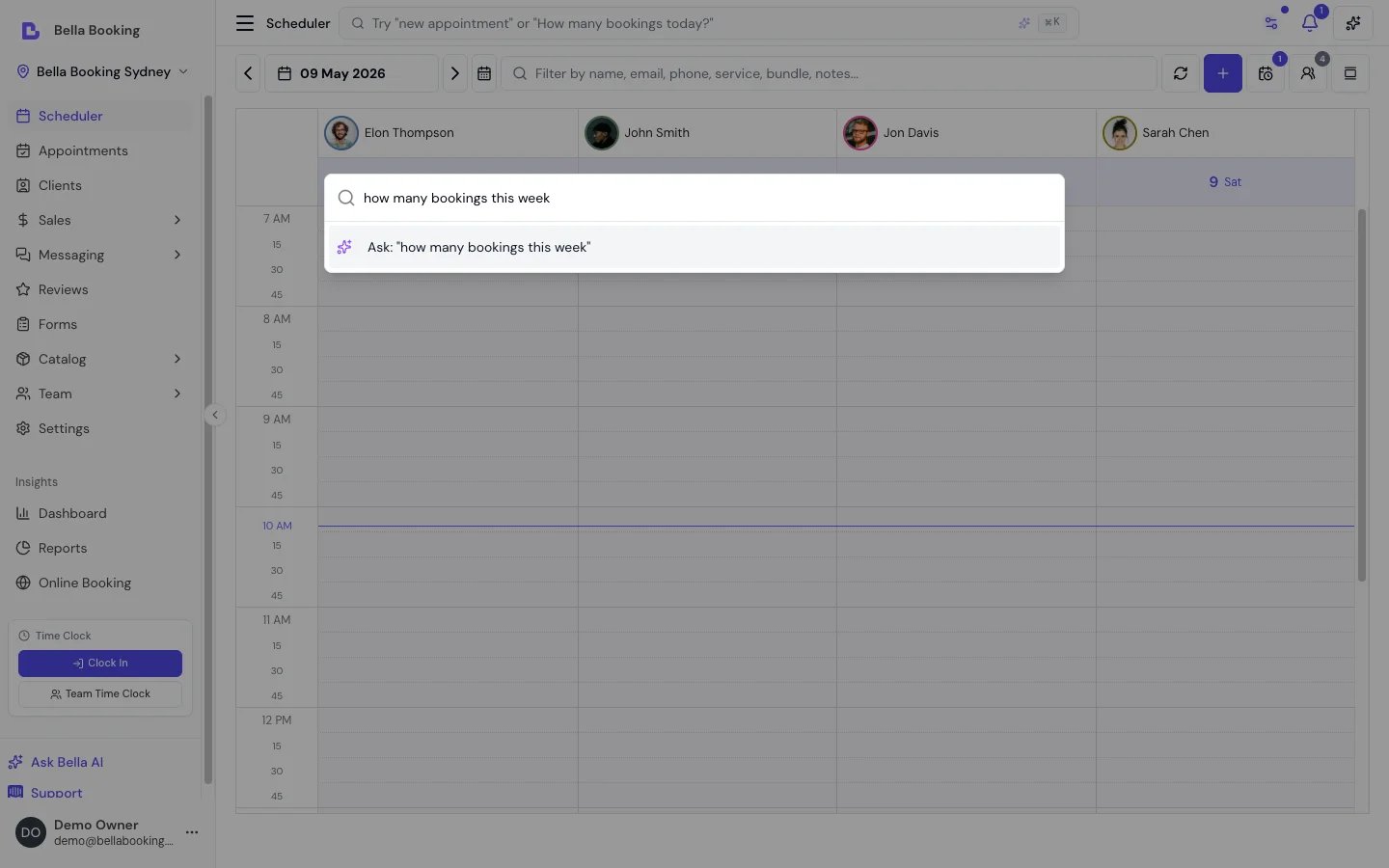
Ask Bella AI

When your search looks like a question (starts with “how”, “what”, “who”, etc., or contains a question mark), the command palette automatically shows a quick AI answer from Bella AI. You can then continue the conversation in the full Bella AI panel. Examples:
  • “Who’s working tomorrow?”
  • “How do I set up online booking?”
  • “What was this week’s revenue?”
AI quick answers, search, and navigation are all available on all plans.

Recent Items

When you open the command palette without typing, it shows your most recently visited items from this session — up to 5 — so you can quickly jump back.

Keyboard Navigation

Once the palette is open:
KeyAction
Arrow Up / DownMove between results
EnterSelect the highlighted item
EscapeClose the palette
TypeFilter results instantly

Availability

FeatureSoloStarterProfessional
Search recordsYesYesYes
Navigate to screensYesYesYes
Quick actionsYesYesYes
AI quick answersNoNoYes