

Introduction
Attendance tracking lets you monitor when team members clock in and out using a PIN code. The system records actual hours worked, flags late arrivals and missing entries, and provides exportable timesheets for payroll preparation.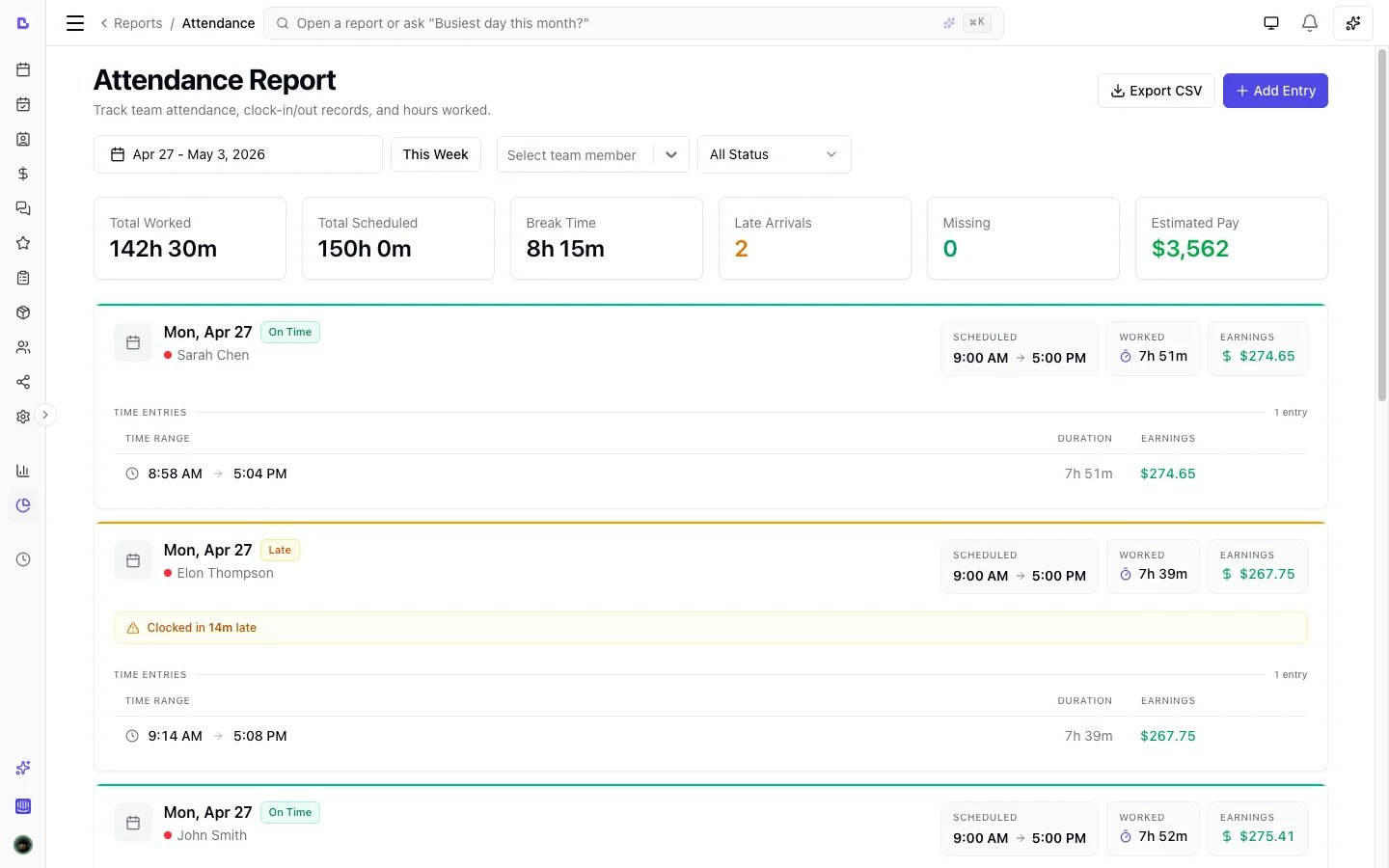
Attendance tracking is available on the Professional plan and during trials.
Enabling attendance tracking
- Go to Settings > Scheduling
- Find the Attendance Tracking section
- Toggle Enable Attendance Tracking on
- Each team member will need a PIN set up (see below)
Setting up PINs
Each team member needs a 4-6 digit PIN to clock in and out.Setting a PIN for a team member
- Go to Team in the sidebar
- Click on the team member
- In their profile, find the Clock-in PIN section
- Click Set PIN
- Enter a 4-6 digit PIN and confirm
Clearing a PIN
- Open the team member’s profile
- Click Clear PIN next to their current PIN status
Clocking in and out
For team members
- Open Bella Booking (or the installed PWA)
- The My timesheet page is available from the sidebar
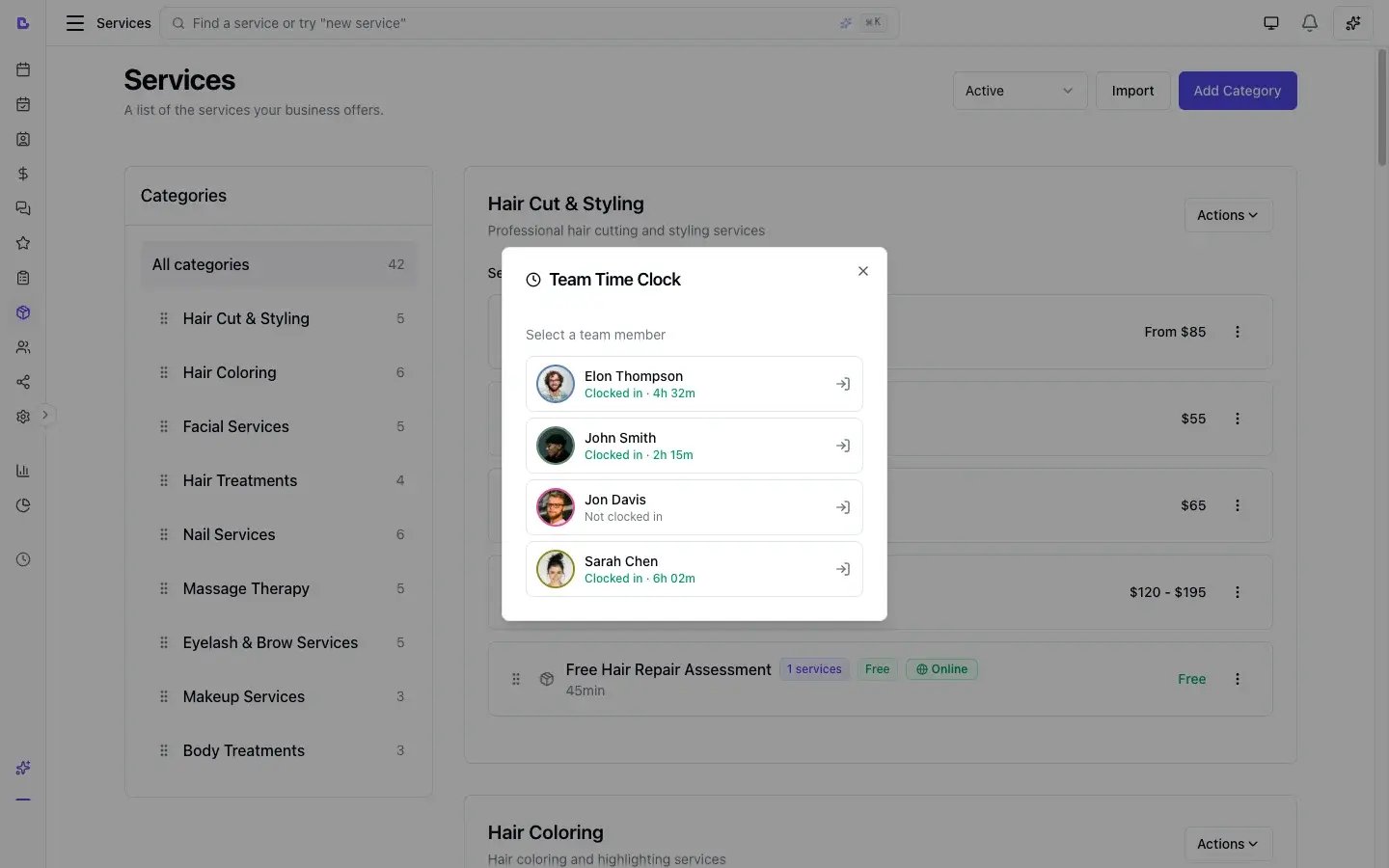
- Enter your PIN to clock in
- When your shift ends, enter your PIN again to clock out
Forgotten clock-outs
If a team member forgets to clock out, the system flags it as a missing entry. Owners and admins can manually edit the entry to add the correct clock-out time.Viewing timesheets
My timesheet (team member view)
Team members can view their own timesheet from My timesheet in the sidebar. This shows:- Clock-in and clock-out times
- Total hours for each day
- Any flagged entries (late arrivals, missing clock-outs)
Attendance report (admin/owner view)
Owners and admins can view all team members’ attendance from Reports > Attendance. This report shows:- Clock-in and clock-out times for each team member
- Total hours worked
- Late arrivals (compared to scheduled start time)
- Missing entries (forgot to clock in or out)
- Estimated pay (if pay rates are configured)
Editing entries
Owners and admins can edit attendance entries to correct mistakes:- Go to Reports > Attendance
- Find the entry that needs correcting
- Click the edit button
- Update the clock-in or clock-out time
- Save the changes
Exporting to CSV
Export attendance data for payroll processing:- Go to Reports > Attendance
- Set the date range for the pay period
- Click Export CSV
- The download includes clock-in/out times, total hours, and estimated pay for each team member