

Introduction
Digital Tipping lets your clients leave tips for team members after completed appointments through the online booking portal. Tips are processed securely through your connected payment account and included in your regular payouts. Tipping is optional and can be enabled or disabled at any time from your payment settings.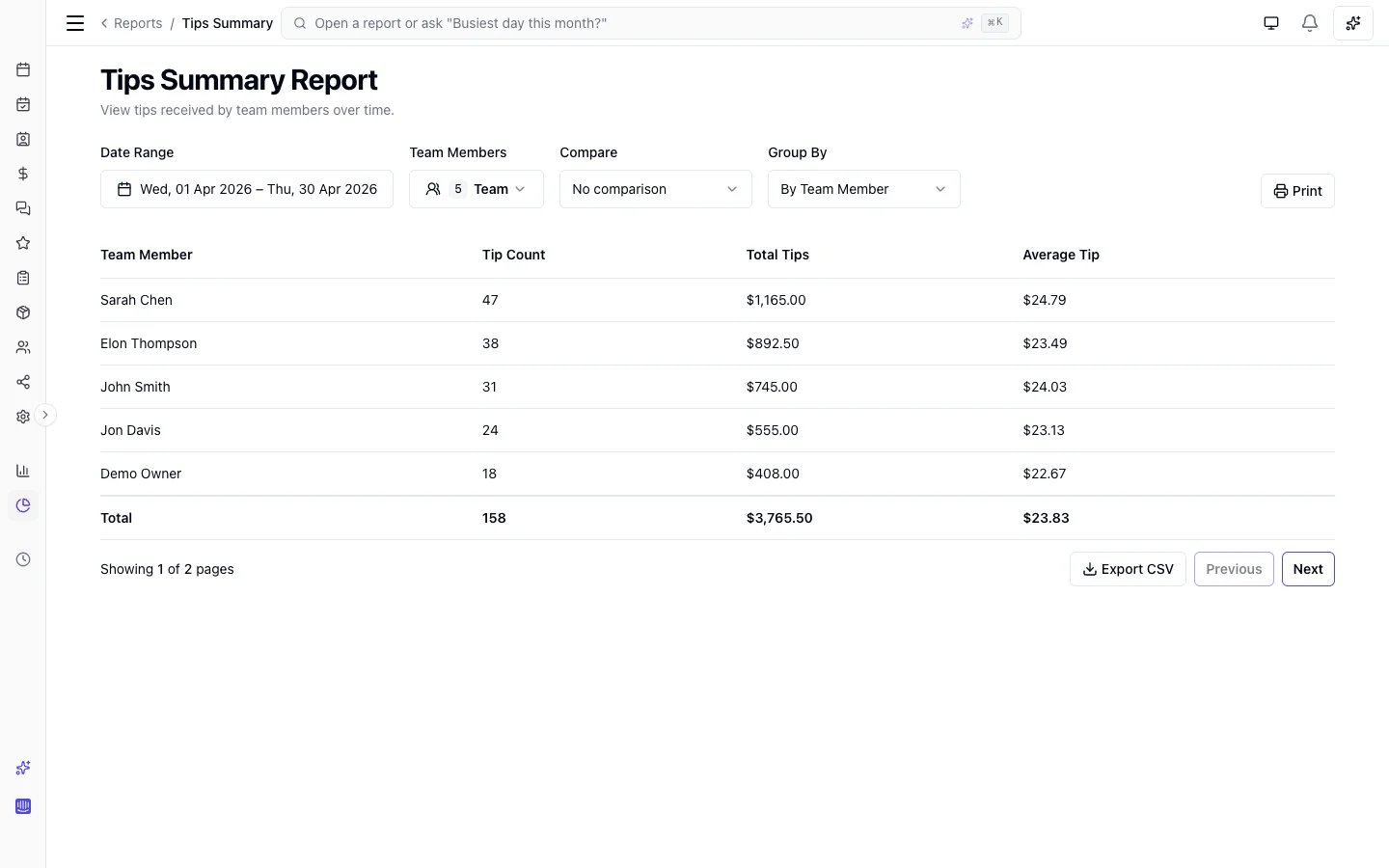
Key features
- Post-appointment tipping: Clients can tip after their appointment is completed
- Preset and custom amounts: Offer quick-select amounts (10, $20) or let clients enter a custom amount
- Secure payment processing: Tips are paid on a secure checkout page through your connected payment account, so no saved card is needed
- Team member notifications: Both the business and the team member receive notifications when a tip is received
- Tips summary report: Track tips over time by date or team member with comparison mode
- Per-team-member opt-out: Team members can individually opt out of receiving tips
How tipping works
- A client completes an appointment (checked out by a team member)
- The client opens Leave a review & tip on the completed appointment in the online booking portal
- The tip prompt shows a card for each team member who provided the service
- The client selects a preset amount or enters a custom tip for a team member
- The tip is paid on a secure checkout page
- The business and team member are notified via the notification centre, email, and SMS
Enabling digital tipping
- Go to Settings > Payments
- Set Tipping to On
- Ensure payments are configured for your location
- A payment account connected for your location
- Client reviews available on your plan - the tip prompt is part of the review-and-tip flow, and reviews are a Professional-plan feature
How clients tip
After an appointment is completed, clients open Leave a review & tip on the appointment in their online booking portal. The prompt shows:- A card for each team member who performed the service
- Preset tip amounts (10, $20)
- An option to enter a custom amount
- A secure checkout page to complete the payment
Processing fees
If your location has Pass processing fees to clients enabled, the processing fee is calculated on the tip amount and added to the charge. The team member receives the full tip amount.Team member notifications
When a client leaves a tip:- The business receives a notification in the notification centre
- The team member receives a notification via their configured channels (email, SMS, in-app) - based on their notification preferences
- The notification includes the client name, tip amount, and appointment details
Team member opt-out
Individual team members can opt out of receiving tips:- Edit the team member’s profile
- Switch Accept tips off
- That team member is simply not shown in the tip prompt
Tips summary report
Track tipping activity using the Tips summary report in Insights > Reports.- Group by Date: See tips received per day across the selected period
- Group by Team Member: See total tips per team member with expandable daily breakdowns
- Filter by team member and compare against previous periods