Date range, team member and resource filters, comparison, totals, CSV export and plan availability work the same way on every report: see Reports.
Sales summary report
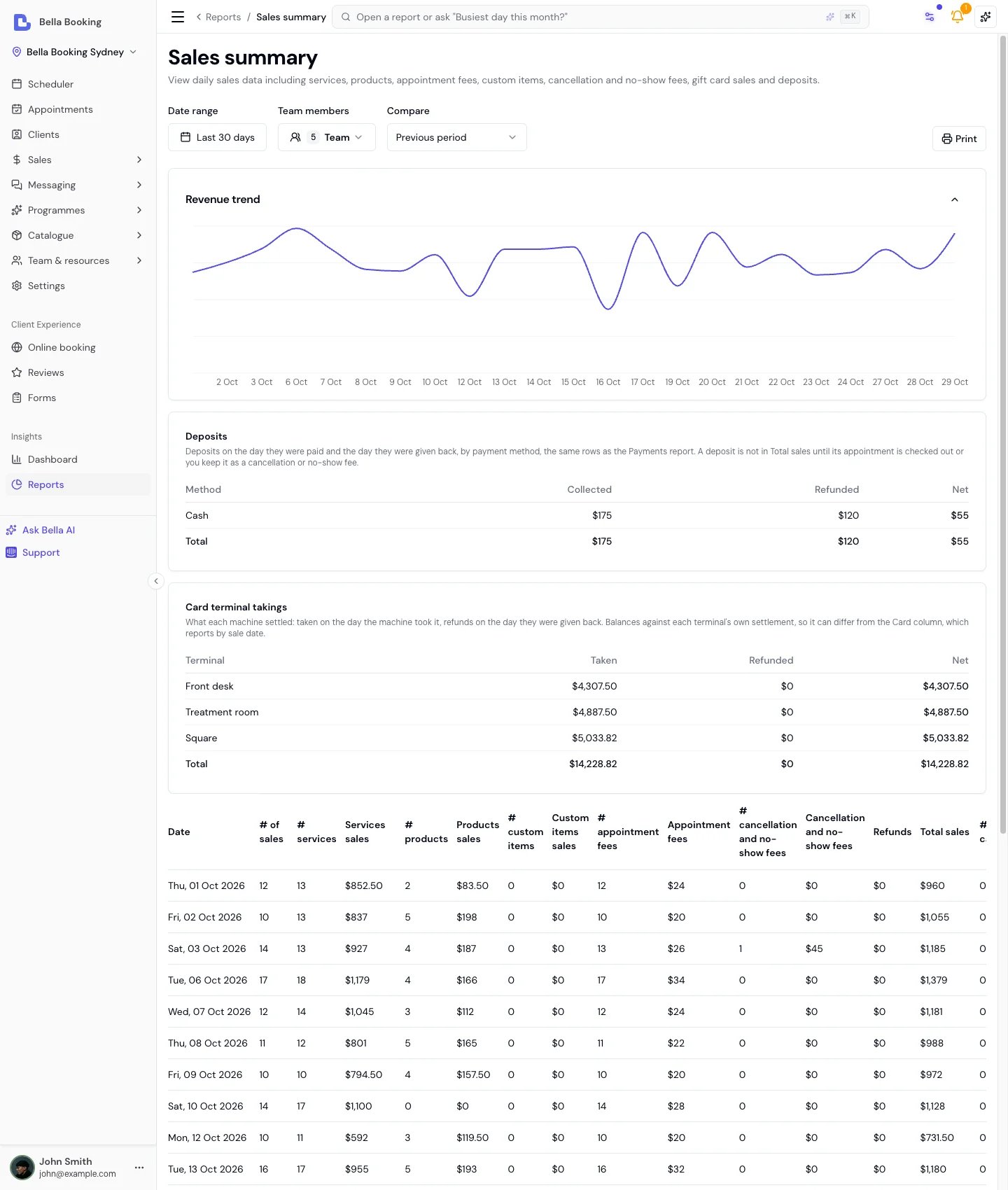
The Sales summary report provides a day-by-day overview of your business’s sales performance, including services, products, payment breakdowns, and refunds. It’s built from your sales: each sale counts on its sale date, each refund on the day it was issued, a gift card sold on the day it was sold, and money you keep when an appointment doesn’t go ahead on the day you keep it. A voided sale isn’t counted.
Filter Options
- Date range - The period for which daily sales data should be displayed.
- Team members - Multi-select to filter by specific team members.
- Compare - Against the previous period or the same period last year.
Data Fields
- Date - The sale date (the calendar day the sale was rung, or the day your team set as the sale date). This is not the appointment date - if you check out an appointment the day after it happened, revenue lands here on the checkout/sale date unless you change Sale date at checkout or via Edit sale.
- # of sales - The total number of unique sales transactions completed on that date. A sale that only sold a gift card isn’t counted here: its card is in # gift cards.
- # services - The total count of individual service items sold on that date.
- Service sales - The price of the services sold on that date, add-ons included, before discounts and refunds. A service a package session covered counts only the part the package didn’t cover.
- # products - The total count of individual product items sold on that date.
- Product sales - The price of the products sold on that date, before discounts and refunds.
- # custom items - The total count of custom (one-off) items sold on that date.
- Custom items sales - The price of those custom items, before discounts and refunds.
- # appointment fees - The number of appointment-fee lines collected on that date. One service-bearing appointment can contribute at most one.
- Appointment fees - The revenue from those fee lines. It is already included in Total sales and stays separate from Custom items. Discounts never come off an appointment fee.
- # cancellation and no-show fees - The number of cancellation and no-show fees kept on that date: a deposit you kept on a late cancellation or no-show, a fee charged to a client’s saved card, or a checkout payment you kept when you cancelled a checked-out appointment. Each is a sale of its own, dated the day you kept the money, and reads Cancellation fee or No-show fee on the sale and the client’s receipt. See Kept deposits and fees.
- Cancellation and no-show fees - What those fees were worth. In Total sales unless you’ve switched Count cancellation and no-show fees in Total sales off under Settings → Receipts & reports (called Sales before November 2026); off, the column stands beside Total sales, net of any refund of a fee, and a note on the report says so. Filtered to team members it shows 0: nobody earns a fee.
- Refunds - The refunds processed on that date, as they came off Total sales. A refund on a sale that sold a gift card is shared across the sale’s items by what each cost: the gift card’s share comes off Gift card sales instead, so the row still adds up. Filtered to team members, their share of each refund, worked out the same way as on Team member sales.
- Total sales - The net value of the day’s sales: services, products, custom items, appointment fees, any package sold and (unless you’ve switched it off) cancellation and no-show fees, less discounts and refunds. A gift card sold is never in it, however it was sold: it’s money you hold for the client, and it counts as a sale on the day it pays for a service. Filtered to team members, it counts only their items, less the discounts and refunds that belong to those items, the same as Team member sales. A deposit isn’t in it until its appointment is checked out, or until you keep it. See Deposits and Total sales.
- # gift cards - Gift cards sold that day, however they were sold: added to a sale at checkout or on Add sale, with Sell gift card on the Gift cards screen, or bought online. Filtered to team members, this and Gift card sales show 0, because a gift card sold is nobody’s sale.
- Gift card sales - What was paid for those gift cards: their value, less any promo code on them, less a sold card’s share of a refund on the day of the refund. It isn’t part of Total sales. Their payments are included in the Cash, Card and Other columns.
- Total collected - Total sales plus Gift card sales, plus Cancellation and no-show fees when you don’t count them in Total sales. Before refunds, the payment columns add up to it.
- Cash - Total payments received in cash.
- Card - Total payments received by credit/debit card (including card on file).
- Gift card - Total payments received via gift card redemptions.
- Client credit - Total payments taken from clients’ stored-value credit balances.
- Deposit applied - The deposits the day’s sales were settled with, paid earlier. A deposit is a tender of the sale it settles, never Cash or Card of the checkout day: that money is in Deposits collected on the day it was paid. This holds for every sale, past ones included, so a deposit never shows in a day’s Cash or Card. A checkout payment you keep when you cancel a checked-out appointment is different: it moves to the day you kept it, under its method, as the payment of the fee sale.
- Other - Any remaining tenders (e.g. package redemptions), so no payment method is left out. The payment columns are counted before refunds.
- Deposits collected - Deposits paid that day, by the day the money moved, with any appointment fee taken with them: the same rows as the Payments report. Not in Total sales or Total collected.
- Deposits refunded - Deposits given back that day, on the day the money went back, with any appointment fee taken with the deposit and given back with it.
- Discounts - Total discounts applied to sales: manual discounts and promo codes, loyalty rewards, membership benefits, referral rewards, birthday rewards and new client offers. A promo code on a gift card sold isn’t here: it comes off Gift card sales. Filtered to team members, only the discounts that belong to their items.
Deposits and Total sales
Taking a deposit doesn’t create a sale, so deposits on an appointment that hasn’t been checked out (it can hold several) aren’t in Total sales. They are in Deposits collected on the day they were paid, by method, so a day’s figure matches your bank and your till.
When you check the appointment out, each deposit becomes part of that sale, counted in Total sales on the sale date (the checkout day, unless you change Sale date) and shown in Deposit applied rather than under a payment method: a $180 appointment with a $43 card deposit finished in cash reports $137 of cash and $43 of Deposit applied on the checkout day, with the $43 of card in Deposits collected on the day it was paid. Past sales read the same way: if you compared a past month’s Card column with an export from before this change, the deposit money moved out of the tender that held it (Card or Cash) into Deposit applied on the checkout day, and the day’s totals are unchanged.
Deposits also show in:
- Future income: Deposits held on upcoming Booked and Confirmed appointments, and the Balance to collect.
- Card terminal takings, below: a deposit taken on a named card terminal, on the day the machine took it.
- Payments: each deposit on the day it was paid, by payment method, with the deposits taken for future appointments totalled.
- On the Scheduler, an appointment with a paid deposit shows a green pill with everything paid so far, or the payment icon alone on a card without room for the amount.
Kept deposits and fees
Money you keep when an appointment doesn’t go ahead is a sale of its own, dated the day you kept it, so every sales report reads it:
- A deposit you keep when you cancel an appointment late or mark it as a no-show (the deposit’s Forfeit row in the cancel dialog) becomes a Cancellation fee or No-show fee sale paid by Deposit applied. A non-refundable appointment fee kept with it stays an appointment fee line.
- When nobody chose what happens to a deposit (the client cancelled online or by text reply, or you cancelled several appointments at once), the sale counts only what your cancellation policy keeps. The rest is still the client’s: it isn’t a sale and carries no tax, and it stays on the appointment until you give it back with Refund deposit. For example, with the deposit rule Refund the deposit, less the fee, a $60 cash deposit on a late cancellation with a $20 fee is a $20 Cancellation fee sale paid by $20 of the deposit, with $40 still to hand back.
- A fee charged to a client’s saved card is the same kind of sale, paid by card.
- A checkout payment you keep when you cancel a checked-out appointment becomes the same kind of sale; the original sale is voided as before, and the fee sale shows the money as paid on it.
The fee counts in Total sales on the day it was kept, unless you switch Count cancellation and no-show fees in Total sales off under Settings → Receipts & reports, in which case this report and its export show it in its own column beside Total sales, and the dashboard, the weekly summary and Bella AI’s totals leave it out. Give a kept deposit back later with Refund deposit and a card fee with Refund fee on the appointment, and a kept checkout payment with Refund on the fee sale; the refund comes off on the day you give it back, like any refund. A fee sale can’t be voided. For what each appointment status allows, see What you can do at each status.
Card terminal takings
Named your card terminals at Settings → Card terminals? A Card terminal takings card appears on this report, totalling each machine for the period: Taken, Refunded, and Net, plus an Unattributed refunds line for refunds of terminal-taken money that can’t be pinned to one machine (for example, on a sale settled partly on a machine and partly another way).
The takings card is attributed to the day the machine actually took or refunded the money. Deposits count on the day they were captured. Refunds of sales, refunded deposits, and reversed client credit top-ups count on the day the money was given back, on the machine that took them (a gift card deposit you hand back by card counts on the terminal you chose). A top-up reversed on one machine and taken again on another leaves the reversal on the first and the new top-up on the second. Where a deposit was refunded in more than one part, the total is shown on the latest of those days. This is different from the Card column above, which reports by sale date and doesn’t net refunds per tender. The two can show different figures for the same day and both be right, because they answer different questions.
Payments report
The Payments report lists every payment and refund on the day the money moved, with the payment method it moved through. Use it to match a day’s takings against your till and your bank, or to see the deposits taken for appointments that haven’t happened yet. It’s on every plan.
What a row is
Each row is one movement of money by Cash, Card (Manual), Card on file or Other, listed once:
- Payment - Money taken at checkout, one row per payment method when a bill was split. A gift card sold on its own (on the Gift cards screen or online) and a client credit top-up are payments too.
- Deposit - A deposit, on the day it was paid. An appointment fee taken with the deposit is in the same row: it was paid before the appointment, so it’s held like the deposit until the appointment happens or you keep it. A deposit corrected with Edit deposit reads its corrected method, still on the day it was paid.
- Refund - A sale refund or a refunded deposit, as a negative amount on the day it was made, never the original sale day. A reversed client credit top-up is a refund too. A refund that went back to the card through your payment provider shows as Card on file; any other refund is shared across the methods the sale was paid with. A refund to client credit isn’t listed, because the money stayed with the business.
- Tip - A tip charged to the client’s saved card, on the day it was charged.
A sale rung up wrong and voided with nothing refunded isn’t listed: no money moved. A checked-out appointment you cancel is different: its voided sale’s payments stay on the day they were taken, described as kept as a cancellation or no-show fee when you kept the money, or as voided and refunded when you gave it back, and the refund shows on the day you gave it back. A late cancellation or no-show fee charged to a saved card is a Payment row on the day it was charged, described Cancellation fee or No-show fee (a fee charged before fees became sales stays on the appointment only). A recurring membership payment isn’t listed yet. Each row also shows the time, the client, the appointment or sale it belongs to (with a link to it), and For: whether the appointment the money was for is on the same day as the row (Today), a later day (Future) or an earlier one (Past). A sale with no appointment reads Today.
Deposits and checkout
A deposit counts on the day it was paid. When the appointment is checked out, its rows list only the money taken that day, with a note under the amount such as “Deposit $30 paid Mon 12 Oct". Gift cards, package sessions and client credit used at checkout work the same way: their money came in when they were bought, so they appear as a note ("Gift card $50 applied”, “Package session”) rather than a row. A checkout paid entirely from these has no row.
For example, a client pays a $30 deposit online on Monday for a $100 appointment on Friday, then pays the $70 balance in cash. Monday shows a $30 Deposit by Card on file, For Future. Friday shows a $70 Payment by Cash, For Today, with the deposit note under it.
A deposit paid with a gift card isn’t a row, because no money moved, and neither is a deposit brought across from your previous system by an import. If the gift card can no longer take the value back (it was voided or has passed its date) and you hand the deposit back another way, that refund is a row on the method you chose: Cash, Card (Manual) or Other.
Summary
The four tiles add up every row in the date range that matches your filters, not only the page you’re looking at:
- Collected - Payments, deposits and tips, with the split by payment method.
- Refunded - Refunds and refunded deposits, with the split by payment method.
- Net - Collected less Refunded. It’s also the Total row at the foot of the table.
- Deposits for future appointments - Deposits taken for an appointment on a later day than the day they were paid, with the split by payment method.
Filter Options
- Date range - Opens on today.
- Type - Payment, Deposit, Refund or Tip. A refunded deposit matches both Deposit and Refund.
- Payment method - One or more methods.
The Type and Payment method filters change both the rows and the tiles.
CSV export
Export CSV gives one line per row, with the date, time, client, appointment or sale, details, type, For, payment method, amount, any deposit or prepaid balance applied, and a Total line.
Payments and Sales summary
The Sales summary’s Deposits collected and Deposits refunded are this report’s Deposit rows and its refunded-deposit Refund rows added up by day, so the two agree. Its Total sales counts a deposit on the checkout day as part of that sale (or on the day you keep it), while this report counts the money on the day it was paid, so the two answer different questions about the same day.
Future income report
The Future income report shows the expected income from your upcoming, not-yet-completed appointments - your booked pipeline - net of any manual and promo-code discounts already applied. It answers “how much have I actually got on the books?” without waiting for checkout. It counts appointments with a Booked or Confirmed status that fall in the window you choose; completed and cancelled appointments (including no-shows) are excluded.
What’s included: the whole booking - services (with any add-ons), products added to the appointment, custom items, and one active appointment fee where the appointment carries one. The figure is net of the manual discounts and promo codes already on each appointment. Memberships, packages, loyalty rewards and gift cards are only applied at checkout, so they are not deducted here - the final amount collected may be lower for a client who redeems one. Tips aren’t included either: clients leave them after the appointment. Any tax is already inside the booked prices, because Bella’s prices are tax-inclusive.
Filter Options
- Date range - A forward window with quick presets for Next 7 days, Next 30 days, Next 90 days (the default) and Next month, plus any custom range.
- Team members - Multi-select to filter by specific team members.
- Resources - Multi-select to filter by specific resources (rooms/equipment).
Summary
- Expected net income - Gross booked value less manual and promo-code discounts, across all matching appointments.
- Gross booked - The total booked value before discounts.
- Discounts - The total manual and promo-code discounts applied. A percentage of gross is also shown once you have enough upcoming appointments for it to be meaningful.
- Deposits held - Deposits already collected against these appointments. If Collect at booking took an appointment fee, that amount is included here. These deposits reach the Sales summary when each appointment is checked out (see Deposits and Total sales).
- Balance to collect - Expected net income less deposits already held.
A trend chart shows expected net income across the window, grouped by day, week or month depending on how far ahead you’re looking.
Data Fields (by team member / resource)
- Team member / resource - The name of the team member or resource. Resource rows are labelled (resource).
- Appointments - The number of upcoming appointments they’re part of.
- Gross - The booked value of their lines before discounts - their services (with add-ons), plus any products or custom items on the booking that are credited to them.
- Discounts - Their share of the manual and promo-code discounts. A discount on one line comes off that line; a discount on the whole appointment is shared across its services, products and custom items by what each still costs after its own discount.
- Net - Gross less discounts.
Products and custom items are credited to the team member chosen on that line, not to whoever performs the service. Appointment fees are never credited to a team member and always sit in House / Online. They remain outside manual and promo-code discounts. A line with nobody chosen - an online booking whose cart has no team member to credit, for example - appears in a House / Online row, the same explicit “no attribution” bucket used on Team member sales, so the breakdown always adds up to the headline. Filtering by team member or resource hides that row, because an unattributed line belongs to no one you selected.
Use Cases
- Track the income you have booked for the weeks ahead and plan cash flow.
- See how discounts and promo codes are affecting your forward revenue.
- Spot quiet weeks early so you can promote them before they arrive.
Service & product sales report
The Service & product sales report provides a comprehensive view of sales performance broken down by team member, showing both service and product sales separately with percentage splits.
Filter Options
- Date range - The period for which sales data should be displayed.
- Team members - Multi-select to filter by specific team members.
- Compare - Against the previous period or the same period last year.
Data Fields
- Team member - The name of the team member.
- # of services - The total count of individual service items sold by the team member.
- Service sales - The team member’s service sales after discounts and refunds.
- # products - The total count of individual product items sold by the team member.
- Product sales - The team member’s product sales after discounts and refunds.
- Total sales - The combined revenue from both services and products.
- Service % - The percentage of total sales from services.
- Product % - The percentage of total sales from products.
Discounts and refunds are shared across a sale’s items the same way as on Team member sales, and a refund comes off on the day it was made.
Service and product sales with no team member, such as resource-only services and online orders collected at your business, appear in a House / Online row, after their discounts and refunds. The totals include this row. Filtering by team member hides it, because an unattributed line belongs to no one you selected.
Service sales report
The Service sales report provides detailed insights into the performance of individual services at checkout, including pricing, revenue share, and duration metrics.
The date filter uses the checkout date (when the sale was completed), not the appointment date, and a refund counts on the day it was made. Appointments that were booked but never checked out do not appear here. For booking counts by appointment date, use Service bookings.
The report has two views: Summary (one row per service, aggregated over the period) and Detailed (one row per service sold, and one per service refunded on the day of the refund, with dates - handy for exporting CSVs into bookkeeping or cashflow spreadsheets).
Filter Options
- Date range - The period of checkout dates to include, and of refunds made in it.
- Team members - Multi-select to filter by specific team members.
- Compare - Against the previous period or the same period last year. Available in the Summary view only - the Detailed view lists individual lines, so there is nothing to compare period-on-period.
Data Fields
- Service name - The name of the individual service.
- Service category - The category that this service belongs to.
- # services - The total number of times this service was sold at checkout.
- Sales - The total revenue generated from this service, net of any per-service discount (a membership benefit, a per-line manual discount, or a loyalty or birthday reward that gave the service free) and of any refunds, each refund on the day it was made. A service refunded in the period but not sold in it shows with 0 services and a negative figure. A service given free for points shows as $0 here, exactly as one covered by a membership does; money-off rewards and appointment-level discounts belong to the whole bill and are reported on the Sales summary instead.
- Avg price - Sales divided by # services, so a refund made in the period lowers it. A row with 0 services shows $0.
- % of revenue - The percentage of total service revenue represented by this service; negative on a row that only has refunds.
- Avg duration (mins) - The average duration in minutes for this service, as sold: an early finish doesn’t change it.
Data Fields (Detailed view)
- Date of service - The date the service was performed (the appointment date; for a sale with no appointment, the checkout date).
- Checkout date - The date the sale was checked out.
- Service - The service name (including the variant, where applicable). A refund row is marked Refund beside it.
- Bundle - The bundle this line was sold as part of, or a dash when the service was sold on its own. A bundle is sold as one line per component service, so each component keeps its own row.
- Service category - The category that this service belongs to.
- Team member - Who performed the service.
- Refund date - On a refund row, the day the refund was made. A refund is listed on that day as a row for each service on its sale, with the sale’s dates kept beside it; a sold line shows a dash.
- Gross - The price charged on the sale for that line, before any per-service discount. Where a package session covered the service, the covered portion is already taken off. A refund row shows a dash.
- Net - On a sold line, Gross less that line’s share of any per-service discount (membership benefit, per-line manual discount, or a loyalty or birthday reward that gave this service free). On a refund row, the line’s share of the refund, as a negative amount. A refund is shared by everything on the sale, by what each item earned after its own discount rather than by its ticket price: a service you gave away gives nothing back, and a custom item, package or gift card sold on the same sale keeps its own share. The rows add up to the Summary view’s Sales total.
In both views, a refund counts on the day it was made, as on the Sales summary, so a period you have already looked at doesn’t change when a refund is made later.
Product sales report
The Product sales report provides detailed insights into retail product performance, showing which products are selling well, their average price, and revenue share.
Current stock on hand and stock value at cost are on the Products page, not this report.
Filter Options
- Date range - The period for which product sales data should be displayed.
- Team members - Multi-select to filter by specific team members.
- Compare - Against the previous period or the same period last year.
Data Fields
- Product - The name of the retail product.
- # products - The total quantity of this product sold.
- Sales - The total revenue from this product, net of any per-product discount (a membership benefit, a per-line manual discount, or a loyalty or birthday reward that gave the product free) and of any refunds, each refund on the day it was made. A discount on the whole appointment or sale, promo codes included, belongs to the whole bill and is reported on the Sales summary instead, the same as on Service sales. A refund is shared by everything on the sale, by what each item earned after its own discount: a product you gave away gives nothing back, and a custom item sold beside it keeps its own share. A product refunded in the period but not sold in it shows with 0 products and a negative figure.
- Avg price - The average price per unit sold (Sales / # products).
- % of revenue - The percentage of total product revenue represented by this product.
Gift card summary report
The Gift card summary report tracks gift card sales (the value of the cards, what buyers paid and what promo codes took off, and the cash / card / other / online amounts collected), redemptions, and outstanding balances over time. Use it to reconcile till payments taken for gift cards. Available on plans that include gift cards.
Filter Options
- Date range - The period for which gift card data should be displayed.
- Compare - Against the previous period or the same period last year.
Data Fields
- Date - The date for the gift card activity.
- Gift cards sold - The number of gift cards sold on that date.
- Value - The value of the gift cards sold on that date: what their recipients can spend. Voiding a card or refunding its purchase later doesn’t change this figure: the card leaves the Outstanding balance instead.
- Paid - What the buyers paid for those cards: the value, less any promo code. A later refund of the purchase doesn’t change it; the Sales summary’s Gift card sales takes that refund off on the day it’s made.
- Discounts - What promo codes took off those cards (Value less Paid). Only a promo code with Gift cards switched on under its Applies to can discount a gift card.
- Cash, Card, Other and Online - How the money for those cards came in: at the till by cash, card or another method, or online on your booking site.
- Gift cards redeemed - The number of times a gift card was used on that date. A refund that puts value back on a card is not counted as a use. A card used when booking online counts on the day of the booking and again on the day of checkout.
- Total redeemed amount - The value that left gift cards on that date. A gift card for a service that cost less than the card on the day counts in full, because the rest of the card closes when it’s used.
- Outstanding balance - The remaining unredeemed balance across all gift cards as of that date.
Client credit summary report
The Client credit summary report shows your total outstanding Client credit (stored-value) liability right now - it’s a point-in-time snapshot, not a date range. Available on plans that include client credit. Use it for reconciliation and to see exactly how much stored value you owe clients.
Data Fields
- Client - Each client currently holding a balance (searchable; export to CSV for reconciliation).
- Balance - The client’s total spendable credit.
- Paid - The portion that is the client’s own money (top-ups and refunds-to-credit).
- Bonus - The promotional-bonus portion, kept separate so your true liability is clear.
- Currency - The currency the balance is held in (a client’s balance is locked to one currency).
Per-currency totals are summarised at the top. A Reconcile balances button checks each cached balance against its transaction ledger. If any have drifted, team members with the Client Credit → Manage client credit permission also get a Repair action that rewrites the drifted balances from the ledger.
Loyalty summary report
The Loyalty summary report monitors loyalty programme activity including points earned, redeemed, and expired. Available on plans that include the loyalty programme.
Filter Options
- Date range - The period for which loyalty data should be displayed.
- Compare - Against the previous period or the same period last year.
Data Fields
- Date - The date for the loyalty activity.
- Points earned - The total loyalty points earned by clients on that date.
- Points redeemed - The total loyalty points redeemed by clients on that date.
- Points expired - The total loyalty points that expired on that date.
- Rewards redeemed - The number of loyalty rewards claimed on that date.
- Active members - The number of clients with a non-zero points balance as of that date.
Referrals report
The Referrals report tracks how your referral programme is performing day by day - successful referrals, the rewards they generate, and the value of the discounts clients redeem. Available on plans that include loyalty/referrals - see Referrals.
Filter Options
- Date range - The period for which referral data should be displayed.
- Compare - Against the previous period or the same period last year.
Data Fields
- Date - The date for the referral activity.
- Conversions - The number of successful referrals on that date. A conversion is counted when a referred friend completes their first paid visit and the referrer earns their reward.
- Rewards issued - The number of referral rewards created on that date, counting both the referred friend’s welcome reward and the referrer’s earned reward.
- Redeemed - The number of referral rewards redeemed at checkout on that date. A reward issued on an earlier date may be redeemed within the selected range, so the issued and redeemed counts on a single row need not match.
- Reward value - The total discount applied by the referral rewards redeemed on that date.
Birthday rewards report
The Birthday rewards report tracks how your birthday reward is performing - the birthday rewards clients redeem at checkout and the discount value those redemptions give. Available on plans that include messaging; the birthday reward itself is part of Messages Plus.
Snapshot: At the top of the report, a callout shows how many clients have a birthday in the current month and the percentage of your active clients who have a date of birth on file. These are current totals - they do not change with the date range, so you can gauge how complete your birthday data is and how many clients are eligible this month. Only the table below follows the selected dates.
Filter Options
- Date range - The period for which birthday reward data should be displayed. The snapshot callout above is independent of this range.
- Compare - Against the previous period or the same period last year. The comparison applies only to the rewards redeemed and reward value, not to the current snapshot.
Data Fields
- Date - The date for the birthday reward activity.
- Rewards redeemed - The number of birthday rewards redeemed at checkout on that date.
- Reward value - The total discount applied by the birthday rewards redeemed on that date.
Both follow the day of the sale: a later refund doesn’t change the count or the value, the same as the Discount summary, and a voided sale is left out.
New client offers report
The New client offers report tracks how your new-client offer is performing - the offers new clients redeem on their first visit and the discount value those redemptions give. Available on plans that include messaging; the new-client offer itself is part of Messages Plus.
Filter Options
- Date range - The period for which new-client offer data should be displayed.
- Compare - Against the previous period or the same period last year. When enabled, delta indicators (green/red arrows with percentage change) appear on the redemptions and offer value.
Data Fields
- Date - The date for the new-client offer activity.
- Offers redeemed - The number of new-client offers redeemed at checkout on that date.
- Offer value - The total discount applied by the new-client offers redeemed on that date.
Both follow the day of the sale: a later refund doesn’t change the count or the value, the same as the Discount summary, and a voided sale is left out.
Tips summary report
The Tips summary report shows tips received by your team members over time. You can view tips aggregated by date or broken down by team member, making it easy to track gratuity trends.
Filter Options
- Date range - The period for which tip data should be displayed.
- Team members - Multi-select to filter by specific team members.
- Compare - Against the previous period or the same period last year.
- Group by - Switch between two display modes:
- By date (default) - One row per day across the selected period. All dates are shown, including days with zero tips.
- By team member - One row per team member. Expand any row to see a day-by-day breakdown for that person.
Data Fields - By date
- Date - The local date.
- Tip count - The number of tips received on that date.
- Total tips - The total monetary value of tips received on that date.
- Average tip - The average tip amount per transaction on that date (Total tips ÷ Tip count).
Data Fields - By team member
- Team member - The name of the team member.
- Tip count - The total number of tips received by this team member in the selected period.
- Total tips - The total monetary value of tips received by this team member.
- Average tip - The average tip amount per transaction (Total tips ÷ Tip count).
Expanding a team member row reveals a daily breakdown with the same Date, Tip count, Total tips, and Average tip columns for each day in the range.
Tips aren’t part of any sales figure on the other reports, and they’re never discounted or taxed.
Packages summary report
The Packages summary report tracks prepaid package sales and refunds, redemptions, and outstanding sessions over time. Available on plans that include packages.
Filter Options
- Date range - The period for which package data should be displayed.
- Compare - Against the previous period or the same period last year.
Data Fields
- Date - The date for the package activity.
- Packages sold - The number of packages sold on that date. A package brought in with Add existing package was paid for elsewhere, so it’s never counted here.
- Total sold amount - What clients paid for the packages sold on that date: each package’s price after its share of any discount on the sale it was bought on. A package given 100% off adds nothing. Packages sold before this was recorded count at their own price. A later refund never changes it.
- Refunds - Package value returned on that date, from package purchases that were refunded in full. It lands on the day the refund was issued, not the day of the original sale - so a package sold in January and refunded in March shows in January’s Total sold amount and March’s Refunds. Only what was recorded as paid for the package is reversed: on a sale that mixed a package with services, the services aren’t touched.
- Net sold amount - Total sold amount minus Refunds. Negative on a day that only had refunds.
- Sessions redeemed - The number of sessions redeemed on that date.
- Sessions outstanding - Sessions clients hold but haven’t redeemed, as of that date - the balance you still owe clients. A package added with Add existing package counts from the day it was added, less the sessions it had already used. Sessions added or removed on a package change this figure from the day of the change, and earlier days keep theirs. A package leaves this figure from the day it expires. A voided package leaves this figure (the client no longer has the sessions) but stays in Total sold amount, because voiding a package returns no money. Refunding a package purchase in full also voids the package, so its remaining sessions leave this figure too - there the money is returned, and you see it in the Refunds column.
Membership summary report
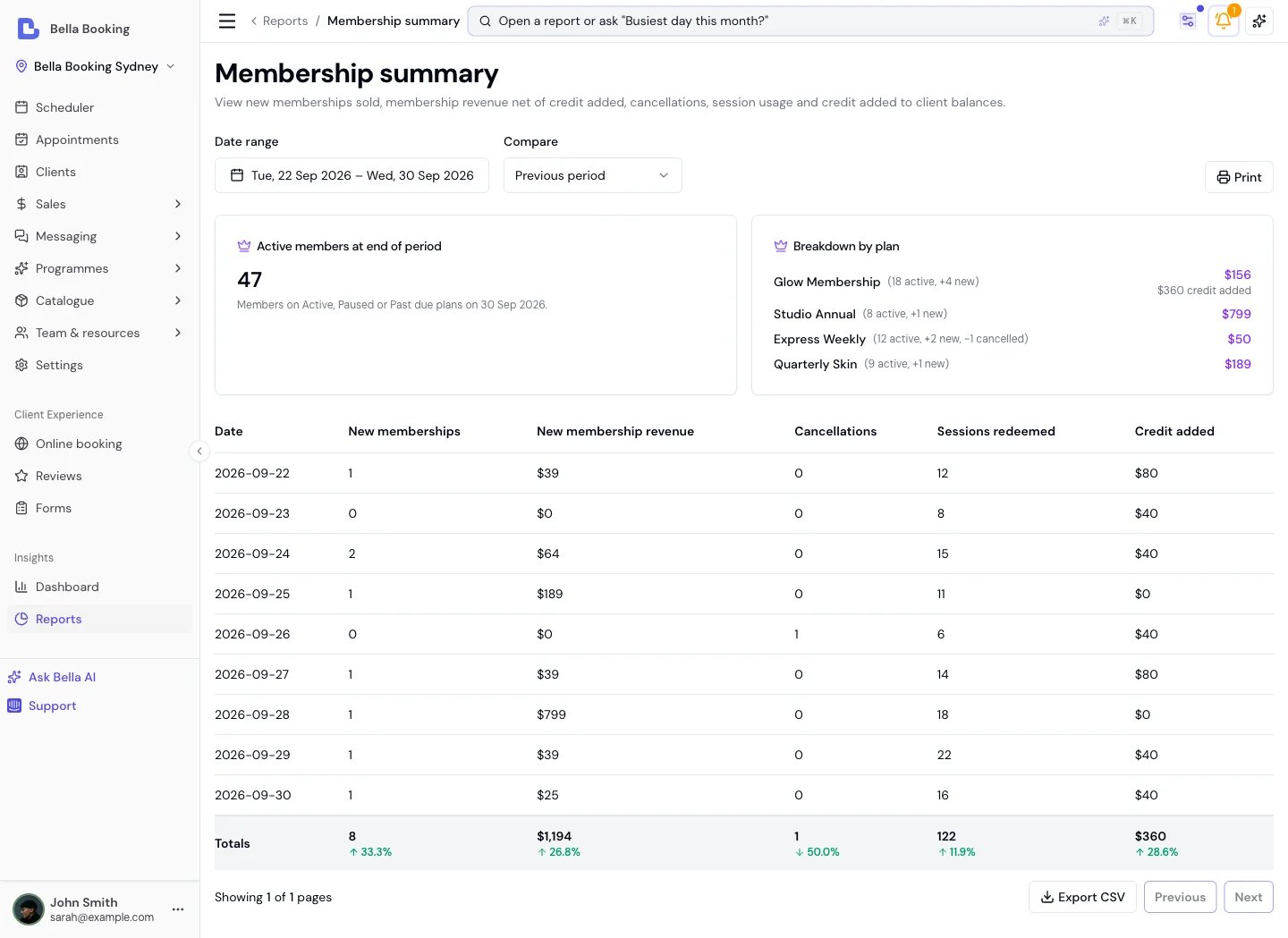
The Membership summary report tracks membership performance over time - new memberships sold, new-membership revenue, cancellations, sessions redeemed, credit added to client balances, and the total active member base. Available on plans that include memberships.
Filter Options
- Date range - The period for which membership activity should be displayed.
- Compare - Against the previous period or the same period last year.
Summary Cards
- Active members at end of period - The number of members on Active, Paused or Past due plans on the last day of the selected range. Cancelled, expired and never-activated memberships are excluded.
- Breakdown by plan - For each plan with activity in the period, the active member count, new memberships sold, cancellations, new membership revenue, and credit added by the plan’s credit benefit.
Data Fields
- Date - The date for the membership activity.
- New memberships - The number of memberships activated on that date.
- New membership revenue - The first-payment revenue from memberships activated on that date. On a plan that adds credit, this is the price minus the credit added: that part of the payment is money the client will spend later, not revenue yet. Membership fees are never discounted, and a later refund doesn’t change this figure.
- Cancellations - The number of memberships cancelled or expired on that date. An online purchase the client never paid for isn’t counted.
- Sessions redeemed - The number of session-based benefit redemptions on that date.
- Credit added - Membership credit (the paid part and any bonus) added to client balances on that date, read from the client credit ledger.
You can export the report as CSV. For details on creating and managing plans, see Memberships.
Discount summary report
The Discount summary report tracks manual and promo-code discount usage across your sales, by date and reason.
Filter Options
- Date range - The period for which discount data should be displayed.
- Compare - Against the previous period or the same period last year. Both filters below apply to the comparison period too, so a filtered figure is always compared against the same cohort.
- Source - Manual (a reason someone on your team picked) or Promo code (whether a client typed it or your team selected it).
- Scope - Per-line (the discount names one service or one product) or Order-level (it applies to the whole order). Order-level covers an appointment bill, a sale with no appointment, an online product order and a gift card bought online - only the first has an appointment, which is why the label is order-level rather than appointment-level.
Data Fields
- Date - The date the discounts were applied.
- Discount reason - The reason or label applied to the discount (e.g. “Staff discount”, “Manager override”, “First visit”).
- Times applied - The number of times this discount reason was applied on that date.
- Total amount - The total monetary value of those discounts.
- Breakdown by item - Each per-line discount grouped by the service or product it named, with how often and how much.
A promo code counts as one use however many lines it discounted, so the count is redemptions rather than lines. Each amount is what the discount took off, on the day of the sale, and a later refund doesn’t change it. Loyalty rewards, membership benefits, referral rewards, birthday rewards and new client offers aren’t counted here: the Sales summary’s Discounts column includes them with every other discount. A promo code on a gift card, bought online or added to a sale, is counted here on the day the card was sold, but not in the Sales summary’s Discounts: a gift card sold isn’t in Total sales, so the code comes off Gift card sales instead.
Use Cases
- Identify which discount reasons are used most frequently
- Track the financial impact of your discount policies
- Compare discount trends across periods to spot changes in discounting behaviour
Last modified on November 9, 2026