

Introduction
Memberships let you offer recurring subscription plans that clients pay for on a regular billing cycle. Each plan includes one or more benefits - percentage discounts, included sessions, unlimited access to selected services, or products included free or at a discount. Billing is handled automatically through Stripe, and clients can purchase, view, and manage their memberships through your online booking portal.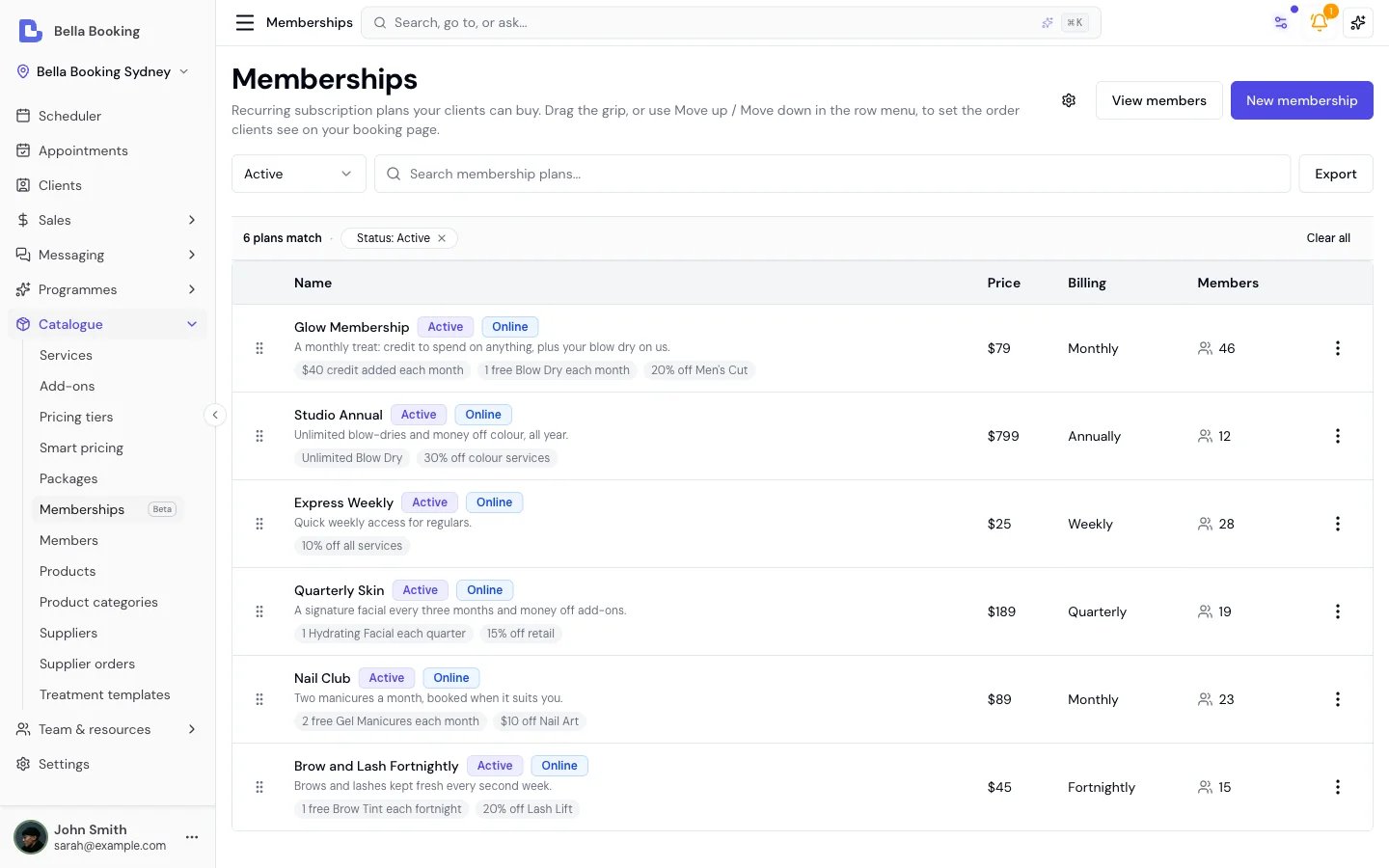
Order and filters
Search and the status filter choose which plans are listed. They do not change the order: plans are always listed in the order you set. See Reordering membership plans.Key features
- Flexible billing cycles: Choose from 9 frequencies - weekly, fortnightly, every 4 weeks, monthly, every 6 weeks, every 2 months, quarterly, every 6 months, or annually
- Customisable benefits: Each plan can include multiple benefits with discount percentages, optional per-cycle limits, and scope to specific services, whole bundles, all services - or products, free or discounted
- Automatic recurring billing: Stripe handles subscription billing, invoice generation, and payment retries automatically
- Online purchase: Clients can browse plans and subscribe through your online booking portal via Stripe Checkout
- Client self-service: Clients view their membership status, session usage, and next charge date in the My membership portal
- Session tracking: For capped benefits, session counters track usage per billing cycle and reset automatically at renewal (or once per term on an instalment plan). Unused sessions do not roll over.
- Instalment plans: Let clients pay for a fixed course of services in weekly, fortnightly, 4-weekly or 6-weekly instalments over a 4/8/12-week term, with a minimum-term commitment - see Instalment plans
- Capacity limits: Optionally cap how many clients can be actively subscribed to a plan at once - see Capacity limits
- Pause and resume: Optionally allow team members to pause a client’s subscription temporarily and resume when ready
- Flexible cancellation: Cancel immediately or at the end of the current billing period (instalment plans have a minimum term - the current term completes first)
- Benefit redemption at checkout: Membership discounts are automatically applied when checking out appointments for matching services
- Terms and conditions: Attach versioned terms to plans - clients accept them at purchase time
- Automated notifications: Email and SMS notifications for activation, payment failures, and cancellation
- Dashboard enrolment: Enrol clients directly from the business dashboard without requiring them to purchase online
- Manual collection: Enrol members who pay at the till (cash or your own terminal) - Bella tracks renewals due and you record each payment (a 1% platform fee applies, billed on your Bella invoice)
- Archive and restore: Archive plans you no longer offer and restore them later if needed
How memberships work
- You create a membership plan in Memberships - defining the name, price, billing cycle, and benefits
- The plan is made available for online purchase or offered to clients by your team
- A client subscribes - either online via Stripe Checkout or enrolled by a team member from their profile
- After the first payment is confirmed, the membership activates and the billing period begins
- Benefits apply automatically - when the client checks out for a matching service, the membership discount is applied
- For capped benefits (e.g., “4 sessions per cycle”), session counters track usage and reset each billing cycle (or once per term on an instalment plan). Unused sessions do not roll over.
- Billing continues automatically on the chosen cycle until the membership is paused, cancelled, or payment fails
- If a payment fails, the membership moves to a Past due status and the client is notified
Benefits belong to the member who pays. When a member books an appointment
for their family or guests - a couples massage, a shared-space session, or a
party - and pays for it, their membership benefits apply to that whole
booking: their discount, included sessions, and waived deposit cover the
appointment they’re paying for. The attendees’ own memberships are not
drawn on automatically - benefits always follow the person paying. This is
deliberate.
Creating a membership plan
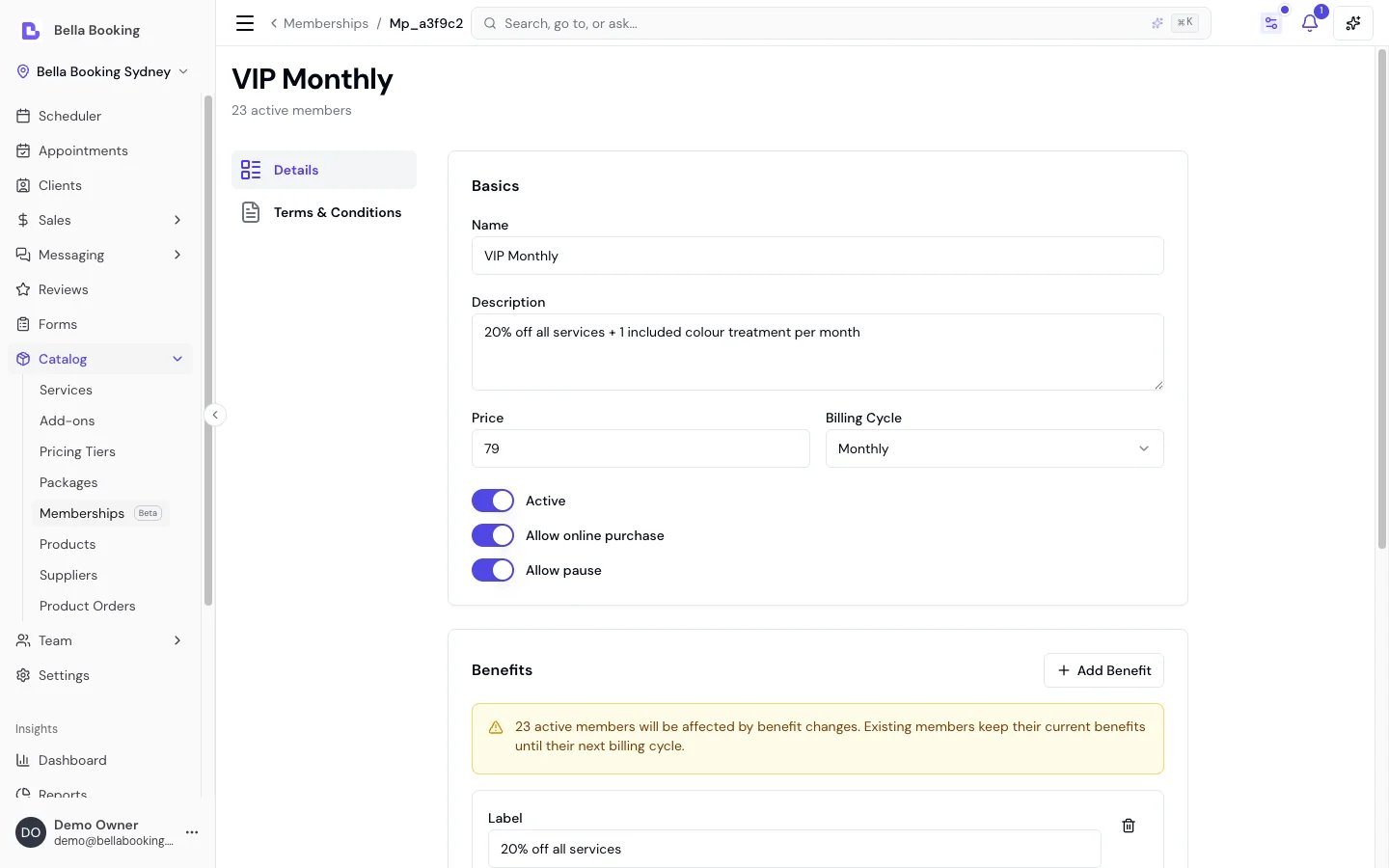
- Go to Memberships in the sidebar
- Click New membership
- Fill in the plan details:
- Plan name (required): A descriptive name (e.g., “VIP Monthly”)
- Description (optional): Additional details about what’s included
- Price (required): The recurring subscription price
- Billing cycle (required): How often the client is billed
- Active: Toggle whether the plan is available for enrolment
- Allow online purchase: Toggle whether clients can subscribe through your booking portal
- Allow pause: Toggle whether team members can pause subscriptions on this plan from the dashboard
- Maximum active subscribers (optional): Cap on how many clients can be subscribed at once - leave blank for unlimited. See Capacity limits
- Add one or more benefits (at least one required)
- Click Save
Benefits
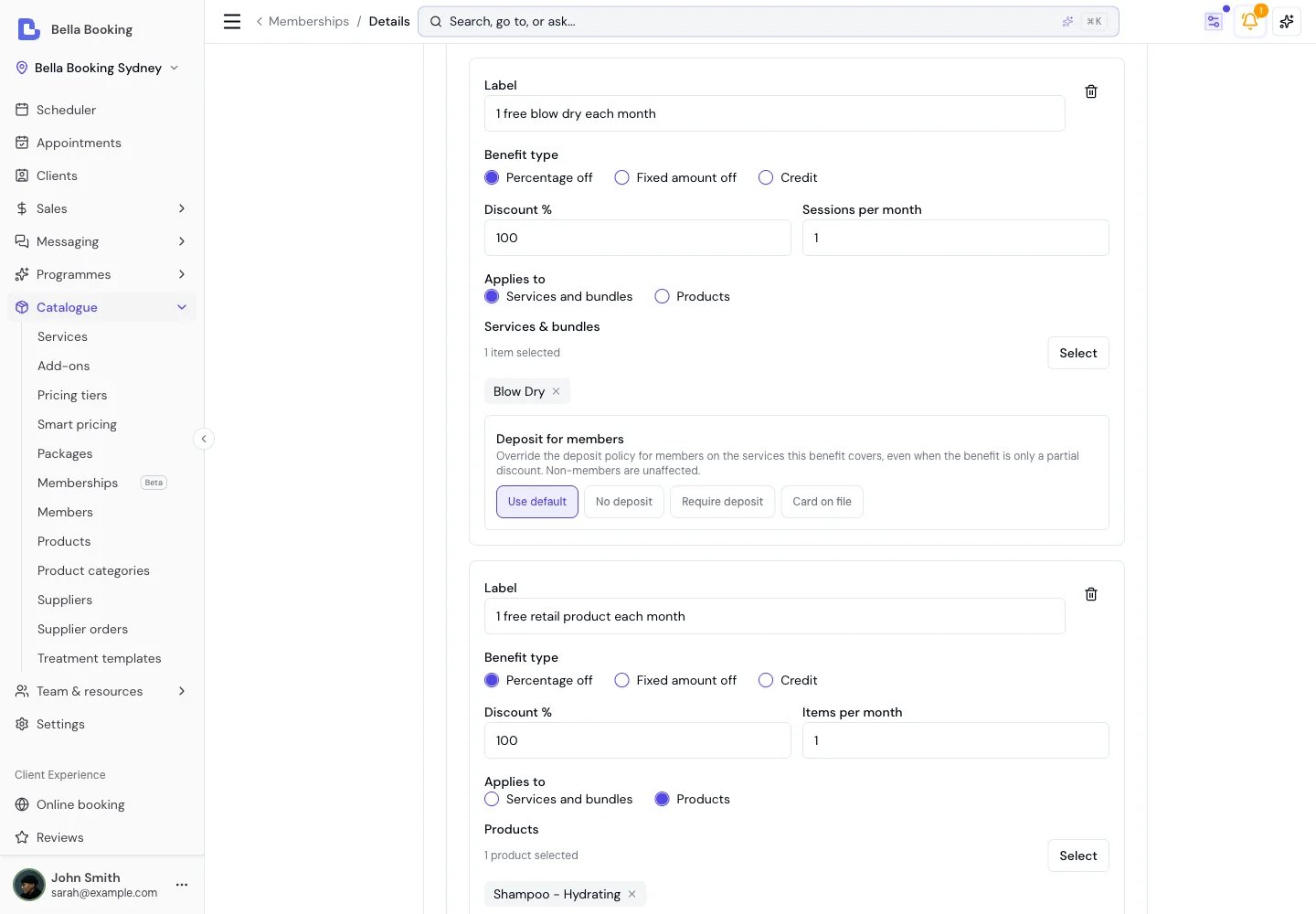
- Label (required): A description shown to clients (e.g., “4 LED sessions per cycle”)
- Discount percentage: The discount applied (0 to 100%) - required if no session limit is set
- Applies to (required): whether the benefit covers Services and bundles or Products. A benefit covers one or the other, never both - so its per-cycle allowance is always one kind of thing. Mix them in a plan by adding more than one benefit.
- Sessions per cycle / Items per cycle (optional): maximum redemptions per billing cycle - leave blank for unlimited. A service benefit counts sessions; a product benefit counts items.
- Services or bundles: which services and/or bundles this benefit applies to - leave blank for all services. Pick individual services, whole bundles, or a mix from the same picker. A bundle-scoped benefit covers that bundle directly - see the note below.
- Products: which products this benefit applies to, or turn on All products. Open Select to tick several at once, or tick a category or brand heading to take the whole group. Unlike the services picker, an empty products list covers nothing: product coverage is always explicit.
- Deposit for members (optional, service benefits only): Override the deposit policy for members on this benefit’s services. Leave as Use default to inherit the service/location policy, or choose No deposit, Require deposit, or Card on file - see Deposit for members below.
- Benefit type Credit: instead of a discount, an Amount added to the client’s credit balance every time a payment for the membership is collected. A credit benefit has no scope, session limit or deposit setting, and a plan can add credit once - see Membership credit below.
You can combine multiple benefits in a single plan. For example, a plan could include “4 facial sessions per month” (100% off, 4 sessions, Facial service) plus “20% off everything else” (20% off, unlimited, all services) plus “1 Face Serum included per month” (100% off, 1 item, that product).
Products as membership benefits
A benefit can cover products as well as services - a take-home item included each month, or a standing discount on all retail.- Set Applies to to Products, then Select the products it covers (tick several at once, or tick a category or brand heading to take every product in that group) or turn on All products.
- The discount applies per item. A benefit with a limit covers that many items per cycle; anything beyond it is charged in full rather than the sale being refused.
- Product benefits apply automatically wherever the client buys: at appointment checkout, on a walk-in sale with no appointment, and in the online shop. Members see their price on the shop’s product cards before they order.
- An order fully covered by a membership has nothing to pay, so it completes without a payment step. Cancelling or refunding it returns both the stock and the client’s included item.
- A benefit that covers all services never covers products. Existing plans keep discounting exactly what they always did; retail is only ever covered when you say so explicitly.
Scope a benefit to a whole bundle. A benefit can be scoped directly to one
or more bundles - as well as, or instead of, individual services - by
selecting them in the same picker. When a bundle-scoped benefit applies, the
discount or included session covers that bundle at checkout. (Scoping to a
bundle’s individual services still works too; and as always, leaving the scope
blank applies the benefit to everything.)
Deposit for members
A membership can waive - or change - the upfront deposit your members pay when booking the services a benefit covers. This is separate from the discount: a benefit can give a partial discount and still skip the deposit. Set it per benefit:- Use default - members follow the same deposit policy as everyone else (the service or location setting).
- No deposit - members book the covered services without paying a deposit, even when the benefit only discounts part of the price. Non-members are unaffected.
- Require deposit - members pay a specific deposit (a fixed amount or a percentage you set here), overriding the service/location amount.
- Card on file - members add a card to confirm their booking, with no deposit charged. Where your location’s own policy is something else, that booking is created first and shows Awaiting Card until the card is saved; under the location’s own Card on file policy no appointment is created until then.
Deposits, like all online payments, require a connected Stripe account. Until
Stripe is connected, deposits are waived for everyone, so a membership “No
deposit” benefit has no extra effect until then.
Membership credit
A plan can add credit to the member’s client credit balance every time a payment for the membership is collected. Choose Benefit type: Credit on a benefit and enter the Amount. The amount can be more than the price: a plan priced 100 that adds 120 of credit puts 100 of the client’s own money and 20 of bonus on their balance each billing cycle.- Credit lands when the payment is collected: the first payment, every renewal, and every instalment of an instalment plan. Pausing, cancelling or a failed payment never touches the balance, and credit already added stays spendable.
- The credit is spent at the till like any client credit, bonus first. It cannot pay the membership fee itself.
- Each payment shows on the client’s Wallet > Credit ledger as Membership credit (and Bonus when the plan adds more than the price), naming the plan, with a View membership link.
- Refunding a membership payment takes the credit that payment added back in the same proportion, bonus first. Anything the client has already spent cannot be recovered; the ledger row says how much was.
- Changing the amount applies to every member from their next payment.
- The Credit type is offered while Client credit is switched on in Settings and included in your Bella plan. If you switch client credit off later, members keep receiving credit with each payment but cannot spend it until it is on again.
Billing cycles
Instalment plans (pay a package over a fixed term)
A payment plan lets a client pay for a fixed set of services in affordable instalments instead of all upfront - useful for a defined course of treatments (for example, “2 Single Process + 1 Blonde+ over 12 weeks”, or an 8-week programme paid weekly). Choose a Payment plan of 4, 8, or 12 weeks on the plan editor and the plan behaves differently to an ordinary membership:- Billed in instalments on the cycle you choose. The Price you set is the per-instalment charge; the term total is that price × the number of instalments. Pick any billing cycle that divides the term evenly: weekly, fortnightly, every 4 weeks, or every 6 weeks. An 8-week term billed weekly is 8 instalments; a 12-week term every 4 weeks is 3. The editor offers only the cycles that fit the term you picked, and shows the total and instalment breakdown as you type.
- Services are granted once per term, not per instalment. The included sessions are available across the whole term (any time in the 12 weeks) and refresh once, at the start of the next term - they do not top up with each instalment.
- Auto-renews each term. At the end of the term the plan renews automatically for a new term on the card on file, unless the client cancels.
- Minimum-term commitment. The client is committed for the current term and can’t cancel partway through. They can switch off renewal at any time - the term’s remaining instalments still complete, then the membership ends at the end of the term.
Editing a plan
You can update a plan’s name, description, price, billing cycle, and toggles at any time. When you change the price or billing cycle, the new pricing applies to new enrolments only - existing members continue on their current price until they renew or re-enrol. The same applies to a plan’s payment-plan term: changing it affects new enrolments only, and existing members keep the term they signed up to. Collection method (card-on-file vs manual) is not a plan setting - it’s chosen per member at enrolment and can’t be edited on the plan or on an existing member. To switch a member between the two, cancel their membership and re-enrol them on the other method. Benefits can also be updated. If the plan has active members, you’ll see a notice that existing members keep their current benefits until the next billing cycle.Reordering membership plans
You choose the order your plans are listed in. Clients see that order on the memberships page of your booking site, and your team sees it when enrolling a client or moving a member to a different plan.- Go to Memberships in the sidebar
- Drag the grip on the left of a plan to its new position. On a phone or tablet, press and hold the grip, then drag
- Or open the three-dot menu on the plan and choose Move up or Move down
- The order is saved automatically
Capacity limits
You can optionally cap the number of clients actively subscribed to a plan at once - useful for a founding-member tier limited to the first 50 sign-ups, or a high-touch plan capped to a number your team can actually service. Set Maximum active subscribers on the plan editor. Leave it blank for an unlimited plan (the default).- Online purchase is blocked once the plan is full. The plan stays visible on your booking page with a “Fully subscribed” badge - it’s never hidden - but the Join button is disabled and a new online purchase can’t go through.
- Dashboard enrolment is only warned, never blocked. If a team member enrols a client (or moves a member onto a full plan) from the dashboard, they see a warning that the plan is at capacity but can still proceed - useful for a VIP exception or migrating clients from a paper system.
- The plan detail and plans list show “X of Y spots used” so you always know how full a capped plan is.
- Lowering the cap below the current number of subscribers is allowed. Existing members keep their membership; new online joins are simply blocked until the number drops back under the new cap through cancellations.
What counts as an occupied spot. A spot is occupied by active members plus
anyone mid-checkout on an online purchase that hasn’t been confirmed yet. That closes the narrow window where two clients could otherwise buy the same
last seat seconds apart. If a client leaves checkout without paying, Bella
releases their spot two to three hours later, or straight away if your team
clears the purchase (Purchases that were never paid).
A client who comes back and buys again never takes a second spot. Paused,
past-due, cancelled and expired memberships do not occupy a spot.
A member returning to a full plan warns your team but proceeds. Because
paused and past-due members don’t occupy a spot, resuming a paused member,
recording a manual payment for a past-due one, or retrying a card payment can
push the plan over its cap if a new member has since filled it. Your team
sees a warning (“this puts the plan over capacity”) but the action still
proceeds - the client keeps their membership. Consider raising the cap when
you see this happen. Automatic Stripe payment recoveries (dunning retries)
work the same way - the recovery isn’t blocked, so the client doesn’t lose
their membership over a temporary card issue.
Archiving a plan
If you no longer want to offer a plan but need to keep it for reference:- Open the plan from Memberships
- Click Archive
- The plan is hidden from the main list and can no longer be sold
Enrolling clients
There are two ways a client can get a membership: online purchase or dashboard enrolment.Online purchase (client self-service)
Clients can browse and subscribe to plans directly through your online booking portal. This requires:- Memberships enabled in Settings > Memberships
- At least one active plan with Allow online purchase toggled on
- Stripe payments configured for your location
- The client visits the Memberships page on your online booking portal
- They browse available plans, viewing benefits, pricing, and billing frequency
- They click Join and are redirected to Stripe Checkout to complete payment
- After payment, they see a confirmation page and receive a confirmation email
- The membership activates once the first invoice is confirmed by Stripe
Dashboard enrolment (team member)
Team members can enrol clients directly from the business dashboard:- Open a client’s profile and go to the Memberships tab
- Click Enrol
- Select a plan
- Review and accept the terms (if terms are attached to the plan)
- Choose how the client will pay - Card on file (auto-charge) or Collect manually
- Confirm the enrolment
Manual collection (cash, terminal, other)
Choose Collect manually when the client prefers to pay at the till - cash, your own EFTPOS terminal, or any other method outside Bella. No card is required:- The first payment is collected at enrolment and the membership activates immediately
- Each cycle, the renewal appears in the Renewals due filter on the Members list, and you record the payment from the member’s page once the client has paid
- If a renewal isn’t recorded by its due date, the membership moves to Past due and benefits stop until the payment is recorded
A 1% platform fee applies to each manually collected membership payment.
Because the payment doesn’t go through Bella, the fee can’t be deducted from
it - instead it’s added as a separate line item on your monthly Bella
subscription invoice. You can see fees waiting to be billed at any time under
Settings → Billing, and the fee is shown whenever you enrol a member with
manual collection or record a payment.
Sharing signup & add-a-card links
Your team can send clients a link to do the money steps themselves - they sign in securely and cards are always handled by Stripe, never entered by your team:- Signup link - on Memberships, open a plan’s ⋮ menu and choose Copy signup link or Send signup link. The client opens it, signs in, and subscribes online - their card is saved and auto-charged each cycle. Shown only for plans with Allow online purchase on.
- Add-a-card link - on a client, open the ⋮ menu and choose Copy add-a-card link or Send add-a-card link. It takes the client to the Payment methods page in your online booking portal to save a card. Once saved, your team can enrol them on card-on-file or charge the card from the dashboard.
Managing memberships
Membership statuses
Note: When a membership is active but set to cancel at the end of the current billing period, it displays an Ends date. The membership remains fully active with redeemable benefits until that date, at which point it transitions to Cancelled.
Recovering a past due membership
When a renewal can’t be collected, the membership moves to Past due and benefits stop until it’s reactivated. The Members list opens showing Active members only by default, so a past due member isn’t listed until you set the status filter to Past due or All. You can also open the membership from the client’s profile.- Manual-collection memberships (cash, terminal, other): collect the payment from the client, then open the membership from the Members list and click Record payment to reactivate it. Overdue renewals are listed under the Renewals due filter.
- Card-on-file memberships: Stripe automatically retries a failed renewal payment, so many recover on their own once the card clears. To collect sooner, open the membership and click Retry payment, which charges the client’s saved card straight away. When it succeeds, the membership returns to Active and the client is notified. If the card has expired or keeps being declined, ask the client to add a new card (send them the add-a-card link from their profile), choose it with Update card, then retry. If the payment still can’t be recovered (for example, the renewal invoice was voided directly in Stripe), the membership stays Past due and benefits remain paused. Resolve the payment in Stripe, or contact support and we’ll reconcile the subscription for you.
Pausing a membership
If the plan has Allow pause enabled, team members can pause a client’s subscription:- Open the membership from the client’s profile or the Members list
- Click Pause
- The Stripe subscription is paused - no further charges until resumed
Resuming a membership
- Open the paused membership
- Click Resume
- Billing resumes from the next cycle
Cancelling a membership
Memberships can be cancelled in two ways:- End of current period: The membership stays active until the current billing period ends, then cancels. Benefits remain available until that date.
- Immediately: The membership cancels straight away. Benefits stop immediately.
Instalment plans have a minimum term. While an instalment (fixed-term)
plan is inside its current term, the client cannot cancel immediately. They can only switch off renewal, the term’s remaining instalments still
complete, and the membership ends at the end of the term. Team members can
still override and cancel a committed term immediately from the dashboard (it
stops the remaining instalments).
- Open the membership from the client’s profile or the Members list
- Click Cancel membership
- Choose whether to cancel immediately or at the end of the current period
Undoing a scheduled cancellation
If a membership is set to end at the end of the period (or at the end of an instalment term), you can reverse that before the end date:- Open the membership - you’ll see a Cancellation scheduled banner and an Ends date
- Click Undo cancellation to keep the membership renewing as normal
- Or click Cancel now if you want to end it immediately instead of waiting for the scheduled date
Benefit redemption
Membership benefits are applied automatically at checkout when a client’s appointment includes a matching service.How redemption works
- A team member checks out an appointment for a client with an active membership
- The system checks whether any membership benefits match the services in the appointment
- If a match is found, the discount is applied automatically
- For capped benefits (e.g., “4 sessions per cycle”), one session is deducted from the counter
- Benefits scoped to specific services or bundles only apply to those - a bundle-scoped benefit covers a booked bundle, a service-scoped benefit covers that service
- Benefits scoped to all services apply to any service
- If multiple benefits could apply, the system uses the best match - an exact service or bundle match is preferred over all-services, and higher discounts are preferred
- The Men’s Cut line is discounted 20% - it matches the benefit’s scope.
- The Blow Dry line is charged in full - it isn’t in scope.
- The bundle as a whole is not discounted; only the matching component line is.
- When the client books that bundle, the discount applies across its component lines.
- When the same client books Men’s Cut on its own (not as part of the bundle), the benefit does not apply - a bundle-scoped benefit never widens to a standalone booking of one of its component services. To discount the standalone service too, add a service-scoped benefit for it.
Session counters
For benefits with a session limit, the system tracks usage per billing cycle:- Remaining sessions show how many redemptions are left in the current cycle
- Counters reset automatically to the full allowance at the start of each new billing cycle (or once per term on an instalment plan - see Instalment plans)
- Unused sessions do not roll over. There is no carry cap and no extra expiry on leftover sessions
- If an appointment is cancelled within the same billing cycle (or the same term, on an instalment plan), the redeemed session is automatically restored
Members-only services and bundles
A service or a bundle can be made members-only - bookable online only by a client who holds a covering active membership. A bundle is members-only when its own members-only flag is set or any of its component services is members-only.- The gate is a covering active membership, not any specific plan - so a member with a benefit that reaches the service (or the bundle) can book it; a non-member, or a member whose plans don’t cover it, cannot.
- Gating applies to the online booking portal. Team members can still book a members-only service or bundle for any client from the Scheduler.
- Members-only gating scopes at the service level (covering all its variants and tiers) and at the bundle level. It is separate from the discount - a service can be members-only without a discount, or discounted without being members-only.
Client self-service
Clients manage their memberships through the online booking portal.Browsing plans
When memberships are enabled with online-purchasable plans, clients see a Memberships link in the navigation of your booking page. The page shows all available plans with:- Plan name and description
- Price and billing frequency
- Benefits list with discount details and session limits
- A Join button to start the purchase flow
My membership
After subscribing, clients access their membership from the My membership page (available in the account menu). They can see:- Membership status and plan name
- Activation date and next charge date (or end date if cancelling)
- Session counters for capped benefits
- Option to cancel their membership
Members list
Click Members in the Catalogue sidebar (next to Memberships) to view all enrolled members across all plans. From the plans list, View members opens the same page; from Settings > Memberships, use Go to members.- The list opens showing Active members. Use the status filter to show Past due, Paused, Cancelled, Expired or All members
- Search by client name or plan name
- View client name, plan name, price, billing cycle, and status for each member
- Click any row to open the membership detail
Automated notifications
Three membership-related automated messages can be configured in Settings > Automated messages:
Each message can be enabled or disabled for email and SMS independently. You can customise the message templates using the standard template variables.
For more details, see Automated messages.
Enabling memberships
Memberships must be enabled before plans can be created or clients can subscribe.- Go to Settings > Memberships
- Toggle Memberships to Active
FAQs
Q: Can a plan have multiple benefits? A: Yes. Each plan can include any number of benefits, each with its own discount, session limit, and scope (specific services, whole bundles, or all services). For example, “4 included facials per month plus 20% off all other services.” Q: What happens if I change the price of a plan? A: Existing members keep their current price. The new price applies to new enrolments only. Stripe creates a new price object internally - existing subscriptions are not affected. Q: Can a client have multiple active memberships? A: Yes. A client can subscribe to more than one plan simultaneously. Q: What happens when a payment fails? A: The membership moves to Past due status. Stripe automatically retries the payment according to your Stripe retry settings. The client receives a notification if the payment fails. If payment is recovered, the membership returns to Active. Q: Can a membership give clients credit to spend instead of a discount? A: Yes. Add a benefit with Benefit type: Credit and an Amount. The amount is added to the client’s credit balance every time a payment is collected, and it can be more than the price. See Membership credit. Q: Can I offer a trial or introductory price? A: Memberships do not currently support introductory pricing or free trials. All billing starts from the first cycle. Q: Can clients pause their own membership? A: Pausing is currently available to team members only from the business dashboard. Clients can cancel their membership from the online portal. Q: What happens to session counters when a membership is paused? A: Session counters are preserved. When the membership is resumed, the counters continue from where they left off. Q: Do unused sessions roll over to the next billing cycle? A: No. Capped session benefits reset to the full allowance at the start of each billing cycle (or once per term on an instalment plan). Unused sessions do not carry over. Q: What happens to unused sessions if I change a member’s plan? A: The member gets the new plan’s full session allowance for the rest of the current billing period. Remaining sessions from the old plan are not carried across. Q: Do membership discounts apply to add-on charges? A: No. Membership benefits apply to the base service price only - add-on charges are always paid by the client, consistent with packages and per-line discounts. See Service Add-ons. Q: If a benefit covers a service, is it discounted inside a bundle too? A: Yes - but only the matching component line. A bundle expands at booking into one line per component service, and a service-scoped benefit discounts the line for that service and leaves the others charged. A benefit scoped to the bundle itself covers the bundle’s lines, but does not apply when the same service is booked on its own. See Benefit Redemption. Q: What happens if an appointment is cancelled after a session was redeemed? A: If the appointment is cancelled within the same billing cycle, the redeemed session is automatically restored to the client’s session counter. A reversal entry is recorded in the redemption history. Sessions from a previous billing cycle are not restored. Q: Who can manage memberships? A: Team members with the Memberships permission can view plans and members. Creating, editing, reordering and enrolling requires the Manage level permission. Q: Can I control which plans are available online? A: Yes. The Allow online purchase toggle is per-plan, so you can offer some plans exclusively through the dashboard while making others available on your booking page. Q: Can I choose the order plans appear in? A: Yes. Drag your plans into order on the Memberships page, or use Move up and Move down in the plan’s menu. Clients see the same order on your booking page. See Reordering membership plans. Q: How does billing work with “Monthly” vs “Every 4 weeks”? A: Monthly bills on the same calendar date each month (e.g., the 15th). Every 4 weeks bills every 28 days regardless of the calendar. Choose based on your preference for calendar-aligned or fixed-interval billing. Q: Is there a waitlist when a plan is full? A: Not currently. A full plan shows a “Fully subscribed” badge and blocks new online purchases, but there’s no queue to join or notification when a spot opens up - you’d need to check back or ask the business directly.To enable and configure memberships, see Membership Settings.