What Bella recognises
Bella matches common header names automatically. The required fields are Service name, Category, Price and Duration.1. Open the importer
On the Services page (Catalogue → Services), click Import (top right, next to Export and Add category). You’ll need the Manage catalogue permission.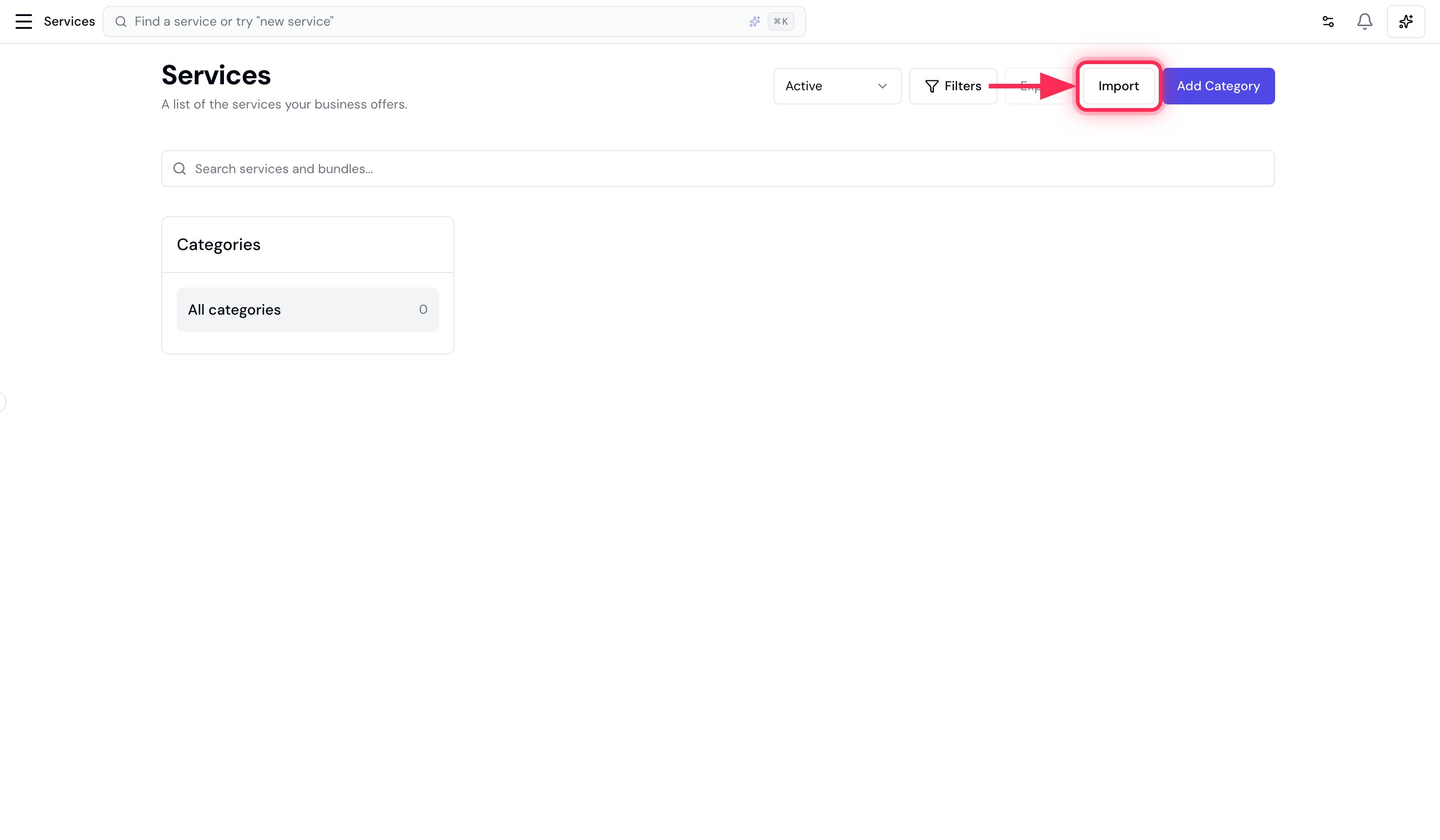
2. Upload your file
Drag your CSV onto the upload area, or click Choose a CSV file. No file yet? Click Download template for a ready-made CSV with the right headers.3. Match your columns
Bella auto-matches each of its fields to a column in your file. Check the matches (the required fields are marked with a red asterisk), then click Next.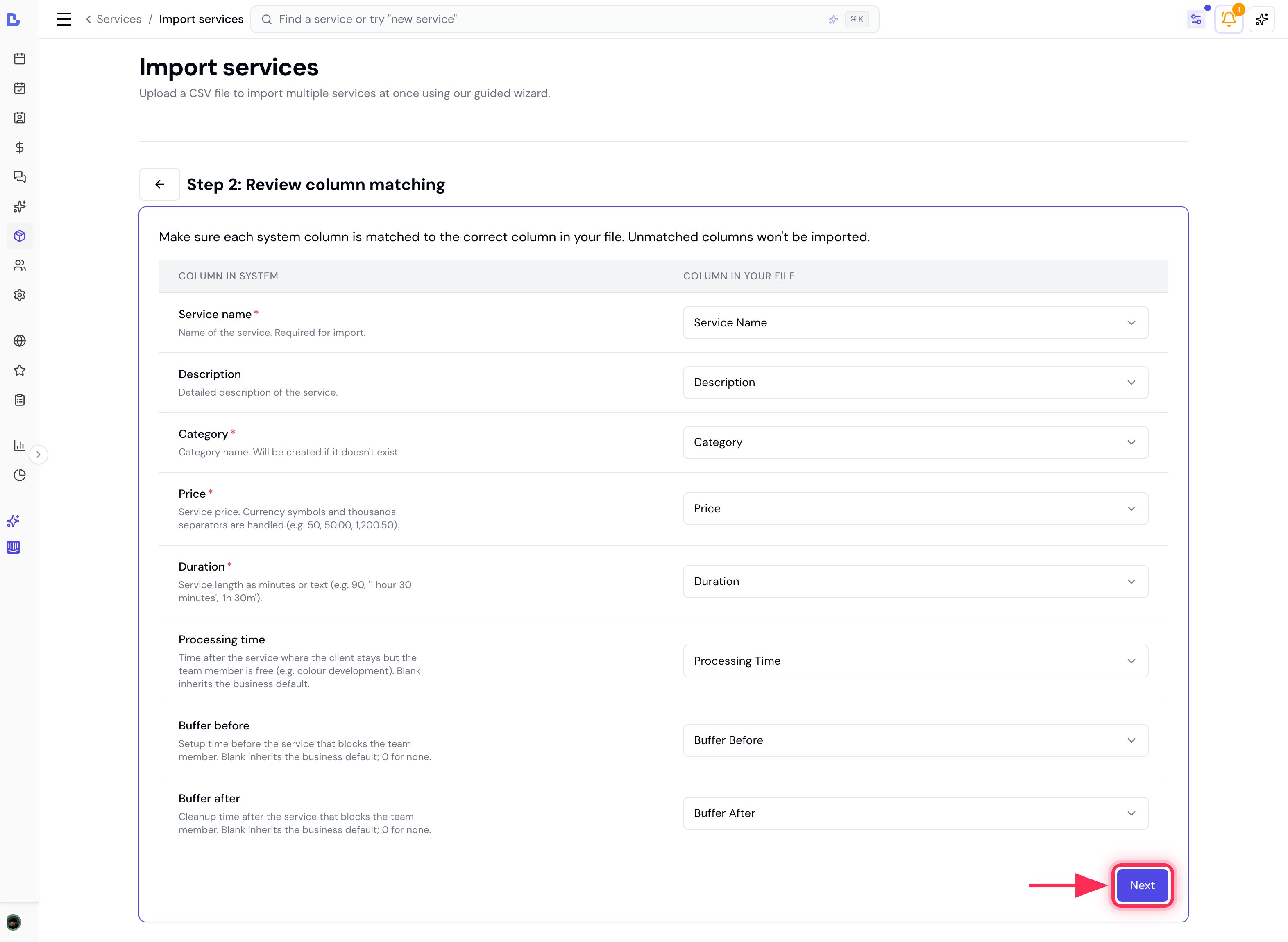
4. Review and fix errors
Bella validates every row and splits the results into two tabs:- Ready to import - rows that will be added, with their category, price and duration.
- Validation errors - rows that can’t be imported yet.
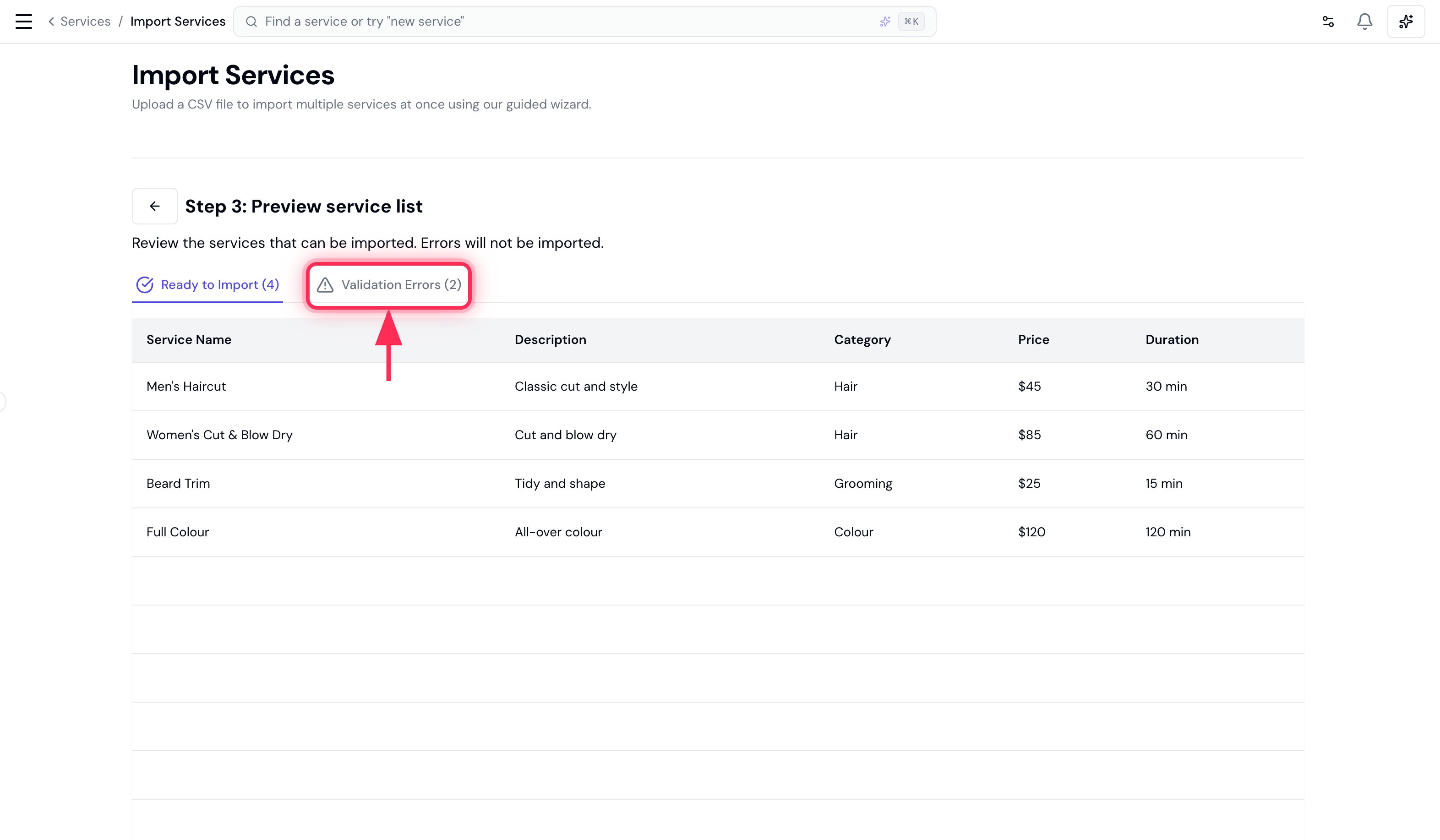
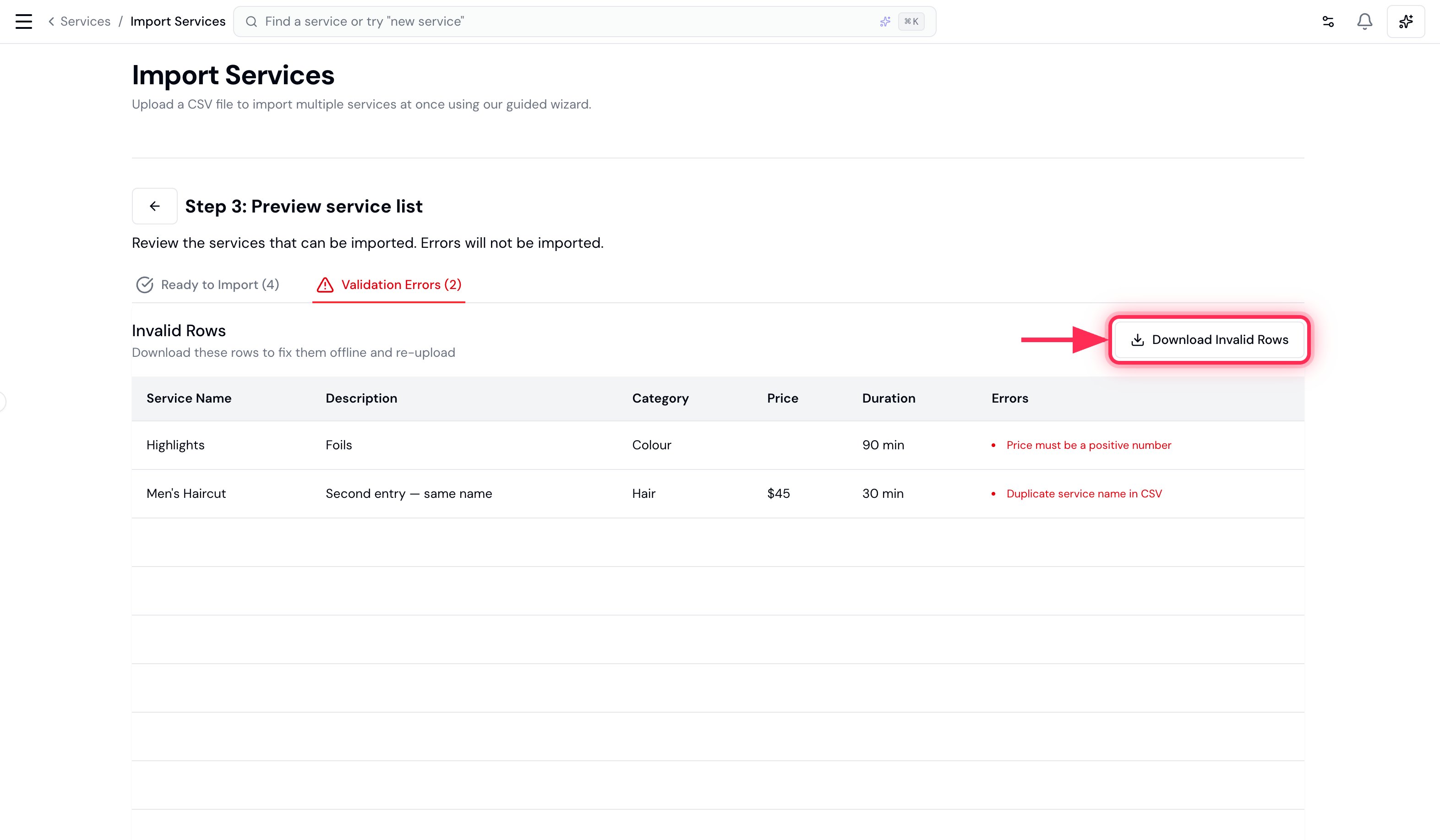
A service whose name already exists in your catalogue is also flagged here, so re-running an import never creates duplicate services.
5. Import
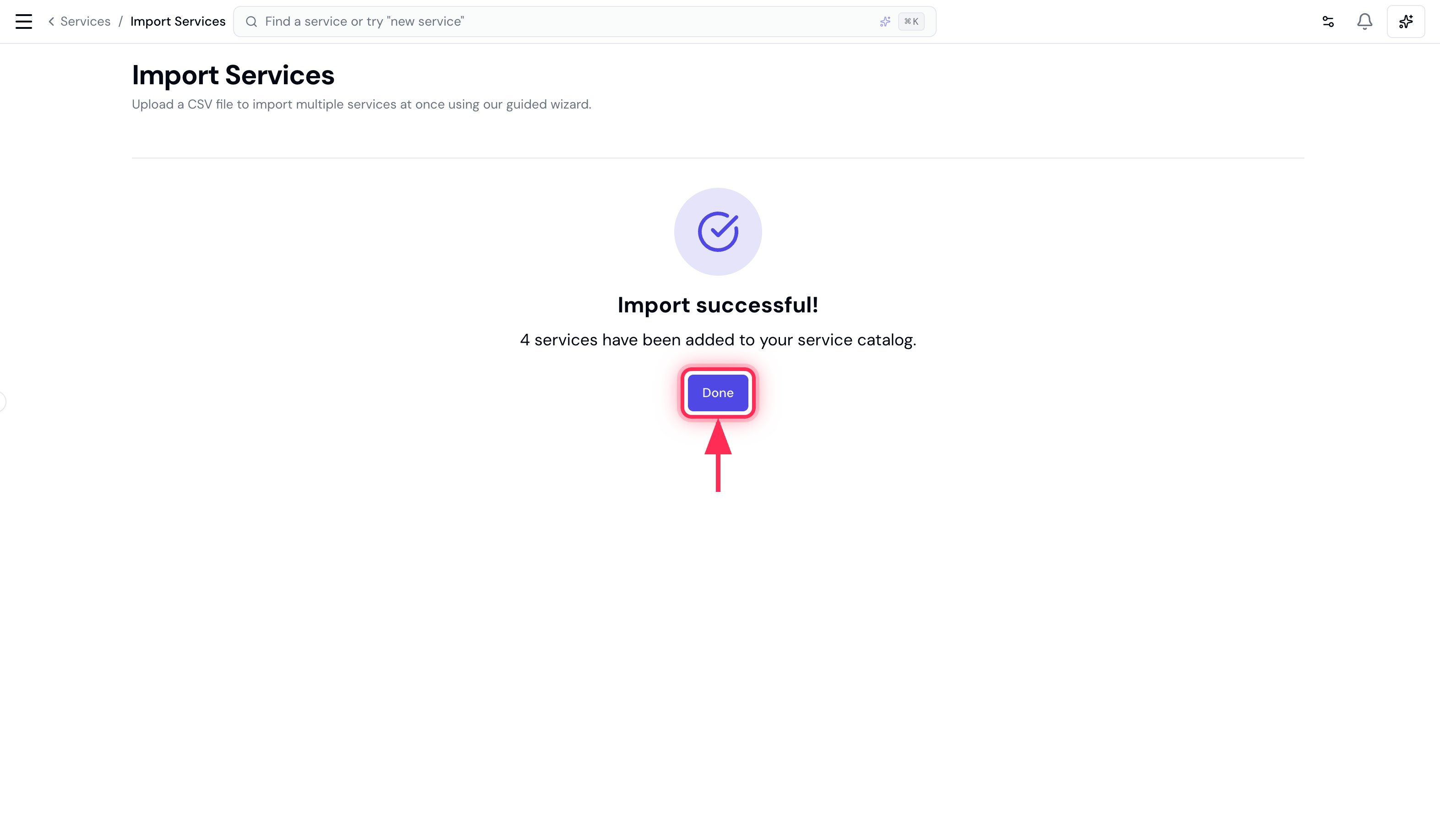
Click Import. Your services are added, and any new categories are created for you.