

Introduction
Service Variants let you create named versions of a single service, each with its own price, duration, and timing settings. Instead of creating separate services for every variation (e.g., “Haircut - Short”, “Haircut - Medium”, “Haircut - Long”), you define one service with multiple variants underneath it. Variants also support client eligibility - you can restrict certain variants to first-time or returning clients. This lets you offer different pricing and durations for initial vs return appointments without any manual workarounds.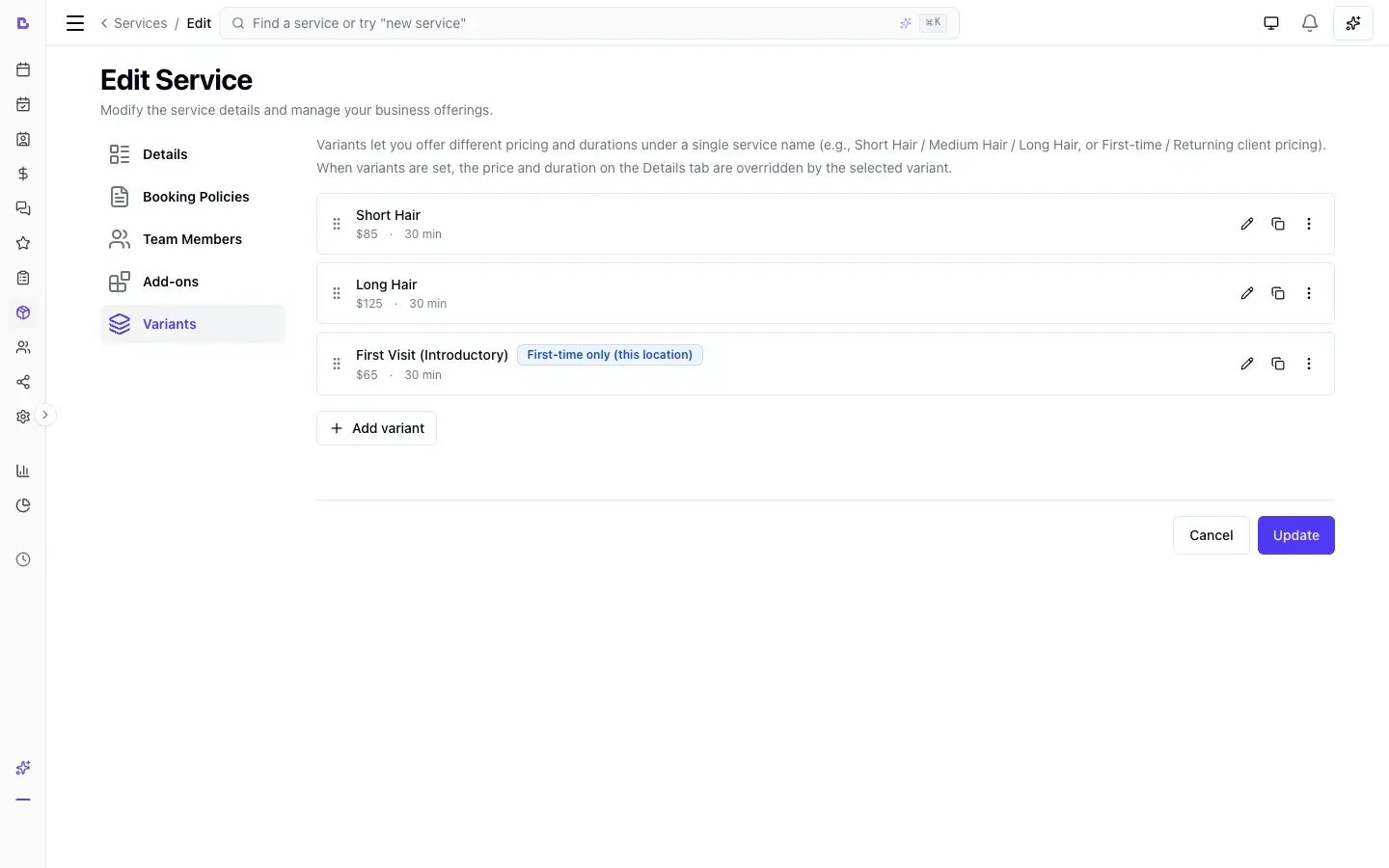
Key features
- Named variants: Create variations like “Short Hair”, “Medium Hair”, “Long Hair” under a single service
- Per-variant pricing and duration: Each variant has its own full price and duration
- Per-variant timing: Optionally override processing time, buffer before, and buffer after per variant
- Client eligibility: Restrict variants to first-time or returning clients, with automatic filtering
- Automatic “From” pricing: Service listings show a “From” price based on the lowest variant price
- Works with pricing tiers: Set tier-specific prices per variant (e.g., senior stylist charges more for the same variant)
- Works with bundles: Clients select their variant when booking a bundle that includes a variant service
- Works with add-ons: Add-on groups linked to the parent service apply to all variants unless the group is offered for specific variants only
Creating variants
- Navigate to the Services and open the service you want to add variants to
- Click the Variants tab
- Click Add variant
- Fill in the variant details:
- Name (required): A descriptive name (e.g., “Short Hair”)
- Description (optional): Additional context about this variant
- Price (required): The full price for this variant
- Duration (required): How long this variant takes
- Processing time (optional): Override the service’s default processing time for this variant
- Buffer before (optional): Override the service’s default buffer before for this variant
- Buffer after (optional): Override the service’s default buffer after for this variant
- Client eligibility (optional): Restrict who can book this variant - see Client Eligibility below
- Click Save to add the variant
When a service has variants, the base price and duration fields on the Details tab are not used. Price and duration are set per variant instead.
What changes when you enable variants
Once you add at least one variant to a service:- The service listing shows a “From” price using the lowest variant price
- The Price prefix field is hidden (the “From” prefix is applied automatically)
- Clients must select a variant when booking - it is not optional
- The calendar displays appointments as “Service Name - Variant Name”
Editing variants
- Open the service and go to the Variants tab
- Click Edit on the variant you want to change
- Update any field - name, price, duration, timing, or eligibility
- Click Save
Reordering variants
Drag variants using the handle to reorder them. On a phone or tablet, press and hold the handle, then drag, or use Move up / Move down in the row menu. The display order determines how variants appear to clients during booking.Removing variants
Click Delete on a variant to remove it. If you remove all variants, the service reverts to standard flat pricing - you will need to re-enter the base price and duration.Client eligibility
Client eligibility is the most powerful aspect of service variants. It lets you automatically show or hide variants based on whether the client is booking for the first time or returning.Eligibility types
Each variant has a Client eligibility setting with three options:Eligibility scope
When you set eligibility to “First-time only” or “Returning only”, you also choose the scope - what “first-time” means:
Example: A client who has had five haircuts at your business but has never had a colour service would be:
- Returning at location scope (they’ve visited before)
- First-time at service scope for “Hair Colour” (they’ve never had this service)
How eligibility works in online booking
When a client browses your services online:- Logged-in clients: Only eligible variants are shown. Ineligible variants are hidden automatically
- Anonymous clients (not logged in): Treated as first-time - they see “First-time only” and “All clients” variants, but not “Returning only” variants
- Single eligible variant: If only one variant is eligible, it is auto-selected - the client does not see a variant picker
- No eligible variants: If no variants pass eligibility for a client, the entire service is hidden from the listing
A banner encourages anonymous clients to verify their phone number for personalised options. When a client logs in or verifies mid-flow, eligibility is re-evaluated and any ineligible selections are cleared with a friendly message.
How eligibility works on the dashboard
When team members book from the scheduler, they see all variants regardless of eligibility:- Eligible variants appear normally and are sorted first
- Ineligible variants appear dimmed with a badge (e.g., “First-time only” or “Returning only”)
- Selecting an ineligible variant shows a warning banner - but your team can proceed if needed (business discretion)
Variants and pricing tiers
If you use pricing tiers (e.g., Junior, Senior, Master), you can set tier-specific prices for each variant:- Each pricing tier can override the price for each variant
- If no tier override exists, the variant’s base price is used
- This works the same way tier pricing works for non-variant services - just applied per variant
40 as A$40, £40, €40, or whatever your business trades in.
Example:
Variants in bundles
When a bundle includes a service that has variants:- The bundle references the parent service - not a specific variant. The client picks their variant when booking the bundle
- On a fixed-total or %-discount bundle, the variant’s own price is overridden by the bundle’s distributed line price. The bundle’s total is split across its component lines, so the amount charged for the variant service comes from that split - not the variant’s list price. The variant still sets the duration and determines which option the client books
- On a bundle that uses component service prices (no fixed total), the variant’s own price is used for that line
- The bundle duration range is displayed when included services have variants (e.g., “45min - 1h 10min” for a service with 45-minute and 70-minute variants)