

Introduction
A bundle packages several services together so a client books them in a single flow at a single, deliberate price. A “Complete Hair Makeover” (Cut + Colour + Treatment), a “Recovery Circuit” (sauna → compression boots → ice bath), a “Bridal Glam” (hair and makeup at the same time) - each is one item on your catalogue and one line in the cart, even though it delivers several services. A bundle is a first-class item, not just a shortcut. Everywhere a service can be sold, covered, or scoped - a prepaid package, a membership benefit, a gift card, a linked form, a members-only gate - you can point that feature at the bundle itself. See Bundles work everywhere services do.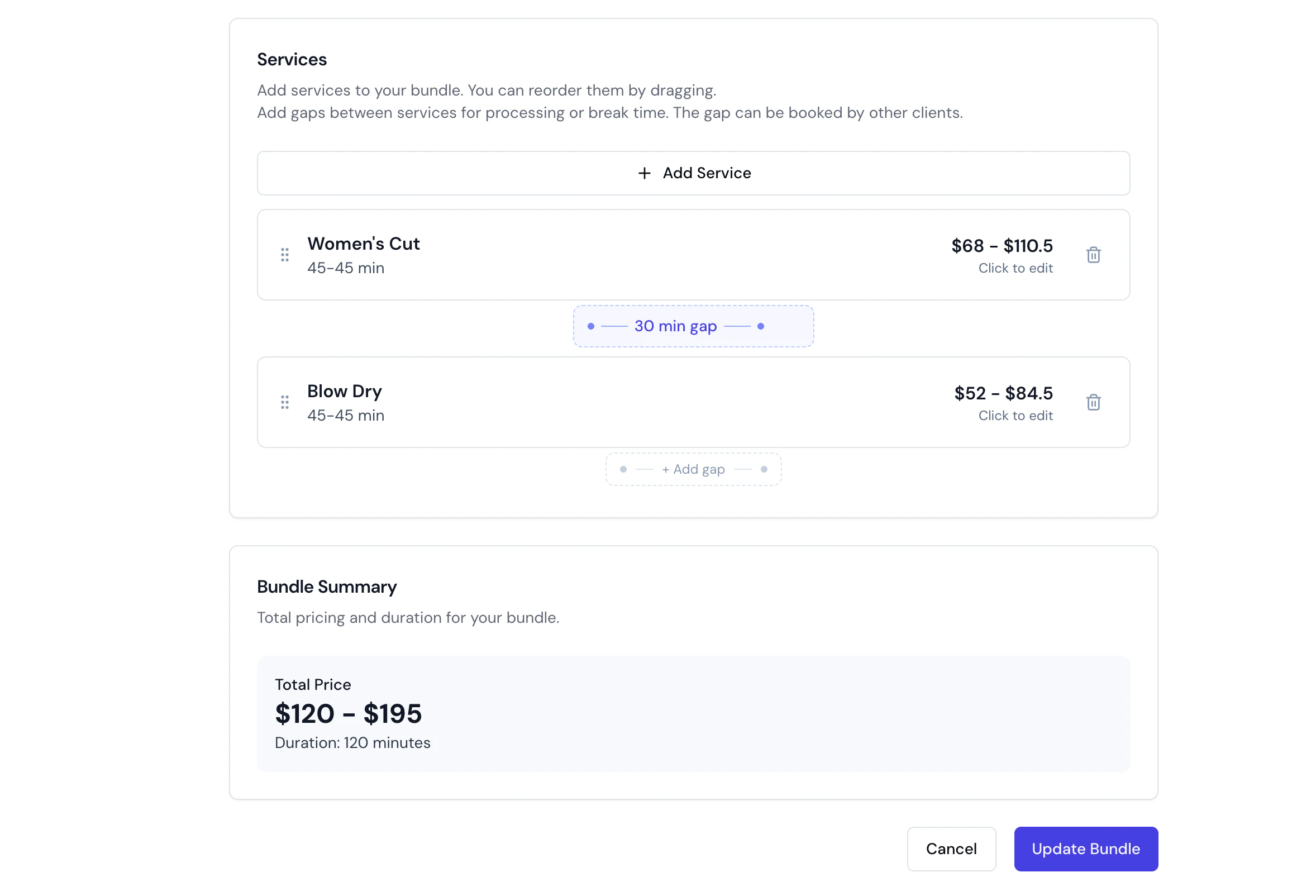
When to use a bundle
- Sell a signature package - “Signature Spa Day”, “Wedding Prep” - as one premium item at one price.
- Encourage clients to book more - combine a popular service with a complementary one at a small saving.
- Reserve two things for one session - a facial and a massage at the same time (each with its own team member), or a sauna and an ice bath at the same time (each its own room). A parallel bundle is the only way one booking holds two different resources or two team members at once.
- Run a back-to-back circuit - several services in sequence, optionally all delivered by the one team member.
A bundle groups different services for one client. To book the same service for a party - a couples massage, two friends in for facials - use Group Bookings instead (the exception is a discounted duo - see Sequential vs parallel execution). The two are different tools: a parallel bundle = different services, same time; a group booking = the same service, N times, same time. For the full map of every multi-person setup, start at Bookings for more than one person.
How a bundle books
A bundle is a composition of component services. At the moment of booking it doesn’t stay a single opaque thing under the hood - it expands into one appointment line per component, and each line carries its own catalogue detail:- Each line records its own variant (if the component service uses variants - the client picks it during booking).
- Each line resolves its own pricing tier from the team member assigned to that line (see pricing tiers).
- Each line carries its own add-ons (online, the client picks them under that component in the bundle’s panel, which shows the add-on groups offered for the variant picked on that line).
- Each line is tagged with the bundle it belongs to, so reports, packages, memberships and gift cards can attribute or cover it correctly.
An end-to-end flow
Every worked figure below is shown as a plain number in your business’s own currency - Bella uses your location’s currency everywhere, so read120 as A$120, £120, €120, or whatever your business trades in.
Take a “Colour & Style” bundle with two components - Hair Colour (which has a “Short / Medium / Long” variant and a “Bond treatment +25” add-on) and Blow-dry.
- The client (or your team) selects the Colour & Style bundle.
-
Because Hair Colour has variants, the client picks one - say Long (
130, 90 min). -
Hair Colour’s add-ons appear under it in the bundle’s panel, and the client adds Bond treatment (+
25, +15 min). Blow-dry has no add-ons, so nothing appears under it. -
The booking creates two appointment lines, both tagged with the bundle:
- On the scheduler your team sees two blocks (or one block with the components inside), each with its assigned team member. Everything downstream - the appointment record, checkout, reports, notifications - reads these per-line values.
Add-on prices sit separately on their line; add-on duration is summed into that line’s length. A line’s total is the (variant/tier-resolved) service price plus its add-ons. Availability accounts for the full duration, including add-ons, on every component line.
Pricing modes
A bundle’s price comes from one setting - the pricing mode, chosen when you create or edit the bundle. Whichever mode you pick, Bella resolves a price for every component line, because that per-line figure is what a package, membership, gift card or discount later attaches to. Understanding how the total is split across the lines is the key to understanding how a bundle interacts with the rest of the catalogue.Use service prices (the default)
Each component keeps its own price (or a per-service custom override you set inside the bundle). The bundle total is simply the sum of the component lines. Worked example. Hair Colour120 + Blow-dry 55 = 175. Each line carries its own price; nothing is redistributed.
Click the price next to any component to set a custom price for that component within this bundle - a “custom” badge appears, and the reset icon reverts it to the standard price.
Set total price (fixed)
You set one fixed total for the whole bundle. Bella then distributes that total proportionally across the component lines, in proportion to each component’s own price - so each line still carries a sensible, coverage-ready figure rather than the total sitting on one line. The last line absorbs the rounding remainder so the line amounts always sum back to the exact total. These per-line figures are internal: your client sees the bundle name and the one total. They are what a package, membership, discount, tax line or partial refund attaches to, and they are what your reports aggregate by service. Worked example. Components priced120 and 55 (natural total 175), fixed bundle total set to 150.
- Hair Colour share: 120 ÷ 175 × 150 =
102.857…→102.86 - Blow-dry share: the remainder, 150 − 102.86 =
47.14(the last leg absorbs the rounding) - Lines sum to exactly
150.
150 across every screen; internally each line holds its distributed share.
Percentage discount
Enter a percentage (e.g. 20% off) and Bella computes the discounted total for you. Under the hood a % discount is stored as a computed fixed total plus a display-only discount percentage - so it behaves exactly like Set total price: the computed total is distributed proportionally across the lines, last leg taking the rounding remainder. The percentage is kept only to show the saving. Worked example. Components120 and 55 (total 175), 20% off → computed total 140.
- Hair Colour share: 120 ÷ 175 × 140 =
96.00 - Blow-dry share: remainder 140 − 96.00 =
44.00 - Lines sum to exactly
140; the bundle displays “20% off - you save35”.
Free
Every component line is priced at0. Useful for a promotional or complimentary package.
Why the per-line split matters. A prepaid package that covers only the Blow-dry service, a membership benefit scoped to Hair Colour, or a gift card drawn against the bundle all attach to these distributed line amounts - not to the headline total. On a fixed-total or %-discount bundle, the coverage a client receives on any one component reflects that component’s distributed share, which is why the last-leg rounding rule keeps the maths exact. See Bundles work everywhere services do.
Show savings
On Set total price or % discount, turn on Show savings to display the original (summed) price struck through with a “You save …” message on your online booking page. Savings only appear when the bundle total is above zero - free bundles don’t show a saving.Sequential vs parallel execution
A bundle runs in one of two execution modes, chosen when you create or edit it.Sequential - one after another
The default. Components run back-to-back, and the same team member can perform every step. Ideal when one service must finish before the next begins - colour must develop before the cut.- Duration = sum of all component durations + all processing gaps between them.
- Processing time between components is client-facing wait time during which the team member is free to serve others (colour developing). Each component’s default processing time is applied automatically when you add it, and you can override it per bundle.
- Buffer before/after comes from each component’s own service: it blocks that component’s team member and any room or equipment around that component, never pushes the next component back, and is never shown to the client.
Parallel - at the same time
Every component starts simultaneously. Because one person can’t be in two places at once, each staffed component needs its own team member - so online you choose “Any available” and Bella assigns distinct team members and only offers slots where enough are free at once.- Duration = the longest component (not the sum), plus the largest single processing time applied once after the block.
- Different services, same time - a facial and a massage together; a sauna and an ice bath together.
- Resource-only components need no team member, so a sauna + ice bath parallel bundle books with no team members at all - it just reserves both rooms for the slot.
- Duplicate components are allowed - and this is exactly how you sell a discounted duo of the same service. A group booking adds up each guest’s own price (no combined discount, by design), so to advertise a reduced “couples” or “2-for” price you add the service twice to a parallel bundle and set a fixed total below the natural sum (turn on Show savings). If you don’t want a discount - just the same service for a party at the full per-person price - reach for a group booking instead; it’s cleaner. Parallel bundles need at least two components.
Parallel bundle vs group booking. A parallel bundle = several different services delivered at the same time, each with its own team member (hair + makeup). A group booking = the same service delivered N times at the same time, one per guest (two friends both having a facial). Reach for a parallel bundle when the services differ; reach for a group booking when they’re the same service repeated for a party - unless you want a combined discount, in which case a same-service parallel bundle with a fixed total is the tool (group bookings are always per person). See Bookings for more than one person.
Members-only bundles
You can gate a bundle so only clients with a covering membership can book it online - the Members only toggle on the bundle form. A bundle is members-gated if the bundle itself is marked members only or if any component service inside it is members only. Either way a non-member is correctly turned away in online booking with a “members only” message. This gates online booking only - your team can still book a members-only bundle for anyone from the dashboard. A covering membership benefit - one scoped to the bundle, or to a component service - satisfies the gate. See Memberships.Show individual services online
By default online clients see a bundle’s full breakdown. The Show individual services online toggle lets you present it as a single opaque item instead - useful for a premium “Signature Spa Day” that should read as a package, not a checklist of treatments.- On (default): clients see the bundle name, the “Includes: …” list, per-component durations, add-ons, and per-component rows in the cart, confirmation and “My appointments”.
- Off: clients see only the bundle name and total duration - one row on the card, in the cart, at confirmation and in “My appointments”. Client-facing emails and SMS collapse to the bundle name too.
A fixed-price bundle never shows per-component prices - not on the booking page, the cart, the confirmation, the appointment panel, an email, or the receipt. On Set total price, % discount and Free, that total is the price your client agreed to; the per-line figures Bella derives from it exist so packages, memberships, discounts, tax and refunds have something to attach to, and showing them would present a breakdown of a package price under service names the client never chose. On Use service prices each component keeps its own real price: your team sees and edits per-component prices on the appointment, and the receipt bills each component as its own line. Client-facing booking surfaces still show one figure against the bundle: the sum of its parts.
Bundles work everywhere services do
Because a bundle expands to per-component lines and is itself a first-class item, the rest of the catalogue treats it correctly - scope a feature at the bundle from the same picker you’d use for a service.Add-ons and per-line coverage. Memberships, packages and per-line discounts compute on each line’s base service price (variant/tier-resolved) - add-ons are always client-paid and excluded from that per-line coverage. Add-ons are included in order-level discounts and loyalty earn. This keeps the split consistent across services and bundles alike. Discount codes are scoped to services, not bundles.
Creating a bundle
- In the Services, select the category where the bundle should live.
- Open the Actions dropdown and choose Add bundle.
- Fill in the details:
- Bundle name (required) and Category (required).
- Description (optional) - explain what’s included and why it’s worth it.
- Services (required) - pick the component services; drag the grip to reorder (or use Move up / Move down). Works in both sequential and parallel mode.
- Execution Mode - One after another (sequential, default) or At the same time (parallel).
- Pricing Mode - Use service prices / Set total price / % discount / Free.
- Show savings (on total-price or discount modes) - see Show savings.
- Available for online booking (on by default) - turn off to hide the bundle from your booking page. Independent of the component services’ own online-booking toggles.
- Members only (off by default) - see Members-only bundles.
- Show individual services online (on by default) - see Show individual services online.
- Click Create bundle.
Processing and buffer time
- Processing time appears between components (sequential bundles). Each component’s default is applied automatically; click a gap to override it, or the reset icon to restore the default. Processing time is added to the client-facing duration; the team member is free during it. In parallel bundles per-component processing times are hidden and the largest one is applied once after the block.
- Buffer before/after isn’t set on the bundle. Each component keeps its own service’s buffer, shown read-only on the component, and it blocks that component’s team member and any room or equipment around it. It is never shown to clients. To change a buffer, edit the service in your Service Catalogue; reordering components moves each buffer with its service.
Editing a bundle
Open the bundle and Edit to move it to another Category, add or remove components, reorder them, adjust processing gaps, change per-component custom pricing, switch the pricing or execution mode, or toggle Show savings / Show individual services / Members only. Changes apply to new bookings only - existing appointments keep the details captured at booking time. The exception is a component service’s own buffer, changed from its entry in the Service Catalogue (see Changing buffer on a service that already has bookings): saving it offers to apply the new buffer to that service’s upcoming appointments, including bookings that used it inside this bundle - the same prompt a standalone service change shows.Duplicating a bundle
When the next bundle is nearly the same as one you have, such as the same pamper day with a longer massage, copy it instead of picking every service again.- Open the three-dot menu next to the bundle
- Choose Duplicate
- The copy opens in the editor, named after the original bundle with “(Copy)” on the end. Change the name and whatever else differs, then Update bundle