

Introduction
Every service in Bella Booking has timing components that determine how long the appointment takes and when the team member is available. Understanding these three components helps you configure your services accurately and optimise your schedule.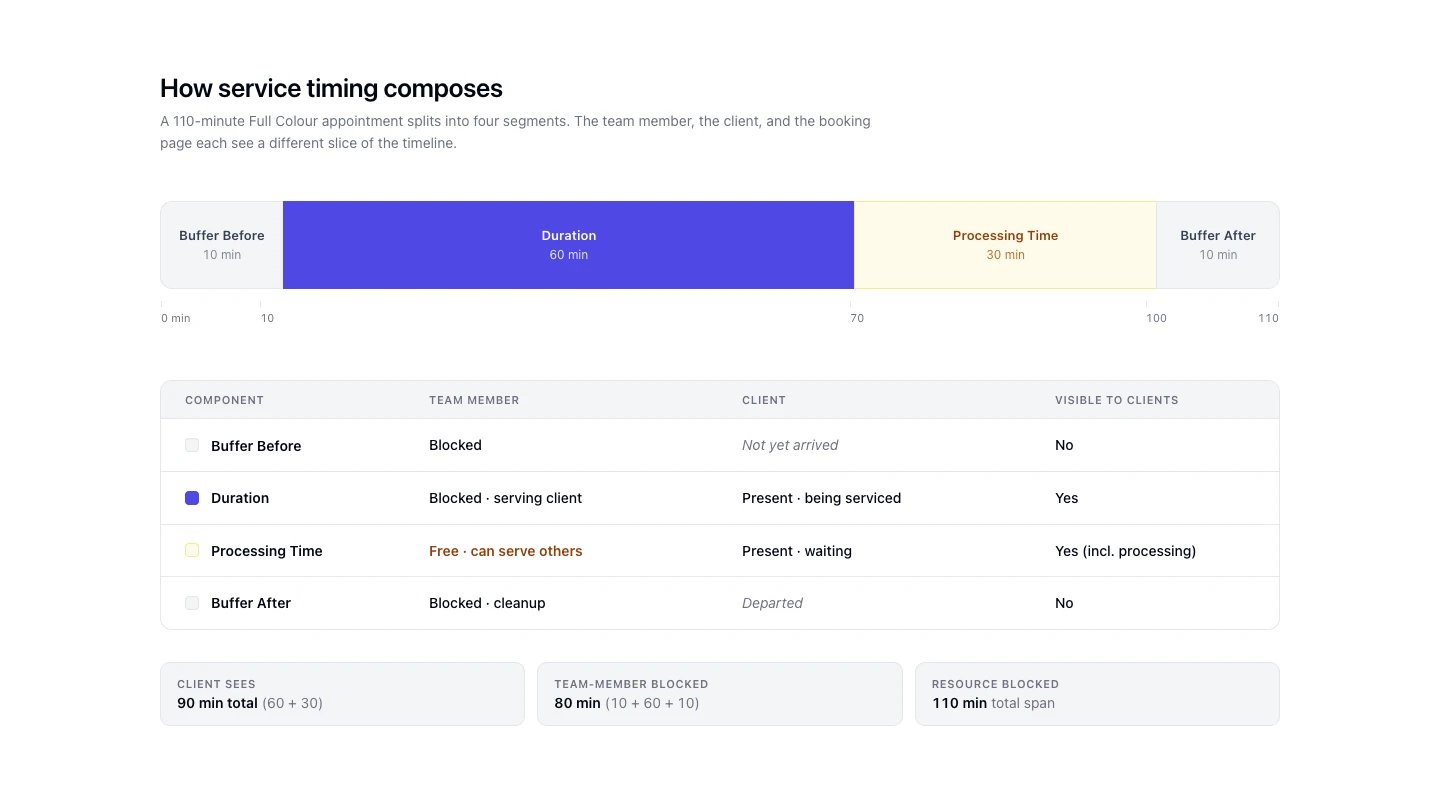
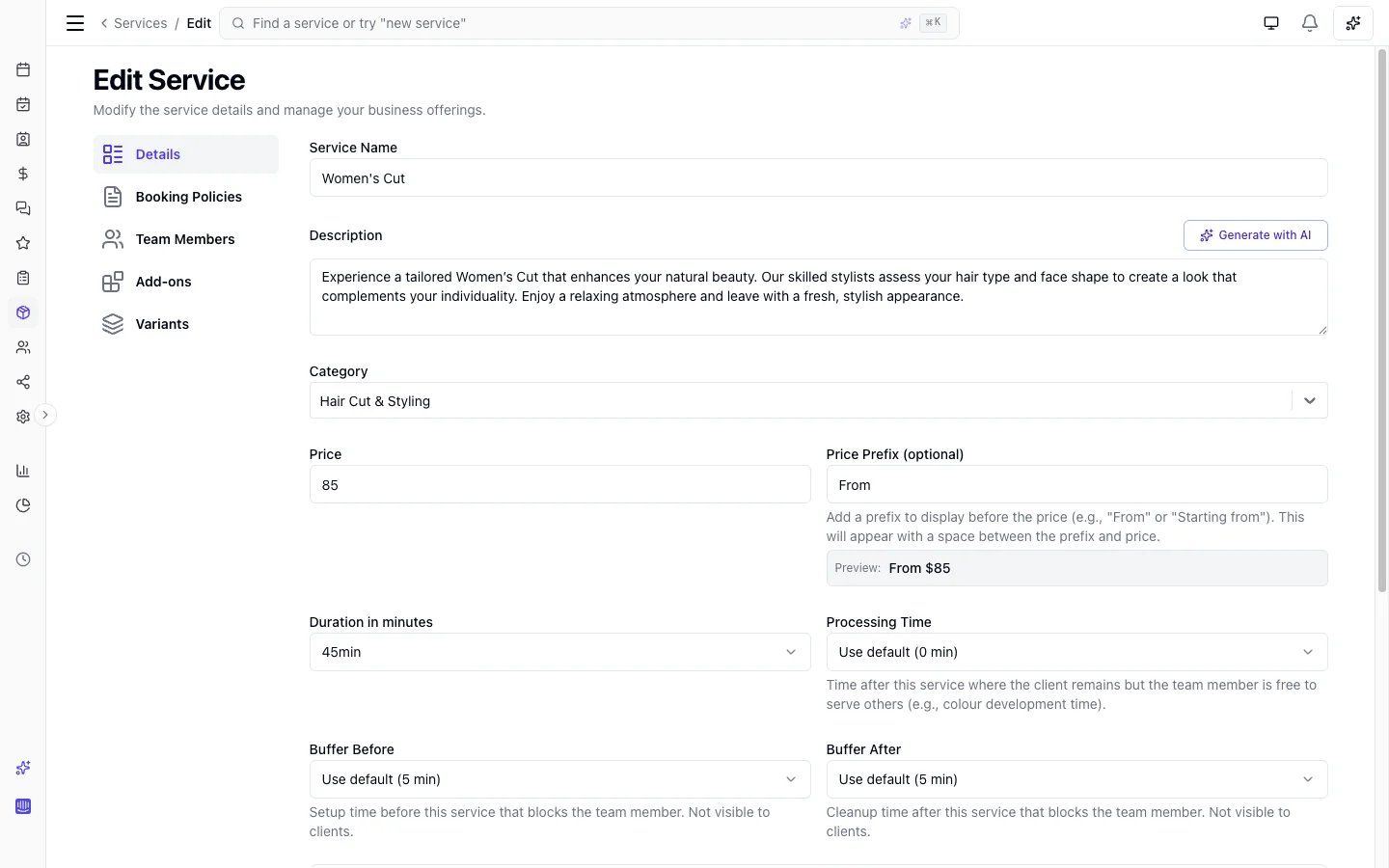
The three timing components
Duration
The active service time - the period when the team member is performing the service on the client.- Set per service in the Services
- This is the core appointment time (e.g., 45 minutes for a haircut)
- The team member and client are both occupied during this time
Processing time
Time after the active service where the client remains but the team member is free to serve others.- Configured per service or inherited from the location default
- The client stays (e.g., waiting for hair colour to develop)
- The team member can serve other clients during this period
- Visible to clients in online booking as part of the total duration
- Hair colour development (30-45 minutes)
- Perm setting time (20-30 minutes)
- Skincare treatment absorption (15-20 minutes)
- Teeth whitening activation (15 minutes)
Buffer time
Blocked time before and/or after the service where the team member is unavailable.- Buffer before: Setup or preparation time before the service begins
- Buffer after: Cleanup or reset time after the service ends
- The team member is blocked and cannot serve other clients
- Not visible to clients - only affects scheduling internally
- Room preparation and sanitisation (10-15 minutes)
- Equipment sterilisation between clients (5-10 minutes)
- Consultation note review before the appointment (5 minutes)
- Laundry and linen change between treatments (10 minutes)
How the three components compose
The full timeline of a service appointment flows as follows:- Client sees: 90 minutes total (60 min + 30 min processing) displayed as “90 mins (incl. 30 min processing time)”
- Full calendar window: 110 minutes total (10 + 60 + 30 + 10) - this is the entire span from start of Buffer before to end of Buffer after, including the processing time in the middle
- Team member blocked slot: 80 minutes (10 + 60 + 10 = Buffer before + Duration + Buffer after) - this is the
GetTeamMemberTimeSlotused for conflict detection. The team member is free during the 30 min processing time and can serve other clients - Team member available for others: 30 minutes (during Processing Time only)
How defaults and overrides work
Processing time and buffer times use a cascading inheritance model:Resolution order
- Bundle override - if the service is in a bundle with a custom value, that takes priority
- Service-level value - an explicit value set directly on the service
- Location default - the default value set in Settings > Scheduling > Processing Time & Buffer Defaults
- 0 minutes - if no default is configured anywhere
”Use default” behaviour
When a service has “Use default” selected (shown in the service form), it inherits the location-level default. This means:- Changing the location default updates all services that use “Use default”
- Services with explicit values are not affected by location default changes
- You can see whether a service uses its own value or the default in the service form
Changing buffer on a service that already has bookings
A booked appointment stores the buffer it had at the moment it was booked, so changing a service’s (or a variant’s) buffer setting on its own never changes an appointment already on the calendar. Saving that change offers a way to catch it up: Bella lists the service’s upcoming (not yet completed or cancelled) appointments still carrying the old buffer, and Apply updates them in one step. Any appointment where the wider buffer would newly overlap another booking or blocked time is skipped and named, rather than silently creating a double-booking. Past and completed appointments never change, and clients are never notified - buffer is not visible to them. Changing the location default buffer does not currently offer this catch-up step - only a change on the service or variant itself does.Timing in different contexts
Individual services
All three components apply straightforwardly:Sequential bundles
Processing time appears between services. Buffer time applies to the bundle as a whole:Parallel bundles
All services run simultaneously. The largest processing time across all services is used once after the block. Buffer applies to the bundle:Stacked services (multiple services in one appointment)
When multiple individual services are added to a single appointment, each service’s processing time advances the timeline - the next service starts after the previous service’s duration plus its processing time. This means the team member can serve other clients during the processing gap. Buffer time does NOT create a gap between stacked services. Buffer is recorded per service for team member conflict detection only (i.e., the team member is marked as blocked for the buffer period). Buffer before of the first service and Buffer after of the last service define the outer boundaries of the team member’s blocked window, but buffer does not push services apart within the stack.Client-facing vs internal visibility
FAQs
Q: Why would I use processing time instead of just making the service duration longer? A: Processing time frees the team member to serve other clients during that period. If you make the duration longer instead, the team member appears occupied for the full time, reducing your booking capacity. Using processing time optimises your schedule. Q: Do buffer times reduce my bookable capacity? A: Yes, buffer times block the team member and reduce available slots. Use them judiciously - only when genuine setup or cleanup time is needed. Even 5-10 minutes of buffer can significantly impact a full day’s schedule. Q: Can I have processing time without buffer time, or vice versa? A: Yes. Each component is independent. A colour service might have 30 minutes of processing time but no buffer. A massage service might have 10 minutes of buffer after (for room reset) but no processing time. Q: How do these affect online booking availability? A: The system checks different time ranges for different resources:- Team member: must be free for buffer before + duration + buffer after. Processing time does not block the team member - they are free to serve another client during that period.
- Resource (e.g., treatment room): must be free for buffer before + duration + processing time + buffer after. The resource remains occupied while the client is present during processing.
- Client: must not have an overlapping appointment during duration + processing time. Buffer does not affect client availability.