

Introduction
Prepaid Packages let you sell bundles of sessions that clients pay for upfront at a fixed price. A package defines which services are included, how many sessions of each, a single prepaid price (typically discounted), and an optional expiry period. When a client purchases a package, they receive a balance of prepaid sessions that can be redeemed at checkout by a team member or applied by the client themselves when booking online - replacing the normal service charge. This is ideal for encouraging client commitment and repeat bookings. For example, you might offer a “10 Haircut Pack” where the client pays upfront for 10 haircuts at a discounted rate, then redeems one session at each appointment.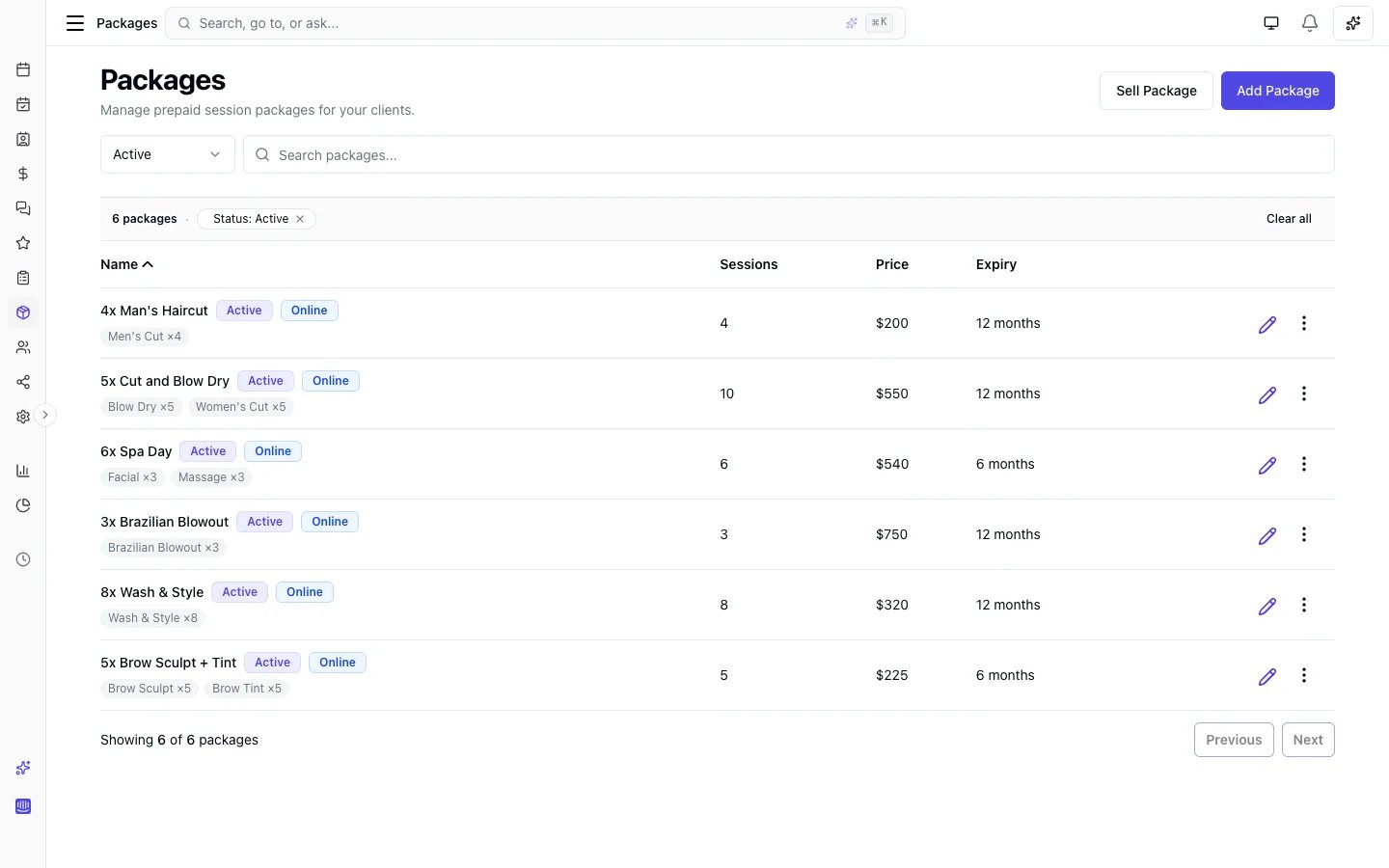
Sorting and filters
Search and filters choose which rows are listed. They do not change the order. To change the order, click a column heading that sorts. Unless the page says otherwise, the first click sorts text A to Z, and numbers and dates highest or newest first. Click the same heading again, or the heading the list already opens on, to reverse it. The arrow beside the heading shows the direction: up is A to Z, oldest first or lowest first, and down is Z to A, newest first or highest first. A heading that sorts by name ignores capital letters: “anna” and “Anna” sort together. The catalogue list opens on Name, arrow up (A to Z). Price sorts as well. Sessions and Expiry do not. The sold-packages list opens newest purchase first. Package, Purchased, Price, and Expires sort. On the first click on Expires, packages with no expiry come last. Client and Sessions do not sort. Search and status are filters on that list.Key features
- Flexible composition: Include one or more services and bundles in a package, each with its own session count
- Variant-level allocations: Restrict sessions to a specific service variant (e.g., “Haircut - Short” rather than any haircut)
- Prepaid pricing: Set one upfront price for the entire package, typically at a discount compared to booking sessions individually
- Expiry periods: Optionally set how long a package stays valid after purchase, in days, weeks or months
- Session tracking: Real-time balance tracking shows how many sessions remain for each service
- Checkout redemption: Team members select a client’s package at checkout to cover service charges
- Online redemption: Clients can apply their package credits when booking online - no team member intervention needed
- Multiple packages per sale: Sell more than one package in a single transaction
- Online purchase: Clients can browse and purchase packages through your online booking portal
- Purchase confirmation email: Clients receive an email with their package details after purchase
- My packages portal: Clients can view their purchased packages and session balances online
- Sold packages list: Browse and manage all sold packages with status filtering
- Archive & restore: Archive packages you no longer sell and restore them later if needed
- Cancellation restore: When an appointment is cancelled, redeemed sessions go back to the client’s balance by default - the cancel dialog lists them, so you can forfeit them instead on a late cancellation or no-show
- Voiding: Cancel an active package if needed, with a mandatory reason
- Package reports: Track packages sold, revenue, sessions redeemed, and sessions outstanding
How packages work
- You create a package definition in Catalogue > Packages (e.g., “10 Haircut Pack” - 10 sessions of Haircut for $400, paid upfront)
- The package is sold to a client - either by a team member through Sales > Add sale, or by the client themselves through the online booking portal
- The client receives a prepaid session balance (e.g., 10 haircut sessions) and a confirmation email
- Sessions are redeemed in one of two ways:
- At checkout (team member): When checking out an appointment, the team member selects the client’s package to cover the service charge
- During online booking (client): The client applies their package credits at the confirm step when booking online - sessions are redeemed immediately
- One session is deducted per covered service - or, for a bundle line, one session covers the whole bundle in a single redemption - and the charge is covered by the prepaid balance, so no additional payment is needed for covered services
- If an appointment is cancelled, redeemed sessions go back to the client’s balance by default. The cancel dialog lists them, so you can forfeit them instead on a late cancellation or no-show
- When all sessions are used, the package status changes to Exhausted
Sessions belong to the client who pays. When a client books an appointment for their family or guests - a couples session, a shared-space booking, or a party - and pays for it, their package balance covers that whole booking. The attendees’ own packages are not drawn on automatically; a package is always redeemed from the person paying. This is deliberate.
A package line can be a whole bundle. As well as individual services, you can add a bundle as a package line - pick it from the bundle picker when building the package. One bundle session covers every service in that bundle when the client books it, redeemed in a single step rather than service-by-service. You can still allocate individual services too, and mix both in the same package (e.g. “1× Spa Day bundle + 3× Massage”).
Creating a package
- Go to Catalogue > Packages in the sidebar
- Click Add package
- Fill in the details:
- Package name (required): A descriptive name (e.g., “10 Haircut Pack”)
- Description (optional): Additional details about what’s included
- Services and bundles included (required): Click Choose services to select which services and variants are part of the package, then set the number of sessions for each. Use Add bundle to add a whole bundle as a line - each session of it covers every service in the bundle
- Price (required): The total price for the package
- Expiry period: Enter a number and pick Days, Weeks or Months, or pick No expiry so the sessions never lapse
- Active: Toggle whether the package is available for sale
- Allow online purchase: Toggle whether clients can purchase this package through the online booking portal (requires Stripe payments to be configured)
- Click Save
Service and bundle allocations
Each allocation defines a service (or a specific variant of a service), or a whole bundle, and how many sessions of it are included.
You can mix all three types in a single package. For example, a package could include 10 sessions of any Haircut variant, 3 sessions of Colour (no variants), and 2 sessions of your “Spa Day” bundle.
Editing a package
You can update a package’s name, description, price, expiry period, and active status at any time. Those edits apply to the catalogue definition, so they affect new sales. If the package has already been sold to any client, the service composition cannot be changed, and already-sold packages keep the remaining sessions and expiry they were sold with.Archiving a package
If you no longer want to sell a package but need to keep it for reference (e.g., clients still have active balances):- Open the package from Catalogue > Packages
- Click the Archive option from the dropdown menu
- The package is hidden from the main list and can no longer be sold
Selling a package
Packages are sold through the Sales form, just like products. You can start a sale from multiple places:From the sales page
- Go to Sales in the sidebar and click Add sale
- Select a Client
- Click Add package
- Browse or search the available packages, then click one to add it
- You can add multiple packages to a single sale
- Each added package appears as a line item with its price
- Select a payment method and complete the sale
From the client profile
- Open a client’s profile and go to the Packages tab
- Click Sell package in the tab header (or in the empty state if no packages exist yet)
- This opens the Sales form with the client pre-selected - just add packages and complete the sale
From the client list
Right-click (or use the ⋮ menu) on any client row and select New sale to open the Sales form pre-populated with that client.From the command palette
Press Cmd+K (Mac) or Ctrl+K (Windows/Linux) and search for “Sell package” to jump straight to the Sales form. Once the sale is confirmed, a Sold Package record is created for the client with the full session balance.Online purchase
Clients can browse and purchase packages directly through your online booking portal. This requires:- Packages to be enabled in Settings > Packages
- At least one package with Allow online purchase toggled on
- Stripe payments configured for your location
Discoverability
Packages are surfaced to clients in several places on your online booking portal:- Navigation bar: A “Packages” link appears in the main navigation when online packages are enabled
- Packages section on your booking page: A prominent section encourages clients to browse available packages
- Services section: A subtle “Save with prepaid packages” link appears below the services heading, guiding clients to explore packages
- Account menu: “My packages” appears in the client’s account hub (grid menu) for quick access to their purchased packages
How it works
- The client visits the Packages page on your online booking portal
- They browse the available packages, viewing services included, price, and expiry
- They click Purchase package and are redirected to Stripe Checkout to complete payment
- After payment, they see a confirmation page with their package details
- The client receives a purchase confirmation email with a summary of their package
- The package appears on their My packages page, where they can view session balances
My packages
Clients can view all their purchased packages from the My packages page in the online booking portal (accessible from the user menu). For each package they can see:- Package name and status
- Session balance per service (remaining / total)
- Purchase date and expiry date
- A link to book an appointment
Purchase confirmation email
When a client purchases a package, they automatically receive a confirmation email showing:- Package name and included services
- Price paid and expiry date
- A link to view their packages online
Processing fees
If your location has Pass processing fees to clients enabled in payment settings, a small note is shown on the packages page informing clients that a processing fee applies.Package indicators when booking
When creating or editing an appointment, the system helps team members identify clients with active packages:- Package banner: After selecting a client, a blue banner shows the number of active packages and remaining sessions with a per-service breakdown. Each service is a clickable quick-add button - click to instantly add that service to the appointment
- Service dropdown: A “Covered by package” group appears at the top of the service selection dropdown, highlighting services the client has prepaid sessions for. Each matching service also shows a blue badge with the number of remaining sessions (e.g., “7 sessions”)
- Suggested services: If a suggested service is also covered by a package, the package session badge appears alongside the booking count
- Total hint: The total section shows a blue hint indicating how many services are covered by a package and the potential savings at checkout (e.g., “All services covered by package - potential total $0 at checkout”)
Redeeming packages
There are two ways to redeem package sessions: team members can apply them at checkout, or clients can apply them when booking online.Redeeming at checkout (team member)
When checking out an appointment for a client who has an active package, the team member can apply it to cover the service charge.- Open the appointment and click Check Out
- If the client has an active package that covers any of the appointment’s services, matching packages are automatically applied - no manual action needed
- The service price is set to $0 (covered by the package) and one session is deducted from the balance
- Any add-on charges remain payable as normal - packages cover the base service price only
- The team member can remove or change the applied package if needed
- Complete the checkout with any remaining balance paid via the chosen payment method
Redeeming during online booking (client)
Clients with active packages can apply their credits when booking online - no team member action is needed.- The client selects their service(s) and reaches the Confirm step of the booking flow
- A Package credits section appears in the booking summary, showing packages that match the selected services
- For each service, the client can see available packages with the number of remaining sessions and expiry date
- The client clicks Apply to use a package for that service
- The booking summary updates to show the package discount as a line item deduction
- If the package covers all services, the service balance becomes zero and no deposit is collected. An active appointment fee is never covered by package sessions, so that fee can still remain payable at the appointment. Collect at booking does not take it when there is no deposit to collect.
- When the booking is confirmed, sessions are redeemed immediately
- Each service slot can have at most one package applied
- Only packages with an exact variant match are available during online booking (service-level packages match any variant)
- Package-covered services are excluded from the deposit calculation
- If the appointment is later cancelled, redeemed sessions are automatically restored to the client’s balance
Cancellation and session restore
When an appointment with package redemptions is cancelled, the redeemed sessions are automatically restored to the client’s package balance. This applies to both team-member-applied and client-applied redemptions.- The restoration is recorded in the redemption history as a Reversal entry
- The package status may change back from Exhausted to Active if sessions are restored
- No manual action is required - the restore happens automatically on cancellation
What a session covers inside a bundle
Because a bundle expands at booking into one appointment line per component service, what a package line covers depends on how the line was set up.- A service-level package line covers the matching component line of a bundle - one session per matching line, leaving the other lines charged.
- A bundle-level package line covers the whole bundle in a single redemption - one session covers every component line at once.
- The Massage line is covered by one Massage session from the package - its charge is set to $0.
- The Facial line is charged - the package doesn’t include Facial, so it isn’t covered.
- The package balance drops by one session.
Managing sold packages
Client profile
Each client’s profile includes a Packages tab showing all their purchased packages. For each package you can see:- Package name, purchase date, and expiry date
- Status badge
- Session progress bar (used / total)
- Per-service session breakdown
- Links to view the sale or the full package detail
Sold packages list
Go to Sales > Sold packages in the sidebar to browse all sold packages across all clients.- Search by package, client name, email, or phone
- Filter by one or more statuses: Active, Exhausted, Expired, or Voided
- Package, Purchased, Price, and Expires sort. The list opens newest purchase first. Client and Sessions do not. See Sorting and filters.
- Click any row to open the detail page
Sold package detail page
The detail page shows:- Package details: Client (linked), purchase date, expiry date, purchase price, sale origin (online booking or point of sale), and a link to the original sale
- Session summary: Progress bar and per-service breakdown showing remaining / total sessions
- Redemptions table: A log of every redemption and reversal - date, service name, type (redemption or reversal), and a link to the appointment
Voiding a package
If you need to cancel a client’s package - for example, if it was sold in error or the client requests a cancellation:- Open the sold package detail page (from Sales > Sold packages or the client’s Packages tab)
- Click Void
- Enter a reason (required)
- Confirm
Package statuses
Package reports
Go to Insights > Reports > Packages summary to view analytics for your packages. The report shows:- Packages sold: Number of packages sold in the selected period
- Total sold amount: Revenue from package sales
- Sessions redeemed: Number of sessions used in the selected period
- Sessions outstanding: Total unredeemed sessions across all active packages
Enabling prepaid packages
Prepaid packages must be enabled before they can be created or sold.- Go to Settings > Packages
- Toggle Enable Packages on
- Optionally set a Default expiry in days, weeks or months. It pre-fills the expiry period on new packages, and each package can still set its own
FAQs
Q: Can I include multiple services in one package? A: Yes. A package can include any number of services, each with its own session count. For example, “10 Haircuts + 3 Colours”. Q: Can a package contain a whole bundle? A: Yes. As well as individual services, you can add a bundle as a package line using the bundle picker. Each session of a bundle line covers the entire bundle in a single redemption - every service in it - rather than deducting a session per service. You can mix bundle lines and service lines in the same package. Q: What happens if a service has variants? A: When choosing services for a package, you can select specific variants (e.g., “Haircut - Short”) or the service as a whole. A service-level allocation allows any variant to be redeemed; a variant-level allocation restricts redemption to that specific variant. Q: Can a client have multiple active packages? A: Yes. A client can purchase and hold multiple packages simultaneously. Q: Can I sell multiple packages in one sale? A: Yes. You can add multiple packages to a single sale transaction. Q: Do packages cover add-on charges? A: No. Packages cover the base service price only. Any add-on charges remain payable at checkout, consistent with membership benefits and per-line discounts. See Service Add-ons. Q: If I book a bundle, does a service-level package cover it? A: A service-level package line covers only the matching component line of the bundle (one session), leaving the other lines charged. A bundle-level package line covers the whole bundle in a single session. See What a session covers inside a bundle. Q: What happens when a package expires? A: Expired packages cannot be redeemed. Expiry is counted from the moment of purchase, not the end of that day: a 7 day package bought at 2pm on 1 March runs out at 2pm on 8 March. Worth knowing when you sell a short one. Q: Can I change the services in a package after it has been sold? A: No. Once a package has been sold to any client, the service composition is locked. You can still update the catalogue package’s name, description, price, and expiry period; those edits apply to new sales. Already-sold packages keep the composition, remaining sessions, and expiry they were sold with. Q: Can I add or remove sessions on a sold package? A: No. Remaining sessions change only when a session is redeemed at checkout or online booking, when a cancelled appointment restores or forfeits a session, or when you void the whole package. There is no staff control to add or deduct a session for goodwill or a correction. Q: Can I extend the expiry date on a sold package? A: No. Expiry is set at purchase from the catalogue package’s expiry period, or the package never expires. Changing the catalogue expiry applies to new sales only. Already-sold packages keep the date they were sold with. Q: Who can void a package? A: Team members with the Void Packages permission. By default, Owners and Admins have this permission. Q: Does voiding a package issue a refund? A: No. Voiding cancels the remaining sessions but does not process a refund. If a refund is needed, process it separately on the original sale. Q: What happens to the package if I refund the purchase? A: A full refund of the sale voids the package, so its remaining sessions can no longer be redeemed - you’ve given the money back, so the client no longer holds the sessions. Sessions they had already used stay used. A partial refund leaves the package active, which is how you return just the unused portion of a package the client has already started. Q: Can clients redeem packages when booking online? A: Yes. When a client with active packages reaches the confirm step of online booking, they see a Package credits section showing applicable packages. They can apply a package to cover each service - sessions are redeemed immediately when the booking is confirmed. Q: What happens to package sessions if an appointment is cancelled? A: Redeemed sessions are automatically restored to the client’s package balance. This works for both team-member-applied and client-applied redemptions. Q: Can clients purchase packages online? A: Yes. Toggle Allow online purchase on individual packages to make them available on your online booking portal. Clients pay via Stripe Checkout and receive a confirmation email. Q: What happens if a client abandons the checkout? A: If the client closes the browser before completing payment, the package stays in Processing status. When the Stripe Checkout session expires (typically after 24 hours), the package is automatically marked as failed and cleaned up. It never appears in admin views. Q: Can I control which packages are available online? A: Yes. The Allow online purchase toggle is per-package, so you can offer some packages exclusively at the point of sale while making others available online. Q: Do packages affect the deposit amount for online bookings? A: Yes. Services covered by a package are excluded from the deposit calculation. If all services are covered, no deposit is required. Q: What’s the difference between archiving and deleting a package? A: Archiving hides the package from the active list but preserves it for reference - you can restore it later. Deleting permanently removes the package. You can only delete a package that has been archived and has never been sold. Q: Is there a difference between how packages work at checkout vs. online booking? A: The core behaviour is the same - one session is redeemed per service. The main difference is that online booking requires an exact variant match when applying packages, whereas team members at checkout have more flexibility to match service-level allocations.To enable and configure prepaid packages, see Prepaid Package Settings.