

Introduction
The Gift card settings page lets you enable digital gift cards for your location and configure how they work. Gift cards can be sold by your team from the Gift cards screen (Sales → Gift cards → Sell gift card) or purchased by clients through your online booking portal. An online purchase always emails the recipient their code; at the till the email is on by default and can be switched off so you hand the code over yourself. Either way, the code is redeemed at checkout.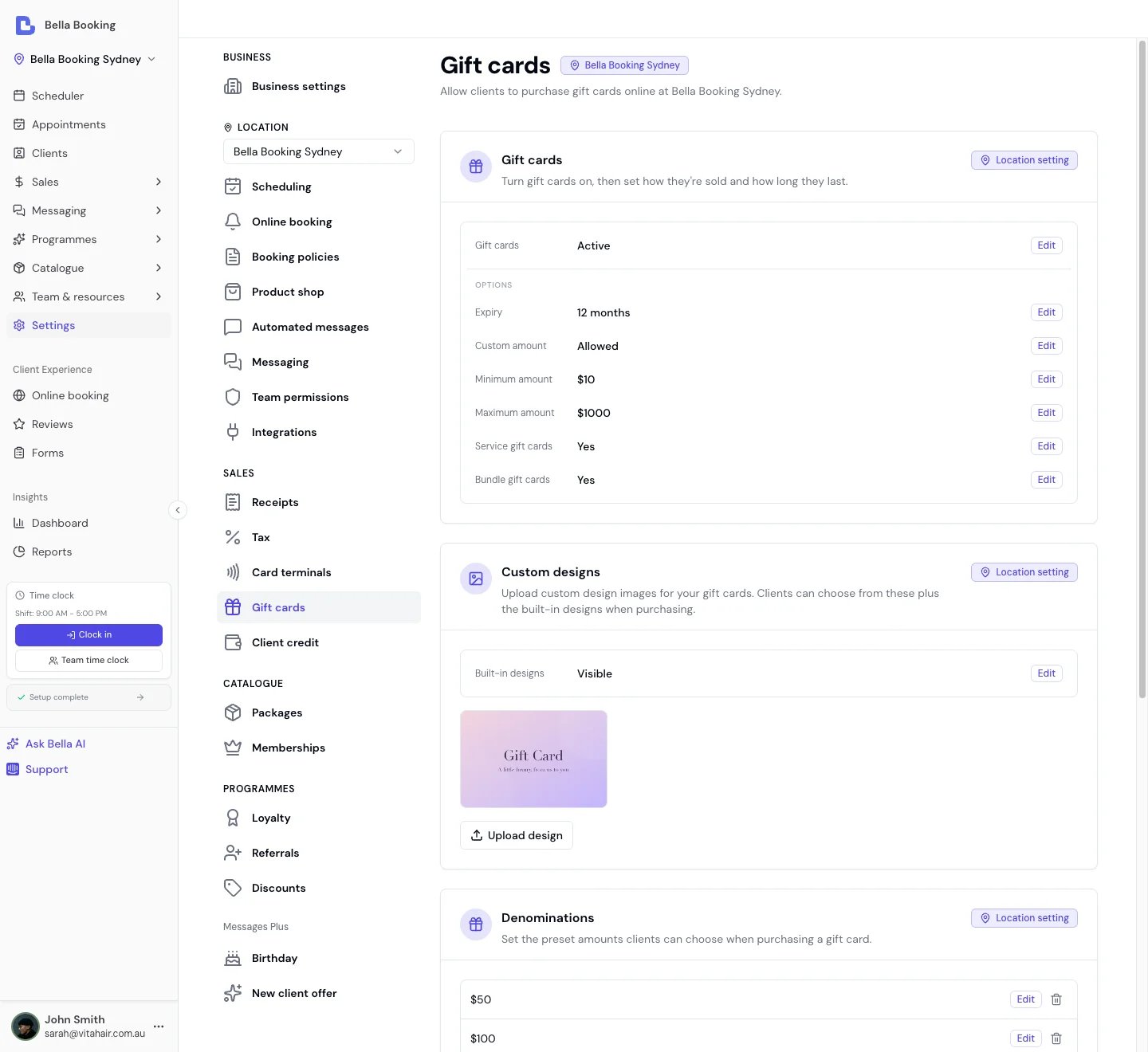
Accessing Gift Card Settings
- Go to Settings in the sidebar
- Click Gift cards (under the location settings group)
Enabling Gift Cards
- In the Gift cards row, click to change the status from Paused to Active
- Click Save changes in the summary card that appears
- No new gift cards can be sold (the Sell gift card button is hidden; online purchases are blocked)
- Existing active gift cards can still be redeemed at checkout
Configuring Denominations
Denominations are preset amounts shown to clients during purchase - for example, 50, 250.Adding a denomination
- Click Add denomination
- Enter the amount
- Click Save
Removing a denomination
Click the remove icon next to a denomination and click Save. Tip: Choose amounts that reflect common service prices at your business - for example, the cost of a haircut, colour treatment, or massage.Allowing Custom Amounts
By default, clients can only select from your preset denominations. You can optionally allow clients to enter any amount they choose.- Toggle Allow custom amount
- Optionally set:
- Minimum amount: The lowest amount a client can enter (e.g., $10)
- Maximum amount: The highest amount a client can enter (e.g., $500)
- Click Save
Service and Bundle Gift Cards
As well as dollar-value (Amount) cards, you can offer gift cards tied to a specific service or a whole bundle. Each type has its own switch, and you choose exactly which services and bundles are eligible - so you can feature your most giftable treatments and packages without exposing your entire menu. Service and bundle gift cards can be sold from the business dashboard (Sales → Gift cards → Sell gift card) or purchased online by clients through your online booking portal.Allow service gift cards
- Toggle Service gift cards on
- Choose the eligible services - only the services you select can be sold as a gift card
- Click Save
Allow bundle gift cards
- Toggle Bundle gift cards on
- Choose the eligible bundles - only the bundles you select can be sold as a gift card
- Click Save
Expiry Period
Set how long gift cards remain valid after purchase.- Enter a number in the Expiry (months) field (e.g.,
12for 1 year,36for 3 years) - Click Save
Custom designs and built-in designs
Upload up to 30 custom design images so clients can choose branded gift cards online. Bella also ships six built-in designs (Classic, Birthday, Thank You, Congrats, Holiday, Floral). Once you have at least one custom design uploaded, the Built-in designs row appears under Custom designs (same Visible / Hidden control as Prices in booking policies):- Set Built-in designs to Hidden if you only want clients to see your custom uploads
- Leave it Visible (the default) to show built-ins alongside your customs
- Click Save changes
FAQs
Q: Can I disable gift cards after selling some? A: Yes. Disabling stops new purchases but allows existing active gift cards to continue being redeemed at checkout. Q: What happens if I remove a denomination? A: Removing a denomination only affects future purchases. Previously issued gift cards are not affected. Q: Do I need Stripe to use gift cards? A: Only for online gift card purchases - those flow through Stripe Checkout, so a connected Stripe account is required for that path. Selling a gift card from the business dashboard doesn’t require Stripe: your team settles the sale through cash, manual card, or other. See Payments for Stripe setup if you want the online path too. Q: Can I offer gift cards in different currencies? A: Gift cards are issued in your location’s configured currency. Q: Can I sell a gift card for a specific service or a whole bundle? A: Yes. Switch on Service gift cards and/or Bundle gift cards and choose which services and bundles are eligible. A service card is priced automatically at that service’s price; a bundle card at the bundle’s fixed total, or its “from” price for a component-priced bundle. The recipient redeems it at checkout like any balance card. Service and bundle gift cards can be sold from the business dashboard or purchased online by clients through your online booking portal. Q: Can I use the barcode on our physical gift cards? A: Yes. When selling from the dashboard, enter or scan that code in Card code (a USB or Bluetooth scanner that types like a keyboard works in that field). Clients can then redeem it at checkout or when booking online. Online purchases still receive a Bella-generated code. Q: Do I need a recipient name when selling at the till? A: Only when you email the gift card. Turn Email gift card to recipient off and you can leave the name blank - useful for physical cards sold at reception when you don’t know who will receive them. Online purchases still need a recipient name.To learn how clients purchase gift cards and how your team manages and redeems them, see Gift cards. To configure the automated delivery email sent to recipients, see Automated messages.