

Introduction
The Loyalty programme lets you reward clients for every sale they complete - appointments and retail purchases alike. Clients automatically earn points based on the net amount they spend, and can redeem those points at checkout for money off the bill or a free service, bundle or product. You control the earning rate, expiration rules, and the rewards catalogue. Note: The loyalty programme is a location-level setting. If you have multiple locations, you configure it separately for each one.Key features
- Automatic points earning: Clients earn points on every completed sale - appointments and retail - on the net amount paid
- Flexible earning rate: Set how many points clients earn per dollar of net spend
- Per-service earn rates: Override the rate on any individual service - earn double on premium treatments, or nothing on gift cards
- Rewards catalogue: Create up to 50 rewards with custom names and point costs, each giving money off the bill (a percentage or an amount) or a free service, bundle or product
- Points expiration: Choose 6, 12, or 24 months, or set points to never expire
- Checkout redemption: Clients redeem a reward at an appointment checkout, and free products on a walk-in sale too
- Automatic reversals: Points are reversed if a sale is refunded, or a completed appointment is cancelled - for appointments and retail sales alike
- Family booking support: Each family member earns on the net amount paid for their own services
- Client self-service: Clients can view their points balance and history in the online booking portal
- Expiration notifications: Automated messages notify clients before their points expire
Setting up the loyalty programme
Accessing loyalty settings
- Go to Settings in the sidebar
- Click Loyalty programme (under the location settings group) - see also Loyalty settings
Enabling the programme
- Make sure you have at least one active reward - see Adding a Reward below
- In the Programme row, click to change the status from Paused to Active
- Click Save changes in the summary card that appears
You need at least one active reward before the programme can be switched on. Without one, clients would
earn points with nothing to redeem them against - so saving is blocked until a reward exists. If every
reward is archived, restore one or add a new one.
- Clients keep their existing points balance
- No new points are earned on checkout
- Rewards cannot be redeemed
- Expiration notifications are not sent
Configuring earning rules
Points per dollar spent
Set how many points clients earn for every dollar they spend:- Enter a value in the Points per dollar spent field
- Accepted range: 0.01 to 100
- Click Save
This rate is your business-wide default - it applies to every service unless you set a different rate on the service itself (see below).
Per-service earn rates
You can override the earn rate for an individual service, so a specific service earns points at its own rate instead of the business-wide default. This is set on the service, not in loyalty settings.- Go to Settings > Services and open a service
- Open the Booking policies tab
- In the Loyalty points row, choose:
- Use business default - the service earns at your business-wide rate (this is how every service behaves until you change it)
- Custom rate - enter a points-per-dollar rate just for this service (for example,
2to earn double points on a premium treatment) - Set the rate to
0- this service earns no points (useful for gift-card sales or heavily discounted services you don’t want to reward)
Add-ons earn at the same rate as their parent service. Products and prepaid packages always earn at the business-wide default.
Points expiration
Choose when points expire after being earned:- Select from the Points expiration dropdown:
- 6 months
- 12 months (default)
- 24 months
- Never expire
- Click Save
Managing rewards
Rewards define what clients can redeem their points for. Each reward has a name, a points cost, and a benefit: money off the bill, or a free item.Adding a reward
- In the Rewards section, click Add reward
- Fill in:
- Reward name: A display name (e.g., “$5 Off” or “Free LED”)
- Points required: How many points the client needs (e.g., 100)
- Benefit type: Percentage off or Amount off the bill, or Free item
- For money off, the value (e.g., 10% or $5.00). For a free item, choose Services and bundles or Products, select the items, and choose whether All of it or only Part of it comes off
- Click Save
A free item names the services, bundles or products it covers. Name more than one and the client gets one of them, the dearest one they have booked; a bundle counts as a single item and covers every service in it. An item that is later archived shows a warning on the reward until you remove it.
Archiving a reward
Archiving hides a reward from clients so it can no longer be redeemed, but preserves the history for past transactions.- Click the Archive icon next to the reward
- Confirm the action
- Click Save
Restoring an archived reward
- Click Show archived to reveal archived rewards
- Click the Restore icon next to the reward
- Click Save
Permanently deleting a reward
Only archived rewards can be permanently deleted.- Click Show archived to reveal archived rewards
- Click the Delete icon next to the reward
- Confirm the action
- Click Save
How points are earned
Points are automatically awarded when a sale is completed - at appointment checkout and at retail / walk-in sales:- The system takes the net amount the client spends on each line of the sale - services, add-ons and products - after any discounts and reward redemptions
- Each service line earns at its own resolved rate: the rate you set on that service, or your business-wide default if the service uses the default. Add-ons earn at their parent service’s rate; products and prepaid packages earn at the business-wide default
- Points are calculated for each line as
net amount spent x that line's points-per-dollar rate, added up per client, then rounded down - Points are added to the client’s balance with an expiration date (if configured)
Prepaid packages
A prepaid package earns points when it is purchased (on the package price) - not again each time a session is later redeemed. The value earns once, up front.Family bookings
When a sale includes services for different family members, points are split per client:- Each family member earns points based on the net amount paid for their own services
- Products are attributed to the primary client (the account holder)
- Client A earns 40 points
- Client B earns 30 points
Redeeming points at checkout
Clients can redeem a reward when an appointment is checked out, and a free product on a walk-in sale.For team members (during checkout)
- Open an appointment and click Check Out
- In the Loyalty rewards section, you’ll see:
- The client’s available points balance
- A list of rewards they can afford
- Select a reward (or “No reward”)
- The discount is applied to the total
- Complete the checkout
Redeeming a free item
A free item comes off the bill only when that item is on it. If the reward names a service the client has not booked, it is greyed out with “Add LED Light Therapy to this appointment to use this reward”; add the service and the reward becomes selectable. One item comes off per checkout: if the reward names several and the client booked two of them, the dearer one is freed. A bundle is one item, so a free bundle covers every service in it. Add-ons on a free service are still charged. If the client is a member and their membership already discounts the freed service, the reward covers what is left of that line, so the two together make it free and nothing else on the bill moves. Points are only ever spent when a reward gives something. A reward that would take nothing off (the named item is not on the bill, or the bill is already fully covered) is refused with the reason, and the client keeps their points.On a walk-in sale
A free product can also be redeemed on a New sale with no appointment. Pick the client, add the product, and the Loyalty rewards section lists the client’s rewards: a free product is selectable once that product is on the sale, and a reward that names a service is greyed out with “This reward is a service. Redeem it on an appointment.” Money-off rewards work on a walk-in sale as they do at an appointment checkout.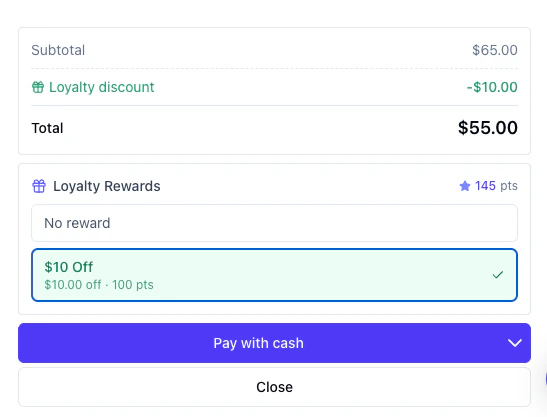
How the discount appears
When a reward is selected:
For a free item the line names what was freed, for example “Loyalty reward: LED Light Therapy”. The total cannot go below $0.
Viewing loyalty info on past appointments
After checkout, the applied reward is displayed in the appointment details, showing the reward name, points cost, and the amount that actually came off the bill.Viewing a client’s loyalty information
Team member view (client profile)
- Go to Clients and click on a client
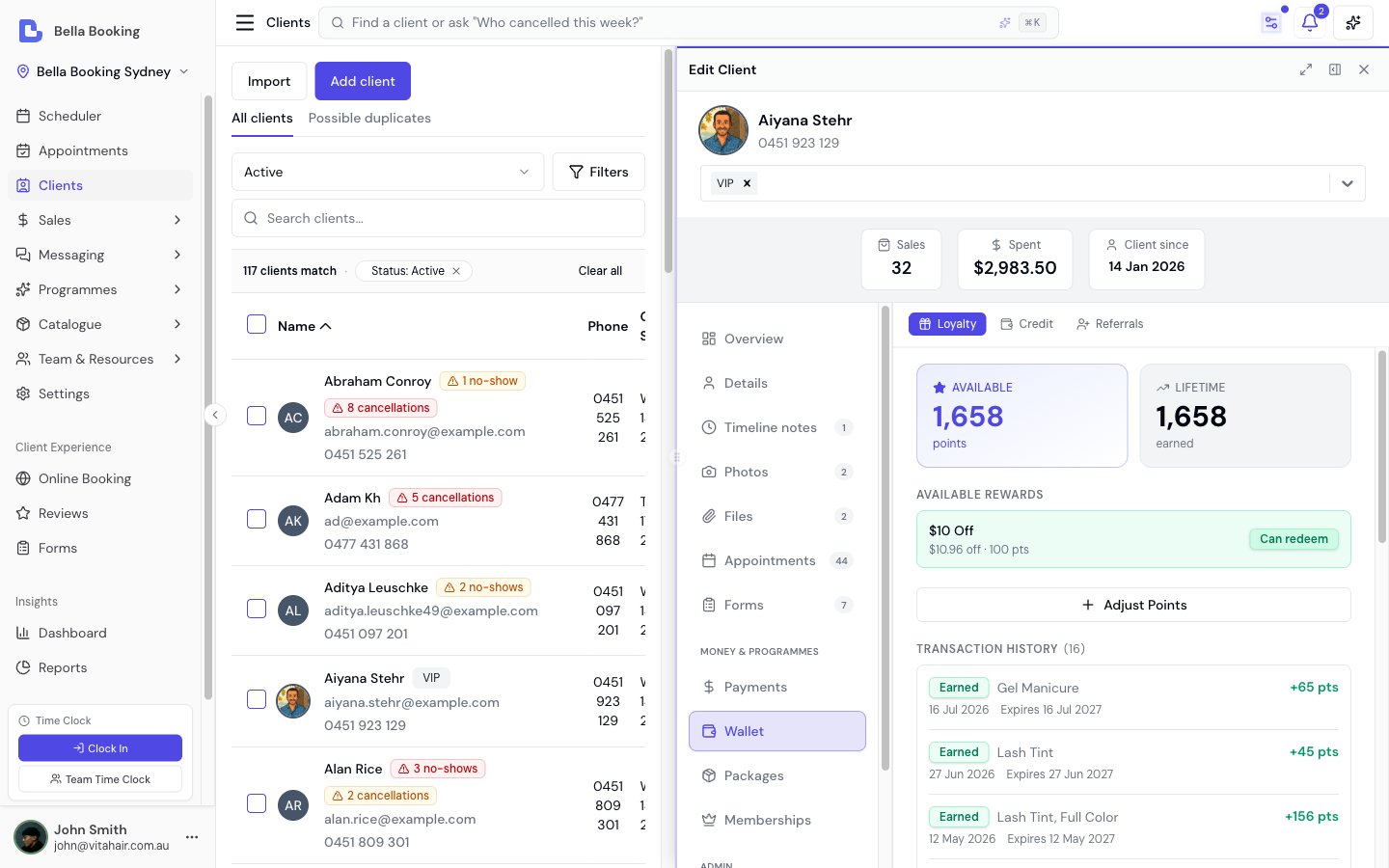
- Open the Loyalty tab
- Available Points: Current redeemable balance
- Lifetime Points: Total points earned all-time (including redeemed and expired)
- Available Rewards: Which rewards the client can afford, and how many more points are needed for others
- Transaction History: A chronological list of all point changes
Transaction types
Adjusting points manually
Owners and Admins can manually add or deduct points:- Click Adjust points in the Loyalty section of the client’s Wallet tab
- Choose Add points or Deduct points
- Enter the amount
- Enter a reason (required for the audit trail)
- Click Save
Client view (online booking portal)
Clients can view their own loyalty information in the online booking portal:- Log in to the online booking portal
- Click the avatar menu (top right)
- Select My loyalty
- Points balance: Current available points
- Progress to next reward: A visual progress bar towards the next reward
- Available rewards: All rewards with what each gives and their point costs
- Recent activity: Transaction history with dates and expiry information
Cancellations and refunds
The loyalty programme automatically handles point reversals when appointments are cancelled or refunded.When a completed appointment is cancelled
- Earned points are reversed: Points awarded at checkout are deducted from the client’s balance
- Redeemed points are restored: If a reward was used, the points are returned to the client’s balance
When a sale is refunded
- Points are reversed proportionally to the refund amount
- The reversal is based on the original points earned, not the current earning rate
- On a full refund the points spent on a reward are returned too, on a walk-in sale as well as an appointment sale; on a partial refund, returning them is a choice in the refund dialog (off by default)
- A free product that was refunded in full goes back into stock, as any refunded product does
Automated expiration notifications
When points expiration is enabled, the system can automatically notify clients before their points expire.- Notifications are sent 30 days before points expire
- Each client receives at most one notification per 30-day period
- The notification includes the total number of expiring points and the earliest expiry date
- Go to Settings > Automated messages
- Under the Loyalty section (visible when the programme is enabled), click Loyalty points expiring soon
- Enable SMS, Email, or both
- Optionally customise the message template
{{FirstName}}- Client’s first name{{Points}}- Total number of expiring points{{ExpirationDate}}- Earliest expiry date{{BusinessName}}- Your business name
FAQs
Q: Who can configure the loyalty programme? A: Only Owners and Admins can access and modify the loyalty programme settings. All team members can view a client’s loyalty balance (in the Wallet tab) and redeem rewards during checkout. Q: Who can manually adjust a client’s points? A: Only Owners and Admins can add or deduct points manually. Q: What happens to points when I disable the programme? A: Existing points are preserved. Clients keep their balance but cannot earn or redeem points while the programme is paused. Points will still expire if an expiration period is configured. Q: Can a client redeem more than one reward per appointment? A: No. Only one reward can be applied per checkout. Q: What if the reward discount is more than the appointment total? A: The total is reduced to $0, the appointment records the amount that actually came off, and the full points cost is spent. If nothing at all is left to discount (the bill is already covered), the reward is refused and no points are spent. Q: How are points handled for family bookings? A: Each family member earns on the net amount paid for their own services - a discount or membership benefit targeted at one member’s service only reduces that member’s points, not the others’. Order-level rewards (with no specific service) are shared proportionally, and products are attributed to the primary client. Q: Can I set different points for different services? A: Yes. Each service can override the business-wide earn rate on its Booking policies tab. Set a custom points-per-dollar rate to earn more (or less) on that service, or set the rate to0 so the service earns no points at all - handy for gift cards or heavily discounted services. Any service left on Use business default earns at your business-wide rate, exactly as before. Add-ons earn at their parent service’s rate; products and prepaid packages always earn at the business-wide default.
Q: What happens if I change the earning rate?
A: The new business-wide rate applies to future sales only. Previously earned points are not affected. Refund reversals use the original earned amount, not the current rate. Per-service custom rates do not track the business-wide rate - a service you set to a fixed rate (for example, 2 per $1) keeps that exact rate even if you later change your business-wide default. If you want a service to move with the default again, set its Booking policies loyalty option back to Use business default.
Q: Can I delete a reward that clients have already redeemed?
A: You must archive it first. Archiving preserves the transaction history. You can then permanently delete it from the archived list.
Q: How often does the expiration process run?
A: Expired points are removed daily by an automated background process.
Q: Do clients need an account to earn points?
A: Points are linked to the client profile in your system. Clients do not need an online booking account to earn points, but they need one to view their balance in the online booking portal.
Q: Are referrals part of the loyalty programme?
A: Referrals share the same plan feature as loyalty, but they are configured separately under Settings → Referrals. See Referrals for how clients find their share link and how fixed-amount rewards work.
With the loyalty programme, you can reward repeat clients, encourage bookings, and build lasting relationships with your clientele.