

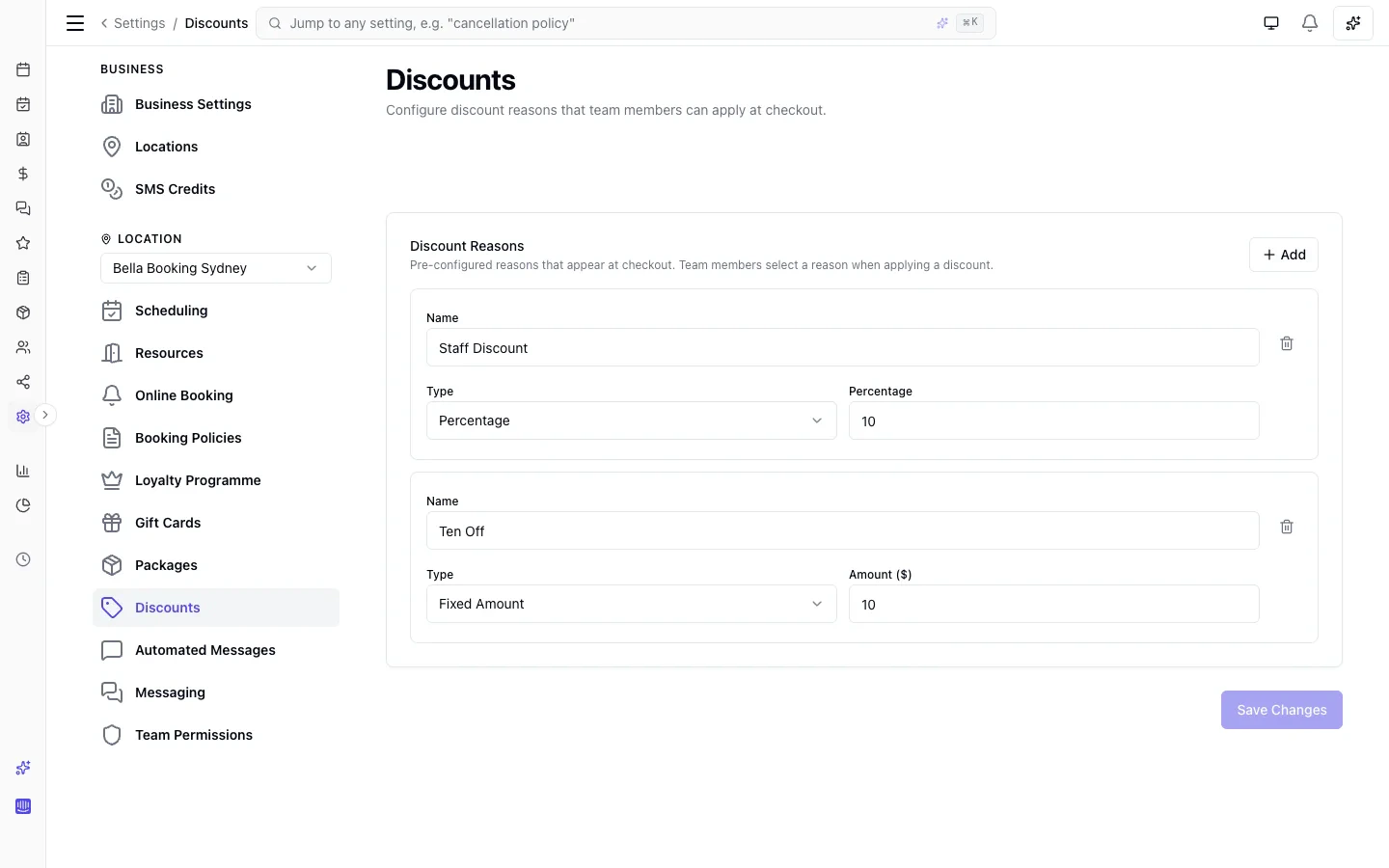
Setting up discount reasons
- Go to Settings > Discounts
- Click Add to create a new discount reason
- Enter:
- Name - A descriptive label (e.g. “Staff Discount”, “Goodwill”, “First Visit”)
- Type - Choose Percentage (e.g. 20% off) or Fixed Amount (e.g. 15.00 off, in your currency)
- Value - The discount amount or percentage
- Click Save changes
How discounts work
Team members can apply discounts at two levels:Per-line discount
Apply a discount to one row of a bill. Each service or product row in the checkout or edit view has an Add discount link - click it to select a preset reason or create an ad-hoc discount on the spot. Product rows on a walk-in sale work the same way.- Available in both Edit and Checkout modes
- Applied discounts appear as an amber pill on the row showing the reason and amount
- Rows can each have their own discount
- On a service row the discount applies to the base service price only - add-ons are not discounted per line, consistent with membership benefits and package coverage (see Service Add-ons)
- On a product row the base is the whole line: the unit price times the quantity, so three units at 30 each discount against 90
- Either way the discount is clamped to what is left on the row once any coverage already sitting on it has come off
Appointment-level discount
Apply a discount to the entire appointment total, after any per-line discounts. Select a reason from the Discount dropdown in the checkout or edit panel.- Available in both Edit and Checkout modes
- In Edit mode, the discount is saved as a pending adjustment and automatically applied when the appointment is checked out
- Calculated on the remaining total after per-line discounts, loyalty rewards, and package deductions
Ad-hoc discounts
Don’t have a preset that fits? Click Add discount at the bottom of the reason list to enter a one-off value:- Choose Percentage or Fixed amount and enter the value
- Optionally type a Name - if left blank, the discount is labelled “Discount” on the receipt
- Toggle Save as reason for future use to add it as a permanent preset
How they stack
Per-line and appointment-level discounts stack naturally:- Package credits cover specific services first
- Membership benefits discount specific services and products
- Per-line manual discounts reduce individual rows (clamped to what is left on the row)
- Appointment-level discount reduces the remaining total
- Gift card covers whatever remains
Bundles are covered - by service, not as an object. A discount or promo code scopes to specific services or all services - never to a bundle as a single object. When a scoped service is booked as part of a bundle, the discount reaches that service’s matching component line inside the bundle and discounts it there; the bundle’s other lines are unaffected. Scope the discount to the bundle’s component services, or apply it to all services, to cover a bundle. As everywhere, the discount applies to the base service price only - add-on charges are not discounted per line (see Service Add-ons); an appointment-level discount reduces the remaining total, which does include add-ons.
Promo codes
Promo codes are discount reasons with a code that clients can enter during online booking, or that your team can enter at checkout.Creating a promo code
- Go to Settings > Discounts
- Add a new reason or edit an existing one
- Toggle This is a promo code on
- Enter:
- Code - The code clients will enter (e.g. SUMMER25). Automatically converted to uppercase.
- Applies to - What the code discounts: Services, Products, or Services and products. New codes default to Services and products.
- Which services - Shown when Applies to is Services. Leave it on All services, or pick Specific services and choose the ones the code can discount. A bundle is covered through the services it includes.
- Expiry date - Optional. The code stops working after this date.
- Max uses - Optional. Total number of times the code can be redeemed across all clients.
- Once per client - When enabled, each client can only use the code once.
- Hide from the discount picker at checkout, code entry only - When enabled, the code doesn’t appear in the discount picker your team uses at checkout. Clients (or your team) must type the code to use it.
- Click Save changes
What “Applies to” means
Applies to decides which of an order’s items a code can discount. It is about the ITEMS, not about where the code is typed:
A code is only refused when the order in front of it holds nothing it can discount. So a Products code works on a mixed appointment bill and in the online shop, but not on a booking with no products; a Services code cannot be used in the product shop.
Worked example - a haircut at 30, with a 20% code:
Specific services is offered on a Services code only. A Services and products code always covers every service and every product, and a Products code has no services to narrow. To discount only certain services, set Applies to Services and choose them.
What’s never discounted by a promo code: service add-ons, custom items, appointment fees, gift cards you sell, and package or membership purchases. That matches how memberships and packages already cover services, and it applies to every “Applies to” choice.
How clients use promo codes
During online booking, clients see a Have a promo code? link on the booking confirmation step. In the online product shop, the same link sits in the cart. They enter the code, and the discount is applied before payment. If the code is invalid, expired, or has nothing it can discount in that order, they see a clear message explaining why. A birthday reward or new-client offer code typed in the shop is recognised and told it can only be used when booking an appointment.How team members use promo codes
At checkout, your team picks Enter promo code in the Discount dropdown and enters the code. Picking a promo code from the discount list instead of typing it runs exactly the same checks - its Applies to, its expiry, its usage limit and its once-per-client rule. An appointment carrying a promo code shows an amber tag icon on its scheduler card (space permitting), reading Promo code applied on hover. An ad-hoc discount applied by hand carries no tag.Promo code limits
- A promo code redeems once per booking, sale or order, however many lines it discounts. A bill or sale can carry one code on a line and a different one on the whole order
- Promo codes can stack with manual discounts (per-line and appointment-level), and with membership benefits: benefits come off first, and the code then applies to what’s left
- A code set to specific services only discounts those services; on a booking or bill with none of them, it is refused with a message saying it doesn’t apply to those items
- Once-per-client enforcement is atomic - concurrent bookings cannot double-redeem
- If a code takes an online order’s total below the minimum card payment (but above zero), it is refused with a message asking the client to add another item. A code that takes an order to exactly zero completes with no payment step
- Cancelling an unpaid order, or fully refunding a paid one, gives the code back to the client - including its “max uses” slot
Promo codes in the online product shop
Clients enter a code in the shop cart. The cart then shows the business’s own figures: the gross subtotal, any membership benefit, the discount, and the total. That total is what the hosted checkout charges. When products are added during booking and paid for in the same journey, they are a separate order from the appointment. A promo code entered in the booking wizard prices the appointment, and the products group says so - it is not applied there.Archiving a discount reason
To stop a discount reason from appearing at checkout without deleting historical data:- Click the archive icon next to the reason
- Click Save changes
Reporting
View discount usage in Reports > Discount summary. The report shows:- Daily breakdown - Number of discounts applied and total amount per day
- Reason breakdown - Total amount and usage count for each discount reason (e.g. “Staff Discount: 12 times, 840.00 in your currency”)
- Breakdown by item - Each per-line discount against the service or product it was applied to, with how often and how much
- Comparison mode - Compare against a previous period to spot trends
- Source - Manual discounts vs Promo codes
- Scope - Per-line (the discount names one service or one product) vs Order-level (it applies to the whole order: an appointment bill, a walk-in sale, or an online product order)
Permissions
The Apply discounts permission controls who can apply discounts. By default:- Owner, Admin, Receptionist - can apply discounts
- Team Member - cannot apply discounts (configurable per role)