

Introduction
Gift cards let you sell digital gift cards to clients and their friends and family. The recipient’s unique gift card code is emailed by default - at the till you can switch the email off to hand the code over yourself - and your team applies it at checkout to pay for appointments, fully or partially, or as the deposit on a booking they make for the client. Gift cards can be sold two ways:- From the business dashboard - your team sells a gift card from the Gift cards screen. Recipient name is required when emailing; when handing the code over in person you can leave the name blank. Email is optional unless you’re sending the card. Settle through any in-shop payment method (cash, manual card, other). No Stripe required.
- From the online booking portal - clients buy gift cards themselves and pay through Stripe.
Sorting and filters
Search and filters choose which rows are listed. They do not change the order. To change the order, click a column heading that sorts. Unless the page says otherwise, the first click sorts text A to Z, and numbers and dates highest or newest first. Click the same heading again, or the heading the list already opens on, to reverse it. The arrow beside the heading shows the direction: up is A to Z, oldest first or lowest first, and down is Z to A, newest first or highest first. A heading that sorts by name ignores capital letters: “anna” and “Anna” sort together. The list opens newest purchase first. Amount, Balance, Expires, and Purchased sort. A gift card for a service or bundle sorts by its value. Code, Recipient, and Status do not sort. Search, status, type, and the purchase dates are filters.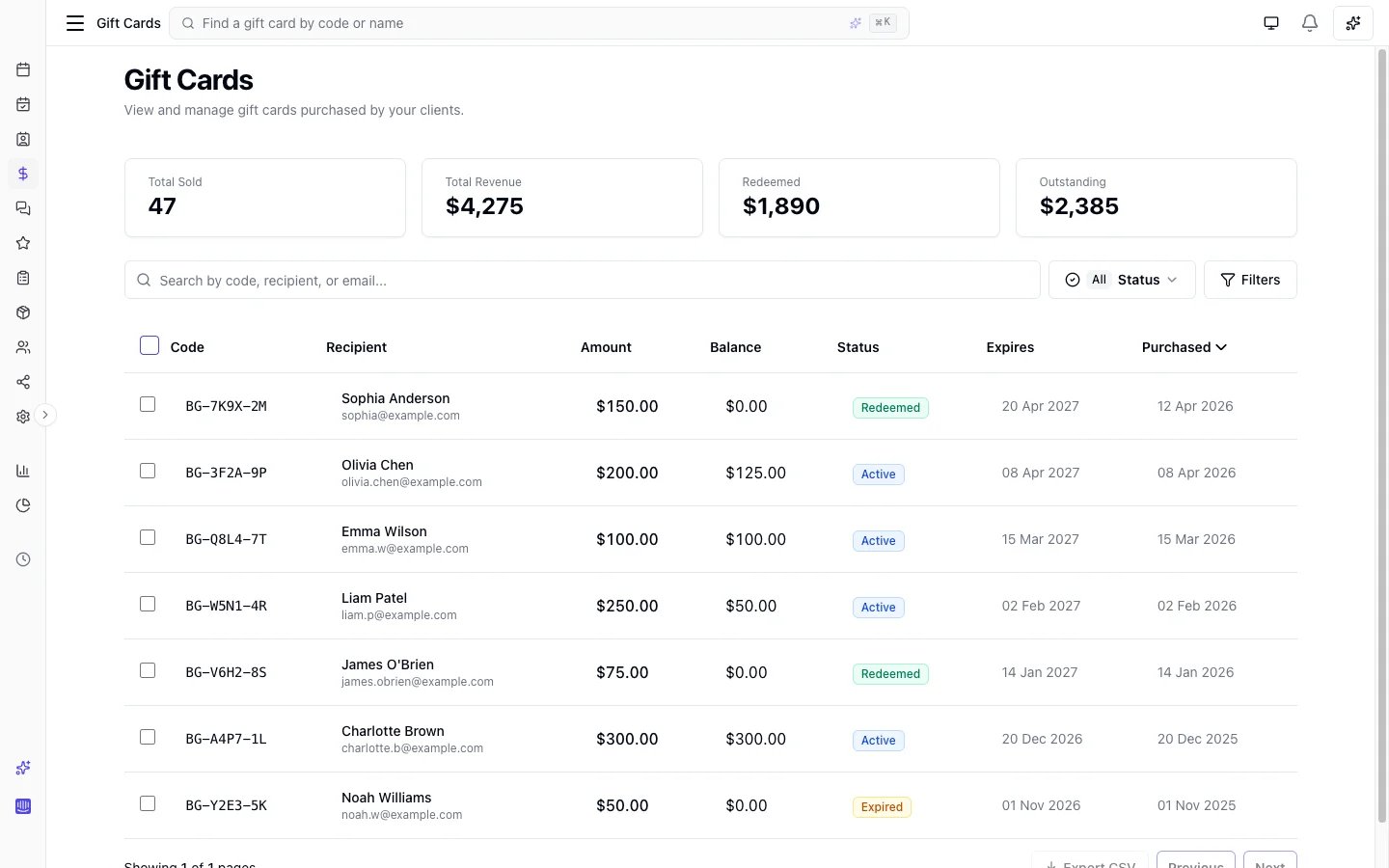
Gift card types
Bella Booking supports three types of gift cards:
Whichever the type, the card is issued as a balance the recipient redeems at checkout like any other gift card - a Service or Bundle card simply has its value pre-set to that service or bundle’s catalogue price. A location-level appointment fee is not loaded onto the gift card value because the voucher represents the service or bundle itself. If the fee applies when the recipient books, it remains on the appointment as a separate line, and the gift card balance can pay it.
Which types are available depends on your Gift Card Settings. Service and bundle gift cards each have their own setting to switch them on.
Key features
- Sell from the business dashboard: Your team sells a gift card from the Gift cards screen and settles through cash, manual card, or other - no Stripe Checkout needed
- Online purchase: Clients buy gift cards through your online booking portal (Stripe required)
- Three gift card types: Dollar-value amounts, a specific service, or a whole bundle (service and bundle cards can be sold from the dashboard or purchased online)
- Gift card designs: Six built-in designs (Classic, Birthday, Thank You, Congratulations, Holiday, Floral) plus custom uploads - you can hide the built-ins in gift card settings so clients only see your customs
- Email delivery: Recipients are emailed their gift card code by default. At the till you can switch that email off and hand the code over yourself. Online purchases are emailed too, unless the gift card email is switched off in Automated messages
- Print: Open the gift card and click Print. The printed page is the gift card with the code, the message, the expiry and how to redeem it. Nothing else on the screen prints. It prints in black text with the card’s design as a band across the top, so it uses little ink and works on black-and-white and receipt printers. Click Print in colour instead to print the card as it looks on screen, with its full design behind the text. After an online purchase, the buyer has the same two buttons on the purchase page
- Partial redemption: Gift cards can be used across multiple appointments until the balance runs out
- Balance tracking: Full redemption history shows how and when a gift card was used
- Voiding: Cancel an active gift card if needed
- Preset denominations: Set common amounts (e.g., 50, $100) for easy selection
- Custom amounts: Optionally allow clients to enter any amount within a range you define
- Online redemption at booking: Clients can apply gift cards when booking online to cover the deposit or full payment
- My Gift cards portal: Clients can view their gift cards and balances from the online booking portal
How gift cards work
- A gift card is sold - either by your team from the business dashboard or by a client purchasing online via Stripe
- The recipient gets a unique gift card code. Bella generates one (for example
BELLA-A2K9-M7L3) unless your team entered the code from a physical card at the till. The code is emailed by default. At the till you can switch the email off and hand it over yourself. Online purchases are emailed too, unless the gift card email is switched off in Automated messages - When the recipient comes in, your team enters the gift card code at checkout
- The gift card balance is applied to the appointment total
- If the balance doesn’t cover the full amount, the remainder is charged via another payment method
- The gift card can be used across multiple appointments until the balance is exhausted
My gift cards (client portal)
Clients can view all their gift cards - purchased for them or by them - from the My Gift cards page in the online booking portal. This page is accessible from the user menu after logging in. For each gift card, clients can see:- Gift card code and design
- Original amount and remaining balance
- Status (Active, Redeemed, Expired)
- Expiry date (if applicable)
- Sender and personal message
Selling a gift card from the business dashboard
You can sell a gift card three ways, and all three record it as a normal sale - it appears in your Sales list, on the client’s record, and in every report alongside everything else you sell:- On an appointment checkout - the client buys a voucher while paying for their appointment. One transaction, one receipt, one payment. See Adding a gift card to a sale.
- On a walk-in sale - from Add sale, alongside products, custom items and packages.
- From the Gift cards screen - the quickest route when a gift card is all you’re selling.
Sell steps
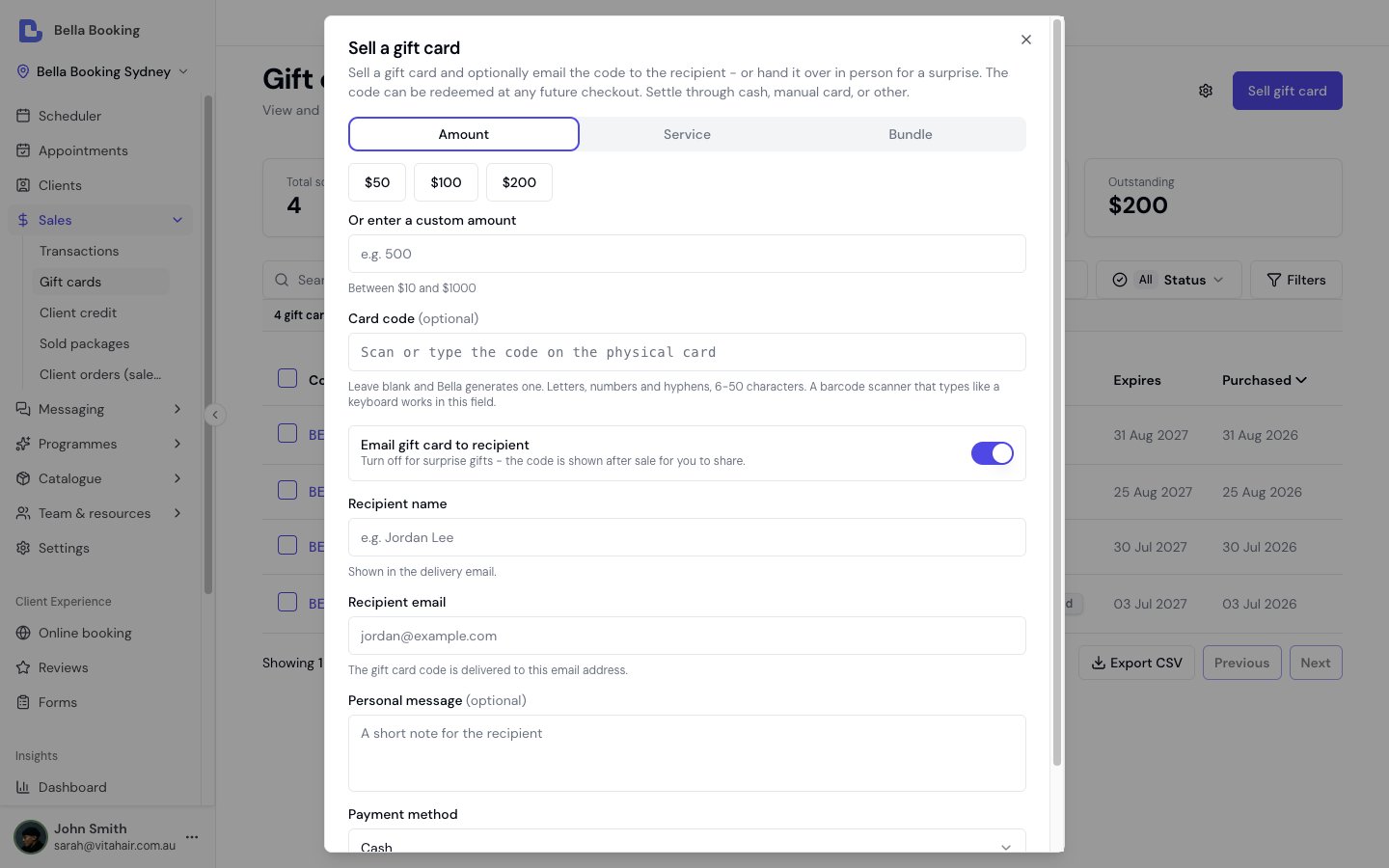
- Go to Sales → Gift cards in the sidebar
- Click Sell gift card (top-right)
- In the dialog:
- Amount, Service, or Bundle - choose a preset denomination, enter a custom amount, pick an eligible service, or pick an eligible bundle. The Service and Bundle tabs appear only when those gift-card types are switched on in settings; a Service or Bundle card is priced automatically at that service’s or bundle’s price
- Card code (optional): Scan or type the code printed on a physical card. Leave this blank and Bella generates a code (for example
BELLA-A2K9-M7L3). A USB or Bluetooth barcode scanner that types like a keyboard works in this field - click the field first. Online purchases always get a generated code - Email gift card to recipient: On by default. Turn this off for surprise or physical gifts - the code is shown after sale so you can share it yourself
- Recipient name: Who the gift card is for (free text - they don’t need to be a Bella client). Required when emailing; optional when handing the code over in person - leave blank if you don’t know who the card is for
- Recipient email: Required when emailing; optional when handing the code over in person
- Personal message (optional)
- Payment method: Cash, Card (Manual), or Other - how the sale was settled
- Click Sell gift card
- The new gift card opens - the code is displayed prominently for reference
Adding a gift card to a sale
A client having a service who also wants to buy a voucher for someone else doesn’t need two separate transactions. Add the gift card to the sale they’re already paying, and they pay once for the lot.- Open the appointment and click Check out - or start a walk-in sale with Add sale.
- Under Items, click Add item and choose Gift card.
- Fill in the same details as a standalone sale: amount, service or bundle; whether to email the code or hand it over; recipient name and email; an optional personal message; an optional physical card code.
- Click Add to sale. The gift card appears as its own line and is added to the total.
- Take payment as usual. The card is created and activated when the sale completes - not before, so a declined payment never leaves a live gift card behind.
- The gift card is never discounted. An appointment discount, a reward, a membership benefit or a package all apply to the services and products on the bill - never to a voucher. A 100, so you never hand over more value than you charged for.
- Gift cards and account credit can’t buy a gift card. Both are stored value the client already holds; Bella won’t convert one into a new voucher. They still pay for the rest of the sale as normal.
- No tax is charged when the card is bought. Tax applies when the card is spent, on the service it pays for - so the same money is never taxed twice. This is how vouchers are treated in Australia, New Zealand, Canada, the US, the UK and the EU alike.
- The code prints on the receipt, so a card handed over in person is usable straight away.
- Refund the sale and the card is voided, so a balance whose money you’ve given back can’t be spent. Anything already redeemed from it stays redeemed.
Purchasing a gift card online
Gift cards can also be purchased through your public online booking portal by clients or anyone wanting to give a gift.Purchase steps
- Go to the gift cards section of your online booking portal
- Choose a design - pick from built-in designs and/or any custom designs your business has uploaded (built-ins are omitted when the business has hidden them in gift card settings)
-
Select the gift card type:
- Amount: Select a preset denomination or enter a custom amount (if enabled)
- Service: Select a service to gift
- Bundle: Pick an eligible bundle to gift - the card’s value is set to the bundle’s fixed total, or its “from” price for a component-priced bundle
-
Fill in the details:
- Recipient name: Who the gift card is for
- Recipient email: Where the gift card code will be sent
- Your name: Displayed to the recipient as the sender
- Personal message (optional): A message included in the delivery email
- Complete payment via Stripe
- Once payment is confirmed, the recipient receives their gift card by email
Redeeming a gift card at checkout
Your team applies one or more gift card codes when checking out an appointment or ringing up a sale. A card can also pay an appointment’s deposit in advance: see Gift card as the deposit.How to redeem
- Open an appointment and click Check Out
- Under Redeem gift card, enter the client’s gift card code and click Look up
- Bella verifies the code and shows the available balance
- Enter the amount to redeem (up to the remaining balance or the amount still owed, whichever is lower)
- To redeem a second card, click Add another gift card and look it up the same way. Each card has its own amount, and cards apply in the order you entered them. Up to ten cards can go on one sale, and the same card cannot be added twice
- Each gift card is deducted from the total, one line per card
- If a remaining balance is owed, select another payment method (cash, card, etc.) to cover it, or split it
- Complete the checkout
Partial redemption
Gift cards support partial redemption. If a client has a 60, the gift card balance reduces to $40 and can be used again at their next appointment.Fully redeemed
When the balance reaches $0, the gift card status automatically changes to Redeemed and can no longer be used.Gift card as the deposit
When your team books for a client who holds a gift card, the card can pay the deposit, a part payment or the whole booking, in advance. Open the appointment, choose Actions > Record deposit, pick Gift card, look the card up and set the amount to redeem. The value comes off the card at once, so the same code can’t hold a second slot, and the appointment is confirmed. One card per Record deposit: two guests each paying with their own card is two, while a balance is left. At checkout each deposit comes off the bill, and the client’s receipt shows Deposit · Gift card ending 4821 for each. If the appointment is cancelled, what your policy gives back goes back on the card. The steps are in Recording deposits and part payments.When a gift card was applied at online booking
If a client applied a gift card while booking online, that amount is drawn from the card at booking and put toward the appointment. When you check the appointment out, the bill lists that amount as Gift card (applied online) and the total is only what is left - the client is never charged the drawn amount again at the till. Worked example 4 - a gift card applied online. A client books a 50 gift card during online booking.- At booking, $50 is drawn from the gift card and put toward the appointment.
- At the till, the bill lists Gift card (applied online) at 70.
- You settle the **50 a second time.
Managing gift cards
The Gift cards section in the dashboard lets you search, view, and manage all gift cards for your location.Searching and filtering
- Go to Sales → Gift cards in the sidebar
- Use the search bar to find by code, recipient name, or recipient email
- Filter by one or more statuses: Active, Redeemed, Expired, or Voided
- Filter by type: All, Amount, Service, or Bundle
Viewing a gift card
Click any gift card in the list to open its detail view, which shows:- Gift card code and type
- Original amount and remaining balance
- Recipient and sender details
- Personal message (if provided)
- Purchase date and expiry date
- Status
- Full redemption history - for each use, the date, the amount, what it paid (a sale, a booking made online, or the deposit on an appointment), a link to that sale or appointment, and whether a team member or the client used it
Voiding a gift card
If you need to cancel a gift card - for example, if it was purchased in error - you can void it.- Open the gift card detail page
- Click Void
- Confirm the action
Gift card statuses
Gift card summary report
The Gift card summary report gives you a day-by-day breakdown of gift card activity over any date range, including cards sold, amounts collected by payment method (cash, card, other, online), amounts redeemed, and outstanding balances. Use the payment-method columns to reconcile the till. It also supports comparison mode to measure performance against a previous period or the same period last year. To access it, go to Reports > Gift card summary.FAQs
Q: What is the difference between an Amount, a Service, and a Bundle gift card? A: An Amount gift card is a dollar-value card the recipient can use toward any appointment. A Service gift card gifts a specific service - its value is set to that service’s price at the time of purchase and the service name appears in the delivery email. A Bundle gift card gifts a whole bundle - its value is set to the bundle’s fixed total, or its “from” price for a bundle priced from its component services, and the bundle name appears in the delivery email. Whatever the type, a gift card is a dollar instrument: the type records what was gifted, not a restriction on how the balance is spent - the recipient can use it toward any appointment, including add-on charges. All three are issued as a balance and redeemed at checkout the same way. Service and Bundle gift cards are each switched on separately in Gift Card Settings and can be sold from the business dashboard or purchased online. Q: Can I give a gift card away for free, as a prize or a goodwill gesture? A: Not as a gift card. A gift card you sell is always paid for in full and is never discounted, so a 50. To give a client value for free, add it as client credit instead: open the client’s Wallet tab, click Adjust balance in the Credit section, enter the amount and a reason (for example “Competition prize”), and save. The client spends it at checkout like any other credit, and the adjustment is recorded in their credit ledger with who made it. This needs client credit switched on and the Manage client credit permission. Q: Can I use my own codes for gift cards we sell? A: Yes - at the till only. When you click Sell gift card, the optional Card code field lets you scan or type the code printed on a physical card (letters, numbers, and hyphens, 6-50 characters). Leave it blank and Bella generates a code. Online purchases always get a generated code. Each code must be unique; if you void a card sold by mistake, you can sell that physical code again. Q: Can I bring gift cards across from my previous system? A: Yes. Send the team a spreadsheet or export of the cards that still have a balance in the support chat (the Support button in the sidebar), and the team imports them for you free of charge. Each card keeps its code and remaining balance, nothing is emailed to recipients, and imported cards count in your outstanding balance, never in your sales. Don’t re-enter old cards with Sell gift card: that records each one as a new sale. Q: Can a gift card be used across multiple appointments? A: Yes. Gift cards support partial redemption and can be used until the balance is exhausted. Q: What if the gift card balance is more than the appointment total? A: Only the amount needed is deducted. The remaining balance stays on the gift card for future use. Q: What if the gift card balance is less than the appointment total? A: The gift card amount is applied and the remaining total is charged via another payment method (cash, card, etc.). Q: What happens when a gift card expires? A: Expired gift cards cannot be redeemed. The expiry date is shown to the recipient in their delivery email. Q: Can I resend the gift card email? A: Yes. Open the gift card and click Resend email. Bella sends the same email to the recipient email already on the card. The code does not change. You can do this while the card is active, still has its full balance, and has not expired, and while the gift card email is switched on in Automated messages. The button is there for team members who can sell gift cards. The recipient email can’t be changed once the card is sold. If it’s wrong, copy the code with the copy button beside it on the card and send it to the recipient yourself. Q: Can I print a gift card? A: Yes. Open the gift card and click Print. The printed page shows your logo or business name, then the gift card: what it is for, who it is to and from, and the code. It prints in black text with the card’s design as a band across the top, so it uses little ink and works on black-and-white and receipt printers. Below the card are the personal message, the expiry date and how to redeem it, with a link to your booking page when online booking is on. A card that has been partly used shows the balance left, and a voided, redeemed or expired card says so. To print the card as it looks on screen, with its full design behind the text, click Print in colour. Anyone who can view gift cards can print. After an online purchase, the buyer has the same two buttons on the purchase page. Q: Does voiding a gift card undo the sale? A: Voiding forfeits the remaining balance so the card cannot be redeemed. The original sale still counts in your reports. Selling another card records a second sale. Q: Who can void a gift card? A: Team members with the appropriate permission can void gift cards. By default, Owners and Admins have this permission. Q: Can clients see their gift card balances online? A: Yes. Clients can view all their gift cards and remaining balances from the My Gift cards page in the online booking portal (accessible from the user menu after logging in). Q: Can clients use gift cards when booking online? A: Yes. When booking online, clients can apply a gift card at the payment step to cover the deposit or the full booking amount. If the gift card balance doesn’t cover the total, the remainder is charged via card. Q: A client applied a gift card online - am I charging them for it again at the till? A: No. The amount the client applied online is drawn from the card at booking and put toward the appointment. At checkout, the bill lists that amount as Gift card (applied online) and you collect only what is left - for example, a 120 appointment leaves 120. If the appointment is cancelled or refunded, the drawn amount is restored to the card. See When a gift card was applied at online booking. Q: Can a gift card pay for add-on charges? A: Yes. A gift card is a dollar instrument, so it can go toward any part of the appointment total - including add-ons. This is different from memberships, packages, and per-line discounts, which only cover the base service price. Q: How do I enable gift cards? A: Go to Settings > Gift cards to enable the feature and configure your options. See Gift Card Settings.To enable and configure gift cards, see Gift Card Settings. To configure the automated delivery email sent to recipients, see Automated messages. For a client-bound alternative to bearer gift-card codes - one top-up balance per client, applied automatically without a code - see Client credit.